The Lumiya text client for Android, which I reviewed last month continues to be enhanced with new features. Version 1.3.1, released on the 15th April. These introduce the ability to interact (to some degree) with in-world objects and the ability to carry out payment transactions (i.e. pay other avatars or objects such as rental boxes). These are two potentially useful additions for those who are on the go, and need to access SL to pay tier, etc., but don’t have access to the computer.
Making Direct Payments to Others
You can now pay people directly on Lumiya quickly and directly. From the main screen, tap your phone’s menu button, then tap CONTACTS, select the person you wish to pay from your list of contacts (tap to highlight), then tap you phone’s menu button again and tap PAY to display the payment screen, as shown in the sequence below (some steps abbreviated for clarity, as they say).
Letting my test alt pay me (steps shortened for clarity)
Using Touch
The Touch option within Lumiya is a potentially useful addition to the client and works with menu-driven objects that respond to a left mouse click. When starting Lumiya now, there is a new button displayed at the top of the main screen – OBJECTS. Tapping this opens a list of objects available to you. Be default, this is “limited” to in-world “descriptive” objects, although you can opt to extend it to include your own attachments and “non-descriptive” objects (so prims simply called “object” will be listed for example).
Tapping on the name of an object will open-up a further dialogue box that provides general information on the item – description, creator, etc., and which includes a TOUCH button (below).
Interacting with objects
It’s here that things might get a little confusing. One might expect tapping TOUCH to open the objects dialogue box – but it doesn’t appear to. Instead, an easily missed prompt is displayed at the top of the screen informing you that you have a NEW MESSAGE IN CHAT.
To use the object’s menu, you now need to use your phone’s return key to get back to the Lumiya main screen to see the dialogue box and menu (right).
This is slightly cumbersome but given the way SL works and Lumiya is configured with (obviously) limited screen space, it’s understandable.
However, there are one or two other issues with the approach as implemented. The application polls the entire sim you’re on for touchable objects. This means that you can end up with a very long list of items which cannot be sorted. Also, this list appears to include any sub-components of an object that themselves contain a script. The not only lengthens the list of objects (increasing scroll time), it also risks annoying mis-clicks when trying to access an item.
Both of these issues are negated by the fact there is a search option at the top of the list, allowing you to focus results down to a handful of items – or even the item you want to touch, if you know it’s in-world name.
Paying an object (click to enlarge)
Paying an object is as straightforward as paying a person – once the object is selected from the list, click the TOUCH button from its information page, and a payment page is automatically opened (right).
Currently, the system is restricted to activating your own attachments; I’ve no idea as to whether it will be extended to include attachment on others, which some might find useful.
Channel Recognition and Timestamps
Lumiya 1.3.1also adds channel commands to its capabilities (so “/102 command” will be recognised, for example), and also adds timestamps to chat. The latter can be turned off by unchecking TIMESTAMP IN CHAT in the Settings options (phone’s menu button->SETTINGS).
Opinion
The addition of interaction capabilities to Lumiya definitely makes it more of an attractive offering, the listing issue notwithstanding. Those on the go who have an Android phone are likely to find having a payment option handy, while the ability to at least interact with objects helps improve the overall feeling of engagement with SL when one is unable to use a graphical Viewer.
We’ve all dreamed about running “full” SL on mobile devices; while there are some great text-based clients available for both Android devices and the iPhone which offer a lot of functionality, it’s fair to say that SL doesn’t always feel like SL when the graphical element is removed. Whether we will eventually see SL accessible via mobile devices and tablets on a regular basis is open to debate – although with the likes of Unity, it’s hard not to believe there will be a time when graphical access to SL via such devices will be available.
In fact, where the iPhone is concerned, it wasn’t that long ago that it looked as if graphical access to SL might not be that far away, as the video below shows.
This concept demo was developed by Comverse back in 2008. It made SL on the iPhone possible by using a server sitting between SL and the iPhone to handle all the hard number-crunching, with the results being streamed to the iPhone’s web browser, with inputs from the interface being sent back to the server for processing, prior to being sent to the SL servers. The go-between server clearly has an impact on response times, but as Tech Digest said at the time, it wasn’t bad for a proof-of-concept at the time.
Sadly, the project never seemed to go beyond this demo phase, and there is now no mention of it on the Converse website. Still, it’s interesting to contemplate where the idea might have gone, and whether it might yet simply prove to be an idea a little ahead of its time, technology-wise.
This is a weekly summary of changes to all SL Viewers / clients of which I’m aware and which are in popular use across the grid / listed in the TPVD. Detailed links to said Viewers / clients can be found in my Viewer Round-up Page. The links supplied in this summary are either to change logs or to reviews within this blog.
Updates for week ending: 8 April, 2012
Slightly late this week, due to Easter.
There were several changes last week, some of which fell just after publishing the Week 13 round-up. Changes are always reflected in the Round-up page as soon as I learn about them, so always best to follow the links to that page for the most up-to-date news.
The SL Beta and Development Viewers rolled out updated versions shortly after the last update, moving to 3.3.1.252229 and 3.3.2.252822 respectively
The Pathfinding Beta Viewer moved to release 3.3.2.252475
Dolphin saw a further release, 3.3.2.23722, which primarily comprised updates to the Build floater, with clean-up to Preferences and improvements to ID3 info on Linux
The Kokua team released an experimental version of their Viewer for the Mac
Niran’s Viewer saw a Preview release of version 1.33
Zen Viewer rolled to version 3.3.2.6, the release technical being this week, but as this summary is running late, it’s listed here as well
Cool VL Viewer rolled out 1.26.4.7 (.7b in the case of Linux due to repackaging). This release saw the port of the Merchant Outbox support
I received word via Twitter that the Astra Viewer is likely to be making a return to SL; as and when this happens, it will be added to this list.
The Cool VL viewer becomes the first V1-style SL Viewer to gain the Merchant Outbox for Direct Delivery. The new capability comes with release 1.26.4.7 (.7b for Linux due to a repackaging issue), released on April 5th.
There is no support for the Beta grid (Aditi) or the Beta Marketplace
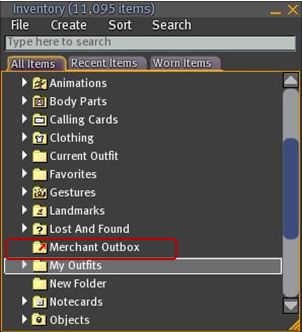
The Outbox is implemented as a folder within Inventory, rather than as a separate floater
There is (currently?) no right-click->Copy to Merchant Outbox capability for items / folders, as seen in V3-based Viewers with Outbox functionality.
Coll VL Viewer: Merchant Outbox folder
To use the Outbox, simply drag and drop folders / items to be transferred to your SL Marketplace store to the Merchant Outbox folder. Or if you prefer, COPY and PASTE them.
If you are dragging one or more folders, a copy of each folder will be made in the Outbox folder with the same name as the original
If you are copying one or more objects into the Outbox folder, each object will be placed in a folder bearing the object’s name (same functionality as V3-based Merchant Outboxes)
To send items to the Marketplace, right-click on the Outbox folder and select SEND TO MARKETPLACE. A pop-up will be displayed in the bottom right-hand corner of the Viewer window upon successfully transfer (and will also note any issues encountered).
As is to be expected, all other constraints (number of items, nested folder levels, etc.) are the same within Cool Viewer and for other Outbox-capable Viewers (as these are LL-imposed contraints).
In testing the capability, I found it functioned smoothly and without any incident: all items dropped into the Outbox folder arrived safely (and suitably “foldered” themselves, where required), and the upload handled multiple items and nested folders without incident.
If there are merchants who have been waiting for a V1-style Viewer to implement Merchant Outbox support prior to committing themselves to Direct Delivery (and allowing for current Marketplace issues), then Cool VL Viewer now provides the answer.
One of the things that has always attracted me to Niran’s Viewer – and is drawing back to it now that performance has once again improved on my hardware – is the fact that NiranV Dean is constantly looking at the UI as a seasoned user of SL and other immersive software and trying to find ways to reorganise things within the UI – particularly menus and floaters. This has led to Niran’s Viewer being highly innovative in both look and feel.
In recent releases, this has been reflected in the fact that right from the moment you load the Viewer, you know you’re using something very unique: The log-in / splash screen has been markedly different from other Viewer for a while, and recently gained a video element to replace static images. The video – shot in the Insilico region – demonstrates the power of Niran’s Viewer as a Machinimatographer’s tool, and is beautifully overlaid with the log-in options without the latter intruding on the video itself.
I’d still link to see some kind of link to the Grid Status page (indeed, given LL won’t step-up to the plate on this one and provide a Viewer-based means for users to be aware of SL issues prior to logging in (not everyone uses the Dashboard). I’d like to see all TPV take a leaf from Firestorm’s book in this regard), but other than that Niran’s approach to the log-in splash screen is enticing. Once you’ve entered your credentials, the screen reverts to the familiar images, progress bar, mandelbrot-like animation and Niran’s famous (and amusing) tips.
Of Floaters and Preferences
Given this is a Preview of an upcoming release, I don’t intend to cover everything that NiranV is doing with the Viewer – I’ll take a broader look once a former release is made. Instead, I’d like to focus on the massive amount of work he’s been putting into the various UI floater panels – which, with this release – reaches the Preferences floater itself.
Now, I’ll be the first to admit that when NiranV first started to work on redesigning the floaters (the Build floater in fact, after revising the World Map), I wasn’t entirely convinced as to the result. Since that time, he’s continued to refine and improve his layouts and I have no hesitation in saying that they are reaching a point where my early concerns have been completely invalidated.
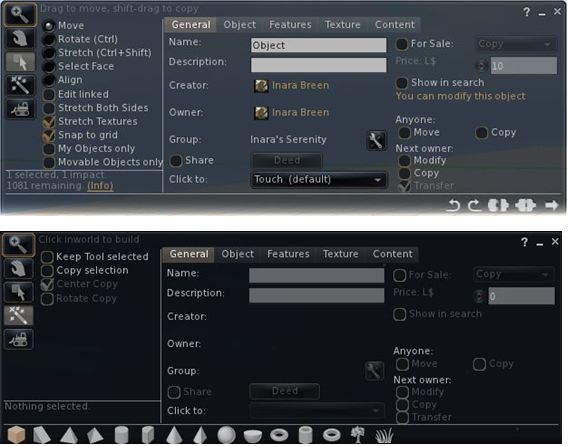
And evolutionary process: the redesigned Build floater as it first appeared in Niran’s viewer (top) and how it looks today
More recently, the work has extended to the People floater, allowing information of friends and groups to be presented in a way that easily scans on the eye and doesn’t require floater resizing or other messing around with each update that comes out.
The People floater showing the Nearby tab with mini-map enabled, and the Groups tab (edited for privacy)
Other examples of Niran’s work can be found in elements such as the Mesh Upload floater, which I looked at recently and which presents the necessary information and options without putting a size 14 footprint all over the in-world view.
Preferences: a Complete Overhaul
Version 1.33 of Niran’s Viewer brings with it something we’ve never really seen in the entire history of the SL Viewer: a radical redesign of the Preferences floater.
That you’re into new territory when accessing Niran’s Preferences is immediately obvious: there are no left-side tabs. Instead, primary options are accessed from a left / right scrollable tab list at the top of the floater, with additional sub-categories for a given option are displayed in sub-tabs access at the bottom of the current Preferences page being viewed.
Options have also been renamed in an attempt to make the tabs more reflective of the options they contain. By default, Preferences will open on the Communications Options tab (above). However, and in a move long overdue in Viewers: the floater will actually re-open to display the last tab actually in use / displayed when OK was pressed / X was clicked on to close the floater.
The tabs as currently displayed in Preferences comprise (from left to right across the top scroll area):
User Options: includes three sub-tabs:
General: analogous to the General tab in the official Viewer and containing the familiar language, content access (General, Mature, Adult), name tag display options and busy response, together with options to set name tag colours
Advanced: provides access to all popular camera, movement and mouselook options found within the official Viewer and TPVs
Privacy: displays the Privacy tab options (clear history, log file options, options for setting who can see you are on-line, etc.
Display and Audio Options: Combines the Graphics and Sound & Media tabs and comprises three sub-tubs:
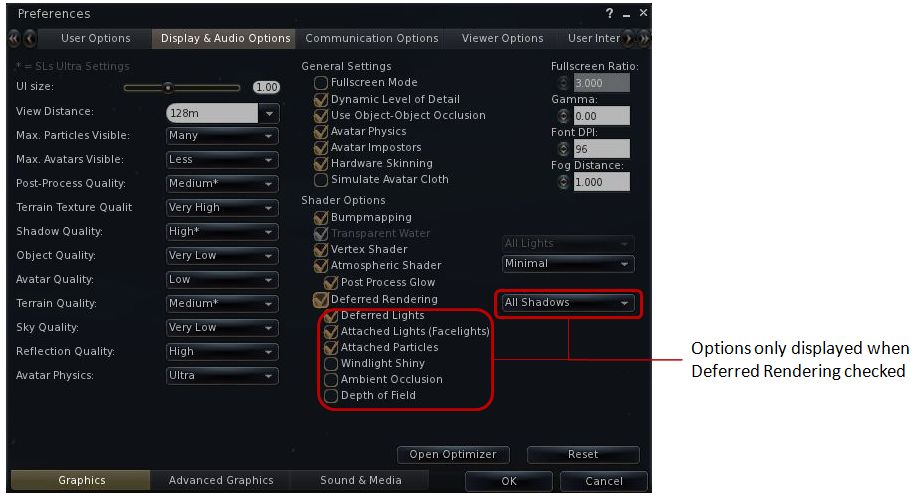
Graphics: displays a re-ordered and improved graphics settings option list as shown below, with advanced options for deferred rendering only displayed when the deferred rendering option is checked. This tab also includes a button for accessing Niran’s own Optimiser floater
Re-ordered and clearer graphics settings
Advanced Graphics: displays all major advanced graphics options (glow definition, lighting, performance options (including visual auto-mute), etc., all logically grouped and accessed via dedicated buttons
Sound and Media: includes the volume controls, media playback options, Voice settings, etc., as found in Sound & Media in other Viewers
Communications Options: brings together the communications options variously found under Chat, Notifications and Colors, and presents them in three sub-tabs which also include the relevant popular TPV options such as MU* poses, OOC auto-complete, etc.
Viewer Options: presents those options usually associated with setting-up the Viewer, including the Setup tab, the Advanced tab and also include a dedicated sub-tab for RLV/a options, all in their own dedicated sub-tabs.
User Interface Options: includes all of Niran’s Viewer’s comprehensive UI customisation options, including the ability to set the colour and transparency of all commonly used floaters in the UI. Includes three sub-tabs: UI Colors, Skins & Themes and UI customisation.
Feedback and Thoughts
NiranV Dean continues to push the envelope in terms of re-working the Viewer UI. In terms of the changes to Preferences, I think the approach taken has a lot of merit and actually provides a much faster means for one to locate options (after traversing the initial learning curve). The layout is easy to use and options have been brought together with considerable thought. Obviously, there is a degree of re-training one must go through to use the Preferences with ease, but this isn’t exactly mountainous and shouldn’t be cause for complaint.
Were I to critique it at all, it would be in that the User Options and Viewer Options contain some degree of cross-over in terms of what they do. As such, even after spending a good deal of time using the Viewer it can still be confusing as to where a given set-up function might be – do I go to User or Viewer (or even the Viewer sub-tab under User Options?). I’m not sure how this could be avoided without having something of a mess in terms of one page displayed a multitude of sub-tabs, but I do feel that these are areas where further work may be required – and is probably being considered, given this is only a preview.
Now, if Niran provides a means to left / right align buttons (I’m not so much fussed by top / bottom alignment on the left/ right, if I’m honest, as I don’t place buttons to the side of the screen) and gets the chat bar so it can be “docked” to (or at least aligned with) the bottom of the Viewer window, I’ll be one very happy bunny!
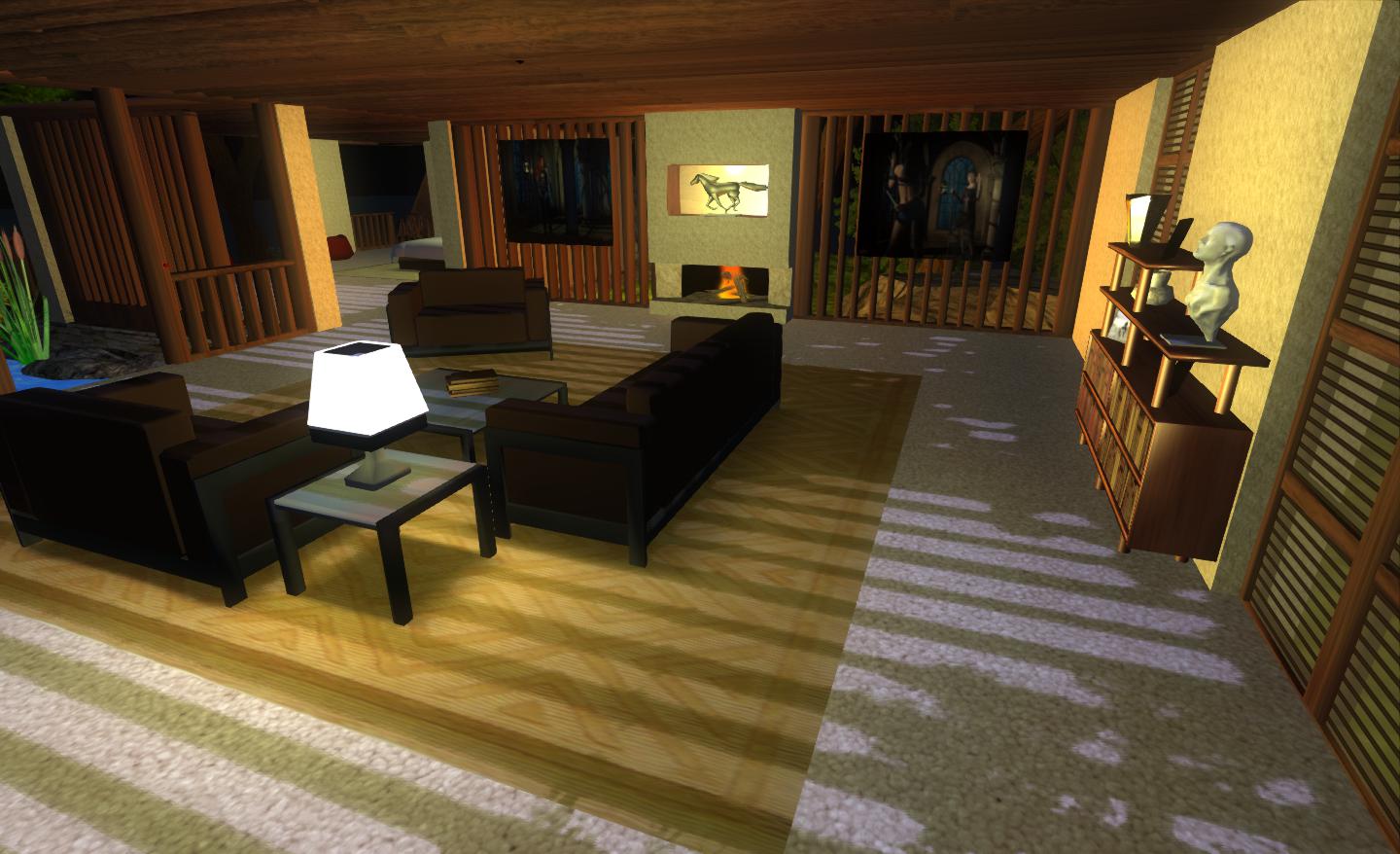
Performance-wise, 1.33 is perhaps the best release of Niran’s Viewer I’ve run on my PC recently, with respectable frame rates at my standard settings in the high 20s / low 30s. Enabling deferred and shadows does still crash this – and rather more so than recently LL Viewer releases, with an average frame rate of just 7-9fps with shadows on running my normal defaults (see the Review System panel on the right of the main page of this blog). However, Niran’s seriously kicks bottoms when it comes to the sheer quality of the world-view generated when running deferred with shadows: the lattice-work of the roof of my house casts beautifully crisp shadows that suffer none of the “greying” or blocky fuzziness I’ve experienced with other Viewers.
Crisp shadows
I’ll have a further look at updates and changes to 1.33 when it reaches a full release status.
This is a weekly summary of changes to all SL Viewers / clients of which I’m aware and which are in popular use across the grid / listed in the TPVD. Detailed links to said Viewers / clients can be found in my Viewer Round-up Page. The links supplied in this summary are either to change logs or to reviews within this blog.
Updates for week ending: 1 April, 2012
This last week has been a busy one, with numerous updates, some connected to Direct Delivery, others as a result of RLV updates.
The SL Development Viewer rolled through two rapid releases: 3.3.2.252228 and 3.3.2.252611
The Direct Delivery Project Viewer remains available, post-DD roll-out. A hint about further updates, or simply waiting to be removed?
Dolphin saw two rapid-fire releases, with 3.3.0.2700 primarily gaining the latest RLV updates and the Direct Delivery Merchant Outbox, and 3.3.1.23706 primarily adding mesh upload capabilities from Kokua
The Kokua team released an experimental version of their Viewer for the Mac
 The Lumiya text client for Android, which I reviewed last month continues to be enhanced with new features. Version 1.3.1, released on the 15th April. These introduce the ability to interact (to some degree) with in-world objects and the ability to carry out payment transactions (i.e. pay other avatars or objects such as rental boxes). These are two potentially useful additions for those who are on the go, and need to access SL to pay tier, etc., but don’t have access to the computer.