Following-on from the TPV/Developer meeting on the 13th July, during which pathfinding was discussed, and the recent roll-outs of pathfinding functionality to the Magnum Release Channel, the Firestorm team have announced that they will be adding pathfinding support to upcoming releases. The announcement reads in part:
What’s next…Pathfinding! We’ve decided to release LL’s Pathfinding work in Firestorm in two stages.
Unless LL changes the current plan, when Pathfinding goes live, all regions will have pathfinding enabled by default, and all objects that contain scripts will be treated as “Movable Obstacles.” Movable Obstacles will have an impact on region performance, so region owners will need tooptimize their regionsby setting scripted objects that don’t move to “Static Obstacles.” To do this, you will need Pathfinding Tools!
So our plan with our next release is to get Pathfinding tools out as soon as we can. This will be based on our 28744 release + post 28744 crash fixes + LL Pathfinding code. There have not been many new additions beyond that since the release, and this is for the best: we expect this code will destabilize the viewer to a degree, since it will be a large merge, and we’d rather base this version on a solid release than on a wild card.
Stage 2 (follow-up release). Release with the Havok Library for NavMesh. Havok will be used to enable viewing of NavMesh, display of object types and AI Preview of object paths.So the second Firestorm release from now will have Havok + stability fixes to the previous release + more of our own goodies.
The two-stage release is unsurprising, given Lorca Linden’s recommendations at the meeting on the 13th July. At this time, no time-scales are available for the releases, because, as Jessica points out in the post:
How soon? Great question, and a very tough one to answer since there are many factors involved that we have little control over. Like…
LL’s timeline to release Pathfinding;
How much Linden code we have to merge into Firestorm;
How many regressions and new bugs we pick up from that merge;
How long it’ll take us to fix them, etc.
But we want to get these out as soon as we possibly can once it’s live on the grid.
Phoenix
Phoenix will not immediately be getting pathfinding due to the amount of work involved in getting the capabilities integrated into Firestorm. Region holders using Phoenix will still be able to disable/enable pathfinding using a viewer-independent console, but for all else they will need to switch to a viewer that supports the full pathfinding tool set.
Update: The tiling fixing reached the SL viewer in December 2012, and has subsequently been incorporated into the majority of TPVs. Please refer to your preferred TPv developer for information on the fix (MAINT-628), if unsure.
The ongoing issue with taking high-resolution snapshots resulting in “seams” appearing in captured images may have a final fix on the way.
The issue was initially reported in JIRA MAINT-628 at the end of 2010, and has impacted viewer releases since then, becoming the subject to intense investigation by users and LL alike. The problem has tended to make itself known when taking images at a higher resolution than that of your monitor, resulting in lines breaking-up the captured image, as shown below.
The problem (image courtesy of Dil Spitz)
In reporting the fix, which has a couple of limitations, Runitai gave the following update on the JIRA:
Runitai Linden added a comment – 18/Jul/12 1:57 PM
Fixed in viewer-cat
Fix was to use a large render target for snapshots that are larger than the window, but only when lighting and shadows is enabled. Screen space effects will still show seams when lighting and shadows is disabled.
If the graphics card is unable to allocate a single render target large enough for the high res snapshot, the old method of tiling is still used. On my GTX 580, I could take artifact-free snapshots up to 3500 pixels wide, but could not allocate a full set of render targets at 4000 pixels wide, so the old method is used.
Changes involve an invasive set of changes to LLRenderTarget, so QA should be careful to check various shadow modes, ambient occlusion, depth of field, and anti-aliasing with lighting and shadows enabled. Running with Debug GL enabled will likely cause a crash now when taking high-res snapshots (expected and acceptable behaviour), since the driver reports “out of memory” when trying to allocate a large render target. When Debug GL is not enabled, the viewer handles this error condition gracefully and continues to function.
The code is in a changeset, and will be going through LL’s QA testing. If all goes well, it will hopefully progress through viewer release cycle soon.
Update July 18th: The Magnum RC roll-out has been delayed until Thursday July 19th. Oskar may supply a reason on the deployment thread in the forums – keep an eye on that for updates (with thanks to Wolf Baginski).
Main Channel Release
Tuesday 17th July sees the a roll-out of LSL functions related to the Advanced Creator Tools. This release will see the addition of three new LSL functions (comments taken from the release notes):
llAttachToAvatarTemp(integer attach_point): Follows the same convention as llAttachToAvatar, with the exception that the object will not create inventory for the user, and will disappear on detach, or disconnect. It should be noted that when an object is attached temporarily, a user cannot ‘take’ or ‘drop’ the object that is attached to them. The user is ‘automatically’ made the owner of the object. Temporary attached items cannot use the llTeleportAgent or llTeleportAgentGlobalCoords LSL functions
llTeleportAgent(key agent_uuid, string lm_name, vector landing_point, vector look_at_point): Teleport Agent allows the script to teleport an agent to either a local coordinate in the current region or to a remote location specified by a landmark. If the destination is local, the lm_name argument is a blank string. The landing point and look at point are respected for this call. If the destination is remote, the object must have a landmark in its inventory with the teleport agent script. lm_name refers to the name of the landmark in inventory. This function cannot be used in a script in an object attached using llAttachToAvatarTemp
llTeleportAgentGlobalCoords(key avatar, vector global_coordinates, vector region_coordinates, vector: Teleports an agent to region_coordinates within a region at the specified global_coordinates. The agent lands facing the position defined by look_at local coordinates. A region’s global coordinates can be retrieved using llRequestSimulatorData(region_name, DATA_SIM_POS). This function cannot be used in a script in an object attached using llAttachToAvatarTemp.
The new LSL functions work with the current runtime permissions system and are precursor to future work with experience permissions. More information about the runtime permission is here:PERMISSION_TELEPORT.
The keen-eyed will note that these are the functions that were rolled-out to the Magnum RC channel in May, and which were subsequently abused for griefing purposes. However, Linden Lab have added a new capability to the functions – what is described as an “on / off” switch which is available only to Linden Lab personnel, and which allows the functions to be enabled / disabled (the functions were also rolled-out to the Le Tigre RC on July 11th with the “on / off” switch capability). As the release notes make clear, the functions are disabled by default in the roll-out, and will presumably remain that way until such time as the updated permissions system has been rolled-out.
The release also includes three bug fixes (again, as specified in the release notes):
SCR-342: llTeleportAgent() does not fail gracefully when specifying an invalid landmark name
SVC-7966: Magnum RC, llTeleportAgent gives a wrong message
SVC-7987: llTeleportAgent always points in the positive Y direction on teleport.
Pathfinding release: Magnum and Le Tigre
On Wednesday 18th July, the Magnum RC will get a further roll of the pathfinding code and Le Tigre will apparently get the same code as well. At the time of writing, the actual release note pages on the SL wiki for Magnum and Le Tigre still reflected the releases for July 11th and the forum post announcing the release did not show any specific changes from the forum post relating to the July 11th release. Any alternations which may have been made following the difficulties some initially encountered on the Magnum RC following that roll-out are therefore hard to identify. This ma change prior to the actual roll-out.
July 16th marked a new Singularity release with a number of updates and new features, namely:
Support for multiple clothing layers
Region Windlight support
New build preferences
A new audio display floater
Mouselook aiming
RLVa 1.4 update
Shift-C crouch toggle
LSL editor update, including external editor support
Radar now indicates gesture/sound/particle/animation spam
Sound bugs fixed.
The following is an overview of the key changes to the viewer, and is not intended as an in-depth review.
Download and Install
The Windows installer is some 23.8Mb in size; it is recommended that any prior versions of Singularity are removed prior to installing 1.7.0. The viewer installed smoothly, and did not throw any false-flag anti-virus warnings for me (I use AVG anti-virus)..
Once logged in, inventory download was fast in comparison to V3-based viewers.Granted, I keep my inventory fairly tight and tidy (anything not in regular use gets packed away – particularly COPY items), but by the time I’d rezzed (itself only a handful of seconds), my inventory had loaded; this seemed a lot faster than with other viewers of late.
Multi-wear
The ability to wear multiple items on the same layer of system clothing is now pretty much a staple part of most viewers. However, Singularity stands apart from the rest in it’s offering by not only being compatible with the LL multi-wear code, but in also providing a very useful enhancement.
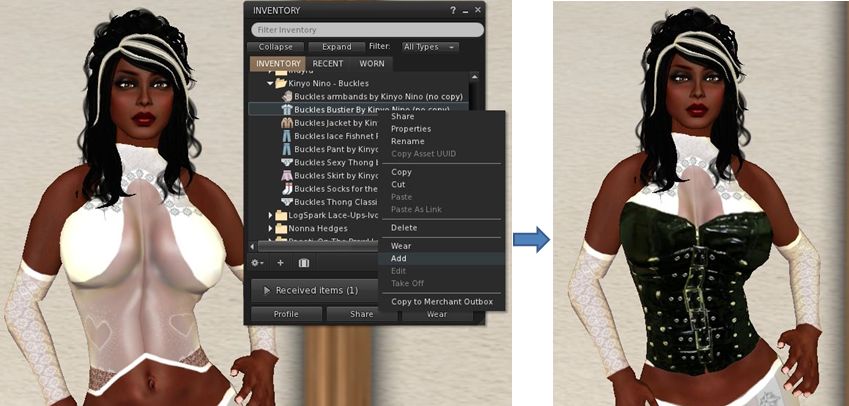
In most viewers providing multi-wear capabilities, adding an item of clothing to the same layer as an item already being worn will currently see the additional item appear to be worn “over” the existing item (i.e. if you are wearing a shirt layer item, any shirt layer item added to your outfit will appear to be worn “over” the item already being worn).
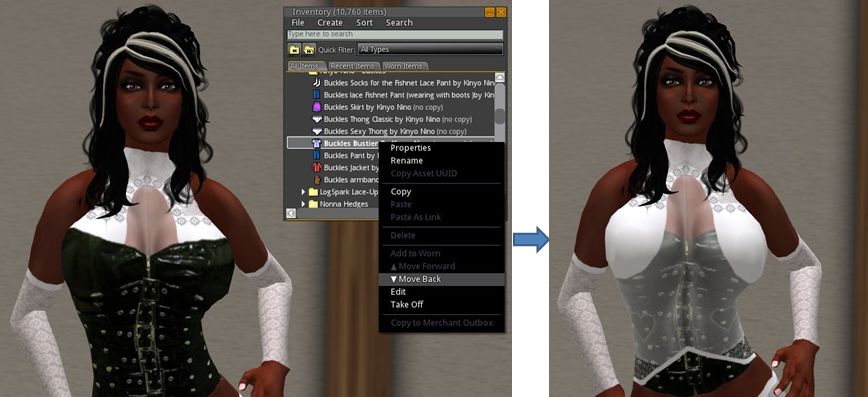
Singularity, however, provides two additional inventory menu options: Move Forward and Move Back, which allow you to change the order in which clothing items worn in the same layer are “stacked”, allowing them to appear to be worn under / over one another, as shown in the images below.
Multi-wear in most viewers: adding an item (in this case a shirt layer bustier) to a layer with clothing already worn will see the new item worn “over” any clothing on the same layerSingularity’s Move Back and Move Forward inventory options allow the order of clothing items worn on the same layer to be changed relative to one another
Notes:
The menu options are context sensitive and will only be available for clothing items worn on the same layer
Which of the options is available for use depends on a clothing item’s position in the “stack” (e.g. if the item is the last item added to a layer, the Move Back option only will initially be enabled, but not the Move Forward option)
The options can be used with any number of items worn on a single layer (up to the standard maximum of 5 items per layer)
Any changes you make to the order of clothing items in the same layer will be correctly rendered in other viewers.
This should provide a very flexible way of additionally creating “mix’n’match” outfits. Kudos!
Along side of multi wear, Singularity 1.7.0 also provide full support of the Current Outfit folder as well.
Audio Display Floater
Accessed via the Singularity menu (Singularity->Streaming Audio Display), this displays a floater listing the artist and track name for any active media.
Audio display floater
Mouselook Aim / Zoom and Shift-C Crouch
Those into combat are likely to appreciate these additions – although they are not exclusively for such environments.
Mouselook aim / zoom: when in Mouselook, depressing the right mouse button and using the scroll wheel on a mouse, can zoom in / out of the direction you are looking
Pressing SHIFT-C will now toggle your avatar into a crouch until such time as you press SHIFT-C again, allowing you to move and do other things without having to hold down the C key yourself.
Build Preferences
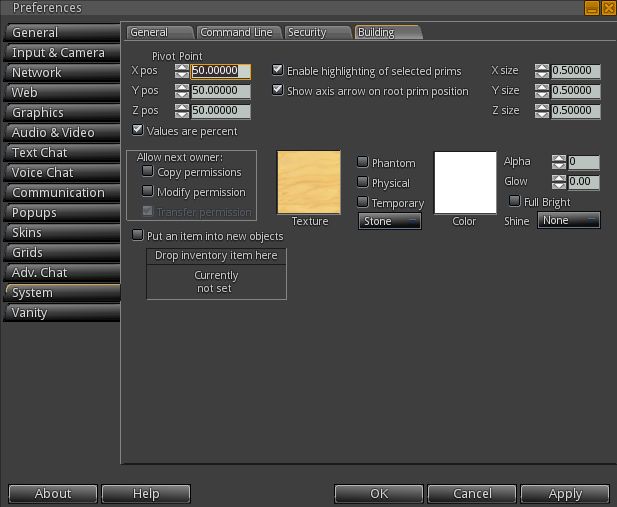
The Build tab in PREFERENCES->SYSTEM has been extensively updated, as per the images below, offering users the ability to set global defaults on prims as they are rezzed and used (i.e. default texture type, permissions set against them, etc).
New Build Preferences
Performance
Running Singularity on my home platform (370m) with lighting and shadows off, Singularity rolled along at an average of 39-40 fps. With lighting & shadows active and sun/moon + projectors enabled, this dropped to 12-13 fps. On the ground on my home sim, these rates dropped to 7-8 fps with lighting and shadows, etc., on and around 17-18 fps with them off. Again, and while totally arbitrary, the tests were carried out on my usual system and with all other settings as defined in the panel on the right of this blog’s home page. Overall, the performance wasn’t far behind what I’ve seen on the new home sim with recent V3.2 viewers.
Opinion
As with the last release of Singularity (1.6.0), this is a long-awaited and tidy update. Feature changes may appear small – but they are by not means trivial. Much has been done to “future-proof” the viewer, although the Merchant Outbox functionality is still currently lacking.
What I particularly like in this release is the way in which multi-layer system clothing support has been implemented. The ability to alter the order of the clothing on a specific layer is very neat and a step ahead of other viewers – and is something that could prove very popular among users. It will be interesting to see if it appears in other TPVs moving forward.
For credits on the various elements and additions to this release of Singularity, please refer to the release notes (link below).
The following is summary of changes to SL viewers / clients (official and TPV) which have taken place in the past week. It is based on my Viewer Round-up Page, which provides a list of all Second Life viewers and clients that are in popular use (and of which I am aware) and which are recognised as being in adherence with the TPV Policy.
This summary is published every Monday, and by its nature will always be in arrears. Therefore, for the most up-to-date information on viewers and clients, please see my Viewer Round-up Page, which is updated as soon as I’m aware of any changes, and which includes comprehensive links to download pages, blog notes, release notes, etc., for Viewers and clients as well as links to any / all reviews of specific viewers / clients made within this blog.
Updates for the week ending: 15 July, 2012
SL Viewer updates:
Beta version: rolled 3.3.4.261355, July 10
Development: rolled to 3.3.5.261706, July 13th
Pathfinding rolled to 3.3.3.261768, July 14
Dolphin rolled to 3.3.12.24714 on July 14th, which had an issue with broken shadows and so was followed by 3.3.12.24707 on July 7th – core changes: code in SLPlugin has been changed in order to limit the number of virus warnings from anti-virus s/w; FIRE-6171/VWR-28846; ‘Save as’ dialog deadlocks on Ubuntu 12.04; FIRE-4730 – Client AO breaks attachments with animations, for example shoes with “Ankle locker”; additional Windlight settings from Firestorm; Fixed: Don’t block texture fetch threads for 2 minutes if the CURL callback fails (release notes)
Niran’s Viewer rolled to 1.44 on July 9th – core changes: use of LL’s Viewer rendering code; performance improvements; faster rendering of shadows, local lights, occlusion, etc.; integration of tone mapping from the Exodus Viewer
Zen Viewer rolled to release 3.3.5.2 on July 9th – core update: fixed a Merchant Outbox Network Connect Error (release notes)
Cool VL Viewer made two releases:
The release version rolled to 1.26.4.22 on July 13th, reported as a bux fix release fixing breaks to the texture vertical offset spinner and the land brush force slider in the build tools floater
An experimental build 1.26.5.0 was also released on July 13th, which is the first phase of a backport of the viewer v3.3 renderer to the Cool VL Viewer
Singularity rolled to 1.7.0 on July 16 just prior to my viewer round-up being updated, and so makes this report; core updates – Multi-Wear release; general graphics engine update; region windlight support; RLVa partial update to 1.4; LSL editor update; sound system bug fixes & new sound system FMOD Ex; mouselook gun aiming incorporated; new build preferences; radar now indicates gesture/sound/particle/animation spam; holding Shift while crouching works as crouch toggle (release notes)
On the 29th June, Linden Lab announced Project Shining, aimed at improving avatar and object streaming speeds. At the TPV/Developer meeting on Friday 13th July, the project was discussed in terms of how the various elements within it will affect Second Life viewers.
The following is a summary of that discussion, based on the recording of the meeting, and focused primarily on the viewer changes / updates that will be most directly seen / felt by the majority of users.
HTTP Library
Commencing at 22:30 into recording.
The aim of this project is to improve the underpinning HTTP messaging that is crucial to simulator / simulator and simulator / Viewer communications. Monty Linden is leading this project.
Key points:
LL will release a project viewer containing a new “wrapper” implemented around how data is handled and a new texture fetch library (see time frame comments at the end of this article)
Providing there are no major problems with the project viewer, the initial code release will move to a release version of the viewer
This will be followed by changes to group services and a “more ubiquitous” use of the library in the viewer – which is where Oz’s warning to TPV developers comes into play, as some services and the behaviours will start to change to improve throughput and reliability – and may even help improve the SL experience for those on older routers.
As a side note, some of this work has involved router testing aimed at determining what router hardware is compatible with Second Life. While it is hoped that work around the HTTP libraries will improve the SL experience for some using older router hardware as noted above, the tests have revealed that certain types of older router – Linksys WRT and Belkin G series routers were specifically named – are not compatible with running Second Life.
Avatar Baking
Bake fail: a familiar problem for many
Commencing at 32:38 into the recording.
The aim of this work (Project Sunshine) is to improve issues around avatar baking and to eliminate bake fail issues. It will primarily focus on moving the emphasis for the baking process from the viewer to a new Texture Compositing server. The viewer will retain some elements involved in avatar baking – the actual baking of the avatar shape (i.e. shape values and IDs) will still take place on the viewer side, for example.
Precisely how this new service will work on the server-side of things is yet to be fully determined by Linden Lab. However, work is progressing on the viewer side of the equation, with the current key points as follows:
The new service will use the Current Outfit folder to drive the new baking service
TPVs not currently supporting Current Outfits will have to implement it, otherwise they will effectively fail on avatar baking
The basic process will be that when it is time to send a rebake request (e.g. after a user has finished editing their appearance) the viewer must send a new message to the baking service which effectively says, “Look at the contents of my Current Outfit folder and give me back a new appearance based on that”
Viewers in general will have to support this new message that is sent to the service, and change how they perform the fetching of avatar textures; for the technically inclined, this will be HTTP without UDP fallback.
Currently, the plans is for LL to integrating the new way of doing avatar baking into their viewer code, which will be available for TPVs to integrate – although none of the Linden Lab 1.x code will be updated to support the new process, so this will effectively break their own Viewer 1.23.5, which currently is still in use within SL.
The viewer code will support both the “current” method of avatar baking (within the viewer itself) and the new baking service (using the Texture Compositing server) until the new service is fully rolled out across the grid. This means that if a user is in a region that does not make use of the new baking service, avatar baking will continue to be handled using the viewer-side mechanism we currently have. However, if the user is on a region that utilises the new baking service, avatar baking will be handled through that. The viewer will be able to recognise whether it is connected to a region supporting the “new” method through the region capabilities.
In order to ensure as smooth a transition to the new baking process as possible, LL are proposing a relatively long lead-in to the new service, making the code available well ahead of the new service being enabled, allowing TPVs to integrate it into experimental builds. The server-side changes will initially be implemented on a number of beta grid regions for testing with viewers there, prior to being scaled-up. The server changes will then be released onto the main grid in a controlled manner and then scaled up from there.
What Does This Mean for Users?
If all goes according to plan, and providing that you keep up-to-date with releases of your preferred viewer, this actually shouldn’t mean very much in real terms. There are however a number of things to be aware of:
If you use a viewer that is not updated to use the new code (i.e. the official viewer 1.23.5 or a viewer that is not updated to use Current Outfit folder and / or to support the new bake request message / HTTP texture fetch mechanism) OR you continue to use an old version of a viewer rather than updating, there will come a time when your avatar – and those around you – will not bake correctly
There are two issues that may occur during the transitional period when both the “current” and the “new” baking methods are in issue:
When teleporting or crossing between regions that use the different methodologies, users will experience their avatar rebaking, as the viewer will effectively be using two sets of data for the bake process
If there are two adjacent regions, one of which is uses the current avatar bake process and the other is using the “new” baking service viewers in one region will not be able to correctly resolve the textures of avatars in the other region
It is hoped that the transitional period where both methods of avatar baking are active will only last for about two weeks.
Object Caching and Interest Lists
Commencing at 57:25 into the recording.
When you enter a region at the moment, your viewer receives a huge amount of information on what requires updating, much of it relating to things you can’t even see from your position in the region. The data is received in no particular order, with the familiar result that things appear to rez in your view in a totally random order – quite often with the thing you actually want to see being one of the last to rez due to the mechanics of Sod’s Law. What’s more, if you have previously visited the region, the chances are that much of the information being sent to your viewer is already cached.
Object caching and interest list changes: easing the pain of random rezzing
The focus of this project is to optimise the data being sent to the viewer, information already cached on the viewer and the manner in which that data is used in order to ensure it is used more efficiently so that things rez both faster and in a more orderly manner than is currently the case.
At this point in time, this work is in a greater state of flux than the HTTP library and avatar bake projects. This is more a process of optimisation both on the server-side of things and within the viewer itself, rather than that of new functionality within the viewer per se. There are no general time frames for this work at present, but there will be updates once things become clearer as to how the optimisation is going to be addressed.
Time Frames
The precise timeframes for implementing these changes have yet to be properly defined. However, Oz Linden hopes that there will be at least a two month period between Linden Lab making the code for each of these project elements available for integration by TPV developers into their viewers and the point at which the Lab states the code must be in use.
At the moment it is likely that the HTTP library element of the project will but rolled-out first, although this is unlikely to be within the next two months, for the reason given above. Project Sunshine, dealing with avatar baking, will then follow after that – or although how soon after has yet to be determined; as described earlier in this article, this will be a very controlled roll-out. It is possible that the object caching / interest lists part of the project many not be rolled-out for another six months. However, timeframes are still in discussion within LL, so any of this may well change.
Expect updates on all three of these project elements as and when more information is supplied by Linden Lab.