Direct Messaging comes to my.secondlife.com

Linden Lab, again with little or notification, have added a new feature to my.secondlife.com – Direct Messaging.

The new feature allows you to send personal messages to your friends via your and their Web Profiles. These messages do not appear on your own Feed or that of the friend you are messaging.

Here’s how it works.

Sending a Direct Message

Log-in to your Web Profile at my.secondlife.com and click on your Inbox (/mail) tab and click on the MESSAGES tab at the top of your inbox (if necessary) to display your direct messages.
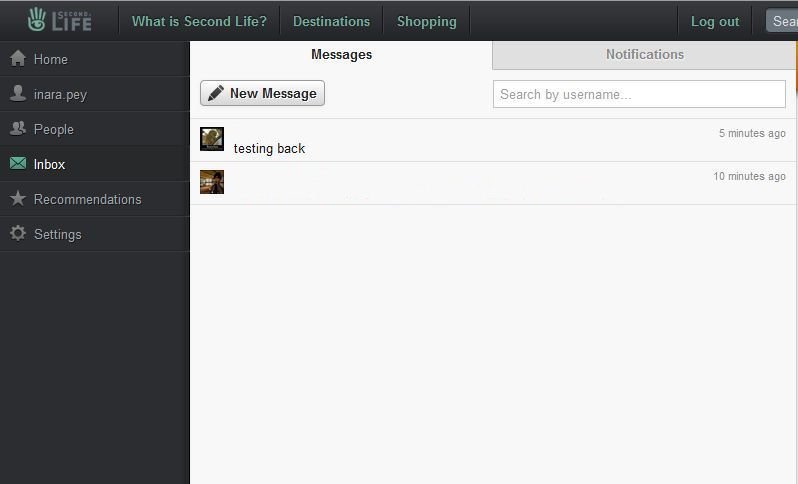
Web Profiles Messages tab

Now click on the NEW MESSAGE button – this will open a page requesting the name of the person(s) to whom you wish to send a direct message (they must be on your Friends list). Enter the name in the format first.last – or simply click on the desired name from the list that is displayed as you type. Finally, enter the message itself in the box provided and click SEND.

Note that you can also use the People tab on your Web Profile and then scroll through your list of friends, select the person you wish to DM then select Send a Message from the “Pen” button on their Web Profile page. However, the above option is somewhat quicker.

Receiving a Direct Message
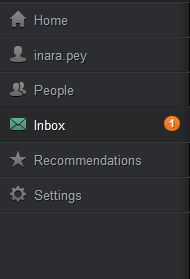
Web Profile Inbox notifications

How you receive a DM depends on whether or not you are in-world.

If you are not logged-in to SL at the time a DM is sent, notification is only received by your Web Profile in the form of a numbered icon appearing in the Inbox tab (see right).

Note that this is the same icon that is displayed when receiving other notifications via your Web Profile as well, so it may not always be indicative that you have received a DM.

To view any new DMs you have received, click on the Inbox tab to open it. New DMs will be displayed directly on your Messages Tab with the text in bold (see below). Note that if you have received multiple DMs from a single person, only the last DM they have sent will be displayed on the Messages tab.
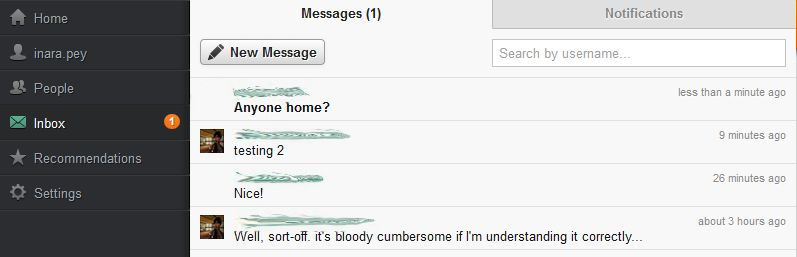
Incoming DMs – displayed in bold; click on sender’s name to view

To view and reply to a message, click on the name of the sender. This will open a further page. Note that the DM may be displayed on its own (if it is the first you have received from the sender), or as a part of an ongoing exchange, in which case the entire exchange will be displayed, with the most recent DM at the bottom, together with the option for you to reply (below).
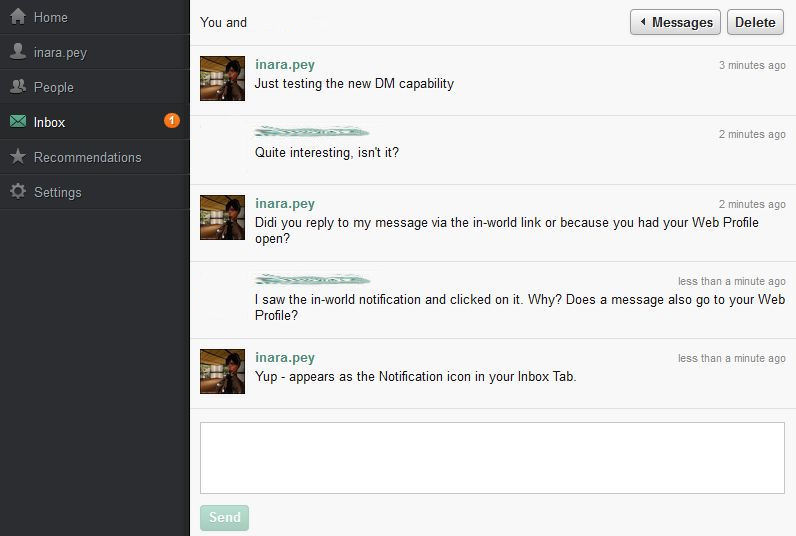
A DM Exchange
  • Tip: If you are exchanging a number of DMs with a friend, click on the page refresh option of your browser each time the Inbox notification appears – this will refresh the message list & display the new incoming message on your screen (clicking the Inbox tab itself will take up back to your Messages tab, requiring you to click on the sender’s name yet again to open the DM exchange and view their most recent comment).

In-world notification
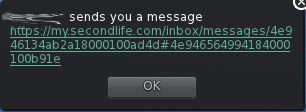
DM in-world pop-up notification

If you are in-world when a DM is sent to you, an additional notification will be displayed in your Viewer (see right).

In-world, notifications appear as a pop-up with a link to the message itself. Clicking on the link will open your Web Profile in either your Viewer’s browser or your default web browser (depending on your Preferences) and display the message and reply option as shown above.

Notes:

  • When viewing a Direct Message from in-world, you may have to additionally log-in to your Web Profile – once you have done so, the message page will automatically be displayed
  • Some V1.x Viewers garble the incoming notification, for example: “xxxx  sends you a messagehttps://my.secondlife.com/inbox/messages/4e948648ab2a18000100d6” – note the lack of any space between “messages” and the url. This causes the link to fail when clicked. If this happens, delete the extraneous “message” in front of the “https” in the browser’s address bar.

The Delete Button

The Direct Message option includes a button to delete exchanges. This is useful for removing old conversations, but should be used with care.

If you delete an ongoing exchange, the other side is not informed of this by default. They will only find out you have left the conversation when they:

  • Either refresh the page, which will display a message that  informing them you have left the conversation
  • Or they return to their Messages tab, where they will see your name now has a strike-through, indicating you have deleted the exchange.

Similarly, if the other side of your exchange deletes it, you will not be informed until you either refresh your page, or return to the Messages tab.

Note that in either case, messages can still be sent by the party who has not deleted the conversation. However, the messages will not be delivered or any notifications given.

Once a conversation has been deleted, the NEW MESSAGE button on the Message Tab must be used to start a new exchange.

Useful Addition

While this feature doesn’t (yet?) allow for direct DM-IM-DM exchanges to take place, it nevertheless adds another layer of communications options to SL users, and could prove especially useful in enabling conversations between friends when one or other cannot easily get in-world while avoiding the lag created by e-mail. It will be interesting to see if further enhancements are added along the way.

“Login 2 Life” to be streamed for a week

Note: I have now posted a review on Login2Life following the streaming by ZDF.

Login2life premiers on German television at midnight CET on the 17th October, and will be streamed via the broadcaster’s – ZDF – website for one week following the premier.

Commenting on the decision to stream the film for a week, Draxtor Despres, who both wrote the music for the film and attended a talk about the film at Nonprofit Commons on  Friday 7th October where he could announce the news, said, “It will premiere 10/17 midnight on ZDF & stream via their website for one week all over the planet [no geo-blocking YES YES YES].”

Login2life, directed by Daniel Moshel, follows a group of people who spend a good part of their time in virtual spaces. Notable among them are Gentle Heron, Stroker Serpentine and Jaynine Scarborough, who have all been deeply involved in Second Life. The film also profiles several World of Warcraft players.

Rather than a themed documentary with a central narrative arc, the film might best be described as a series of vignettes, moving through the lives of those involved, examining how and why they engage in virtual living, and how the virtual environment can augment and enhance their real lives in a wide variety of ways. In doing so, it steers well away from the stereotypical views on virtual worlds and particularly Second Life, and instead presents a compelling series of insights into a wide variety of subjects: dealing with disabilities, life, love and so on.

An an excellent review over on Betterverse, demonstrates why this is a must-see film.

Related links

With thanks to Rik and Nonprofit Commons.

Adult Gateway RFP winner announced – sort-of

In August this year, Linden Lab announced a Request for Proposals (RFP) to run a new Adult-oriented Gateway for Zindra and Adult-related activities in Second Life.The closing date for proposals was the 12th September, with an announcement due at the Adult Content User Group meeting held on Monday 3rd October.

Only it wasn’t – the reasons given at the meeting were that Viale Linden needed some extra time to work things out and get some preparation work done.

However, some people seem unwilling to wait, as there is a note card doing the rounds that reveals that the winning proposal for the Gateway is apparently from Freedom Continent. This is a group of some 16 private island sims, all themed around adult activities and which include Thunderbird Island (Jennifer’s Jewelry), Blacksilk (The Blacksilk Academy), Damsel, Bondage Ranch, Bondage Playground and Slaver Bay among others, and which includes brand names such as Latex Station, MoDesign, and Think Kink.

The notecard itself reads in part:

“At a meeting on monday the 3rd October Linden Labs [sic] announced that a single organisation had won the contract to build, run and expand an Adult Gateway in accordance with well established principles. While it has not yet been officially announced, the organisation who obtained this contract is called ” The Freedom Continent “. This is an established complex of 16 sims, mostly adult, working together to bring a better sense of reliability to adult users in SL. They have in place a well established management system and many years of experience in dealing with adult content. The freedom team are looking for mentors who understand the problems in dealing with adult content users and work with the team to build a good sound adult mentor group who will greet and teach new users as they appear. The Mentor group, The Adult Grid Mentors, will form the backbone to the group. This mentor group will be the official mentor group for the new adult gateway and has the full support of Linden Labs [sic].

Precisely what form the new Gateway will take remains to be seen, although four sims are on offer for actually hosting the Gateway – these being the four used to host ZExpo 2011 earlier in the year. As a part of the arrangement, the group managing the Gateway regions will also have exclusive use of the name “Zindra”. Reaction to the news of the selection – assuming it is accurate – has yet to be gauged, but is likely to be interesting.

Update: October 7th

Commenting on questions raised as a result of the note card circling in-world, Peter Gray, Linden Lab’s PR Manager stated, “There is a leading candidate, but we’ve not yet finalised any agreement or announced our selection. We hope to be able to do so soon.”

PRIM_PHYSICS fix on RC channels

According to Andrew Linden, commenting on what has become something of a heated JIRA, SVC-7305, a fix for the PRIM_PHYSICS breakage was rolled out to the three main RC channels (BlueSteel, Magnum and Le Tigre) today.

The breakage, which impacts the PRIM_PHYSICS parameter of llSetPrimitiveParams impacts a wide range of scripted moving objects in Second Life and has caused considerable consternation amount content creators. With vehicles, animals and other items effectively broken, they’ve faced either having to wait for the issue to be sorted and / or re-scripting their products while still having many hundreds – if not thousands – running amok or stalled around the grid – something that apparently left one creator of automated scripted vehicles stuck with a three-day account suspension.

If all goes well – and initial feedback so far is that the fix is working on the Magnum and Le Tigre RC channels without incident – then the fix should find is way onto the rest of the grid during the main updates next Tuesday (assuming one of the RC channels gets promoted to the main release channel at that time).

Attachment update fix rolled-out

The “showstopper” bug affecting the update of worn attachments, as reported on two weeks ago saw the initial fix rolled out across the entire Main grid (with one or two exceptions), a week after it was rolled-out to the RC channels.

So far, feedback on the JIRA, SVC-7283, has been largely positive, and it appears that for most content creators impacted with the issue, the core problems are resolved.

However, there are still some outstanding issues to be addressed:

  • SVC-7321: llRemoteLoadScriptPin() does not allow injection of an O:VMCT script into an O:PERM_ALL worn attachment
  • SVC-7294:The simulator is too strict when llGiveInventory() adds restricted-permission items to fullperm attachments which already contained other restricted-permission items

Not dates are currently available on potential fixes for either.

Update: 27th Sept: Since drafting / releasing this update, testing has revealed that even with all current fixes in place, a problem still remains wherein should an update fail, existing scripts in the receiving item can still be deleted. There is currently no direct fix for this.

Mesh and the Beta grid

There are now numerous tutorials on creating mesh objects in the likes of Blender for upload to Second Life; however, getting everything just right with mesh objects, their LODs, textures, etc., isn’t easy. The unwary might even end up sending a little too much uploading and adjusting items. To this end, it is best to use the Beta grid (also known as Aditi or the Preview grid) to work on models until you’re satisfied, and then upload them to the Main grid.

As many have never logged into the Beta grid, here’s some simple instructions and pointers.

Note that this article assumes you are certified for mesh uploads on the Beta grid (if you are already certified on the Main grid of uploads, you may still need to re-certify yourself on Aditi (with thanks to Opensource Obscure for the reminder)).

Updating Your Beta Grid Account

If you have not logged-in to the Beta grid in a while, the chances are your account information (including your inventory data) is going to be stale. If you already have items in your inventory you wish to work with, this may be an issue. So the first step may well be to refresh to Beta grid details. This is done quite easily:

  • Change your login password:
    • Go to your Dashboard at http://www.secondlife.com
    • Click on the down arrow button in the ACCOUNT window near the top left of your Dashboard
    • Click on CHANGE PASSWORD
    • Set a new password for yourself and SAVE it – remember this will be immediately applied to all your SL log-ins, including the Viewer
  • Wait 24 hours.
  • Log into the Beta grid.

Logging-in to Aditi, the Beta Grid

If you’ve never logged-on to the Beta grid before, there are some additional steps to complete, depending on whether or not you have the grid selection option displayed on your Viewer’s log-in screen.

Notes

  • Obviously, as we’re talking specifically in relation to mesh, remember to use a Viewer with mesh upload capabilities
  • If you opt to use the official Mesh Development Viewer, you will, by default, be logged into the Beta grid (unless you change the grid selection option).

Displaying the Grid Selection Option

  • Start your Viewer.
  • If the grid selection option is displayed, continue with Logging-in to Aditi, below
  • To display the grid selection option:
    • Display your Viewer’s preferences (Me -> Preferences in the case of Viewer 3 or use CTRL-SHIFT-G)
    • Access the ADVANCED tab
    • Make sure SHOW GRID SELECTION AT LOGIN is checked
    • Click on OK to close the Preferences floater.
Displaying the grid selection option

Logging-in to Aditi

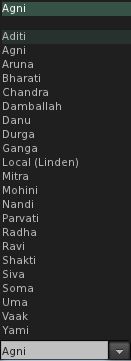
  • With the Viewer log-in window displayed, click on the grid selection arrow to display a list of available grids (see right)
  • Click on ADITI for the Beta grid
  • the log-in splash window will change to display the fact you have selected the Beta grid
  • Log-in using your avatar name and password as you would with the Main grid
  • You should be logged into one of the Beta grid welcome areas
  • Note you will have a L$ account balance, which is not transferrable to the Main grid!

Where to Work

As with the Main grid, the Beta grid is host to a number of sandboxes. Some of these are for general use, some are for very specific purposes; the majority have rules assoicated with them, again as with the Main grid – and you should, as always, familiar yourself with the rules and things like return times in order to avoid upsets.

While mesh is enabled across the Beta grid, there are a number of dedicated mesh sandboxes (SLurl). These tend to have the most recent releases of the server-side code related to mesh, and while they can be crowded at times in turns of the amount of items to be found on them, they tend to present the best place to work.

How Do I Preserve Upload Settings between Grids?

The Viewer should save all settings you use with a model, so when you log-in to the Main grid and select the model for upload, your settings for the model should appear in the upload floater.

What Else?

The following Linden Lab resources may be of additional assistance: