Alongside the new Viewer 3 UI that has reached the Development Viewer, further small steps have been taken with Direct Delivery (DD).
On the 18th October, DD related code previously released onto Le Tigre was rolled out on the main server release channel. Again, this does not mean that DD is now active, just that the road is being further prepared for DD’s arrival – or to allow for further code compatibility testing.
The code was rolled-out alongside an Agent Inventory update which means that any TPVs that have merged merged since Viewer 2.5.1 should experience much faster inventory response times than previously.
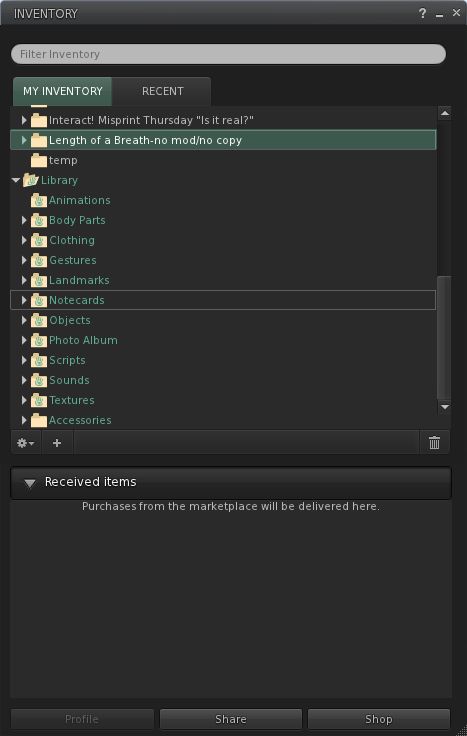
Direct Delivery: Received Items section added to the Inventory floater
Alongside of this, the latest Development Viewer, as well as getting the new UI shiny, also gets an update aimed at Direct Delivery: a new section in the Inventory floater called RECEIVED ITEMS.
Click on this, and you Inventory floater opens a new panel (left), wherein any items you purchase via the SL Marketplace will be delivered once Direst Delivery goes live, either boxed or in a folder hierarchy (or both, in some cases).
One assumes items delivered to this area can be drag-and-dropped into your main Inventory folders; as I’m not in the DD beta, I’ve actually no way of testing this. However, until the DD system is active, Marketplace deliveries will continue to be made as before, with items arriving in the main section of Inventory.
There is currently no corresponding new section (or folder) that can be used by the system to retrieve merchants’ items that are to be listed on the Marketplace. One assumes this is to prevent any confusion with people thinking DD is now active and thus trying to use the capability.
So, that’s another couple of steps forward, although the silence that has followed what are valid and reasonable questions on the project from merchants has now been going on for long enough to give the crickets leave to start chiruping.
The first phase of the new UI has arrived as a Development Viewer release (3.2.1 (243328)). So what do we have in store?
No Modes
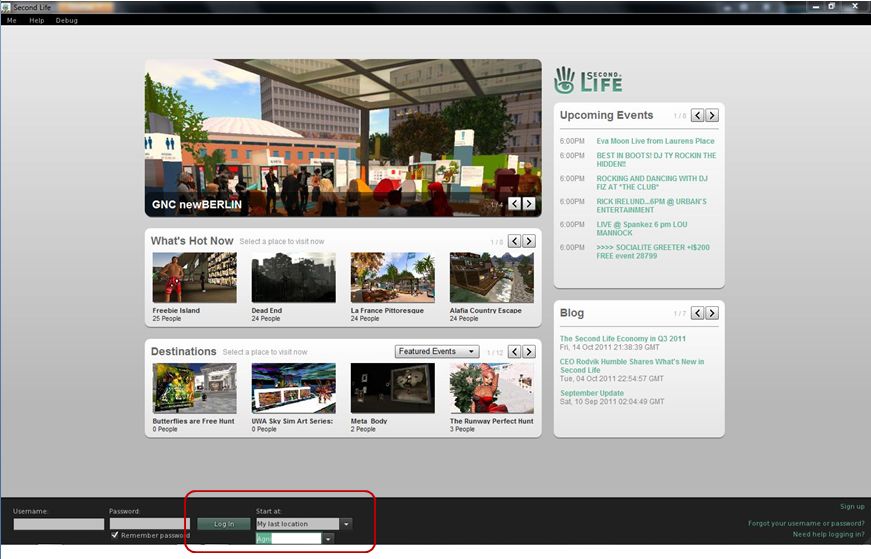
Well, actually, quite a lot, and it’s obvious right from the login screen, where the absence of the BASIC and ADVANCED modes is clear.
No mode options!
Once logged-in, more differences make themselves immediately felt:
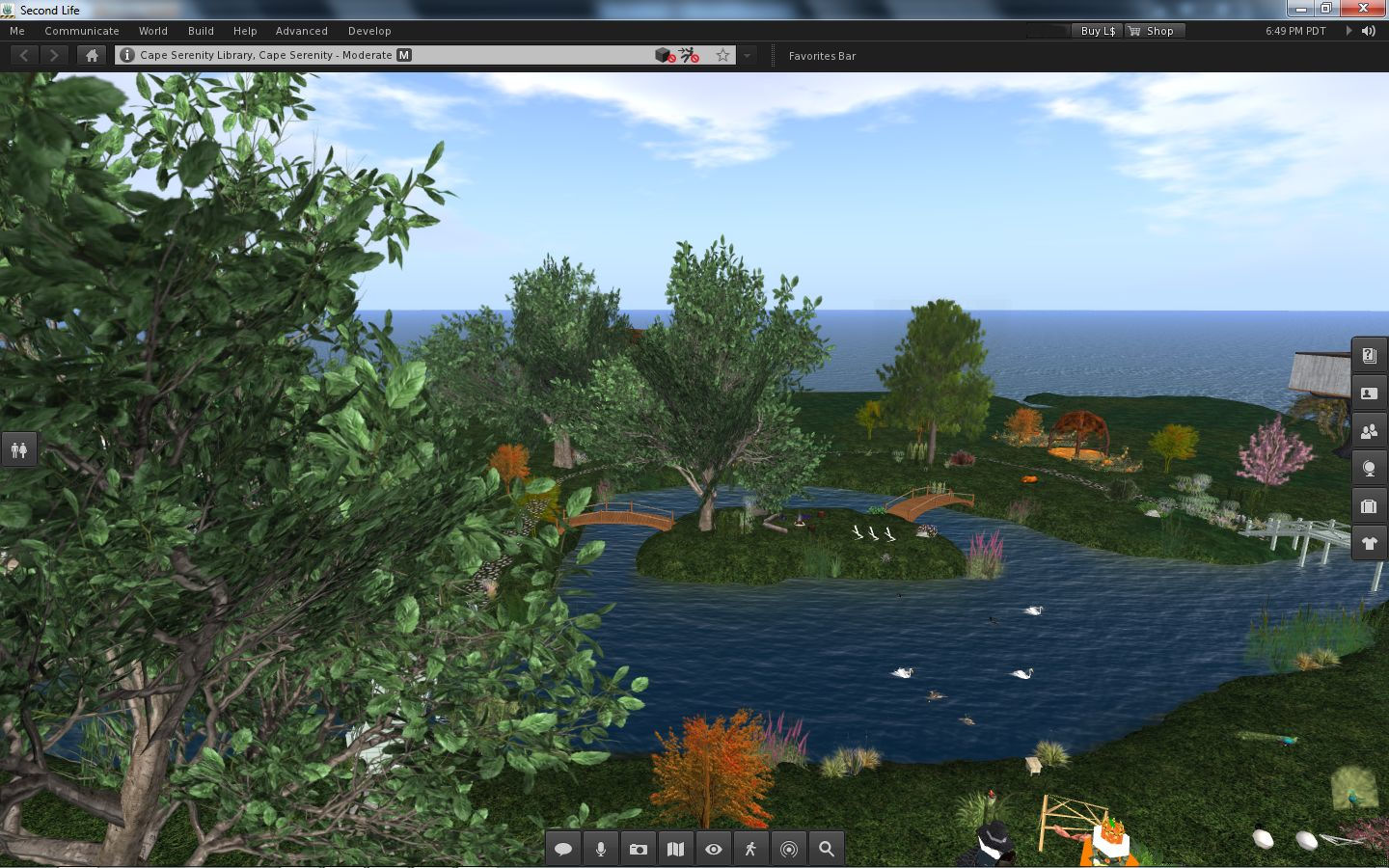
The top of the UI has been revised so that the Navigation and Favourites bars have been combined, with a slider between the two allowing you to adjust their sizes relative to one another
There is a new button up on the Menu Bar I’ll return to shortly
There are no Sidebar tabs visible on the right of the screen
There is no chat bar at the bottom of the screen
There are two sets of buttons visible: one on the left, featuring icons only (by default), and one at the centre bottom of the screen, featuring text and icons (by default).
The default UI on logging-in
If you want to type, you can either click the CHAT button on the bottom toolbar, select NEARBY CHAT from the COMMUNICATE menu (as per previous versions of the Viewer) or, in a move that follows V1 behaviour, tap ENTER. All three options will display the chat bar in its own repositionable floater.
Buttons, Buttons, Buttons
As there are a lot of them, let’s start with the buttons – most of which should be perfectly obvious.
On the left of the screen, we have by default, seven buttons. These are: Avatar, Appearance, Inventory, Search, Places Map, Nearby Voice and Mini-map. All of these will be familiar to V2/V3 users. They perform the same functions as in earlier releases of the Viewer; although in the case of Appearance, Inventory and Places, rather than opening them in the Sidebar, the buttons open the Appearance (outfit), Inventory and Places panels in their own floaters.
I have to admit, Mini-map had me fooled for a moment – the button’s icon suggests it is something to do with Voice.
Only Avatar is a new button here, lifted directly out of the BASIC mode. Clicking it opens up floater than enables you to pick an entire avatar look – shape, skin, clothes, etc. Four types of avatar are provided with the development release: human, animal, robot and vehicle. One suspects further choices (such as other races) will be added in time.
At the bottom of the UI is the more familiar toolbar with the following options: Chat, Speak, Destinations, People, Profile, View, Move and How To.
Of these, Chat enables the chat floater, as described above, while Speak, View and Move do exactly what they did in previous releases of the Viewer. People and Profile display the People and Profile panels from the Sidebar, now in their own floaters, leaving Destinations and How To.
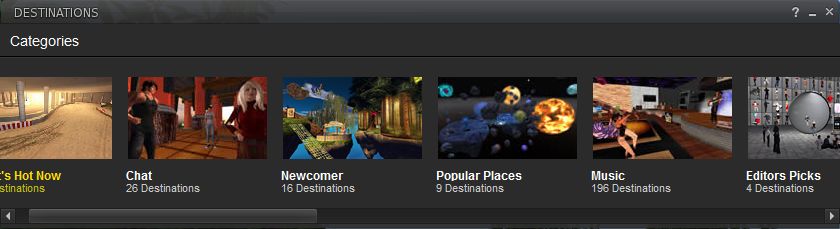
Both of these will be familiar to those who have tried the BASIC mode: Destinations displays a mini Destination Guide floater, with destinations split into categories: What’s Hot Now, Chat, Newcomer, popular Places, and so on.
Destinations FloaterHow To
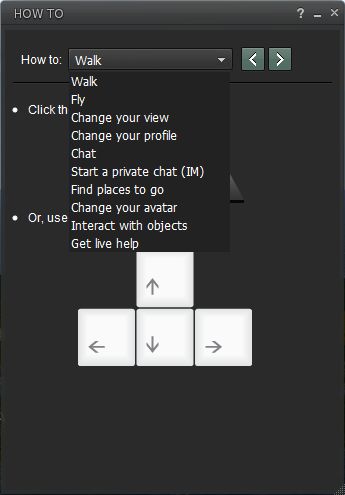
How To is something I’d speculated / hoped would be carried over from the BASIC mode as a part of the merge. I was a big fan of How To when it made its debut in the BASIC mode, as it is a simple, easy to use “cue-card” system for obtaining help, especially for those new to SL. If I’m honest, it is something I banged on at Rodvik about back when it first appeared, I was that enthusiastic about it, so I’m really pleased it has come up into the revised UI.
True, I’d personally like to see the range of topics it covers increased (without going completely overboard), but perhaps further topics will be added over time.
Within How To, the GET LIVE HELP option is new – it wasn’t in the BASIC mode. At first my oldbie heart soared on seeing it, as it seemed to herald the return of the long-gone and sadly lamented Live Help as used to be in Viewer 1.x.
Sadly, this is not the case. Selecting the option displays this message:
“Need help?
“Click the button below to teleport to a Help location where a Second Life guide is available to assist you between the hours of 10am – 6pm PST.”
Beneath it is a TELEPORT button, which in turn opens the Places floater, from which you should, in theory, be able to teleport to a suitable help location. Quite what or where this help location is and who staffs it (one assumes resident volunteers) is unknown. I’m not sure if it is because I tried the option after 18:00 SLT or simply that the function isn’t working as yet – but Places came up a blank, leaving me nowhere to teleport.
So, back to the buttons…
Looking at the layout, one might end up thinking that all LL have actually done is swapped a set of ugly tabs and screen-hogging slidey Sidebar and replaced them with a set of buttons on the left of the screen.
And one would be entirely wrong. Why? Because these buttons are movable buttons. Not only that, they are customisable (to a degree). For example, right-click on any of the sets of buttons and a prop-up displays a menu with the options CHOOSE BUTTONS, ICONS AND LABELS and ICONS ONLY.
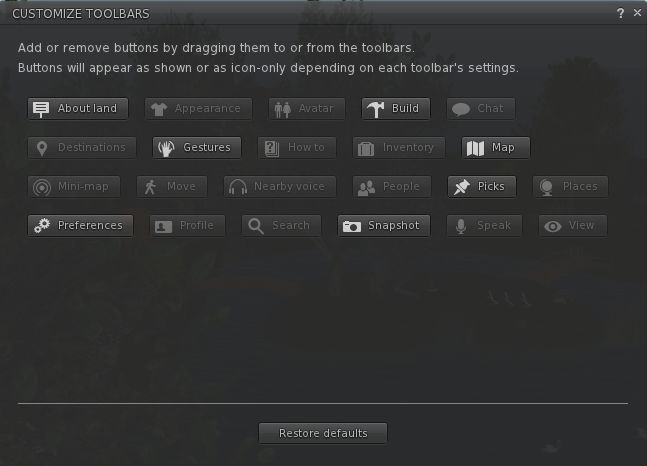
The latter two options allow you to switch between displaying the buttons with icons only (as is the case by default with the buttons on the left side of the screen) or with an icon and text (as is the case with the buttons on the bottom of the screen). But it is when you select CHOOSE BUTTONS that things start to get interesting, because this displays a Button Toolbox floater (which can also be accessed via CTRL-T or the TOOLBARS option of the ME menu).
Button Toolbox
This contains all the buttons available to you within the UI. Any buttons that you haven’t yet used are highlighted for easy identification. Note here, as well, that there are a few new buttons to play with, notably ABOUT LAND, PICKS AND PREFERENCES (yes, you can now have one-click access to the Viewer Preferences!).
To add a button to your UI simply position the mouse pointer over it, click and hold the LEFT mouse button and drag the button from the toolbox.
As you do this, you’ll notice the border on three sides of the Viewer turns blue, indicating you can position the button either on the left, bottom or right side of the screen. Nor does it end there.
You can also move buttons between locations (left side, right side and bottom of the screen) using the same method: simply left-click and hold over each button you wish to move in turn, and drag it to your preferred location. Thus, it is perfectly possible to have all your buttons placed at the bottom of the screen a-la V1, or you can split your buttons between the bottom and right of the screen, a-la a “traditional” V2 style.
Tateru Nino carries some news relating to the initial changes to the official Viewer UI, obtained courtesy of Rhett Linden.
Rhett’s revelations, while interesting reading, are not entirely earth-shattering, and don’t actually go that much beyond what Rod Humble himself has already said concerning the Viewer, and what some of us were speculating as a result.
In a nutshell, Rhett has confirmed:
The Sidebar is to go. This is something that wasn’t hard to guess at, given Rod himself said as much at SLCC 2011
There is to be a more flexible approach to the UI in general, that will allow users to, “Arrange the UI to fit the way they use Second Life. This is important because it moves us toward a model more like most creative software“
This latter point more than likely refers to things like the “Customise Toolbars” and the “FUI” (which people have taken to mean “Flexible User Interface”), both of which are mentioned in passing / hinted at in the SL Helpfile wiki pages (although no specific information is available on either right now). Certainly, the release notes for the merge (see below) point in this direction as well.
What is worthy of note is that Rhett confirms that the initial code for the UI changes, which should also see the arrival of things like click-to-move and the new camera palette (again as revealed by Rod Humble, this time talking on the SL Universe forum), was merged into the Development Viewer code today – although TPV developers had been expecting as much, going on comments passed elsewhere during the day.
For those planning on trying out the latest development Viewer, be aware that the release notes state:
The Viewer floater camera views and presets do not work
The Nearby Voice panel does not update to a new call or from nearby voice info once opened
Viewer crashes when updating UI size in preferences
The Speak button is activated when dragging and dropping between toolbars and/or moving back to the toolbox
Viewer crash when moving the speak button from one toolbar to another when there is an active call request
Teleport history doesn’t display visited locations
Viewer crash when double-clicking the mini-map in People > Nearby
Notification and conversation chiclets overlap
WASD controls don’t move avatar while move floater is in focus
Closing voice controls while a group or p2p call also closes the group call / IM window
Viewer crash after teleport
Hitting back in the ‘Create Group’ panel or ‘Blocked’ panel requires multiple clicks for action to occur.
In the wake of the arrival of mesh, and in the hope of alleviating confusion / making things a little more understandable, there are changes coming down the road for Viewer 3. Some of these will undoubtedly make their way into TPVs as well, so here’s a quick overview.
The changes described below can be seen in the latest Mesh Development Viewer from Linden Lab (3.0.5 (240741)+), which can be obtained from the alternate viewer wiki download page. note that as this is a development Viewer, some elements may change in relation to descriptions provided here.
Prim Equivalence and Land Impact
For a general user perspective, this is probably going to be the most obvious change.
Prim Equivalence, or PE has been an issue on many levels, not the least of which, for consumers, is that it tends to be bracketed with a prim count value – and is frequently greater than the associated prim count (although there are items where the reverse is true). People therefore get confused as to which is the key value: prim count (which everyone is familiar with) or PE.
In order to try to solve these issues, the terms “Prim Equivalence” and “prim count” are set to be replaced by a single value: “Land Impact”. How this will work takes a little explaining on two fronts, as it relates to a couple of changes within the Viewer and how we need to view things. So bear with me while I attempt to explain.
The first of these changes is that land will no longer be referred to in terms of prim counts and usage, but rather in terms of its “capacity”. Essentially, this means that:
Full sims have a “capacity” of 15,000
Homestead sims have a “capacity” of 3,750
OpenSpace sims have a “capacity” of 1,875.
Land parcels will also be referred to in terms of their “capacity”:
About Land today: prim counts (l); As it will be: capacity (r) (click to enlarge)
This might all sound like unnecessary semantics – but it does have a point in that it allows everything to be thought of equally, regardless of its origin – as we’ll see below.
Note as well, that nothing is physically being “lost” from your land. A 4096 sq m parcel that had a prim count of 937 prims before the arrival of the new Viewer will simply have a “capacity” of 937 after the new Viewer has entered general use, as shown by the figures highlighted in green in the above images.
To align with this, objects need no longer be through of in terms of their prim count or their PE – but simply in terms of their Land Impact – that is, how much of the available “capacity” on a sim / parcel they take up. This is reflected in changes being made to the Build menu floater:
Build floater: As it is with Prim count & PE (l); The new Land Impact values (r)
As can be seen, the prim count / PE values are being replaced with two simple figures:
The impact the rezzed object has on the land
The remaining capacity that is available for rezzing further objects.
So if an object has a Land Impact of 15, it will reduce the land capacity by 15; if it has an impact of 150, it will reduce the land capacity by 150, regardless as to whether the object itself is made of prims or is a mesh object.
For people who want more detail on individual objects, the new Build menu also includes a MORE INFO link. This opens an additional floater which provides:
Information on the object itself (including the prim count for those missing it!)
If the object is a mesh creation, the “weights” applied to it in terms of the bandwidth required to download it, the server resources it uses, its physics weight, etc.
The overall land impact: impact of the object itself, impact of all objects rezzed, remaining free capacity and total capacity for the land itself.
MORE INFO: for a prim object (l) and mesh object (r) – note the weights for th mesh object
There will also be a WHAT IS ALL THIS? link which will open a Help page that explains the various figures.
Replacing both prim count and PE with a single, easily understood value (Land Impact) makes sense, and at a stroke makes the impact of rezzing any object in-world easy to understand, removing any confusion between prim count and PE.
Of course, there are going to be voices that proclaim the change is about further “hiding” the “real” cost of mesh objects from the user, with the underlying implication that the users are somehow being hoodwinked by Linden Lab. But, c’est la vie. People are wont to make waves come what may.
It will be interesting to see how merchants react to the change – given that all vendors, etc., refer to prim counts right now, and getting wording changed to “Land Impact” (or simply dropping the word “prim” from displays) is a nontrivial issue for many. Some may even opt to retain the use of “prim count” in their vendors for this reason.
And when considering merchants – one hopes that Linden Lab will actually remember to update the Marketplace so that listings also reflect the use of “Land Impact” (i.e rename Prim Count!).
Avatar Rendering Cost and Avatar Draw Weight
Alongside the changes around PE and Land Impact, the Viewer will also be losing another measure that has always caused controversy and angst: Avatar Rendering Cost, or ARC.
Always intended to be an indicative figure for the amount of potential Viewer-side lag avatars create, ARC quickly became viewed by some as the figure for determining whether or not an avatar was “creating lag”, which in turn lead to a lot of drama in some quarters – up to and including people being banned from venues / sims on the basis of their ARC count.
DWA: 197,484 – but don’t panic!
From 3.0.5, things will be totally revamped. ARC as a term is vanishing from the Viewer to be replaced by Draw Weight for Avatars (DWA). Furthermore, how DWA is calculated is radically different to how ARC has been calculated, as Nyx Linden explains.
DWA should be far more accurate than the old ARC system; and therein, one cannot help but feel, lies the rub.
If the figure is indeed more accurate, it is likely to be pounced upon within even greater zeal by those already obsessed with ARC. As such, I can’t help but hope this is one value that Linden Lab don’t make a song-and-dance about when these changes to the Viewer are formally released for general use.
Mesh Uploader
Another source of irritation for content creators has been the mesh upload floater. At SLCC 2011, Charlar Linden himself admitted the current floater is isn’t overly user-friendly. As such, it is also being overhauled, as can again be seen in the current Mesh Development Viewer.
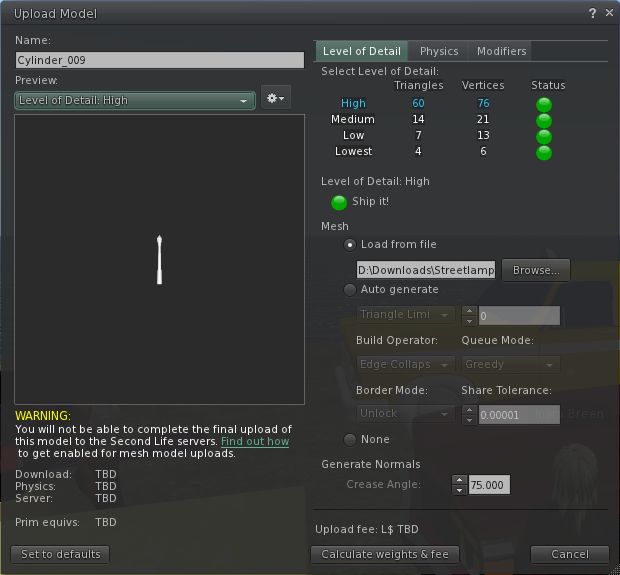
The current upload floater presents a basic set of modifiers that can be applied to a mesh object prior to uploading in order to optimise it. These tend to encourage a lot of trial and error / guesswork on the part of the creator in order to arrive at a desired result.
The current mesh object upload floater
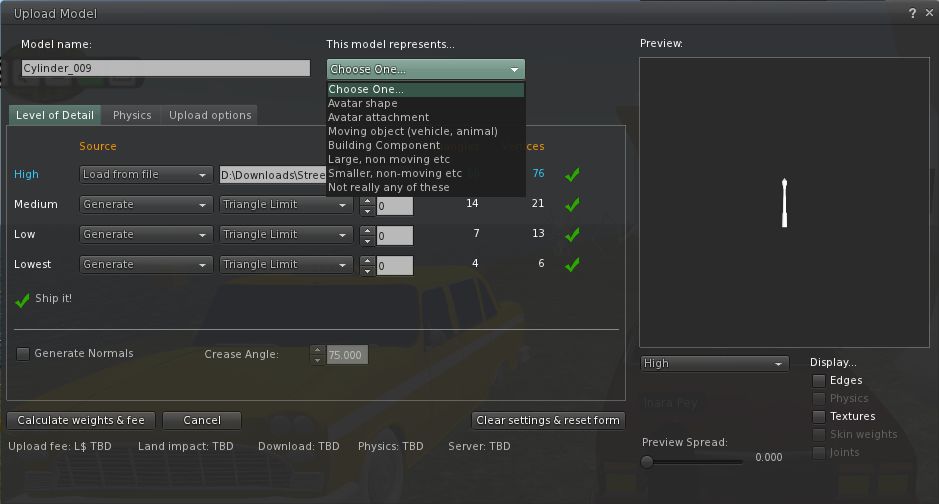
The new upload floater offers a greater range of modifiers and the ability to better define the model itself in terms of what it represents (avatar shape, avatar attachment, moving vehicle, etc – see the drop down in the image below), which presumably apply suitable algorithms that help optimise the object and calculate its overall weight.
The new mesh upload floater as it appears in the Mesh Development Viewer
I understand that several of the changes in the new upload floater are as a result of consultations with / requests from mesh content creators, so hopefully they will go some way to easing the process of importing objects into Second Life.
More to Come
These are by no means the only changes coming to Second Life and the Viewer as a result of the arrival of mesh object support. For one thing, more needs to be done in the area of mesh clothing in order to make it easier to adjust clothing to fit the avatar, rather than the other way around as is currently largely the case. Therefore we can expect to see further changes in relation to this in the future (indeed, those interested in the issue should check Maxwell Graf’s JIRA relating to a parametric deformer).
In the meantime, the above should hopefully give insight into what is waiting just around the corner.
Linden lab have added a new category to the latest Viewer Search (V2 + TPVs): the ability to search for support items.
The support options can be displayed by either selecting SUPPORT from the drop-down list of search options at the top of the Search window, or by clicking on the SUPPORT option towards the bottom left of the window. Bother of these will refresh Search and display a set of six check boxes you can use to refine your search of support subjects (note that you will probably have to resize the window to see all six). These are:
Linden Lab Policies
Knowledge Base
Answers
Forums
Blogs
All wiki
By default, the first three options are checked as active. Search results themselves can be displayed either in your Viewer’s media browser or in your web browser, depending on how you have set your browser preferences.
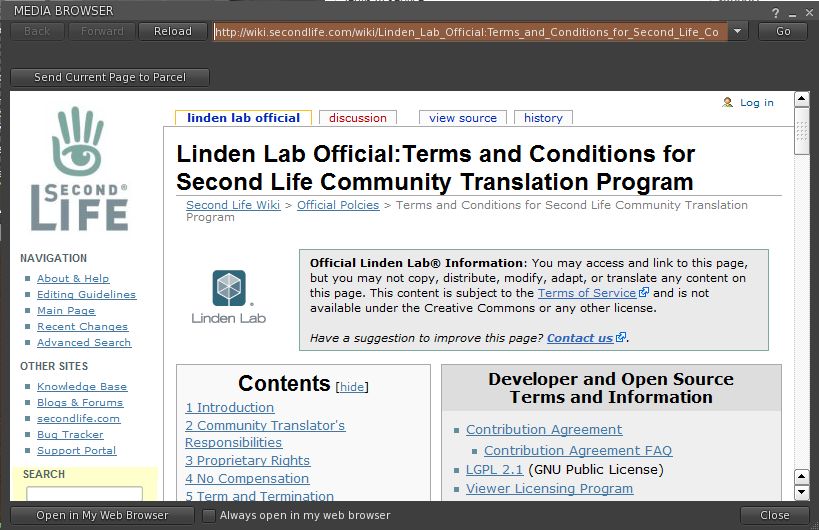
Typical support search result displayed in the Viewer’s media browser
Overall, a useful and considered addition to Search.
So, yesterday mesh arrived (except for folk on the BlueSteel RC channel, who still appear to be waiting for mesh to be rolled-out), and – as I predicted in my report on the roll-out, Viewer “3” jumped very quickly from Beta to the main Viewer download channel.
For those hoping Viewer “3” was bringing with it some radical departure from Viewer 2 (and I did actually hear and read speculation from some who had not actually taken a look at the new version while it was in Beta), sorry folks, that was never the aim.
Elevating the Viewer from 2.x to 3.x was never about bringing out a whole new Viewer (or even radically improving what was there already), but simply about marking the arrival of mesh. In fact, other than a muted blog post in the In-World section of the official blog (actually promoted to Featured News as I wrote this article) and a couple of Tweets, it’s actually been the only sign from Linden Lab that mesh has rolled out. While I appreciate (very sincerely) that LL included a link to this very blog in their announcement, I’m nevertheless somewhat baffled at the low-key approach.
So what does “Viewer 3” bring us.
Well, pretty much what Viewer 2.8 had, with some bug fixes and, of course, the inclusion of various mesh features.
Performance-wise, I’ve personally found it to be reasonably comparable to the likes of Firestorm on my main PC. The frame rate for a reasonably busy sim (i.e. more than a handful of avatars) comes in at around 32-37fps. On a sim where I’m just one my own or with one or two others, this bangs up to 45-48fps. It doesn’t rock the way Viewer 2.7 did for me, but these figures give a pretty smooth performance.
With shadows enabled, things aren’t so good. I crash to around 5-8fps with just one or two on the same sim. Any more than that and the frame rate bottoms-out at around 2-3. This is pretty chronic compared to Firestorm with shadows enabled, and a lot worse even than some earlier iterations of Viewer 2.
The usual annoyances remain: lack of location co-ordinates in the navigation bar, overly clunky movement / camera control pop-ups, frustratingly confusing toasties, etc. (although in fairness, all Viewers based on the V2 code have this), absolutely crappy IM / chat windows (please, please, LL, take a leaf out of the Firestorm book), yadda, yadda.
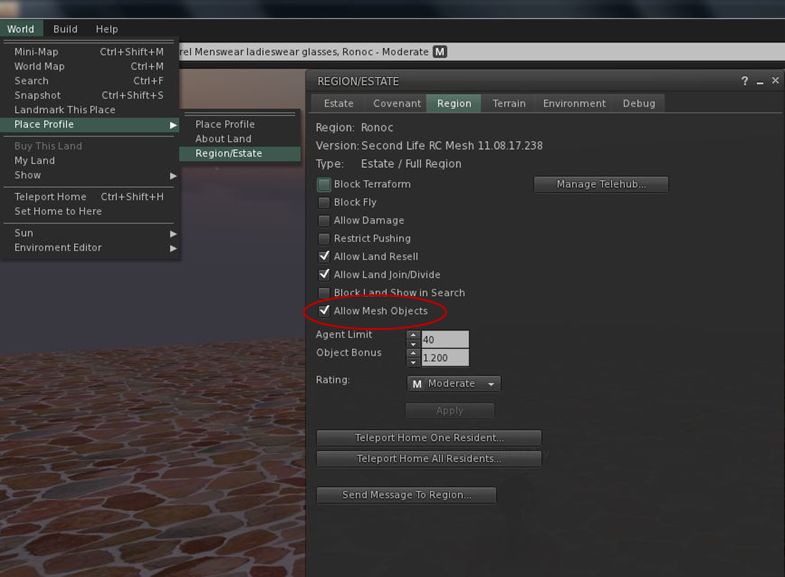
As previously mentioned, the update includes an option to allow region / sim owners to allow / disable mesh on a sim. IMPORTANT UPDATE: please see the end of this article of the latest status of this option.
Region option to allow / disable mesh
The can be found bby clicking on the WORLD menu option, then navigating to PLACE PROFILE -> ESTATE / REGION, as shown above, and then clicking on the REGION tab. The option should be available for estate managers. However, at present the option still has a bug that means it will fault back to ALLOW on clicking APPLY. Ciaran Laval has raised a JIRA on this: VWR-26727, which has been moved to SH-2341 – please make sure you WATCH it.
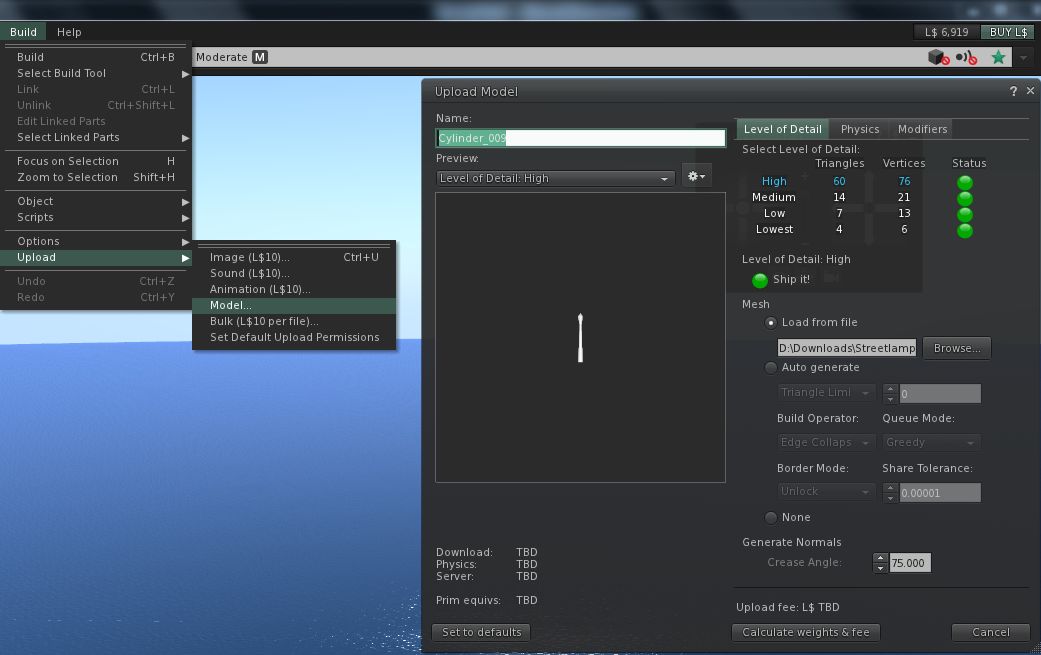
When it comes to uploading mesh objects, the option can be found in the BUILD menu, alongside the other upload options.
Mesh upload options
A couple of things to bear in mind here:
You’ll have to have completed the Mesh Upload Status tutorial and have Payment Information On File to upload mesh objects
It would appear that if the land is set to a Group with object entry / rezzing is restricted to that group, you may find the mesh upload option is not displayed unless you are a member of that Group (this was certainly my experience, testing on both my own land and a sim belonging to a friend whose Group I’m not a member of).
I ran a couple of upload tests without incident (although the meshes were not that complicated, and I didn’t play with the defaults that much, as they’d already been optimised for SL). I gather others have found problems.
Other than this, there is little more to say about Viewer “3”. Others have experienced crash and frame rate issues, but in using it for some 3 hours, with plenty of teleports, etc., I didn’t encounter any technical issues. usability issues, yes; but not technical. Again, the official Viewer, in whatever version number it sits under, has a long, long way to go before it reaches the level of convenient use offered by the likes of Firestorm – at least where the non-mesh aspects are concerned.
Update 25th August, 2011
In a comment on the revised JIRA, Charlar Linden states:
Charlar Linden updated SH-2341:Status: Expected Behavior (was: Open) Resolution: Not Applicable – thanks – this flag would have no effect, and is being removed soon.
So it would appear the option to disable mesh is not intended to be a part of the Viewer.