Sansar Bust A Move (Feb 2018) release

Female dancing in Sansar Desktop mode – part of the Bust a Move release

The Sansar release for February 2018, called “Bust  A Move” was deployed on Thursday March 1st. This release builds on some capabilities added in recent Sansar releases, as well as adding some new capabilities. to the mix, notably for experience creators, but also to help improve with user-user engagement.

The release notes provide full information on the new features, updates, documentation changes and resolved / known issues within the release. The following is a general overview of the update’s key changes.

Initial Notes

  • As with Sansar deployments, this update requires the automatic download and installation of a client update.
  • One launching the client the first time, following update, the log-in splash screen’s Remember Me option will be unchecked, and needed to be re-checked for log-in information to be correctly retained by the client.
  • Changes to the avatar system (e.g. avatar emotes) means that on logging-in for the first time following the update, users will be placed in the LookBook (Avatar App).

Experience Access Controls

The new means of controlling who can access an experience have been introduced with the Bust a Move release:

  • Only Me: only the creator can access the experience.
  • Guest List: only those defined on an access list will be able to see the experience in their Atlas, and access it, regardless of whether or not they are on your Friends list.
  • Ban List: maintain a list of individuals specifically banned from accessing an experience (they will not see it listed in their Atlas).

These options work alongside the existing options of making an experience open to anyone, or limiting access to only those people on your Friends list, and are set when publishing an experience.

The default published status for an experience is to have to open to everyone, and with only the ban list active (if used). To change this:

  • Either edit the experience and select the Publish option or from the My Experiences list, click on the Publishing Options buttons for the experience you with to update.
  • Make sure the Publishing Options > Who Can Visit tab is open (if not already selected).
  • Use the top drop down (Everyone, Only the Following, Only Me) to set the initial level of access to the experience.
  • Selecting Only the Following allows you to limit access to an experience to friends and / or a guest list (both can be set together).
The updated experience access controls mean you can now define access to an experience by both your friends list and / or a guest list, according to your preference of using one / the other / both in combination.
  • Note that any experience you have set to access by friends only and / or a guest list will appear in your Atlas with a yellow icon in the top right corner of their Atlas image.

Creating either a Guest List or a Ban List comprises the same basic steps:

  • Click on the required Edit List button. This opens the list, which will display the names of anyone already added.
  • Click the Add button to add further avatar names / avatar IDs (no “@” required for the latter) and click Search.
  • Click the correct name in the list box (if more than one) to highlight it, and then click Add Selected to add them to your list.
  • Repeat for each new name; click Done when finished, to return to your updated list.
  • Click Save to save the list.
Adding people to a guest or ban list both follow the same basic steps

Names can be removed at any time by clicking on any name in a list to highlight it, then clicking the Remove button – note that no confirmation is required.

Bookmark Favourite Experiences

Users can now bookmark experiences for display in a Favourites tab within both the Client and web Atlas. To add an experience to your list of favourites:

  • Display the information page for the experience in either the Client or web Atlas.
  • Click on the heart icon to add the experience to your list of favourites. The icon will turn a solid white, indicating you have added it to your favourites, and the Favourite count for the experience will increment by one.
  • To remove an experience from your Favourites, display the information page for the experience and click the heart icon again. It will no longer appear solid white, indicating the experience has been removed from your favourites, and the Favourite count for the experience will decrease by one by one.
You can add any visible experience in the Atlas to your list of favourites by clicking the heart icon in the experience description page (arrowed). This will also increment the number of favourites for the experience (circled, lower left corner)

Avatar Emotes

Using the “/clap” animation / gesture / emote. Courtesy of Linden Lab.

A rudimentary set of “avatar emotes” (that’s basic animations to you and me) have been added for Desktop mode with this release.

Triggered by nearby chat commands, three basic animations are provided:

  • /clap – Causes your avatar to clap its hands for a few seconds.
  • /dance – Causes your avatar to perform a short dance.
  • /thumbsup – Causes your avatar to give a “thumbs up” gesture.

The dance animation perhaps leaves the most to be desired, bringing to mind as it does visions of the hoary old “dad dancing at a wedding” visual gags. The clapping is (for me) the most effective, and the thumbs-up sitting between the two.

The Lab has indicated that more sophisticated means of animating avatars will be coming down the pipe, so regard these options as just a first step along the way towards more expressive avatars.

Chat Improvements

It is now possible to access the chat app from experience load screens and the Atlas, allowing conversations to continue more broadly across Sansar.

Continue reading “Sansar Bust A Move (Feb 2018) release”

2018 Sansar Product Meetings week #6: Find and Connect 2

Eternity by C3rb3rus

The following notes are taken from the Sansar Product Meeting held at 9:30am PST on Friday, February 9th, 2018 – unfortunately, I was unable to attend the afternoon meeting, so have not notes from that.

These Product Meetings are open to anyone to attend, are a mix of voice (primarily) and text chat, and there is currently no set agenda. The official meeting notes are published in the week following each pair of meetings, while venues change each week, and are listed in the Meet-up Announcements and the Sansar Atlas events sections.

Product Meeting Changes

The “new format” for the Product Meetings, featuring specific subject matter experts from the Lab making themselves available to answer questions from users will now likely start in the week commencing Monday, February 12th.

  • The meetings are liable to be held on different days of the week relative to one another, rather than both on a Friday.
  • Dates and topics will be announced via the usual channels (Sansar Discord channel, meeting announcements, Atlas Events).

Find And Connect Update

The Find and Connect release (see my previous Product Meeting report) was updated on Wednesday, February 7th, 2018, comprising fixes for some known issues.  A list of changes / remaining known issues is available in the release notes. The following provide a little more context on the update.

Character Editor

A couple of avatar issues have been fixed, forcing users logging-on for the first time after the update to go to the LookBook (avatar app). These are:

  • The avatar’s head only having limited movement (particularly noticeable in VR).
  • Switching between avatar genders could merge female and male avatars together.

Experience Loading  and Progress Indicators

This was noted in my previous meeting notes, the progress bar seen on an experience splash screen is still in its first iteration, and can appear to “hang” while loading content for uncached scenes.

  • It’s been suggested a count of assets loaded (e.g. 23 out of 96 or something) could help prevent feelings that the load process has hung.
  • It’s been noticed that on occasion, an experience can hang on loading, then quiting and restarting the client / reloading the experience can cause it to load and start OK.
    • This was noted before the progress bar was added, and has been more noticed since the addition of the progress bar, which might be indicative of a load problem / connection issue upsetting the load process.

Experience Concurrency Indicator

The experience concurrency indicator (green icon in the top left of the experience Atlas thumbnail / description image) is reporting avatars as being present in experiences when no-one is in fact visiting.

  • This is a known issue, caused in part by a degree of latency which can occur between people entering and leaving an experience, and the Atlas being updated, and the Lab is looking to improve this.
  • If the Atlas has been left open for an extended period, refreshing it (e.g. reloading the page in the case of the web Atlas) might force an update of the concurrency indicators for experiences that have seen a change in the number of people visiting.
  • Note that this indicator only applies to visitors in a published experience, it doesn’t count people actively editing the scene associated with the experience.

General Feedback

Outside of the points raised above, general feedback for the Find and Connect update is:

  • Load times have (in general) improved.
  • Performance has improved within experiences, probably as a result of the update optimisations included in the release.
  • LookBook is a lot more responsive and gives a smoother experience.
  • Issues of names not showing in Desktop Mode when hovering the mouse over an avatar seem to have increased, and dropping into / out of LookBook and re-spawning in an experience no longer consistently fixes the issue. This is a known to the Lab and is being investigated.

Voice and Text

Voice Indicators

The debate on how to more easily identify who is speaking continues both at the Lab and among users. Ideas put forward include:

  • A over-the-head indicator of some kind (a-la Second Life) – perhaps a an illuminated dot only seen when speaking. There is some resistance at the Lab to this approach as it “breaks immersion”
  • A voice indicator in Sansar’s people floater. Potential problems here:
    • It requires people to always have the people floater open, which could be intrusive and “immersion breaking” for some (possibly more so than a dot that only illuminates when someone is speaking).
    • It currently wouldn’t work for people in VR, who cannot see the chat / people floaters.
  • An auto-rezzing “speaker’s stick” indicator that automatically rezzes in front of the avatar of someone speaking, and vanishes when they are silent.
  • An avatar animation (again a-la Second Life “speaking” animation gestures); but again, this might be a problem for users in VR using hand controllers.

Currently, this issue s not on the immediate road map to be addressed.

Text Chat  / People Floater in VR Mode

  • This is still being considered at the Lab and not currently on the implementation road map.
  • It is possible that the first iteration will allow VR to see text chat, but not necessarily have the means to type text.
    • Users may have the option to toggle this on or off.
    • Some form of indicator that messages have been left in text chat, even if the text panel isn’t visible is also seen as advantageous.
  • The ability for VR users to respond in text is seen as a longer-term issue to resolve.

Voice vs. Text Debate

There is an ongoing debate about preferred communications in Sansar.

  • The platform is a lot more geared towards voice use; so there is a concern that encouraging text chat (as with making text visible to VR users) could shift the bias away from voice to text.
  • There are situations where text chat is the better means of communication, e.g:
    • As a means of saving a transcript of a business discussion / arrangement.
    • To assist with character role-play (e.g. no issues of a voice failing to match a character  – orc, dragon, elephant, etc), or a male user having a female character or vice versa, etc.

Discord has been pointed to as a “solution” to group chat, etc., with Sansar. However, while there are advantages to this (e.g. Linden Lab do not have to develop a Discord-like environment within Sansar) there are also disadvantages (e.g. Discord is not particularly intuitive for a new user; it actually means time in Discord is time potentially away from Sansar; it means placing data and information in the hands of yet another third-party, etc.).

  • There is potentially a bias towards Discord at present, as it does only have a very small community of Sansar users involved within it. There are questions as to how well it scale should Sansar reach tens of thousands of active users trying to engage in group conversations, locate groups, etc.
  • Conversely, can Linden Lab realistically encompass everything users need directly within Sansar without overwhelming the ease-of-use aspects the platform is supposed to have, and are approaches used in Second Life (e.g. full group integration) the most optimal solution?

The Voice / chat debate and options for text chat and voice indicators may form a part of one of the new focused Product Meetings in the future.

2018 Sansar Product Meetings week #5: Find and Connect

David Hall’s Dwarven Fortress – setting for the Friday afternoon Product Meeting

The following notes are taken from the Sansar Product Meetings held at 9:30am and 4:00pm PST on Friday, February 2nd, 2018. These Product Meetings are open to anyone to attend, are a mix of voice (primarily) and text chat, and there is currently no set agenda. The official meeting notes are published in the week following each pair of meetings, while venues change each week, and are listed in the Meet-up Announcements and the Sansar Atlas events sections.

Meeting Changes

Up until now, the Product Meetings have been free-form, general Q&A sessions, largely guided by whoever from the Lab’s Sansar team has been able to join each meeting. In the future, there is liable to be more of a roadmap to meetings, with advanced notice being given on specific subject matter experts from the Lab who will be attending each meeting, to allow for more focused discussions on topics, with Q&A on the specific subjects being covered. These changes may start with week #6 (commencing Monday, February 5th, 2018), or shortly thereafter.

Free Creator Subscription Period Ends

On Thursday, February 1st, 2018, the “Free Creator Preview” period closed for Sansar users. The announcement was made via e-mail, and means those not on a subscription plan have been downgraded to the Free account status, and limited to just three experiences.

Those who have created more experiences under the Preview period are able to save the scenes for all there experiences, allowing them to swap between published experiences, but can only have three published for public access at any one time. Specific issues with changes required by the ending of the Preview period should be raised with support. Details on Sansar subscription packages for those wanting to have more than three active experiences can be found here.

Find and Connect Release

The January 2018 Sansar release, previously referred to as”Release 17″, now called Find and Connect, was deployed on Friday, February 2nd, 2018. The release notes are available on the Sansar website – please refer to these for a complete breakdown of the release contents, particularly fixes and known issues. The following is a summary of the major updates and initial feeback.

Atlas

The Client Atlas now includes a popularity search option and a concurrency indicator for experiences.

  • When selected from the sort drop-down menu (see below), the Popularity option orders the listed experiences in a tab by current real-time use, so those with avatars actually visiting them will be listed first.
  • Experiences with avatars in them have a concurrency indicator in the top left corner of their thumbnail image. This is a near real-time indicator that the experience is in use at the time it is seen in the Atlas.
Client Atlas: popularity in sort drop-down (circled, right), and the concurrency indicators (highlighted in the top three thumbnails) available for all experiences with avatars in them on all tabs

Note: while listed in the Find and Connect release notes, these two updates were actually released on January 22nd, 2018.

Event times in the Atlas (client and web) are now displayed in local time, and no longer only in PST. So if you are on the East Coast, the time will be displayed in EST / EDT; in the UK the time will display in BST or GMT, etc.

Experience Loading Progress Indicators

Indirectly linked to the Atlas, and in response to numerous requests, the splash screens for experiences now display a progress bar and status notices on the condition of the loading process (e.g.  “loading scene resources”, “loading avatar”, etc.).

This is a first pass at offering a progress bar, and the hope is it can be further refined to be more informative, particularly as the load process can seem to pause whilst loading an uncached experience. Ideas being considered are a percentage count, a count of assets loaded (e.g. 23 out of 96 or something), but no decisions at this time, as any count – percent, assets, etc., can still be subject to pauses which can give the appearance that the load has stalled.

Experience splash screen with progress bar and status notices

Audio

  • Live Streaming: live video streaming from Twitch and YouTube.
  • Multiple sound streams: multiple sound streams can be attached to a scene with easy changing between channels, and labels can be assigned to each.
  • Multiple audio emitters: sound streams or a media stream’s sound can be played across multiple emitters in your scene.
  • Play media stream sounds in the background: audio output of media streams can be channelled to play globally in an experience.

Avatar And Clothing

  • The avatar rest pose in Desktop Mode has been revised, as the “looking over each shoulder” action recently introduced didn’t find favour. Instead, the avatar moves in a more subtle and natural manner.
  • The underwear skinning for the female avatar has been revised to reduce the areas covered by the bra and (hopefully) make it easier for clothing creators to produce designs such as backless gowns, etc. This should not affect already uploaded clothing.
  • The knowledge base documentation previously stated that hair should not be more than 5,000 triangles. This should have been 8,000 triangles and has now been amended.
  • The Lookbook has received a lot of optimisation and intelligent caching to reduce load times.
  • Marvelous Design updates:
    • Marvelous Designer creator resources updated, and creators are encouraged to update to the latest skeleton to ensure all new clothing will upload to Sansar. This should not affect existing clothing in Sansar / the Sansar Store.
    • Cloth simulation is a lot smoother in the Lookbook.
    • The latest MD update allows users to use UV maps on the UV guide and fixes issues with exporting clothing to .SAMD. See here for more.
  • Known Issue: following the update, all “ear” attachments vanished from Lookbook (avatar app). This is being looked into.
  • Known issue: avatar head movement in VR mode is constrained (e.g. the head will turn more in one direction than the other). There is a fix for this that didn’t make the cut for this release.

Continue reading “2018 Sansar Product Meetings week #5: Find and Connect”

Sansar Fashion release overview

The Sansar Fashion release, with Marvelous Designer integration. Credit: Marvelous Designer

On Monday, December 18th, Linden Lab announced the Sansar Fashion release, the last major release to the platform for 2017. The title of the release is reflects the fact that the major aspect of the release is focused on clothing and fashion design in Sansar. However, the release covers a lot more than this, with improvements to the uploader, the UI, audio and media, and a host of over changes. I’ve had a quick run through the update, and release notes and the following is offered as an overview of the principle updates.

Avatar Update

The first thing users will notice with this update is that their avatars will need to be re-created – this is as a consequence of the fashion update, and the separating off of the clothing layers. This means facial sliders have to be re-set, but it also means users can experiment with removing /adding clothing.

  • Within in the Avatar App – now called LookBook rather than My Looks -, locate an article of clothing already work and click on it to remove it. Click another item of clothing to wear it.
  • Clothing is split between upper and lower body, and are limited to two layers apiece.
  • Note that the avatar’s underwear is still baked in place, and cannot be removed.
  • Hair can also be removed as well as styles changed.

Once your avatar is set to your satisfaction, save the changes via Done.

Fashion Updates

Clothing

The core of the Fashion updates can be summarised as new clothing support for Sansar. Designers can create their own rigged clothing for use in Sansar / sale through the Sansar Store.

In addition, Sansar offers integrations with Marvelous Designer. This is software that allows designers to create virtual clothing “from basic shirts to intricately pleated dresses and rugged uniforms”. It is able to replicate fabric textures and physical properties, drape garments on physical forms as well as providing the creator with a range of editing tools. It is used by games manufacturers such as EA Games and film effects studios such as Weta Digital.

A new exporter capability in Marvelous Designer allows creators to export their designs directly from the software into Sansar with ease. One in Sansar, clothing can be adjusted on the avatar within the Avatar App (LookBook). You can learn more here, and via the video below. Note: cloth physics for clothing are not currently available in Sansar’s runtime mode.

Sansar creator resources for Marvelous Designer can be found here.

Avatar Meshes

.FBX files for the Fashion update should have been made available, but none are referenced in the release notes, and I was unable to find any reference in the knowledge base outside of the .FBX files for accessories – which may or may not be suitable for clothing (male .fbx; female .fbx).

Hair

Creators and stylists can now create and sell hair styles for avatars. As noted above, avatars can also be bald.

Wearable Accessories

With the Fashion release, wearable accessories are no longer limited to a 1m x 1m x 1m size, instead, they must be within the Axis Aligned Bounding Box (AABB). with the knowledge base article on accessories noting that for import:

Avatar accessories must be close to the avatar. The entire accessory must be within the Axis Aligned Bounding Box (AABB) of the avatar. The AABB’s area is as follows: 0.8m left and right, 0.6m front and back, and 2.2m tall from the feet of the avatar, and 0.05m below the avatar (to account for shoes)**

Note: **Minimum (-0.8m, -0.6m, -0.05m) and Maximum (0.8m, 0.6m, 2.2m).

Atlas Update

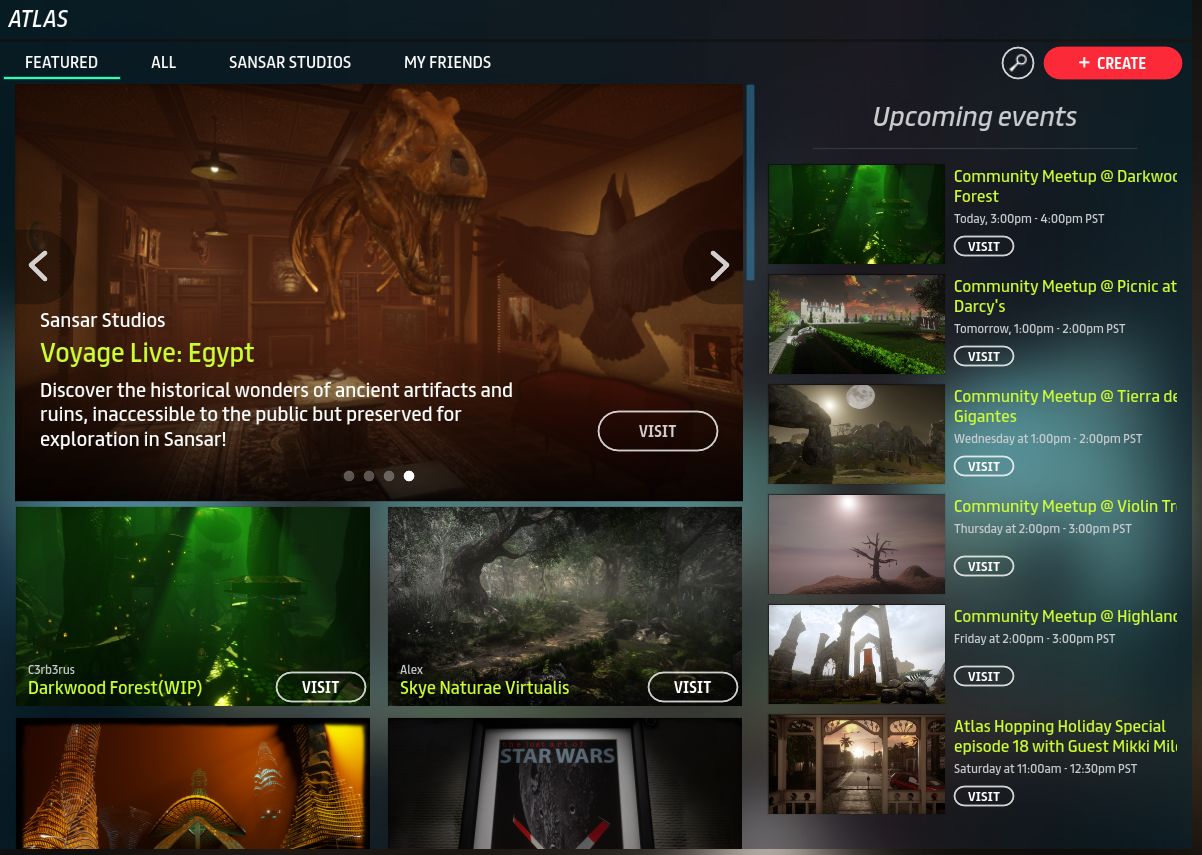
The client atlas has been updated to include submitted events – which are now displayed on the right side, if there are any in the calendar. Each has a Visit button, which will load the experience.

The events section (right) in the updated client Atlas

The Web client now has a new Friends tab. This displays all experiences created by people on your Friends list. If they have created an experience exclusive for access by their friends, this is also where it will appear – it will not appear in the public (Home or All) listings of the Atlas.

Editing Updates

There are a range of editing updates with the Fashion release – for details, please refer to the release notes. These include:

  • A range of audio updates and improvements.
  • A revised upload tool for 3D models and has been relocated to the Scene tool bar – see Importing items to Sansar for more.
  • The ability to import custom heightmaps.
  • New control options to help control an animations – see Working with animated objects.
  • The ability to preview audio and video from within the scene editor.
  • Updates to Reflective interfaces.
  • New object APIs.
  • It is now possible to enable memory limits for scripts which is now capped at 32MB per scene. See Sansar.Script.Memory for more information.
  • Keyboard commands for scripts – subscribe to client “commands” with default keyboard bindings. See AgentPrivate.Client.SubscribeToCommand and the Command Example script in the client folder.

Continue reading “Sansar Fashion release overview”

Sansar Friends release overview

Courtesy of Linden Lab

On Tuesday, October 31st, Linden Lab updated Sansar with the Friends release, the October end of month major release for the platform. I’ve had a quick opportunity to try things out, and the majority of this article is intended to provide an overview of the key features of the release.

The title of the release is intended to convey the idea that the update is intended to make social interactions easier – such as identifying avatars in Desktop mode and searching for other users. However, the release covers a lot more than this, with improvements to scripting, searching, the Store, publishing experiences and getting information.

Identifying Avatars in Desktop Mode

The Friends release adds the capability to identify avatars in Desktop Mode in a similar manner to that used by VR Mode.

With this release, users in Desktop mode can now hover the mouse pointer over an avatar to display the Avatar Name and Avatar ID. A left-click on the avatar will additionally display buttons to audio mute them, or add them as a friend. If the avatar in question is already a friend, the second button will allow them to be removed as a Friends, if desired (as shown in the image below, right).

Identifying other avatars in Desktop mode

Finding People

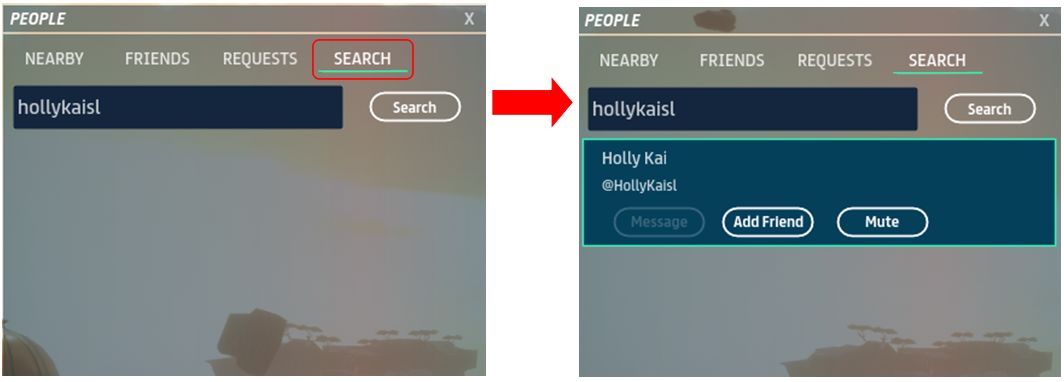
The People app within the client now includes the ability to search for people, allowing you to make friends with others without necessarily having to be in the same experience to connect with them.

To locate another user / avatar, open Chat in the Sansar client, and then click on the People button to display the People app. Click on the Search tab to open the search bar (circled below left), type in the Avatar ID for the person you wish to find and click Search. Note that this has to be the Avatar ID not the Avatar Name because the latter are not unique to a particular user. Also, do not include the “@” preceding the Avatar ID.

Providing an accurate Avatar ID has been entered, it will be displayed below the search bar. Clicking on it will display the options to Friend or Audio Mute the avatar in question (the Message option will be available once a Friend offer has been accepted.

The new People Search option

Experience Sorting

It is now possible to sort experiences in both the Client Atlas and the Web Atlas. Entries can be sorted in A to Z order, by recently created or recently updated. The search options are available on the All and Sansar Studios tabs on both versions of the Atlas (it is not available of the Client Atlas Featured tab or the Web Atlas Home tab), and can be found in the top right corner of the Atlas.

The Atlas sort options in the Client (top) and Web Atlas

Also, and with reference to reference to the Web Atlas, the Search bar on Sansar Atlas, Store and Help web pages have been enlarged to make them more obvious.

In-Client Access to Controls Documentation

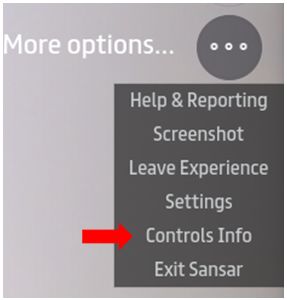
Controls Info option

The Friends release adds a new option to the client allowing users to directly access the Sansar controls top-level page, which in turn provides links to Sansar’s Keyboard shortcuts, Game controller buttons and VR controls.

The new option, called Control Info can be accessed via  the Client More Options, available from both with experiences (shown on the right) and from the Atlas display.

Script Updates

The following scripting updates are included with the Friends release:

  • Trigger collision events on animated and static objects: it is now possible to trigger collision events against animated objects, and it is no longer necessary to set objects to dynamic to trigger collision events with them.
  • New Reflective base class: to allow different scripts to work more efficiently together.
  • Script property metadata attributes: scripts now have added support for the following attributes: Default, Range, DisplayName.
  • Script event/messaging passing: new APIs SubscribeToScriptEvent and PostScriptEvent make it easier for scripts to communicate using the new Reflective class. See the ScriptBase page.

Other Updates of Note

The Friends update also includes:

  • Voice chat adjustment:  to make voices more audible in Sansar.
  • Revised experience publish flow: refer to the updated publishing guide for more.
  • New Featured tab in the Store: listing store items the Sansar editorial team have selected.

In addition, please refer to the release notes for a full list resolved / known issues, new and updated Knowledge Base articles.

A Note on The Events Feature

Originally planned to be a part of the Friends release, the new events feature which will likely form a part of the Web Atlas, is now slated to appear “soon after” this release.

Feedback

A useful release, particularly for those who prefer using Sansar in Desktop mode, where the ability to identify other avatars has been sorely lacking. The new / updated scripting capabilities are likely to see plenty of use and make for some interesting new options within experiences. I’ll likely have more feedback on this release following the product Meeting on Friday, November 3rd.

Sansar Discovery release overview

The Discovery Release. Credit: Linden Lab. Location; Colossus Rising

On Wednesday, October 4th, Linden Lab updated Sansar with the Discovery release, the September / October end of month / start of month major release for the platform. I’ve had a quick opportunity to try things out, and the majority of this article is intended to provide an overview of the key features of the release.

Sansar Store Policy Update

Before getting down to the details of the update, the release notes came with some announcements and reminders, including a pointer to the recently updated Store Listing Guidelines and policy, which came into effect on Monday, October 2nd.

However, there has been some negative feedback on the policy change around the requirement for creators to have payment information on file with the Lab (e.g. a credit / debit card).  As such, the policy announcement was updated on Monday, October 2nd, to read:

Following helpful feedback from Sansar’s creator community, we will not be enforcing the credit card requirement at this time.

Requiring sellers to have payment information on file will help us to combat undesirable behaviour in the Store, but we understand that creators around the world may not have a credit card for a variety of reasons.

We are working to support other payment methods, such as PayPal, and plan to revisit this requirement for sellers once we have more available options.

Atlas Updates

The Atlas in both the client and on the web has been updated.

The Client Atlas now has a new Featured tab, and the ability to search experiences (the latter matching the web Atlas).  Search allows users to search by full or partial experience name, creator name, etc. As with the web Atlas, results are ranked in order of closest matching (so for, example, searching “Maxwell Graf” will return a list of Maxwell Graf’s experiences, followed by experiences /creators with partially matching names).

The Client Atlas with the new Featured tab (arrowed) and Search option (circled)

Te Featured tab lists all those experiences selected by the Sansar editorial team, again in the same way as the web Atlas.

The Web Atlas similarly gains a Featured tab, which sits alongside the All and Sansar Studio tabs in the top left corner of the Atlas, which now has a cleaner look and feel.

Desktop Mode Object Interactions

Desktop users can now interact with objects in an experience. Simply move the mouse pointer in an area where there might be objects available for interaction. Any objects you can “pick up”, will be highlighted in blue. Left click on an object you want to “pick up” and it will move to float in front of you.

Desktop Mode object interaction: hover the mouse pointer over objects. Any object highlighted in blue – like the pith helmet here – can be “picked up” with a left mouse button click. The object will jump to float in front of you (shown with the book in the inset image). Left click again to drop the item, or left-click / hold to throw it – the longer you hold, the further you’ll toss it

As you walk and turn, the object will move with you. To stop “holding” the object, LEFT click it again. A quick click will “drop” it, but if you press and hold the left button, you can throw the object – the longer you hold the button, the further you’ll throw the object. See the Sansar Keyboard Shortcuts documentation for more.

There is still some work to be done on this – avatars will eventually be able to hold objects they pick up, so this is only an initial step in interaction. However, I would request the Lab do something about the direction sharp, pointy things float – as shown below, “health and safety” didn’t exactly spring to mind 😉 .

“Is this a machete that floats before me, the sharp bit towards my throat?” The Desktop mode interaction is only in its first iteration, and will have features added. However, it can raise eyebrows over health and safety! 🙂 (With apologies to W. Shakespeare esq, for the misquote.)

Continue reading “Sansar Discovery release overview”