Radegast is a third-party Second Life / OpenSim client which has proven to be especially popular with those on low-end systems over the years, and gained a solid level of support from the visually impaired, who found the client a lot easier to use than a full viewer – so much so that a special accessibility guide was produced, and special classes held in using the client.
Sadly, ongoing health issues impacting Latif Khalifa, Radegast’s creator, reached a point where, in November 2014, he had to signal that he was unable to continue maintaining the client, although he ensured the source code remained available for anyone who wanted to do so on behalf of the community.
Well, the good news is that on Thursday, July 9th, Radegast was updated to version 2.18. The even better news is that the person making the update was – Latif Khalifa!
The new update brings a number of improvements to the client, which the release notes list as:
New Automatically Accept Dialogue Function (RAD-490)
A fix to allow the main window to minimize to the system tray correctly (RAD-497)
Add log-in support for SirinHGpole-Grid to the grid manager (RAD-503).
The Group Ban functionality in Radegast operates the same way as for any viewer:
Avatars can be banned from a group by either selecting them in the group members list if they are already a member and using the Ban button (below left), or by using the Group Ban Picker to ban one or more avatars pro-actively from joining the group by using the Ban … button in the Banned Residents tab (below right)
Group Ban capabilities can be be awarded to any role in the group by enabling the GroupBanAccess option in the Allowed Abilities section of the Roles sub-tab.
The Radegast 2.18 update adds Group Bans to the client use the Ban button in the Members and Roles list to eject and ban a person in the group; use the Banned Residents tab to track those previously banned or to pro-actively ban users from joining the group.
For those unfamiliar with Radegast, it is a full feature but lightweight client able to run on Windows, Linux and Mac OS. It provides pretty much all of the capabilities found in a full viewer, including full inventory management, mesh upload capabilities, voice support, etc.. In addition, it has a few options of its own such as an API for plug-ins, speech recognition and an AI capability (ALICE).
For those who may be without their viewer for some reason, but would prefer to see what is going on in-world, the Windows and Linux versions of Radegast provide a 3D scene renderer in which you can see the world and move around in it, chat with others and – via the Objects option – interact with the things you see around you.
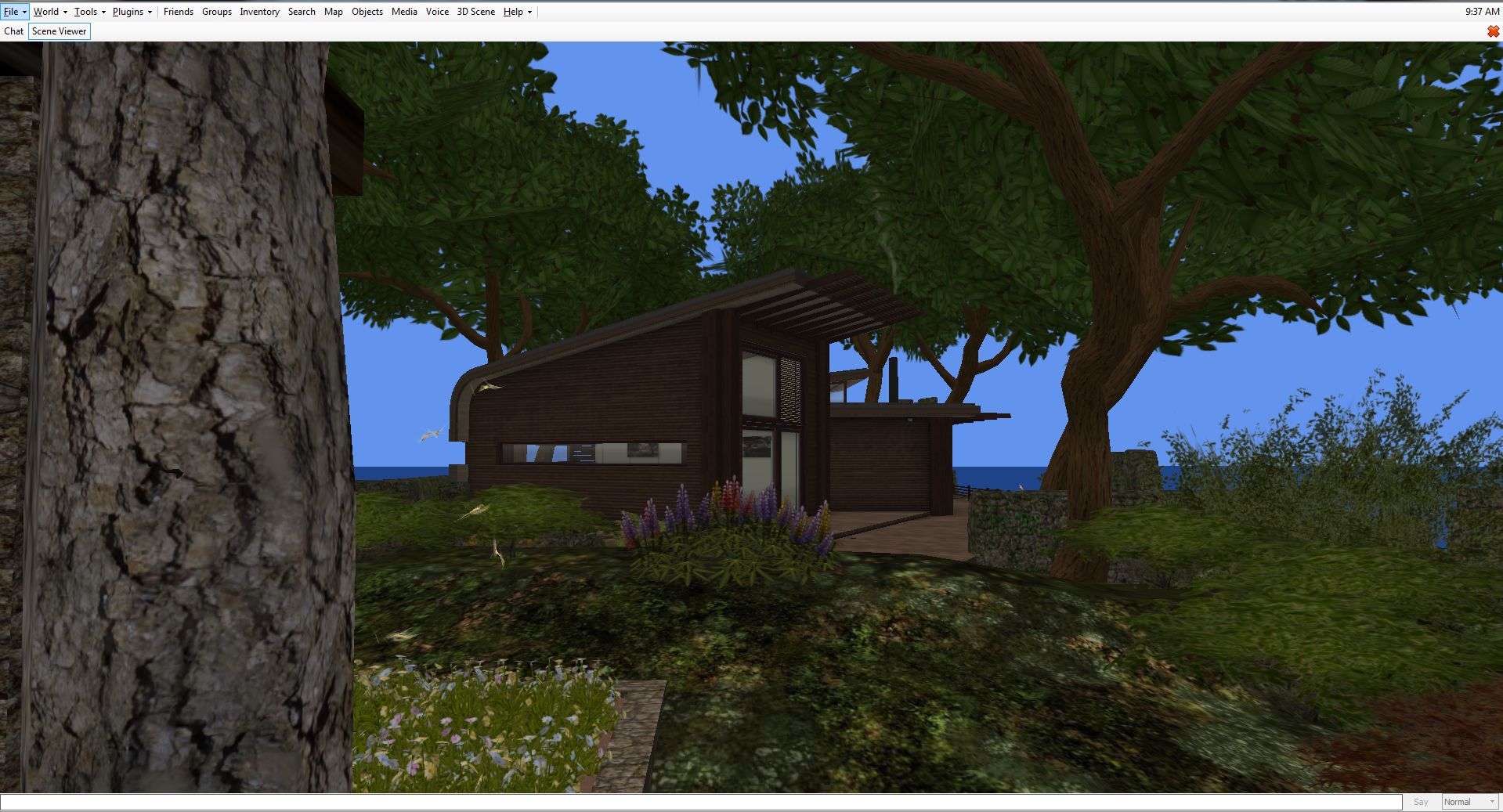
Radegast’s in-world view option (the Scene Viewer) – note this does not support windlight, etc.
All of this has made Radegast a flexible, usable and popular client, and if you’d like to know more about it, please refer to my Radegast coverage in this blog.
Given Latif is still recovering from illness, this update may not signal his full return to supporting Radegast; when I did ask him about this update, he replied, “there were several updates, such as group bans that were done, but unreleased. So why not get them out ;-).” As to the future, we’ll have to see what comes along; but certainly, seeing Latif back in the saddle with this release is great.
On November 5th, Latif Khalifa posted a notice to the Radegast blog that he is ending development of the Radegast viewer, and ceasing work on other virtual worlds open-source projects in which he has been engaged. Citing health reasons, Latif stated:
It saddens me to have to inform you that I won’t be able to continue work on Radegast or my other opensource projects. My health has been deteriorating over the past few years to this point where my use of computers is down to just a few minutes daily. Not being able to work for several years bring its own set of problems.
This isn’t necessarily the complete end for Radegast – as Latif notes, the code is open-source, and as such will remain available should anyone wish to continue with its development.
Radegast is a lightweight virtual worlds client that offers considerable flexibility of use for users, including the ability to render in-world scenes in 3D, thus enabling avatar movement and interactions. Almost all of the core capabilities found in a the full viewer are available within Radegast, including inventory management, the ability to change outfits, chat, IM, teleport, undertake group management activities, manipulate objects and their contents, script, use voice (local chat) listening to music streams, use avatar gestures, and more.
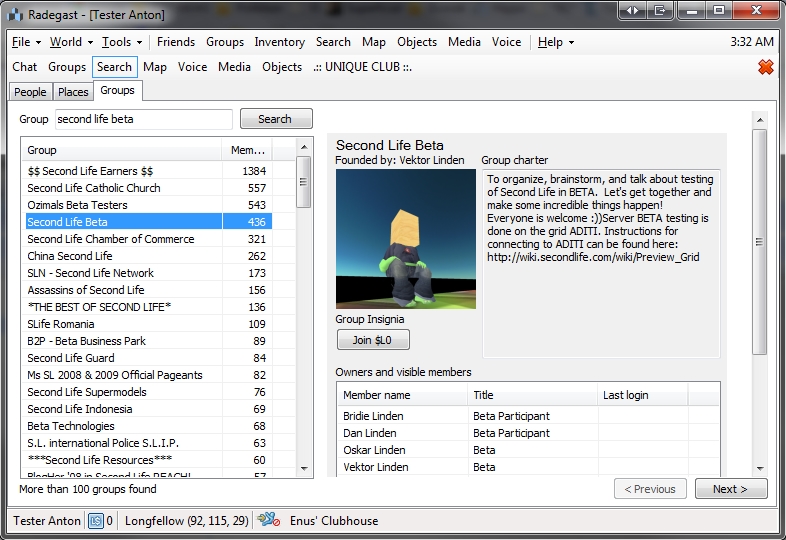
Radegest gives you almost all the capabilities of a full viewer in a lightweight package (image courtesy of Radegast)
Radegast has particularly seen considerable use with visually impaired users, offering speech recognition for controlling UI and entering text in chat and text-to-speech for reading out loud incoming messages, and a special accessibility guide has been written in support of this.
As Latif has kept the client up-to-date with all major SL and OpenSim changes to date (including mesh rendering, server-side appearance for SL, etc.), there is no danger of it suddenly ceasing to work in the immediate future for those who do use it on a regular basis; so there is no need to immediately abandon it, even if the option to continue developing it isn’t taken up by another developer.
Radegast offers a full 3D rendering view. While it might now have ALM, windlights and all the intensive bells and whistles, it takes avatar movement and rendering mesh and sculpts in its stride (click for full size)
Latif himself has been a towering force within the open-source community, working on a number of viewer projects, including Singularity and, most recently, Replex, and he has been heavily committed to the support of the OpenSim community as well as working to improve the user experience in Second Life. He is the founder of the Advanced Worlds SL group in support of the creation, design and development of technologies for virtual worlds, and the promotion of open standards and open-source software.
While there has been no similar notice on the Replex blog, that Latif has indicated a withdrawal from his open-source projects suggests that work on this viewer may also be suspended unless someone else is steeping into the breach. However, I am still awaiting confirmation on this.
There is little doubt that his presence, if he is forced completely away from virtual worlds, will be very much missed – as the comments following the announcement on the Radegast blog demonstrate. In the meantime, my personal message to Latif – someone I’ve been privileged to call a friend for a good while now, and who has always been a huge amount of fun, even when we’ve bumped heads on occasion(!) – is simply this: look after yourself, and am hoping things improve in the future.
Radegest is a lightweight client for OpenSim and Second Life available for Windows, Linux and Mac. As well as providing text-based capabilities, it was the first lightweight Second Life client to offer a 3D world view (windows and Linux), allowing users on low-end systems to have a visual experience when using a virtual world.
Offering a similar level of capabilities and interaction as a full viewer, and supporting recent updates and improvements to the SL service (mesh rendering, HTTP protocol updates, Marketplace Direct Delivery, Server-side Appearance, etc.), Radegast has become very popular among users with visual impairments and with audio gamers. So much so that Roxie Marten and Celene Highwater of Virtual Ability Inc., have written a comprehensive Accessibility Guide to help people get started with Second life through Radegast. This not only serves as an excellent introduction for the visually and aurally impaired, but forms a thorough introduction for anyone wishing to gain familiarity with using Radegest.
Radegest gives you almost all the capabilities of a full viewer in a lightweight package (image courtesy of Radegast)
Because of Radegast’s popularity among the visually impaired, Celene Highwater will be teaching a special class on Radegast for all those interested in assisting new users understand the client and in helping them become a part of the growing community of blind SL users.
The class will be held at the The Tavern on Wolpertinger, on Thursday May 29th, at 12:00 noon SLT / PDT, and will take place in text, or voice upon request.
Anyone who is interested in learning the ins and outs of Radegast in order to help blind or visually impaired users make effective use of the client, is extended a warm invitation to attend the session.
It’s been over two years since I last looked at Radegast, the lightweight virtual worlds (SL and OpenSim) client for Linux, Windows and Mac. However, given it has just had two short-order updates, it seemed appropriate that I also bring my coverage of it a little more up-to-date.
Given so much has gone on with the client since I last blogged on it, this isn’t so much a review of the recent updates – or any updates – but more of a quick reminder of what Radegast is and what it can do.
For those unfamiliar with Radegast, it is a feature-rich client, offering almost all the functionality of the actual SL viewer, with the core functionality perhaps summarised as:
Chat (local, IM, group, friends conference)
Inventory management (manipulation, deletion of the items, moving them around, sending to other people by dropping item on their profile)
Manipulation of object contents, notecard and script editing
Ability to wear/take off clothes and attachments from the inventory
Avatar appearance – others using 3D client will see you appear correctly, and will not be able to tell that you’re using a text client
Backup of all scripts and notecards from the inventory
World map
Object finder – list objects nearby, sort them by distance, name, see details
A.L.I.C.E AI chat – turn it on in tools menu and have fun with automatic responses to chat/IM generated by a built-in Artificial Intelligence
Radar functionality
Movement controls
Support for activating gestures from the inventory
Streaming music
Accessibility improvements for visually impaired users, including speech recognition for controlling UI and entering text in chat and text-to-speech for reading out loud incoming messages
Experimental voice support for local chat
Partial RLV support
Group management
3D scene rendering for Windows and Linux
Radegast provides a 3D scene rendering for Windows and Linux in which you can interact with others and object, move around, teleport, move your camera …
All of this makes it an extremely powerful client, and one which can offer significant advantages over some of the more traditional text-based clients for SL power users who may have a need to access SL from a computer other than their usual system – such as a low-powered laptop while on the move (an option which could also potentially be more cost-effective for such users when compared to SL Go).
Since my last hands-on review of Radegast (version 2.2), there have been a series of updates which have ensured the client has kept pace with developments within SL. These mean, for example, that Radegast supports Marketplace Direct Delivery, Server-side Appearance, interest list updates and support for the recent server-side HTTP protocol improvements. In addition, bugs and issues have continued to be addressed, there have been further improvements to inventory handling, attachment point updates, rendering improvements (including some I encountered very early on and which are now long-since fixed) and a whole lot more.
Radegast takes mesh and sculpt rendering in its stride in the 3D scene view
One area in particular that has been focused upon with Radegast is that of accessibility by the visually impaired and audio gamers. Roxie Marten and Celene Highwater have written a comprehensive Accessibility Guide to help people get started with Second life through Radegast (and which also serves as a very good introduction to the client for anyone who has not used it before), and Latif has done a considerable amount of work on improving the Radegast speech plug-in.
If you’re looking for a means of accessing Second Life from something like a low-end laptop while on the move, and would prefer to be able to see what’s going on in-world (on Windows and Linux) rather than relying on text only, or if you have an old computer you’d like to occasionally use for SL access but which labours under the load of running a full-blown viewer, then there is little doubt that Radegast offers a very capable alternative. And as nice and shiny as SL Go is when on the move, it’s also nice to remember that there are alternatives, particularly if you have to take the old laptop with you …
I finally had time to sit down and play with the latest update to Radegast – version 2.2.1171. This isn’t a major update per se, but it certainly adds some very nice capabilities to what is, from a straightforward user perspective, the most flexible of “text” clients for Second Life and OpenSim.
As always, comment here are based on using the Windows version, and this article supplements my previous reviews of Radegast and Radegast 2.0.
The .EXE file comes in at around 8.3Mb, and as with previous versions, installation is very straight-forward, although I was surprised when it gave the install directory as Radegast-experimental, given this is a formal release; quick update needed there! The login / splash screen hasn’t been changed since the 2.0 release, and logging-in brings you to the familiar chat tab in the main window.
The key updates with this release are:
Multiple attachment support
View your own attachments in the object tracker & touch them
Temporary texture uploads
Change Profile Picture
Inventory backups can now save textures and snapshots
Multiple Attachments
This sees an ADD TO WORN option added to the menu when you right-click on an object in Inventory, allowing you to wear it at the pre-assigned attach point (body or HUD) in addition to whatever else is already worn at the point, exactly as with a graphical Viewer.
Additionally, any objects attached to your body or a HUD position are now listed in the main OBJECTS tab, as well as TOOLS -> MY ATTACHMENTS or CHAT -> [Avatar]-> ATTN. Providing you set the Objects tab to display objects by DISTANCE from you, rather than NAME, worn items will always appear at the top of the list, making them easy to locate.
Attachments now listed in OBJECTS tab
As with other scripted objects, you can access the menu for any attachment by either right-clicking on it and selecting CLICK/TOUCH from the drop-down menu, or left-click on it and then clicking on the TOUCH/CLICK button.
This now allows you to view / edit any scripts / notecards contained in an attachment (subject to permissions):
To view the contents of the root prim: right-click to select an attachment, then click on the CONTENTS button to the right of the Radegast window.
To view the contents of a specific component / prim, highlight the required prim in the panel at the bottom of the OBJECTS tab, then click on the CONTENTS button
In either case, a list of the prim’s contents is displayed. Click on the require script / notecard and click on OPEN.
Temporary Uploads
Image file temporary uploads option
As with a number of third-party graphic Viewers, Radegast now supports temporary texture uploads. Select FILE ->UPLOAD IMAGE. The option to upload a temporary texture is on the main selection / upload panel.
Temporary uploads follow the same rules as for graphical Viewers (no SL charge on upload, cannot be transferred, etc).
Profile and Picks Images
Radegast 2.2 includes the ability to change your Profile image, or any images associated with the Picks in your Profile.
Select your avatar’s name in the Chat window and click on the gear icon to open your Profile
Size / position the main Radegast window (or your inventory window, if you have that open separately) so you can see both it and your Profile window
To change your Profile picture, navigate through your inventory and select the image you wish to use for your new Profile picture. Drag and drop the image into the image area of your Profile
To change the image for a Pick, open the required Pick in your Profile. Navigate through your inventory and select the image you wish to use with the Pick and drag and drop it into the image box on the Pick display in your Profile.
Drag and drop images from your inventory to update your Profile and Picks
Additionally, when you right-click on an image in your Profile or Picks you can now:
SAVE them to your inventory
Locate an original in your inventory using SHOW IN INVENTORY
Copy an image to your clipboard
Copy the UUID of an image to your clipboard.
Other Features and Fixes
Features
Francogrid (OpenSim) added to grid presets
Option to save images and inventory list to inventory backup
3D scene viewer renders megaprims even if their center is beyond the draw distance as long as their closest edge is within
Auto Item accept
Ability to see group and group roles keys
Fixes
[RAD-268] – merged ‘Chat+Objects’ Tabs can’t be re-opened
[RAD-280] – Autoresponse triggers on System Messages
Yesterday I mentioned Radegast 2.0 (.1130) had been released and that it has, among other things, the 3D scene renderer (now called the Scene Viewer), the ability to support avatar physics and the capability to render mesh objects.
Well, it does – and it does so exceptionally well.
Installation is as per previous versions – unsurprisingly – and when you start the application, you’re greeted with the familiar splash screen, albeit it with the login data fields nicely resized and moved to the right. The discerning user will also note that 3D Scene has been added to the menu / tab bar – a hint of what is to come.
Once logged-in, you’re presented with the chat display, which retains the same overall layout as earlier versions, but with a somewhat sharper look, with resized movement controls and extended chat bar.
Preferences Options
The File menus now includes a PREFERENCES option which, when clicked, opens the Settings floater.
Radegast Preferences
This allows you a set a range of familiar preferences within Radegast, including the popular RLV Support (this is described as “partial” support in the documentation, of which more anon) and the use of MU* style emotes (so “:” can be used in place of “/me” when typing an emote), together with the ability to turn-off the typing animation. Unlike the SL Viewer, there is no requirement to re-start Radegast after checking / unchecking certain items (such as, again, RLV).
Preferences also gives you access to two other tabs: Auto Response and Graphics Settings. Auto Response operates in a similar manner to the Auto Response function found in popular TPV Viewers such as Firestorm and Phoenix, allowing you to send a customised message to people who IM you. You can set the response to be sent automatically under one of three conditions:
When you set BUSY from the World menu
When anyone not on your Friends list IMs you
Whenever anyone IMs you.
The Graphics Settings obviously apply to the 3D Scene Viewer. Here you can set a number of graphics defaults that are common to most TPVs, and adjust your draw distance to a maximum of 176 metres. There is also an option to turn-on water reflections, but this will only be accessible when the 3D Scene Viewer is running.
Graphics settings
All options selected in Preferences are applied automatically (unless a restart is explicitly asked for – as with Anti-aliasing in the Graphics Settings), so there is no APPLY button – simply close the Settings floater when done.
An important note to remember if you’re running Radegast over a mobile connection: you might was to keep the draw distance in the Scene Viewer turn down relatively low to reduce the bandwidth you’re using in downloading data & so reduce any charges you may be incurring.
The 3D Scene Viewer
The 3D Viewer itself is now fully embedded into the main Radegast window. When you start it, it simply opens up a new tab.This is a nice touch when compared with the experimental versions, especially as it includes the chat bar as well, a very practical addition over some of the early variants of the renderer.
Radegast scene rendering compared to the SL Viewer (inset) – impressive (click to enlarge)
The rendering is actually bloody impressive, and offers a very good alternative to the full Viewer – but bear in mind that:
This isn’t a full-blown graphical Viewer, so things might take a little time to render, especially in “busy” environments. The results, however are well worth it, as the image above hopefully demonstrates
Running the Scene Viewer significantly increases the use of system resources, and so might not be the best for older systems
There are a few issues, but whether these are tied to the software or your hardware set-up is hard to say. In my case, for example, I found that some prims (such as around the flowerbeds in my garden) simply didn’t rez at all, no matter what draw distance was set or where I stood relative to them. Similarly, not all my sculptie plants were properly rendered and some of the grass of one my lawns was rendered hovering above the surrounding grass and stonework.
However, to suggest this in any way ruined my enjoyment in having my in-world scene rendered, or my inability to interact with it, would be a lie. Certainly, when compared to a Second Life view of the same location, Radegast’s ability to render the scene so well is absolutely clear. I also think the ability to render water reflections is pretty amazing as well (below).
Water reflections
Mesh rendering is equally impressive, as the images below of two familiar vehicles from the Beta grid should demonstrate (top picture captured using the old Mesh Project Viewer, the lower image captured in Radegast 2.0).
Rendering mesh objects: “Full” Viewer (top) and Radegast
Movement in the Scene Viewer has been refined to be smoother than earlier versions, although avatar rendering isn’t entirely perfect. By default, the camera is positioned behind your avatar, a-la the SL Viewer, and you can use the LEFT and RIGHT arrow keys to turn, UP to walk forward and DOWN to walk backwards – all as one would expect. If you are using an AO, the Scene Viewer attempts to render the movement scripted by the AO, although this doesn’t always *quite* work, and occasionally your avatar might develop something of a drunken lean while walking!
Tip: if you opt to reposition the camera at any time, always tap ESCAPE to place it back behind your avatar before you attempt to move again (the camera will not automatically reposition itself should you try to move). Even if you can see your avatar, you should still reposition the camera prior to moving – direction of movement appears to be relative to the camera position, not avatar position, so if your camera is not behind your avatar, it is easy to get confused as your avatar sets off in a totally unexpected direction when you press the UP or DOWN keys!
Camera movement still take a a little getting used to. Movement is carried out through a combination of holding the left mouse button and either the ALT or CTRL keys:
Left-click (and hold) & press ALT to orbit around something when moving the mouse
Left-click (and hold) & press CTRL to pan left / right up/down when moving the mouse.
Camera movement can initially be confusing – using CTRL and the mouse to move to the left will apparently pan the camera to the right, for example. The best way to understand this is to think of all camera movement in terms of dragging the on-screen image. So if you use CTRL + left mouse-click and move the mouse to your right, you are effectively “dragging” the image to the right side of your screen – and the camera position will consequently appear to move to the left as a result. This rule applies to panning up / down (“drag” the image towards the bottom of your screen to pan up, etc.), and also to the use of the ALT key to orbit around something.
Tip: If you find the image going off-centre compared to what you are trying to achieve when panning / orbiting, try pointing the cursor at something you wish to centre-on and ALT-left click to centre the view on it; then try panning / orbiting again.
Additional Viewer Options
For those that prefer the Scene Viewer detached, right-click on the tab name for the Scene Viewer and select Detach. This will float the Scene Viewer in a separate window, complete with a chat bar
Right click anywhere within the Scene Viewer to display an additional menu:
Undock (/Dock): will float the Scene Viewer in its own window or re-dock it as a tab within the main Radegast window
Options: Displays the graphics preferences that can also be accessed through FILE -> PREFERENCES
Debug Panel: opens the Debug options for the Viewer, where you can RESET VIEW and move the camera back behind your avatar (i.e. the same as tapping ESCAPE on your keyboard), and adjust things like the image brightness and contrast using the top two sliders.
Objects in the Scene Viewer respond to touch as they would in the “full” SL Viewer: doors will open, menu-driven objects will display their menu, etc. Right clicking on in-world objects will display a context-sensitive series of additional option to the menu described above. For example, if you right-click on an item you own, you’ll get additional options to take, delete, touch or sit on the object. Right-clicking on an object owned by someone else may give you the options to touch it (if scripted) and / or sit on it.
RLV Support
This is an interesting addition to Radegast. While it is not a full implementation of the RLV API, it nevertheless opens options and possibilities. Among the things it can do:
Deny the ability to remove locked items
automatically accept forced teleports
Act upon forced animations (although not necessarily rendered in the Scene Viewer)
Restrict chat and IM (including forcing chat to whisper, etc.)
The broader restrictions provided by RLV aren’t replicated in Radegast, so things like blocking inventory access, restricting far touch, vision restrictions, etc., are not implemented.
Other Updates
The login screen now stores the details of avatars logged-in to virtual worlds using Radegast, including the actual grid the avatar logged-in to. Simply select the avatar (/grid name) from the drop-down list available from the USERNAME field. The user name, password and grid are all then set
Radegast now supports Viewer 2 avatar Physics Layer – so if you wear a physics layer of clothing, it will render movement correctly in other people full graphical Viewers (the movement won’t be rendered in the Radegast Scene Viewer).
Opinion
Radegast 2.0 offers some nice improvements over the previous releases, and still sits head an shoulders above other “non-graphical” clients in the most common areas of use. If you want a genuinely “light” text-based access to Second Life / OpenSim the likes of Libretto or SLiteChat might be more appealing, but if you are stuck in a situation where you simply cannot run a “full” Viewer and want to have a very flexible means of accessing your preferred VW for more direct interaction with friends and the people around you, Radegast really cannot be beaten.
Elements of the client are still described as “experimental” and as such may well still be prone to crashing. That said, I’ve sent the good portion of a day running the client on both a desktop PC and my Notebook (Intel Atom 330 w/2Gb RAM and nVidia Ion2 graphics processor) without any crashes or major issues (the Notebook did have occasional avatar rendering issues – I was hair and shoes a few times, with nothing between!) and both the PC and the Notebook seemed to have issues rendering the odd prim here and there.
All-in-all a significant and well-implemented update to Radegast which is enjoyable and intuitive (for the most part!) to use. And RLV is a nice option to have – and not just for those of us into D/s scenes *grins*.




 I finally had time to sit down and play with the latest update to Radegast – version 2.2.1171. This isn’t a major update per se, but it certainly adds some very nice capabilities to what is, from a straightforward user perspective, the most flexible of “text” clients for Second Life and OpenSim.


 Inara Pey: Living in a Modemworld