 Patterns became the first of Linden Lab’s new products to be made available to the public with an initial debut on Thursday October 4th in what the Lab calls the “Genesis Release”. This has been (and remains) available at a discount price of $9.95 on the Patterns website. The “full” release of the product will apparently not be until “late” 2013 – presumably to give both users and Linden Lab plenty of time to add to the Patterns universe and make it something truly unique – and at a price of $19.95.
As I pre-ordered my copy back in September, I was quite keen to find out what Patterns is like – and provide some initial feedback.
Downloading and Installing
Patterns is being made available through Steam, so you’ll need to sign-up there if you’re planning to try the Genesis Release for yourself. To download the software, you’ll need an activation code, which will be e-mailed to you. Use this with the Product Activation process within the Steam client to initiate download and installation – full instructions accompany the activation key. Installation is an automated process, leaving you with the option of starting Patterns from your Steam Library, your desktop, via shortcut, your start menu, and so on. No fuss, no bother, as with all Steam installations (or all (three) that I’ve seen). In this lies a hint as to how Second Life will arrive on people’s computers once the SL / Steam link-up is completed.
Start-up and First Looks
Launching Patterns is somewhat similar to the first use of SL: the first thing you’re asked to do is to agree to a very familiar Terms of Service (although it has some notable and obvious exceptions, the term “boilerplate” sprang to mind reading it – but then, why should LL reinvent their legal wheel?). Confirming your acceptance of the ToS brings up the Patterns splash screen in full.
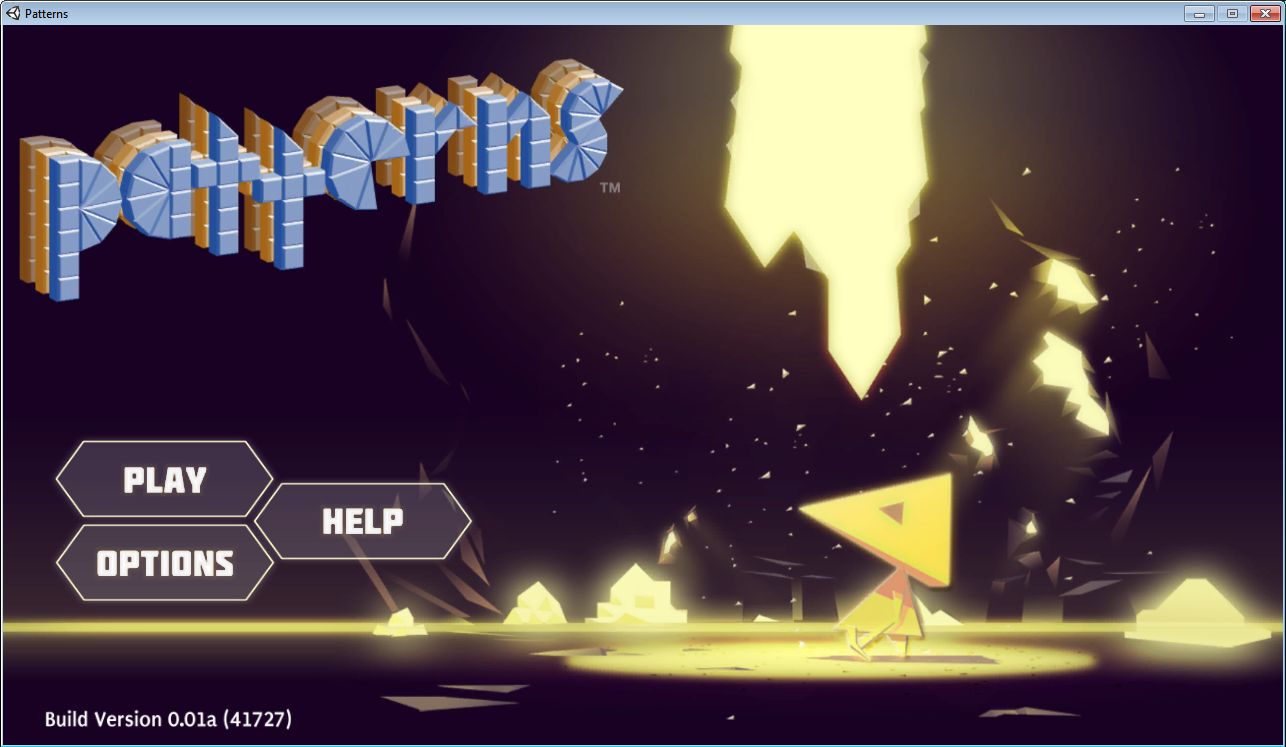
Clicking PLAY presents you with the options to RESUME, or start a NEW session. HELP displays some basic instructions for using Patterns (how to move, how to collect materials, how to build, etc.), while OPTIONS displays those setting you can tweak. The look of both these latter screens is perhaps best termed “retro”.
NEW gives you three options: 1, 2, 3. These refer to the number of individual game sessions you can create and save – so it is possible to have up to three sessions of Patterns ongoing, although you can only ever use one of them at a time.Start and save three sessions, however, and you’ll have to overwrite one of them the next time you select NEW.
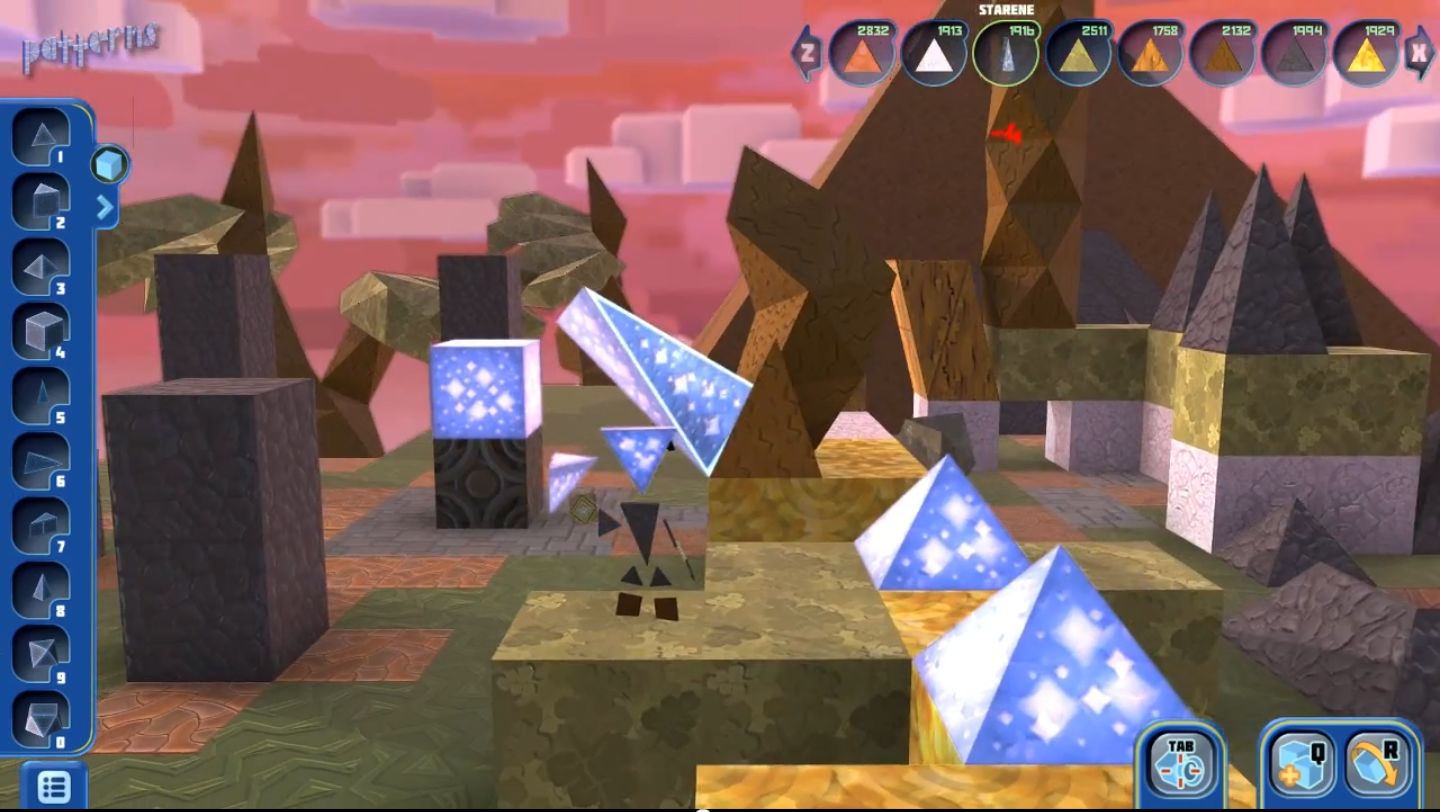
Once you’ve started a session and the game has loaded, you’re inside a large pyramid, and need to break out. This is done by pressing and holding the right mouse button and “busting” some of the material comprising the pyramid’s walls. This breaks the material (“substance”, in Patterns parlance, which left me wondering if I was guilty of substance abuse when smashing up walls and objects…) into its component triangles, which you can then collect as you “fire” at them – they are added to the requisite substance counter at the top of the screen. You can then use any substances you have acquired (up to the total number collected) to build objects of your own.
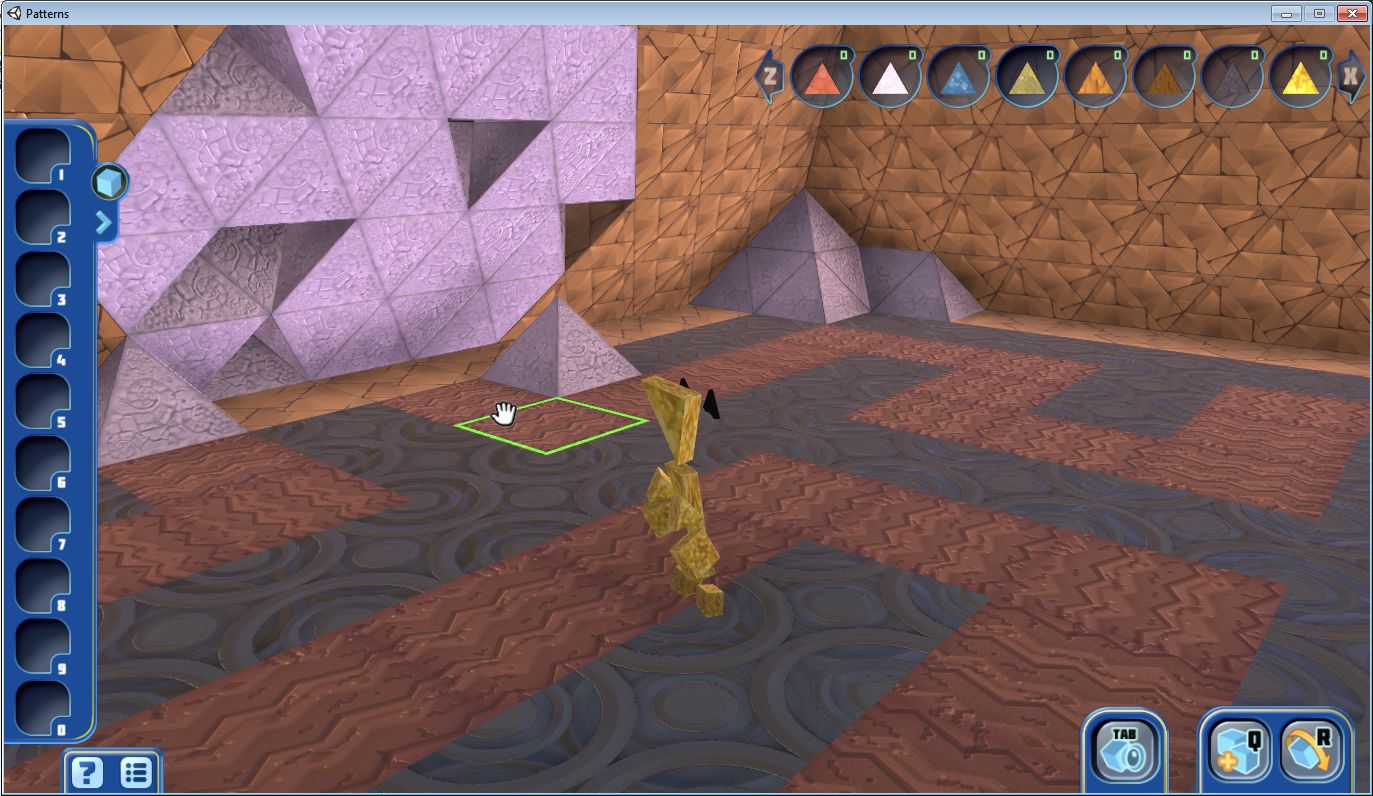
Note that not all materials appear to be “bustable”; some may collapse as you fire at them, some may not (such as the “bedrock” supporting each of the floating platforms). Also note that “busting” objects and walls, etc., is range limited, with out-of-range objects being outlined in yellow, and those you can break-up in green.
Once outside, you’re in a platform-like world, where you can continue use the right mouse button to assist you in collecting a range substances you may wish to use for building later, differentiated by look and texture, each with differing properties to be discovered as you gain familiarity with the game.
In order to build, you must first start collecting shapes. This involves finding special “starene” objects in-world and then busting them. Building is done using the left mouse button to select a shape from your shape tray (or use the number keys), then selecting the preferred substance from the menu of substances at the top right of the screen (you can only use the substances you have collected). There are a couple of basic rules for building, which are square faces will only snap to square faces and triangles to other triangles. suitable surfaces are outlined in green. It’s here that the different properties of the substances come into their own: some are better suited to certain tasks / situation than others.
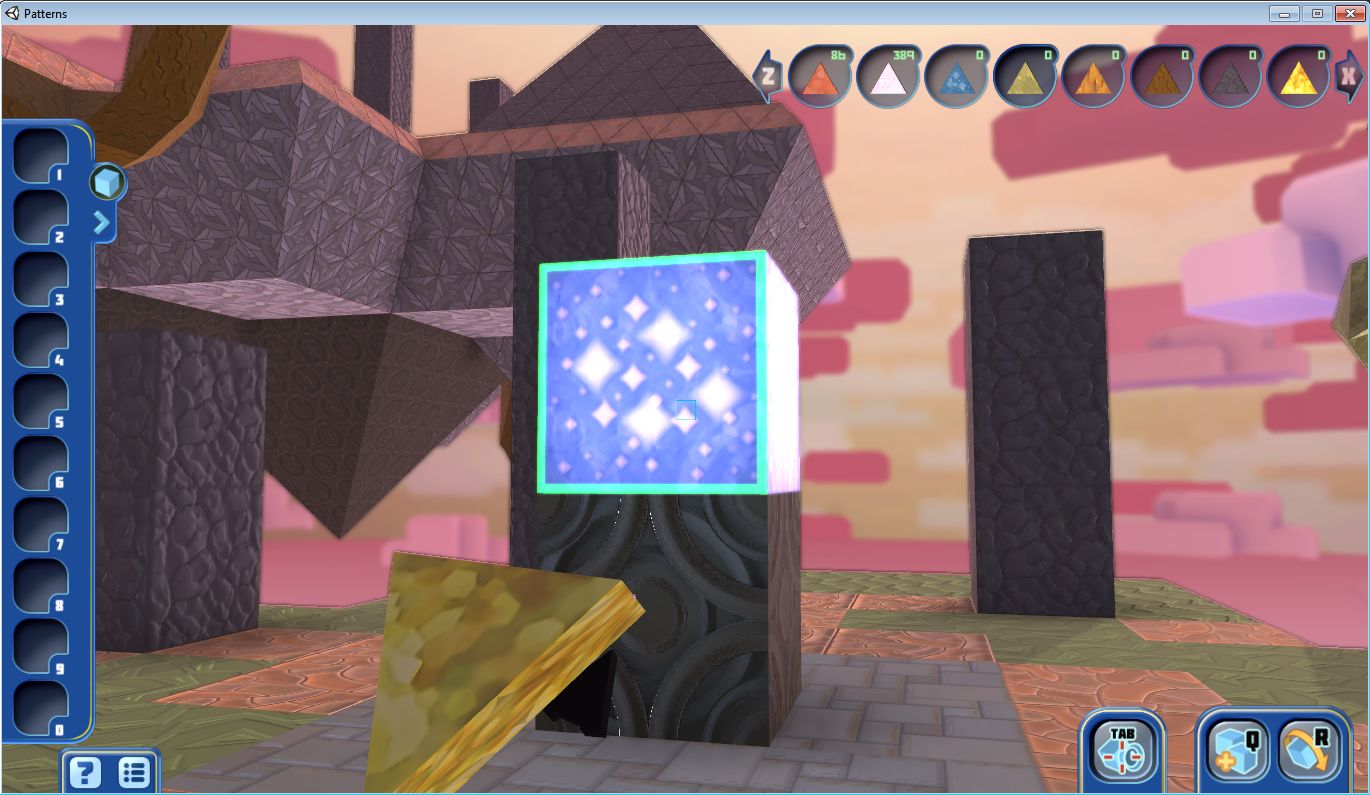
There is also the small matter of physics as well, which can make itself felt whatever you’re doing (try bridging a gap between platforms with the wrong materials, and you’ll see what I mean). Be wary of trying to jump between platforms, or stepping off the edge of the one you’re on. If you fall a decent distance, you’ll come to the shattering conclusion it may have been a mistake. Be careful of anything overhead as well, when building upwards.
Shapes can also be rotated using the R key. Shape placement is a matter of determining what you want to do, and manoeuvring the camera to a position where you can actually do it – and, use the green outline of shape faces as a guide. Here is where Patterns again follows the Second Life model: camera placement leaves a lot to be desired. You can toggle between views using TAB, and move the camera up/down, left/right by moving the cursor around the screen, but it is still something of a PITA – moreso if you’re an SL user, as the temptation is to tap ESC to try to reset the camera is strong; however, in Patterns, all it will do is display the main menu.
 Woot! My first bridge Continue reading “Making Patterns”



 Inara Pey: Living in a Modemworld