There have been questions and comments on Exodus floating around in various places, with people wondering what is happening and when the next release might come out. As an Exodus user myself, I fired-off an e-mail to Clix and the team recently to see if they’d be willing to shed a little light on what’s going on.
While the reply was a little shorter than I’d hoped – but then I did ask a couple of questions on releases that the team may not want to commit to, date-wise – Clix did provide a little update:
The team has been busy with personal projects and real life commitments. Naturally this has slowed down production. In addition we have been submitting code upstream to Linden Lab that has been accepted and rolled out in the most recent official viewer release.
Exodus is being actively worked on and will feature a wide range of fixes, performance improvements as well as some neat new features. Our next release will address any and all license concerns. We will continue to produce the best TPV for gamers and visual artists in Second Life. Stay tuned for new feature announcements!
The license concerns mentioned potentially refer to J2C / KDU usage issues. Whether or not this is the case, it is fairly clear from comments passed elsewhere that there has been strong cooperation between LL and the Exodus team in sorting any problems out, which has to be seen as being a good indicator when it comes to LL / TPV cooperation in general, something that has been grumbled about by some commentators following changes to the TPV Policy recently.
One thing is very certain: given the popularity of Exodus amongst users, that the Viewer is being actively worked on will come a good news to many, so keep an eye on the Exodus blog page.
When reviewing the Beta 6 release of Exodus, I missed an issue with Alpha textures. This was reported to the team, who immediately set to work on fixing the problem and taking care of a few other issues. The result is that there is now a new release 12.01.03.1 – Beta 7) available for download.
Specific fixes comprise:
Water no longer renders black (white under AMD hardware) under certain circumstances
Alpha blended fullbright objects no longer render white under certain circumstances
Eyelashe rendering correct so they no longer show as white under certain circumstances
Fullbright on rigged meshes now gamma correct in Gamma Correction
Fixed alphas on fullbright requiring gamma correction
Fixed projected textures not being gamma corrected
Fixed rigged meshes not being gamma corrected properly under most circumstances
Fixed cases when using forward slash in chat played typing animation.
Further, the team have made the following changes / additions:
Changed default inventory icon style to the original icons
Modifications in attempt to clean up the preferences window and remove old UI preferences
Changed maximum shadow quality to 4.0, as requested
Sun/Moon light color is now gamma corrected when gamma correction is enabled
Added “refresh texture” feature from Firestorm Viewer
Added option to see threat indicators in third person
Added more adjustable settings related to glow, ambient occlusion and shadows to the visuals window.
Exodus runs extremely well on my PC, and as there is a new release that fixes a few things, I gave it a quick spin photo-wise at Black Spot. I think you’ll agree, the results are impressive.
Shaders active, no deferred rendering or other effectsWith deferred rendering active – note the local lights from the ships and the quays reflected in the waterWith deferred rendering active, plus high precision options of gamma correction and tone mappingDeferred rendering, high precision actrive and vigette set to .870
Beta 7 ran at 38fps on High at Black Spot, dropping to 11 with deferred active; turning on the high precision options did not further impact performance. I’ll attempt to run my “comparison test” on the release tomorrow.
Update 4th January 2012: Due to some issues with gamma correction, etc., the Exodus team have issues Beta 7. Core changes are listed here.
The New Year brings with it a new release of the Exodus Viewer. Version 12.01.02.1 (Exodus run a release number system based on the day/month/year of the release, so in this case the release is the first release made on the 2nd January 2012), also known as Beta 6, brings with it a host of new features. Among them:
New graphics functionality
The parametric deformer Alpha
Mesh upload
New FUI options and improved chat bar
V1-style chat console
Ability to save or load position and rotation information of a object into it’s description (something I’ve been wanting for years – so YAY, EXODUS!)
AZERTY keyboard support
The new V3.2 snapshot floater
A range of options imported from other TPVs
RLV/a
Bug fixes.
Exodus is available in Windows, Mac and Linux flavours – this review is based on the Windows release.
Installation
The installer weighs-in at 28Mb – the same size as the official V3.2.6 Viewer. Installation offered no surprises, with the installed Viewer taking-up around 108Mb of disk space – again, the same as the official 3.2.6 Viewer.
On start-up, the Viewer bucks the recent trend in using all, or part of the V3 log-in/splash screen, and instead opts for a clean design with links to the Grid at War Blog, the Exodus Twitter feed and the SL Grid Status page. I’d personally prefer more from the V3 log-in screen, but that’s purely a personal view.
Cool blue splash screen
Once logged-in the Viewer displays the familiar V3.2 Flexible User Interface (FUI), and as Cilla Black might say, there are a lorra, lorra buttons, particularly on the left side of the screen – which we’ll get to in a moment.
Other than the buttons, the UI offers little in the way of major surprises on first looks, presenting pretty much the standard Menu bar, Navigation / Favourites bars layout. Your region co-ordinates are included in the Navigation Bars – which is not to say things haven’t changed. Unlike recent Viewers using the 3.2 code, the Destination Guide isn’t opened by default in Exodus.
Menus
Popular menu options in yellow
The menus offer some nice nips-and-tucks: those options that are Exodus-specific / rated to combat use / are popular options are coloured yellow, immediately drawing the eye to them. Where these options are toggle on/off, toggling them on will cause both the familiar tick to appear alongside them and the item colour to revert to white, a nice touch to prevent visual distractions with items you don’t want to reset.
There are a couple of nice additional touches in the Advanced menu – double-click teleport is included as an option, and camera constraints are disabled by default.
The Me menu includes an additional option to access Exodus’ dedicated Preferences. In earlier releases, these could be found in a Sidebar panel (Exodus having been released just before Rodvik gave word of the coming new FUI), and are now displayed in a dedicated floater panel, accessed wither through Me or via CTRL-SHIFT-P.
The Build menu has a nice addition: you can select an object or linkset and use the BUILD->SCRIPTS->REMOVE SCRIPTS option to remove all scripts from the object / root prim of the object.
Buttons Galore
Exodus, being feature-rich even before the FUI appeared, has a lot of buttons in order to cater for the wide range of options / dedicated functions it contains. With this release, it becomes the Viewer with the most buttons displayed by default on starting-up. These are:
The Customise Toolbar floater reveals further options, including Exodus’ Mini-radar, Mini-statistics, Statistics, and Visuals buttons.
Button options
This is a very comprehensive set of buttons; however, some might find the similarity between some of the icons – the Map and Raid Advisor or the AO and Move, for example (when only using icons) to be initially a tad confusing, leaving them reliant on tool tips until familiarity kicks-in.
Button Placement and Labels
Exodus draws on Niran’s Viewer, in that buttons can be located to the left, right, bottom and top of the screen, and introduces additional display options (left). The FUI has been critique by people who don’t like icons, it’s been critique be people who like icons; it’s been critiqued by those that don’t like icons and text….
So Exodus now gives you the best of all worlds – display your buttons as icons only; reduce the size of the buttons if you find them too big; display your buttons with text and icons or with text labels only. However, note that with standard V3.2 FUI functionality, buttons placed on the left and right sides of the screen automatically default to icons only (regardless of setting), and so text options are limited to the buttons placed at the top / bottom of the screen.
AO Button
Among the buttons there are a couple worthy of additional mention. The first of these is the AO button. Initial solutions for including the AO in the FUI have been to provide two buttons – one for AO settings, one for turning them on / off. Exodus has a single button, with a smaller integral button in the top right corner. Click the main part of the button to access AO settings, click on the inset button to turn your AO on (inset button turns blue, as per the screen capture here), click it again to turn the AO off. Quite simply the most elegant solution to client-side AO integration into the FUI I’ve yet seen.
Redraw
Exodus does not have a texture refresh option, as is starting to appear in other TPVs, but it does have a Redraw button, which will temporarily drop your draw distance to zero, before resetting it to your default, forcing the Viewer to re-draw everything and re-render all that is in line-of-slight. This can actually be alarming when it first happens, as your in-world view can clear of all detail (see below) for a few seconds before everything re-renders.
Where did everything go? Redrawing your view
If this happens to you, don’t panic, everything will reappear. I can’t say how effective this is for sorting out unloaded / rendered textures, as Exodus has rendered everything so fast for me fast and perfectly.
The combat-dedicated Exodus Viewer received a series of updates this month, as did the Exodus website. This article outlines the most recent, for releases 11.10.10 (b) through to 11.10.31 (b).
Most of the changes take the form of small tweaks and additions, but which themselves all bring Exodus even closer to matching the capabilities of more established TPVs. These include:
MU* poses (i.e. use “:” instead of “/me” for emotes)
Out-of-Character (OOC) auto close (so the closing “))” is automatically added when you commence typing with “((“)
Option to display emotes from yourself and others in italics on your screen
Option to disable Viewer tag detection (Sidebar Preferences tab, under VARIOUS PREFERENCES)
Additional chat line commands added:
The “rezplat” command has been added to the command line shortcuts, and supports prims up to 64m in size (so “/rezplat 64” will rez a platform 64x64x0.5)
Active gestures are now listed in Inventory in terms of their key assignments (where applicable) – such as “XXX Active on F12”
The THREAT INDICATORS option (SIDEBAR -> EXODUS PREFERENCES -> INTERFACE SETTINGS) now includes options show / hide Friendly and Hostile indicators
The Raid Advisor (ALT-R) now has working import / export buttons which allow the details of raids to be exported (backed-up) either to a file on your computer, or to your Inventory (where they are located in #EXODUS -> #RAID ADVISOR BACKUPS)
Raids are exported individually to either a file or an inventory item
Exported raids can be deleted if required & restored using the IMPORT button
Raids exported to inventory can be passed to friends; double-clicking on a raid stored in Inventory will restore it to the Raid advisor
The mini-location bar will be displayed when using Mouselook (and will toggle on/off automatically when entering / leaving Mouselook if the full navigation bar is displayed in third-person view)
The “i” icon in the navigation bar / mini-location bar now open the ABOUT LAND floater
Display names are now disabled by default
Nearby chat window auto-resize feature
Edit menu item on worn attachments, to automatically select/edit attachments that are hard to select
Exodus now uses a dedicated cache location, rather than the default Second Life location
Support for the new Neck attachment point has been added
Syntax highlighting for /* */ style comments added
There are also a number of issues and bugs that have been squished, details of these can be found on the Exodus website itself for each of the releases made this month.
Help Updates
One of the more noticeable additions to Exodus comes in the form of a new Help option – and which harks back to the days when we actually had live, in-world help available to everyone in SL. This is the ability to launch an IRC connection to the Exodus Viewer Support Chatroom. clicking on the link with open a window prompting you for a nickname (your avatar’s name is automatically entered, but you can change this if you wish). Clicking CONNECT opens the support chat:
Exodus Support Chat
The chat applet supplies a warning that support may not be monitoring the channel all the time, so replies may take a few minutes – which is fair enough – but I found enquiries were responded to very rapidly once a question was asked.
The IRC chatroom includes the option of private messaging others who are logged-in: left-click on a name and select the PM option from the menu that appears. Icons are used within the chat window to distinguish support personnel:
White spanner on a red circle – Viewer developer
White question mark on a blue diamond – Viewer support
This is a major step-up from “traditional” means of in-world support, and is doubly useful given that the chat applet is also embedded in the Exodus website – so if you don’t want you in-world view blocked by the chat floater, you can simply log-into the chat. Considering the issues inherent in using Group chat, etc., this move on the part of Exodus really raises the bar on providing support. There is currently a slight bug in the chat client when displayed in the Viewer, however; pressing “/” or SHIFT-? causes the cursor to re-focus on the local chat in the Viewer, but other than that the integration of the IRC client and the Viewer is very smooth.
Advanced Graphics Presets
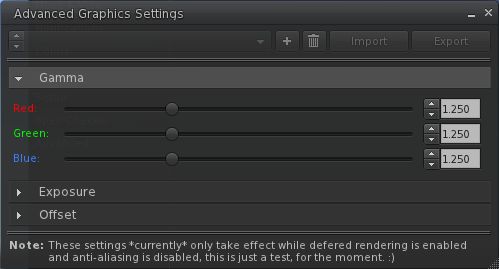
Another major change with the latest release is the inclusion of both a presets option and the ability to import / export presets in the Exodus Advanced Graphics option (PREFERENCES -> GRAPHICS -> SPECIAL).
This allows personal presets to be created and saved and easily reloaded. Additionally, the export options allows you to back-up your personal presets to your computer or save them to your inventory. Presets saved to Inventory are stored in #EXODUS -> #ADVANCED GRAPHICS PRESETS and can be shared with others.
Exodus Advanced Graphics presets
Saved presets can be deleted, if required. The IMPORT button will allow you to restore any saved presets saved on your computer, while double-clicking presets in your inventory (either saved there or passed to you by a friend) will automatically restore or load them to your preset list in the Advanced Graphics floater.
In a further move to make the newer graphics options accessible, the Exodus Advanced Settings have been re-written so as not to required deferred rendering being enabled.
Update January 2nd, 2012: A new Beta of Exodus has been released, and I have an overview available. As such, comments on this page are closed. Please feel free to read, but comments are best related to the latest release, and posted on that page.
A new Second Life Viewer has been launched with an emphasis on in-world combat gaming and which includes mesh rendering capabilities.
Exodus has been developed by Clix Diesel, Genz Kitten and Ash Qin – all of whom are combat veterans in Second Life, and involved in ARK, a cyberpunk-oriented combat environment. As such, a lot of emphasis has been placed on the Viewer’s performance – something that is vital to the gaming world in Second Life.
The Viewer is currently classified as a Public Beta, so if you give it a try, remember that it may not be entirely stable, and your experience may differ from mine.
Installation and First Looks
Exodus is based on Viewer 3, and is available for Windows (32-bit and 64-bit versions), Mac and Linux. The installer will be familiar to anyone who has installed a Viewer, and offers not surprises. System folders are created and a shortcut added to the desktop a-la most Viewers.
Starting the Viewer displays 3.x-style login screen, complete with BASIC and ADVANCED modes (defaulted to ADVANCED). The Viewer doesn’t include the new Viewer 3.x log-in display for the Main grid, with its Destination Guide options etc; instead, the splash screen is a black background upon which is displayed the Viewer’s stylish logo and recent update notes.
On logging-in, the Viewer presents a Viewer 3.x look and feel with a few subtle differences.
Exodus UI
The Sidebar includes two tabs dedicated to Exodus, one of which replaces the HOME tab, and has a stylised E as the tab logo. This provides access to the latest news from the Exodus team and displays the current Version number (in my case, 11.09.28.2), and a link to the Exodus blog. The second tab, bearing a familiar gears icon, provides access to the Exodus Preferences, of which more anon.
The toolbar button at the bottom of the UI has, by default: the Voice button, a client-side AO ported from Firestorm, a gears button providing access to a number of Quick Preferences somewhat similar to the Quick Preference found in Firestorm; and the familiar Gestures, Move, View, Snapshot and Search buttons. Unlike other V3 TPVs, Exodus has the Navigation Bar turned off by default, together with the Favourites Bar, and opts to use the Mini-location bar. The Advanced menu is displayed by default, as is the option to run multiple copies of the Viewer; and there are some dedicated menu options (see below).
Preferences
The main Preferences floater (Me -> Preferences) offers few differences to the standard V3 Viewer – although it does include Kitty Barnett’s Spell Checker, first seen (for V3.x) in Catzip.
There is a further interesting – and experimental – addition to the Graphics tab. Where, alongside the HARDWARE and ADVANCED buttons, there is a SPECIAL button. This will display the High Dynamic Range (HDR) settings (currently called the Advanced Graphics Settings in the actual floater). HDR should be of benefit to machinima makers and photographers, as it allows for enhanced colour correction, etc. As Geenz explains in the blog post on the subject:
“HDR stands for ‘High Dynamic Range’. HDR doesn’t necessarily increase rendering quality on its own (after all, HDR is only adds a higher dynamic color range for us to do nifty things with later on), but it does allow us to add different effects into the render pipeline like, color correction, gamma correction, and scene brightness that’s completely independent from the rest of the environment.”
HDR Options
A further enhancement to the Viewer that is not so obvious (given it is automatically activated), is the FXAA, or “Fast approXimate Anti-Aliasing” function. This provides an alternative to the “standard” anti-aliasing process used with deferred rendering, and it is intended to make the process a lot faster and should present smoother results. FXAA is apparently a feature that Linden Lab are developing for the official Viewer, but the Exodus team have implemented it through their own efforts.
Combat players may also like the fact that Exodus has the Mouselook zoom functionality included, making target sniping, etc., a lot easier. The function works identically to v1.x viewers that include it: enter Mouselook, press and hold the right mouse button and use the mouse scroll wheel to zoom in / out (with the wheel depressed).
Sidebar Preferences
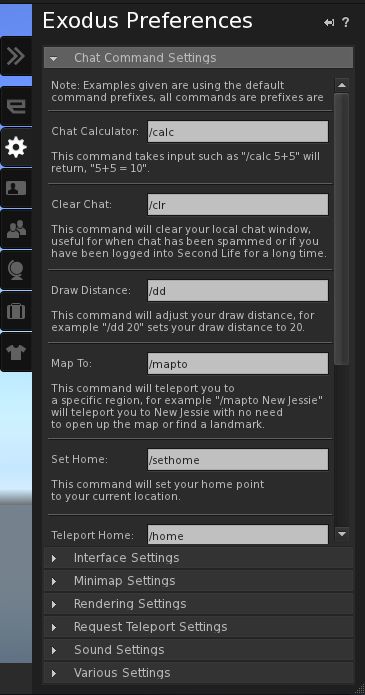
The Sidebar preferences can be accessed by clicking on the tab with the gears icon, or by clicking on the >> tab. This comprises a number of drop-down lists (see right) which provide access to a range of settings, some of which will be familiar to users of the likes of Phoenix and Firestorm, others of which are quite unique.
By default, the tab tends to open with the Chat Command Settings displayed by default (although on my version, the tab would sometimes switch between this and opening with all the drop-down lists closed).
The Chat Commands provides a breakdown of the chat command shortcut (“/dd” for setting draw distance, for example), defaults, together with an explanation of each shortcut – which can be set to any personal preferences.
After this, things get rather interesting. The next tab is Interface Settings. This reproduces a number of options commonly found in combat HUD systems. Given the intended use of the Viewer, this is a very good idea, and like the built-in AO, helps move functions from a reliance on server-side code execution directly to the Viewer.
Settings are available to customise your crosshairs, rangefinder and threat indicators. I confess, I’m no combat specialist (I’ve only ever visited one combat sim to my knowledge – and that was on Avination), but these look to be the kind of options combat players will find useful.
Coupled with this are the Minimap Settings, which provide a range of customisable options for tailoring the mini-map to suit your specific combat requirements (such as making it easier to identify friends and foes).
The remaining drop-downs provide access to specific Viewer functions, bringing them together under logical groupings: rendering teleport and sound settings (reproducing those options found in Preferences -> Sound & Media, and additional chat and display options that otherwise tend to be spread around a number of different tabs in Preferences.


 The combat-dedicated

 Inara Pey: Living in a Modemworld