The skills divide: investigating a better build floater

As I reported a while back, the Content Creation Improvement Informal User Group has started looking into the matter of the Build floater.

Like many things in the viewer, the Build floater has to cover many tasks, some of them quite basic (moving a lounge chair across a room) through to very complex building and texturing activities required by content creators. Over the years, this has led to the Build floater becoming considerably more cramped and complex as options, capabilities and tools have been added to it.

Even redesigns of the UI – as with Viewer 2.x and Viewer 3.x have brought with them issues of their own. Some of these are code-related, some of them are very much impact the usability of the floater, e.g. localisation problems wherein languages other than English don’t readily fit the floater size and layout, etc.

Some TPVs have sought to tackle the issue over the years, but efforts have tended to revolve around working with the constraints defined by the current Build floater, rather than looking what needs to be done in order to make the use of tools traditionally grouped together as “build tools” more task-oriented.

Firestorm and Phoenix, for example, have retained the old V1 capability of being able to show a minimal toolbar (remember the MORE and LESS options on the old, old Build floater?) which can be used to perform basic object movement and rotation tasks without having a plethora of additional information thrown at the novice user.

The V1-inspired “minimal Build floater” as exemplified by Firestorm

Niran’s Viewer has also sought to address how information within the Build floater is presented: offering it in a left-to-read format which is potentially more readable for many people as it is easier to visually scan.

However, such approaches suffer their own drawbacks. Niran’s Viewer may present the information in a more logical left-to-right flow, but this is really a cosmetic change rather than a fundamental shift in emphasis in how the tools are presented in terms of user needs as opposed to content creator needs. Similarly, the Firestorm / Phoenix approach retains the minimal information approach from Viewer 1.x, but again, even this potentially contains too much information for, say, someone merely wishing to pull out a sofa and position it in their lounge or who wants to adjust the location of a bracelet attachment on their wrist.
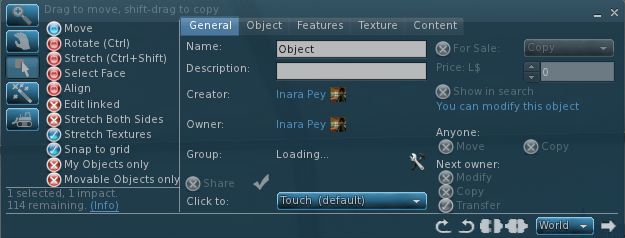
Niran’s Viewer: attempting to make the Build floater a little more logic

The CCIIUG is therefore looking not so much to redesign the Build floater itself, but what needs to be done to present options and tools more logically, such as through one or more floaters that could eventually replace the Build floater as we know it. As such, the Group has been discussing requirements in terms of use rather than function:

  • What tools does the lay user, with no interest in content creation, need to be able to see and access in order to complete the simplest of tasks such as the aforementioned positioning of an in-world object or to resize an object (in-world or attached) to suit their needs?
  • How can these be presented in a user-friendly manner that doesn’t swamp the “consumer user” with information superfluous to their needs
  • Where does the cut-off come between “basic” tools (as described above) and the more advanced tools generally the preserve of the content creator?
  • How should the more advanced tools be presented?

These are actually tough questions to answer as they cover very specialist areas, code design, UI design, etc., as well as a need to clearly understand what “consumer” or “novice” users actually require (itself a tough question for anyone who has been engaged in Second Life for any reasonable length of time, as views naturally become more subjective as time passes). However, the work is potentially pertinent for a number of reasons:

  • The Build floater is seeing more and more being pushed into it as functionality within Second Life continues to be enhanced with new tools and features – mesh saw the additional link and pop-up panel; pathfinding has seen the addition of new information panels, etc.
  • It is thought that there may well be a further change pushed into the Build floater as a result of “something new” (no specifics available) coming down the line
  • Even if any new approach coming out of the CCIIUG isn’t adopted by LL, as it amounts to UI improvements, as so long as it does not impact how the in-world experience is shared between viewers, it does not fall foul of the TPV Policy, and so TPVs will be free to adopt whatever improvements may arise from discussions if they so wish.

A working party within the CCIIUG is being formed to look more closely at the matter, and with a view to putting together mock-ups of ideas as to what a new Build tool UI might look like. As such, input is being welcomed from both TPV developers and from users in general on the matter, with the aim of eventually presenting ideas to Linden Lab at some point in the near future.

If you’d like to be a part of the working party, you can join by attending the weekly CCIIUG meetings, held every Tuesday at 15:00 SLT at the Hippotropolis Auditorium. Information on the Build tools discussions to date, please see the links below.

Related Links

Mountain Lion issues for SL viewer

An issue has emerged trying to use the Second Life Viewer on Mac systems running OS X 10.8 Mountain Lion.

Notification of the issue has been posted to the Grid Status Page, which reads:

Issues Opening the Second Life Viewer in MacOSX

[Posted 8:30am PDT, 1 August 2012] Some residents may be experiencing problems opening the Second Life Viewer in a MacOSX Mountain Lion environment. This is due to a security feature of this operating system which is misidentifying some programs as potential security risks. While this is not indicative of any actual issues with our software, we are working on an update to our viewer which should address this. In the meantime there are instructions on how to bypass this feature temporarily, as well as an explanation of the cause of this issue, here:

http://osxdaily.com/2012/07/27/app-cant-be-opened-because-it-is-from-an-unidentified-developer/

Please note that this is not a problem with the viewer, and that we are not responsible for the workaround above – we are merely providing a link to a possible fix posted by a third party.

If you are experiencing issues using Second Life on Mac OSX, you might try the workaround noted above – but again, please note, as the report states, it is a link from a third-party, and Linden Lab (nor I) cannot be held responsible if the workaround fails or causes other unforeseen issues with your computer.

Lab offers snapshot “tiling” fix

Update: The tiling fixing reached the SL viewer in December 2012, and has subsequently been incorporated into the majority of TPVs. Please refer to your preferred TPv developer for information on the fix (MAINT-628), if unsure.

The ongoing issue with taking high-resolution snapshots resulting in “seams” appearing in captured images may have a final fix on the way.

The issue was initially reported in JIRA MAINT-628 at the end of 2010, and has impacted viewer releases since then, becoming the subject to intense investigation by users and LL alike. The problem has tended to make itself known when taking images at a higher resolution than that of your monitor, resulting in lines breaking-up the captured image, as shown below.

The problem (image courtesy of Dil Spitz)

In reporting the fix, which has a couple of limitations, Runitai gave the following update on the JIRA:

Runitai Linden added a comment – 18/Jul/12 1:57 PM

Fixed in viewer-cat

Fix was to use a large render target for snapshots that are larger than the window, but only when lighting and shadows is enabled. Screen space effects will still show seams when lighting and shadows is disabled.

If the graphics card is unable to allocate a single render target large enough for the high res snapshot, the old method of tiling is still used. On my GTX 580, I could take artifact-free snapshots up to 3500 pixels wide, but could not allocate a full set of render targets at 4000 pixels wide, so the old method is used.

Changes involve an invasive set of changes to LLRenderTarget, so QA should be careful to check various shadow modes, ambient occlusion, depth of field, and anti-aliasing with lighting and shadows enabled. Running with Debug GL enabled will likely cause a crash now when taking high-res snapshots (expected and acceptable behaviour), since the driver reports “out of memory” when trying to allocate a large render target. When Debug GL is not enabled, the viewer handles this error condition gracefully and continues to function.

The code is in a changeset, and will be going through LL’s QA testing. If all goes well, it will hopefully progress through viewer release cycle soon.

Local Textures now part of the SL Viewer

Version 3.3.2.258114 of the official SL Viewer, released on May 29th, sees Local Textures officially reach the mainstream official Viewer. Previously, the option has only been available in Beta and Development releases of the Viewer.

Contributed by Vaalith Jinn, and an extension of his popular Bitmap Browser found in many  TPVs, Local Textures allows users to temporarily apply textures from their computer’s hard drive to their in-world objects, including the ability to apply skin and clothing textures to avatars. Such textures are not physically uploaded to the SL servers, but are accessed locally; as such, they only remain “active” for your current SL session, after which they must again be selected once more. In this, they are functionally similar to the Temporary Textures capabilities found in TPVs – but with some important differences.

I’ve covered Local Textures in detail already, and refer you to that post for an in-depth look at using the capability when building. However, it’s worth highlighting the key points here for reference:

  • Local Textures works both with applying textures to prims and to applying skins and clothes to avatars – so clothing / skin designers can test their work using the official Viewer in the same way as they can using Temporary Textures on popular TPVs
  • If you use a local graphics editor to make changes to a texture that has been applied within SL using Local Textures, any changes you save in the editor will be immediately applied to the texture in-world
  • Local Textures does not physically upload anything to the SL servers – this means that the results of anything you apply can only be seen in your own world view; anyone else will see an untextured surface in their Viewer; thus the option cannot be used to test textures in collaborative build projects
  • Local Textures does not “break” Temporary Textures in TPVs, and TPVs currently are not prevented from offering the Temporary Texture upload capability; as such, both options may be offered by TPVs (as is currently the case with the Dolphin Viewer
  • As noted in my previous article on Local Textures (linked to above), enhancements to SL may eventually break Temporary Textures at some point in the future, but this is currently far from clear.

Local Textures and Skins / Clothing

As I didn’t cover using Local Textures with clothing and skins in the previous article, here’s a brief summary:

  • Select Edit Appearance by right-clicking on your avatar or going to ME -> APPEARANCE.
  • Click on the cog button at the bottom of the floater.
    • For skin tests, select NEW BODY PART -> NEW SHAPE
    • For clothes, select NEW CLOTHES-> the require clothing item / layer
  • The desired editor will open.
  • Click on the texture box (for skins, click on the required body textures selection box).
  • The Texture Picker is displayed – click on the Local  radio button, and use ADD to local, select, apply the texture.
Selecting test skins using Local Textures

Again, the ability to make changes on-the-fly to applied textures and seeing the results immediately in-world, offers a powerful and unique capability to Local Textures that should assist creators and builders.

Related Links

Local Textures: coming to a Viewer near you

Update 14th May: My thanks to Oz Linden for pointing out that if you apply a Local Texture in-world, and then modify the original image file in a suitable editing tool and save it again, the viewer picks up the change and automatically applies it in-world (see Comments). I’ve also clarified that Local Textures can be used for clothing and skins within the text of this article.

Local Textures is a means by which textures stored on your computer can be applied to in-world objects on a temporary basis, allowing you to judge their suitability for use prior to uploading.

In this, it combines functionality currently found in many third-party Viewers (TPVs) in the form of the Local Bitmap Browser, with the added capability of being able to apply a selected texture directly to an object in-world within your own world-View.

The option, contributed by Vaalith Jinn, the originator of the Local Textures Bitmap, has been available within a number of recent Development builds of the official Viewer, and is now available in the latest Beta release (255742), so expect to see it in a mainstream release very shortly. (It should also be noted that the option is already available in both Dolphin and Niran’s Viewer.)

Using Local Textures

Local Textures is accessed from the Texture tab of the Build floater:

Texture picker: note the Local radio button (circled)

Note that there are now two new radio buttons on the Texture Picker itself – Inventory and Local. The former will, naturally, allow you to browse the textures within your SL inventory as we’re all familiar to doing.

Clicking on the Local option, however will change the Picker to display the following:

Local texture panel

This contains three new buttons, described below.

  • Add:  Opens a window allowing you to browse your hard drive(s) to find textures.
    • An individual texture can be selected by double left-clicking on it or by left-clicking once on it and then clicking OPEN
    • Multiple textures within a folder can be selected using either SHIFT-left-click or CTRL-left-click (which can also be used to de-select individual items from a multiple selection
    • Selected items are added to the list panel to the right of the buttons
    • You can browse as many folders as you wish and add items to your list, but you cannot select folders themselves
  • Remove: (only available if a texture is selected in the list panel) removes an unwanted texture from the list
  • Upload: (only available if a texture is selected in the list panel) will open the usual texture upload panel, allowing you to upload the selected texture to your inventory with the usual L$10 fee and use it from there. Note that bulk uploads are not supported from the button.

When you have added one or more textures to the list panel, clicking on an individual texture within the list will apply it to the selected object / object face. Note that as these are only local file associations, the applied texture will only be visible to you; no-one else will see the texture (the object/face will remain untextured in their view).

Applying a local texture – only visible in your own world view

Textures added to the list panel will remain available to you until such time as you log-out of Second Life, at which point this list will be emptied.

Note that clothing and skins can be tested in the same way – just use the Edit Appearance floater and the New Clothes / New Skins options.

Local Textures and Temporary Textures

Local Textures might also sound like the Temporary Textures upload capability also found in many TPVs, but there are notable differences:

  • Temporary textures appear in your inventory, usually with the prefix “temp” for the duration of your current session in SL, then they are lost
  • Temporary textures can be see in-world by people other than yourself; this makes it ideal for things like collaborative building, where joint decisions need to be made prior to the selection and upload of textures

There have been rumours that LL are looking to “break” temporary texture uploads with the release of Local Textures. This does not appear to be the case at present; LL have so far given TPV developers no indication that they expect to see Temporary Textures removed from Viewers. Certainly, Dolphin is running with both Temporary Texture uploads and Local Texture; providing LL do not indicate they have a problem with this, it is likely that other TPVs will opt to do the same.

However, it might be worth noting that Temporary Textures do rely on using a feature in a manner in which it is not intended to be used, and which is specifically related to avatar baking. LL are currently looking into ways in which to make avatar baking more robust and less prone to problems such as bake fail (when your avatar fails to rez correctly). One of the options being considered in this regard is moving the bake process server-side.

If this does indeed happen in the future (and it is not a trivial change), then it may result in Temporary Texture uploads being “broken”; but again it is important to emphasise that no actually decision on how to deal with avatar bake issues has yet been taken.

In the meantime, expect to see Local Textures in your preferred Viewer in the near future!

With thanks to Innula Zenovka for raising my awareness that Local Textures had reached the Beta Viewer (forum post), and to Latif Khalifa  and Trinity Dejavu for input to this piece)

ETA contributor’s detail, supplied by Mobius Ryba. 

Received Items: the good, the bad and the “$%^&*!”

So, as I was updating the Viewer Round-up for this week, I thought I’d have a run with the new Received Items Beta launched last week.

Those familiar with Direct Delivery testing will already be somewhat familiar with Received Items – it is a section of the Inventory floater wherein anything purchased from the Marketplace will show up. However, the overall functionality has now been extended so that anything you obtain or receive by way of a “new” inventory item will pop-up within it.

To test the new functionality, you’ll need to run one of the following versions of the official Viewer: the Beta (3.2.9.249510 or later), Development (3.3.0.248913 or later) or the Direct Delivery Project Viewer (3.3.0.249395 or later). For testing, I used the latest Beta, 3.2.9.249510, which has been available since before the Received Items Beta was announced, but which has the Received Items capability available within it.

You’ll need to be on the Beta grid (Aditi) to carry out the tests, and will need to visit one or more test regions, as detailed in the Received Items Beta wiki page and my original blog post on the subject.

Where to Find the Panel

I’ve read reports of people having problems finding Received Items. It should appear as a “button” at the bottom of your Inventory floater. Clicking the “button” will open-out the panel.

Opening Received Items

If, for any reason, the button is not apparent within your inventory floater, try this (with thanks to Innula Zenovka):

  • Go to the Fast Return test region on Aditi (this is the LIGHTER GREEN area within the GC Test 9 region)
  • Rez a prim and wait for the auto-return to send it back to you – it’ll take around a minute
  • Open your inventory floater and the Receive Items “button” should now be visible – click on it to open it as described above, and your prim should be sitting inside it

I spent an hour or so playing in the test regions to see what Received Items does / does do, and here’s a summary of my findings, together with some broader observations and feedback.

Situations where there is no change to current behaviour

  • Rezzing an item from inventory – the item will still return to its originating folder when you TAKE it back
  • Taking a copy of a rezzed object you own will still return it to your Objects system folder
  • Trying to rez / build in a no rez area will generate the usual warning without anything being rezzed / returned
  • Trying to move an in-world object into a parcel with NO OBJECT ENTRY set: item will be blocked and the usual pop-up displayed

Situations where Received Items IS used

  • Creating a new object or linkset and taking it to inventory
  • Taking a copy of an object belonging to someone else (permissions allowing
  • Purchasing / taking anything from an in-world object (prims set to give / sell, Vendor systems, etc.)
  • Anything returned to you manually by someone else, or via parcel auto-return
  • Anything someone else gives you in-world
  • Items sent to you while off-line
  • Multiple items in a single delivery (e.g. items from a suitably scripted giver or passed to you via folder)
  • Anything you purchase via SLM or which is brought for you as a gift.

Other points of note

  • When receiving items via a transfer when on-line, you will still receive a pop-up notification – but without the ACCEPT button, which has been replaced by SHOW – clicking this will open your inventory floater and the Received Items panel. The remaining options, DISCARD and BLOCK remain unchanged
  • If you are offline when an item is sent, you’ll still get a notification sent (which will appear when you log-in and get sent to your e-mail, if you have IM forwarding set-up) as per current behaviour
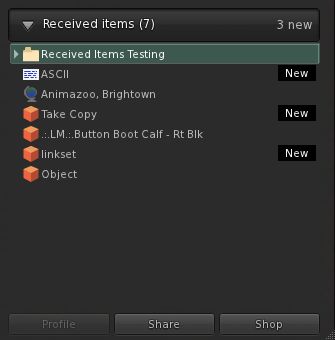
  • Recently received items tagged as “New” (click to enlarge)

    Recently received items will be tagged as “New” in Received Items, helping with identification (right)

  • Received Items provides almost the same degree of functionality for items it contains as the rest of your inventory. However:
    • You cannot directly rename items (i.e. right-click and select RENAME from the menu), although you can select the item’s Properties and rename it from there, if permitted
    • You cannot paste a copy of an object into Received Items (but you can obviously paste it into your main inventory panel wherever you like)
  • If you delete items from Received Items and they will go to your Trash, as usual. However, if you subsequently restore an item from Trash that was in Received Items – it will go to the most appropriate folder in your inventory (so a notecard will be restored to Notecards, a landmark to Landmarks, etc.)

Received Items as a Folder

Received Items seen as a folder in the RECENT tab (click to enlarge)

For those that like to use the RECENT tab in inventory, it is worthwhile pointing out that Received Items also appears here as a folder (although there is no corresponding folder in the main inventory view). The folder view has the same functionality as the panel, but offers an alternative way of viewing incoming items. The major difference between the two is, when viewed as a folder in the RECENT tab, Received Items does not display “New” against recently received items.

However, this will only last during your current SL session – as soon as you log-out from SL, the “Received Items” folder will vanish from RECENT, just like everything else, leaving you with just the Received Items panel to peruse the next time you log-in.

On the good side

Providing a single “point-of-entry” for new items coming into inventory may well ease the process of understanding how works inventory and getting newcomers started on good inventory husbandry and may encourage those who don’t engage in inventory  housekeeping to do so… Which is not to say this new approach is without issues or necessarily preferable. Right now, it has to be said the negatives outweigh the positives.

On the poor side

There is no hierarchy to Received Items: Outside of items that are received into folders via their delivery mechanism (e.g. SLM or a scripted object), Received Items presents a “flat” view of incoming goods. This is liable to create a headache for some.

For example, many in the rental business put-out “for rent / sale” signs on their vacant parcel, and may add trees and other bits and pieces – up to and including houses and sim extenders on the parcel as well. Some or all of these get returned by the new tenant when the parcel is rented – and until now have gone to the Lost and Found folder, where they can be easily identified and disposed of.

But under the new system, all this now gets lumped-in with everything else the Estate Owner / Manager is receiving as well. This could get very onerous in terms of sorting through stuff and separating the wheat from the chaff.

There is no capability to sort / order / filter items: Obviously, the intention is for Received Items to be routinely cleared-down by users on receipt of incoming goods, no matter what the source. However, there are going to be times when – even with the best intent in the world, the Received Items panel is going to run the risk of getting choked  – such as in the case of estate management as mentioned above, or where information is specifically requested via notecard (such as requests for product help) and so on. Even someone being away from SL on vacation for a week or to could come back to find their Received Items brimming. As such, it would be nice to offer people the ability to sort / order / filter contents.

Creates an artificial divide in inventory: The Received Items panel does tend to split inventory into two, and unless it is clearly and properly explained to the likes of new users, it could end up creating as main problems as it is intended to solve, particularly if new users are no encouraged to use it as intended, but simply allow incoming items to reside in the panel. Communication is the key here – and that’s not really LL’s strongest suit.

(Currently) does not appear to solve the capped IM problem: I have read from feedback elsewhere, but have been unable to verify myself, that this new approach doesn’t presently overcome the problem of goods failing to be delivered if IMs are capped. Whether this is because the code itself doesn’t contain a “fix” for doing so, or whether it’s actually not working as hoped, I can’t say. However, this is causing concern, and may still need to be addressed.

Opinion

There has been a lot of negative feedback from users on this new approach. Whereas Received Items was accepted for the forthcoming Direct Delivery system, people are questioning why everything now has to go into Received Items, rather than the more intuitive approach we currently have.

I personally can see both sides of the coin: as an established user, I’m very familiar and comfortable with the current behaviour – notecards coming in go to Notecards, landmarks to Landmarks, and so on. As such, I can only see this approach as being something of a step backwards – and I’m someone who is pretty obsessive about keeping my inventory sorted.

However, for new users, then the system – again with the caveat of “as long as it is properly explained” – offers a much easier-to-understand approach to the receipt of goods and items. At least initially. There is also the fact that it does present (or should eventually present) one consistent mode of behaviour for new items entering inventory – and consistent can be often be good.

The problem really is that this approach is one in which – yet again – established users appear are being faced with something that is definitely less intuitive and potentially useful than the current system in order to “improve” matters for the ever-elusive new user. Even for those (like me) who are obsessive about keeping inventory sorted, this approach adds an irritating additional level of management, simply because we do now have to faff around moving various received items around that once pretty much took care of themselves in the first instance.

As such, Received Items does run the risk of leaving people with the impression that the existing user community simply doesn’t figure in LL’s thinking, and how we use SL on a daily basis simply isn’t really understood. I could say more on that topic, but Saffia Widdershins already has, and very eloquently.

Related Links