So, SL is all lit up about the forthcoming bouncing bewbs et al in Viewer 2; so much so that people are stampeding over to the website and downloading the Snowstorm latest development version (2,6,3) of the Viewer in which Avatar Physics are to be found.
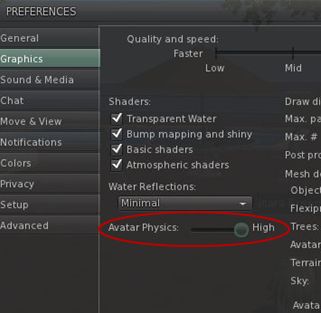
Setting the Avatar Physics rendering slider
To determine how well your Viewer renders Avatar Physics, go to ME -> PREFERENCES -> GRAPHICS, click on ADVANCED at the bottom of the tab, and then adjust the Avatar Physics detail slider.
In what might cause a little confusion for those used to using breast physics in TPVs, Avatar Physics are treated as a new clothing layer in Viewer 2. To enable them, therefore, you need to:
Open your Inventory and click “+” at the bottom of the Inventory tab
Select NEW CLOTHES -> NEW PHYSICS from the drop-down menu that appears
A new clothing layer is created called, by default, “New Physics”.
Once created, wear the new clothing layer, and:
Swap to the My Appearance tab in the Sidebar
Click on WEARING
Right click on the New Physics clothing layer (or whatever you’ve renamed it to) and select EDIT OUTFIT
Click on the tools icon to the right of the selected layer to display the Avatar Physics options tab.
Avatar Physics - main options
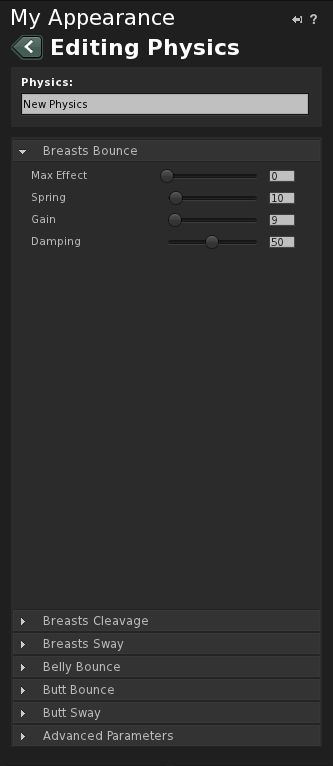
This tab contains a number of controllers:
Breast Bounce (open by default on first use)
Breast Cleavage
Breast Sway
Belly Bounce
Butt Bounce
Butt Sway
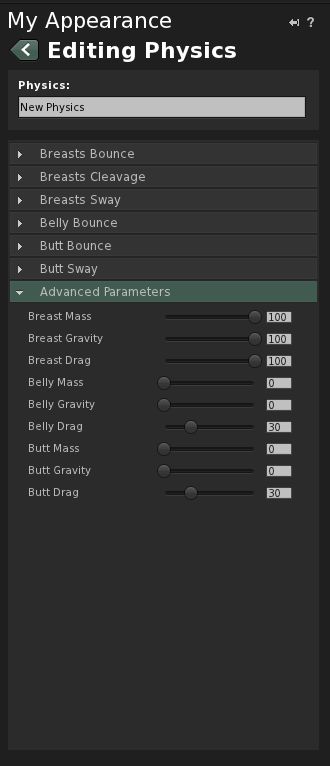
Advanced Parameters
Each of the first six options comprises a series of sliders rated from 0-100 which adjust four parameters: mass effect, spring, gain, and damping.
Advanced Parameters contains an additional set of parameters (mass, gravity, drag) for breasts, belly and butt respectively. Again, each of these is controller by a slider rated from 0-100.
In all cases, 0 = effect not seen; 100 = effect on maximum exaggeration. The best way to sort out how to set the sliders is through experimentation and finding something you’re happy with. Once you’re happy with things, click the SAVE button at the top of the tab, or SAVE AS at the bottom, if you wish to rename the layer.
Some things to note:
Like the Breast Physics in TPVs, activating Avatar Physics in Viewer 2 broadcasts the effects to other compatible Viewers
The Avatar Physics system is not compatible with the Breast Physics in TPVs – you won’t see bouncing bewbs for others using a TPV with Breast Physics enabled; similarly, they will not see your Avatar Physics.
Breast physics are not new to the world of Third-Party Viewers (or Third-Pervy Viewers as I once saw them called in a forum post). First introduced with Emerald, they are now available in most TPVs.
Until now, however, they’ve not been available in the “official” Viewer; but all that is about to change. Yes, bouncing bewbs are coming to Viewer 2. And not only bouncing bewbs, but also physics to make bellies and butt do their own thing.
Whether this leads to a wider uptake of Viewer 2 remains to be seen; I’ve personally found the bouncing bewbs thing to be a nevermind situation – I’m not particularly fussed if someone out there has parts of me madly boinging up and down to aid their visual jollies in a TP, but at least here, as a clothing layer, I retain full control of what is seen. This alone means there should be less screaming from people in terms of sexist attitudes or degrading the female form, as we’ve had in the past.
At the end of the day, if bouncy bits are fun to have and further mimic what we get in real life (well, if not taken to extremes), then well done to LL for finally jumping on the band wagon!
In the meantime – and with grateful thanks to Opensource Obscure, here’s a fun little video marking the soon-to-arrive features, currently available in Snowstorm.
A little under two months ago, Firestorm, the Viewer 2-based offering from the Phoenix team made its initial appearance, and I gave a brief overview of it then, with a follow-up a few days later. Overall, the Viewer was impressive, despite being a pre-release, and hinted that while there was obviously a lot missing, the Phoenix team were well on the way to delivering a first-rate product.
Today, the “Beta” of Firestorm made its appearance, and it substantially builds on the initial release very positively. A list of key changes has been provided by the Phoenix team, but I’d thought I’d take a little more of a closer look at for myself.
Again, this isn’t intended as an in-depth review; it’s more a personal look at what I like in particular in this release – and what I hope to see down the road!
The installation was as expected: smooth and precise. Once loaded for the first time, Firestorm displays a Viewer 1-style COMMUNICATIONS window and has the Sidebar open – both of which I’ll return to in a moment.
Media Filter
Media Filter pop-up
However, it is on clicking the option to enable media that one will notice the first major change. As soon as you confirm you wish to enable media, (and assuming a media stream is being directed at you), the Media Filter will pop-up a request asking you if you wish to accept the incoming stream.
For those unfamiliar with the Media Filter, I strongly recommend you read the available Tutorials on it – I have one in this blog, and there is also one available on the SL Wiki. Suffice it to say here that the Media Filter helps you to safeguard your privacy when using Second Life.
If there is no media stream available when you first start Firestorm, the Media Filter pop-up will be displayed the first time you click on the media PLAY button, (top right of your screen) and a stream is available.
Sidebar and Tool bar Options
One thing that may confuse Viewer 2 users in trying-out Firestorm is that the default Firestorm skin doesn’t have the familiar Sidebar tabs. It also has a substantially different toolbar at the foot of the Viewer Window.
Both are because the Sidebar options can now be directly accessed from the toolbar. Simply hover the mouse pointer over the available buttons to see a tool tip description of their functions.
The Firestorm toolbar
The more familiar buttons of MOVE, VIEW and GESTURE can be enabled by right-clicking the toolbar and selecting them from the pop-up menu – from which buttons can also be disabled as required. Note that in addition, the Camera controls (VIEW) can be displayed by enabling AVATAR -> CAMERA CONTROLS.
For those who still prefer the Sidebar, AVATAR -> PREFERENCES – > SKINS provides you with access to alternative UI skins that include the Sidebar. Simply re-start the Viewer after selecting your preferred skin.
A nice touch with the Camera (VIEW) controls is that the floater panel can be resized to suit your needs – and is actually a lot more compact than the Viewer 2 floater to start with.
Conversations Window
This is a nice carry-over from Viewer 1.x, and was actually in the pre-release version of Firestorm, although I didn’t mention it in my first post. By default, IM tabs are vertically placed (as opposed to horizontally, as with Phoenix). This gets a big tick from me, as I find the vertical tabs make incoming calls easier to track, and so it’s one less preference to have to set & then restart the Viewer.
The Conversations window is open by default on first starting Firestorm, and thereafter can be opened by clicking the ^ button to the right of the text entry box in the tool bar.
The Nearby Chat tab of Conversations also dispenses with the Viewer 2.x-style headers to chat items by default, again saving one the need to fiddle with preferences, while streamlining the chat tab’s display.
Radar
This release of Firestorm sees an initial implementation of the Phoenix radar functionality. While many see this as a curse, I have to say that from a sim management point-of-view, I’ve always found the radar functionality a great boon when trying to help people in a hurry. As such, it is something I sorely missed in the initial release of Firestorm – and partly what stopped me using it full time.
In the Beta, some Radar functionality has been included – and hopefully it will be built upon over the next few releases. Bullet items regarding it are:
The Radar is limited to a 400m range at present
The Radar information is included in the PEOPLE tab / window and includes an option to teleport to someone as well as the standard Viewer 2.x options displayed when right-clicking on a name
Announcements from the Radar are limited to people entering chat range and / or draw distance, and are set separately via AVATAR -> PREFERENCES -> FIRESTORM -> CHAT.
I’d personally like to see the range of the radar increased – and I know this is being worked on. I’d also like an option to announce when people enter / leave a sim; this again can be useful when monitoring a sim where there has been trouble, but not enough to warrant an outright ban as yet.
Profiles
In a major move away from Viewer 2, Firestorm does not utilise web-based profiles.
Instead, it uses a two-tier approach to displaying Profiles:
Personal Profile
Selecting your own Profile takes you to a modified Viewer 2 Profile tab in the Sidebar. This displays your “1st Life” and “2nd Life” information under two tabs called “Avatar” and “More Info” (which also includes a web link field as well). Currently, there is no PICKS tab, nor does there appear to be a way of getting “out” to your web profile from the display (other than getting to Partner information).
I presume additional functionality will be added here – and that the functionality will include the ability to get out to the web-based version of one’s Profile, should one wish. Not everyone is opposed to web-based Profiles, and as such, the flexibility to choose should be included for those wanting to go in that direction.
Other Avatar Profile
When it comes to other people’s Profile information, a window somewhat similar to those from Viewer 1.x pops-up. This is a huge improvement over Viewer 2.x for two very good reasons:
It’s actually a lot faster – twice as fast on my PC – when loading a profile
It takes up much less screen real estate
There are some very nice touches in this Profile display as well. Take Groups, for example; when you highlight one, a little “I” for information appears, together with a right-point arrow. Click on the “i” and you are given the option of joining the Group, or displaying the Group information. Click on the right-pointing arrow, and the Group information (Profile) is displayed in the PEOPLE tab of the Sidebar.
Other Little Bits
Role players have been further catered to, with MU* poses and OOC options being added
There is now a first pass at a persistent de-render (change Group tags to re-render, although you may need to re-log as well)
Phoenix-style commands are now supported in chat
“Always rez under land group” is a pre-set default
Starlight skin support has been improved
Additional preferences ported from Phoenix
In-chat on-line / off-line notifications for friends.
Under the hood there are a number of bug fixes and various performance improvements as well, giving Firestorm even more polish even at this stage.
Opinion
The pre-release version of Firestorm was impressive. This is even more impressive. Clear inroads have been made into a lot of the functionality that has made Phoenix such a success, and while there is still more to do, that Firestorm has reached this level of capability and functionality in just two releases is remarkable.
For me, the big wins with Firestorm are:
First pass at the inclusion of radar functionality
The Viewer-based profiles for other avatars
The in-chat online/offline notifications for friends
The Media Filter.
Web browser warning
As well as the media filter, use security has been enhanced with the addition of an optional prompt that is displayed when you are using an external browser rather than the viewer’s in-built browser. This gives a reminder of the possible risks involved in visiting other websites directly with your browser. The warning can be disabled, and will turn off automatically if you switch to using the in-built browser in the Viewer itself.
There are some additional elements from Phoenix I’d personally like to see pop-up in a future Firestorm release. For example, right now, Outfits still remains something of a royal pain in the rear bumpers.
There is no means of ADDing clothing / attachments from an OUTFITS folder in Inventory – the only option is REPLACE, and this DOES knock-off pre-existing attachments. The only way to add items is via the OUTFITS tab of the Sidebar
There is no means of adding subfolders (or even displaying subfolders) in the OUTFITS tab of the Sidebar – this can only be done through Inventory.
To be fair, both of these are long-standing issues with Viewer 2, rather than anything specific to Firestorm – but both are bloody inconvenient and need sorting out.
I did notice the text overlay issue remains as well; if you scroll up a chat tab in Conversations and a message comes in for that tab, the text tends to overwrite anything you are trying to read until you scroll back to the bottom of the screen once more. Not a show-stopper, but it would be nice to see someone sort this out.
But, these niggles aside – which are, as I said, more to do with Viewer 2 than Firestorm – it is fair to say that this release moves Firestorm a stage closer to being ready for prime time and potentially becoming the most popular Viewer 2 variant on the grid. While there is still a good way to go before this is the case, Firestorm Beta 2 is pretty much usable right now.
On the 16th March, Linden Lab pushed a new version of Viewer 2 into a Development release. Version 2.6.1.223988 has two modes associated with it: “Advanced” – the Viewer we are all now familiar with, and “Basic” – a version with a trimmed-down feature-set designed to get new users familiar with the Viewer and UI.
I downloaded a copy of the Viewer (thanks, Ann!), and took it for a spin. Here’s what I found.
Installation and Start-up
Installation is as you’d expect from a Second Life Viewer: simple and direct. Given this is a Development copy, it goes into its own folder, but be warned: the Viewer appears to use the same folders for caches, etc., as the Release version.
On starting the Viewer however, there is an immediate difference: the splash screen now has an additional button, which allows you to set the default mode of the Viewer – either BASIC or ADVANCED, with the former selected by default following installation.
The new Mode button
Toggling between the two modes is a little clumsy: you have to select the alternate mode, then quit the Viewer (you are prompted to do so) before manually re-starting. This shouldn’t be too much of an issue for those moving up from Basic to Advanced, but it would still be nice to see the re-start handled automatically: confirm your wish to quit and have the Viewer resume without you having to go find the icon and clicking on it once more.
The User Interface
Once the Viewer is started, things get interesting. For a start, there is no menu bar at the top of the screen, nor are there any options available to display one, or the Favourites bar by right-clicking up there. Instead, there is just the address bar and the media play / pause button and the volume control.
There is also no Sidebar.
The button bar at the bottom of the screen also demonstrates noticeable differences. The familiar chat box, Gesture and View buttons are there, everything else is somewhat different.
The Basic Mode Button bar
Replacing Speak (the Basic Mode does not support Voice), Move and Snapshot buttons, the new user has a range of function-specific buttons:
Destinations
Opens up a full-width window across the bottom of the UI, displaying all the major destination categories, thus:
The Destination window
Click on a category, and a new set of options is displayed, complete with a Browser-analogous “back” option to get back to preceding views. Clicking on an actual destination will teleport the user there – something that is potentially a little disconcerting the first time it happens, as there is no pop-up to warn the users as to what is about to happen; the screen simply blanks to the black teleport screen. Given there is no World Map or search function, the Destination button is pretty much the only way of getting around the Grid with the Basic mode.
My Avatar
Opens up a full-width window in much the same way as Destinations, but this one featuring a range of avatar looks, defined both in terms of ethnicity and dress style
The My Avatar window
Clicking on an avatar option will automatically drive the user’s appearance and clothing to change to the selected option – again, a very clean, easy way for new users to quickly change their look and style to something they are happier with. Given there is no way to edit appearance, or get to any form of Inventory, it is also the only way to change an avatar’s appearance.
People
Opens up a compact form of the People tab from the more familiar Viewer 2 sidebar. Most of the functionality here is the same as for the full Viewer, other than the options found under the Tools “cogwheel” icon. This has been simplified to have only the View Profile, Add Friend, IM, Teleport and Block, Report and Zoom In options.
Profile
Opens up the Viewer Browser to display the avatar’s profile.
How To
This is potentially the most useful button for new users, and is well-presented for what it does. As the name implies, it presents a series of what I’d call “cue cards” on how to perform basic tasks: walking, talking, starting an IM, flying, changing the user’s view, using the keyboard to change the view, and using the Destination and Avatar buttons.
Options can either be paged through using the intuitive “>” and “<” buttons, or by clicking on the top menu and selecting an option from the drop-down list.
Two of the How To button “cue cards”
In-world Interactions
In terms of in-world interactions, the Basic Mode of the Viewer functions pretty much as with the “full” Viewer, but with a reduced option set; as one might expect, there are no options to build or edit objects, for example. However, there are also some nice touches: left-click on the centre of another avatar, for example, and a blue dot is displayed. Release the mouse button and your avatar walks directly to them (although this can cause a few bumps and shoves if the route is not clear between the two avatars!).
Right-clicking on another avatar displays a simplified menu, comprising View Profile, Add Friend and IM, and the Block, Report and Zoom In options. Simply pointing at another avatar displays the familiar name pop-up and “information” symbol that in turn leads to their “mini-Profile” and IM / Profile / options buttons.
Similarly, right-clicking on an object provides a four-function menu comprising: Sit Here, Stand Up, Zoom In and Touch. The last displays any menu associated with the object (providing the menu is contained in the root prim, obviously).
One further thing that is glaringly absent from the Basic mode UI and in-world interactions, is that the user has no ability to either purchase Linden Dollars or make purchases. Given this is designed to be a basic introduction to Second Life, one can understand why such options have been left out. However, while “Shopping” itself is not included as a category in the Destination options, the new user isn’t going to travel far before they do encounter opportunities to buy things – and the fact that they can’t using the Basic mode could see it being abandoned before it has served its purpose.
Impressions and Thoughts
As a first-cut “introductory” Viewer, the Basic mode is not that bad; it offers what is essentially a point-and-click approach to finding your way around in-world – something that pundits have been crying out for – while at the same time presenting a relatively clean and easy-to-follow user interface that will help the new user gain familiarity with the basic functionality of the Viewer as a whole.
The Destinations button is particularly useful in getting new users out and about, again given there is now search or world map; while the avatar button makes it relatively easy to change looks – albeit it with shape as well.
However, while the How To button and “cue cards” have been well laid-out, one cannot help but think they would benefit from a few more items: how to jump, a quick explanation of left and right clicking on objects, etc., just for those that are nervous about simply diving in and click all over the place. Similar, a brief overview of common terms would not go amiss: what is a Profile? What is the “cogwheel” button? What does “Report” mean? And “Block”? “How do I unblock someone I blocked by mistake?”
Another concern is that while the Basic mode is very good as a first look, the step up to the “full” version of the Viewer is nevertheless huge. It would be useful if, on first detecting the mode has been changed, the Viewer itself could direct the use to the Quick Start Guide and offer the new user a smoother transition from Basic to Advanced modes. This would be invaluable, given the fact that core elements of functioning in Second Life – inventory, search – are completely absent from the Basic mode, and as such, liable to leave the user somewhat confused.
Finally, and given the recent RedZone situation, and the fact that devices like it are still very much in operation in-world, one would prefer to see the Viewer start-up in either Basic or Advanced modes with the media turned off – together with a How To “cue card” on how to turn it on. It would also be nice to see the Media Filter included as a part of the Basic Viewer, again with a simple “cue card” guide.
These points aside, the Basic mode is a good first step for users entering Second Life for the first time. Even the lack of any ability to buy things can be forgiven, despite my earlier reservations; it provides enough impetus for people to find their feet in SL and get the basics under their belt. Certainly, given this is only a first look, there doubtless can and will be opportunities to tweak it as people coming into SL are exposed to it, in order to ensure it does adequately meet the needs of new users.
Kudos to the team who have been working on it!
If you wish to have a look yourself, the Development version can be found here.
It went unannounced and pretty much unnoticed – except possibly by Boy Lane.
The end of the official Viewer 1.x moved a step closer mid-February, when both it and Snowglobe were removed from the official Viewer download page.
LL have apparently informed TPV developers that the date they officially stop supporting Viewer 1.x hasn’t been agreed as yet, but this move suggests it is drawing closer.
One year ago today Linden Lab finally launched Viewer 2. I say “finally” because the project was originally called “Viewer 2009”, and was running several months late to warrant that name; however, the more accurate definition might have been “prematurely”.
Reactions to the launch announcement were fairly mixed. Leaving aside the fact that generally, people don’t react well to change and all bar the freshest of new users were very, very grounded in Viewer 1.x – so Viewer 2 was going to have an uphill battle to start with, no matter what functionality it offered – it was fairly clear there were issues with the Viewer. Issues that went beyond people’s personal likes / dislikes in terms of UI; things simply didn’t work – and basic things at that. Worse, some decisions had been made concerning the interface that made common tasks a lot more obscure – such as the lack of any CREATE option in the initial Context menus, as well a terms – such as APPEARANCE – meaning different things depending on where you encountered them within the Viewer. There were other issues as well – basic usability issue that should have been more comprehensively considered prior to simply springing the Viewer on an unsuspecting audience, as I commented on at the time.
The biggest criticism concerning Viewer 2 – other than it apparently having been developed by people who spent very little time actively in-world – was no so much that it wasn’t ready for prime time (it was in fairness launched as a “beta”, and therefore was expected to have rough edges), but rather that for a time it appeared as if Linden Lab were not prepared to accept any form of criticism for the major faults within the Viewer, be they technical or with usability. For example, repeated complaints concerning the way the Sidebar both violently interfered with the world view and took up far too much screen real estate were ignored until well after Kristenlee Cinquetti’s S20 hybrid demonstrated just how easy it would be to make this feature both less intrusive and less jarring on the eye.
Beyond this there were security issues with the Viewer raised from day one relating to media usage which are – even now – entirely unresolved. And while it is true to say these vulnerabilities existed in Viewer 1.x – the situation with Viewer 2 is a lot worse, given the way the Viewer has been set-up to enable shared media and the like. Indeed, these issues are currently the focus of much concern among the user community because of the way they are being abused – and rightly so – and that LL apparently considered and dismissed them from the outset in their desire to push ahead with media sharing within the Viewer, has always been something of a bone of contention.
Indeed, such is the situation at the moment that these issues look set to overshadow any celebrations around the launch of Viewer 2. In some respects a shame because – to be fair – it cannot be denied that in many areas, the five iterations we’ve had with the Viewer since its launch have seen significant improvements made on many fronts, such that many early negative issues with the Viewer have (however grudgingly on the part of LL) now been eradicated.
Speaking as one who has taken the time to get to know Viewer 2 through its various iterations, I do appreciate the effort that has been put into it since the premature launch a year ago. However: and here’s the rub – it is still not a Viewer I will use full-time.
This is not because I refuse to learn the new interface – far from it, or that I simply “hate” the Sidebar. I’ve learned the essentials of using Viewer 2 by spending time with with it, with Kirstenlee’s S20 and S21 and with Firestorm; so actually finding my way around the Viewer isn’t an issue: I actually have no preference for pie menus over context menus (both work fine for me) or anything else of this ilk.
No, the reason I won’t use Viewer 2 is that compared to the likes of Kirstenlee’s hybrids and even the “pre-alpha” Firestorm, and despite the improvements made, it is still far too incongruous and intrusive; rather than form a part of my world-view, it remains something that sits between me and whatever I’m, and making its presence felt, rather than remaining largely invisible to me.
Oddly, this is something I don’t find so much with Viewer 2 TPVs like Kirstenlee’s and Firestorm, both of which – while resembling Viewer 2 – offer a flexibility in use that far exceeds anything seen within either Viewer 2 or Viewer 1.x. In this, the developers have shown themselves to be far more responsive to user feedback than Linden Lab has demonstrated in a very long time.
Beyond this, there is the question of information security. The Client Detection System farrago is not going to go away; and while it is true that the answer does not only reside in a technical solution – we need, as has been stated previously a policy to resolve these issues once and for all – the fact remains that it is through technical approach that people are going to feel more comfortable. As reported, one solution is already on its way. As such, the first Viewer 2 TPV that can offer the same options and capabilities is going to gain my support and adoption at least until Linden Lab demonstrate that user privacy is a genuine matter of concern for them, and provide similar technical capabilities as well as a decent policy on these matters.
Doubtless, there will be other issues along the way that will affect things like security and privacy. But as long as Linden Lab respond to them be either going entirely dark (rather than even give a simple, “We hear your concerns, and we are looking into things and will get back to you”), or by becoming somewhat hostile towards concerns (such as by threatening to revoke JIRA privileges), I will always sway towards a Viewer that, when combined with my own common sense, will help me minimise my exposure to situations where people opt to exploit the Viewer code for their own questionable ends.
And, I rather suspect, such matters will cut to the overall take-up of Viewer 2 compared to TPVs as Viewer 1.x code is wound down and deprecated.
 In all cases, 0 = effect not seen; 100 = effect on maximum exaggeration. The best way to sort out how to set the sliders is through experimentation and finding something you’re happy with. Once you’re happy with things, click the SAVE button at the top of the tab, or SAVE AS at the bottom, if you wish to rename the layer.






 Inara Pey: Living in a Modemworld