Firestorm Beta Release: Group Services and Havok sub-licence

As a result of the release of the Group Services project code to all of the main grid this week (see my SL Projects news report), The Firestorm team have released a beta version of their upcoming Firestorm viewer update.

The new Group Services code allows for improved loading of membership lists of very large groups, together with improved reliability in editing such groups (i.e. assigning roles, removing people, etc.), by the group moderators. however, in order to be used, it requires additional viewer-side code. Without this additional code, the viewer will be unable to display membership lists for groups with more than 10K members.

To overcome this, and to allow Firestorm users who manage very large groups, the Firestorm team have released a beta version of the Firestorm viewer which includes the necessary code – as well as a lot of other updates.
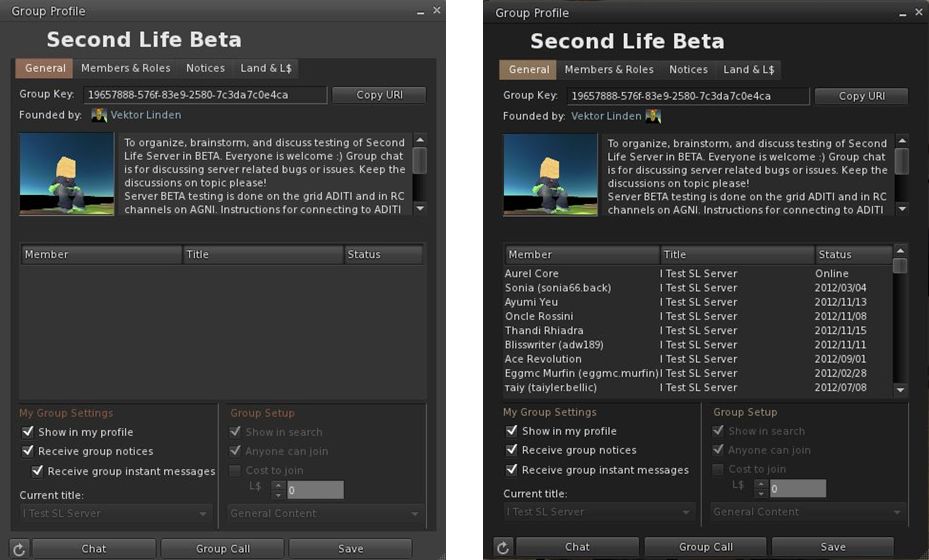
Group Services update – the difference: On the left, an attempt to load a group with almost 20K of members in the current release of Firestorm 4.2.2. On the right, the same group loaded using the new Firestorm 4.3.0 beta.

Announcing the release, Jessica Lyon, the project manager for Firestorm notes, that while this is not an official Firestorm release, it will be supported by the team but requests that only those who need to manage and edit groups with more than 10,000 members download and install this release. She comments:

NOTE:
– This is NOT an official release, but we will provide support for it.
– This has NOT been thoroughly tested by our Quality Assurance team.
– We can NOT make any promises regarding how stable or bug-free it is.
– This DOES have some really cool new stuff in it!

USE IT IF:
– You need to manage large groups inworld.
– You’re tired of seeing unknown alert messages in Phoenix.
– You’re feeling brave, you live on the cutting edge and you want to get an early look at what’s coming in December’s Official Release.

This release means that Firestorm joins Niran’s Viewer, Zen, and Cool VL viewer alongside the official beta viewer in enabling large group editing.

Havok Sub-licence

This beta also includes code to access LL’s new Havok libraries. This means that it will be able to view the pathfinding navmesh, but as a result of the sub-licence arrangement, it will not be able to access OpenSim grids.

Downloading and Installing

The beta viewer is available here for Windows, Mac and Linux. As usual, a completely clean install is recommended for the most stable results.

A full review of the new Firestorm release will be appearing on these pages in due course.

A Note on Phoenix

The blog post from Jessica includes a section directed at those still using the Phoenix viewer, in which she states:

Our developers and support staff have been extremely busy trying to balance their real working and personal lives while continuing their volunteer efforts to develop SL’s most popular viewer for you. Unfortunately, most of us cannot easily compile Phoenix anymore because of missing/expired libraries like Fmod, compiler changes we’ve had to make for Firestorm, OS upgrades (Win8), etc. To update Phoenix to current LL code now would be a very, very big task and, because we are already at our limit of what we can do, there are no plans to update Phoenix Viewer to support this new group code or handle the new notification system at this time. We are, after all, only human.

This is unlikely to make popular reading in some quarters. However, as Jessica notes, the team have striven to make Firestorm’s front-end as much like Phoenix / Viewer-1 as humanly possible. While it is not possible to revert menus, etc. fully to the Phoenix format, the skinning and broad approach to getting as much of the look and feel on Phoenix into Firestorm should go a long way towards easing people willing to make the conversion a lot easier.

This does not mean the end of the road for Phoenix, but with user number falling and Firestorm proving to be a much more stable and reliable viewer which is capable of embracing viewer changes being driven out of LL, it is understandable that the Firestorm team is sounding a warning note as to the future and continued enhancement of Phoenix.

Catznip R7: the cat is back with a roar

It’s been a while since the last release of Catznip – mainly because the team has had a number of other projects and RL things to deal with, but R7 is now here, and it sees the viewer get an extensive update and overhaul, with new features, updates large and small and bug fixes galore.

Not only has the viewer itself been overhauled, but the Catznip team have been putting considerable effort into matters of support as well – which is where this review starts.

Catznip JIRA, Wlki and More

With the R7 release of Catznip, the team have moved away from Bug Genie and adopted JIRA as their issue reporting and tracking tool. As a part of this, anonymous postings to the tracker will not longer be allowed, and users will have to register an account. However, this does mean that the team will be better able to deal with specific issues and contact those logging problems with greater ease.

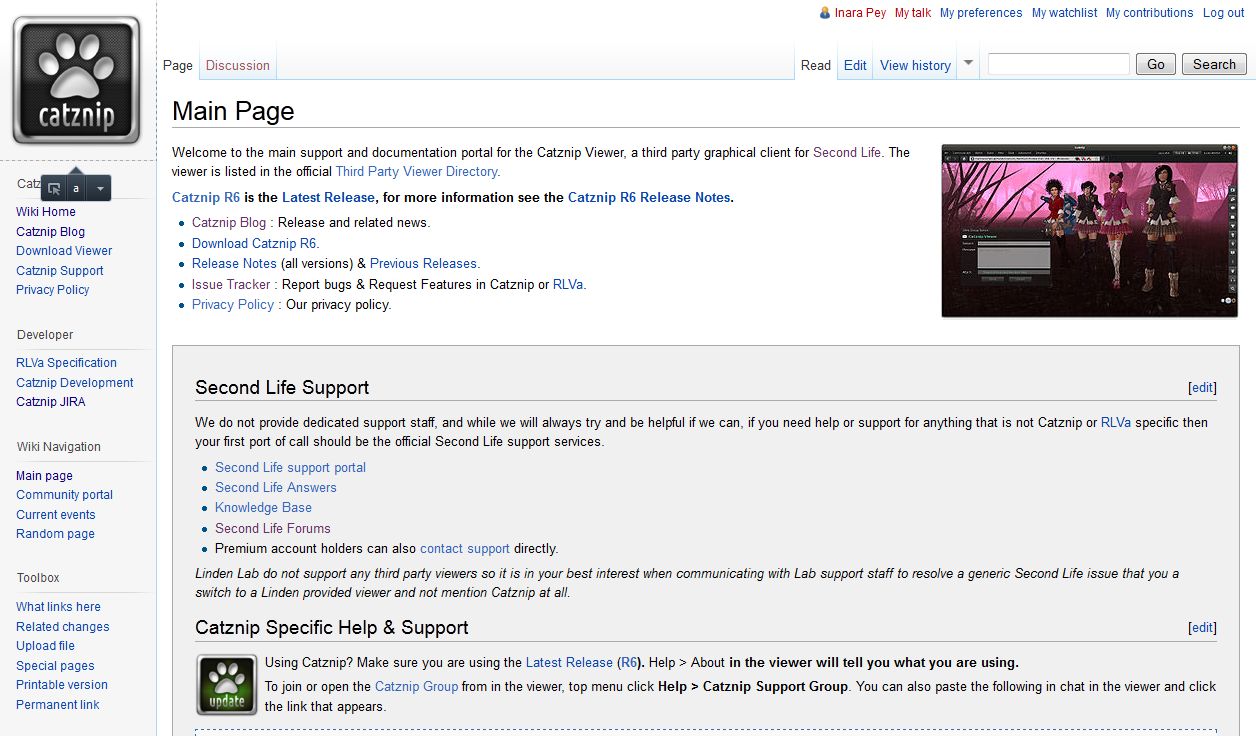
Release R7 also sees the formal arrival of the Catznip wiki, providing additional support, information, documentation and information on RLVa. The wiki is still under development, and (as with all wikis) is constantly evolving, so should be a bookmarked resource of anyone who uses Catznip as their primary viewer.

The Catznip wiki

The Catznip wiki, together with the Catznip blog can be accessed from within the R7 release, via the HELP menu. Similarly, HELP->REPORT BUG will open the Catznip JIRA in your web browser (or the built-in browser, depending on your preferences setting), rather than attempting to open the default LL Bug Tracker.

So, to the Release itself.

Download and Install

The Windows installer for Catznip R7, at 29Mb in size, is just a tad bigger than the official Second Life viewer installer. Installation for me was smooth and incident-free, as all Catznip installs have been in the past.

On start-up, the familiar viewer 3.x-based FUI is displayed, with button ranged to the left and along the bottom. As with most TPVs and the official viewers, Catznip forgoes the ability to place toolbar buttons at the top of the screen, which is no great loss. Sadly, R7 hasn’t implemented the ability to align buttons to the left or right at the bottom of the screen (which I’d personally love to see gain more widespread adoption among TPVs) or at the top or bottom on the left / right of the screen. However, this also doesn’t detract from usability in any way.

The following sections provide an overview of some of the more significant updates, starting with floater updates. For a complete breakdown of updates and features in this release, please also refer to the Catznip R7 release notes. Please click any images of floaters, etc., for an enlarged view.

Appearance Floater

The Appearance floater has received significant work, with updates to both the Outfits and Wearing tabs.

The Wearing tab has been significantly updated to make viewing, ordering, finding, and sorting worn items a lot easier. The main revisions to the tab are shown below.

Updated Wearing tab in the Appearance floater in Catznip R7

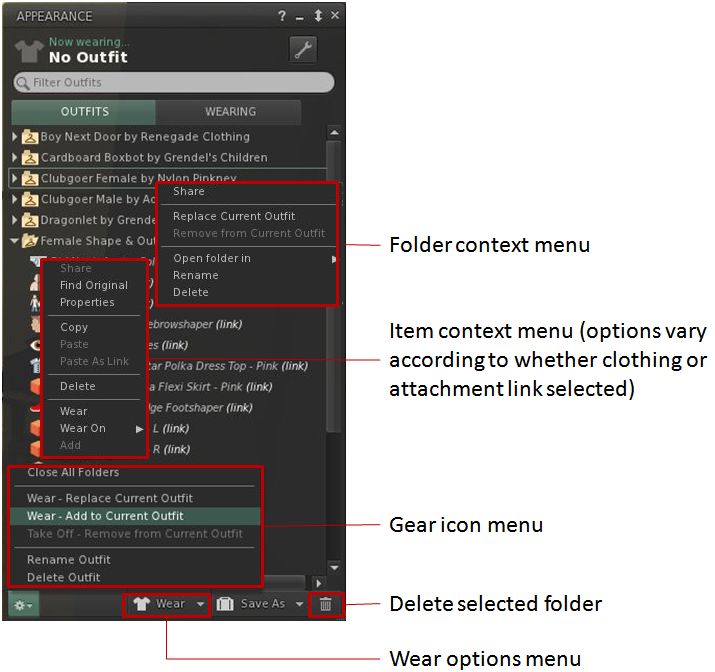
The Outfits tab has also been revised, with key elements shown below.

Updated Outfits tab in the Appearance floater in Catznip R7

In both tabs, FIND ORIGINAL will out the inventory floater with the original item for any link selected. Additionally, attachment point details are now included for all attachments shown in the Wearing tab.

Detaching Folders, Touching Worn Mesh

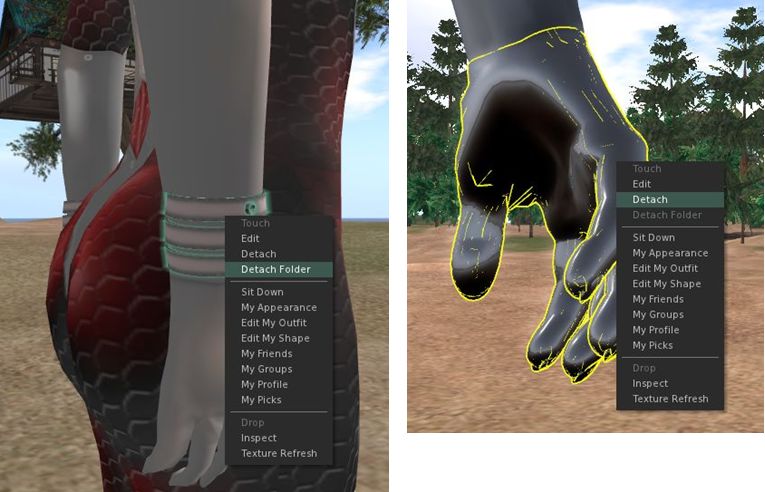
Catznip introduces two useful features – Detach Folder and the ability to right-click on worn rigged mesh items.

Detach Folder is a context menu option which allows you to remove an entire folder with a single click.Simply right-click on an attachment you’re wearing, and select Detach Folder from the menu, and the attachment and everything else in the same folder will be removed: other attachments, clothing, alpha layers.

Detach Folder (left) available by clicking on a suitable attachment; Context menu available for rigged mesh (right) when right-clicking on it

Inventory

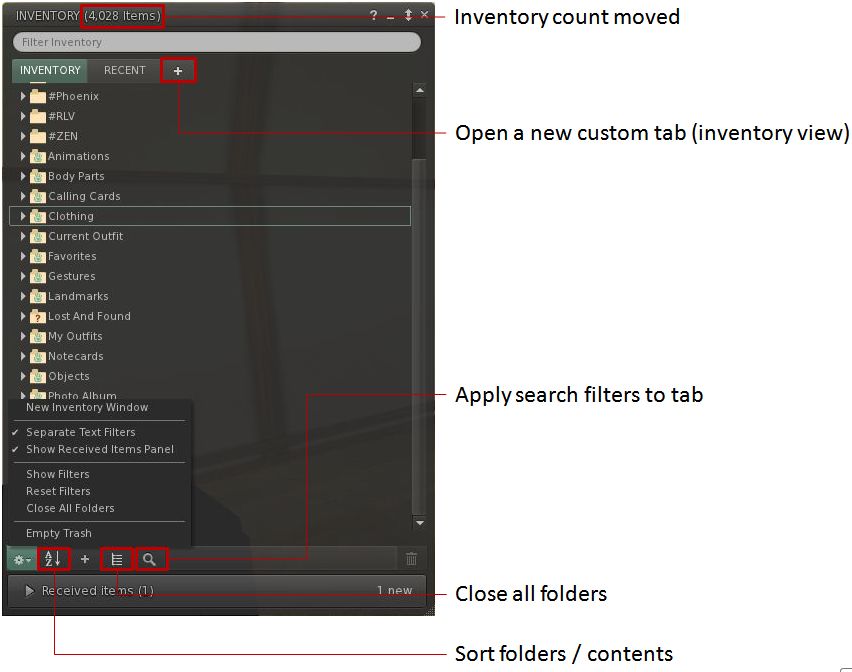
The Inventory floater has received a number of updates with the R7 release, with new buttons, the ability to use separate search filters on different tabs, a new “custom tab” option, a revised cut-and-paste option, and more.

Catznip R7 inventory floater

Significant points of note with the inventory floater with R7:

  • The overall layout of the floater has been tightened
  • As shown above, the sort options have been moved from the gear icon button to their own button, simplifying the re-ordering of an inventory display
  • Custom tabs allow you to open additional inventory views in their own tabs and apply specific search filters against them
  • The right-click context menu for FOLDERS includes an option allowing you to open the folder in a new tab within the current inventory floater, or in an additional inventory floater instance
  • The right-click context menu for ITEMS includes an option to FIND ALL LINKS within your inventory for a given item (moved from the gear icon menu)
  • Cut & Paste operations work in a more file manager-like way.  works the way you would expect from file manager with cut are marked and moved on Paste
  • COLLAPSE ALL will not collapse top-level folders that are currently open
  • A SHOW RECEIVED ITEMS option has been added to the gear icon button. When checked, the Received Items panel will be displayed in the Inventory floater; when unchecked, Received Items appears as a folder within the Inventory floater.

Continue reading “Catznip R7: the cat is back with a roar”

Firestorm: SL, MOSES, OpenSim and the future

firestorm-logoLogging-on to SL today, I notice from the Firestorm MOTD that Jessica Lyon brings word on Firestorm and what is going on with SL’s most stable and most popular viewer – and the viewer of choice for many OpenSim grids.

The team has been hard at work on the viewer while LL have been busy sorting out stability and crash issues on their own beta. As Jessica comment in her blog post, one of the reasons Firestorm is on a long release cycle is that until now, she has preferred to see the viewer go out with significant updates which users will want to have / see (both new capabilities and bug fixes), rather than pushing out much smaller, more incremental releases which might get on people’s nerves the their frequency. The next release will be no different in that regard, with a range of further fixes and well as a host of new features, including William Weaver’s marvellous Phototools, which I simply adore. William (Paperworks Resident in SL) has been working closely with Firestorm developer Ansariel Hiller to get the tools integrated into Firestorm. I’ve been able to use the integrated version ahead of the release, and love the work both Ansariel and William have put in on this.

Phototools, fully integrated into Firestorm in the next release, allows stunning images to be produced from within the viewer without necessarily relying on external processing through PhotoShop, etc. (image courtesy of William Weaver)

However, in the future, it seems things will be changing, as Jessica states:

We plan to make that updating process easier for you by setting up seamless behind-the-scenes updates you will hardly even notice, allowing us to provide more frequent updates and even hotfixes to improve your experience faster!

This sounds like the team will be implementing an automatic update process similar to that used by LL to update the official viewer. It will be interesting to see how this is implemented and how people respond to it. While it is likely most people won’t mind  / will welcome the move, some may prefer to keep the option turned off (if possible) so they can track what changes are being made to their viewer installation.

MOSES: collaboration with Firestorm

An intriguing part – for me at least – of Jessica’s news is that the team are liable to be working with Doug Maxwell and his MOSES team.

This is interesting for me as I covered MOSES last year in an article in this blog, and also covered a major upgrade to the platform after meeting Doug at a presentation he gave on the project. He’s looking to enhance OpenSim security for the MOSES grid, and it appears he’ll be working with the Firestorm team on security aspects affecting the viewer, which will in turn be fed back into the OpenSim community.

In terms of direct OpenSim support, Jessica has this to say:

While Second Life still remains the primary focus of our development efforts, we have begun working towards bringing Firestorm Viewer into better compatibility with the OpenSim Platform. It is important to point out where the extent of that effort ends, though. We are making Firestorm work better on the “base” OpenSim Platform, but we cannot fix problems that arise on specific OpenSim grids because of changes those particular grids have made to their OpenSim code. For those issues to be fixed, we will rely on those grids to provide us code contributions to address those issues.

This is a pragmatic and sensible approach and typifies the considered manner in which Jessica approaches projects.

To help support the OpenSim effort, Firestom had two regions on OSgrid donated to them for their use, one of which has been outfitted to serve as Firestorm’s OSgrid headquarters and which has been named, somewhat appropriately, Firestorm Island. Directions for visiting it can be found in Jessica’s post.

All-in-all, an interesting update.

Kirsten’s Viewer: a trip down memory lane

On Sunday 23rd September, Kirstenlee Cinquetti made a surprise update to Kirsten’s Viewer. It was accompanied by a short blog post:

I cannot help but find myself drawn in once more, you would think after nearly ten years of what sometimes seems like punishment you would throw in the towel.

But like I have stated in the past you catch a spark of what could be.. and once more you re-discover.

The shape or form of your time devoted to this most unusual habit is not yet set in stone, but you know you quite fancy the journey once again.

Version S22(1a) was not a major update to the viewer, and wasn’t intended to be, although it has been followed by a second release on the 26th, version S22 2.8.2 (11). Both are still very much Viewer 2 in terms of UI, and are more “tidy-ups” rather than any resumption of development.

Seeing the old V2-style UI actually brought a smile to my face. Well, not so much a smile as a big, sloppy grin. Even though I’ve never been a fan of the tabs on the right side of the screen, I’ve still missed the Sidebar in so many ways. It is ironic that by the time LL decided to remove it altogether, several TPVs had re-worked it into something that was both reasonably functional and no longer a blight on people’s use of SL – with Kirsten’s Viewer being at the forefront of many of the early improvements and Sidebar innovations.

Kisten’s Viewer: a trip down memory lane

That this isn’t a return of Kirsten’s viewer – and shouldn’t be taken as such – was made clear by Kirsten’s partner, Dawny Daviau, who chatted with me earlier this evening about the updates. “He grabbed the latest Kirstens viewer and just played a bit with it and compiled it again with just here and there an adjustment,” she explained. “There wont be any serious work anymore done as he still works and doesn’t have the time for that. It’s just refreshed, and wont get the new things LL offers now like pathfinding etc. See it as recreational work on the viewer but because we had so many requests for the viewer we put it up for the fans.”

One of the last releases on Kirsten’s Viewer included a (still unique) 3D view of the world. That’s still present in the updates – you can find the option under Preferences->Graphics->Advanced-> Misc->Toggle Anaglyph Render. You may also need to disable deferred rendering (lighting and shadows) – but if you’re able to view 3D rendering on your computer, it brings a whole new depth to Second Life.

Being based on V2, performance isn’t perhaps as good as the latest generation of V3.x viewers. On my system, it ran at around 23 fps at ground level with deferred off and Draw set to 128m. Pushing Draw up to my usual test range of 360m reduce the frame rate to around 18 fps. However, I do have an older GPU, and it did always tend to struggle with Kirsten’s, sadly. This is reflected by the fact that with deferred active, I was reduced to single digit frame rates – just 7 fps at 128m, and 4 at 360m.

There is far too much in V3.x I’ve become used to  – and dependent upon, in some respects –  to make a return to using Kirsten’s viewer full-time, but seeing these two releases was a welcome trip down memory lane, tinged with no small measure of regret at what might have been, had the Crowdfunder funding raised enough for work on the viewer to continue.

Related Links

With thanks to Nalates Urriah.

Firestorm’s 2 and 1: celebrating the highs and lows of a TPV

Firestorm achieved a number of significant milestones recently, all of which are worthy of note.

  • On Sunday September 2nd, the viewer was officially two years old
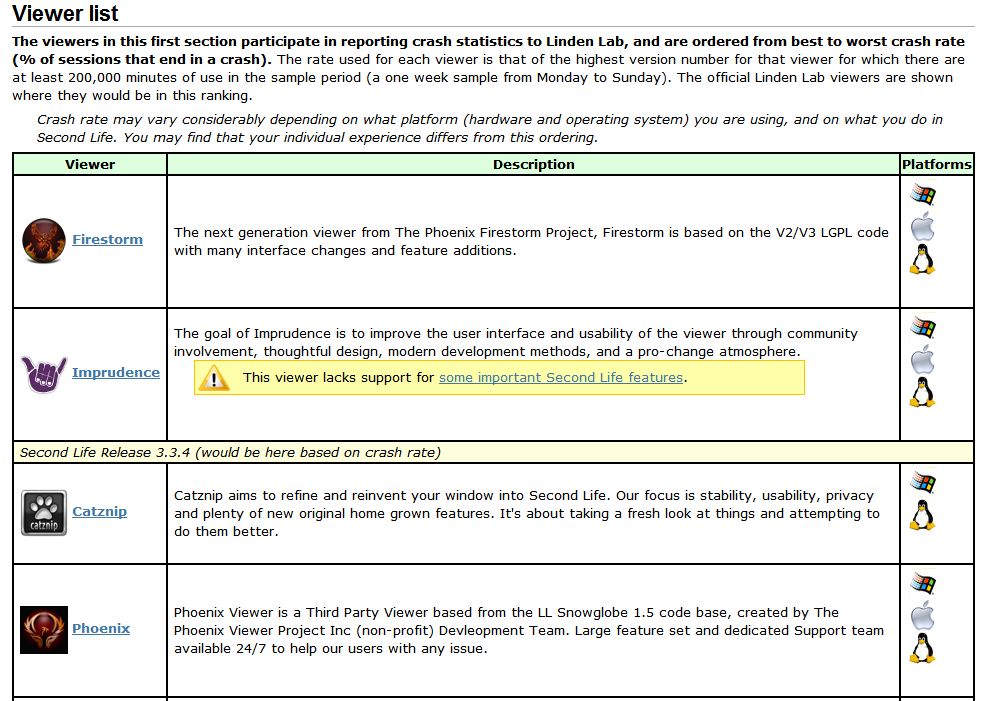
  • On Tuesday September 4th, version 4.2.2.29837 officially achieved the lowest crash rate for any V2/V3-based TPV at just 8.54%. This is even lower than LL’s own 1.23.5 viewer, which although long in the tooth and increasingly out-dated, is still regarded as very stable.
Extract from the Third-party Viewer directory listing, showing the most stable viewers at this time

Also on Tuesday 4th September, the team received official notification from LL that Firestorm has taken over from Phoenix as the most popular viewer in use in Second Life. This was marked by Oz Linden putting out an e-mail through the open-source development mailing list:

“On behalf of Linden Lab, I’d like to extend congratulations to the Firestorm Viewer team.

Last week, Firestorm took over the #1 spot on the list of Second Life viewers in terms of total user time, surpassing its elder cousin, Phoenix. The Phoenix viewer still has a slight lead in number of sessions, but Firestorm viewer sessions are on average significantly
longer – which may in turn be due in part to its substantially better stability.

“The Firestorm team has worked long and hard to support users who want both the latest Second Life features being developed by Linden Lab and the additional capabilities you provide, and this achievement is one you can all be proud of.

“Thank you.

Congratulations to everyone at Firestorm for all the time and effort devoted to the project.

William Weaver’s Phototools: create glorious shots with Firestorm

Update: Phototools is fully integrated into Firestorm.

Not long after joining Second Life, William Weaver, known in-world as Paperwork Resident, became interested in both SL photography and machinima. While he quickly realised the viewer has a huge capability for making both, he found that even in a TPV like Firestorm, many of the controls remain spread across multiple floaters and tabs and buried within the debug settings, making it hard to use the viewer to its fullest potential for in-world picture production without a lot of frustrating shuffling of floaters and tabs.

His solution was to develop Phototools, a menu system for Firestorm that pulls together all the various settings and options within the viewer that a photographer or machinima maker is liable to need during a shoot. With Phototools, it is possible to quickly and relatively easily set-up the viewer to produce stunning visual images in a one-stop pass using a dedicated floater; allowing some stunning results to be had without the need for any post-processing through Photoshop or similar tools.

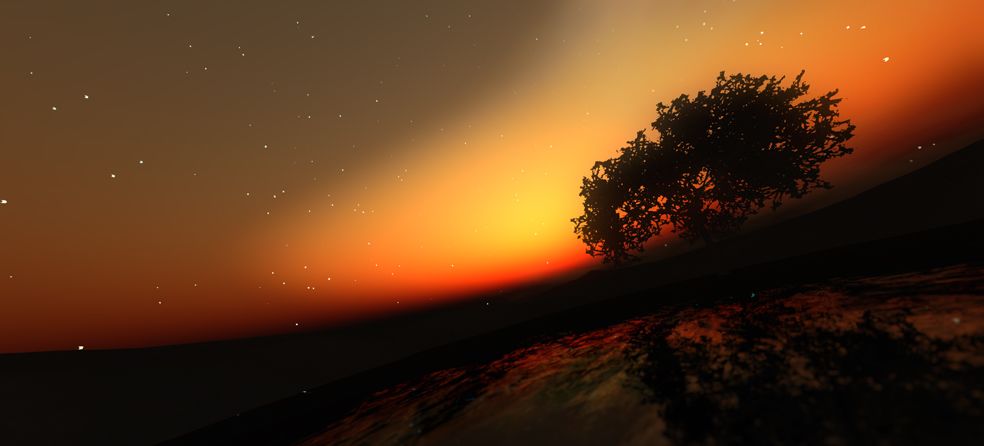
“Discover” by William Weaver – an image produced in Firestorm using the options made available through Phototools and with no external post-processing

Phototools has been around now for a while, available from Williams, blog, Paperwork Shows, and has been gaining popularity among Firestorm users. However, William has been working on preparing it for full integration into the viewer, and as a part of this work, he has made a number of changes to it which have just been released as version 0.94.

Essentially, Phototools replaces several of Firestorm’s default floaters with updated versions. In the original release, these included a replacement camera floater, which presented a wealth of additional camera and mouse / joystick options. However, as it was also relatively large and cumbersome, William has reverted to using the original camera floater in the new release, with the additional controls incorporated into the main Phototools floater. For those who have been using the earlier version of Phototools, the new release includes an .XML file for the original Firestorm default camera floater.

The Phototools Floater

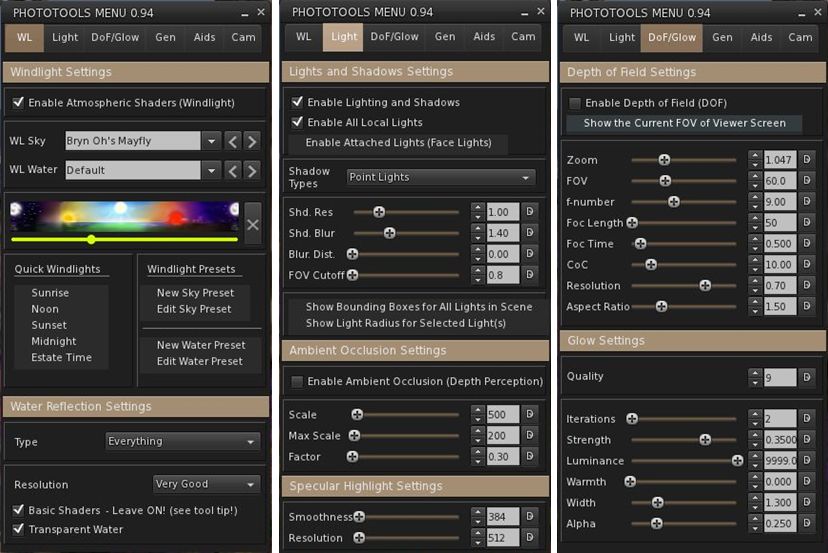
The main floater replaced by Phototools is the Firestorm Quick Preferences floater. For those who find this a very handy tool to have at your fingertips, it is not entirely lost: most of the options it contains are still available in its replacement, which I like to call the Phototools floater. This comprises six tabs: WL – for Windlight settings Light – for lighting and shadows; DoF/Glow – for depth of field and glow effects; Gen – for setting Draw Distance, terrain detail, avatar counts, etc; and Cam – for camera and mouse options.

Three of the Phototools floater tabs (click to enlarge)

Anyone familiar with Firestorm’s Preferences tabs will immediately recognise many of the options presented within the Phototools floater; others may not be so instantly recognisable, as they’ve been pulled from the debug settings. This is where the power of Phototools lay: not in providing new options or functions, but in making those already present in the viewer a lot easier to access and use from a single reference-point with the minimum of fuss and without taking up huge amounts of screen space (and having a heavy impact on frame rates).

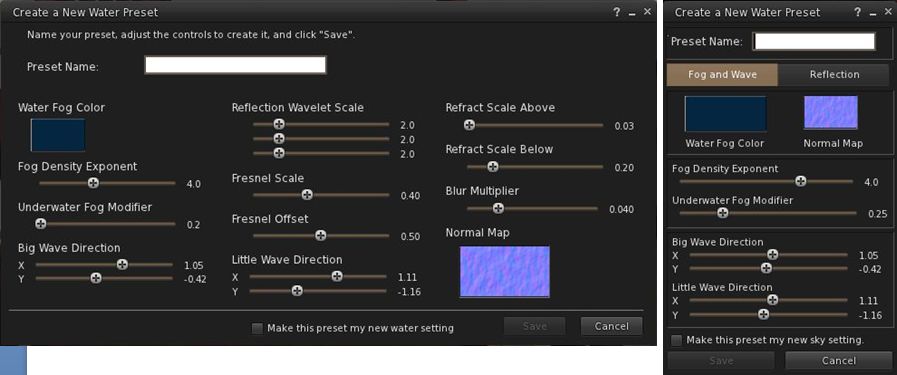
The first tab in the floater is for Windlight settings and this includes options to open the Windlight water and sky presets floaters (which can also still be accessed via World-> Environment Editor ->Sky Presets / Water Presets). Both of these floaters have been extensively re-worked to make them much more compact and screen-friendly when compared to the default versions found in most viewers.

Windlight Water Presets: the default floater (l) and the Phototools updated floater (r) both to scale (click to enlarge)

Taken together, the Phototools floater and revised sky and water presets floaters present all the options needed to manipulate the environment, as seen through your viewer, in three panels which are compact enough not to overwhelm the screen; a major benefit when trying to set-up lighting, etc., for a specific shoot or film sequence and you need to see the impact of changes on your world-view as you adjust lighting and other effects to achieve a specific result.

Another of William Weaver’s images created entirely using the viewer options presented through Phototools

How it all Came About

I recently caught up with William with a view to finding out more about Phototools and the future holds for them. I started by asking him how he got started on the road of developing them.

“When I first started in SL I was using it to write,” he explained. “I would role-play and write chapters in a story from the events of the role-play. While doing this, I started taking some pictures and I noticed SL has a great deal of potential for very good image making.”

He also noticed that a lot of people relied on external post-processing to achieve their finished results, “While I appreciate people who are good with Photoshop and after effects, I enjoy working with the limits of the viewer.” This started him thinking about how the capabilities within the viewer could be presented in a more user-friendly and accessible manner. At the same time, and while also involved in the role-play, William got to make his first SL machinima, which brought him up against additional problems.

Continue reading “William Weaver’s Phototools: create glorious shots with Firestorm”