On Saturday 10th August, 2013, the Firestorm team hosted a question-and-answer session so they could outline the current status of the Firestorm viewer, the issues the team are facing, and outline plans for the future, as well as address questions from the audience.
While the meeting was recorded, the Firestorm team are aware that many of their users have hearing difficulties, and / or prefer to read text. It is because of this that this transcript has been provided. When reading it, please remember:
This is not a word-for-word transcript of the entire meeting. While all quotes given are as they are spoken in the video, to assist in readability and maintain the flow of conversation, not all asides, jokes, interruptions, etc., have been included in the text presented here
If there are any sizeable gaps in comments from a speaker which resulted from asides, questions to other etc,, these are indicated by the use of “…”
Timestamps are provided as guidance should anyone wish to hear the comments in full from any speaker on the video
Questions were asked in chat while speakers were talking. This inevitably meant that replies to questions would lag well behind when they were originally asked. Therefore, to provide context between questions and answers, questions in the transcript are time stamped at the point at which each is addressed by a member of the Firestorm team
Some questions were asked and answered purely in text. These have been excluded for one of two reasons. Either a) they lacked context with the voice conversation, or b) the seating arrangements in the auditorium meant there were some questions or answers which didn’t appear in my local chat window.
Please note: This transcript is provided for informational purposes only. As such, questions on technical issues relating to Firestorm and / or project-specific questions cannot be answered here unless one of the Firestorm team drops by.
Update, September 15th, 2024: the viewer release process defined below has been replaced:
Linden Lab now maintains a single Develop branch for the viewer, into which updates all pass for internal viewer builds, and from which Release Candidate viewers are peeled and made available.
This is tied to a “featurettes” approach to new features and capabilities, whereby these may be added to the viewer and deployed within Release Candidates, but place behind debug settings / remain “turned off” until such time as all dependencies on their use (e.g. back-end support) are in place / LL are confident they are ready to be made fully available.
Update July 23rd, 2013: As release candidate viewers are now available for download on the Alternate Viewers wiki page, I’ve added some notes on manually installing and running multiple release candidates to this article.
The new viewer release process announced by the Lab in May 2013 has officially been implemented.
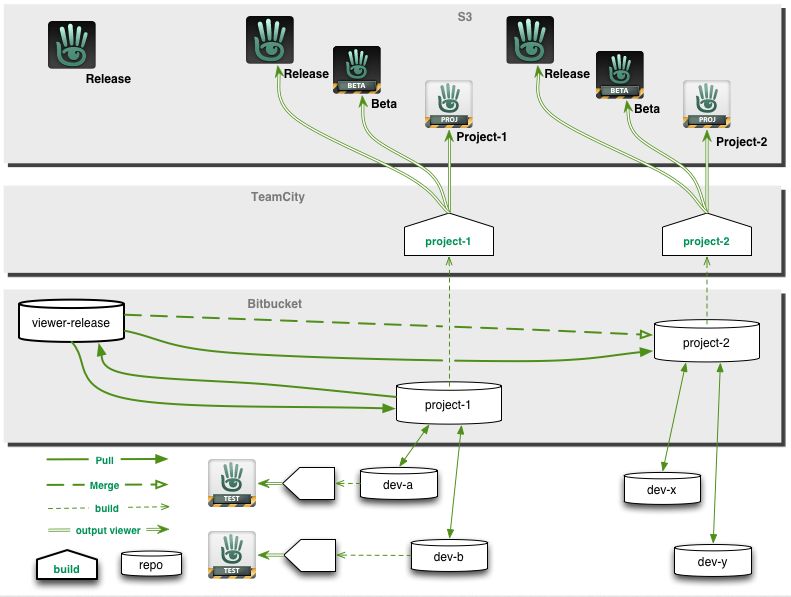
Officially called the Viewer Integration and Release Process, It is designed to improve how the Lab can put new viewers before users and progress them through to a release status while avoiding bottlenecks such as those witnessed in late 2012, when an issue with the Viewer Beta channel effectively stopped any new viewer releases for around a two-month period.
With the new system, early versions of viewers will still be made available through “dedicated” project and beta viewers, all of which will be available for download via the Official Alternate Viewers Page. However, the major change to the process is the use of “release candidates”.
When a viewer is ready for final testing, a release candidate will be readied. Rather than residing in their own dedicated viewer channel, these release candidates will be updates in the regular release channel, residing in a named “cohort” within the channel.
This means two things. Firstly, release candidates are available for download alongside one another and the default release viewer. Who might receive a given release candidate is a random selection based on a viewer setting (see below) and a pre-determined quota of downloads for the candidate (once the quota has been reached for a given candidate, the system will no longer select it for download).
Secondly, when a specific release candidate is deemed ready for release (based on bug reports filed, issues reported and fixed, stats gathered, etc.), there is no longer any need to rebuild it as a “release” viewer, as it is already in the release channel. It is simply moved from its named cohort to become the default release version on the SL viewer download page. Any remaining release candidates are then rebuilt using the new default release code, and continue with testing until one is deemed ready to become the next release.
From a user perspective, release candidates are largely indistinguishable from one another and the default release viewer (other than their version number and the features they contain), and the chances are that some users will be unaware that they have been selected by the system to run a release candidate; they will simply see it as receiving an automatic / mandatory viewer update, and install it.
“Willing to Update” and Release Candidate Downloads
As mentioned above, users who receive a release candidate viewer are selected at random, based on a defined quota of downloads for a given release candidate. However, whether or not a user might be selected to receive a release candidate viewer depends on whether or not they have left the “willing to update” option enabled in their current viewer.
Located in Preferences > Setup, “willing to update to release candidates” (to give the option its full name) is enabled by default. But just because it is, does not automatically mean someone will be selected to test a release candidate viewer. This is because the download quota defined for any given release candidate will always be relatively small when compared to the SL user base as whole.
However, if you don’t wish to run any release candidate viewers at all, you can disable this option, and only receive viewer updates when the default release viewer is updated.
Another point to remember with release candidates is that users won’t be moved between release candidates as a result of updates. So if you leave the “willing to update” option enabled and you happen to be selected for testing “release candidate A”, you won’t suddenly start receiving updates for “release candidate B”; you’ll stay with the updates for “release candidate A” until such time as it becomes the default release viewer. Only then might you be selected to receive another release candidate download at some point in the future.
Download Page and Alternate Viewers Page updates
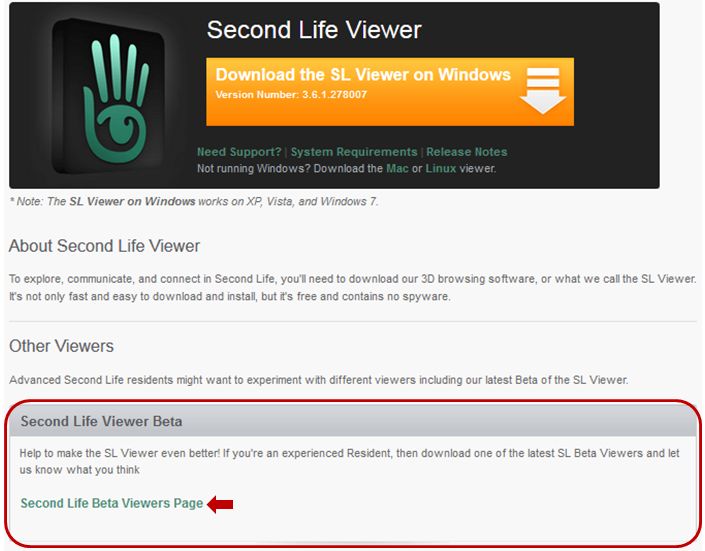
As a result of the move to the new release process, the SL viewer download page has been updated, and there is no longer any link to download the “Beta Viewer”. Instead, there is a link which takes you to the Official Alternative Viewer wiki page, which instead lists all available beta and project viewers.
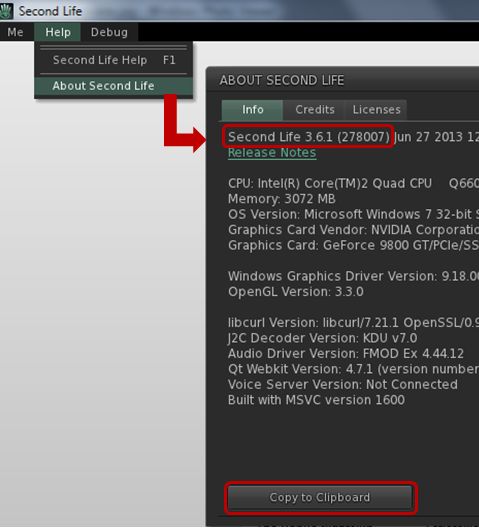
An important aspect of viewer bug reporting has been to give details of the viewer you’re running, including the version number. This information is requested in the “Environment” section of the bug report form. Given that the new viewer release process means there can be a number of release candidates in use at any given time, as well as various beta and project viewers, it is even more important that this information is given when raising a bug report.
Displaying details of the viewer you are using, including its version number
Viewer information can be found in the About Second Life floater (Help > About Second Life), if you’re not already familiar with it. Further, the information on this floater can be copied directly to your clipboard ready to be pasted in a bug report to save you having to manually enter it.
Notes on Manually Installing Release Candidates
Viewer release candidates are now listed on the Alternative Viewers wiki page, and can be downloaded and installed, if so desired. If you do opt to do so, please note that release candidates are contained in “cohorts” within the viewer release channel, and are designed to overwrite any release candidate viewer you have installed. Therefore, if you wish to manually install multiple release candidate viewers side-by-side and with the de facto release viewer, you much ensure, in accordance with your operating system, that:
Any shortcuts / start menu links (e.g. Windows) you have for the viewer are renamed before you install any release candidates
Each release candidate is installed into a unique folder
Any shortcuts / start menu links (e.g. Windows) which are created as a part of the installation process are given unique names before installing the next release candidate
Notes:
If you provide unique destinations for each release candidate installation thorugh the installer package (e.g. Windows), make sure the installer is listing the correct destination folder when manually downloading and installing a subsequent release / update
The Windows auto-updater will automatically install into the last folder defined in the viewer installer (so if you have manually installed “Release Candidate A” and then “Release Candidate B” into separate folders, then get an update for “Release Candidate A” via the auto-updater, it will install into the folder for “Release Candidate B”)
Disabling the auto-updater in Preferences may not stop this from happening.
Instead, go to viewer install folder/app_settings, then edit settings.xml, and find the entry UpdaterServiceURL and change https://update.secondlife.com to https://secondlife.com/no-thanks (or similar) and save. You may need Admin privileges to do this.
Changes to this Blog
I maintain a list of viewers recognised as being used with Second Life (predominantly, but not exclusively, based on the Third-party Viewer Directory), which is updated as a when I become aware of new viewer releases being made. The section of this page which deals with the SL viewer has been updated to reflect the new viewer release process, and now includes all SL viewers currently listed in the SL viewer download page and the Official Alternate Viewer wiki page (with the exception of the Amazon channel viewer, which is the version of the viewer offered through Amazon.com).
Update July 2nd: version 4.4.2 has been released by the Firestorm team, and Firestorm 4.4.1 has been blocked from accessing Second Life. If you have previously installed Firestorm 4.4.1, you can install 4.4.2 without needing a clean install. If you are updating from Firestorm 4.4.0 or earlier, a clean install is strongly recommended. The downloads can be found on the Firstorm website.
Firestorm 4.4.1 was release on June 27th. However, it will shortly be superseded with Firestorm 4.4.2.
The reason for this is explained in a new Firestorm blog post, but the short version is that due to a slight mishap, some additional logging capabilities which had been enabled during the beta release of 4.4.1 and which were intended to help Linden Lab gather information for the forthcoming release of Server-side Baking / Appearance were not removed from the viewer when it moved to release status.
As a result, the system the Lab uses to gether data on viewers is now being completely overwhelmed by the amount of data Firestorm 4.4.1 is sending to it. Although it has taken a few days for the problem to be identified and the Firestorm tem notified, the result is that they are now taking some emergency corrective action:
With immeidate effect, version 4.4.1.34164 of Firestorm has been removed from the Firrestorm download page
A new version for Firestorm is being prepared for release. This version – 4.4.2 – will be no different to 4.4.1 other than the removal of the additional statistics logging code
When the new version is released, and to ensure the LL service is no longer inundated with excess data, Firestorm release 4.4.1.34164 will be blocked from accessing Second Life.
It is therefore essential for everyone who has updated to Firestorm 4.4.1 keep an eye on the Firestorm blog an update to Firestorm 4.4.2 when it becomes available. This should not require a clean install (as was the case with 4.4.1) – but please double-check with any associated blog post which is forthcoming when the release is made.
Again, it is essential that all users of Firestorm 4.4.1 update to Firestorm 4.4.2 as soon as it becomes available.
Update July 2nd: version 4.4.2 has been released by the Firestorm team, and Firestorm 4.4.1 has been blocked from accessing Second Life. If you have previously installed Firestorm 4.4.1, you can install 4.4.2 without needing a clean install. If you are updating from Firestorm 4.4.0 or earlier, a clean install is strongly recommended. The downloads can be found on the Firstorm website.
Firestorm 4.4.1(.34164) arrived as a release on Thursday June 27th. This is another major update to SL’s most widely used TPV, and one which all Firestorm users should update to sooner rather than later.
The reason for this latter comment is one which should be familiar to anyone who regularly reads this blog – Server-side Baking / Appearance (SSB/A) is a-coming.
Subject to final confirmation, the Lab plans to start deployment of the server-end of the capability on July 9th, and while it might take a while to encompass the entire grid, it will mean that anyone using a pre-4.4.0 version of Firestorm is going to start seeing increasing numbers of grey avatars around them as they travel the grid and (quite likely) finding themselves being told they are a cloud when seen by others.
Updating sooner rather than later will also greatly assist those volunteers who give up copious amounts of time to help with the in-world Firestorm Support groups. Right now, the Firestorm team estimate more than 77,000 users are still running versions of Firestorm older than 4.4.0, and thus have no SSB/A capabilities. It’s going to be impossible to supply all of these users with support and advice if they all leave updating their viewer until the 9th July or later – so please, if you are reading this review and you are using a version of Firestorm older than 4.4.0, consider updating now.
Doing so means that should you need to contact the Firestorm support team directly, because you are encountering problems and cannot find help through the Firestorm wiki or the troubleshooting index, you’ll be far more likely to receive a timely response to your request for assistance.
Even those who have updated to 4.4.0 should make the move to 4.4.1, as it includes the very latest updates and fixes for the SSB/A code from LL. Outside of SSB/A, release 4.4.1.34164 offers a number of important fixes for 4.4.0, and so it’s again important for 4.4.0 users to step up to 4.4.1 to gain these benefits.
As always, there is a lot to cover in a Firestorm release, so I’m not going to plough through everything here – the official change log provides a breakdown of all updates and fixes. Instead, this review focuses on what I regard as the key updates / changes. As always, credits for the various updates and contributions to Firestorm which are mentioned here can be found in the release change log – again, please check them there.
What is NOT in this Release
I’m actually going to start with what is not in the 4.4.1 release. It does not include the following major updates from the Lab:
The Communications Hub User Interface
Materials Processing
The reasons for this are simple. For one thing, the Firestorm team have been largely focused on fixing issues and problems with Firestorm and on getting the viewer ready for the SSB/A release. This left them with little time to get changes resulting from the CHUI release by LL integrated into the viewer, although considerable work has been carried out in refactoring the code.
Similarly, there is no Materials Processing capability included with this release. This is in part because the Lab themselves have only recently moved the materials code to a release status (and it still has a number of very visible bugs associated with it), but mostly because changes made to the viewer as a result of the introduction of CHUI affect files which are also changed by the materials project. It is therefore important that the Firestorm team implement the changes in the same order – changes as a result of CHUI first, then the materials changes.
So those wanting to use materials in Firestorm are, unfortunately, going to have to wait a while longer.
New Features and Improvements from the Lab
Note these also include work by the Firestorm team arising from LL-development viewer updates.
“Missing prims fix” – MAINT-2647 / BUG-2116 / FIRE-8950 – this should hopefully resolve the majority of issues around prims / linksets failing to render in the viewer until an action such as right-clicking on them or toggling atmospheric shaders off / on is taken
Merge up to 3.4.5 codebase plus cherry picked fixes plus server-side appearance support improvements
Major under the hood refactoring in preparation for the CHUI merge
Added RegionHandshakeReply flags for Server-side Appearance – a fix for the SUN-74 issue.
Snapshots Fixes
Firestorm 4.1.1 includes an interim fix for the issue of black rectangles appearing in snapshots taken at very high resolutions. Note that this fix is not the recently released additional fixes arising from MAINT-628 made by Linden Lab. These fixes will be included in an upcoming release of Firestorm, and so the current fix should be considered interim.
Communications Updates
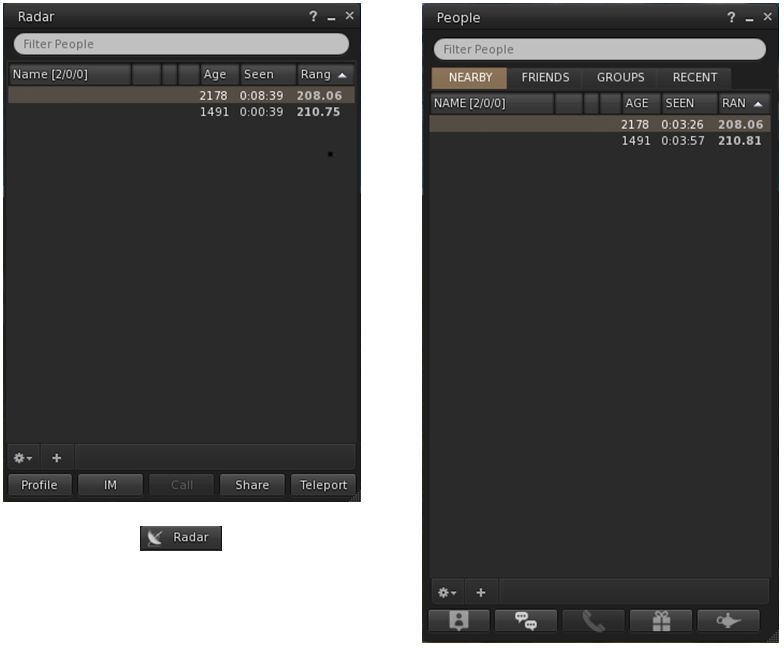
Radar can now be accessed via its own button / menu option / floater for those who prefer not to access it via the People floater. The new button can be selected from the Toolbar Buttons floater, which will open the new Radar floater. Additionally, Radar can be accessed via World > Radar from the menus.
The new Radar floater (left) and optional Toolbar button, compared to Radar as it appears in the Nearby tab of the People floater
The Radar retains all functions found when displaying it in the Nearby People floater, including the ability to display the mini-map within it.
The Payment icons on the Radar / Nearby People floaters have also been updated: $ indicates the user has Payment Information on File; $$ indicates Payment Information Used.
For those who use the Friends list (Comm > Friends or CTRL-SHIFT-F), highlighting a person’s name in the list and then tapping ENTER will start an IM conversation with that person (no need to click the IM button).
For those who use Growl, dialogue messages and inventory received from object messages are now displayed with Growl. In addition, all Growl preferences check boxes will only be enabled if Growl is installed on the user’s system.
Navigation Updates
Map beacon ranges now show the distance from the avatar, not the camera
Firestorm 4.4.1 removes the 2-second delay when using the click-to-teleport functions or teleport chat shortcuts (gtp, etc.) or the Teleport To function in Radar.
A new option allows region grid coordinates to be displayed on the World Map (Preferences > Move & View > Firestorm > Show grid coordinates on the world map), which OpenSim users might perhaps find more beneficial than most SL users.
Also, map beacon ranges now show the distance from the avatar, not the camera.
Kokua 3.6.0.28975 was released on Friday 21st 2013, joining the in-development Black Dragon viewer (NiranV Dean) in becoming one of the first v3-style viewers to fully adopt Materials Processing.
I’ve been remiss in my coverage of Kokua’s development, which has been fairly steaming along over the last several months (the last update I gave was for Kokua 3.4.4 in January 2013), so this piece is a little bit of a catch-up on some of the major updates – such as SSB/A support – since then, starting with the 3.6.0 changes.
Straddling Worlds
Despite all the hoo-haw over the Lab’s move to sub-licence code libraries from Havok (a move which was incorrectly interpreted by some as being an attempt to stymie OpenSim), Kokua is one of the viewer which continues to happily straddle the SL / OpenSim divide by providing capabilities which work in both, as well as options specific to one or the other (such as SSB/A support for SL, and enhanced OSSL support and the ability ro disable SL’s build constraints for OpenSim use, for example).
Accepted onto the Linden Lab Thirty-party Viewer list in April, and listed in the Third-party Viewer Directory, Kokua avoids the Havok complication by providing pathfinding support without the navmesh visualisation capabilities (potentially no great loss to the vast majority of users) and by using the third-party mesh upload code for importing mesh objects, thus allowing it to comfortably span both environments.
3.6.0 Download and Installation
The Windows installer weighs-in at 36.3 MB, putting it towards the upper end of the installer list by file size, which is hardly surprising given the punch of extras the viewer includes. Installation itself was, for me, straightforward, the viewer neatly over-writing my previous version (I opted not to go my usual clean install route).
Firing-up the viewer yielded no anti-virus warnings from AVG Pro (which has recently being getting a little vociferous over SLplugin.exe of late with some viewer installations, despite having given it a pass in previous installs – the most recent flag going up with my installation of the latest SL viewer with materials support).
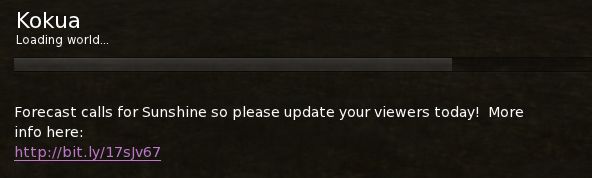
The current Kokua message of the day (MOTD) – coming from LL – raised a smile, using a little humour to underline the fact that SL users need to update their viewers.
A light-hearted reminder of the need for SL users to update to an SSB/A-ready viewer
Materials Processing Support
The release of Kokua 3.6.0 marks it as the first v3-style viewer to provide full viewer-side support for materials processing in for Second Life (if you’re on OpenSim, there are server-side updates required to make materials capabilities work, but there is already a preliminary effort to get these implemented).
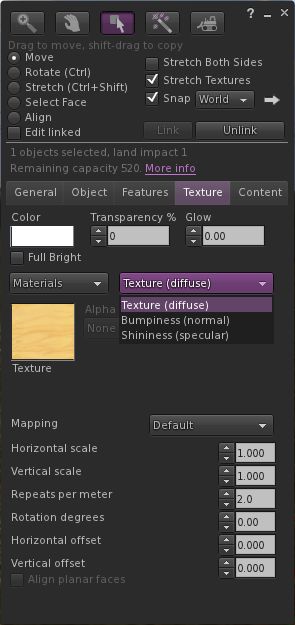
The updated Texture tab of the Build floater
If you’re not sure what materials processing means, please take a look at my primer provided for the SL viewer’s beta release.
As one would expect, materials support has been implemented as it is presented through the SL viewer: the Texture tab in the Build floater has been updated to provide support for normal and specular maps, which can be selected from a high-level drop-down (see right), and which include their own additional attributes (the “old” Bump and Shine options). Note that each materials map can be set with independent repeats and rotations.
Materials also includes some additional updates – the most noticeable of which is perhaps the ability to include an alpha mode when working with alpha masks. This can be set to one of:
None – the alpha channel is ignored, rendering the face opaque, or
Alpha blending – essentially the same as we currently have for any alpha texture, or
A 1-bit alpha mask with each pixel either 100% transparent or 100% opaque, with a cutoff setting to determine where the threshold is (alpha masks should render faster than alpha blending, and eliminate issues with alpha layer sorting), or
Emissive mask – so the alpha layer is interpreted as a per-pixel glow setting.
Materials support also includes gamma correction capabilities within the rendering system. This may cause scenes to render more darkly than in non-materials capable versions of Kokua, and as reported with the SL viewer, may cause some alpha rendering issues.
Graphics Updates
Materials Processing has seen various other changes made to the viewer to improve rendering, some of which have resulted in improvements to the GPU support table, and adjustments made to the graphics defaults themselves. While these may have been included in versions of Kokua prior to 3.6.0, they’re covered here for completeness.
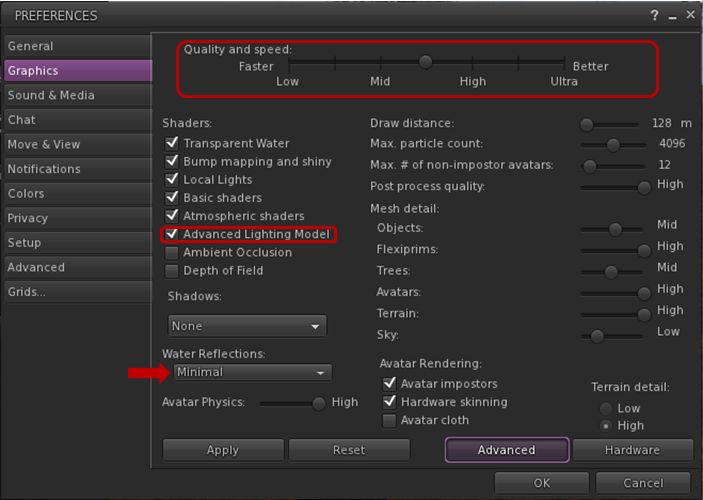
Graphics tab changes in Preferences and water reflections
First and foremost, the Quality and Speed slider now has seven pre-sets instead of four, adding mid-point settings between Low and medium, medium and high, and high and ultra. These are designed to better reflect the capabilities of supported graphics cards and to determine whether or not a card has the ability to support materials rendering by default (whether you actually want it to do so is up to you). As such, you may find that if you’ve not updated Kokua in a while, your default graphics setting is different from previous versions.
The other notable change (again, if you’ve not updated Kokua in a while and haven’t been following SL viewer changes over the last few months) is that the “lighting and shadows” check box has been renamed “Advanced Lighting Model” (ALM), and the option needs to be checked in order for you to see materials capabilities being rendered in your viewer.
Finally, and purely by way of a side note, if you enable ALM in SL and find you’re having issues with alphas rendering correctly with this release of Kokua (they appear entirely black), try changing Water Reflections (arrowed above) to anything other than Minimal. This may help resolve the issue for you. Another possible workaround for the “black alpha” problem is to disable ALM, click on OK to accept and close Graphics, then re-open Graphics and re-enable ALM.
Command Menu, Build Floater Updates and Look AT Options
The 3.6.0 release also sees a new Command menu implemented, which brings together those commands moved from other menus, popular commands and a number of chat commands imported from Firestorm and turned into menu options (such as “tp2cam” to teleport to your current camera location).
Additionally, the Build floater’s Object tab gets a port of the build parameters copy paste function from the (now defunct) Zen viewer as its implementation was newer than other LGPL licensed viewers, and which is completed with fine tuning tweaks from Firestorm.
Catznip slipped out R8 on June 11th. I actually missed it, as it appears the redirector to their wiki page was still pointing to the old blog, so when checking I was still seeing R7 as the last release; so I was a little surprised to check the link this evening and end-up at the Catnip wiki and see Catznip R8 sitting there and purring at me!
Anyway, the important thing is the release is here and sees Catznip join the ranks of Server-side / Appearance ready SL viewers, gain pathfinding functionality and become the latest viewer to offer full Havok support, as a part of the Lab’s Havok sub-licensing arrangement. As well as these two major updates, R8 gets a number of improvements and bug fixes.
Server-side Baking / Appearance
Not actually a lot to say here, other than “it works”!
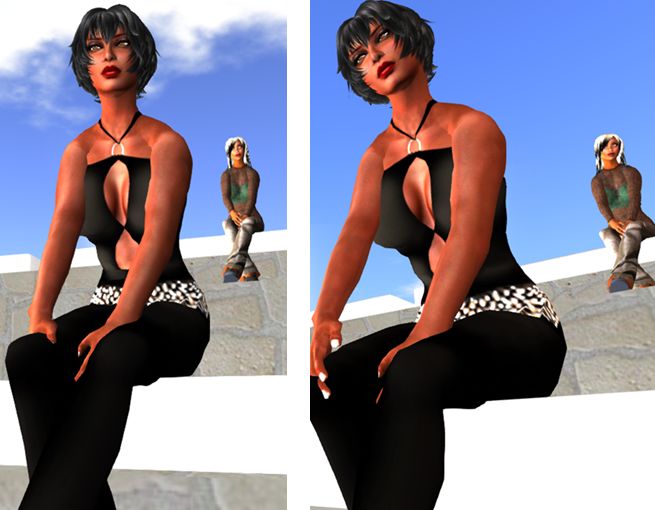
Catznip R8: SSB/A ready: (l) my Alt (at the back), running the SL SSB/A-ready viewer, renders correctly in Catznip R8, while (r) I render correctly in the SL SSB/A-ready viewer
When tested on an SSB/A enabled region, Catznip R8 rendered my Crash Test Alt (running on the official SL viewer, which is SSB/A ready) and my avatar correctly, as did the official SL viewer. No grey ghosts or clouds with either.
Pathfinding and Havok Sub-licensing
A major element missing for the last Catznip release – R7 – was pathfinding support. This wasn’t because the Catznip team have anything against pathfinding; they simply found time working against them, as I noted in my R7 review:
Catznip R7 does not include any pathfinding tools, as the team had enough on their hands getting all the updates, changes and fixes already planned for this release merged, tested and made ready for release. This doesn’t mean pathfinding is being ignored, however. Expect to see it in a future release.
R8 rectifies this. Not only does it provide the expected Linksets and Characters options, Catznip R8 becomes the latest SL viewer to sign-up to the Havok sub-licence agreement, meaning it also gains the ability to visualise the navmesh when working with pathfinding.
Pathfinding arrives in Catznip with the release of R8, and the Havok sub-license agreement means that the release includes navmesh visualisation
A further benefit with the agreement is that Catznip can also use the official Havok-powered mesh uploader.
Further Updates
In addition, Catznip sees the following added / updated:
Addition of a “Per user” option to the “Show friends permissions” in the friends gear menu to always show non-default permissions
Addition of an Edit Hover button functionality to show the shape editor, scrolled down to the “Hover” wearable param
Addition of a further toolbar at the top of the world view
Addition of a Close All Folders button to the inventory outfits view toolbar
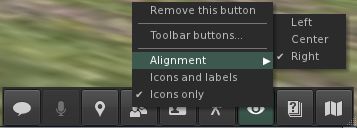
Addition of alignment options to toolbar buttons. Those at the bottom of the screen can be centred or left or right aligned, while those to the side can be aligned to the top or bottom of the screen as well as in the centre.
Catznip R8 adds left/right alignment to bottom toolbar buttons and Top/bottom alignment to side toolbar buttons
changed : highlight the currently worn outfit folder in bold
changed : rearrange the avatar inspector to add extra lines to the profile description
one extra line added by default through layout changes
two extra lines are added by expanding the textbox to fill the volume slider space if voice is disabled
changed : report more useful information about memory state in case of a crash
changed : allow multiple crashes to be selected in the “Crash reporting” preferences panel.
There are also a number of bug fixes which have been implemented by the Catznip team and / as a result of fixes coming out of the Lab; there are also a number of updates to RLV/a. For details on all of these, please refer to the R8 release notes.
Feedback
This isn’t a huge update compared to others, but it marks a significant step forward for Catznip both with the Havok su-licence support and, most importantly, the SSB/A support. I also have to admit I like the button alignment options (something we’re unlikely to see in the official viewer, but which is so very handy in making screen space more usable.
Given this release is to ready Catznip for the grid-wide deployment of Server-side Baking / Appearance, it is strongly recommended that if you are a Catznip user and have not updated, that you do so ASAP.
Performance-wise, Catznip R8 on my PC offers around the same performance as most viewer releases over the past few months. Running with Advanced Lighting Model off while in my home region with around four other avatars, FPS varies from the high 20 through the high 40s, depending on my altitude. When running with Advanced Lighting Model enabled but no shadows enabled, rates tend to range from the low teens through to high teens / low 20s.
 On Saturday 10th August, 2013, the Firestorm team hosted a question-and-answer session so they could outline the current status of the Firestorm viewer, the issues the team are facing, and outline plans for the future, as well as address questions from the audience.





 Inara Pey: Living in a Modemworld