Firestorm 6.5.6: maintenance refresh!


On Monday, July 25th, 2022, the Firestorm team released version 6.5.6 of their viewer.

This is very much a maintenance update for Firestorm rather than a major release; the focus is very much on bug fixes rather than new features.

That said, it does bring Firestorm closer to the official release viewer, incorporating as t does the April and May official viewer releases code – so with this release, Firestorm embraces multi-factor authentication.

Table of Contents

As per usual, this article is a not a full blow-by-blow breakdown of absolutely everything in this release, but it does include notes on some of the more significant updates and fixes people are liable to find useful, and some general notes.

For a complete breakdown of changes, please see the official release notes for Firestorm 6.5.6.

Installation

  • There is no need to perform a clean install with this release if you do not wish to.
  • Do, however, make sure you back-up all your settings safely so you can restore them after installing 6.5.6.

Linden Lab Updates

This release brings Firestorm up to parity with the following Linden Lab viewer releases:

  • Lao-Lao Maintenance Release viewer (version 6.5.4.570575, dated April 18th, 2022) containing numerous bug fixes).
    • One notable fix in this viewer is for photographers, correcting as  it does – BUG-231868 “[MAINT J+K] 360 Snapshot tool fails to save file to computer (Mac and Windows)”
  • The MFA Release viewer (version 6.5.5.571282, dated May 4th), which rolled multi-factor authentication to the viewer – see below for more.

In addition, Firestorm 6.5.6 includes support for the release of Premium Plus (increased Group allowance, etc).

Multi-Factor Authentication

Firestorm 6.5.6 incorporates Linden Lab’s viewer-side Multi-Factor Authentication (MFA) code. This provides additional security to your Second Life account both through the web (e.g. trying to view your billing info or transaction history, trying to cash out (“process credit”) money out of your account, trying to change the e-mail address associated with your account, etc.), and in accessing your account using the viewer. It is entirely optional, and you do not need to use it if you don’t want to – although usage is recommended.

You can find out more on MFA in general by following the links below:

Inclusion of MFA in a viewer means that anyone who has opted to use MFA

  • Will, the first time they use Firestorm 6.5.6, have to use their preferred authentication method (e.g. Google Authenticator) to generate a new token (6-digit code) and enter it into the viewer when prompted (after entering their user name and password).
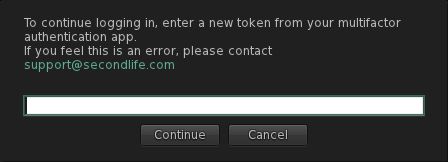
The MFA prompt for a token, which will be seen in Firestorm 6.5.6 (and other viewers supporting the Lab’s MFA code) once every 30 days.
    • Note that some authenticators generate their token as 2 groups of 3 digits (e.g. XXX  YYY). Where this is the case, you can enter the code with or without the space.
  • This token will remain valid for 30 days, as noted above, so you do not have to provide a token every time you log-in to the viewer.
    • However, after 30 days, the prompt will once again be displayed at log-in, and a new token code will have to be generated in the chosen authentication method, and entered into the viewer in response to the prompt.

If you have not opted to use MFA, or if you later opt to disable MFA on your account, you will not be prompted to provide any authentication code.

Firestorm Updates and Improvements

Phototools
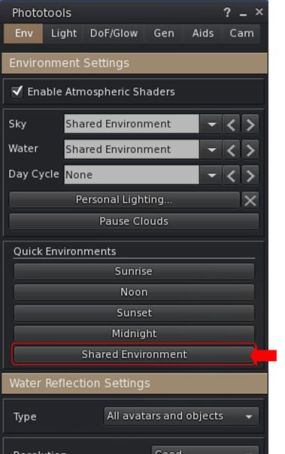
The Shared Environment button on Phototools works with Firestorm 6.5.6

A minor, but nevertheless issue with Phototools since the introduction of the Environmental Enhancement Project (EEP) capabilities into Firestorm has been the fact that the Shared Environment button (Phototools → Env) has never been properly hooked-up to the EEP controls.

It’s a niggle I pointed to at the time that Firestorm released with EEP incorporated but – and shame on me for not doing so – I never got around to raising a bug report on it.

Fortunately, Spartaco Zemenis did Jira it (see FIRE-31688), with the result that the button has now been properly hooked-in to EEP and clicking it (as with clicking the X button alongside of Personal Lighting) will now revert your viewer’s environment settings to those set for the region / parcel you are current in.

And the difference between the two? X will perform a transition between whatever your current environment settings are and those used within the region / parcel; the Shared Environment button will simple switch the viewer to using the local environment settings without any transition effects.

Skin Updates

  • The Legacy Skin has been removed as a result of being unmaintained for so long.
  • The Starlight and Starlight CUI have been updated, and now includes a fix for FIRE-30839 “Camera window not fully opaque at 1.00 and doesn’t have StarLight & Silver Blue support”.

Other Updates and Fixes

Updates

  • The “Avatars Nearby” list in the performance floater now respects display name/username choice (set via Preferences → General).
  • New physics warning to the mesh uploader when model dimensions are too thin. Mesh-based physics reverts to convex hull when any single dimension goes below 0.5m, so new warning added should this occur:
    • One or more dimensions is less than 0.5m, only hull-based (analysed) physics shapes will work correctly.
  • Debug Setting update: BrowserWebSecurityDisabled – disables web security features in the built-in Web browser.
  • Firestorm Bridge now uses HTTPS by default.
  • BUG-231970 “LOD generation does not trigger a refresh” (also fixed in the lab’s Performance Improvement viewer).
  • FIRE-31074 “Double Click Teleport Stuck On, And Ignoring Modifiers”.
  • FIRE-31552 “Glowing, 100% transparent prims no longer glow”.
  • FIRE-31687 “Overlapped windows when you create a pick on the Places floater”.
  • FIRE-31689 “Wrong folder is shown when creating a LM”.
  • FIRE-31322 “[Linux] Growl notifications do not show in Gnome 41 or Gnome 42 (Desktop Environment)”.
  • FIRE-31758 “RLVa: Area Search shows nametags when restrictions in place”.
  • FIRE-21700 “Full bright not adhering when gamma changed”.
  • FIRE-31719 “Store camera view fails in Flycam mode”.
  • FIRE-31406 “FS 6.5.3.65541 Guidebook pane while loading clips content too much”.
  • FIRE-31472 “When using the Improve Graphic Performance floater some aspects will not work when Framerate Limiter is active”.
  • Nearby blocked avatars should no longer cause the viewer to randomly hang.
  • Adds a warning toast as a reminder when there is a scripted followcam active that might stop a camera reset when trying to use SHIFT+ESC to reset camera view.

Crash Fixes

  • FIRE-31474 “Importing linkset crashes while uploading textures” .
  • FIRE-31653 “Pressing CTRL + F with “banned” list open in any group profile crashes the viewer to desktop”.
  • FIRE-31482 “Crashing To Desktop While Using [Legacy events] Search”.
  • FIRE-31718 “Preprocessor crashes viewer on recursive #include”.

Third-Party Library Updates

  • FMOD Studio updated to 2.02.06 (Windows, Linux, Mac).
  • KDU: updated to v8.2 for Linux.
  • Glib for Linux updated to  2.56.0.220911433-linux64_bionic-220911433.

OpenSim Updates

  • Fixed: FIRE-31567 “[OpenSim] Wrong delayed rebakes on all teleports/login”.
  • Fixed: FIRE-31581 “[OPENSIM] TP between grids on different voice services causes infinite loop”
  • Inventory handling improvements, including:
    • Fix for FIRE-31634 “[Opensim] Inventory doesn’t load on some grids”.
    • Fix for FIRE-31674 “[OpenSim] Inventory validation warning for Suitcase folder”.
    • Allow inventory validation to work in OpenSim with old and grandfathered inventories, without being fatal.
    • Better inventory validation reporting.
    • Make the inventory reporting more user friendly.
    • Make the options for fixing clearer.
    • Make the nagging notification optional.
    • Make sure the correct UUID is used for the inventory library in OpenSim
  • Fixed:  FIRE-31628 “[Opensim] Collisions sounds cannot be disabled”.
  • OpenSim vari-regions:
    • Try to defend against grid owners who insist on misconfiguring to have more the one neighbour per region edge.
    • Fixed Firestorm crash due to abuse of vari-regions.
  • Added Grid Status support for OpenSim “GridStatus” and “GridStatusRSS”  – Top menu bar → Help → Check Grid Status.
  • Reverted some of the changes made to prevent calling card duplication, as the method has changed and the viewer is now responsible for creating calling cards after friendship has formed.

Future Releases

In the past, the Firestorm team has tried to maintain a two-month QA cycle: starting a month after a release, QA on the nest would start with beta testing. This would be followed in the 6th week of the beta cycle by the issuing of a “Release Candidate” for additional testing the the Firestorm Preview Group. Due to the numbers involved in the Preview Group, issues would be found very late in the QA cycle, leading to delays in the release being made.

To try to prevent this in the future, Firestorm is moving to a process of pre-release building being issued to the Preview Group on a weekly basis, monitored by the QA team, working with the Preview Group users in determining what is a bug that should be reported vs what may be an artefact of something unrelated, like a user setting, that can be corrected without the need for exhaustive bug reporting and testing. This will hopefully result in a more frequent release process.

Related Links

Profiles Viewer reaches RC Status in Second Life

via Linden Lab

In June 2019, Linden Lab released the Legacy Profiles Project viewer, the first step in moving user Profiles back into a viewer floater that does not utilise the web-based profiles that have been in place for the last decade(ish) – see SL Legacy Profiles project viewer.

At the time, it was hoped that the project to move profiles back “into” the official viewer would be relatively easy. However, three years have passed, and it is only now that the work has moved forward.

There are multiple reasons for this being the case: pressure of work elsewhere, the need for back-end updates that were interrupted by the migration to AWS, and so on. So, there was probably an enormous sense of relief at the lab when, on July 21st, 2022, the Profiles Release Candidate (RC) Viewer could finally be issued for users to take a look at ahead of it moving forward to de facto release status.

As with in-viewer profile floaters, this one presents a panel with a series of tabs:

  • Bio – for the user’s / avatar’s biography.
  • Feed – providing a view of the user’s web-based Profile Feed.
  • Picks: the familiar selection of 10 favourite places / other information the user wants to display in their profile.
  • Classifieds: for any classified ads the user has created.
  • Real Life: a further tab the profile owner can use to provide any additional information they wish (it actually does not have to be “real life” related, which is why I whish the Lab would follow the lead of others and call this “Additional Info”, or something, and let users decide how they want to use it.
  • My Notes: a section in which notes can be written about a profile and which can only be seen by the person writing the notes.
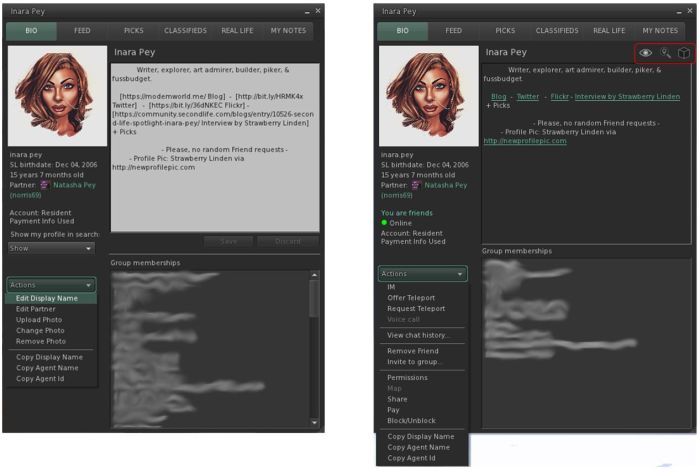
The new official viewer Profile panel. On the left: as seen b the account holder, with an editable description field. On the right: as seen by other users. Note the two Action drop-down menus as well. Click for full size, if required

Of these tabs, it is very likely that Bio is going to be the most jarring to anyone familiar with viewer-based legacy profiles, as it presents a very different layout compared to other profile floaters – and also includes some useful extras.

The basic info on the profile owner – picture, partner status and age are rather untidily squished into the top left corner of the tab. This is to allow more room for users to write something about themselves / their avatars. While this is welcome – the “traditional” legacy profile always seemed a tad limiting for expression. However, depending on whether or not this layout is adopted verbatim aby TPVs, I do have a small niggle.

People tend to spend considerable effort in getting their bio info laid out in their Profile, and such is the nature of this floater, such work tends to be lost. For example, in Firestorm, Cool VL, etc., my own bio is relatively centred within the provided window – but here, as shown in the image above right, it appears oddly ranged to the left.

This may sound like nit-picking, but it could actually carry some weight: people put great store by what they see in a profile almost as much as in what they read, and what may come over as a slapdash, hard-to read layout on account of different floater window sizes (again, assuming TPV don’t simply integrate this profile floater design into their offerings, rather than continue with their own) might lead to unfair judgements.

On the positive side, this tab includes up to three handy drop-downs:

  • Show / Hide: (visible to the profile owner only) – sets whether or not the profile is listed in Search, and is tidier than the old check-box.
  • Actions: a context-sensitive menu available to both the profile owner and those viewing a profile, with the menu options (shown left and right in the image above) dependent on who is viewing the viewing the menu.
  • Tools drop-down (person viewing a profile only): provides access to “action” options the person viewing the profile may wish to take in reference to the owner of the profile, as shown below:
The additional options available from a user’s profile for those viewing it

The remainder of the tabs in the floater are really straightforward and require no real expansion here. As per current legacy profiles, when editing your own, editable fields are show in white for text entry.

What one thinks of the overall layout / appearance is subjective; outside of my little niggle on how information is displayed between different styles of profile floater (again, assuming some TPVs keep to the more “traditional” profile floater design rather than adopting this layout), I’ve no issue with this approach. And like I noted above, the additional drop-down options presented through it are handy to have.

Related Links

Looking at the SL Performance Improvements Viewer

via Linden Lab

The Performance Improvements Viewer has been the default release viewer from the Lab for the last couple of weeks, and the code is starting to find its way to TPVs. This is a viewer specifically designed by LL to provide a smoother user experience in terms of things like rezzing / rendering times, better FPS.

The viewer represents a lot of work on the part of the Graphics team to improve data handling (including moving various data elements between threads, removing low update processes to their own threads rather than having them stall the main rendering threads, etc., all of which is intended to make the viewer feed more responsive as you move / teleport around SL.

As such, I decided to try a series of basic comparative tests between the Performance Improvements viewer, a version of the official viewer without the code updates and Firestorm (as my TPV of choice at the moment), just to gain a rough indication of how the changes made to the viewer perform. These tests comprised:

  1. Logging-in to my Home location with empty caches, recording the time from clicking the log-in button through to everything loading in my field of view.
  2. Logging-in to my Home location with it locally cached on my hard drive.
  3. Completing a walk around my Home location, recording FPS at the same 9 locations, three times each with Shadows OFF and Shadows ON, and taking an average of all the FPS times recorded.
  4. Teleporting to a busy region (15+ avatars) that is not pre-cached locally (but should be cached at my nearest CDN node(s), given it is a place I visit daily).
  5. Re-teleporting to the same location, now locally cached.
  6. Completing the same walk around the selected location, recording FPS at the same 5 locations, three times each with Shadows OFF and Shadows ON, and taking an average of all the FPS times recorded.

The table below summarises my findings:

Firestorm SL Viewer – No Improvements Code SL Performance Improvements Viewer
Home log-in uncached 42.06 sec 27.94 sec 24.00 sec
Home log-in cached 22.34 sec 21.98 sec 20.00 sec
Home walk – no shadows 25.5 FPS 34.5 FPS 53.57 FPS
Home walk – shadows 17.4 FPS 21.4 FPS 42.8 FPS
Uncached location TP 55:41 sec 49.37 sec 44.27 sec
Cached location TP 46:61 sec 35.03 sec 17.57 sec
TP location – no shadows 28.9 FPS 29.25 FPS 45.54 FPS
TP location – shadows 13.5 FPS 22.8 FPS 38.8 FPS

Obviously, there is always going to be a lot of subjectivity in such tests like these, which are dependent upon factors such as the specs of the system running the viewer(s), what else is running at the same time, Internet connectivity with the SL services and to the nearest CDN node, etc. However, in carrying out the comparisons above, I attempted to achieve something of a common basis by:

  • Using the same settings across the three viewers (e.g. camera and graphics pre-sets; the same RenderVolumeLOD factor; the same attached EEP settings for a consistent environment; the same complexity setting & max no. of non-imposters, etc.) – with the acknowledged caveat that the Performance Improvements viewer would automatically default to Shadows ON for me, based on my system’s capabilities, so needed some adjustment during some tests.
  • Ensuring all tests were carried out back-to-back to minimise extensive changes due to avatars of different complexity coming  / going / moving around.
  • Closing all other apps I had been running on my PC to maximise the available resources available to all of the tests.

In addition, and for completeness (and as requested by Lance in the comments) – here are my system specifications – which are also available in the link on the right column of this blog.

But even while subjective, I think the results tend to speak for themselves, and there is no denying the qualitative frame speed increase with the Performance Improvements viewer, particularly with shadows enabled.

How quickly these updates are adopted by TPVs is down to their release schedules; but for the official viewer, this marks the first major release of updates intended to improve performance that is currently in flight, with the Performance Improvements Floater viewer (which includes the Lab’s take on auto-FPS function functionality similar to that found in Firestorm) currently at product viewer status.

The Performance Improvements viewer can be downloaded via the Viewer Download page, and the release notes are here.

Catznip R13 maintenance 1 release overview

In keeping with the statements made on the release of Catznip R13 (which is overviewed here), the Catznip team released a Maintenance update to the viewer on Sunday, May 8th, 2022, which is available for Windows (32-bit and 64-bit) and Mac OSX ((10.11 or later).

As work is progressing well on the next full release (R14), this maintenance update – called simply Catznip R13.1 – is not packed with news features and options, but does, in keeping with its function as a Maintenance release, offer some nice additions, some fixes, and one or two new items.

As always, full details of the changes and updates in this Catznip release are available through the official release notes; what follows is a general summary of the more interesting updates.

Linden Lab Derived Updates – MFA

Catznip R13.1 incorporates Linden Lab’s viewer-side Multi-Factor Authentication (MFA) code, which recently reached the Lab’s official release viewer (see: Lab extends MFA to the official viewer for Second Life).

MFA provides additional security to your Second Life account. It is entirely optional – you do not need to use it if you don’t want to – but it currently provides additional account security when trying to access particularly sensitive information about your Second Life account (e.g. trying to view your billing info or transaction history, trying to cash out (“process credit”) money out of your account, trying to change the e-mail address associated with your account, etc.).

You can find out more on MFA in general by following the links below:

Inclusion of MFA in a viewer means that:

  • Anyone who has opted to use MFA will, every 30 days, will be required to provide an MFA token in addition to their user name and password when logging-in to SL via any viewer / client supporting MFA.
  • Anyone who has not opted to use MFA, or decides to disable it after initially opting-in, will not see any change to how they log-in to SL via a viewer /client.

For those who have enabled MFA on their account:

  • The first time you use Catznip R13.1 you will have to use your preferred authentication method to generate a new token (6-digit code) and enter it into the viewer when prompted (after entering your user name and password).
The MFA prompt for a token, which will be seen in Catznip R13.1 (and other viewer supporting the Lab’s MFA code) once every 30 days.
  •  Some authenticators generate their token as 2 groups of 3 digits (e.g. XXX  YYY). Where this is the case, you can enter the code with or without the space.
  • Note that the token will remain valid for 30 days, as noted above, so you do not have to provide a token every time you log-in to the viewer.

Catznip Improvements

Group Activation and Accessing Notices

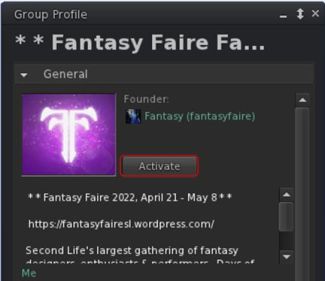
Catznip’s new Group Activation button displayed in profiles of Groups you have joined

This release of Catznip offers two new options for activating a Group tag, and a new option for viewing group notices:

  • You can activate the tag for any Group of which you are a member directly from the Group’s Profile floater, by clicking the Activate button.
  • You can also active the Group’s tag (again, you must already be a member) but right-clicking on the Group’s SLurl when displayed in local chat and selecting Activate from the drop-down menu.
  • You can also use this latter method (right-click on the Group SLurl in chat) to select the Show Group Notices option from the drop-down and view notices.

Teleport History Pruning

Regions come and go in Second Life, and if you spend a fair amount of time hopping around the grid visiting places, it is possible to end up with the Teleport History panel that is full of landmarks that are no longer valid (e.g. because the shop has moved, or the region has changed owners / user, or has gone away completely, etc.). You may also want to ease searching for LMs in history by pruning out those “one off visits” you’ve made.

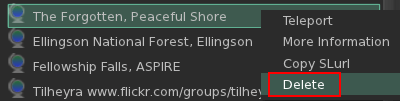
Deleting LMs from your Teleport History tab in Places

Catznip R13.1 now makes this possible:

  • Open you Teleport History (Me → Places → Teleport History).
  • Either:
    • Right click on the landmark in the history list.
    • Select Delete from the drop down menu.
  • Or:
    • Left-click on the landmark in the history list.
    • Click the dustbin at the bottom of the of the floater.

Conversations Navigation

Catznip R13.1 adds an additional set of keyboard shortcuts to assist in navigating between tags within the Conversations floater:

Action Horizontal Chat Tabs Vertical Chat Tabs
Page to the next tab ALT-Right Arrow ALT-Down Arrow
Page to the previous tab ALT-Left Arrow ALT-Up Arrow
Page to the next tab with unread messages ALT-SHIFT-Right Arrow ALT-SHIFT-Down Arrow
Page to the previous tab with unread messages ALT-SHIFT-Left Arrow ALT-SHIFT-Up Arrow

Mouselook Improvements

Catznip R13.1 adds the following three options to using Mouselook:

  • Allow script dialogues.
  • Do not immediately snap the mouse back to the centre of the screen after a (scripted touch) click.
  • Show the hand cursor while holding down the CTRL key in Mouselook to indicate touchable faces.

Feedback

A small but tidy group of updates well suited to a maintenance release and which ensures Catznip is MFA compliant (which will be required of all viewers / clients in the near future). I admit to particularly liking the Teleport History pruning capability; would that the other viewers I use adopt it – some of my history lists tend to get jammed full of LMs, and purging the lot from outside of the viewer just to start over has never really been ideal.

Again, for the complete list of updates and bug fixes, please refer to the Catznip R13.1 release notes.

Related Links

Firestorm 6.5.3: performance and photos (and more!)

On Monday, March 21st, 2022, the Firestorm team released version 6.5.3 of their viewer.

This is a significant update to Firestorm, containing major new elements aimed at helping to improve viewer performance / the user experience.  As such, these elements for the major focus for the notes below.

As per usual, it also brings Firestorm closer to the current official SL release viewer by including a number of updates and capabilities previously released by LL. Again, from an end-user perspective, one of the most noticeable of this is likely to the incorporation of the 360º snapshot capability,  which is also looked at in detail below.

Also as per usual, Firestorm 6.5.3 includes additional fixes and updates directly from the Firestorm team to also improve the user experience. Not all of these are covered in the notes below, and readers are referred to the official release notes alongside of this article.

Table of Contents

Installation

  • There is no need to perform a clean install with this release if you do not wish to.
  • Do, however, make sure you back-up all your settings safely so you can restore them after installing 6.5.3.

Splash Screen Update

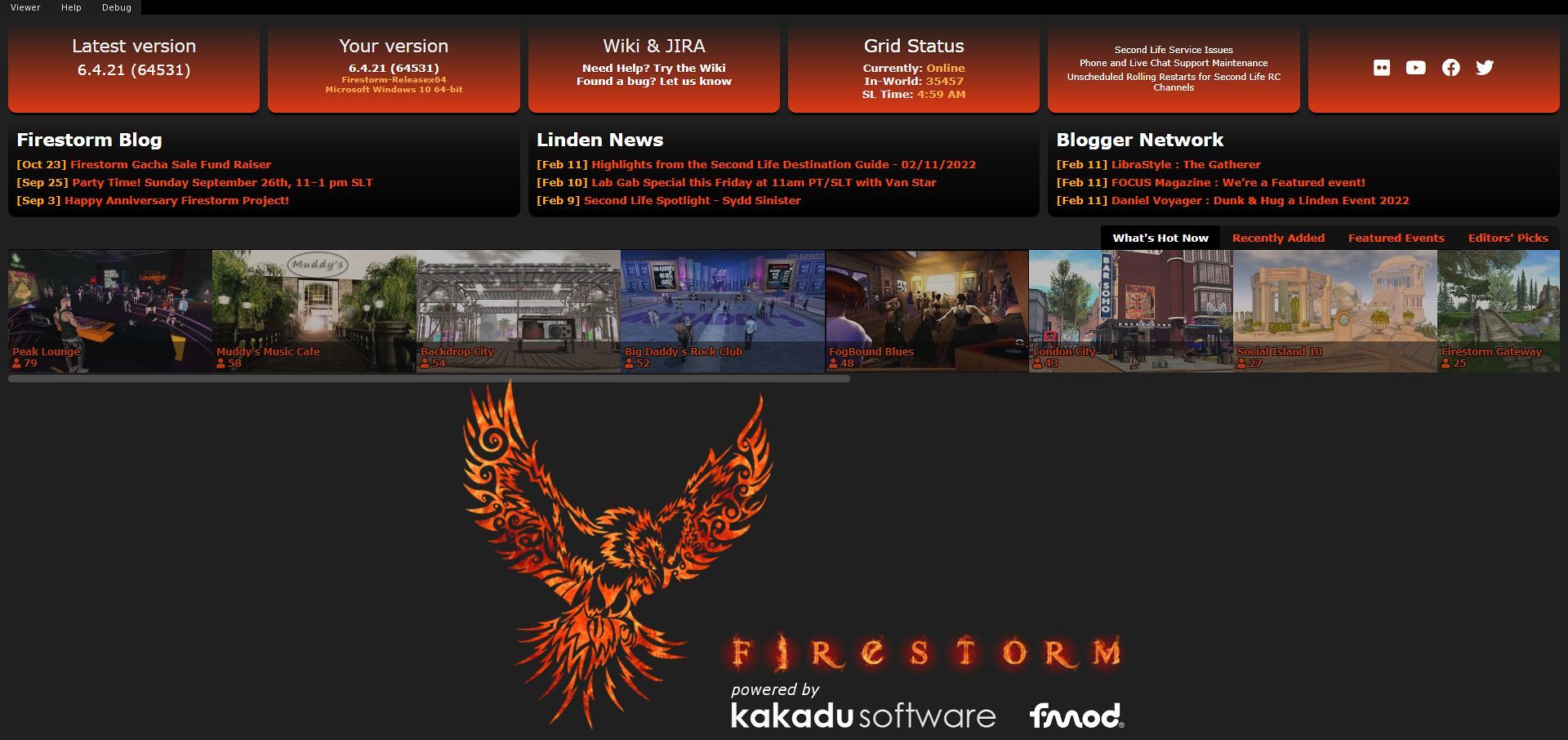
Whilst not strictly part of the 6.5.3 release, having been prototyped with and added to the 6.4.21 release, Firestorm now has a new splash / log-in screen. It incorporates elements familiar to Firestorm users and also to users of viewers that use splash screens more closely modelled on Lab’s own.

In all, the “new” Splash screen can be split into five elements:

  • A set of six panels at the top, four of which are Firestorm-specific (version details, wiki and  Jira links, and on the far right, Firestorm social media links), and two related to official SL information (grid status data and links to information on current grid issues, LL support and grid status updates).
  • A three-panel selection of blog links from the Firestorm blog, the official SL Featured News blog and the SL Blogger’s Network.
  • An expandable scrollable list of currently-popular destinations in Second Life (complete with a count of recent visitors).
    • These are drawn from the What’s Hot Now (default), Recently Added, Featured Events and Editors Picks sections of the Destination Guide (the corresponding links on the right of the panel to select these).
    • Clicking on any of the displayed thumbnails will provide further information on the destination in a pop-up floater, complete with the option to Visit This Destination after logging-in.
  • The Firestorm & associated software logos.
  • The log-in panel at the bottom (unchanged, and not shown below).

The updated Firestorm splash screen (click for full size)
Linden Lab Viewer Parity

This release brings Firestorm up to parity with the official viewer release 6.5.2, and so includes updates seen in the following official viewer releases:

  • Mac Voice hotfix viewer, version 6.5.2.567427, dated January 13th, 2022.
  • Cache + 360º Capture viewer, version 6.5.1.566335, dated December 7th, promoted December 15th – see below for more on the 360º capture.
  • Maintenance RC viewer version 6.5.0.565607, dated November 10th, promoted November 15th, 2021.
  • The Apple Notarisation Fix viewer, version 6.4.23.564172, issued September 24th and promoted October 15th, 2021.
  • CEF update viewer, version 6.4.22.561752, dated July 24th, promoted August 10th, 2021.
  • Fernet Maintenance RC, version 6.4.21.561414, dated July 14th, promoted July 19th,  2021.

More Robust Encryption of Login Credentials

In line with changes from Linden Lab, the way Firestorm encrypts your log-in credentials has been changed  to make it more robust and to reduce the number of times stored passwords will have to be re-entered. The update to the new method is automatic on logging-in to SL for the first time using Firestorm 6.5.3; however, it means that should you switch back to using an older version of Firestorm, you will have to re-enter your credentials.

Note: this update is not in any way related to multi-factor authentication in the viewer, which is currently in RC testing in the official viewer.

360º Snapshots

Linden Lab’s 360º snapshot capability allows you to capture of 360º degree panoramic images of environment around your avatar / camera position (if freecamming). The images are automatically processed by the viewer so that they can be uploaded to most platforms supporting 360º panoramic images (e.g. Flickr, Meta), and for embedding into blogs that support 360º images (such as WordPress).

Within Firestorm, the capability can be accessed in one of three ways (Firestorm have disabled the shortcut option of CTRL-ALT-SHIFT-S, as this combination is bound to opening the viewer’s Debug settings):

  • Via Avatar → 360 Snapshot.
  • By clicking on the links seen in the expanded Preview image view of the Snapshot floater.
  • Via a toolbar button (when enabled in a toolbar area).
The 360º snapshot viewer and two of the means of accessing in – via the the Avatar menu and the toolbar button (must be added to your toolbar)

Taking an image comprises a few simple steps:

  1. Position your camera.
  2. Select the image quality – for finished images you’ll need to set High or Maximum quality using the radio buttons.
  3. Click the Create 360º Image button to generate a preview in the floater’s preview panel.
  4. Click on the preview image and drag it around to ensure what you’re seeing is what you want / that things like textures have actually rendered correctly.
  5. Check the Hide All Avatars option, if required – if not, the process to include all avatars present, which could be blurred if they are moving at the time the image elements are  captured.
  6. When you are satisfied with the preview, click Save As… to save it to your hard drive, renaming it if / as required.

Note: if you change the image quality, you must also click Create 360 button to update the preview AND image capture process to the new image quality, before clicking Save As… once more.

Further information on the capability can be found in the following blog posts :

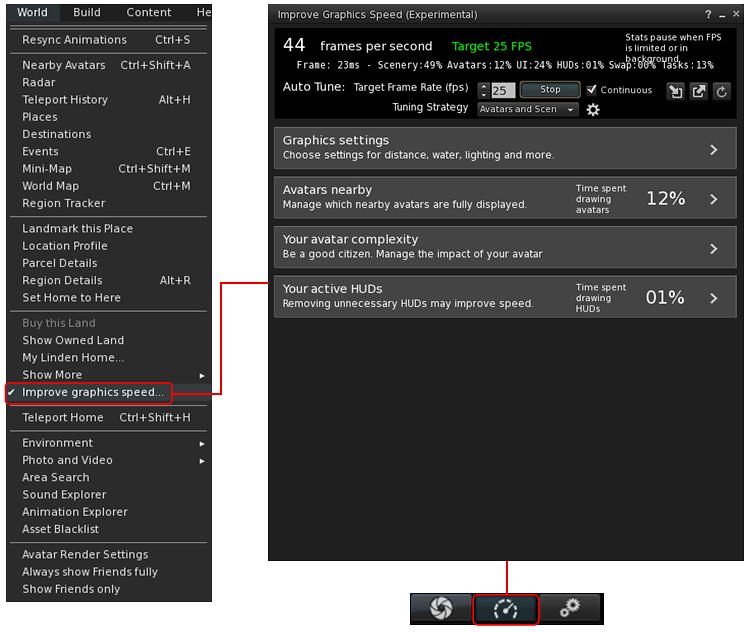
Improve Graphics Speed (Experimental)

Overview (please read!)

This is a new UI floater Developed by Beq Janus. It brings together a range of viewer graphics options and is intended to help keep you better informed of the viewer’s performance in terms of frame rates, rendering, etc.), and make your own adjustments to suit the environment you’re in. It is also intended to help users be better informed about viewer performance.

The floater comprises three core elements:

  • The Frame / Performance Summary.
  • An Auto Tune Capability.
  • Four additional floater panels that can be used together / individually and independently of Auto Tune. These bring together some of the most commonly-user graphics / rendering options, allowing you to make changes quickly and easily to manually adjust performance, including defining how avatars around you are individually rendered, and lowering to load your own avatar places on both your system and those of the people around you.

This section is intended to provide an overview to the new floater, and offer general notes on the various options and their use. When reading it, please remember:

  • The entire panel – and particularly the Auto Tune capability – is experimental. Options presented may well change over time (such as in reference to LL’s own performance improvement work).
  • While intended to try to optimise the viewer’s performance, please note: these options  will not magically make elderly (e.g. 6+ year old) computers with outdated CPUs / GPUs suddenly zoom along at rates seen with the latest high-end gaming rigs; everything is very much dependent on the capabilities of your hardware.
  • Also, and in respect of Auto Tune:
    • While it will try to maintain your frame rate at the expense of other settings (such as overall graphics quality). So, depending on your system, the frame rate selected, the complexity of the scene, you may find other aspects of your experience suffering.
    • Does not run on Mac M1 systems at present.
  • If you experience particularly awkward results or are unhappy with how the in-world scene looks, you can disable all performance optimisation, and the floater includes the means to quickly load / revert to any Graphics Presets you have previously set-up.

Accessing the Floater

The Improve Graphics Speed floater can be accessed in two ways:

  • Via World → Improve Graphics Speed.
  • Via a toolbar button (when enabled in a toolbar area).
Accessing the Improve Graphics Speed floater

The various options and panel displays are examined in the sections below.

Continue reading “Firestorm 6.5.3: performance and photos (and more!)”

Catznip R13: EEP+ and Camera Presets

Catznip version R13 surfaced on Sunday, January 2nd, 2022 as the current release version of the viewer. It comes some two years after the last full public release of the viewer – although there have been interim releases of “alpha / beta” versions during that time. As such, it is a significant release in terms of Catznip moving back towards a good degree of parity with the official SL viewer.

In reference to the official viewer, this release see Catznip:

  • Reach full parity with SLV release 6.4.12.555248 (Dawa maintenance viewer, promoted to de facto release status, February 1st, 2021)
  • Incorporate:
    • The Environment Enhancement Project (with Catznip improvements).
    • The Camera Presets capability (again, with Catznip improvements).

As always, full details of the changes and updates in this Catznip release are available through the official release notes; what follows is a general summary of the more interesting updates.

Linden Lab Derived Updates

Environment Enhancement Project (EEP)

The Environment Enhancement Project (EEP) was officially released on April 20th, 2020, and incorporated into numerous Catznip “alpha/beta” builds, but R13 marks the first “full” release of the viewer to incorporate EEP functionality.

A complete overhaul and replacement of the Windlight system, EEP is a complex capability which has been covered expensively in blog posts and tutorials including within this blog. As such, I will just drop a couple of links in here for those who may need a further introduction to / understanding of EEP and its capabilities:

However, Catznip R13 incorporates a number of refinements over the original EEP implementation, as outlined below.

EEP Quick Preferences: The Catznip Quick Preferences panel has been updated to provide a set of EEP options. This includes:

  • Buttons to apply a region’s or parcel’s Shared Environment and to access the Personal Lighting floater.
  • Individual sections for selecting / editing Fixed Sky, Day Cycle and Water settings, each with:
    • A drop-down list of available settings, defined by those in your inventory → Settings folder and those in the Library →  Environments folder.
    • The ❮ [left] and ❯ [right] buttons to cycle you through each type of setting.
    • A wrench button to open the Edit floater for each class of setting.
    • Day Cycles only:
      • Radio buttons for selecting the Sun or Moon
      • Azimuth and Elevation sliders tied to the radio buttons to adjust the position of the Sun or Moon.
  • A Reapply Current Windlight at logon check box, which does precisely what it says when checked.
  • An Interpolate Preset Changes checkbox. When checked, this will transition you from one setting to the next over 5 seconds; if unchecked, transitions between EEPs will occur fairly instantly.
The EEP options available through the Catznip Quick Preferences

Edit Library EEP Assets: Under most EEP implementations, those contained within the Library → Environments folder must first be copied to a user’s inventory (e..g to the Settings folder).

Catznip R13 allows users to open EEP assets within Library → Environments directly into the appropriate edit panel (highlight the asset, then right-click on it and select Open) the Windlight settings straight from the library (right-click inventory / Open). This allows changes to be made to the settings, which can be saved to inventory (e.g. within the Settings folder) using the edit panel’s Save As option (or, if the changes are to be temporary, Apply Only To Myself can be used without creating a new inventory asset).

Active EEP Asset indicator: Catznip R13 will display “(active)” alongside the currently active EEP asset / settings in both inventory and the My Environments floater.

General panel / floater clean-up: the majority of the EEP panels and floaters have been cleaned up to reduce their footprint without feeling too cramped.

Camera Presets

The ability to create and save custom Camera Presets (how the viewer camera is positioned) became part of the official release viewer release viewer in the first half of 2020, and which finds its way into the Catznip release viewer with R13.

Again, I’ve covered the capability in depth within: Tutorial: Viewer Camera Presets, so those unfamiliar with the capability should refer to that document – keeping in mind it directly reference the official viewer. However, Catznip have implemented the capability with their own updated Camera floater, which also includes a couple of options specific to the viewer, and this panel and its options is outlined below.

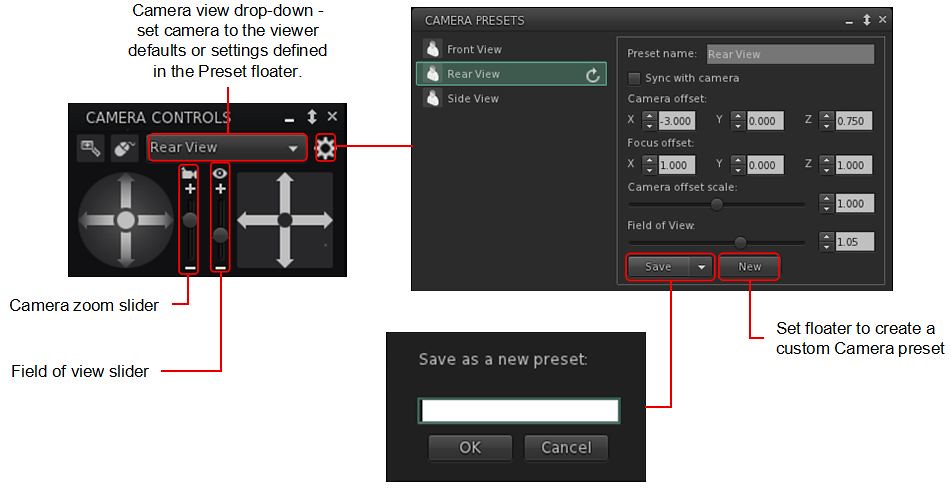
Catznip’s Camera Presets implementation
  • A gear icon opens the Presets panel, where the default set of Camera positions (e.g. Front, Rear, Side), can be amended to suit personal needs, and where additional custom presets can be created (via the New button within the panel).
    • Note the Catznip Camera Prresets panel also allows the setting of the viewer’s field of view, an option not included in the official implementation of Camera Presets.
  • All presets (default and custom) can be accessed via a drop-down list at the top of the camera floater – click the arrow to the right of the button to open the drop-down and then click on the required preset.
  • The Zoom and Field of View sliders:
    • Using the Camera icon, the Zoom camera slider does what its name states: zooms the camera in and out.
    • Using the Eye icon, the Field of View slider  controls the field of view (Ctrl-8 / Ctrl-0) which is more commonly used to ‘zoom’ in tight to an attachment for editing.
    • Note that both of these sliders will refer to their defaults on tapping Esc.  If you wish to set a new Field of of View, this should be done by creating a new preset.
  • Catznip have also included Penny Patton’s popular over-the-shoulder presets within R13.

 Catznip Updates

Resolution Scale

Viewer frame rates (FPS) can be a problem for some, and while Linden Lab is attempting improvements to address this, Catznip R13 includes one of the Catznip team’s approaches to boosting FPS – altering the screen resolution scale in the viewer.

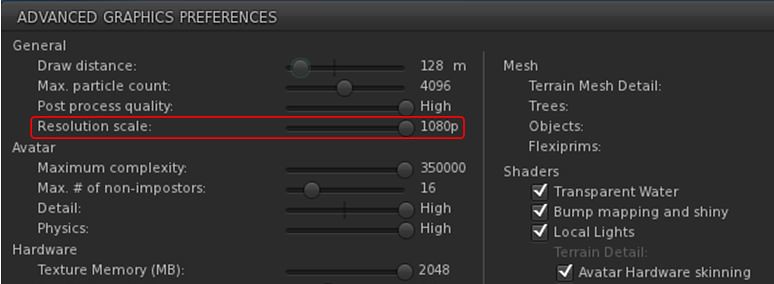
A new slider, Resolution Scale, has been added to the Advanced Graphics Presets panel (Preferences → Graphics click Advanced Settings … button).  By default, this is set to the highest resolution of your monitor, and but can be reduced by up to half of that resolution by moving the slider to the left. Doing so should improve viewer FPS – but will make the scene resolution displayed on your screen look increasingly blocky.

The Catznip R13 (screen) Resolution Slider

Other Updates of Note:

  • Places Search tab: Catznip R13 adds the following capabilities to the Legacy Places search tab:
    • Pressing Enter within the text input field will search on the text in the field (as will click the Search button).
    • Pressing Enter or double-clicking on a specific search result will teleport yo to that location.
  • CATZ-530 – Group Notice Creation: when writing a Group notice, the number of remaining characters is displayed under the text entry field.
  • CATZ-547 – Option to turn off extra lighting that is applied when editing appearance.
  • CATZ-557 – Improve initial opening time for the landmarks floater (+ improved filtering performance).
  • CATZ-584 – Give visual feedback when using an invalid regex for an inventory search.
  • CATZ-593 – Add option to sort Nearby and Friends list by username.
  • CATZ-594 – Opening the feedback floater should give focus to the feedback form.
  • CATZ-601 – Increase default and minimal texture cache size.

Again, please refer to the official blog post from the Catznip team for a complete list of updates and fixes.

Feedback

Catznip still lags somewhat behind the official viewer in terms of more recent releases from the latter, but this release gives a good base on which to build and catch up. Points worthy of note for me are:

  • EEP Quick Preference Tab – well considered, and with more-or-less the right options.
  • Camera Presets – good to see them “officially arrive” in Catznip, and the reworking of the Camera floater and the Camera Presets floaters / panels is very well done.

Even so, and again from a personal perspective, Catznip still isn’t quite there in terms of becoming my viewer of choice – in that regard Kokua has currently overtaken it in terms of an alternative to Firestorm, but I remain swayed towards the latter purely because of the Phototools floater and its tabs – it simply offers everything I need in a nice, convenient package that Catznip R13’s EEP Quick Preference tab doesn’t fully match and Kokua really lacks – although it does offer more that is up-to-date with the official viewer than either Firestorm or Catznip.

That said, for Catznip users, there should be little, if anything, in R13 to complain about.

Related Links