SL viewer to get unified snapshot floater

secondlifeUpdate, September 8th: The unified snapshot floater is now a part of the de facto release viewer.

Update, August 26th: The unified snapshot floater is now available in a release candidate viewer, version 3.7.15.293376

Niran V Dean is familiar to many as the creator of the Black Dragon viewer, and before that, Niran’s Viewer. Both viewers have been innovative in their approach to UI design and presentation, and both have been the subject of reviews in this blog over the years, with Black Dragon still reviewed as and when versions are released.

Once of the UI updates Niran recently implemented in Black Dragon was a more unified approach to the various picture-taking floaters which are becoming increasing available across many viewers. There’s the original snapshot floater, and there are the Twitter, Flickr and Facebook floaters offered through the Lab’s SL Share updates to the official viewer, which are now also available in a number of TPVs.

In Black Dragon, Niran redesigned the basic snapshot floater, offering a much improved preview screen and buttons which not only provide access to the familiar Save to Disk, Save to Inventory, etc., options, but which also provide access to the Flickr, Twitter, and Facebook panels as well.

He also submitted to the code to Linden Lab, who have approved it, and it is currently working its way through their QA and testing cycle and should be appearing in a flavour of the official viewer soon (see STORM-2040).

A test build of the viewer with the new, more unified approach is available, and I took it for a quick spin to try-out the snapshot-related changes. Note it is a work-in-progress so some things may yet be subject to change between now and release.

First off, the snapshot floater is still accessed via the familiar Snapshot button, so there’s no loking for a new label or icon. The Twitter, Flickr and Facebook floaters and buttons are also still available (so if one or other of them is your preferred method of taking pictures, you can still open them without having to worry about going an extra step or two through the snapshot floater).

Opening the new snapshot floater immediately reveals the extent of Niran’s overhaul – and as with Black Dragon, I like it a lot.

The new snapshot floater by Niran V Dean: note the button options for Flickr, Twitter and Facebook uploads

The increased size of the preview panel is immediately apparent, and might at first seem very obtrusive. However, when not required, it can be nicely hidden away by clicking the << on the top left of the floater next to the Refresh button, allowing a more unobstructed in-world view when framing an image (you can also still minimise the floater if you prefer).

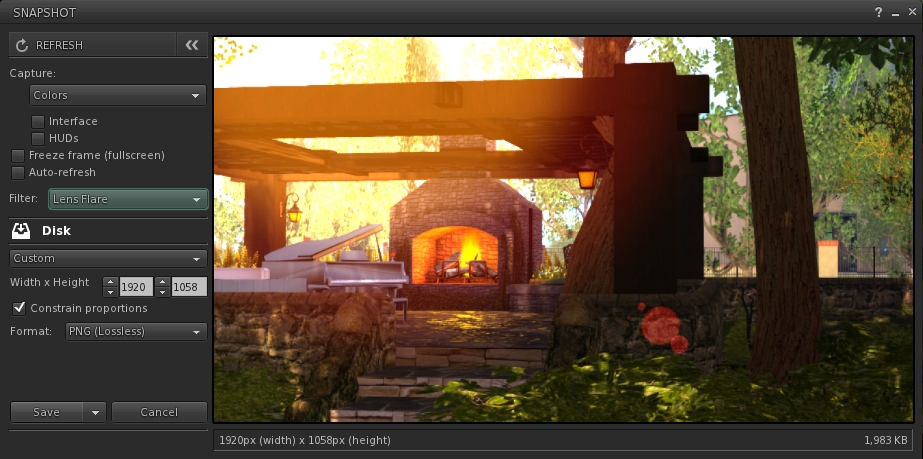
Beneath the Refresh button are the familiar snapshot floater options to include the interface and HUDs in a snapshot, the colour drop down, etc., and – importantly – the SL Share 2 filter drop down for post-processing images. The placing of the latter is important, as it is the first clue that filters can, with this update, be applied to snaps saved to inventory or disk or e-mailed or – as is liable to prove popular – uploaded to the profile feed.

With the new snapshot floater, you will be able to add filters to the snaps you save to disk or inventory, or which you e-mail or upload to your profile feed
With the new snapshot floater, you will be able to add filters to the snaps you save to disk or inventory, or which you e-mail or upload to your profile feed – here is a snap being prepared to save to disk with the lens flare filter added

Below these options are the familiar buttons allowing you to save a snapshot to disk, inventory, your feed or to e-mail it to someone. click each of these opens their individual options, which overwrite the buttons themselves – to return to them, simply click the Cancel button. Saving a snapshot will refresh the buttons automatically.

Within these buttons are those for uploading to Flickr, Twitter or Facebook. These buttons work slightly differently, as clicking any one of them will close the snapshot floater and open the required application upload floater.

While this may seem inconvenient over having everything in the one floater, it actually makes sense. For one thing, trying to re-code everything into an all-in-one floater would be a fairly non-trivial task; particularly as Twitter, Flickr and Facebook have their own individual authentication requirements and individual upload options (such as sending a text message with a picture uploaded to Twitter, and the ability to check your friends on Facebook. Also, and as mentioned earlier, keeping the floaters for Flickr, Twitter and Facebook separate means they can continue to be accessed directly by people who use them in preference to the snapshot floater.

However, this latter point doesn’t mean they’ve been left untouched. Niran has cleaned-up much of their respective layouts and in doing so has reduced their screen footprints. The results are three floaters that are all rather more pleasing to the eye.

Niran's revised Facebook floater, left - note the new Connect button, removing a need for an extra tab; and the orginal floater  on the right
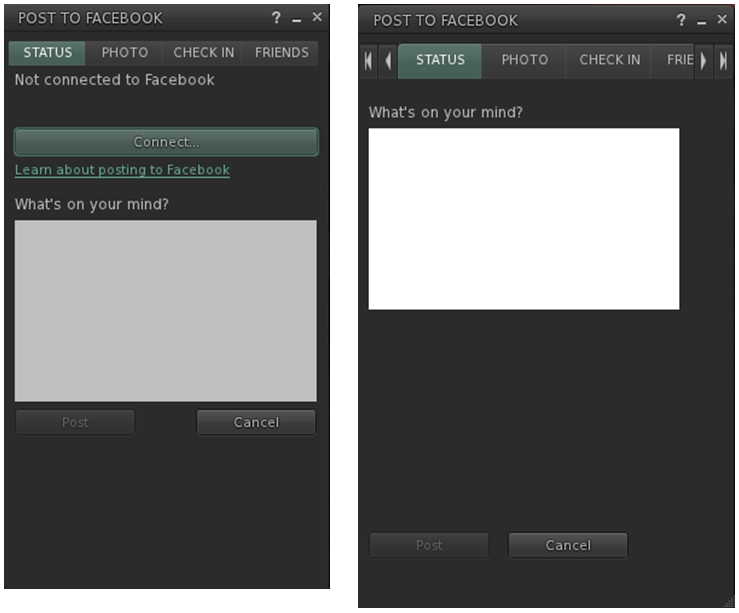
Niran’s revised Facebook floater, left – note the new Connect button, removing the need for an extra tab; and the original floater on the right

All told, these are a sweet set of updates which make a lot of sense. It may be a while longer before they surface in a viewer; I assume they’ll likely appear in a snowstorm update, rather than a dedicated viewer of their own, but that’s just my guess. Either way, they’re something to look forward to,

Kudos to Niran for the work in putting this together, and to Oz and the Lab for taking the code on and adding it to the viewer.

Firestorm 4.6.7: rolling forward

firestorm-logoOn Sunday August 17th, the Firestorm team announced the release Firestorm 4.6.7.42398. As with the 4.6.5 release in May, this is far more of a stability and bug addressing update more than it is a release of major new features, although it does contain a lot of updates which most Firestorm users will find to their liking.

As always, the complete list of changes, together with attributions, can be found in the release notes / change log, and I refer readers to that document for specifics on all contributors, FIRE JIRA links, etc. The following is intended as an overview of some of the more major / interesting changes, updates and  fixes to be found in the release.

The Before We Begin Notes

For best results when installing this release:

Firestorm Blocking

Note that as a result of the Firestorm team’s policy to keep only 3 versions running, version 4.5.1 beta will be blocked in the coming weeks. The advice from the team is that If you are on 4.5.1, to please update now. Version 4.4.2 will continue to remain for Mac users until all the major Cocoa Mac bugs have been resolved. However, if you are not a Mac user, then there really isn’t any reason for you not to have updated, and the team again ask that you update as well

Mac 64-bit Version And Mac Fixes

This release of Firestorm sees the arrival of a Mac 64-bit version. As with the original windows and Linux 64-bit versions, this first release of the Mac 64-bit variant of the viewer is regarded as a beta release. However, the Firestorm team fully expect it to have far greater stability than the 32-bit version, and better performance, so Mac users in a position to do so are encouraged to download it and try it.

Blog posts on the 64-bit version can be found on Tonya Souther’s blog and in my blog.

As a heads-up to Mac users, please note that this release of Firestorm also includes a couple of partial fixes for known issues:

  • Alt-clicking while moving the mouse moves the camera significantly (see STORM-2041 and FIRE-12241) has been partially fixed by Linden Lab
  • The Firestorm team have implemented a partial fix for the keystroke entry lag issue (see FIRE-12172).

These may not entirely solve the issues to which they relate, but hopefully they’ll give at least some Mac users a degree of improvement.

One thing those experiencing the typing lag, and who are in a position to do so, might like to try is to create a clean virtual desktop in Spaces, switch to it and then start Firestorm, pinned it to that desktop, and make it full screen (see the suggestion from Spikeheel Starr here).

Lab Updates

This release sees Firestorm reach parity with LL’s 3.7.8 code-base, together with cherry-picked updates from later releases. Updates and fixes directly from the Lab include, but are not limited to) the following.

Project Interesting Scene loading Updates

Project Interesting has been a part of the Lab’s long-term Project Shining updates which were recently officially drawn to a close. The interest list work, primarily led by Andrew Linden prior to his departure from the Lab to join High Fidelity, is a set of improvements to how the viewer and simulator work together to know what information the viewer has or needs in order to render the world around your avatar.

The interest list updates provide more predictable and faster scene rendering, such as large objects and those closest to you appearing first, rather than at random. More use is also made of the viewer's cache (so the warning for not clearing cache as a first action in "fixing" issues becomes even more important
The interest list updates provide more predictable and faster scene rendering, such as large objects and those closest to you appearing first, rather than at random, as with the scene shown here. More use is also made of the viewer’s cache (so the warning for not clearing cache as a first action in “fixing” issues becomes even more important

The work has seen several server-side and viewer updates, and the updates included with this release of Firestorm enable the viewer to more intelligently store and reuse scene data, helping to make regions you’ve previously visited load faster (as long as you don’t clear cache!), and help improve viewer performance.

Further information on the project interesting work can be found in the following blog posts:

Google Breakpad Updates

Google Breakpad is the tool used in gathering information used in reporting underpinning reasons for viewer crashes to help with tracing causes, etc. Linden Lab have been engaged in a programme of improving when and where Google Breakpad becomes active as the viewer starts, and ceases reporting as the viewer shuts down. This release of Firestorm sees the most recent updates and improvements made to Google Breakpad integrated into the viewer, allowing the support team to improve the triaging and debugging of issues.

Other Updates of Note

  • Added a viewer check box to extend parcel entry limits to a higher ceiling (World > Region Details > Region > Block parcel fly over): when checked, extends access checks vertically to prevent parcel flyover
  • Opening large chat histories from conversation log no longer eats huge amounts of memory resulting in a viewer crash (see: BUG-4517 and FIRE-12242)
  • Searching inventory for “online” now correctly returns online friends calling cards in search results (see BUG-4409 and FIRE-12178)
  • Merchant Outbox fixes: includes fixes for accurately detecting Merchant status and improves recovery for Merchant Outbox errors
  • Improved discoverability of the Region Debug console has been moved to Develop > Consoles > Region Debug Console. Also added to World > Region Details > Debug > Region Debug console
  • Having a space after your cursor and pressing return to add a new line no longer forces an extra space to be made in the next line in notecards and script editor
  • Opening square textures now sets the 1:1 size constraint.

Building and Scripting Updates

LSL Functions for Materials

Firestorm 4.6.7 sees the addition of LSL support for materials capabilities. Materials can be added to object faces with llSetPrimitiveParams() and llSetLinkPrimitiveParams functions using the following parameters:

  • [PRIM_SPECULAR, integer face, string texture, vector repeats, vector offsets, float rotation_in_radians, vector color, integer glossy, integer environment]
  • [PRIM_NORMAL, integer face, string texture, vector repeats, vector offsets, float rotation_in_radians]
  • [PRIM_ALPHA_MODE, integer face, integer alpha_mode, integer alpha_cutoff]
    • Valid alpha_mode options are PRIM_ALPHA_MODE_NONE, PRIM_ALPHA_MODE_BLEND, PRIM_ALPHA_MODE_MASK, PRIM_ALPHA_MODE_EMISSIVE
LSL support for materialsarrives in Firestorm with the 4.6.7 release
LSL support for materials arrives in Firestorm with the 4.6.7 release

Materials can be read with  llGetPrimitiveParams() and llGetLinkPrimitiveParams functions using the following parameters:

  • [PRIM_SPECULAR, integer face] returns [string texture, vector repeats, vector offsets, float rotation_in_radians, vector color, integer glossy, integer environment]
  • [PRIM_NORMAL, integer face] returns [string texture, vector repeats, vector offsets, float rotation_in_radians]
  • [PRIM_ALPHA_MODE, integer face] returns [integer alpha_mode, integer alpha_cutoff].

For further information, please refer to the relevant LSL documentation as linked-to above.

In addition:

  • CTRL + mouse grab of objects is now disabled by default in all of Firestorm’s log-in modes other than V3. This is because the option offers no “undo” option should it be used accidentally. A toggle option has been added to Preferences > Firestorm > Build 2 (Use CTRL+mouse to grab and manipulate objects) to enable / disable the ability.
  • Clicking the area in between the Full Bright check box and the Materials drop down box no longer incorrectly opens the colour picker.

Continue reading “Firestorm 4.6.7: rolling forward”

Lab issue viewer with a revised log-in screen

The Lab has been experimenting with a revised log-in screen for the official viewer. The viewer, version 3.7.14.292660, is referred to as offering  “a simple and clean login screen for new users.”

In actual fact, the viewer offers two log-in screens, although one of them (shown in the image below) will only be displayed the very first time a new user runs the viewer (or if an existing users performs a completely clean install of this release candidate).

The log-in splash screen new users will see when launching the viewer for the first time (or existing users will see following a clean install)

Those who have previously logged-in to Second Life (or have not performed a clean install) will see a more familiar log-in screen on starting the viewer, and will immediately notice that the log-in credentials area has been relocated to the top of the screen (see the image below).

The keen-eyed may also notice that the Create Your Account option that used to appear over on the right of the log-in credentials area, and which was introduced as the Lab were making the viewer available through Steam, has been completely removed.

The new log-in splash screen sees the removal of the Create Your Account option and the placement of the log-in options at the top of the screen in a new header area
The new log-in splash screen most users will encounter sees the log-in credentials area moved to the top of the screen and the removal of the Create Your Account option

The new header area offers three independent log-in options:

  • At last location – as  most users will be familiar with, logs you in to your last location; you’ll also be logged in to that location if you type-in an avatar’s name and password and tap ENTER as per the current viewer log-in screen
  • My Favourite Places – a drop-down which lets you choose to log-in to your home location, or any landmark you have dragged and dropped into the viewer’s Favourites Bar / the My Favourites folder in your Inventory
  • The familiar Type a Location text entry box, allowing you to type-in the name of a specific region / sim to which you want to log in.

Note that if you have the grid selection drop-down active, it appears to the right of the log-in options, as shown in the enlarged view, below.

A closer look at the revised log-in area and the three separate options

Relocating the log-in area like this certainly makes it a lot more attention-grabbing for new users, although existing users are likely going to have to go through a period of muscle memory re-training to get used to things, assuming this progresses to the status of being the de facto release viewer.

I suspect the three log-in options, with their separate buttons may generate a mixed response among existing users; I’m not altogether convinced by them myself. I assume that things have been done this way due to the addition of the My Favourites drop-down, combined with feedback from new users as to what they’d like to see. However, when taken as a whole, the approach comes over as clumsy and potentially less than intuitive, particularly when compared to the older version, which offered a logical left-to-right flow of information.

Outside of the log-in screen updates, this version of the viewer doesn’t appear to contain any additional functional updates, but does include a fix to prevent the viewer crashing when opening Preferences.

One thing I did notice while fiddling with this version of the viewer, is that if you already have landmarks in your viewer’s Favourites Bar / in the My Favourites folder, they may not actually appear in the drop-down in the log-in area until  after the first time you’ve used the viewer to log-in to SL. Similarly, should you subsequently log-in with another version of the SL viewer, you will need to log-in to SL at least once with this viewer to get your Favourites to again be displayed in the drop-down. Given most users don’t hop between different versions of the same viewer that often, this shouldn’t be a problem for those opting to grab a copy of this viewer and take it from a run.

At the time of writing, the viewer has yet to be added to the official Alternate Viewers wiki page, as it is experimental. I suspect it will appear there soon if the project is carried forward. In the meantime, please use the link to the release notes and download options at the top of this page if you wish to look at the viewer yourself.


The Experience Keys project viewer

The cornfield (game play area iuses a much darker and more atmospheric windlight)
The Cornfield: the Lab’s Experience Keys demonstrator (game play area uses a much darker and more atmospheric windlight)

On Monday July 14th, Linden Lab issued the Experience Keys project viewer alongside the launch of their Experience Keys demonstration game, The Cornfield, which I’ve reviewed separately.

As a quick overview for those not in the know, an Experience in Second Life can be almost any immersive / interactive environment within SL where the user needs to provide permissions for objects, etc., to interact with their avatar. Experience Keys mean that anyone wishing to participate in any activities suited to the use of Experience Keys need only give their assent once, thereafter, actions within the Experience which affect their avatar happen automatically – teleports, attaching a HUD or item of equipment, etc. – without any need for user approval (although notification of so actions may still be displayed in the viewer window).

The Experience Keys project viewer – version 3.7.12.291846 at the time of writing – is available from the Alternate Viewers wiki page, includes a number of key UI updates which are used alongside experiences in Second Life, and which apply to those creating experiences, those using experiences, and those who allow experiences to run on their land.

Please note that until server-side support for Experience Keys is fully deployed across the main grid (Scheduled to complete on Thursday July 17th, some elements of the viewer will not function on BlueSteel or LeTigre RC regions  – for example, searching for experiences will not return any result if you are on a region running on either of these two RCs).

The Experiences Floater

Within the Experience Keys project viewer, this is accessed via Me > Experiences (no toolbar button or keyboard shortcut with the project viewer), and provides the means for users to locate experiences in Second Life, manage the experiences they have encountered during their travels through Second Life or which they have created or contributed to, and also check any actions any given Experience has performed on their avatar. It comprises five individual tabs.

Search

Allows you to locate experiences in SL by all or part of their name and filtered by maturity rating. The tab also includes an option to view the profile for an Experience (see below).

The Experience floater is accessed via Me > Experiences, and comprises 5 tabs. Search allows you to search for SL experiences

Allowed / Blocked

These two tabs allow you see those experiences you have either allowed – that is, you’ve granted permission to – and those you’ve blocked. A blocked experience is one in which you have refused to participate and have blocked it so that you will no longer be prompted to join it whenever you visit a region / parcel where it is active (until such time as you choose to revoke the block).

Each tab displays a list of experiences by name. Clicking on a name will display the relevant Experience Profile (see below).

The Experiences Allowed tab displays a list of experiences in which you have participated. Click on an experience name to display the associated Experience Profile. The Blocked tab is similar in nature, but displays all experiences you have blocked from bothering you

Admin, Contributor and Owned

These three tabs respectively display:

  • Those experiences for which you have been made an administrator of (via a special group role called Admin). Administrators are those people assigned by the creator of an experience who can edit the Experience Profile
  • Those experiences for which you have been made a contributor (via a special group role called Contributor). Contributors are those people assigned by the creator of an experience who can contribute scripts and objects to an experience
  • Those experiences you have created and own. While an experience can be a collaborative piece – hence the Admin and contributor roles – one avatar must be the designated owner of an experience and hold overall responsibility for it.

Events

This tab allows you to see the actions (events) taken on your avatar by any experiences in which you’ve recently participated. It includes a number of additional options:

  • Notify: turn-on on-screen notifications for a given event – so if you wish to be notified each time your avatar is animated by any experience, for example, you can use this button
  • Profile: display the Experience Profile for the experience associated with the event
  • Report: will open the Abuse Report floater, which has been pre-populated with the relevant information, allowing you to instantly file an Abuse Report against an event / object which is causing grief  / harassment
  • Notify All Events: checking this will cause all on-screen notifications for events within any experience to be displayed by the viewer
  • Days: the total number of days history of events you wish the tab to display
  • Clear: clear the event list
  • < and >: page through the list.

Experience Profile

The Experience Profile floater

The Experience Profile provides the following  information on any given Experience:

  • The experience name
  • A short description
  • An image (if provided)
  • The maturity rating for the experience
  • The experience owner
  • The group associated with the experience
  • A link to any associated Marketplace store

In addition, the Profile contains four buttons:

  • Allow: will add the Experience to your list of allowed experiences without you having to actually visit it and agree to participate. When visiting experiences allowed in this way, you will not see any invitational dialogue boxes displayed, because the system will already consider you a participant. Note that if you have already participated in the experience, this button will be grayed-out
  • Block: will add the Experience to the list of those you have blocked, so that you will not be bothered with any invitational dialogues when visiting regions / parcels where it is running – although you also won’t be able to participate in it until such time as you unblock it. Note that if you have already blocked the experience, this button will be grayed-out
  • Forget: If you have previously added an Experience to either your Allowed or Blocked list, this button will remove it from whichever list it appears on. This means that for a previously allowed Experience, you will have to once again agree to participate in it when you next visit, and for a previously Blocked Experience, you will receive invitational dialogues on visiting it once more, allowing you to participate in it, if you’ve changed your mind.
  • Report: opens the Abuse Report floater, which has been pre-populated with the relevant information, allowing you to instantly file an Abuse Report against an event / object which is causing grief  / harassment.

Continue reading “The Experience Keys project viewer”

Firestorm Mac 64-bit: coming soon

firestorm-logoOver recent months we’ve seen 64-bit versions of some third-party viewers arrive, notably Singularity and Firestorm, both of which are available in Windows and Linux flavours. Their arrival has raised questions both on when we might see a 64-bit version of the official Linden viewer and  – more particularly in this case – when users might see a 64-bit Mac viewer arrive for Firestorm.

Well, the answer to this second question might be in the famous phrase, Real Soon NowTM.

Tonya Souther, a member of the Firestorm development team, brought word on Wednesday July 2nd that a 64-bit version of Firestorm for OS X should debut with the next Firestorm release – although it is liable to be a few months before that release is made.

Tonya has been building on the work started by Cinder Roxley – whom she acknowledges in the blog post – and has been getting things to a point where it is possible to compile a 64-bit version of Firestorm which will run on Mac OS X 10.7 (Lion) or later.

Firestorm developer Tonya Souther

A major part of this work has been in rebuilding the third-party libraries used in compiling the viewer, and Tonya explains some of the bumps in the road she encountered along the way to getting things sorted out. She also offers her own code repository for people to see what she has done in bringing everything together.

The results of Tonya’s efforts now resides in the Firestorm master repository, and will build successfully in either 64-bit or 32-bit, should anyone who self-compiles the viewer wish to give it a try.

Tonya advises anyone who does so, that in order to build a 64-bit Mac version, they must use Nicky Dasmijn’s version of the autobuild tool and specify the -m64 switch, although nothing else changes.

Tonya also goes on to state in reference to self-compiling:

If you’re switching from building a 32-bit Firestorm to building a 64-bit version, you should probably specify --clean to make sure you start fresh with everything at 64 bits. You also need to do a --clean when building for OS X from repository revisions after the change (revision 42327 or higher) if you’ve previously built for revisions before the change (42298 and lower).

As noted towards the top of this article, .DMG files for the Mac 64-bit build will probably not be made available until the next formal Firestorm release for all three platforms, so please do not request them from the Firestorm team before then. Also, and as with all 64-bit viewer versions, there will be no SL-specific version of the Mac 64-bit release when it does officially arrive, until such time as the Lab provides a 64-bit version of the Havok library used within SL-specific viewers.

Finally, and as advanced warning, Tonya notes that once the 64-bit version of Firestorm for Mac officially debuts, the Firestorm team will cease their support of Mac OS X 10.6 Snow Leopard – which is in keeping with the Lab’s ceasing support of OS X 10.6 in April 2014.

For further information, and for technical enquiries, please see Tonya’s blog post.

Related Links

Restrained Love 2.9: scripted camera controls

On June 16th, Marine Kelley recently updated her Restrained Love viewer to version 2.9. It introduces a new series of camera control options, offering a range of potential opportunities for those wishing to create puzzles, mazes, immersive quests, etc., as well as being applicable to the general use of RLV!

Marine provides the details on the updates, but here in brief is a summary of the key additions, together with an  image I’ve borrowed from her blog:

  • @camdistmin and @camdistmax force the camera to stay within a range (0= Mouselook any value above 0 actively prevents Mouselook being engaged)
  • @camdrawmin and @camdrawmax simulate fog / blindfolds by obscuring the world around the avatar (not around the camera, as with the windlight settings)
  • @camdrawalphamin and @camdrawalphamax indicate the closest and farthest opacities of fog defined by @camdrawmin and @camdrawmax
  • @camdrawcolor sets the color of the fog defined by the above (black is the default)
  • @camunlock prevents the camera from being panned, orbited, etc. away from the avatar – so can prevent someone from peer through walls, etc.
  • @camavdist specifies the maximum distance beyond which avatars look like shadows (think ssing people in a mist or heavy fog)
  • @camtextures renders the world grey, other than avatars and Linden water. Marine notes that bump mapping and shininess remain untouched, as even someone blindfolded or in heavy fog can still feel their way around
  • @shownametags hides the radar, name tags, and prevents doing things to an avatar through the context – useful for games involving trying to find someone without them being betrayed by their name tag.

There are three additional camera presets added as well (left, right, top), to allow some additional camera options when @camunlock is active. There is also a new debug setting, RestrainedLoveCamDistNbGradients, to go with the camera options, as well.

RLV 2.9 adds some interested scripted controls for the camera which could have a range of uses, such as locking the camera to the avatar and controlling how far the user can see, a
RLV 2.9 adds some interesting scripted controls for the camera which could have a range of uses, such as locking the camera to the avatar and controlling how far the user can see (image: Marine Kelley)

Again, please refer to the RLV 2.9 release notes for full details of these, and the other updates with this release.

The new camera options, as noted, could have a range of potential uses, and demonstrate (once again) that RLV isn’t just about “teh bondages”  – it’s an extremely flexible extension to her viewer (note that they are only applicable to her RLV viewer at this time). Those wishing to find out more about it and who may not have taken a look at it previously, can find more information both on Marine’s blog and on the RLV API wiki page.

Related Links