Firestorm ask “viewer translations, can you help?”

firestorm-logoOn Friday, July 17th, Jessica Lyon of the Firestorm team issued a blog post updating users on the progress of the upcoming release, together with an appeal for assistance.

The last release of Firestorm – which I overviewed here – was officially referred to as a “beta” release, as it was rolled out at a time when further updates were expected from the Lab which would prompt a further Firestorm release, possibly in short order. In particular, Firestorm were waiting for the following “big three” from the Lab to reach release status with the Lab:

  • Experience tools, (which were promoted to release status by the Lab at the end of June)
  • The Project Big Bird fixes for viewer-side attachment issues (promoted to the official release viewer on Tuesday, July 14th)
  • Viewer-Managed Marketplace  (which the Lab have just announced as “released”, ahead of the start of the automated migration process for Merchants, despite the viewer code still being at RC status at the time of writing).

While the Firestorm post doesn’t commit to a date when the new release might appear, but does make it clear that the release is coming soon. Also, as well as these particular updates, the blog post indicates it will include additional fixes and updates from the Firestorm team and contributors – including updates from Kitty Barnett for RLVa (one of the most frequently requested updates), and other goodies beside – such as updates to the Unified Snapshot floater.

For those not overly keen on the preview pane in the Unified Snapshot Floater (see above left), the next release of Firestorm should see the return of the "old" snapshot preview (seen above right), with the option to freely switch between the two
For those not overly keen on the preview pane in the Unified Snapshot Floater (above left), the next release of Firestorm should see the return of the “old” snapshot preview (above right), with the option to freely switch between the two via the arrow button

As well as hinting at what is to come, the Firestorm post also includes an appeal for help, as Jessica explains:

There was a time when Linden Lab had the interface translated in multiple languages, and we did, too, since we are based on the Linden code. However, as time passed, new additions to the interface were added, and the translation of these interface elements fell behind. Today most translated language interfaces actually contain more English than the chosen language, and it is becoming more and more difficult to merge these half-translated UI elements with upstream code.

Because of this, the team have decided to discontinue and remove translations which might be regarded as “incomplete” and for which they do not have the internal expertise to correctly maintain.  These comprise: Chinese, Danish, French, Portuguese, Spanish, and Turkish.

However, the team is will re-introduce any of these languages if there are people willing to commit to providing UI translations for them, and maintaining the translations long-term. As such, the Firestorm team is looking to hear from volunteers willing to do so. However, as Jessica notes:

UI translation involves more work than merely providing the terms for the correct language. Volunteers must be comfortable with editing and properly formatting xml files or should be able to learn how to do so.

If you have the necessary language and technical expertise, and are confident you can provide the required commitment to update and maintain a viewer translation for one of the languages listed above, please read the Translating Firestorm wiki page for further information, and then express your interest directly to the Firestorm team via e-mail to  admin@phoenixviewer.com.

Black Dragon: notifications and shadows

Blackdragon logoOn Thursday, July 9th, NiranV Dean released version 2.4.3.6 of his Black Dragon viewer.

The release brought with it a rapid-fire implementation of the Lab’s new notifications update from LL, which comes a little ahead of the curve, given the Lab prefer their code to be integrated into TPVs once it reaches RC status, and can be regarded as somewhat more stable than might be the case with a project viewer release. However, the code is such that it is apparently easy to manage should updates be forthcoming as that project progresses.

In implementing the notifications update, Niran has made some subtle changes to the notifications floater itself, improving the overall layout, although the overall functionality is pretty much as offered through the Lab’s current project viewer. Rather than describe the functionality here, readers are invited to read my overview of the project viewer.

The other major update with this release of Black Dragon release is related to shadows and lighting, and specifically, the uncoupling of shadow rendering from draw distance.

Because shadow rendering has been bound to draw distance, shadows tend to fade away the closer they are to your draw distance limit, with the result that the further objects are away from you, the less well-defined their shadows appear / the less shadows may influence how they appear, with objects close to the edge of your draw distance sometimes appearing shadowless.

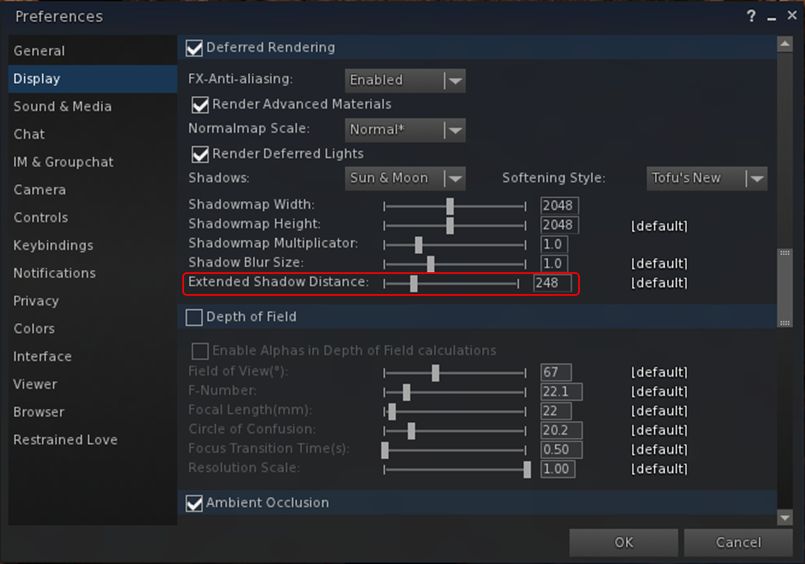
With this change, Niran has added a new slider to the Display tab of Preferences, allowing the user to independently set a “shadow rendering distance”, thus allowing a better rendering and representation of shadows independent of draw distance.

Black Dragon 2.4.3.6: the new shadow rendering distance slider
Black Dragon 2.4.3.6: the new shadow rendering distance slider in Preferences. A similar slider is also in the Machinima sidebar

The result is a much improved depth of view in-world, and greatly enhanced snapshots (see Niran’s samples accompanying the viewer’s release notes).

By-and-large, extending the shadow rendering distance shouldn’t result in any appreciable performance hit. However, there is a caveat, as Niran explains:

Increasing the shadow draw distance will reduce the overall shadow precision, because shadows are split into shadow clip planes, 4 shadow textures if you will, these shadow textures have a given resolution (which you can set in preferences), increasing the shadow rendering distance scales up all 4 planes equally, increasing the area one texture has to cover, reducing the precision in that area obviously. You could counter this by increasing the shadow resolution or multiplier, but that would impact frame rate.

A side benefit of this, as Niran notes, is that because volumetric lighting is calculated via the shadow clip planes and shadow maps, increasing the shadow rendering distance enhances the volumetric lighting effects in the viewer. Again, check the sample images Niran provides with the release notes.

Other updates in this release include:

  • Re-enabling of the experimental auto-hiding of the Textures, Sounds, Calling Cards, Landmarks, Notecards, Scripts, Photo Album, Animations, Gestures, Favourites and My Outfits folders in Inventory (debug: DebugHideEmptySystemFolders)
  • Disabling of the auto-hiding of empty folders by default
  • Improvements to SSAO defaults
  • Freeze world and mode toggling issues, as reported in STORM-2118, fixed and implemented in this Black Dragon release
  • Further RLVa updates.

As always, for the full range of changes / updates, please refer to the release notes.

Additional Links

Lab issues notifications project viewer

secondlifeOn  Wednesday, July 8th, the Lab issued their notifications project viewer, which sees an overhaul of the way in which notifications – system, group, transaction, etc., are presented through the viewer.

The viewer has been in the works for a while, and is the direct request of a feature request put to the Lab by Aki Shichiroji back in 2012 (see BUG-8000), and which has more recently been working its way through the Lab’s work list to appear in project form on July 8th.

The release of the project viewer, version 3.8.1.303211, was accompanied by an official blog post on the subject, which reads in part:

The Notifications Project Viewer is an improvement for sorting your notifications. This new feature is based on your feedback: a notifications floater with four tabs sorting your incoming notifications into System, Transactions, Invitations, and Groups and allowing better interaction with them as well.  Those who deal with high volumes of money transactions, group notices, group invites, or inventory transfers now have a better way to review their messages and identify which notices need immediate attention.

The images below show the floater and its four tabs:

The new Notifications floater - see below for explanatory notes
The new Notifications floater – see below for explanatory notes

Multiple notifications within a tab are initially shown compressed (above left). Clicking on the down pointing arrow button for a specific notification (highlighted in red, above left) will expand that particular notification within the floater (above right), with scroll bars allowing you to scroll down through an individual notification or through the notifications within that tab.  Clicking the up point arrow button (highlighted in blue, above right) will compress an expanded notification.

As with the current notification system within the release viewer, individual notifications can be deleted from any tab by clicking the X button. There are also additional buttons within the panel for collapsing all expended notifications or deleting all notifications within the currently displayed tab (i.e. clicking Delete All with the System notifications tab will delete all notifications in that tab but not all of your notifications in general).

A further improvement to the way notifications are displayed is that a time stamp for when a notification was sent / received is now clearly visible, both in the collapsed and expanded views for all notifications. The presence of any attachment is also indicated by the use of a paper clip symbol.

Given this is a project viewer, the Lab is requesting feedback and bug reports via the Second Life JIRA.

A couple of issues have been filed already. One of these – BUG-9625 – points out that the notification floater currently fails to include any means of accepting a group invitation; the only way of accepting an invitation in the project viewer at present, is to click on the button displayed in the initial pop-up (which will still be displayed as usual).  Expect this to be created in due course as the project viewer is updated.

Also, do keep in mind this is a project viewer, and currently not intended for prime time use.

Related Links

UKanDo and Black Dragon get Experience Tools

Both UKanDo and Black Dragon have recently incorporated the Lab’s Experience tools, following their were promotion to release status in the official viewer on June 30th, 2015.

UKanDo arrived with Experience Tools on Thursday, July 2nd, with the release of version 3.8.0.28122. As with the official viewer, this adds the Experiences floater access to the ME menu, and also has the Region / Estate and About Land panel also updated with their respective Experiences tabs.

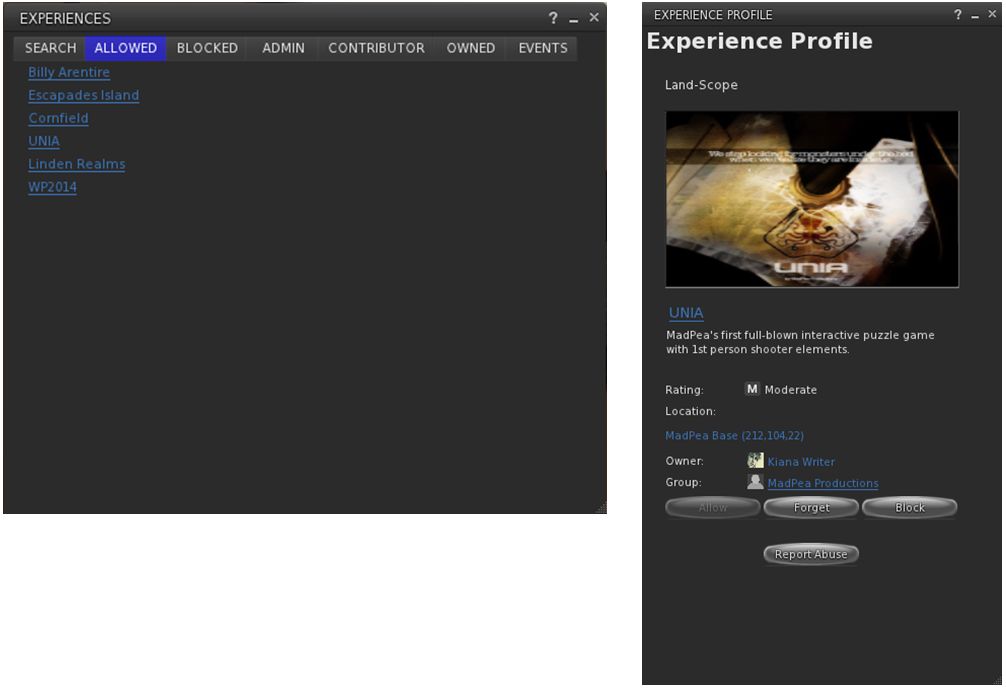
The Experiences floater and an Experience Profile as they appear in UKanDo with the default skin. The viewer also includes the Region / Estate and the About Land Experience Tools updates as well

In addition, as a part of this release, UKanDo updates to RLV 2.9.12, with the NaCl / Marine Kelley avatar shadow rendering updates for rigged mesh – see my article of RLV 2.9.12, available here.

UKanDo 3.8.0 also includes Marine Kelley's RLV 2.9.12 update, with the avatar shadow rendering debug setting to help with rendering performance when running with shadows enabled and surrounded by avatars using mesh bodies & other rigged mesh attachments
UKanDo 3.8.0 also includes Marine Kelley’s RLV 2.9.12 update, with the avatar shadow rendering debug setting to help with rendering performance when running with shadows enabled and surrounded by avatars using mesh bodies & other rigged mesh attachments

Black Dragon release 2.4.3.5 sees the Experiences floater added to Dragon > Edit menu. As with UKanDo, it also adds the Experiences tabs to the Region / Estate and About Land Floaters.

This release, which arrived on July 4th after a couple of hiccups with versions 2.4.3.3 and 2.4.3.4, also includes Niran’s July 3rd update, which focused on a complete RLVa update, as per the release notes for that version.

I’ve not had an opportunity to extensively drive either of these viewers; my time is a little squeezed at the moment, and I’m struggling to clear a backlog of work and bits. So, consider this more a heads-up than any attempt at a review.

Related Links

Restrained Love 2.9.12: rendering rigged mesh and shadows

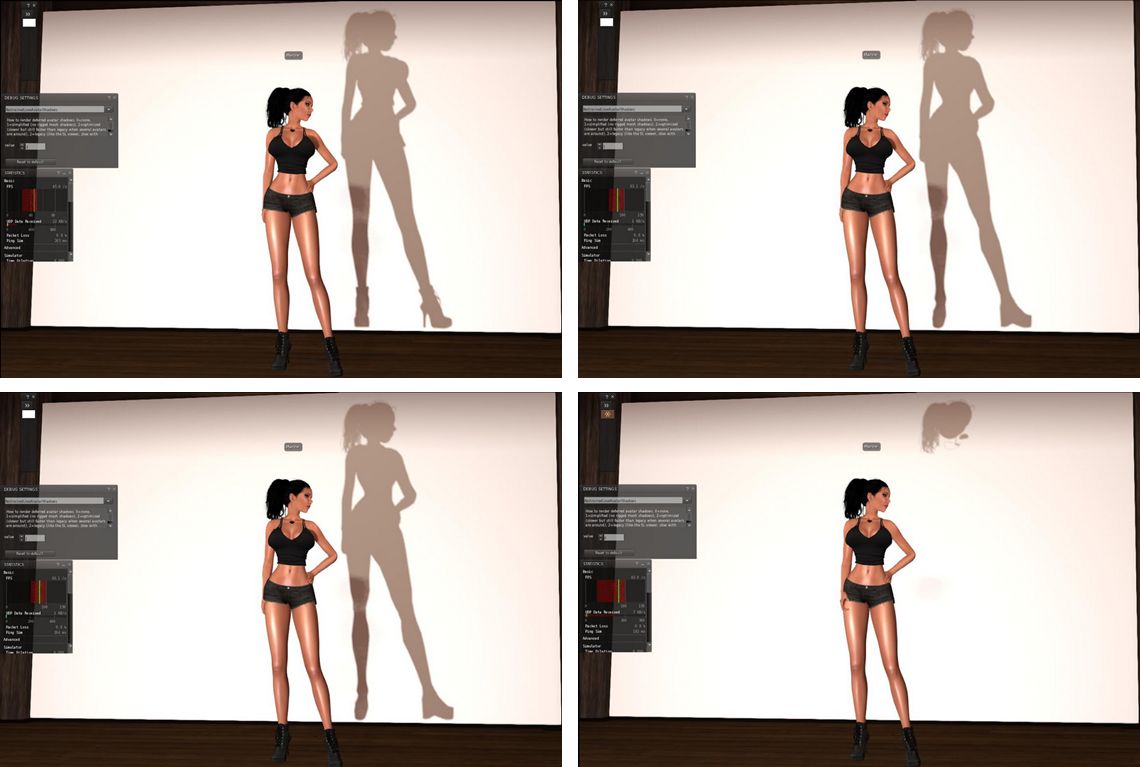
Avatar shadows as see using the debug, top left; rigged mesh avatar body seen in default avatar shadow rendering (debug setting 3); Top right: as seen with the debug set to 2 (Chalice Yao's adjustments; bottom left: as seen with the debug set to 1, showing the system avatar shadow, rather than the rigged mesh body shadow; bottom right: the setting reduced to 0, only unrigged attachment shadows are rendered (images via Marine Kelley)
Avatar shadows as see using the debug, top left; rigged mesh avatar body seen in default avatar shadow rendering (debug setting 3); Top right: as seen with the debug set to 2 (Chalice Yao’s adjustments; bottom left: as seen with the debug set to 1, showing the system avatar shadow, rather than the rigged mesh body shadow; bottom right: the setting reduced to 0, only unrigged attachment shadows are rendered – see below for details (images via Marine Kelley)

The latest version of RLV appeared on Friday, June 26th. Version 2.9.12 brings with it an attempt by Marine Kelley to lighten the load placed on your GPU when rendering complex rigged meshes (such as avatar bodies) when running with shadows enabled in the viewer.

In her notes accompanying the release, Marine states:

I have become a mesh body user not long ago, and like every mesh body user, I quickly found out that having dynamic shadows activated while wearing a complex mesh body (Maitreya which is my choice, but also Eve, Belleza, Slink, Abar, TMP…) totally kills the FPS (Frames Per Second, the measure of rendering speed). Like, it divides them by half. It was so bad that I had to turn the shadows off, and I’m sure I’m not the only one.

I knew it was due to the avatar shadows, simply by looking at the Fast Timers in-world (press Ctrl-Shift-9 to show them). A little digging in it and you see “Avatar Shadows” in plain letters as the FPS hog. In fact, this was due specifically to complex rigged mesh rendering, the FPS slowdown wasn’t due to unrigged attachments or anything like that. And since mesh bodies are among the most complex rigged mesh around, they kind of made that issue more obvious. And over time, more and more people switch to mesh bodies, so something had to be done.

Regular readers here know that something is being done at the Lab’s end of things, with the forthcoming introduction of Avatar Complexity. This has the advantage that it takes into account other elements within avatars that can push up rendering complexity and thus reduce performance, such as over-use of very high resolution textures, etc. This disadvantage is that people will have to get used to having Jelly Baby avatars around themselves, which may not be to everyone’s liking.

As noted, Marine’s aim is to allow those people who have previously been able to run the viewer with shadows enabled, but who are finding it impossible to do so when in locations with a number of complex avatars present due to the performance hit they’re taking, to be able to do so again by reducing the hit taken by their system.

As she acknowledges in her release notes, the original idea actually came from Chalice Yao, who has been poking at things with her NaCl viewer. With RLV 2.9.12, Marine adds what she believes to be further refinements to Chalice’s work, which in turn may feed back in to NaCl.

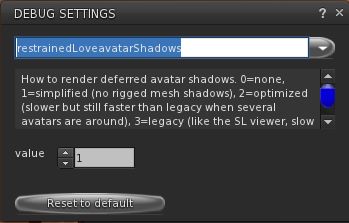
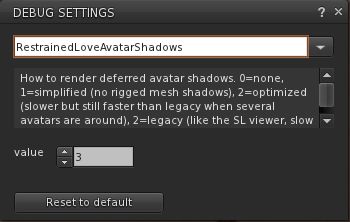
The RestrainedLoveAvatarShadows debug setting in RLV 2.9.12

Essentially, Marine has added a debug setting to RLV, RestrainedLoveAvatarShadows, accessed via the Debug settings floater (under the Advanced menu).

The debug offers four settings (3 down to 0) which offer different levels of rendering avatar shadows, thus:

  • 3- the default (what Marine calls “legacy”) rendering of avatar shadows commonly seen in viewers: an exact rendering of avatar shadows with rigged and unrigged attachments, and which recognises alpha masks
  • 2- Chalice Yao’s initial adjustments to avatar shadow rendering. Said to simplify the shadow rendering to offer noticeable performance improvements when running in locations with a number of complex avatars
  • 1 – render simplified avatar shadows. The first of Marine’s additions to Chalice’s code, this ignores any alpha masking of the system avatar shape, causing its shadow to be rendered, along with the shadows of unrigged attachments. All shadows associated with rigged attachments (e.g. mesh bodies, etc.), are ignored
  • 0 – don’t render avatar shadows. This will leave avatars with no shadow at all, with the exception of unrigged attachments, therefore offering the biggest potential boost in performance.

Marine offers a series of images demonstrating the resultant shadows, as shown at the top of this article, together with the FPS boosts she sees. The latter may be too small to read in the image collection produced here, so I recommend reading Marine’s blog post for full details.

As I don’t have anything other than a demo fitted mesh avatar body, and also have a fairly high-spec system which includes a GTx 970 with 4GB of memory which handles most situations pretty well, I’ve not been able to practically test how all of this plays out.

However, given this solution is aimed at reducing performance hits when shadows are enabled in the viewer, it’s perhaps not going to suit everyone. If your system already struggles with handling shadow rendering regardless of the complexity of any avatars around you, for example, you may not gain much from using the debug settings. But if you are an TLV user who finds Marine’s situation as quoted towards the top of this article to be familiar, this update a go could well help you. Either way, the one way to find out is to download RLV 2.9.12 and give it a go.

Additional Links

Alchemy 3.8.0: Experience this, and colour that

Alchemy-logoUpdate: Drake Arconis has pointed-out an inaccuracy in the original version of this review in relation top the Avatar Hover Height slider and spinner. I’ve now corrected the article to reflect his feedback.

Alchemy released their latest beta viewer on Tuesday, June 16th. Version 3.8.0.35816 is described as “another step in the road to Alchemy’s first major release and includes hundreds of new fixes and improvements over it’s predecessors.”

Quite what all the fixes and improvements are is a little hard to tell without pouring over this and the last release, as the release notes are light on details – assuming the “hundreds” in the description for the release is not hyperbole. Ergo, this review is more a set of highlights for the release.

What we do know is that this beta brings Alchemy right up to date with the Lab’s most recent 3.7.30 code base, and includes the Experience Tools updates (which, as they are at RC status in the official viewer, and there are no known issues with them, are ripe for incorporation in RPVs).

Installation

The viewer comes in Windows 32/64-bit, a Mac universal 32/64 bit and Linux 64-bit flavours via the download page, However, some Windows users may see the following message when trying to run the viewer:

The application was unable to start correctly (0xc000007b)

As per the Alchemy release notes, should this happen, please download and install one of the following two files from Microsoft:

(The above links will take you to the respective download pages at Microsoft, where you can review the file details prior to downloading.)

Experiences

Alchemy 3.8.0 supports the Lab’s new Experience Keys / Tools. This means that when you visit a location using the Experience Keys capabilities, you will receive complete information on the Experience and the permissions it requires you to give in order to join it, as opposed to the brief summary which is displayed by viewers that do not currently have the Experience Keys code included in them.

In addition, it also means you can review the details of the experiences you have joined, and those to which you may have contributed, through the Experience floaters, accessed via Me > Experiences.

Alchemy now includes support for Experience Keys, allowing users to see full details of an experience and the permissions it is requesting (l), use the persmisions floater to search for experiences and review the details of those they've joineed / to which they have contributed or those they own (c) and review the details of individual Experiences they've joined (r)
Alchemy now includes support for Experience Keys, allowing users to see full details of an experience and the permissions it is requesting (l), use the permissions floater to search for experiences and review the details of those they’ve joined / to which they have contributed or those they own (c) and review the details of individual Experiences they’ve joined (r)

For details on Second Life experiences, please read my early review of the official experiences release candidate viewer (note a more updated review of Experience Keys will be produced when the capability has been formally rolled-out).

Avatar Hover Height

Hover
The Avatar Hover Height slider / spinner can be found in Alchemy’s Quick Preferences

Alchemy 3.8.0 includes the on-the-fly Avatar Hover Height capability from the Lab. However, rather than being a slider / spinner control accessed from the avatar right-click context menu, it has been implemented as a chat command: “/hover”, followed by the amount by which you wish to adjust your avatar’s apparent height. For example, “/hover 0.1” will raise your avatar’s apparent height by 0.1 metres, and “/hover -0.1” will decrease you avatar’s apparent height by the same amount.

Update: As noted in the comment from Drake Arconis, the slider for Avatar Hover Height can be found on the Alchemy Quick Preferences (use the cog at the top right of the screen to display – see above right right or the floater itself).

Continue reading “Alchemy 3.8.0: Experience this, and colour that”