Radegast client is the leading lightweight client for many users with disabilities
Earlier in November 2016, I invited Beq Janus to write about recent issues which have come to light for people trying to use SL Voice with the Radegast client. In short, it was recently noticed that Radegast would no longer install SL Voice on a new or clean (for those who had previously used it) installation. The problem lay with the Voice package being used no longer being available, compounded by the fact that since the sad passing of Radegast’s developer, Latif Khalifa, no-one is actively maintaining the client.
At the end of the article, Beq put out a plea for someone with the necessary coding expertise to consider stepping forward, and – if not take over maintenance of Radegast – at least update the installer to ensure it can use the correct Voice package going forward.
Well, that plea has been answered.
Cinder Roxley, a TPV developer and open-source contributor to Linden Lab, has stepped forward and updated Radegast to work with the current SL Voice, and provider a new installer package. The links are as follows:
Radegast 2.20 installer (with updated Voice – users wishing to install Radegast with Voice should use this link)
This summary is published every Monday, and is a list of SL viewer / client releases (official and TPV) made during the previous week. When reading it, please note:
It is based on my Current Viewer Releases Page, a list of all Second Life viewers and clients that are in popular use (and of which I am aware), and which are recognised as adhering to the TPV Policy. This page includes comprehensive links to download pages, blog notes, release notes, etc., as well as links to any / all reviews of specific viewers / clients made within this blog
By its nature, this summary presented here will always be in arrears, please refer to the Current Viewer Release Page for more up-to-date information.
Official LL Viewers
Current Release version: 4.1.2.321518, dated November 10, promoted November 15 – formerly the Maintenance RC viewer download page, release notes.
Project Bento RC (avatar skeleton extensions), updated to version 5.0.0.321760 on November 22 – bug fixes (download and release notes)
Project viewers:
360-degree snapshot viewer updated to version 4.1.3.321712 on November 23 – ability to take 360-degree panoramic images – hands-on review – download and release notes.
Cool VL viewer Stable branch updated to version 1.26.18.34 and the Experimental branch updated to version 1.26.19.36, both on November 26th (release notes).
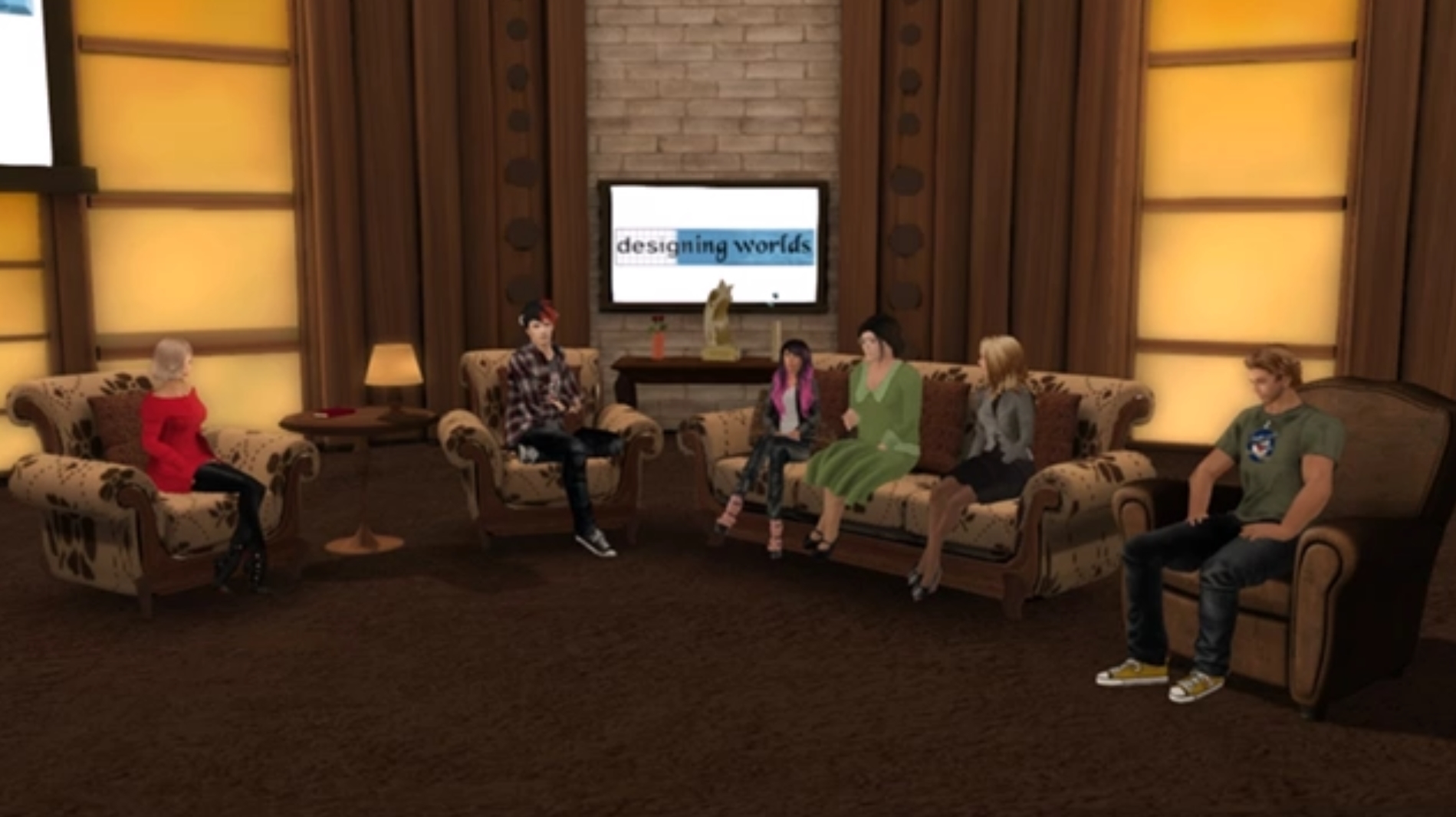
Gentle Heron, second from the right encountered a Radegast Voice installation during the recording of a Designing Worlds special. Credit: Beq Janus
Update, November 30th: Cinder Roxley has updated the Radegast installer to work with the most recent SLVoice package. See her comments here and here (following this article). There is also a separate blog post on her work, for easier future linking.
It was recently discovered that the Radegast client was no longer installing the SLVoice extensions with a new / clean installation. On hearing of the problem, Beq Janus and Whirly Fizzle decided to investigate, and thanks to their work, we now two workaround solutions. As they had put the effort into sorting things out, I asked them if either would like to write about the issue and the solution, and Beq, with Whirly’s blessing, agreed to do so.
by Beq Janus
A few days ago when I was invited to reprise my role as a videographer for a special episode of Designing Worlds on the Future of Second Life, which will air in early December. The panel for the discussion included Gentle Heron of Virtual Ability Inc, the group who work to enable access to virtual worlds for those who, through disability or illness are unable to make ready use of regular viewers.
During the show, Gentle urged Linden Lab and us all to look for ways to make Virtual Worlds more accessible, remarking, somewhat fatefully, that many of her communities are limited to a single, troubled viewer, Radegast.
A subject of reviews in this blog, Radegast is a lightweight, extensible client which has been the ideal foundation for the disabled communities to build upon. It boasts an impressive set of speech to text and text to speech integrations and can be integrated with other devices such as braille screen readers. Sadly, Latif Kalifa, Radegast’s creator, passed away earlier this year and despite the code being open source, no-one has yet stepped forward to maintain it at a time when the Lab viewer is moving ahead in leaps and bounds, with the risk that non-maintained viewers and client might lose functionality.
Radegast client is the leading lightweight client for many virtual world users with disabilities
As if to underline this, Gentle fell silent towards the end of the show, as she was dealing with a number of users who were reporting they were unable to use Voice with Radegast as it was failing to install the all important SLVoice extensions. While I am unfamiliar with Radegast, I offered to try looking into it for Gentle.
SLVoice is a pre-built binary package supplied by Vivox and distributed by Linden Lab. During the summer, it had been upgraded to address some security concerns and so it seemed likely to me that Gentle’s problem might be that the older SLVoice package had been deprecated and removed from the download server. Sure enough, a quick check on the package URL resulted in the dreaded 404 not found error. I sent an email to Oz and Patch Linden asking them to confirm whether older versions of SLVoice had been moved.
The next day Oz confirmed that all old SLVoice packages were still available and nothing had changed. Whirly Fizzle, the powerhouse behind Firestorm QA, leapt into action: she cracked open the installer and discovered the URL actually pointed to a separately hosted Voice package which was no longer available, causing the Voice installation to silently fail during a new or clean Radegast installation as a result. However, Whirly also found a working back-up archive we could perhaps use. Unfortunately, neither Whirly or I are C# coders and cannot update the installation package directly; so how could we get a Radegast installation to work with the back-up Voice package?
I hit on the idea of first installing the backup package that Whirly had discovered, and then running the standard Radegast installer. Success! So, for anyone who is performing a clean / new install of Radegast and needs Voice, I’ve produced a set of instructions – see the link below. There is, however, more.
I mentioned above that Linden Lab had updated the SLVoice packages over the summer to deal with security concerns. Because of this, older versions of SLVoice are to be blocked from connecting to the service, and Radegast would once again be without a Voice option. Knowing this, and never one to leave a job half done, Whirly successfully tested my approach using the most recent SLVoice package available from the Lab, and confirmed it will also work.
This means that providing that there is no internal dependency within Radegast on the legacy Voice package, we now have an upgrade path for Radegast users that will ensure continued voice support after the block on older SLVoice packages comes into force. To help ensure people know what they need to do, Whirly’s instructions can also be found in the link below.
These instructions are only a workaround. We still need to find a way to have Radegast install the correct Voice extensions automatically, as a part of the client install process. So, if you are a C# (C-Sharp) developer and are willing to spare a few hours looking at this, please take a look at the Radegast codebase and see if there is a way to incorporate the correct binaries into an installer package. Thank you.
On Thursday, November 24th, Alina Lynette release Lumiya 3.2, which brings with it support for Google Cardboard and compatible VR kits and headsets!
Even though the Lab has – at least for the foreseeable future – put work on a VR headset compatible version of the viewer off to one side, interest in seeing Second Life from the “inside”, as a fully immersive VR experience remains high, and Alina has sought to rise to the challenge with Lumiya.
There are obviously a couple of caveats to using the application in VR mode:
You really need a suitable headset
You need a device with Andorid 6.0+ Marshmallow installed
I have Android 6, but I don’t have any form of headset, Cardboard or otherwise, that I can use with my device – which happens to be a Nexus 7 2013 HD Tablet – a little clunky for any headset device, although there are some out there. Nevertheless, I gave the new capability a go as best I could.
To enter VR mode on a suitable device, simply log-in to Second Life on Lumiya, and then go to the 3D view (Menu icon, top left > 3D view).
Access the VR mode in Lumiya 3.2 is done via the Action menu, when in the 3D view
Once the view has loaded, tap the Action menu icon (top right) and select Virtual Reality Mode. The first time you do this, you will be prompted whether you want Lumiya to handle speech-to-text conversion for you to allow you to “converse” in-world, via the “microphone” button. You can deny this if you wish, but it will leave you with no means to converse.
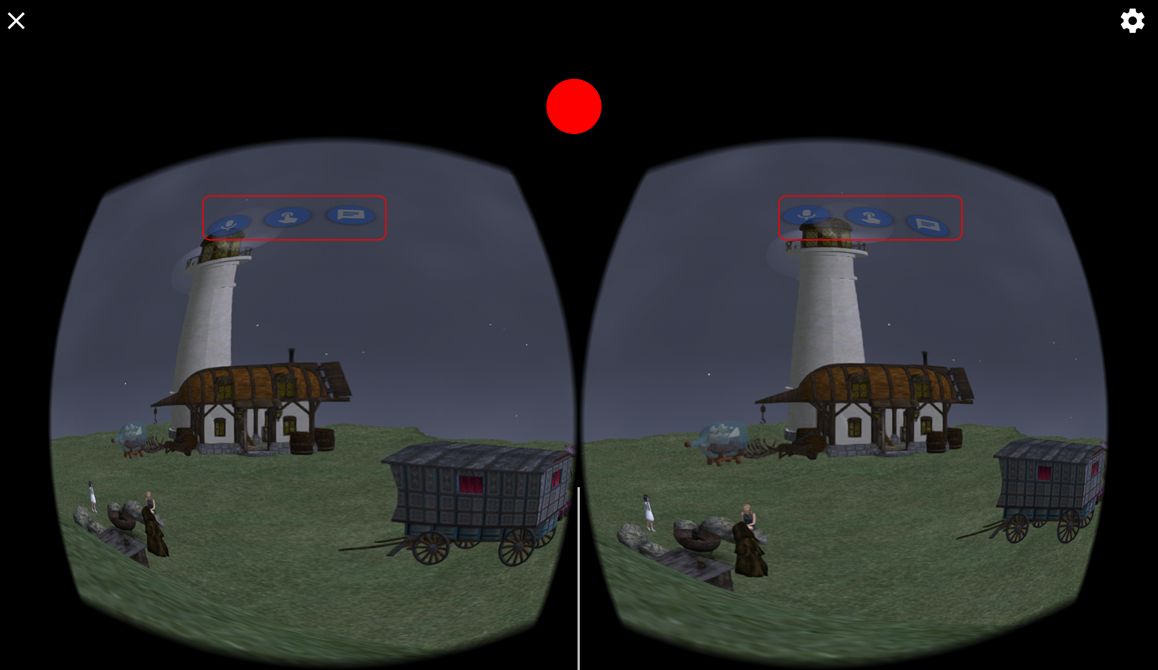
Whether you Allow or Deny the speech-to-text conversion, Lumiya will switch output to a stereoscopic format, suitable for use with Cardboard devices and the likes of the Samsung Gear VR. Three buttons are projected into the field-of-view:
Microphone – for enabling speech-to-text translation
Finger – for touching things
Chat bubble for text-mode chat.
Any of the three can be activated by staring at the required button – it should be highlighted when your stare is registered – then pressing the Cardboard device flap (or button / magnet actuator in the case of a Cardboard V1 device). If you’re trying Lumiya in VR mode without a headset, you can try staring at the button and touching the top of the screen between the left and right view – how successful you might be is debatable, and dependent upon on a number of factor (ambience background light, etc).
Movement is achieved by tapping and holding the same area of the device (or screen, if not using a device) while not looking at any of the buttons. You will then move in the direction yo are looking. Release the device / screen to stop.
Lumiya in VR stereoscopic mode. When using a Cardboard or similar device, staring at the on-screen buttons and pressing the flap / button on the device should activate the required function. Or if you’re not using a device, you can try staring at a button and touching the screen where indicated (approximately) by the red circle. Pressing this point (or the flap / button on a device) will allow you to walk in the direction to are looking
To exit VR mode, manually tap the X icon top left of the screen. The gear icon, top right can be manually used to access the Google Cardboard application for calibrating your headset device, if required (and if installed on your device).
The 3.2 release also includes a bug fix to prevent a black screen in the 3D world view when anti-aliasing is enabled.
As I am without a suitable headset kit / device, I was unsuccessful trying to test the button functionality, but the walking certainly worked for me without a hitch. Adding VR to Lumiya might seem to some a bit of a niche thing, but that doesn’t stop it from being a fun addition. It certainly further demonstrates what can be achieved with the application, and kudos (again) to Alina for her work.
This summary is published every Monday, and is a list of SL viewer / client releases (official and TPV) made during the previous week. When reading it, please note:
It is based on my Current Viewer Releases Page, a list of all Second Life viewers and clients that are in popular use (and of which I am aware), and which are recognised as adhering to the TPV Policy. This page includes comprehensive links to download pages, blog notes, release notes, etc., as well as links to any / all reviews of specific viewers / clients made within this blog
By its nature, this summary presented here will always be in arrears, please refer to the Current Viewer Release Page for more up-to-date information.
Official LL Viewers
Current Release version: 4.1.2.321518, dated November 10, promoted November 15 – formerly the Maintenance RC viewer download page, release notes.
Cool VL viewer Stable branch updated to version 1.26.18.33 and the Experimental branch updated to version 1.26.19.35, both on November 19th (release notes).
Mobile / Other Clients
Group Tools updated to version 2.2.42 on November 19 (no release notes).
This summary is published every Monday, and is a list of SL viewer / client releases (official and TPV) made during the previous week. When reading it, please note:
It is based on my Current Viewer Releases Page, a list of all Second Life viewers and clients that are in popular use (and of which I am aware), and which are recognised as adhering to the TPV Policy. This page includes comprehensive links to download pages, blog notes, release notes, etc., as well as links to any / all reviews of specific viewers / clients made within this blog
By its nature, this summary presented here will always be in arrears, please refer to the Current Viewer Release Page for more up-to-date information.
Official LL Viewers
Current Release version: 4.1.1.320331 (dated October 4th), promoted October 10th – no change.
Maintenance RC viewer updated to version 4.1.2.321518 on November 10 – over 70 crash fixes, improvements and other fixes (download and release notes)
Project viewers:
360-degree snapshot viewer updated to version 4.1.2.321431 on November 9 – ability to take 360-degree panoramic images – hands-on review (download and release notes)
Cool VL viewer Stable branch updated to version 1.26.18.32 and the Experimental branch updated to version 1.26.19.34, both on November 12th (release notes).



 Inara Pey: Living in a Modemworld