Logos representative only and should not be seen as an endorsement / preference / recommendation
Updates for the week ending Sunday, April 22nd
This summary is generally published on every Monday, and is a list of SL viewer / client releases (official and TPV) made during the previous week. When reading it, please note:
It is based on my Current Viewer Releases Page, a list of all Second Life viewers and clients that are in popular use (and of which I am aware), and which are recognised as adhering to the TPV Policy. This page includes comprehensive links to download pages, blog notes, release notes, etc., as well as links to any / all reviews of specific viewers / clients made within this blog.
By its nature, this summary presented here will always be in arrears, please refer to the Current Viewer Release Page for more up-to-date information.
Official LL Viewers
Current Release version 5.1.3.513644, dated March 27th, promoted April 13th – formerly the Media Update RC.
In March I reported that Chorazin Allen, had joined the Kokua viewer development team. He volunteered after Nicky Perian’s decision to step back from day-to-day management of the project, announced in October 2017 to allow him to enjoy more of his retirement, failed to elicit hoped-for volunteers to take over the general management of the project.
Chorazin, although he modestly describes his C++ coding skills as “rusty” (causing him to initially hold back from volunteering sooner), has considerable experience in project management, software development and build experience coupled with many years of experience of in-world LSL scripting and working with RLV/RLVa.
Since joining Kokua, he has been getting familiar with the rest of the Kokua team, and together they have been working on updates to the Second Life viewer to bring it up to parity with the current Linden Lab code base, including full integration with the Alex Ivy 64-bit code. I’ve been tracking these updates – made through the projects Sourceforge pages, rather than being “official” releases, for the past few weeks via my Current Viewer Releases page and my weekly viewer release summaries.
Kokua: The Future
On April 15th, this work reached a point where the team were ready to resume making formal Kokua releases, and to publish a blog post outlining the viewer’s future development. I strongly urge all Kokua users to read this post in full, and am only bullet-pointing the key elements here:
Until such time as an OpenSim developer can join the project, Kokua will only be actively maintained for use with Second Life.
Kokua for Second Life will be developed as a 64-bit bit viewer only, offering both RLV and non-RLV variants.
The Windows and Mac versions will be actively maintained, based on Linden Lab’s Alex Ivy 64-bit code base.
Effort will also be put towards a 64-bit Linux flavour of the viewer based on the Lab’s Alex Ivy code. However, this will doubtless be dependent on the Lab’s broader attempts to work with the Linux community to develop a 64-bit Linux viewer.
In keeping with a request from Linden Lab, the major version numbers for Kokua releases will reflect the Lab code base release they are based on. So, for example Kokua 5.1.3.xxxxx indicates it is based on the Lab’s 5.1.3 code base.
Legacy 32-bit versions of Kokua will remain available via the download page, but will not be actively maintained.
The Kokua group within Second Life is the preferred medium for user-to-user support and will also be used for group notices about new versions or other significant developments. All other channels of outward communication (IRC, Twitter, etc), have been discontinued.
The Kokua wiki will continue to be used for viewer release notes (as seen in the viewer when a new version is launched) and for the summary of current versions and download sites.
The preferred method of inward communication to the team is via a ticket raised in Sourceforge against the Kokua Project.
Kokua 5.1.3.43129/43130
The formal release the release of Kokua’s Alex Ivy based 64-bit viewer for Windows and Mac, offers the viewer in both RLV (5.1.3.129) and non-RLV (5.1.3.43130) variants on both platforms. It brings with it a full parity with the Second Life viewer up to and including (at the time of writing) the current official release viewer, 5.1.3.51364, formerly the Media Update RC viewer. The RLV version of the viewer also gains parity with RLV 2.9.23.0.
Performance Feedback Capabilities
The core element of the updates made by the Kokua team comprise new performance and information feedback capabilities, including the ability to report on changes in the number of scripts in a region, changes in the server channel with changes of region.
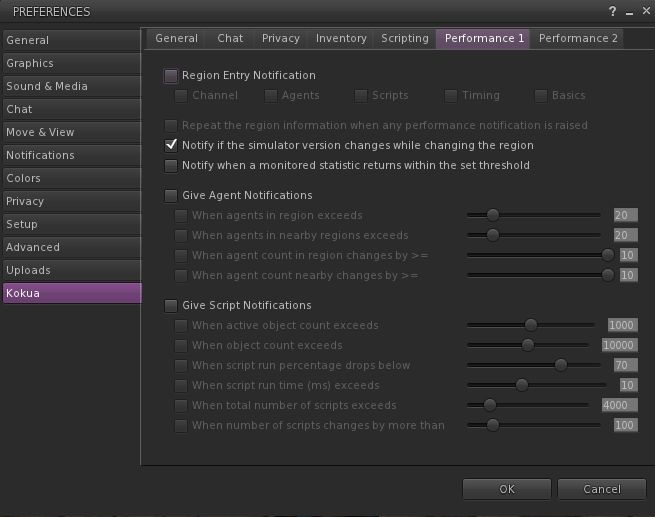
All of the new settings can be found in two new Preferences tabs: Preferences > Kokua > Performance 1 and Preferences > Kokua > Performance 2:
Performance 1 deals with notifications on entering a new region and agent (avatar) and script notifications, which must be enabled on a group basis – agent and / or script notifications, and then individual options within group set as required.
Performance 2 provides notifications on Frame Timing and Basic Performance.
In addition, it should be noted that:
Performance 2 also includes a check box to display the information from these features either as a notification in the top right of the viewer window and in chat history, or have them only displayed in chat history.
All of the options have default values which are intended to be representative of fairly average performance. If you aren’t familiar with what they do, it is probably preferable that you don’t randomly enabling them, as you could end up swamped in notifications and feedback.
It is important to not that any changes made relate what is reported by the viewer and when – changing these values does not change actual simulator performance.
The new Preferences > Kukua Performance 1 tab, allowing users to set notifications for region, agent (avatar) and script notifications.
Some of these options mirror similar capabilities found in other TPVs – such as reporting a change in the server channel when moving between regions; others may be of more benefit to region holders and their estate managers than they are for general consumption. The idea with them is not to simply turn everything on, but to select those options which might be of specific interest.
For example, while knowing how many avatars (agents) are in a region might be of use to some users when hopping about Second Life, information on how the physics simulation is performing or on overall timing information within a region, together with the active object count and script count is only likely to be of interest to those managing a region. Similarly, enabling the Physics time section of the frame monitoring options in the Performance 2 tab could help creators monitor vehicle performance during testing (e.g. on region crossings.
The new Preferences > Kokua > Performance 2 tab, providing Frame Timing and Basic Performance notifications
For a more rounded examination on how these options might be used, please refer to the Kokua release notes, which provide a range of examples of now the tabs might be used. It should also be notes that general “real-time” monitoring of the options provided can also be done via the Statistics (CTRL-SHIFT-1) and Scene Load Statistics (CTRl-SHIFT-2) floaters. Finally, those particularly interested in learning more about the viewer’s statistics reporting abilities and on tuning viewer performance should refer to the Viewer Statistics wiki page, and the Viewer Performance Knowledge Base article respectively.
Feedback
While the lack of OpenSim maintenance for Kokua – at least until such time as an OpenSim developer volunteers to work with the team, as noted – will probably be lamented in some quarters, the “return” of mainstream release announcements of Kokua, together with information how the viewer’s development will proceed into the foreseeable future is to be welcomed.
That Kokua is only being maintained on Windows 64-bit might cause frustration for some. However, given that systems capable of running 64-bit Windows (e.g. supplied with more that 4Gb of RAM) are far more prevalent on the marketplace; ergo, the decision to focus the team’s limited resources on providing support for the one flavour of Windows makes sense.
It’s hard to judge how well the two new Performance tabs will be utilised. Aso noted, for the likes of those engaged in region management, or scripting, they could potentially be very useful. For others, the tabs might rarely see the light of day. But that’s what TPVs are about – providing choice for users.
I’ve not had an opportunity to run Kokus 5.1.3 hard, having only spent part of a morning bouncing around SL with it. However, in that time I found it to be (as usual) robust and providing frame rates and general experience with the official viewer and – on a frame rate basis – somewhat above that managed by Firestorm on the basis of very rough-and-ready “like for like” testing across some of my preferred regions where things like agent numbers., etc tend to remain constant.
Logos representative only and should not be seen as an endorsement / preference / recommendation
Updates for the week ending Sunday, April 15th
This summary is generally published on every Monday, and is a list of SL viewer / client releases (official and TPV) made during the previous week. When reading it, please note:
It is based on my Current Viewer Releases Page, a list of all Second Life viewers and clients that are in popular use (and of which I am aware), and which are recognised as adhering to the TPV Policy. This page includes comprehensive links to download pages, blog notes, release notes, etc., as well as links to any / all reviews of specific viewers / clients made within this blog.
By its nature, this summary presented here will always be in arrears, please refer to the Current Viewer Release Page for more up-to-date information.
Official LL Viewers
Current Release version 5.1.3.513644, dated March 27th, promoted April 13th – formerly the media update RC – NEW.
Logos representative only and should not be seen as an endorsement / preference / recommendation
Updates for the week ending Sunday, April 8th
This summary is generally published on every Monday, and is a list of SL viewer / client releases (official and TPV) made during the previous week. When reading it, please note:
It is based on my Current Viewer Releases Page, a list of all Second Life viewers and clients that are in popular use (and of which I am aware), and which are recognised as adhering to the TPV Policy. This page includes comprehensive links to download pages, blog notes, release notes, etc., as well as links to any / all reviews of specific viewers / clients made within this blog.
By its nature, this summary presented here will always be in arrears, please refer to the Current Viewer Release Page for more up-to-date information.
Official LL Viewers
Current Release version 5.1.2.512803, dated February 23rd, promoted March 1st – formerly the Nalewka Maintenance RC – No Change.
Logos representative only and should not be seen as an endorsement / preference / recommendation
Updates for the week ending Sunday, April 1st
This summary is generally published on every Monday, and is a list of SL viewer / client releases (official and TPV) made during the previous week. When reading it, please note:
It is based on my Current Viewer Releases Page, a list of all Second Life viewers and clients that are in popular use (and of which I am aware), and which are recognised as adhering to the TPV Policy. This page includes comprehensive links to download pages, blog notes, release notes, etc., as well as links to any / all reviews of specific viewers / clients made within this blog.
By its nature, this summary presented here will always be in arrears, please refer to the Current Viewer Release Page for more up-to-date information.
Official LL Viewers
Current Release version 5.1.2.512803, dated February 23rd, promoted March 1st – formerly the Nalewka Maintenance RC – No Change.
Cool VL Viewer updated as follows: the Stable branch to version 1.26.20.49 and the Experimental version to 1.26.21.16, both on March 31st (release notes).
Logos representative only and should not be seen as an endorsement / preference / recommendation
Updates for the week ending Sunday, March 25th
This summary is generally published on every Monday, and is a list of SL viewer / client releases (official and TPV) made during the previous week. When reading it, please note:
It is based on my Current Viewer Releases Page, a list of all Second Life viewers and clients that are in popular use (and of which I am aware), and which are recognised as adhering to the TPV Policy. This page includes comprehensive links to download pages, blog notes, release notes, etc., as well as links to any / all reviews of specific viewers / clients made within this blog.
By its nature, this summary presented here will always be in arrears, please refer to the Current Viewer Release Page for more up-to-date information.
Official LL Viewers
Current Release version 5.1.2.512803, dated February 23rd, promoted March 1st – formerly the Nalewka Maintenance RC – No Change.
Cool VL Viewer updated as follows: the Stable branch to version 1.26.20.48 and the Experimental version to 1.26.21.14, both on March 24th (release notes).



 Inara Pey: Living in a Modemworld