Dave Rowe (Strachan Ofarrel in SL) has released an update to his experimental version of the CtrlAltStudio viewer with support for Oculus Rift (Windows only).
CtrlAltStudio version 1.1.7.34400, released on Wednesday December 18th, allows the user to turn their avatar with a simple turn of the head when seated and using Riftlook.
The capability has been developed in conjunction with Tom Willans at the Serious Games Institute of Coventry University, here in the UK, and the release notes for the new version, together with the blog post announcing the release, describe the function thus:
There are two ways to use this option:
Setting the slider to 0° makes the turning happen all the time. This enables you to look at something then if you continue looking at it, your view will gradually rotate so that the object lies straight ahead and you can thus walk towards it.
Setting the slider to a value such as 45° makes turning start after you look left or right 45° or more. Turning then continues until you look straight ahead again. Depending on the value you set and how flexible your neck is, the effect can be like a gesture that initiates turning.
The new capability can be found in the Oculus Rift section of Preferences > Graphics > Display Output.
The new option to turn your avatar when seated and using the Oculus Rift headset
Strachan has invited those who have a headset to try the capability and to let him have their feedback. So if you do, please drop him a line on his blog.
This release also brings with it:
A change of the Rift prediction delta default value from 20ms to 35ms to improve typical perceived latency.
A fix mouselook not being able to turn more than +/-180°.
If you have been using previous versions of the 1.1 Alpha release of CtrlAltStudio, you should be able to install 1.1.7.34400 directly over it. However, if you have been using the 1.0 release (stereoscopic) version, a clean install is recommended.
As a part of the holiday period, and as mentioned in various SL projects reports of min over the last few weeks, Linden Lab operate a code freeze / no change window in which no major updates to either the viewer or the simulator code are made, other than those required to fix significant issues impacting Second Life. This code freeze, which this year comes into effect on Monday December 16th and extends through until the start of 2014, encompasses all thing server, and the SL viewer release channel (the release viewers and RCs). The aim is to give LL’s support personnel and contractors a chance to enjoy the holiday period as well.
However, as well as encompassing the server and LL’s viewer, the Lab also request that TPVs refrain from making major releases during the same period, again to help lessen the load on LL’s viewer support team, who take a lot of TPV-related calls when users encounter problems.
This means that the window for TPVs to get significant updates out is closing fast, and both Black Dragon and UKanDo have both had what is likely to be their last updates this side of the new year (although in Black Dragon’s case, it appears the reason is because Niran is having fun relaxing with a new computer game!). Both updates are small, tidy packages, and as such, both are overviewed here.
Black Dragon 2.3.9.2
Released on Wednesday, December 4th, hard on the heels of version 2.3.9 and 2.3.9.1, both of which appeared on December 3rd, Black Dragon 2.3.9.2 is described as “Maintenance #4”, and is the latest in a line of maintenance releases of the viewer which build on existing functionality and UI changes, rather than adding anything significantly new to the viewer.
That said, version 2.3.9.2 does offer what is something of a new feature: “realistic Mouselook”. Traditionally, when in Mouselook, the camera is positioned / locked towards the centre of the avatar frame (around chest level). With this release, Niran has moved the camera position so it is effectively in the avatar’s head.
This may sound a trivial, but it does make something of a difference when operating in Mouselook, as movement in Mosuelook as a lot more responsive to avatar animations. While it is somewhat dependent upon the animations you are using, it can mean, for example, that when running, your mouselook view with “bounce” in time with your avatar’s running strides.
To help demonstrate the difference, Niran has produced a video showing what happens when in Mouselook with Black Dragon 2.3.9.2; you might want to compare it to your own experience using Mouselook in a viewer without the updates.
The option can be toggled off / on via Preferences > Camera > Mouselook Options. Additionally, Niran recommends that when using it, Mouselook Smoothing (same section of Preferences) is enabled.
A further Mouselook fix with Black Dragon 2.3.9.2 comes by way of Adeon Writer, which corrects the issue of hand attachments (weapons, etc., behaving oddly and appearing to move away from the avatar when entering Mouselook or when crouching in Mouselook.
The remaining updates for the release as recorded in the release notes comprise:
Addition of all windlight presets found in other versions of Niran’s viewer (other than his own “realistic” settings)
Updates to a number of floaters, include People, which has been a little reduced in size and the addition of the Send button to the Notices floater
Updates to the loading screens and a fix to the version history link on the log-in screen.
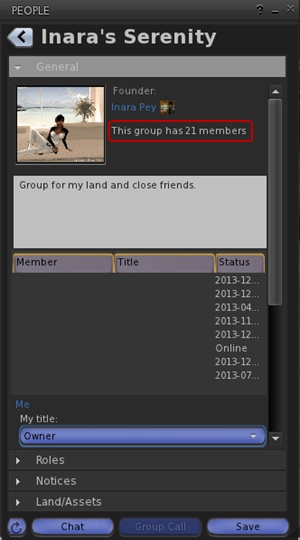
Total number of users in a group displayed for those groups you have joined (see below left)
This release offers another small package of tidy changes, several again gathered from other TPV offerings, and it’s good to see that credits for imported features are starting to appear in the release notes as well. The latter list the updates within the release as comprising:
Merged:
Updates from RLV
Tweaks:
Addition of Penny Patton’s windlight settings
Re-write/clean-up of the Status Bar code
Possible speed improvements
UKD_Logo icon updates.
Fixes:
Black background in the address bar combo list’s scroll bar fixed
An old bad merge for the avatar context menu in chat which didn’t show at the time
Net Stats graph now shows correct Kb and wdiget now clickable
Features Added:
Show the total member count on the Group panel’s General tab if you’re a member of that group
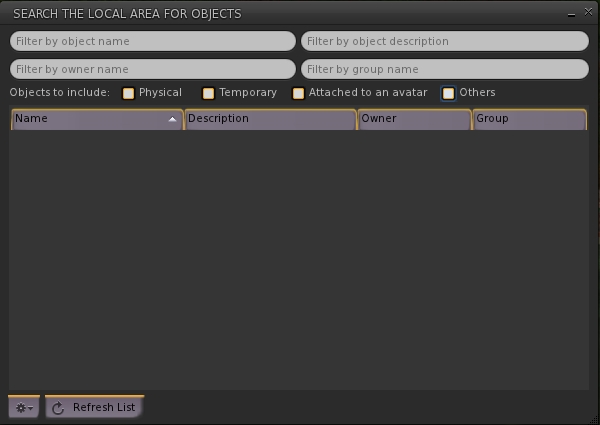
Edit option added to the Area Search floater’s context menu
Username login drop-down combo box for multiple accounts
Frames-Per-Second displayed on StatusBar (from NiranV Dean). Modified and clickable (Hidden by default)
Additional Status Bar show / hide options for FPS, Net Stats, Avatar Offset Slider and Draw Distance Slider.
Additional show / hide options for elements in the status bar (sliders, buttons, info displays)
Feedback
Both of these releases offer neat packages of updates to their respective viewers, both of which continue to be developed and enhanced in small, relevant steps and which also keep track with most of the recent code base updates from Linden Lab.
Performance-wise, both viewer showed more-or-less consistent performance levels on my primary PC as shown with earlier releases, and I had no difficulty in running both viewers with the major graphics bells and whistles enabled (ALM on, Ambient Occlusion Enabled, shadows set to Sun/Moon + Projectors, etc.), at home and in wandering.
Dave Rowe contacted me earlier in the week to let me know that he’s updated his CtrlAltStudio viewer with both a variable walk speed and support for Kinect for Windows.
In the time-honoured tradition of making things do that which they weren’t quite designed for, I’ve added a variable walking speed to the CtrlAltStudio Viewer, Alpha 5 1.1.0.34376. I’ve also added “spot standing” Kinect control of avatar movement for people to try out. These two items can be used with all display modes: normal, stereoscopic 3D, and Oculus Rift.
The variable walk speed came about as a result of some issues when walking / flying in-world when using the Rift, and Dave was pointed in the direction of a possible solution after reading a Firestorm JIRA raised by Adeon Writer requesting that the ability to more easily toggle between “full” and “quarter” speed movement when walking, running or crouching than solely by pressing and holding the spacebar.
Dave notes that his solution, which employs a slider in the Movement sub-tab of Preferences > Move and View, may not be ideal at present, and only affects avatar walking speeds. He also notes it may not work properly on OpenSim Grids or with the SpaceNavigator (at least at present in the case of the latter).
In all the slider has five presets, from “slow” (left) to “normal” (right). When using the viewer, I found that with the mid-point “half speed” and the preset between it and “normal”, my avatar (on an uncrowded region) moved forward reasonably well and was relatively responsive when turning as I walked. Walking backwards was also OK, although if you enable the option to turn your avatar around when walking “backwards”, you may find your avatar’s movement becomes jerky and it constantly tries to turn and put its back to you; something which becomes more pronounced at the lower settings.
I found the “slow” setting to be somewhat akin to being caught in a heavy lag situation, but without any accompanying rubber-banding or sudden speed-ups with walking; my avatar moved very slowly and was subject to intermittent pauses and froze on a couple of occasions, requiring me to adjust the slider more to the right.
While this may not sound promising, do remember that this is only the first cut at the work on Dave’s part.
Kinect Gesture Support
As well as the variable walking speed, Dave has also added gesture support for the viewer, which can be used via the Microsoft Kinect system. The supported gestures allow you to set your avatar walking, stop it, turn it around and fly up and down or stop gesture-driven control. He’s produced a set of easy-to-understand drawings of the gestures for each, and notes that you can also stop gesture-driven motion by walking out of the Kinect’s sensor range, and also fly down by crouching.
Kinect gestures (image courtesy of Dave Rowe)
In discussing the use of the variable walk slider and the Kinect options, Dave notes:
The variable walk speed improves the usability of Kinect “spot standing” control, usable in Windows builds on PCs with Kinect for Windows sensors installed. You set a “home” position of zero movement, then once you move out of a dead zone around that position your avatar starts moving in the direction you’ve moved in. Avatar movement starts off slow and increases speed as you move further out, with the maximum being that of the walk speed you’ve configured. Except that for forwards movement you start running after the maximum walk speed.
Even if you don’t have either active stereoscopic glasses or an Oculus Rift headset, but you do have a Kinect system (with Runtime or Software Development Kit installed on your PC), you can still use the Alpha 5 version of CtrlAltStudio to try both the variable speed walk and the gesture controls out – just leave both the Stereoscopic and Oculus options disabled. Note you do not have to have Kinect in order to try-out the variable speed walking.
A further change with this release is the inclusion of a Prediction Delta slider with the Oculus Rift options. Again, as Dave notes in his blog:
Sensor prediction helps reduce latency and you can configure how far into the future your orientation is predicted. With your Rift on, adjust the Prediction Delta value until moving your head feels most comfortable.
the new Prediction Delta slider in the Oculus Rift section of the Display Output sub-tab for helping to reduce latency and configuring how far into the future your orientation is predicted for a more natural head movement when using the Rift.
You can find out about these , and the other updates within the Alpha 5 version of CtrlAltStudio via the release notes.
CtrlAltStudio Adopted and Adapted by St. Andrew’s University
Dave’s work on CtrlAltStudio has not gone unnoticed. None other than St. Andrews University in Scotland have adopted and adapted it as a part of their own work to create a new viewer they’ve called ACE.
Faculty members and students at the university have been using virtual environments for historical reconstructions as a part of their Open Virtual Worlds project for some time now, running their own dedicated OpenSim grid (which is hypergrid enabled, or people can access by creating a log-in account).
Project members have now taken Dave’s work with CtrlAltStudio viewer and combined it with their own Kinect bindings created as a part of their Chimera project in order to produce their own ACE (Armadillo Control Extensions) viewer. This can be used to explore and experience their in-world reconstructions using Oculus Rift and without the need for any physical device to assist them.
The ACE viewer also requires the installation of the Kinect Runtime or SDK to be installed on the host computer in order to work, but once these and the viewer are installed, it can be used to connect to any grid (OpenSim or SL).
UKanDo, the v3-based viewer from Connor Monaron updated to a new release on Wednesday November 13th. Version 3.6.10.27888 sees the viewer return to parity with the Lab’s release code base and gain the most recent improvements from the Lab including the Facebook SLShare capability.
This is more of a progressive update on capabilities already in the viewer rather than a major update with lots of new features and shinies, which is entirely in keeping with Connor’s stated intent to produce a viewer which is reasonably close to LL’s own, but which incorporates some of the more popular TPV functions and abilities.
In my last look at UKanDo, I reported on the arrival of the QuickTools floater, a variation of the popular Quick Preferences options found in a number of TPVs, which offers rapid access to a number of the viewer’s capabilities. At the time, I pointed out that the icon for the toolbar button for the panel could perhaps do with a re-think, given it was the same as the icon for the viewer Preferences panel, so there was a risk of the two buttons being confused when set to Icon Only display mode. With this release, the QuickTools button icon has been revised so that it is now a film reel / pie menu, making the button quite distinct from the Preferences button when both are used in a toolbar.
As well as the QuickTools button, the Area Search button and the Build button also get new icons.
Area Search Udpate
Area Search also sees the addition of further search criteria in the form of check boxes which allow the user to define the kind of objects which are to be located: physical, temporary, attachments, or others. These can be checked individually or in combination, and provide an additional level of granularity to object searches.
Area Search: updates with new checkboxes for more granular searches and a new option button (bottom left)
A new gear button has also been added to the floater, which can be used to access additional configuration options. Currently this only comprises Auto-Track Selections (displays beacon for an item selected from the list) and Stop Tracking (removes beacon). However, as this is reported as “part 1” of an overhaul of Area Search, more options may be forthcoming in the future.
Advanced Build Options
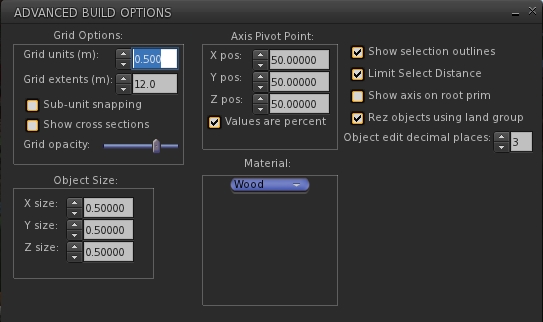
Version 3.6.10.27888 of UKanDo see the introduction of an Advanced Build Options floater, which contains some of the options also found in Preferences > UKanDo > Building, as well as some options not present in that tab.
The Advanced Build Options floater, offering additional default / options for builders, some of which can also be found in Preferences > UKanDo > Build
The new floater is accessed by editing / creating an object and selecting Build > Options > Advanced Build Options from the menu bar or pressing CTRL-ALT-B.
Geometry Overload Protection
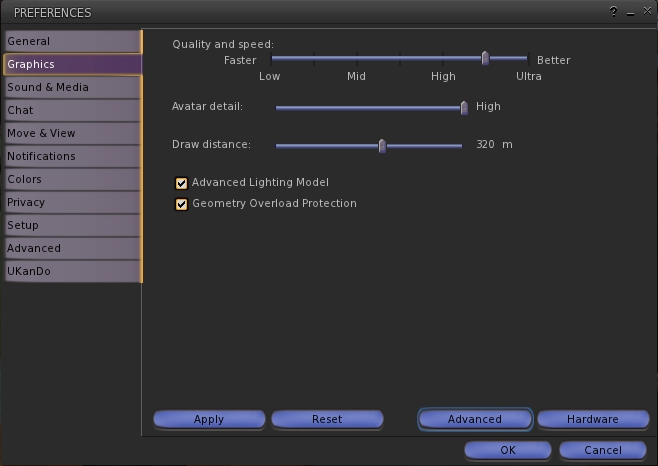
A new addition to the Graphics tab of Preferences with release 3.6.10.27888 is the Geometry Overload Protection. Enabled by default, this is designed to stop the viewer crashing due to someone using objects with excessive geometry (a common form of viewer attack in some regions). This addition brings a slight change in layout to the default display of the Graphics tab, which includes the option to enable the Advanced Lighting Model without having to access the Advanced options.
Preferences > Graphics gets revised to include the Geometry Overload Protection option and an option to enable / disable ALM without having to access the Advanced options
Other Updates
This release also includes:
Further adjustments to the viewer UI, with the buttons looking even more V1-style
Favourites Bar Landmark text now white for easier reading
Select only copyable objects Added to the Build -> Options menu
Show each avatar’s age in their name tag unless they are older than the number of days specified in Preferences > UKanDo > Avatar
Show LookAt / PointAt- includes names on crosshairs option Preferences > Privacy
Status Bar Hide/Show options for the:
Marketplace button
Buy Currency button
NetStats Bar Graph
Option to displayed log-in names as well as Display Names in the People floater tabs (click the options button and check View Login Name)
Feedback
A small, tidy update to the viewer which again draws upon some popular TPV features without risking the viewer becoming top-heavy.
Still no media filter at this point in time, which I’d personally like to see (and would like to see in the official viewer for that matter). Having it available discourages a complete disabling of media and allows one to more easily enjoy music when travelling around without necessarily being over-exposed to more nefarious goings-on. Another thing I’d like to see is the proper release note attributions for those elements incorporated from other TPVs.
That the Advanced Build Options floater and the options in Preferences > UKanDo > Building have an odd level of functional cross-over which might cause some confusion at times. Given both the degree of overlap between them and the degree of individual options found in one but not the other, it might be an idea to make them consistent in terms of the options offered by both, but this is a minor quibble.
Performance-wise, the viewer operates pretty much as anticipated, and I didn’t notice any particular drop-off in frame rates when using CHUI in expanded mode, so I assume this issue has been fixed in the last rebuild of the 3.6.10 viewer, and that UKanDo has the fix. However, this is only my experience, so don’t quote me on that if you find you are still having that particular problem either with the latest release of UKanDo or the official viewer!
In the meantime, I’ll keep following UKanDo as it develops.
Dave Rowe (Strachan Ofarrel in SL) is responsible for developing the CtrlAltStudio viewer. Based on Firestorm, the viewer comes in two flavours, one encompassing a Stereoscopic 3D world view, and the other pioneering Oculus Rift support for both Second Life and OpenSim.
The Oculus Rift configuration utility (image: Dave Rowe)
I’ve been reporting on both viewers as they’ve been updated, and noticed that Dave recently posted some useful information for those with a pre-release Oculus Rift SDK version and who might be using his viewer.
In it, he provides an overview of the headset’s configuration utility which allows users to:
Measure your eye separation (inter pupillary distance or IPD, also referred to simply as pupillary distance)
Correctly calibrate the headset
Update the headset’s firmware.
If you have a headset, and have not used the configuration utility, Dave’s article makes worthwhile reading, covering as it does all three of the operations bulleted above.
In addition to covering these options, Dave points out that the latest version of the firmware (0.18) includes improvements to reduce orientation drift. So, if you have been using the utility to calibrate the headset, but are finding your orientation is drifting a lot, you may want to try updating your headset’s firmware.
Strachan Ofarrel (Dave Rowe in RL), has issued an update to the experimental version of his CtrlAltStudio viewer with Oculus Rift support. It’s an update those with the Rift SDK and headset are likely to find interesting, as it includes some initial work on bringing the viewer’s UI to the Rift.
Version 1.1.0.34332 (Alpha 4 release) of CtrlAltStudio appeared on Wednesday October 23rd, and Strachan was kind enough to poke me about it.
It’s important to note that this is only a first pass at things, so if you have a headset, keep in mind what you see of the UI may change as Strachan tweaks things further. Commenting on the work, Strachan himself says:
I originally wasn’t intending to do any UI as I thought Linden Lab’s viewer with Rift support would have been released by now, but it hasn’t been and there’s a pressing need for at least some UI so I’ve added some as a stop-gap measure.
The viewer UI in Oculus Rift: preliminary work undertaken by Strachan Ofarrel in CtrlAltStudio (image courtesy of Strachan OFarrel / David Rowe) – click to enlarge
There are some limitations with this first pass in that the menu bars and toolbars are not yet displayed in Riftlook, and for those who prefer the Pie menu, right clicking on in-world objects will only display the context menu (no Pie). Even so, this is an impressive start to the work of enabling the UI, and does much to increase people’s ability to interact with the world when using the Oculus Rift.
In order to use UI elements effectively with the headset, Strachan recommends users:
Turn on Show User Interface In Mouselook and Enable Context Menus In Mouselook (both under Preferences > Move & View > View)
Consider enabling Show Chat In Bubbles Above Avatars (Preferences > Chat > General).
He notes that with the above settings enabled, shortcuts can be used to show / hide dialogue boxes (e.g. CTRL-I for showing / hiding inventory), which again significantly adds to the usability of the viewer when in Riftlook. He also reminds people to use the cursor to left-click interact with windows and right-click interact with in-world objects, and that cursor movement can be defined / refined in Preferences > Graphics > Display Output.
The Display Output options for when Using Oculus Rift: note the new depth slider and the options to define / refine camera / cursor movement
As well as adding preliminary UI capabilities to Riftlook, this release of the CtrlAltStudio Alpha version also brings with it a range of updates and fixes, including:
Some adjustment of the depth at which the Riftlook UI is displayed
Enabling the display of avatar toasts and floating text in Riftlook
Esc in third-person Riftlook will return you to Riftlook first-person (instead of having to exit then re-enter Riftlook)
Esc in flycam Riftlook with SpaceNavigator will return you to Riftlook first-person
Entering / leaving stereoscopic 3D display mode now recorded in the program log
Work-around added to get stereoscopic 3D working with AMD Radeon on Windows
Added “–riftlook” command line parameter that toggles into Riftlook after a successful login
Fixed OpenSim “4096 bug” that limited the range of hypergrid teleporting
Fix to ensure view remains in Mouselook when TPing or when an alert dialog pops up, if UI is turned on in Mouselook
And more: please refer to the release notes for this version for a complete list of updates, changes and fixes, together with the correct attributions for those contributed by others.
Sadly, I don’t have the Oculus Rift SDK, so can’t speak first-hand has to how things look. So if you do have a headset, why not pop over to the CtrlAltStudio website and download this version of the viewer and take it for a test run? Strachan would doubtless appreciate all constructive feedback received!
At the time of writing, the viewer is only available for Windows, but the Mac OSX version is promised soon – so be sure to check back with the CtrlAltStudio website if you’re a Mac user.
 Dave Rowe (Strachan Ofarrel in SL) has released an update to his experimental version of the CtrlAltStudio viewer with support for Oculus Rift (Windows only).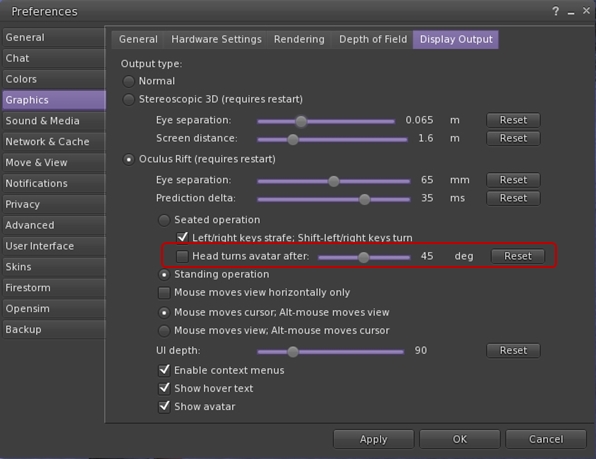




 Inara Pey: Living in a Modemworld