I’ve been asked to pass on the following – and while only too happy to do so, I’m closing the item to comments as it is important anyone who has questions and who can’t attend the event, post their question to the official Phoenix Firestorm blog.
The Phoenix / Firestorm team are holding a public Q&A session this coming Saturday to answer questions and concerns relating to both the Phoenix and Firestorm Viewers.
The meeting will take place at 13:00 SLT at the 4-region auditorium at Rockcliffe University and will be hosted by Nigma Sterling of Rockcliffe University.
Those wishing to attend are advised to arrive early, and using the following SLurls according to the first initial of your FIRST name:
The event will be recorded and made available online after the fact (no live streaming planned at this point).
Note that the focus of the event is to discuss genuine concerns relating to either Viewer and their future development, and to answer questions and address specific critiques.
Note Dec 24th: The release version of this Viewer is now available. As such I have an update / continuation of this review, and have closed comments on this article (comments on the second are open).
Niran’s Viewer is an intriguing hybrid; forked from Kirsten’s Viewer, it includes everything that made Kirsten’s unique, as well as adding some very individual flavours from NiranV Dean and, in the most recent builds, the V3.2 FUI. The result is a Viewer that steps out of the box somewhat from what we’ve seen to date, offering some amazing capabilities – although you may find you need a high-end system to get the most out of it.
In Brief
Currently Windows only
Forked from Kirsten’s Viewer
Lots of graphics updates (including completely revamped graphics preferences)
New and unique menu layout
Viewer 3.2 Flexible User Interface (FUI)
Fast rendering on suitable machines
Additional ATi support
RLV/a
Mesh rendering and uploads
Lots more (did I mention fast rendering?)
Installer with default location
Installation and Logging-in
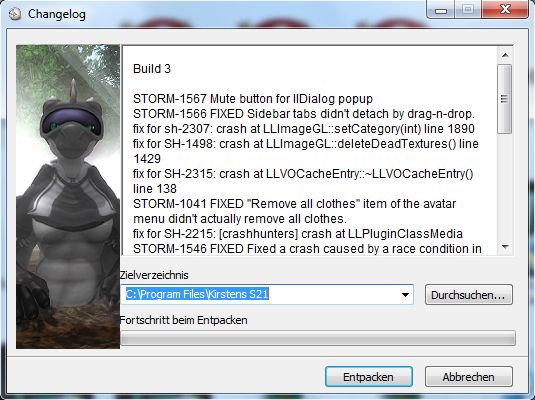
The installation is straightforward – and other than the installer being partially in German, offered no surprises per se
Like Marine’s RLV standalone installation, no desktop shortcut or icon is produced, so once installed, you’ll have to go play hunt the EXE in C:\Windows\Program Files\Nirans Viewer (assuming you use the default installer path).
This is no biggie, but I hope (as I’m a lazy cow) that NiranV will provide a defacto desktop icon in the future – that way my VistaMenu utilities for Win7 can grab what’s needed and I can keep my desktop nice and tidy with the minimum of fuss on my part :).
On start-up the Viewer pulls no punches letting you know you’re entering new territory, as the log-in splash screen demonstrates.
Log-in screen
Top left of the screen are the familiar Me and Help menu options – the former providing access to the Viewer’s Preferences. Over to the right of the screen is the log-in area, neatly laid-out and with three options in bold white text sitting under it:
Select Other Grids: the Viewer appears primarily aimed at SL, so this option provides access to the Beta grid
Settings: open the Preferences floater
Help: opens a set of additional options:
Sign-up: takes you to the official SL sign-up pages via your web browser
Forgot password…: opens the official password reset page in your web browser
Grid Status: opens the Grid Status page
About Niran’s Viewer: opens the HELP ->About Viewer pop-up.
It’s a nice arrangement, although my personal preference would be to see some take on the official V3 log-in screen – the Destination Guide, etc. – make an appearance. Perhaps that’s scheduled for a future build…
To actually log-in, you need to click on the LOGIN option after entering your username and password – tapping Enter doesn’t appear to work on this release.
The UI
Once logged-in, you’re again immediately aware that you’re in a Viewer that dares to break all the established rules.
Wot’s that? Buttons on the TOP? No menus?! (click to enlarge)
The Viewer clearly uses the V3.2 FUI, but NiranV has added the option to place buttons at the top of the screen as well as the sides / bottom – thus being the first to respond to requests for this capability. I’d still like to see VWR-27455 implemented for the FUI by someone, but just having the additional top area for use might make it easier for people to group buttons.
By default, the following buttons are available on first starting the Viewer:
Buttons can be removed, added or relabeled simply by right-clicking on an existing button and selecting the required menu from the displayed menu – CHOOSE BUTTONS opening the Toolbar Button floater. In a further step away from V3.2, CTRL-ALT-B will also open the floater, rather than CTRL-T, the use of which in V3.2 has caused some consternation amongst users, given that key combination has had a previous use.
The top of the screen is also conspicuous as it apparently doesn’t have a menu bar – no Me, Comm, World, etc. Instead we have the Navigation / Favourites Bar.
The Navigation Bar contains a wealth of information, looking at it from left-to-right: the familiar (to V2/V3 users) FORWARD / BACK buttons; then a panel of five buttons: HOME, WINDLIGHT FLOATER, SKY SETTINGS, WATER SETTINGS, and ABOUT LAND; the address bar area (as with V2/V3, right-clickable for additional options); Draw distance slider; Search option; account balance & BUY L$ button, and, at the right end, the media options with the time under them.
As with V3, you can switch between Navigation & Favourites or the Mini-location bars by right-clicking on the blank area of the Navigation / Favourites Bar and selecting your preference, but NiranV has extended this drop down menu to include the ability to configure which options are visible on the Navigation Bar, complete with additional options not displayed by default. In addition, the entire Navigation Bar / Favourites Bar has further configuration options within Preferences – something I’ll return to shortly.
But Wait! No Menus, You Say?!
Well, not exactly; I fibbed a bit :).
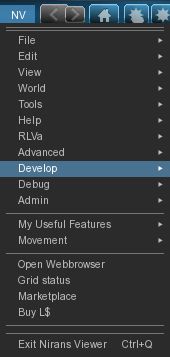
The menus are there, but are tucked away as Niran’s takes another innovative approach to the Viewer UI presentation. At the left-hand end of the Navigation Bar (or Mini-location Bar, if you display that), is the label “NV”. Clicking on this opens a vertical menu system which V1.x users should find somewhat familiar, despite the orientation, but those already familiar with V2/V3 might initially find a tad confusing, given the options listed are predominantly V1 menu labels.
Niran’s Menus
Having the menus displayed in this manner brings with it certain advantages; for one thing, the impact on your in-world view is minimised to the left side of the screen. There is also something more intuitive about this approach that makes using the menus somewhat faster and more intuitive: the action to select just about any option is a simple down-and-right action, making moving from menu to menu faster and easily than across-down, across-down, across-down…
NiranV has done a sterling job trying to align options with the first few menu headings (File, Edit, View) to reflect V1, which should help some with transitioning from V1 to the world of V3. However, the approach does have its own risk: V1 and V2/V3 are radically different in their menu offerings, so using similar menu titles could lure people into thinking they’ll find all the familiar options in the same sub-menus and locations – which isn’t quite the case. Similarly, as an established V2/V3 TPV user, I have to say I was initially thrown by the menu system when I first encountered it – although I quickly adapted to it and have to admit to preferring it.
A very nice touch in the menu system is the inclusion of an option to call-up the Grid Status page. This is particularly handy if you find you’re having problems, as it saves playing hunt-the-page through the SL website – and if you use the Viewer’s internal browser, the info is there without having to switch windows.
There is also a menu option called MY USEFUL FEATURES, which includes the STOP ALL ANIMATIONS option and REBAKE TEXTURES (for those unfamiliar with the keyboard shortcuts.
Preferences
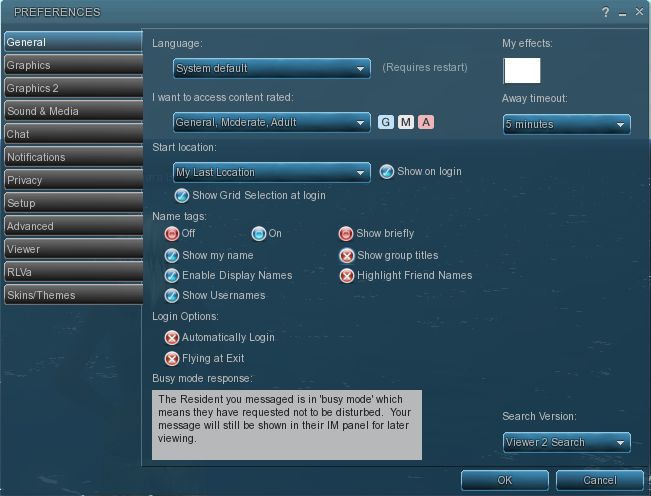
This is another element of the Viewer that has been extensively revised, and nicely so. For a start, buttons are given a 3D polish and are clearly coloured: blue / tick = on; red / cross = off; grey = inactive / unavailable. Where buttons represent either/or options (e.g. name tags on/off), clicking one will turn it on and the other off.
Preferences – 3D buttons and a full revamp
Most of the main tabs also dispense with additional horizontal tabs. Instead, a “slider” action is used. Take chat as an example: open it, and you have the primary chat options, with a bar at the bottom labelled IM OPTIONS – click on that, and the IM options duly slide up into view. To swap back, simply click on the CHAT OPTIONS bar. It’s neat and tidy – although you need to keep your eye on things, as it’s easy to overlook a slider when looking for a specific option you’re used to seeing in a dedicated tab.
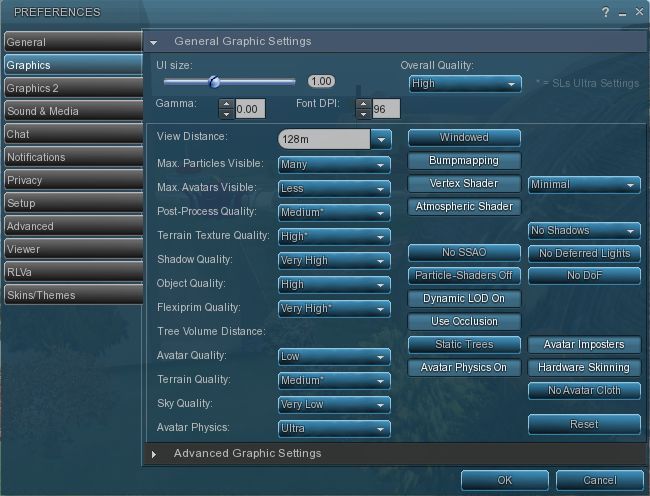
However, it is in the graphics tabs that the biggest changes are most readily apparent. There are two tabs – GRAPHICS and GRAPHICS 2, but they actually toggle between different presentations of the same settings.
Preferences -> Graphics
To the uninitiated, both can be something of a shock – the combination of options builds on Kirsten’s rendering pipe and offer enormous flexibility for setting the Viewer’s graphics capabilities. If you want, there are enough options here to take your world view right back to the earliest days of Second Life as well as bringing you cutting-edge in-world rendering – just take a look at NiranV’s blog post on the subject to see some of the results.
However, I’m not entirely sure that replacing the traditional sliders for some options with a button that toggles between “none”, “less”, “medium”, “more” and “many” entirely works; what is the scale of reference? How many is “many”? How few is “less”? There’s also the fact that the sheer number of options could be somewhat bewildering to many, and may, as a result, be ignored. But, for those into photography, etc., it’s worth taking a good look at what’s on offer.
Obviously, the two tabs are supposed to be used independently of one another, rather than together, and it is intended for people to use the one they find more intuitive. In this I was initially drawn to GRAPHICS, which is closer to what I’ve been used to seeing in other Viewers, but then I quickly swapped over the GRAPHICS 2.
Graphics 2
Shadow rendering appears to be linked to “glow” in this Viewer. This means that with shadows enabled, you can end up with a very bright sky, with the Windlight clouds glowing oddly.
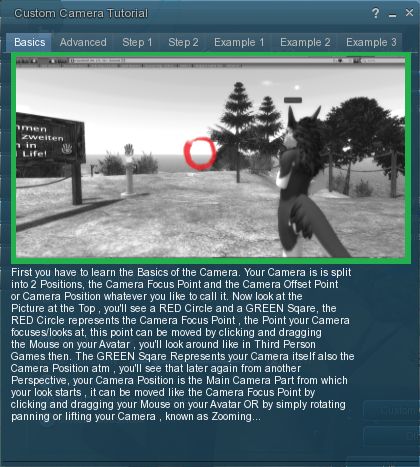
Camera tutorial
Away from this, it’s worth going through the Preferences tabs and sliders carefully – there are other cool bits and pieces. For example, for those unfamiliar with the degree with which the camera position can be customised to give a much improved world view, NiranV has included a tutorial on the subject with some practical examples of options. This is something that other Viewers should have, as whether you’re tall or short, the default camera position for SL is far from ideal, yet most people live with it, simply because they’re not aware of how to modify things beyond fiddling with the default Preferences sliders. Huge kudos from me for this (friends know I’m a constant nag on the subject…!).
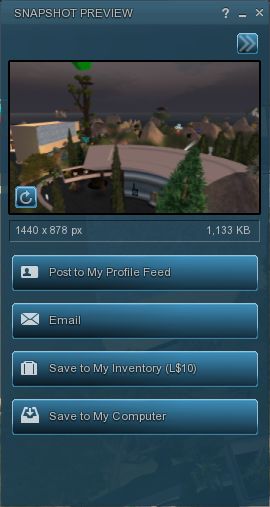
New snapshot floater (click to enlarge)
On the subject of cameras as well, NiranV has made a very subtle alteration to the camera smoothing, setting it to a default of 10 – and the difference in camera movement is stunning (allowing for differences in graphics capabilities on individual systems); panning is wonderfully smooth, as is zooming, with both exhibiting a gentle inertial effect as you stop the movement: rather than coming to an abrupt stop, the camera glides to a halt. Wonderful!
The snapshot option also includes the updated floater with the option to post snapshots directly to your web profile feed.
Nor does it end there: those that like their pie (menu) can have it (on by default), while those who like things in context (menus) and have their way as well.
Within PREFERENCES->VIEWER-> UI SETTINGS are a host of goodies, including:
The ability to increase / decrease the transparency of the Navigation / Favourites bars by disabling layers
Turn off the Favourites Bar independently of Navigation
Select which of the buttons Windlight Settings, etc.) should be display in the right-click drop-down menu
One-click teleport to SLurls displayed in chat
An ATi tweak
A collection of useful debug features that can be toggled on or off.
There is even an ability to enable / disable the new Direct Delivery “inbox” and “outbox” in your Inventory (although these can currently only be used with ease on the Beta grid) – but it gives you an idea of what it coming.
Performance
This Viewer is a fork of Kirsten’s Viewer, so one expects it to be resource demanding – and it is that, as soon as you start turning on the more advanced graphics features.
But to dismiss Niran’s as a KV clone with a tweaked front end would be a grossly unfair oversimplification. There has been a lot of under-the-bonnet work carried out, and I gather that NiranV went so far as to re-write OpenGL elements while waiting for LL’s fixes – and used an OpenGL release that is a lot more recent than that used by LL for their fix. This means that while the Viewer is resource-hungry, it is also blisteringly fast. Rendering is some of the fastest I’ve witnessed on my PC; I’m simply not used to arriving home and having sculptie items immediately pop out at me (no waiting several seconds), fully formed, as if going “Boo!” It’s really impressive.
Frame rates are equally stunning on my PC. At home, (370m above ground), with draw up at 360m, five others on-sm, and with settings comparable to those I use on Firestorm and Exodus, Niran’s screams past them at a rocketing 57-60 fps. At ground level, this drops to some 45-48 fps, which is still very credible.
Unfortunately for me, enabling shadows does slaughter my system: frame rates collapse to the low-end of single figures, and the Viewer demonstrates a notable stutter in camera movement. However, I got much the same with the last of Kirsten’s builds as well, so this is likely to be as much down to my graphics system and CPU getting a little long in the tooth as anything else.
Opinion
This is still very much a Beta Viewer, but even so, if you’re not into running shadows (or have a very high-end system), it tends to blow most others out of the water performance-wise. Obviously, as a Beta, there are rough edges; I’ve been running the Viewer on both the Main and Beta grids for a total of about 6 hours over the last few days, and crashes haven’t been infrequent; therefore, you should use it with caution. Also, as it is a Beta, don’t expect absolutely everything to be implemented – there is still a number of items listed as “to do” on NiranV’s website, and some options in Preferences are greyed-out.
That said, this Viewer is a serious contender in the usability stakes. For those who do want to try something that offers a different and flexible approach to the V3.2 UI, Niran’s Viewer is definitely one to watch. For those into photography and machinima and who have used Kirsten’s Viewer in the past, will find just about everything here they need. As it is, and even though there are a number of elements I’d like to see included in it, this Viewer has already moved comfortably into my top 3 “Viewers of choice”.
So, if you are looking around for a Viewer and feel like you can dare to be different, why not give Niran’s Viewer a try?
Yesterday, the much-anticipated release of Phoenix was made. Version 1.6.0 1591 brings with it the ability to render mesh objects.
This means that the majority of users in SL are able to see mesh objects rendered correctly in-world, if not import them. However, the release announcement from Jessica Lyon is liable to make difficult reading for some:
“We stated some time ago our active development commitment is now focused on the Firestorm viewer and that continues today. We still feel strongly that the end of V1 functionality is an inevitability, so it is more important to develop an alternative viewer for our users they will enjoy for when that time comes than to spend our efforts on a dying viewer and then leave our users with no alternative once it’s gone. However, we also promised we would try to keep the phoenix viewer alive for you until it is no longer feasible to do so. As you can see, we are not walking away from that promise, but it is important to understand that Phoenix is no longer our top priority. When necessary we will continue to keep it up to date with advances/fixes from other third-party viewers and provide them the credit they deserve for that work. But ‘we’ are no longer actively developing Phoenix on our own steam.
“Any future releases of Phoenix will be sparse and only if needed. I will not commit to saying this is the last Phoenix Viewer Release, but I will also not commit to saying it isn’t the last either. I will say… this is one of our last. As time passes we will determine if another release is absolutely necessary and/or sensible and make a decision then on whether another update is mandatory in order to keep our promise to you.”
While it may not be a popular move, one can hardly blame Jessica and the team for taking this position: maintaining an aging code base which itself is built on something LL no longer maintain (Snowglobe) is liable to become harder and harder as time goes on, and for a Viewer to remain functional and relevant, it needs to keep pace with the evolution of the grid and as the Phoenix / Firestorm project has made the step of producing a V2/V3 hybrid, it makes sense for them to focus on that work in order to do so, rather than splitting efforts (and doubling the workload) to try and maintain two sets of code.
As well as mesh rendering, this release also brings with it:
A signficant element not updated was that of RLVa – it was decided that Kitty’s time and focus is better spent on the numerous projects with which she is already fully engaged: her own Viewer (Catznip, reviewed here), working on bringing the spell checker to Viewer 3.x, her continuing support of RLVa for other V2/V3 TPVs, and so on). In the release blog, Jessica suggest that those wishing to update to the latest RLVa implementations should give either Firestorm or Catznip a try.
The combat-dedicated Exodus Viewer received a series of updates this month, as did the Exodus website. This article outlines the most recent, for releases 11.10.10 (b) through to 11.10.31 (b).
Most of the changes take the form of small tweaks and additions, but which themselves all bring Exodus even closer to matching the capabilities of more established TPVs. These include:
MU* poses (i.e. use “:” instead of “/me” for emotes)
Out-of-Character (OOC) auto close (so the closing “))” is automatically added when you commence typing with “((“)
Option to display emotes from yourself and others in italics on your screen
Option to disable Viewer tag detection (Sidebar Preferences tab, under VARIOUS PREFERENCES)
Additional chat line commands added:
The “rezplat” command has been added to the command line shortcuts, and supports prims up to 64m in size (so “/rezplat 64” will rez a platform 64x64x0.5)
Active gestures are now listed in Inventory in terms of their key assignments (where applicable) – such as “XXX Active on F12”
The THREAT INDICATORS option (SIDEBAR -> EXODUS PREFERENCES -> INTERFACE SETTINGS) now includes options show / hide Friendly and Hostile indicators
The Raid Advisor (ALT-R) now has working import / export buttons which allow the details of raids to be exported (backed-up) either to a file on your computer, or to your Inventory (where they are located in #EXODUS -> #RAID ADVISOR BACKUPS)
Raids are exported individually to either a file or an inventory item
Exported raids can be deleted if required & restored using the IMPORT button
Raids exported to inventory can be passed to friends; double-clicking on a raid stored in Inventory will restore it to the Raid advisor
The mini-location bar will be displayed when using Mouselook (and will toggle on/off automatically when entering / leaving Mouselook if the full navigation bar is displayed in third-person view)
The “i” icon in the navigation bar / mini-location bar now open the ABOUT LAND floater
Display names are now disabled by default
Nearby chat window auto-resize feature
Edit menu item on worn attachments, to automatically select/edit attachments that are hard to select
Exodus now uses a dedicated cache location, rather than the default Second Life location
Support for the new Neck attachment point has been added
Syntax highlighting for /* */ style comments added
There are also a number of issues and bugs that have been squished, details of these can be found on the Exodus website itself for each of the releases made this month.
Help Updates
One of the more noticeable additions to Exodus comes in the form of a new Help option – and which harks back to the days when we actually had live, in-world help available to everyone in SL. This is the ability to launch an IRC connection to the Exodus Viewer Support Chatroom. clicking on the link with open a window prompting you for a nickname (your avatar’s name is automatically entered, but you can change this if you wish). Clicking CONNECT opens the support chat:
Exodus Support Chat
The chat applet supplies a warning that support may not be monitoring the channel all the time, so replies may take a few minutes – which is fair enough – but I found enquiries were responded to very rapidly once a question was asked.
The IRC chatroom includes the option of private messaging others who are logged-in: left-click on a name and select the PM option from the menu that appears. Icons are used within the chat window to distinguish support personnel:
White spanner on a red circle – Viewer developer
White question mark on a blue diamond – Viewer support
This is a major step-up from “traditional” means of in-world support, and is doubly useful given that the chat applet is also embedded in the Exodus website – so if you don’t want you in-world view blocked by the chat floater, you can simply log-into the chat. Considering the issues inherent in using Group chat, etc., this move on the part of Exodus really raises the bar on providing support. There is currently a slight bug in the chat client when displayed in the Viewer, however; pressing “/” or SHIFT-? causes the cursor to re-focus on the local chat in the Viewer, but other than that the integration of the IRC client and the Viewer is very smooth.
Advanced Graphics Presets
Another major change with the latest release is the inclusion of both a presets option and the ability to import / export presets in the Exodus Advanced Graphics option (PREFERENCES -> GRAPHICS -> SPECIAL).
This allows personal presets to be created and saved and easily reloaded. Additionally, the export options allows you to back-up your personal presets to your computer or save them to your inventory. Presets saved to Inventory are stored in #EXODUS -> #ADVANCED GRAPHICS PRESETS and can be shared with others.
Exodus Advanced Graphics presets
Saved presets can be deleted, if required. The IMPORT button will allow you to restore any saved presets saved on your computer, while double-clicking presets in your inventory (either saved there or passed to you by a friend) will automatically restore or load them to your preset list in the Advanced Graphics floater.
In a further move to make the newer graphics options accessible, the Exodus Advanced Settings have been re-written so as not to required deferred rendering being enabled.
This week’s Phoenix Hour saw a couple of guests sharing the sofa with Jessica: Ed Merryman and Lette Ponnier, who would be joining Jessica and Phaylen in a discussion on matters relating to Viewer support. Ed actually heads-up the Viewer support side of the Phoenix / Firestorm group, and both he and Lette provide classes in using Firestorm.
To kick things off, however, Jessica ran though the latest status for both Phoenix and Firestorm before going on to pass comment on the new LL Viewer UI – which, at the time of her comments, was about to be merged with the Development Viewer code but had not actually been released for anyone to see.
The Viewers
Overall, not a lot has changed since my last report on The Phoenix Hour – the team are really waiting on LL to resolve issues their end before making any further releases of either Phoenix or Firestorm.
Phoenix Status
The mesh rendering code, supplied by Henri Beauchamp, is in the Phoenix code repository
The current graphic issues being experienced with the Firestorm Mesh Beta (and other mesh-capable Viewers) will be in the code for mesh rendering in Phoenix; Jessica estimated that around 50% of people using mesh-enabled Viewers are caught with the issue (basic shaders causing Viewer crashes)
This issues are Linden Lab issues, and as such, Phoenix is being held pending a fix or fixes from the Lab
The team have been working with LL with these bugs, and a version of Firestorm would be pushed to the Beta group to assist with further testing on the working being undertaken to fix things.
Firestorm Status
The next release of Firestorm is good to go, but again awaiting the GPU-related fixes from Linden Lab
All blocking issues from with the Firestorm project that might have delayed a release have now been resolved
There are still a number of targets the team would like to achieve prior to a release, but these are not blockers to a release; so if a graphics fix comes out of LL before all the targets have been reached, a release may still go ahead
Issues and fixes for Firestorm can be tracked via the project JIRA – although people will need to register in order to gain access
Focus has been placed on Firestorm locking-up and going into “(not responding)” mode and also inventory load times; Nicky Dasmijn has, in Jessica’s words, “Made a world of difference” to the issues
Jessica is convinced even those who didn’t have major inventory load time issues are going to notice a significant performance improvements as a result of this work once the new release can be rolled out
As an example of the improvements, she stated her own 72K+ inventory now takes around 20 seconds to load!
While the new mesh uploader will be in the next release, as per the last Phoenix Hour, there are some issues around the physics weight calculations for mesh objects (which are presumably being worked on)
New feature: Jessica revealed during discussions that a new feature has been added to Firestorm for the next release: right-click -> reload texture. This forces the server to re-send a given texture (worn or on a prim) which has failed to rez.
So to repeat: progress on both Phoenix and Firestorm has been good, but until the graphics issues are resolved by Linden Lab, there will not be any releases. As a side note, Jessica and Ed said the Lab themselves are indicating it will possibly take another two weeks of effort on the Lab’s part to resolve the issues – but this is not guaranteed.
New Official Viewer UI
Jessica expressed disappointment around the way in which Linden Lab has handled the new Viewer 3.x UI, going so far as to state the view that working “in secret” on the UI was “Wrong. In so many ways”. Given the degree with which TPV developers working on V3-based code have been trying to make the Viewer more accessible and acceptable to die-hard V1.x users, one has to admit it is hard not to agree with her – although not necessarily for the reasons she cites.
Had the Phoenix team, for example, been made aware of LL’s plans, they could have made a choice as to whether to pursue the massive amount of effort they’ve put into creating a V1-style option for the Firestorm UI or whether to direct that effort elsewhere – such as in supplying even more help to LL in trying to resolve the current graphics problems. As it stands, a lot of effort on the part of the team may well have been wasted, and LL have run the risk of alienating TPV developers who might otherwise be well-placed to assist them with future issues.
However, the flip side to this is, of course, that the new UI hasn’t been developed “in secret” in the strictest sense. While the code may have been developed without much in the way of consultation with the user community, Linden Lab nevertheless do have over 18 months of considerable feedback from users on the Viewer 2 UI. They’ve also taken positive steps to better understand its limitations for themselves, as demonstrated at SLCC 2011. Ergo, the redevelopment work isn’t directly comparable to the situation that brought about Viewer 2.0, with the work being carried out in an apparent vacuum.
Support
The core of the show was devoted to support issues – especially in relation to Firestorm, but some of which also applied to Phoenix. This started with a review of the Firestorm courses the team offer, the schedule for which can be found on the Phoenix / Firestorm wiki, before moving on to the most common issues the support team deal with.
Bake Fail
Bake fail is the number one issue for the Phoenix / Firestorm support team, despite the fact it is not actually a Viewer issue per se. Rather it is a server-derived issue involving a communications failure, such as between the server and your computer, or the server and someone else’s computer / a group of computers. Typical examples of each are:
Everyone else sees you in an outfit you just changed into, but you still see yourself in the previous outfit = you have suffered bake fail
You see yourself wearing the outfit you’ve just changed into, but others see you still in your previous outfit = others have suffered bake fail.
Oz Linden has defined this problem as being the result of a series bugs within the rendering pipe (not all of them directly connected with bake fail itself) that have individually been treated with a band-aid at the time they occurred, with each bug causing the next bug in the chain. This has resulted in an issue that – as much as Oz has stated he’d personally like to see fixed – is next to impossible to sort out without significant time and effort (and risk) being put into the rendering pipe itself – a piece of code LL tend to treat with the utmost caution.
Ed makes a point of expressing the value in making sure you make a “backup” copy of your appearance as far as you can – skin, hair shape & suitable clothing. If you have severe rendering issues, and REPLACE CURRENT OUTFIT isn’t available as an inventory option because it is grayed-out, drag the folder with the back-up from your inventory and drop it onto your avatar.
Blurry Textures
If your avatar bakes, then the textures go blurry, you rebake & go blurry, try:
Reducing your texture memory allotment by around 75% of the current setting
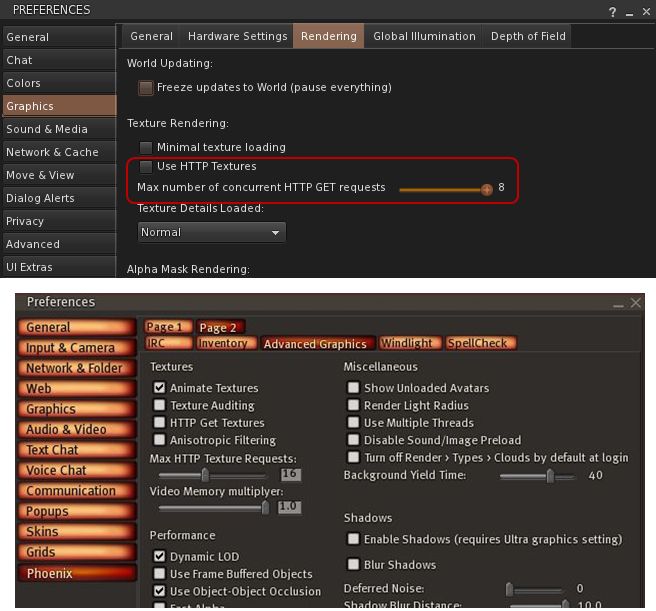
If both of these fail to resolve the issue, disable the HTTP Get function entirely (uncheck USE HTTP TEXTURES in Firestorm or GET HTTP TEXTURES in Phoenix, which are contained in the respective Viewer Preferences tabs defined in the above steps. If you disable the option, make sure you clear cache to avoid texture corruptions.
HTTP get texture options – possible aid in resolving avatar blurring issues
I See Grey People
An interesting tip from Ed Merryman formed a part of the bake fail discussion: if you see a grey avatar or avatars near you, don’t ask them to rebake – try changing your Group tag.
DNS Issues
Lette offer a number of solutions were offered for those experiencing a DNS related error on trying to log-in to Second Life:
Check your anti-virus software, some anti-virus software mistakenly view the Viewer as somehow harmful / trying to make an illegal connection and block it from doing so (some may even throw out a virus infection warning)
Change your DNS server to Google Public DNS or OpenDNS.
DNS errors appear to be on the increase across all Viewers, although why this should be isn’t clearly understood at this point in time.
The Phoenix / Firestorm Wiki
One of the best places to get help for either Phoenix or Firestorm is through the wiki. This includes details on basic troubleshooting, dealing with issues such as bake fail (as described above) and information on Firestorm classes, etc. The wiki also has a number of pages that cover broader issues and items, including:
The hot LL JIRA list – those items that are on the Linden Lab JIRA as known issues
Both of these pages are being continually updated, so people are asked to take a peek at them when encouraging issues.
The Phoenix Team Halloween Party
At 14:00 SLT on Saturday 29th October, the Phoenix team will be hosting its second annual Halloween Costume Party. Arrangements are still being made, but details and an LM will be sent out via the support group nearer the date.
Update January 2nd, 2012: A new Beta of Exodus has been released, and I have an overview available. As such, comments on this page are closed. Please feel free to read, but comments are best related to the latest release, and posted on that page.
A new Second Life Viewer has been launched with an emphasis on in-world combat gaming and which includes mesh rendering capabilities.
Exodus has been developed by Clix Diesel, Genz Kitten and Ash Qin – all of whom are combat veterans in Second Life, and involved in ARK, a cyberpunk-oriented combat environment. As such, a lot of emphasis has been placed on the Viewer’s performance – something that is vital to the gaming world in Second Life.
The Viewer is currently classified as a Public Beta, so if you give it a try, remember that it may not be entirely stable, and your experience may differ from mine.
Installation and First Looks
Exodus is based on Viewer 3, and is available for Windows (32-bit and 64-bit versions), Mac and Linux. The installer will be familiar to anyone who has installed a Viewer, and offers not surprises. System folders are created and a shortcut added to the desktop a-la most Viewers.
Starting the Viewer displays 3.x-style login screen, complete with BASIC and ADVANCED modes (defaulted to ADVANCED). The Viewer doesn’t include the new Viewer 3.x log-in display for the Main grid, with its Destination Guide options etc; instead, the splash screen is a black background upon which is displayed the Viewer’s stylish logo and recent update notes.
On logging-in, the Viewer presents a Viewer 3.x look and feel with a few subtle differences.
Exodus UI
The Sidebar includes two tabs dedicated to Exodus, one of which replaces the HOME tab, and has a stylised E as the tab logo. This provides access to the latest news from the Exodus team and displays the current Version number (in my case, 11.09.28.2), and a link to the Exodus blog. The second tab, bearing a familiar gears icon, provides access to the Exodus Preferences, of which more anon.
The toolbar button at the bottom of the UI has, by default: the Voice button, a client-side AO ported from Firestorm, a gears button providing access to a number of Quick Preferences somewhat similar to the Quick Preference found in Firestorm; and the familiar Gestures, Move, View, Snapshot and Search buttons. Unlike other V3 TPVs, Exodus has the Navigation Bar turned off by default, together with the Favourites Bar, and opts to use the Mini-location bar. The Advanced menu is displayed by default, as is the option to run multiple copies of the Viewer; and there are some dedicated menu options (see below).
Preferences
The main Preferences floater (Me -> Preferences) offers few differences to the standard V3 Viewer – although it does include Kitty Barnett’s Spell Checker, first seen (for V3.x) in Catzip.
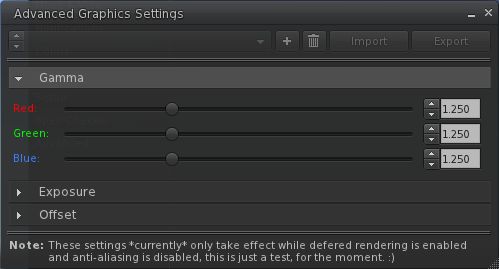
There is a further interesting – and experimental – addition to the Graphics tab. Where, alongside the HARDWARE and ADVANCED buttons, there is a SPECIAL button. This will display the High Dynamic Range (HDR) settings (currently called the Advanced Graphics Settings in the actual floater). HDR should be of benefit to machinima makers and photographers, as it allows for enhanced colour correction, etc. As Geenz explains in the blog post on the subject:
“HDR stands for ‘High Dynamic Range’. HDR doesn’t necessarily increase rendering quality on its own (after all, HDR is only adds a higher dynamic color range for us to do nifty things with later on), but it does allow us to add different effects into the render pipeline like, color correction, gamma correction, and scene brightness that’s completely independent from the rest of the environment.”
HDR Options
A further enhancement to the Viewer that is not so obvious (given it is automatically activated), is the FXAA, or “Fast approXimate Anti-Aliasing” function. This provides an alternative to the “standard” anti-aliasing process used with deferred rendering, and it is intended to make the process a lot faster and should present smoother results. FXAA is apparently a feature that Linden Lab are developing for the official Viewer, but the Exodus team have implemented it through their own efforts.
Combat players may also like the fact that Exodus has the Mouselook zoom functionality included, making target sniping, etc., a lot easier. The function works identically to v1.x viewers that include it: enter Mouselook, press and hold the right mouse button and use the mouse scroll wheel to zoom in / out (with the wheel depressed).
Sidebar Preferences
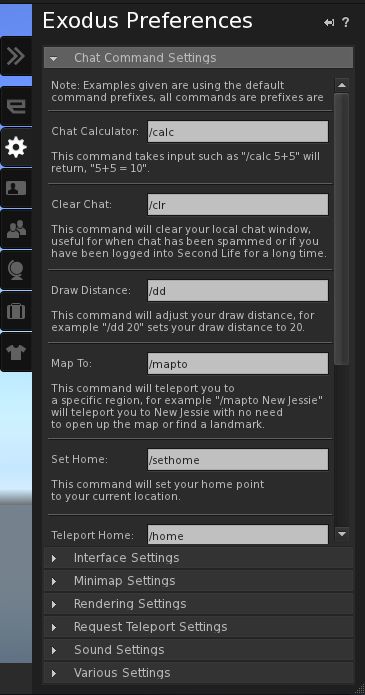
The Sidebar preferences can be accessed by clicking on the tab with the gears icon, or by clicking on the >> tab. This comprises a number of drop-down lists (see right) which provide access to a range of settings, some of which will be familiar to users of the likes of Phoenix and Firestorm, others of which are quite unique.
By default, the tab tends to open with the Chat Command Settings displayed by default (although on my version, the tab would sometimes switch between this and opening with all the drop-down lists closed).
The Chat Commands provides a breakdown of the chat command shortcut (“/dd” for setting draw distance, for example), defaults, together with an explanation of each shortcut – which can be set to any personal preferences.
After this, things get rather interesting. The next tab is Interface Settings. This reproduces a number of options commonly found in combat HUD systems. Given the intended use of the Viewer, this is a very good idea, and like the built-in AO, helps move functions from a reliance on server-side code execution directly to the Viewer.
Settings are available to customise your crosshairs, rangefinder and threat indicators. I confess, I’m no combat specialist (I’ve only ever visited one combat sim to my knowledge – and that was on Avination), but these look to be the kind of options combat players will find useful.
Coupled with this are the Minimap Settings, which provide a range of customisable options for tailoring the mini-map to suit your specific combat requirements (such as making it easier to identify friends and foes).
The remaining drop-downs provide access to specific Viewer functions, bringing them together under logical groupings: rendering teleport and sound settings (reproducing those options found in Preferences -> Sound & Media, and additional chat and display options that otherwise tend to be spread around a number of different tabs in Preferences.





 The combat-dedicated



 Inara Pey: Living in a Modemworld