Materials processing: the what, why and where

On August 16th, Linden Lab announced the forthcoming arrival of material processing in SL in the form of specular and normal maps. At the same time, a video was released demonstrating some of the capabilities. But what does this actually all mean for the everyday user in SL? Here’s what I hope is a lay guide to things, including comments from one of the architects of the new system, Geenz Spad, as to how it came about.

Materials Processing

This is not intended to be a technical discussion on computer graphics mapping in general or on normal or specular maps in particular. Rather, it is intended to provide a broad, non-technical explanation as to how the latter work. 

Materials processing is the combining of various computer graphics “maps” to significantly increase the level of detail that appears on any object or surface within a computer game. Within Second Life, textures (themselves a form of computer graphics map called a diffuse map) are routinely used to add the illusion of surface details to in-world objects and surfaces. The new material processing capability will introduce two further kinds of computer graphics map to SL which can be used in-world with textures to dramatically increase the detail and realism of objects and surfaces. These additional maps are called normal maps and specular maps.

Normal  Maps in a Nutshell

Normal maps (sometimes referred to as bump maps, although they are more rightly the most common form of bump map) are a means of faking high levels of detail on an otherwise bland surface by means of simulating the bumps and dips that create the detail. Normal maps can be created in several ways.

For example, when working with 3D models, a common method is to make two models of the same object: one a very complex, highly detailed model with a high polygon count, the other a much lower polygon count model with significantly less detail. An overlay process is then used to generate a normal map of the detailed model’s surface features which can be applied to the less complex model, giving it the same appearance as the highly detailed model, but for just a fraction of the polygon count, reducing the amount of intensive processing required to render it.

Using a normal map to enhance the detail on a low-polygon model. The image on the left shows a model of some 4 million triangles. The centre image shows a model with just 500 triangles. The image on the right shows the 500-triangle model with a normal map taken from the model on the left applied to it (credit: Wikipedia)

Another common way to produce a normal map is to generate it directly from a texture file. Most modern 2D and 3D graphics programs provide the means to do this, either directly or through the use of a plug-in (such as the nVidia normal map filter for Photoshop). When combined with diffuse maps, the normal map creates the impression of surface detail far greater than can be achieved through the use of the texture alone.
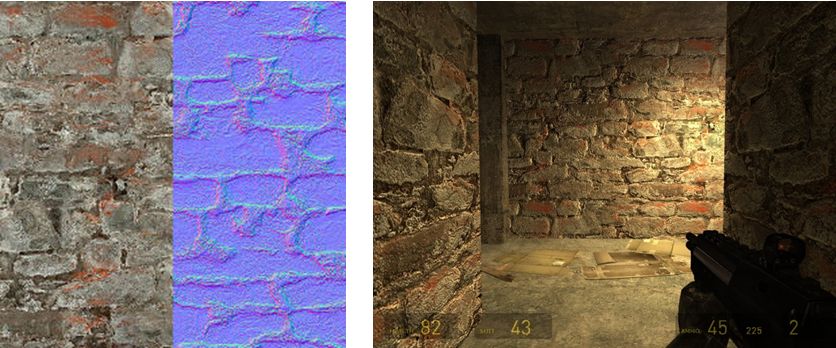
Normal map from a texture: left – the original texture (diffuse map) and its normal map shown as a split view; right – the material resultant from applying both maps to surfaces inside a game (credit: Valve Corporation)

Specular Maps

In the real world, every highlight we see in an object is actually the reflection of a light source. Surfaces and surface details reflect light differently to one another, depending on a range of factors (material, lighting source point(s),  etc.). Specular maps provide a means of simulating this by allowing individual pixels in an object to have different levels of brightness applied to them, giving the illusion of different levels of light being reflected by different points on the object.

When life gives you lemons: a mesh lemon with (l) a  normal map  applied, and (r) a normal and a specular map together. Note how light is apparently being reflected across the surface of the latter (credit: Mind Test Studios)

Like normal maps, specular maps can be produced in a number of ways, both within 3D graphics modelling programs and in tools like PhotoShop. As shown above, they can be combined with normal maps and textures to add detail and realism to 3D models and flat surfaces.

What Does This Mean for Second Life?

Second Life itself already includes a dynamic example of how normal and specular maps can be used: Linden Water. This is created using an animated normal map to create the wave-like effect for the water, while an animated specular map adds the highlights and reflections. The result is a very realistic simulation of moving water able to catch and reflect sunlight.

Just as the use of normal and specular maps create a very real illusion of water with Linden Water, the new materials processing capabilities will significantly enhance the look and realism of both mesh and prim content within SL. Mesh content should additionally benefit as it will be possible to produce high levels of detail on models with low polygon counts (as shown in first image in this article). This will improve rendering performance while also having the potential to lower things like land impact for in-world mesh items.

The only initial limitations as to where and how normal and specular maps can be applied is that they will not be applicable to avatar skins and system layer clothing. Any decision on whether the material processing capability should be extended to include these will depend upon at least two things:

  • Community feedback – whether there is a demand for normal and specular maps to be used with avatar skins
  • Understanding what is happening with the avatar baking process, and determining what is involved in getting the new baking process and material processing to work together.

Use the page numbers below to continue reading

Pathfinding: starting to reach TPVs

The pathfinding tools are starting to find their way into TPVs well ahead of showing any sign of moving from the SL Beta Viewer to the release version.

The delay in updating the release viewer may be down to several reasons. One of these might be that Linden Lab staff acknowledge the pathfinding documentation is currently undergoing update and rationalisation, and so the capability is still regarded as being “in beta”.

The table below is a list of current TPV versions (August 19th) of TPVs which have started to embrace pathfinding, and indicates the tools provided.

(click to enlarge if required)

Note that the Navmesh View  / Test option is tied to the new SL Havok sub-licence arrangement, as such none of the above viewers are able to include it unless / until they sign the sub-licence agreement (and are eligible to do so). However, visualising the navmesh is not essential to setting pathfinding attributes for objects in-world or optimising regions where pathfinding is being actively used. Other “missing” functionality as indicated in the table above will doubtless be addressed by the viewers in future releases.

Links for these viewers, including to their release notes, can be found on my Viewer round-up page.

Related Links

Pathfinding: playing inside buildings

Over the last couple of days, I’ve been experimenting with setting pathfinding characters roaming within buildings. What follows is not intended to be definitive, but more a case of what I’ve found so far. Until there is more up-to-date documentation from LL on setting-up pathfinding, this was very much thumb-in-the-air stuff, and as ever, YMMV. I’m still fiddling with things, and may add a further article later.

Characters with Impact

For the test, I used a basic pathfinding script to animate a cube (which I called “Charlie”). It was simple and was enough for the basic task. One thing to bear in mind with pathfinding characters is that they’ll have a land impact of 15. This is related to the character’s physics weight, and will not change as a result of adding / removing prims (a 1-prim character will still have a land impact of 15 as will a 30-prim character), although other factors (such as streaming cost) may raise the LI.

People may find the idea of a 15 LI character “harsh” (esp. if the prim count is lower). For my part, I don’t think it is that bad; it still allows for a fair few NPCs in a role-play region without significantly impacting prim counts.

Setting Attributes

Setting-up a building in which pathfinding characters can roam requires setting the correct pathfinding attributes. During my tests, I wasn’t trying for anything sophisticated like setting-up paths; rather, I wanted to see how a simple character (like a pet or animal) would roam and interact with its surroundings.

Pathfinding attributes, as outlined in my pathfinding overview, are set via the Linkset floater. There are a few points that need to be noted prior to doing this:

  • Only one attribute can be set for a linkset, so if your structure includes walls and floors within the same linkset, you cannot set one attribute for the floor, another for the walls, and so on
  • It is possible to set pathfinding attributes against NO MOD builds, as pathfinding attributes are not the same as object permissions. However, there are caveats to this – such as whether or not the build includes things like scripted doors (see the following bullet point)
  • Attributes which affect navmesh calculations (e.g. Walkable, Static Obstacle, Exclusion Volume, Material Volume), should not be set against linksets with scripted moving objects (such as doors). Doing so will prevent the scripts in the objects working as intended
    • If you have a structure which includes things like doors, these must be unlinked first and their attribute left as moveable obstacle
    • Obviously, in the case of NO MOD builds, this potentially limits your choices as to how you enable pathfinding within a building and in ensuring pathfinding is suitably optimised.
Pathfinding attributes for buildings require setting with care to avoid possible “breakages”

To set an object’s pathfinding attribute:

  • Right-click on the linkset for the object  and select Show in Linksets
  • Select the required attribute from the drop-down list
  • Apply the attribute to the linkset
  • Use the Rebake Region button which will appear at the bottom of your screen to update the region navmesh.
Setting an object’s pathfinding attributes

Walkable Areas

Broadly speaking, the following options are available when creating walkable areas in a building:

  • Set the entire structure to Walkable. This works reasonably well, however:
    • For modifiable builds, all scripted moveable elements must be configured as linksets separate to the main structure, as noted above
    • This option should not be used for NO MOD buildings with scripted moveable elements integral to the structure
  • If the building’s floor areas are already an independent linkset, set that linkset to Walkable
  • If the building is modifiable, unlink the floor areas and then re-link them as an individual linkset which can be set to Walkable
  • Create your own floor “overlays” from prims, position them over the existing floors and then set their attribute to Walkable (useful in NO MOD builds which include scripted moving elements).

Which of these options you use is down to the building you have and personal choice. I found that setting an entire building to Walkable (after taking care of the door linksets) worked perfectly well for the most part.

Placing a Walkable floor into a build. Left: the floor prim and house; right: as seen in navmesh view with house selected (wireframe) and the floor in green to indicate it is walkable. Note the floor equates to one room of the house

Note you can set the Walkable attribute for the floor prims prior to positioning them, but you’ll have to run a region rebake once you’ve done so. You can “hide” the floor prims by making them transparent.

I should also note that in terms of furnishings, I left anything set with the Movable Phantom attribute alone, and anything set to Movable Obstacle to Static Obstacle (this did not “break” any scripts for sitting, etc.).

Optimising

To give better control over characters roaming inside a building you might wish to set additional attributes against individual elements in a building. For example, in setting an entire building to Walkable and with Charlie moving at the default character speed, I found he would periodically “pass through” a wall or window and continue roaming around outside. I stopped this by setting the walls of the building to Static Obstacle. As well as potentially helping with character behaviour, setting additional attributes for linksets and objects helps optimise pathfinding for the entire region in which it is being used.

Use the page numbers below left to continue reading

Linden Lab announces normal and specular maps coming to SL

Today, Linden Lab has announced a major new open source initiative to improve graphics rendering performance within the viewer. The announcement reads in full:

One of the challenges that virtual world creators face is the trade-off between rich visual detail and geometric complexity. Ideally, by adding more and smaller faces to an object, a designer can model different surface textures and create realistic variations in the interplay of light and shadow. However, adding faces also quickly increases the size of the model and its rendering cost. Normal and Specular Maps are ways to address this by allowing for the appearance of a complex surface without actually modelling fine scale geometry. 

A Normal Map is an image where the color codes indicate how the renderer should reflect light from each pixel on a surface by modifying the direction that the pixel “faces” (imagine that each pixel could be turned on tiny pivots). This means that pixels on a simple surface can be rendered so that they appear to have much more detail than the actual geometry and at much lower rendering cost. Light and shadow are rendered as though the surface had depth and physical texture, simulating roughness, bumps, and even edges and additional faces.

Similarly, a Specular Map allows each pixel to have its own degree of reflectivity, so that some parts of a single face reflect sharply, while adjacent pixels can be dull.

The open source developers of the Exodus Viewer are contributing Viewer support for Normal and Specular Maps, as well as some additional controls for how light reflects from faces. Linden Lab is developing the server side support so that this powerful tool will be available in Second Life.

Design and development are under way. Watch this blog and the Snowstorm Viewers page for information on when test Viewers with these new capabilities become available.

For additional information, or to learn more about how you can participate in the open source program, please contact Oz@lindenlab.com.

A video has also been released, demonstrating the capabilities.

With thanks to Pete Linden for the heads-up

Pathfinding and region performance – Lorca Linden comments

Nalates Urriah has been keeping an eye on the more technical aspects of pathfinding, and has routinely provided excellent updates and commentary on the project. Her work is largely the reason I’ve not delved overly deeply into the subject here, and why my own Pathfinding overview attempts to cover the subject from a lay user’s perspective.

Alongside yesterday’s roll-out came a lot of confusion regarding pathfinding and its impact on region performance. As a result of this, Nalates published a piece seeking to clarify matters. If you are concerned as to the impact of pathfinding, and you’ve not already done so, I thoroughly recommend you give her article a careful read.

Today, Lorca Linden took the extraordinary step of commenting on Nalates blog in order to lend further clarification on the subject. While I do not agree with his stated reasons as to why Linden Lab did not communicate more on the actually roll-out (which, in fairness, has potentially contributed to the confusion / misinformation circulating about pathfinding), the key points of Lorca’s comments vis-a-vis overall performance are nevertheless important in helping to spread better understanding of the matter. I’m therefore reprinting his comments here in full, with the key paragraph on performance underscored, in the hope that it will help them reach a wider audience.

“Although Lindens do not generally post on Resident blogs, I am going to make an “exception in this one case. Don’t expect us to make a habit of it, though 🙂

“I want to start off by thanking Nalates for what I feel has been even-handed coverage of pathfinding as a whole. While I disagreed with several of the assertions made in the “Tsunami” post, it did make us realize that there were misconceptions about pathfinding that needed clarification (particularly in regards to performance implications) and was a useful data point in identifying Resident concerns while we were still in the development phase.

The 18% performance hit figure referenced on the Phoenix Viewer blog is a worst case scenario that will rarely be seen in practice – eg, you could see that large of a hit on a poorly optimized region that contains hundreds of pathfinding characters running simultaneously. Average perceived (viewer side) fps grid wide was actually .03 fps higher yesterday afternoon than it was the afternoon before. Average server-side performance grid wide was also inline before and after pathfinding server code was rolled out. Region crash rates – excluding a bumpy couple hours during the roll out – remain low. All of this is to say that as far as the Lab can tell, Pathfinding has not had a negative performance or stability impact in the vast majority of situations.

“I also want to make clear that the impact on some vehicles is not directly related to pathfinding per say but rather the underlying physics and terrain optimizations that made pathfinding possible and have benefits beyond pathfinding. As far as we can tell, only a small percentage of existing content is affected by this physics upgrade.

“We do not consider pathfinding to be fully released until the pathfinding viewer tools are out of beta. This is why we have not yet made an official announcement. I agree that we need to do a pass on our pathfinding related wiki as some of the information there has not been updated since we were in alpha. We plan to make a blog post in the near future that will address some common misconceptions we have heard about pathfinding. We also plan to continue updating the “Good Building Practices” guide so that it will be a useful resource for Residents looking to make optimized content.

“We understand that pathfinding can be a confusing topic at times and appreciate the effort interested Residents are making to absorb the technical details. If you have any burning questions about pathfinding, please come to our user group on Pathtest1 (on Aditi) at 4PM SLT Thursdays and ask away. Above all, we are extremely excited to see what you Residents create with the new pathfinding tools and LSL functions!”

Pathfinding overview

Tuesday August 7th saw the roll-out of pathfinding across the main Second Life Server Release Channel. For those of you who may still be unaware of what pathfinding is, there is an overview on the SL wiki. However, for those wanting a shorter description, here’s how Rod Humble introduced it back in December 2011:

NPCs: coming to a region new you … ?

Because worlds feel most vibrant when they are full of life, one of our next focuses for Second Life is the ability to make high-quality “life” within it. So in 2012, we will be rolling out more advanced features that will allow the creation of artificial life and artificial people to be much smoother. 

So, simply put, pathfinding is the means by a range of automated characters – people, animals, monsters, mobile objects (“mobs”) and so on – can be created and set into motion within Second Life far easier than has previously been the case. These can then navigate their way around obstacles, follow roads, climb inclines, and so on using  specialised LSL commands and the “navmesh”.

Pathfinding has a wide variety of potential uses – as “background” in role-play sims using non-player characters (NPCs), the creation of game-play mechanics (such as the use of “food” to attract animals), and so on. Characters can be set to have certain behaviours – such as chasing you or fleeing from you, and so on.

Above: a video by “fpady”, demonstrating pathfinding using a spider which pursues an avatar

The following is designed to provide a very high-level overview of pathfinding and some of its key aspects as they are likely to impact the majority of SL users. It is not intended as an in-depth guide, and should not be used as such. Nor is it designed to be any kind of tutorial for creating pathfinding characters  nor as a tutorial. Links are given throughout (and at the end) to more comprehensive information which can be referred to for a deeper understanding of pathfinding.

Viewer Tools

Pathfinding brings with it a new set of viewer tools and panels. Fore detailed information on these tools see, Pathfinding Tools in the Viewer. The folllowing notes are for broad guidance only, and are based on accessing the tools through the official SL Viewer.

Floaters

Pathfinding has three new floaters: Linksets, Characters and View / Test, all of which are explored in a little more detail later in this article. They are accessed either via the Build menu or through the right-click context menu thus:

  • The Build menu includes a new Pathfinding option, which opens a sub-menu allowing you to access any of the three new floaters
  • Right clicking on an object in a pathfinding region will display a Show in Linksets option in the context menu, which will open the Linskets floater
  • Right clicking on a pathfinding character will display an option to open the Characters floater

Information Panels and Address Bar Icons

Pathfinding adds a number of additional informational panels in the Build, Object Profile and Statistics floater of the viewer, as well as a new set of icons which many be displayed in the viewer’s Address Bar / SLurl Bar. Full details on these can be found in Pathfinding Tools in the Viewer, linked-to above.

Rebake Region Button

There is also a new button  – the Rebake Region button  – which may periodically appear towards of the bottom of your viewer’s window when on a region where the navmesh is being modified (see Navmesh, below).

At the time of writing, the tools are only fully available in the Beta (3.4.0.262596) and Development (3.4.1.262722) versions of the official SL Viewer, although this will obviously change as the new code is more widely adopted. Niran’s Viewer 1.48 provides the core pathfinding tools, but does not include the additional pathfinding attribute panels in the Build floater.

Navmesh

For those not familiar with the term, “navmesh” is short for navigation mesh. This is a representation of a region’s geometry generated and used by the Havok physics engine to determine paths for pathfinding characters. An overview of the navmesh is available on the SL wiki.

Every region where pathfinding is enabled has a navmesh, which is also shared with their immediate neighbours to allow cross-region pathfinding. For users not directly involved in the creation of pathfinding elements, the navmesh should be totally transparent, although the updates to the Havok physics engine required for it to work have led to a number of issues, some of which have yet to be resolved, which may have an impact on some activities in regions with pathfinding enabled (see Issues, JIRA and Bugs on the next page).

By default, the navmesh is active across an entire region (but it can be disabled if required – see Console Commands on the next page). However, parcels set to No Entry for objects  will cut the navmesh at their borders, and pathfinding characters will not be able to navigate across them (although there is a bug with this (PATH-787, which is not open to public viewing): if a parcel is set to No Entry for object and sits on the border between two pathfinding enabled sims, it is possible that characters may attempt to cross the region boundary and enter the parcel. This is currently being worked-on by LL).

Region Rebakes

The navmesh can be somewhat fluid in nature, depending upon what is going on in a region and whether anything is being changed within the region which may affect the navmesh (see Objects, the Navmesh and Optimising Performance below for an example of changing the navmesh).

Optional pop-up which may be displayed on viewers in regions where the navmesh needs to be rebaked

When a change is made that does require an update to the navmesh, a Rebake Region button will appear towards the bottom of all pathfinding-capable viewers connected to the region, together with an optional pop-up message (right).

Anyone can click the Region Rebake button in order to initiate the rebake. Once the button has been clicked, it will change its appearance as the rebake proceeds (which can take a little time, depending on the complexity of the navmesh).

The Region Rebake button: indicating a region rebake is required  (t),  and while a rebake is in progress (b)

Objects, the Navmesh and Optimising Performance

Where pathfinding is enabled, objects need to be optimised to ensure the navmesh functions correctly. This requires setting the correct attributes for each object within the region. By default, all objects within a region are set to one of two attributes: Moveable Obstacle (all non-phantom objects) and Moveable Phantom (all phantom objects). Neither of these attributes contribute to navmesh calculations.

If pathfinding is enabled, but is not being used within a region, it is possible to leave objects with these default attributes. While this may have some impact on region performance, depending upon how heavily the region is being used, it shouldn’t be something that is overly noticeable to users.

However, if pathfinding is being actively used within a region, then the objects within the region must have their attributes properly set in order for the navmesh to be properly calculated and characters can properly navigate through / around / over them. This means updating objects to one of the following four attribute types, all of which directly contribute to navmesh calculations. These are: Walkable, Static Obstacle, Material Volume, and Exclusion Volume.

All six object atributes should be used as follows :

  • Walkable: all objects / surfaces pathfinding characters can move across (the terrain of a region is always set to Walkable and cannot be changed)
  • Static Obstacle: any object that should block character movement and which does not move (e.g. walls, trees, fences, railings, etc.)
  • Material Volume: can be used with phantom objects to alter the rate at which characters can move across a specific area (e.g. imagine a wooded area: a single Material Volume phantom prim could be used to reduce the speed characters traverse the woods, or even just the densest part of the woods)
  • Exclusion Volume: can used with phantom objects to create areas where characters cannot roam
  • Movable Obstacle: any object that should move (e.g. doors, gates, etc.), but which blocks pathfinding characters from moving through (so a door can still open / close, but characters will not move through it, regardless of its state)
  • Movable Phantom: phantom objects that have no affect on pathfinding characters

An example of how these attributes might be used is to imagine a room where pathfinding characters are to be active:

  • The floor would be set to Walkable
  • The walls and furniture would set to Static Obstacle
  • Doors would be set to Moveable Obstacle
  • If the room included a specific area where characters were not to roam, it would be denoted using a phantom prim set to Exclusion Volume.

Note that objects set to attributes that contribute to navmesh calculations will generate a request for a region rebake in order for the navmesh to be updated. Additionally, these objects have some special restrictions applied to them:

  • They cannot change their physical shape via LSL script (changing object position, shape parameters, scale, rotation, physics shape type, and linking/unlinking is generally blocked)
  • They can only be physically changed via the build tool by avatars who have modify permission and are in the same region as the object (i.e. they cannot be physically changed by avatars located in a different region, nor can they be moved across region boundaries by editing them and dragging them).

Continue reading “Pathfinding overview”