Pathfinding: Magnum RC roll-out, viewer tools and more

Pathfinding is drawing closer to a release across the main grid, and preparation work for the roll-out – which will constitute one of the biggest changes to SL – is underway on several fronts. This article is intended to be a high-level update on various elements of the project, gleaned from a variety of sources.

Magnum RC Roll-out

On Wednesday July 11th, the server-side pathfinding code was rolled-out to the Magnum Release Channel. There had been some predictions that this could lead to significant problems and issues as a result of the issues given within the release notes

Following the release, issues were experienced, notably with mesh vehicles, as reported on the forum thread discussing the releases for the week, and which have been rapidly responded to by Linden Lab personnel. there are still concerns around the roll-out and potential impact, and Linden Lab are continuing to monitor.

In discussing the RC toll-out at the TPV/Developer meeting held on Friday July 13th, Lorca Linden, the Associate Producer responsible for the project, commented: “OK, so pathfinding did go in RC on Magnum on Wednesday [July 11th]. As a whole, things are looking really, really good. We’re seeing very few crashes, the performance is working great we are seeing issues with some vehicles – definitely not all. That’s the only major hitch that we’re looking into, but as a whole the RC has been going quite smoothly.”

New Viewer Tools

As mentioned above, Lorca Linden (together with Stinson Linden and Prep Linden) from the pathfinding project attended the Friday TPV/Developer meeting on the 13th July, where they specifically discussed the viewer-side pathfinding tools. The tools are covered in detail in a new wiki page from Linden Lab, and may already be familiar to those who have been working on the pathfinding beta. They are currently in the Pathfinding Project Viewer, and will need to be incorporated in to TPVs as well. The wiki page provides comprehensive notes on the tools, complete with screen shots; the following in intended to provide a high-level summary and some background notes for those unfamiliar with the core elements of pathfinding, and to provide an overview of what this means for viewers going forward.

Navmesh and the Rebake Tool

For those not familiar with the term, navmesh is short for navigation mesh. This is a representation of a region’s geometry generated and used by the physics simulator to determine paths for pathfinding characters. The navmesh can be somewhat fluid in nature, depending upon what is going on in a region and what is being changed; a new path for a character, for example, will change a region’s navmesh. When this happens, the navmesh for the region needs to be updated, which can take some six hours  if left to update automatically.

To overcome this when pathfinding is rolled out, one of the new tools that will be appearing in the viewer will be a Rebake Region button. This will automatically appear at the bottom of the viewer window of all users within a region when the navmesh requires updating – regardless as to who may actually have altered the navmesh.

Rebake region button for navmesh updates (with thanks to Linden Lab)

Once baking has commenced, the button will fade on all viewers on which is displayed, indicating that an update is in progress (and preventing someone else from initiating a rebake). Once the rebake is complete and the navmesh is updated, the button will vanish from viewers.

Object Attribute Tools

By default, a navmesh treats all resident-made objects within the region in which it is active as obstacles that pathfinding characters must manoeuvre around. Obviously, this may not always be the case; there will be objects (e.g. stairs, ramps, sidewalks, floors, etc.), pathfinding characters need to traverse, climb, etc. This is achieved by altering the pathfinding atrributes associated with an object, and some of the new viewer tools are to allow this to be done and to also allow users to examine in-world objects to determine their status vis-a-vis pathfinding and how pathfinding characters will react to them.

These tools take the form of menu options and additional panels located in the Build and Object Profile floaters.

Dedicated Floaters

Also included in the tools are three dedicated pathfinding floater panels:

  • Linsket floater: designed to give advanced users and builders the ability to customize an area to achieve interesting effects with pathfinding-enabled characters
  • Character floater: designed primarily to help users to locate characters moving throughout a region and to identify the CPU cost of characters affecting the performance of a region
  • View / Test floater: intended for advanced users who are building pathfinding-enabled objects and characters.
Pathfinding characters floater (with thanks to Linden Lab)

Tool Status and TPV Integration

As mentioned above, these tools are all currently available in a Project Viewer. However, it is anticipated that they will be appearing in a Linden Lab beta viewer in “one to two weeks” (Lorca Linden). The tools themselves are regarded as feature complete by LL, and Lorca encouraged TPV developers at the meeting to consider integrating them into their viewers sooner rather than later.

Integrating the new tools in TPVs is liable to be in two parts:

  • An initial release containing the tools required for setting object attributes, etc.
  • A follow-up release incorporating the use of the Havok libraries Linden Lab is establishing and which will be made available under the new sub-licence arrangement.

The reasons for this are two-fold:

  • The attribute tools, etc., are vital for optimising pathfinding within regions and ensuring everything works correctly (e.g. to ensure pathfinding characters can climb the stairs they’re supposed to by climbing or walk along the prim sidewalk they are supposed to walk along, etc.
  • The Havok libraries are not yet available, although Oz hopes to have them in a position where he can talk in more detail to TPVs about them “pretty soon”, and while it is nice to be able to visualise the navmesh, etc., it is not quite such vital part of the pathfinding process.

Universal Tools

Alongside the viewer tools, pathfinding will see a set of universal tools rolled-out in console format. These will be available to region owners and estate managers and will allow them to change an entire class of object in a region to have certain pathfinding attributes once pathfinding goes live. Linden Lab are approaching this in terms of having all non-scripted objects set them to be static obstacles that pathfinding characters must manoeuvre around, while anything that is scripted is set to “dynamic”, as it is thought to be moving.

This obviously doesn’t fit all cases – vendor boards, for example are scripted, but they are hardly what can be termed “moving” objects. Indeed, it might be argued that the majority of scripted objects within a region are non-moving, and therefore should have their pathfinding attribute set to “static”. However, LL feel they have no way of easily differentiating between a non-moving scripted object and a moving scripted object, and thus feel that setting all scripted objects to “dynamic” is the better option and allowing the attribute to then be modified through the viewer where necessary, as setting them to “static” could result in a worse overall behaviour case within a region.

Other Tools and Items

Alongside the above, Linden Lab have previously indicated that they will be making the following available as pathfinding rolls-out:

  • A set of script templates used for the creatures found in the Wilderness areas
  • A script for a “master rezzer system”.

The latter is a means by which region performance and the number of pathfinding characters rezzed in the region can be monitored, and which will reduce the number of pathfinding characters within a region in response to the region’s performance / number of avatars within the region.

Potential Timescales for Roll-out

During the TPV/Developer’s meeting, Lorca outlined some potential dates for pathfinding. note that these are currently potential, and shouldn’t be taken as tablets of stone:

  • The pathfinding tools should be available in one to two weeks in a beta viewer
  • The server-side release is dependent upon how well (or otherwise) the current release to the Magnum RC progresses, and may potentially come within the next two-to-four weeks, but certainly no sooner than two weeks.

Again these are not confirmed dates, and may well change in the next couple of weeks – particularly if major issues are found with the Magnum RC roll-out.

Related Links

Firestorm 4.1.1.28744

firestorm-logoWednesday July 11th saw the release of Firestorm 4.1.1.28744. Using the Linden Lab 3.3.3 viewer code base and bringing RLVa support up to 1.4.6, the release includes and extensive range of updates, improvements and changes. I don’t propose covering all of these in detail – that’s what release notes are for – but will attempt to give a broad flavour of what are likely to be the more popular changes and outline where you can find them.

Download and Installation

The download is 32.9Mb in size for Windows, and installation threw out no surprises. As per usual, I did a completely clean install – something that is actually strongly recommended for the release. If you’ve not performed a clean install of a viewer before, the Firestorm team have some notes to help you.

Menus

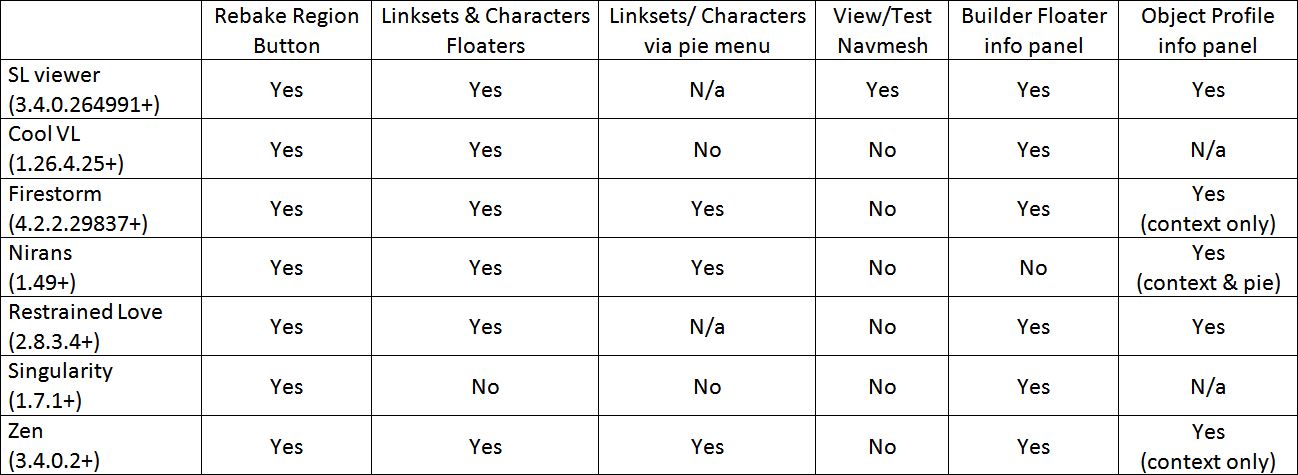
There are a number of updates to the menus, which can be seen in the table below:

Firestorm 4.1.1.28744 menu updates (click to enlarge)

The World menu gets two brand new options, the Sound Explorer and Asset Blacklist:

  • The Sound Explorer displays all current sound sources within audible range. The list will continue to update as new sounds are played. Sounds can be located, played locally for you to hear and can be blacklisted.  directly from the Sound Explorer. You can read more details in the Phoenix wiki
  • The Asset Blacklist works with an updated object de-render. With release 4.1.1, objects can now be “permanently” de-rendered (on previous releases, any object de-rendered would re-appear in your view following a teleport or re-log). With this release, all objects  so treated are listed in the Asset Blacklist, from where they can be re-rendered if required. You can read more details on this in the Phoenix wiki

Vaalith Jinn’s Local Bitmap Browser has been removed from the Build menu because this release of Firestorm sees the incorporation of Vaalith’s Local Textures functionality, as contributed to Linden Lab (which is also available for clothing and skins uploads). However, all those who use Temporary Textures need not panic – that option is still available as well.

Preferences Changes

There has been further rationalisation of the various Preferences tabs. I’ve summarised the updates in a PDF file for ease of reference, and will focus on the notable changes here.

The most significant additions to Preferences are the new Crash Reports and OpenSim tabs.

New Crash Reports tab

The Crash Reports tab offers an enhanced means of supplying crash reports to the Firestorm team and includes a link to the team’s Privacy Policy.

The Firestorm team recently repeated their commitment to support of the OpenSim environment, and this tab can been seen as evidence of that. However, given Linden Lab’s requirements around the Havok sub-licence arrangement, this tab is liable to be vanishing from future “SL flavours” of Firestorm once the new sub-licencing comes into effect.

OpenSim Grid Manager

One important element in Preferences that needs additional emphasis is the option to Enable Lossy Texture Compression, found under GRAPHICS->HARDWARE SETTINGS. This enables texture compression during rendering, which can give improved performance and a smaller graphics memory footprint – but at the cost of lower quality rendered textures which may end up pixellated. As such, it is not recommended that this be enabled unless you have little video memory on your system.

Buttons

There are two new buttons making their début with this release:

  • Fly – a dedicated button to enable you to easily fly
  • Region/Estate button – provides access to the Region / Estate floater (WORLD->REGION DETAILS or ALT-R).

Additionally, buttons now display their keyboard shortcuts in their tool tips.

Floaters

In addition to the options that can be set for various floaters in the updated Preferences (see the PDF file linked-to above), a number of the floaters themselves have new or revised options:

  • AO floater: A new safeguard added to the DELETE THIS ANIMATION SET button so that everything that’s not an animation link is moved to “lost and found” to prevent accidental deletion
  • Appearance floater–>Edit Outfit – now includes the Local Textures picker (from the gears button)  for testing self-made skins and clothes
  • Conversations floater
    • Contacts tab uses new coloured icons for options (Friends can see when you’re online, etc).
  • Build floater:
    • Now includes the Local Textures picker
    • Allows colours to be defined as hex values as well as RGB and will generate LSL vectors
Colours can now be defined using hex values, and have LSL vectors generated

Continue reading “Firestorm 4.1.1.28744”

Viewer release summary 2012: week 27

The following is summary of changes to SL viewers / clients (official and TPV) which have taken place in the past week. It is based on my Viewer Round-up Page, which provides a list of  all Second Life viewers and clients that are in popular use (and of which I am aware) and which are recognised as being in adherence with the TPV Policy.

This summary is published every Monday, and by its nature will always be in arrears. Therefore, for the most up-to-date information on viewers and clients, please see my Viewer Round-up Page, which is updated as soon as I’m aware of any changes, and which includes comprehensive links to download pages, blog notes, release notes, etc., for Viewers and clients as well as links to any / all reviews of specific viewers / clients made within this blog.  

Updates for the week ending: 8 July, 2012

  • SL Viewer updates:
    • Development: rolled to 3.3.5.261334, July 8th
  • Dolphin rolled through two releases 3.3.12.24704 on July 6th, which had an issue with broken shadows and so was followed by 3.3.12.24707 on July 7th – core changes (taken from the release notes for both): FIRE-913, FIRE-6551 & FIRE-6823, FIRE-6774, FIRE-6862 all incorporated from Firestorm; “Return to last in-world position” inventory option removed as the functionality has been broken server-side by LL; CTRL-SHIFT-P to activate or deactivate the “Places” window; ALT-SHIFT-P to activate or deactivate the “Picks” window; bug fix for shadows issue  (24704 release notes; 24707 release notes)
  • Niran’s Viewer rolled to 1.44 a little after this summary was published on July 9th – core changes: use of LL’s Viewer rendering code; performance improvements; faster rendering of shadows, local lights, occlusion, etc.; integration of tone mapping from the Exodus Viewer
  • Zen Viewer rolled to release 3.3.5.1 on July 3rd after version 3.3.5.0 was rolled-out and removed due to bugs – core updates: Updated Spell Checker with Auto-Replace and Dictionary Import; Texture Compression Checkbox Graphics/Hardware Pref. Panel; Banlines Extended to 5000m; Cleanup for Texture Picker and IM Panel (release notes)
  • Cool VL Viewer rolled to 1.26.4.21 on July 8th – core changes:  New “Object Weights” floater that can be opened from the Inspect floater; Improved Build floater; Improved avatar picker; Added the pathfinding related LSL functions and constants; Added a setting to disable default pose when opening the “Appearance” floater (Preferences->”Cool features->Miscellaneous); bug fixes and code improvements  (change log)
  • Lumiya rolled through release 2.1.0 on July 5th and then 2.1.1 on July 6th to fix crash issues – core updates: improved 3D view performance; OpenSim support; multiple account support; highlighting selected objects in 3D view; teleport home and close chat options added (release notes)

Related Links

Lumiya adds OpenSim support and more

Alina Lyvette continues to develop Lumiya, the Android client that offers 3D rendering capabilities. This week saw the roll-out of two releases in quick succession: versions 2..1.0 and 2.1.1 on the 5th and 6th July respectively.

Version 2.1.0 saw Lumiya expand its reach with support for OpenSim grids being added. Also included in the release where:

  • Significantly improved 3D view performance
  • Support for multiple accounts
  • Highlighting picked objects in the 3D view
  • New Teleport Home and Close Chat options.

Version 2.1.1 was released around 24 hours after 2.1.0 to correct some issues found in the latter.

OpenSim Support

Lumiya now supports a number of OpenSim grids by default and provides an option to add further grids yourself. The grid list can be displayed by tapping the grid selection button (which also displays the currently selected grid), sitting below the user name and password entry fields of the sign-in screen.

To select a grid, enter the user name and password and then tap the grid selection button to open the grid list. Tap the radio button for the grid you wish to access. The grid is selected and you are returned to the log-in screen an. Tap Sign In to log in.

Grid selection button (L), default grid list (c), manually add a grid (r)

To add further grids to the list, tap the Add Another Grid option at the bottom of the grid list. This will open a custom grid screen (above right), which prompts you for the name of the grid and the URI.

I tested Lumiya on InWorldz and Kitely. Accessing both was straight-forward, although you will need to use the plug-in independent method in order to log-in to Kitely. Once in-world, things rezzed OK in the 3D view, and I was able to move around with ease. As I was at a sandbox in InWorldz and a little pushed for time, I didn’t stay too long. With Kitely I took extra time as I was logging-in to my own place there, Fallingwater, and was impressed with the way the client handled rezzing the house – but did notice that it seemed unable to handle the system trees, which were completely absent from my in-world view.

Fallingwater on Lumiya

Multiple Accounts

Lumiya will now store passwords for multiple accounts and for different grids. This means that once you have entered the log-in credentials for an account and providing you’ve checked the box, you only need to enter the user name (and select the required grid if necessary) – the client will automatically associate the required password based on user name / grid selected, making signing-in to your grids less typing intensive, which is always a boon when working on compact virtual keyboards.

Other Goodies

Lumiya will now highlight objects that are picked in the 3D view, making it easier for you to see when you have selected the item you require – particularly useful if you are touching objects from a distance. Selected items are highlighted in red, and if any associated event triggered, the chat screen is displayed, allowing you to take the required action / select from the associated menu.

In terms of rendering the 3D view in Second Life, Lumiya does seem somewhat faster. While previous releases weren’t exactly slow on my Galaxy S2, it could take a while for some textures to rez. With 2.1.1, the delay is a lot less noticeable – if it happens at all. Even when jumping around several sims, things within my draw range rezzed and textured very fast, and the client handled distances of 96 metres somewhat easier than I remember from previous tests.

Object Filtering

Object filtering options

The object list now has an enhanced filter capability. To be honest, I’m not sure when this was added – I don’t remember seeing it in the last releases of Lumiya I reviewed, but I may have simply missed it. The new filter options are displayed by accessing the Objects list and then tapping the More button alongside the text input box. The options allow you to control the range at which Lumiya will scan for objects and define the type(s) of objects you wish to have listed via a set of check-boxes. Combined with the use of an object description or keyword, this can significantly reduce the number of items displayed in the Objects list, and is a good step forward.

Finally, Lumiya 2.1.1 also adds a couple of new options: Close Chat and a Teleport Home button. The latter appears to get your home location from the server – this is the first time I’ve used Lumiya since moving to a new region, but it had no problem in teleporting me back to my new home as I jumped around the grid.

All-in-all another great set of updates, tightly packaged and which significantly adds to Lumiya’s capabilities and appeal – particularly with regards to the addition of OpenSim support.

Related Links

Viewer release summary 2012: week 26

The following is summary of changes to SL viewers / clients (official and TPV) which have taken place in the past week. It is based on my Viewer Round-up Page, which provides a list of  all Second Life viewers and clients that are in popular use (and of which I am aware) and which are recognised as being in adherence with the TPV Policy.

This summary is published every Monday, and by its nature will always be in arrears. Therefore, for the most up-to-date information on viewers and clients, please see my Viewer Round-up Page, which is updated as soon as I’m aware of any changes, and which includes comprehensive links to download pages, blog notes, release notes, etc., for Viewers and clients as well as links to any / all reviews of specific viewers / clients made within this blog.  

A relatively quiet week. I’ve attempted to add summaries of what might be regarded as “core” changes / fixes to Viewers (where possible); these aren’t in any way supposed to be exhaustive – that’s what release notes and change logs are for! Hopefully, they’ll give a flavour for what has changed within a release.

I’m curious to know how many find these summaries and the main Round-up Page useful, and whether the additional information on release changes as seen here would be more appreciated if seen in the main Round-up Page.

Updates for the week ending: 1 July, 2012

  • SL Viewer updates:
    • Release version: 3.3.2.260300, June 25th (release notes)
    • Development: rolled to 3.3.4.260726, June 27th
    • Pathfinding updated to 3.3.3.260597, June 26th
  • Dolphin rolled to 3.3.11.24694 on June 30th – core changes: columns in the Area Search floater now resizeable; fixes for sound issues, STORM-1890, memory leaks,  overlapping Ignore and Block buttons when a script dialogue contains less than 3 buttons  (release notes)
  • Niran’s Viewer rolled to version 1.43 on June 25th – core updates: set time after which topbar will hide; new world display; zoom-in on avatars within draw range; assorted tweaks and fixes to the UI; rendering updates; re-inclusion of webkit (release notes)
  • Cool VL Viewer rolled to 1.26.4.19 on June 23rd – core changes:  Separate settings for “private look at” and “private point at” (Preferences->Cool features->Miscellaneous);  re-enabled the Edit pie menu entry for objects selected on no-build parcels; assorted fixes and internal updates  (change log)
  • Group Tools rolled to installer version 1.1.89 on June 28.

Related Links

A Shining announcement: major improvements coming to SL

Yesterday Linden Lab announced a major series of new initiatives aimed at improving the overall SL experience. The announcement came via a Tools and Technology  blog post, which covers the initiatives in great detail. These focus on four main areas of activity, one of which is directly related to hardware and infrastructure, and the remaining three are focused on the platform itself and are grouped under the Shining project banner.

The hardware / infrastructure element of the work is described thus:

This year, Linden Lab is making the single largest capital investment in new server hardware upgrades in the history of the company. This new hardware will give residents better performance and more reliability. Additionally, we are converting from three co-locations to two co-locations. This will significantly reduce our inter-co-location latency and further enhance simulator performance.

The Shining project is something that is already known to many SL users – especially those who attend some of the User Group meetings. It is perhaps most famously associated with the Lab’s work on the Viewer rendering code, removing outdated functions and calls no longer supported in modern graphics systems (most notably Nvidia) and improving graphics handling overall. Shining has also been responsible for other incremental improvements to issues around streaming objects and avatars.

Under the new initiative, Shining is split into three core performance projects.

Bake fail: a familiar problem for many

Project Sunshine: One of the biggest complaints from users in SL is related to avatar rezzing. This can appear slow, and usually manifests in avatars remaining grey for periods of time, or in skin and system clothes remaining blurry (see right) – and at its worst, result in a user changing their avatar’s outfit – but others either seeing the avatar still dressed in the previous outfit or naked. Collectively, these issues are known as “bake fail” and are the result of the Viewer having to do all the compositing of avatar textures locally, then sending the results to the SL servers, which then send the information back to the simulator the avatar is in to be accessed by other Viewers in the same simulator.

Under Project Sunshine, to precis the blog post, much of this work is moved server-side, using a new, dedicated server, the Texture Compositing Server, which is separate to the simulator servers. This effectively allows all the “heavy” communications and calculations work relating to avatar texture calculations to performed within LL’s servers and across their own internal network, removing the reliance upon the Viewer and on Viewer / server communications which are outside of LL’s control.

Object Caching & Interest Lists: This is intended to directly address another common request from users: improving how the Viewer handles local object caching. This effectively means that once the Viewer has information relating to a specific region, and providing the information is still valid (i.e. there have been no changes to objects that the Viewer already has cached), then it will no longer need to re-obtain that information from the server. Only “new” or “changed” data needs to be streamed to the Viewer. This should mean that on entering a previously visited region, the Viewer should immediately be able to start rendering the scene (rather than requesting a download from the server), while simultaneously requesting any “updates” from the server through a comparison of UUID information and timestamps.

HTTP Library: The final aspect of Shining’s three-phase approach is to improve the underpinning HTTP messaging that are crucial to simulator / simulator and simulator / Viewer communications (and thus key to the other elements of Shining) through the implementation of “modern best practices in messaging, connection management, and error recovery”.

Overall, Shining will be tackling some of the major causes of Viewer-side lag and user frustration in dealing with avatar bake fail and the complexity and wastefulness of scene rendering that is encountered when moving around SL.

No definitive time frames for the improvements have been forthcoming with the announcements – and this is understandable; there’s a lot to be done and matters are complex enough that LL will want to proceed with minimal disruption to the grid and to users. Doubtless, more information will be made available as becomes known through the LL forums and (possibly more particularly) via the relevant User Groups.