Destination: SS Galaxy

It’s three sims in length, you need to set your draw distance to over 600 metres if you want to see it all in one go, and the upper deck is over 30 metres above sea level.

However you look at it, the SS Galaxy is an amazingly impressive build. Cruise ship, wedding venue, ballroom, recreational centre, shopping mall, home – the ship is all of these, and more. I first came across her when looking for a new dance venue and had no idea what to expect. Since that time, she’s become a familiar place I love to visit and introduce friends to.
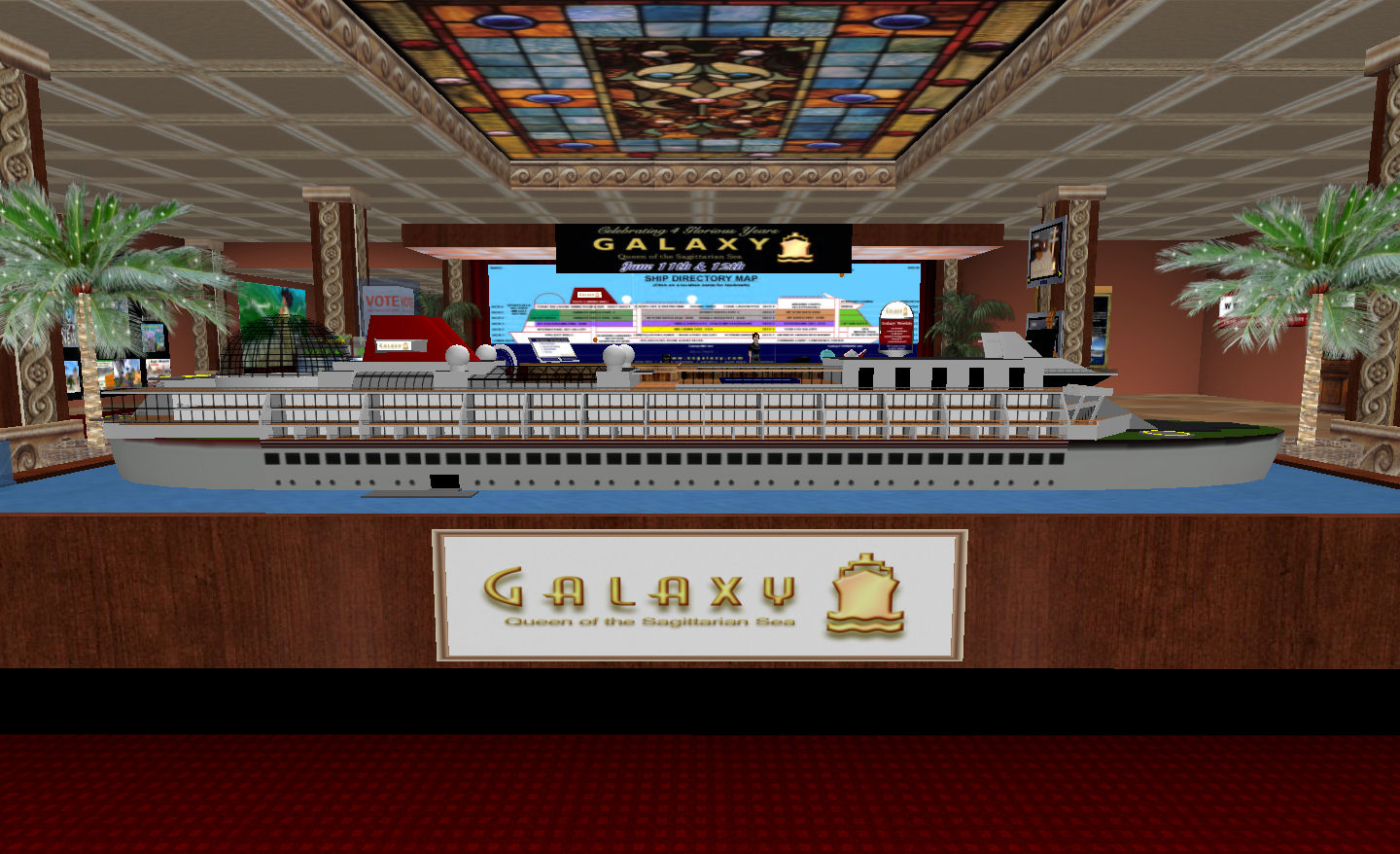
The model of the Galaxy and the deck plan

If you use the Landmark Tp, you’ll arrive at the default boarding point on a floating pier located towards the aft end of the ship. Unless you have Draw turned up, it’s hard to appreciate exactly what you’re facing – but don’t let that put you off.

The pier itself forms a part of the ship’s recreational facilities, offering dinghy sailing, fishing, scuba diving, windsurfing and jet skiis. For the romantically inclined, there are wooden rez-on-demand rafts that will take you on a tour around the ship. The rafts provide a gentle commentary about the Galaxy, slowing periodically alongside points of interest. Set your local time to midnight if you want to add to the romance and enjoy a cuddle as you sail! If you prefer, you can take one of the rez-on-demand dinghies and plot your own course around the ship.

Entering the Galaxy, you might think you’re actually arriving at a luxury hotel – the embarkation area resembles an upmarket hotel lobby, complete with glass-panelled ceilings and rich carpeting on the floors. Pride of place here goes to a scale model of the ship, with a wall-mounted deck plan and guide located on the far wall, behind the main information desk. To the left lays the main section of the aft shopping mall, while to the right a broad companionway leads forward through the centre of the ship.
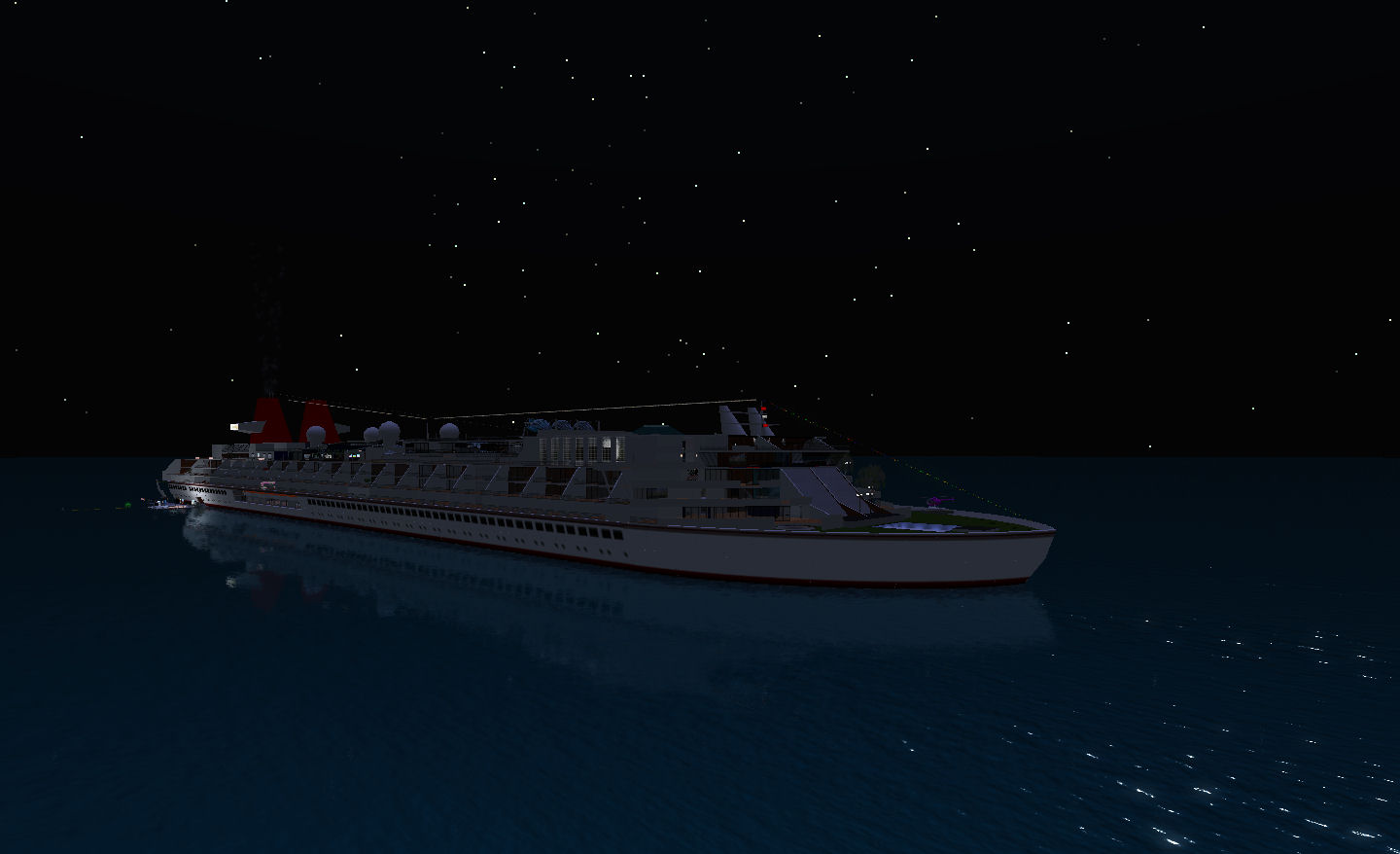
The Galaxy at night

As the embarkation area is in the aft sim, it’s usually best to start your exploration here and gradually work your way forward. To do this, take the elevator up to Deck 5. This will deposit you in one of the galleried walkways that lead you past some of the many suites and staterooms that are available for rent. Some of these are quite huge, and extend over two or three  decks of the ship, offering plenty of room and balconied views out over the sea. Continue aft past these and up a short flight of steps and you arrive on the stern deck – and a recreational heaven.
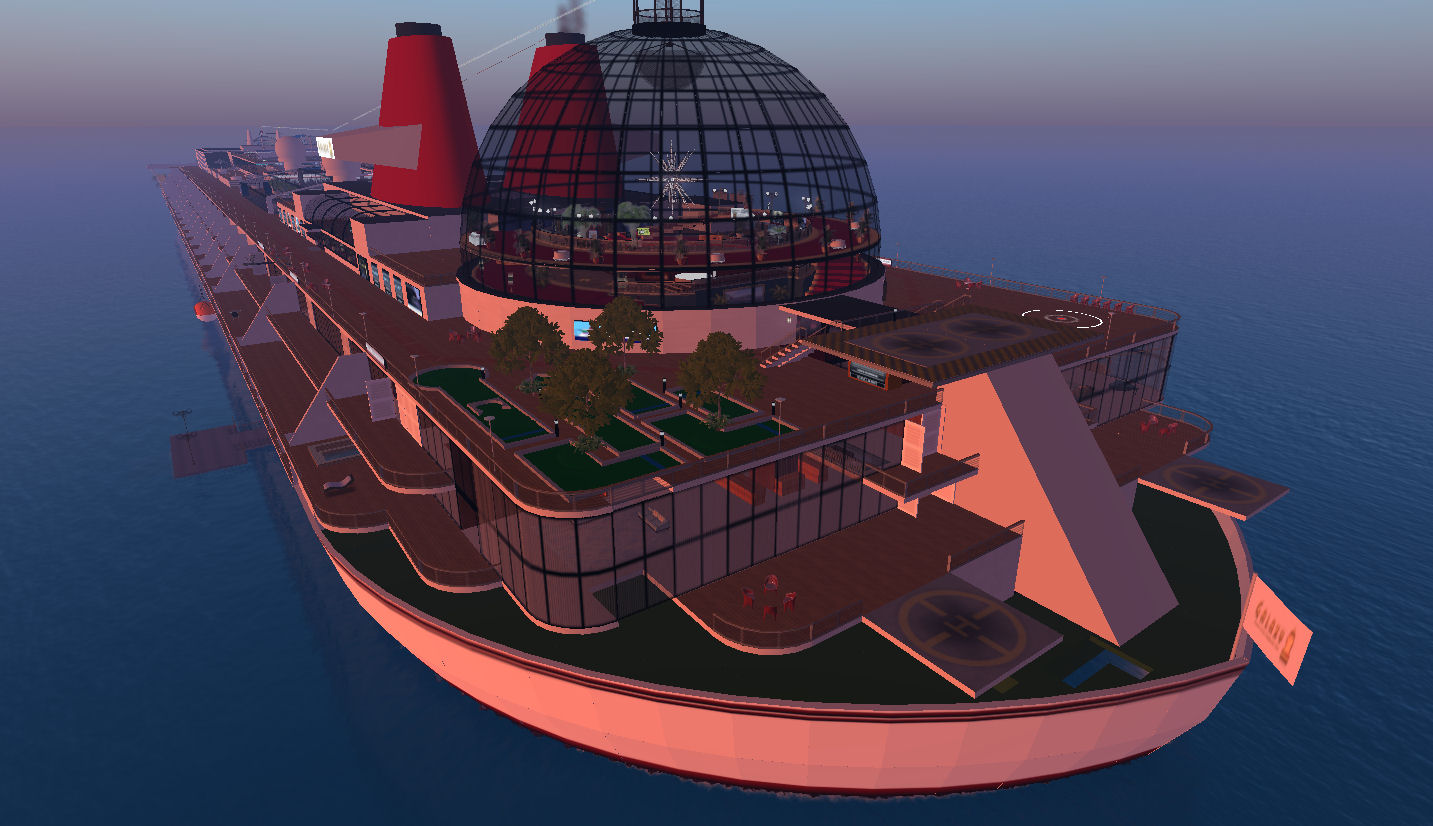
Stern recreation area and helipads

Here you can try your hand at putting (L$10 for 30 mins), or go sky diving (a personal favourite from waay back) – standard and pro chutes on sale at the vendors or pick up a basic freebie – and even add a bubble game to your skydiving fun;  if you’re feeling really energetic, take a short walk up the starboard side and give the rock climbing wall a go. If none of this grabs you, plonk yourself in one of the deck chairs and watch the world go by – you might even witness the comings and goings of a helicopter or two over the aft helipads (four in total: two for public use, two for the use of the occupiers of the ship’s two stunning Aft Staterooms, which are provided fully (and tastefully) furnished and which have a personal prim allowance on top).

Zodiac ballroom

Directly forward of the recreation area and helipads sits the huge dome of the Galaxy’s galleried Zodiac Ballroom with its circular dance floor, raised stage, upper gallery seating area and – way up at the top of the dome – a private dance area just for two.

Passing through the ballroom, you arrive at the upper section of the aft shopping mall, with doors either side leading back out to the upper deck. Take the port side doors, and you’ll find yourself coming out near another game I’ve always enjoyed aboard the Galaxy – the skeet / clay pigeon shooting (L$10 a game).

Moving forward from here, you’ll come to the first of the sim boundaries that divide the ship into three parts. At one time these were highlighted – and needed to be, as crossings could be a bit rough; but in difference to those that say “sim crossings are getting worse”, here’s one place where that is not the case. Approach the crossing gently (eyes on your co-ordinates!), and you’ll get over it with virtually *no* rubber-banding.
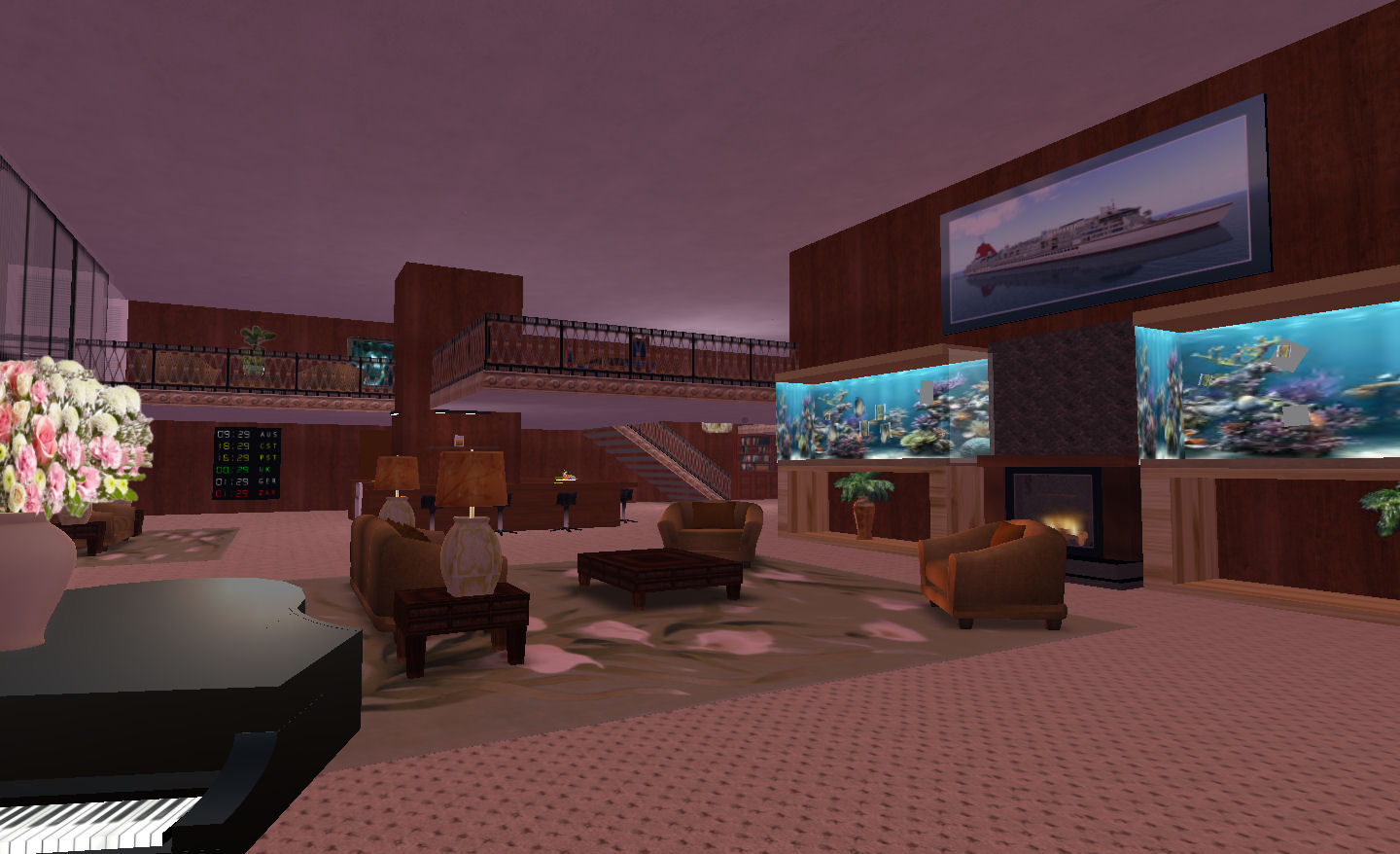
One of the two aft staterooms

Once across the boundary, you’re in the midships section of the liner, and can visit the ice skating rink, take a splash in the upper deck pool area, or pop down and walk among the trees of the arboretum. The pool and rink offer plenty of room for fun, with skates available from the rink-side vendor in the case of the latter.

The forward end of the ship houses the huge and ornate wedding area, complete with trestles of flowers, tables, chairs, a dance floor, reception area and the ceremonial area. A chapel is located in one corner of this area, providing a place for quiet introspection.
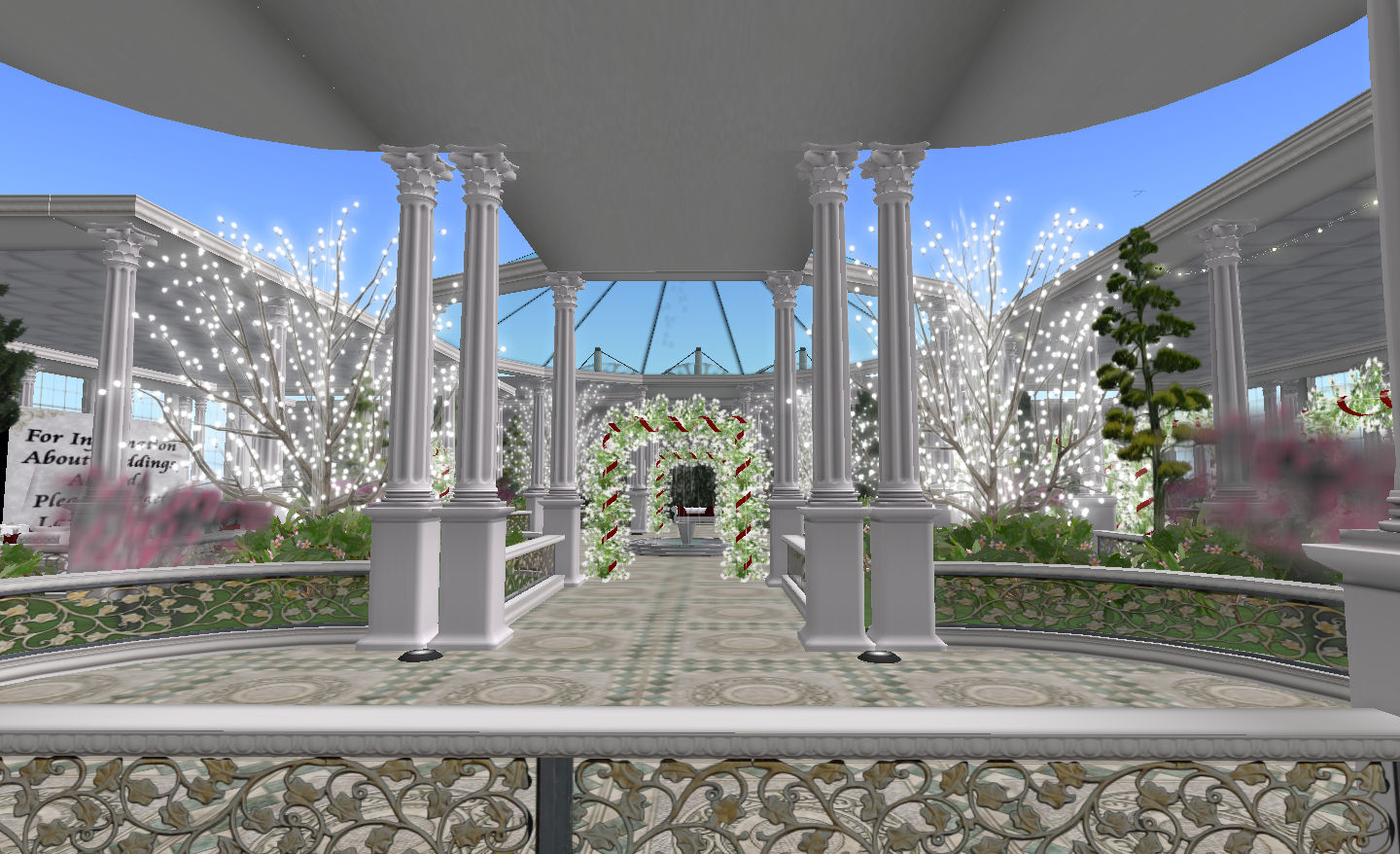
The wedding chapel and reception area

Across the companionway from the chapel is the ship’s bridge, where you can take a look over the controls and generally play Captain. Above this is the forward observation lounge with room for dancing or sitting and chatting. Directly below the bridge are the Galaxy’s two enormous forward suites, each of which spans three decks.

Also at the fore end of the ship lay the Boiler Room Nightclub and the Galaxy’s spa and fitness centre. The latter includes a pool, sauna, Jacuzzi and exercise machines for that perfect pumped prim look – note that it is also “clothing optional”!

Dining out, Japanese-style

For those who like dining out in Second Life, the Galaxy offers a choice of restaurants. My personal favourite is the Japanese garden, featuring individual chalets where you can dine in comfort, drinking in the night-time ambience and enjoying the company of friends.

And it doesn’t end there – there is more to discover in and around the SS Galaxy, but I’m going to leave this as a taster and tease. If you want to find out more, you should take time out and pay the SS Galaxy a visit – you won’t be disappointed.
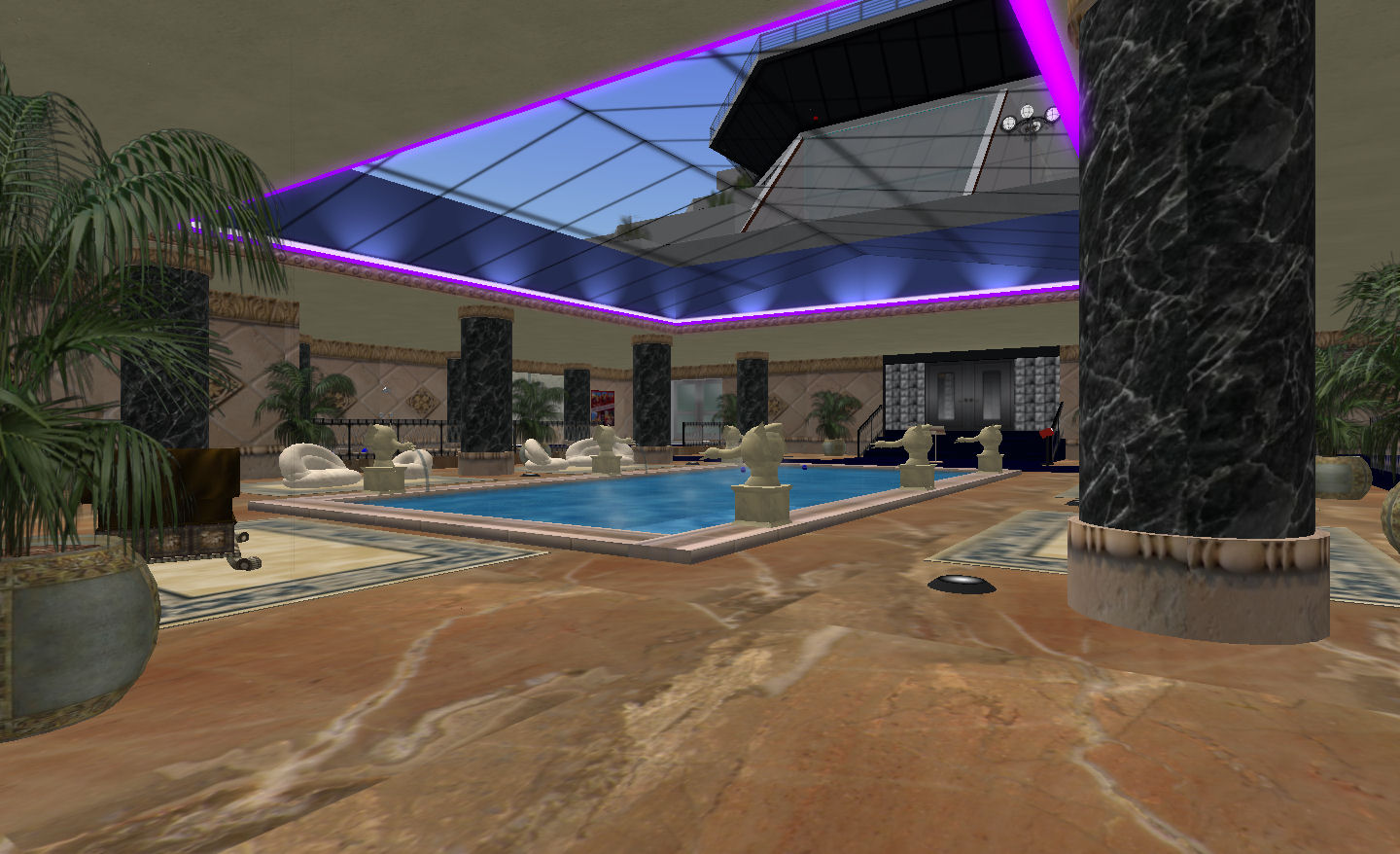
The spa’s swimming pool

Places mentioned in this article

Recommendations when visiting the Galaxy

  • Make sure you turn up your draw distance as far as your system can comfortably handle
  • If you want to get around the ship quickly, make sure you pick up and Information Card from one of the many note card givers around the ship – they contain a host of useful landmarks
  • Be aware that the ship is home to a lot of people as well as a place to visit
  • Give yourself plenty of time to explore
  • Keep an eye out for the holodeck
  • If you’re confused as to where you are, look out for one of the cutaway plans of the ship to orient yourself.
A life on the ocean wave: staterooms, suites and cabins for rent

Related Links

Destination: Mont Saint-Michel

Sitting in the mouth of the Couesnon River roughly a kilometre offshore from the mainland, and connected to it by a causeway, lays the magnificent Mont Saint-Michel. Occupied since before the Roman times, the islet (less than a kilometre square) rose to prominence in the middle ages as a religious centre, gaining strategic significance when it was annexed by William Longsword, Duke of Normandy in 933, and 100 years later when it supported William, Duke of Normandy’s claim to the English throne.

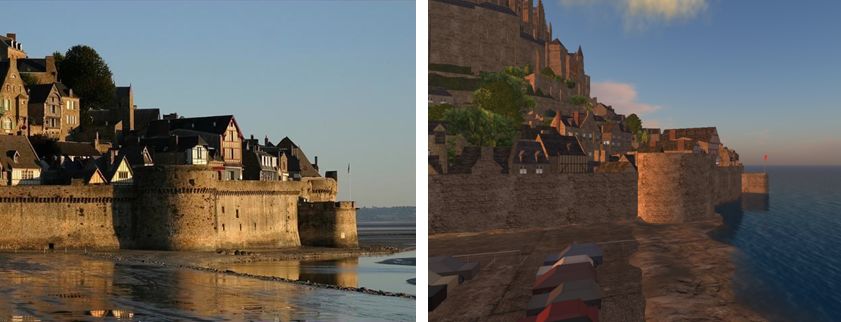
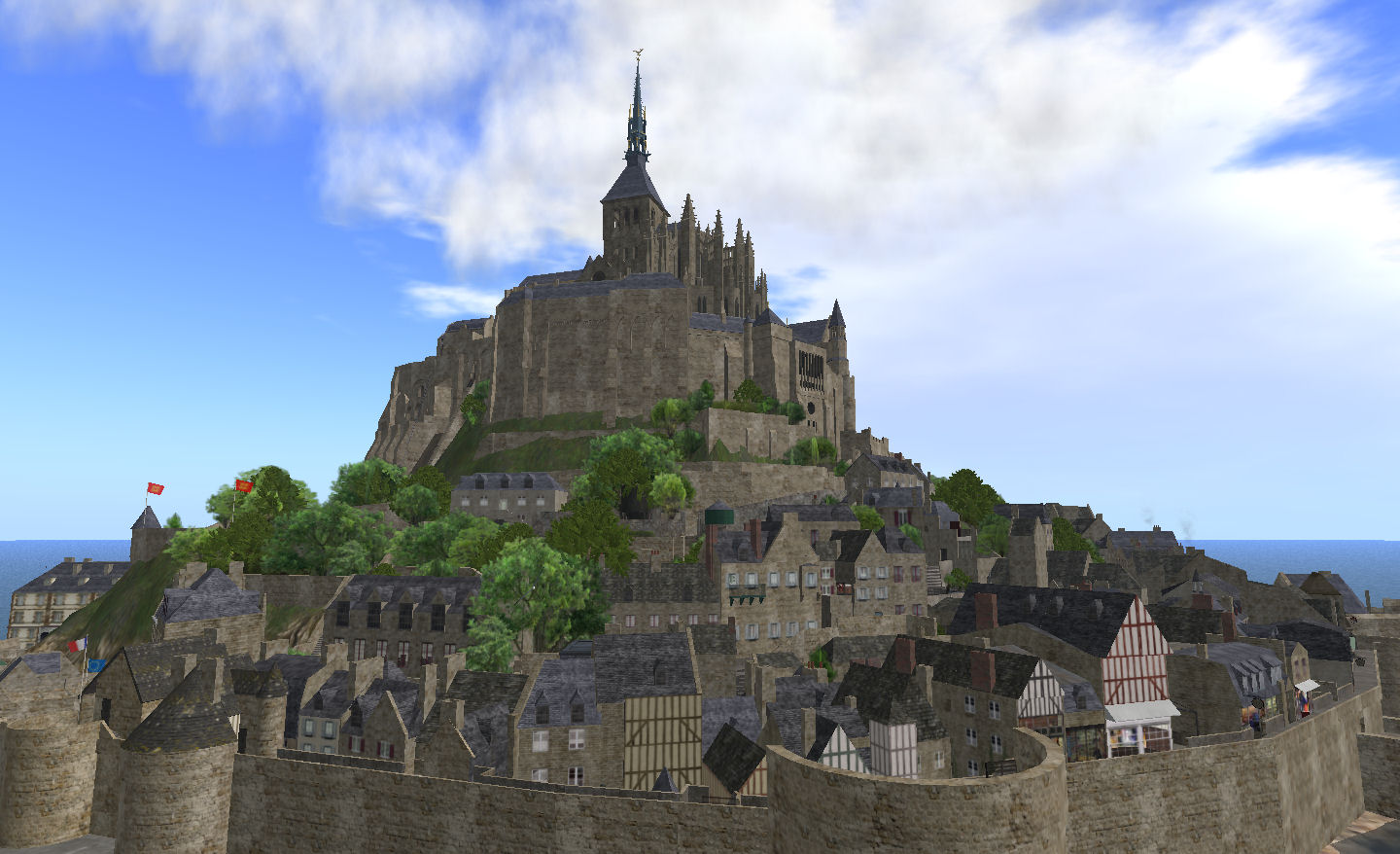
It’s also famous for being painstakingly reproduced to careful scale within Second Life by Moeka Kohime. Featured on the French version of the Second Life homepage, the sim is a magnificent testament as to what can be achieved when building in Second Life with the humble prim – or in this case, 14,328 humble prims.

Mont Saint Michel, Second Life

The Mont faithfully reproduces the original in almost every visual aspect; no mean feat given it occupies an area a quarter of the size of the original. Yet it is not just a mere “look but don’t touch” showpiece: it is also scaled to allow avatar access, providing a fully immersive experience for visitors who can walk through the narrow streets, browse shops and wend their way up to the magnificent monastery that crowns the island.

I’ve known about the Mont in Second Life for years – yet I’ve never visited it until this week; I now regret not having done so sooner. Arriving (via a friend’s Tp) in the causeway car park (something that will hopefully vanish in the near future, to reflect the fact that it is being replaced at the real Mont as a part of the project to return it to its original island status), which sits on an adjacent sim, I carefully crossed into *Edelweiss* and followed the walkway to the entrance.

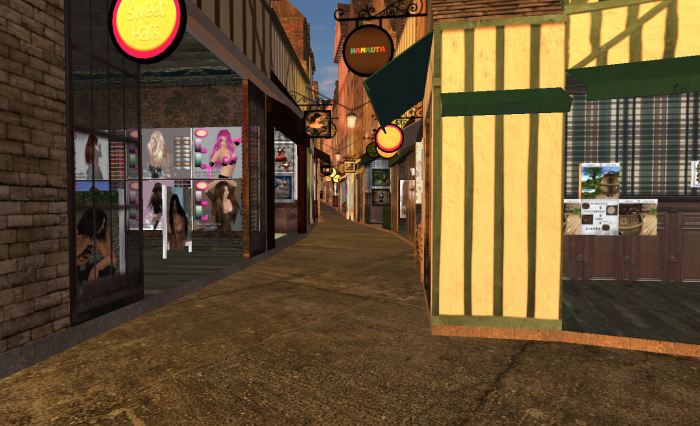
On entering the citadel, the attention to detail is immediately apparent – two massive wrought-iron bombard canon, left by the English after they failed to capture the island during the great siege of 1423-24, lay in the entranceway, just as they do in the original. Beyond these, past the information bureau is a small wooden bridge leading you into Le Grand Rue, and the sim’s shopping mall filled with boutique-style shops that fit the look and feel of the original Mont.

The streets of Mont Saint-Michel and Mont Saint Michel in SL

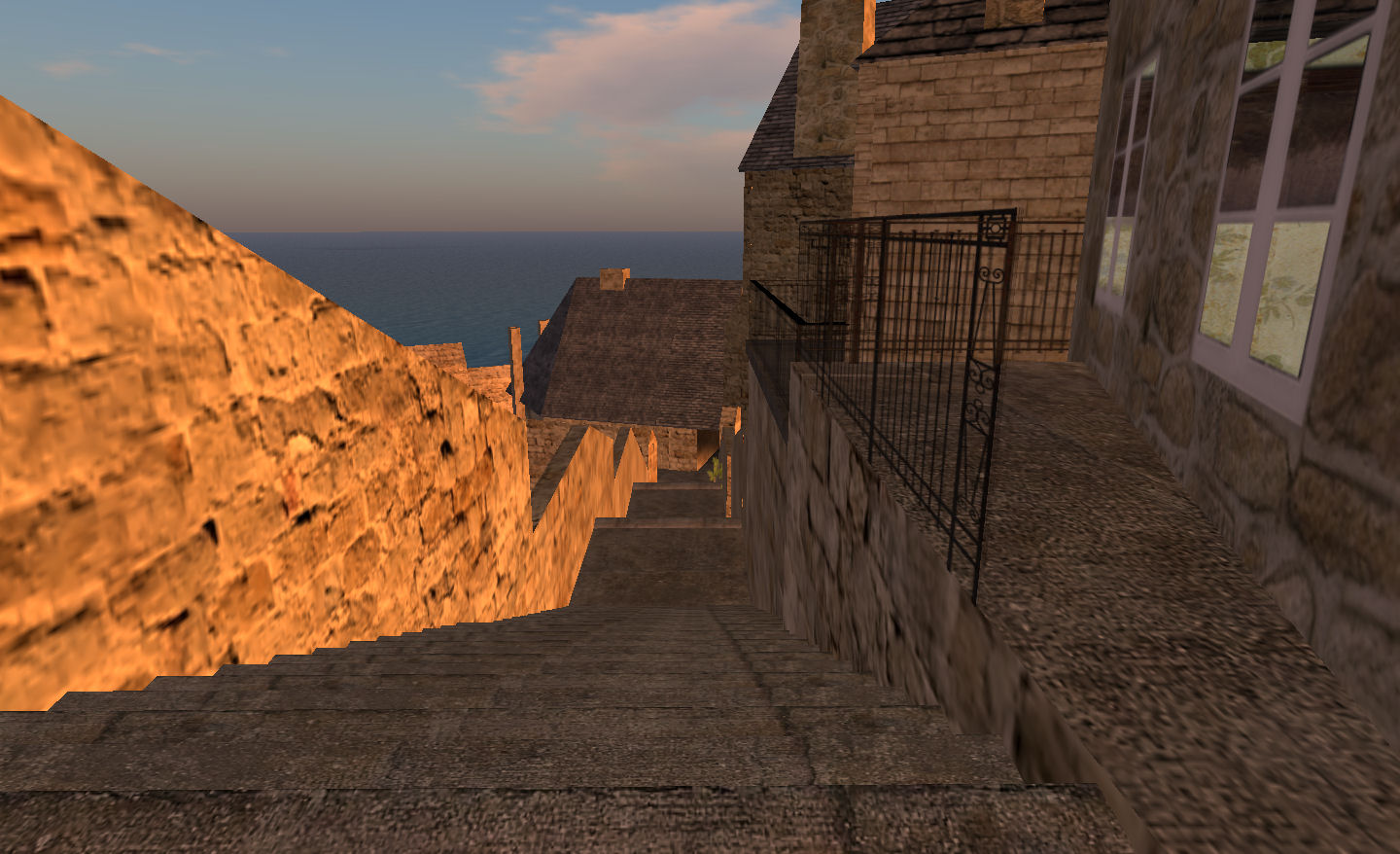
From here you can choose to either wander the Grand Rue, browsing the boutiques, or you can take one of the many stairways leading further up onto the island and towards the towering edifice of the abbey.  This is one of the joys of the Mont is Second Life – it is a charming warren of walkways and passages that – as with the actual Mont – make exploring it full of anticipation: what lies under the next arch, at the top of the next stairway, around the next stone-walled corner? As you wander, you can peek through windows into the homes of the “locals” (none of the houses are actually occupied, but the detail again adds to the charm and realism of the place), or pause for a breather along the way at one of the many vantage-points and simply enjoy the view.

The sea walls

The monastery itself is beautifully reproduced in some detail, from the stepped entranceway through to the high cloister and its covered walkways and garden, suitable for quiet contemplation. The interior captures the magnificence of a medieval abbey, and one can almost imagine the monks chanting prayer, or quietly going about their business, conversing in hushed tones as they walk around the cloister. I have to admit that the mood for me was heightened as I was listening to Christopher Franke’s The Celestine Prophecy while exploring – but even without it, it’s hard not to fall into the atmosphere of the place.

Wandering the isle

There are a few things to be wary of: in a couple of places, the build exceeds the sim boundaries, and if you try to follow the outer sea wall all the way around the island, you’re going to find yourself inexplicably bouncing against empty air in a couple of places (and may get bounced right through a wall and down to the sim-edge below). Keep an eye on your bearings, and use the provided covered walkways to avoid this. The Mont was also constructed with the default camera angle in mind. As such, if you use adjusted camera positioning, either through a HUD or Penny Patton’s super Camera Offsets, you may experience the odd camera movement stutter or find your camera swinging unexpectedly through a house wall to give you a view of the interior. This is worth it however, as overall, you get a much more “involved” feel for the place with a decent set of offsets.

Of course, if you are good with navigation, the most immersive way of experiencing the island is through Mouselook – and I really recommend you try; the Mont comes alive in so many ways, and you really do not know what awaits you around the next corner. It is certainly worth keeping to Mouselook when walking around the monastery itself.

Cafe au lait among the rooftops

When you’ve done with your wandering, make sure you seek out the Café Poulard and have a well-deserved rest, either in the café itself, or out on the upper floor balcony with its sea view. It’s also a great place from which to camera around the island and make sure there is nothing you’ve missed in your wanderings, and which might be worth a Mouselook attempt to find when you leave the café.

If there is one thing perhaps missing from the build, it is the opportunity to learn about the history of the real Mont Saint-Michel; the museum is devoid of displays, information plaques are minimal, and so on. This is a shame, as the sim represents a superb place to enthral, educate and promote. Of course, no-one wants to be bashed over the head with facts and figures and historical diatribes, but it would be nice to see some context around the build and its real life counterpart.

Mont Saint-Michel is – to use the superlative yet again – a truly magnificent build. If you haven’t done so already, I’d recommend you do; you will not be disappointed, and you’ll be capturing a slice of history from two worlds in the process.

Cloisters – real and reproduced
Le Grand Rue
Mont Saint Michel

Addendum

When someone says to me, when I mention Mont Saint-Michel, “Did you find the hanger and the spaceship under it?” I tend to think they are trying to tug on my leg in the hope that bells ring. When three people independently raise the same subject (one of whom swears they’ve never read my blog), I get the feeling that either there is something to the comments, or the world is out to get me.

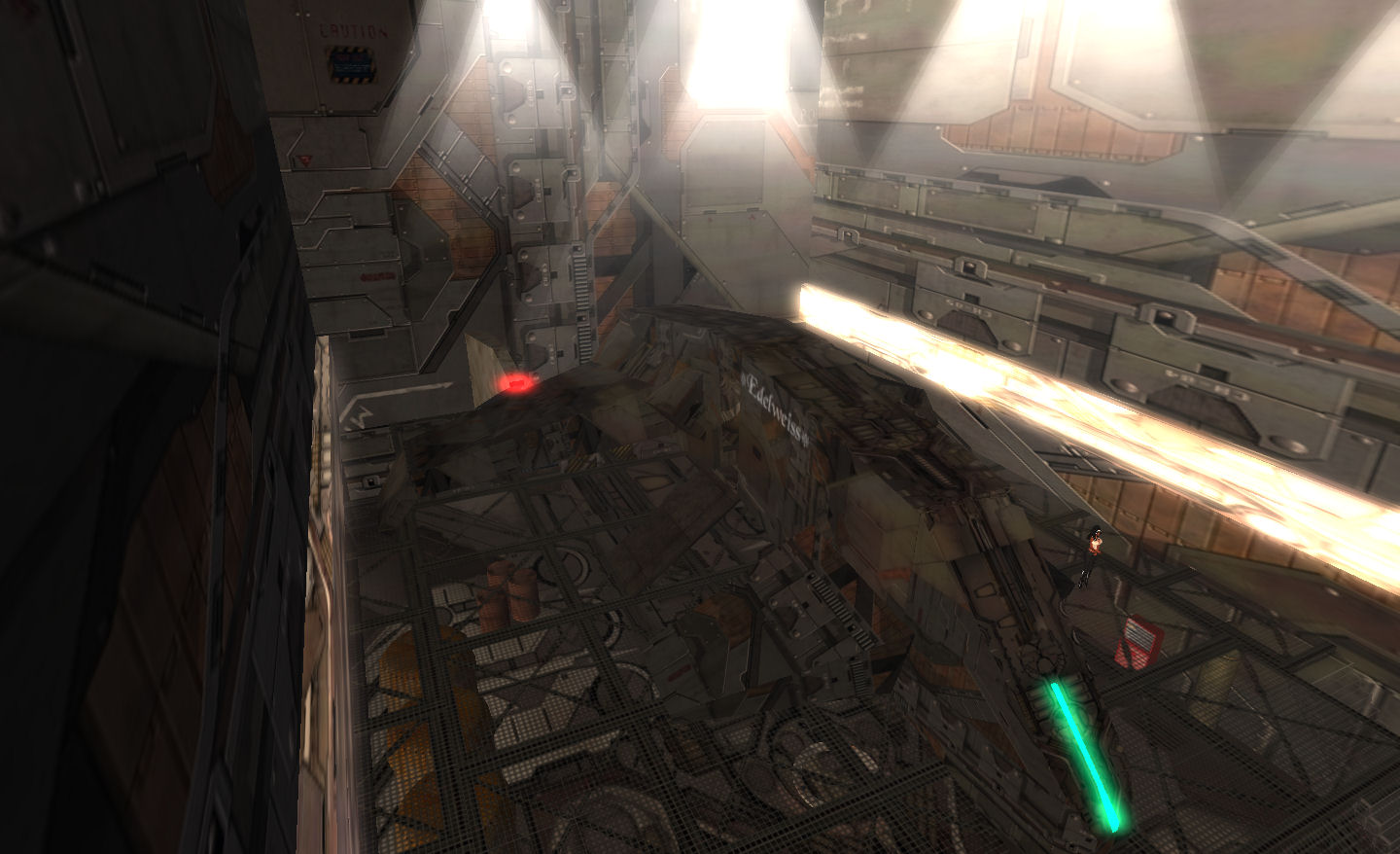
The Edelweiss

Given the second reaction is pretty much my everyday state of being at the moment (you’d be the same if you’d had the same issue with technology this last week, believe me), I opted to go with “there is something to the comments. So off I zoomed to have a nose around. And guess what? There is a hanger hidden under the Mont – although I’m not sure if what is inside is a spaceship or so kind of futuristic aircraft.

The Edelweiss sits in a bunker under the Mont, apparently fuelled and ready for flight (although you don’t appear to be able to board her), lit from above by powerful spotlights.

It’s a strange thing to have under an abbey atop a small islet, and certainly well-hidden from casual eyes; had I not received three separate prompts on the matter, I’d have remained in ignorance of it being there. But it does raise an interesting question…given the accuracy of the rest of the build…is there yet something extraordinary to be found under the crypts of the real Mont Saint-Michel? Could it be that those 11th and 12th century monks who built the original abbey actually knew more than they were letting on?! The mind boggles! ;-).

That said, I’m not telling you where it is. Go and find it for yourself! ;).

Related Links

June MoM Review

Thanks to real life getting in the way, I didn’t make the June premiere of Month of Machinima, and have only just this weekend managed to sit down at the LEA with a small bunch of people and watch this month’s offerings on the theme of “Mixed Realities”.

Before getting to the films themselves, LL have added a further means to view movies; as well as the LEA theatre itself and the YouTube channel, you can now pick up an AviewTV pack scripted to play back the entries. For optimum viewing, however, I still recommend YouTube.

Now I have to say that “mixed realities” to me suggests films that combine mediums and ideas: machinima and real life; the “reality” and “fantasy” to create a visually compelling short film.  A pity then, that of the month’s entries, there are two that come across as promotional videos – one for the sim in which it was filmed, the other for an in-world group of musicians. While undoubtedly skilfully executed, they seemed to fall wide of the mark when it comes to the month’s theme; as do a couple of other music videos which also seemed to fall wide of the mark, theme-wise.

In fairness, I have no idea how much support the event is getting – it could be that there were insufficient entrants that met this month’s criteria and the judges fell back on entries from May; however, with due respect to all concerned, I sat down to watch this month’s selection with a high degree of anticipation and came away somewhat disappointed.

RockseaTV offers a short film that is a lot – to me – closer to the mark, presenting and avatar’s daydream of falling into the real world. BaySweetwatertakes things a step further in Domo Arigato, Roboto-san, where we see footage of the Fukushima disaster, where robots were used in the aftermath, together with footage of a robot scooting around in Second Life – a celebration of both the use of automated machinery in the role of life-saving and the potential for Second Life to act as an immersive training environment for such tools and equipment.

My personal favourite for the month, however, is Magical Glorious Morn – a tale of an old man living in the bayou, who just might be plagued by unseen – and malicious – laughter. Is someone playing a prank? Are there in fact leprechauns tormenting him? Or is he simply going mad in his isolation?

Above: Domo Arigato, Roboto-san; below: Magical Glorious Morn

Next month: Games!

June MoM premier and LEA bits

This week sees the premiere of the next set of entrants in the Month of Machinima event. June’s theme is “Mixed Reality”, and the films will be shown at the LEA theatre prior to being available on the MoM YouTube account.

Full details:

  • Premiere:  “Monday 1st June”, 10:00 PST (that’s from the official blog post, so look out for it on either Monday 30th MAY or WEDNESDAY June 1st!)
  • Theatre teleport points: LEA 1, LEA 2, LEA 3, and LEA 4.

LEA Avatar Games

Also kicking-off on Monday are the LEA-sponsored “Avatar Games” – aka running an art-related obstacle course – on the LEA 3 sim. These games will take place at the somewhat inhospitable for non-US users time of 16:00 PST (a time when most of Europe will be either in bed or heading that way, while Australia & the Far East will be heading for work).

For those wishing to enter the event, you’ll have to submit an entry form and hope you get picked – the event is limited to 10 competitors a week. It’s unclear as to whether those not selected one week will be carried forward to the next, but I’m going to presume so.

Spectators are welcome at the games, although no actual Surl for the event was included in the official announcement, but if you wish to watch, the link given above for the LEA-3 sim should get you to the right place. There is also a wiki page on the event.

LEA Sandbox

Opened rather quietly on May 20th, the LEA Sandbox has been created to give (quote) “Residents space to build and play and experiment with the tools of Second Life as a medium for artistic expression”. If you want to find out more on the Sandbox:

  • There is a wiki page on the subject you should read
  • The Sandbox itself is on LEA 5.

Review: Second Friends and Moolto – Part 2

<- Return to Part 1

Moolto Home Page

Second Friends and Moolto are social media sites aimed at users of Second Life (and similar virtual worlds). In this 2-part article, I take a tour of both sites and look at the various features and options.

In part one, I gave a general overview of each, and looked at setting up accounts and profiles, as well as look at the various communications options available to both.

In this part, I look various other elements of the sites, including Groups, Events and the various tools provided for both, and some of the differentiators that lay between them before giving some personal feedback on both. 

Groups

Groups are analogous to Second Life Groups, and can be used to promote business and the like, or to generate communications between like-minded individuals, and so on. While there is no direct linking of Groups with in-world activities (you cannot, for example offer people in-world the opportunity of joining your Second Friends / Moolto Group(s) via a direct in-world request (subscriber board, etc.), the Groups function do provide a flexible means of interacting with other Second Friends / Moolto users.

Groups can be created either by displaying your profile page and clicking on the GROUPS link in the options panel below your profile picture, or by going to COMMUNITY -> GROUPS (SF) or clicking on GROUPS (Moo). All of these will take you to the Groups page, which has a button to ADD a new Group in the top right corner.  Alternatively, you can scroll down the Main / Home page and locate the Groups display panel and click on the ADD A GROUP option directly below it.

Add Group (Second Friends)

The Add Group page itself is straightforward, allowing you to define your group in terms of a name, description, group image / logo, the options you want to set for the Group (the ability for members to send comments to the Group wall, etc), and define who can see the Group. You can also include a link to any supporting website and a location for the Group – this can be a real world location (if you have face-to-face meetings) or an in-world Surl.

On creating a Group, Second Friends allows you to immediately invite your friends to join it, a stage you can skip if you wish, and just return to your personal Groups page. Moolto dispenses with the invite friends step and takes you directly to your personal Groups page.  However, and while it is not made clear on the website, Groups created in Moolto require approval, and this can take a while.

Clicking on a Group you have created will display the Group’s page, which includes an OPTIONS button to access various additional capabilities. Within Moolto, these comprise either editing the original settings for the Group (other than changing the moderation setting) or deleting the Group entirely. Second Friends offers you the additional capabilities of being able to set / remove additional administrators for the Group and block specific SF users from the Group.

Events

Add Event (Moolto)

Events follow a similar format to Groups – you can create information about an event in terms of a name, description, date(s) and time(s), include a location (real world or in-world), add an image / logo, set the event to public (anyone can respond) or to invited guests only, set one or more categories for the event (e.g. “fund raiser”, “charity”, “pageant”), and so on.

Events themselves are displayed on the Events panel on the Main page or by going to COMMUNITY -> EVENTS (SF) or clicking on EVENT (Moo); you can also display a list of the Events you have created.

Clicking on an Event name or image will open the page for the Event, which allows you to RSVP to the event (if it is open RSVP or if you have been invited) – and your profile image will be added to the Event page. You can also leave a message on the Event’s Comment Wall (if one has been created for the Event), should you wish.

Event pages include some nice additional options: you can page back and forth through the available Events using the PREVIOUS and NEXT buttons located in the Event description panel; you can click on any of the categories set for an Event to display a list of similar events, and you can export the Event details directly to Microsoft Outlook or iCal. As with People and Group profiles, you can also toggle between displaying the main Events page or a list of the Events you’ve RSVP’d to. Additionally, any Events you’ve RSVP’d to can be displayed by clicking on the EVENTS link in the options panel below your Profile page image.

Other Features

Forum

The Forum can be accessed in a wide variety of ways – via COMMUNITY -> FORUM (SF) or FORUM (Moo), or from the Forum panel on the Main page. you can also start forum discussions from a variety of locations within the site. Discussions are limited to a pre-set number of categories (with SF providing much the broader range compared to Moo). When creating a new discussion you can attach files, set tags, etc.

Blog

Moolto Profile Page “option panel”

The Blog tool can again be accessed in a variety of ways, and allows members to blog about just about anything they like. Blog entries can be viewed via the Blog panel on the Main page, or via COMMUNITY -> BLOG (SF) or BLOGS (Moo), or by displaying a person’s Profile page and clicking on their blog link (if they have created any blog entries). Displaying the main Blog list page or any individual blog entry further gives you the opportunity to quickly flick between the Blog list page, a list of your own blog entries or editing you blog entries.

Blog entries can include links, images and video, and can be sent for public viewing, friends or just yourself, with similar options available for who can comment. You can also set the date / time at which a blog post is published (allowing for the time zone upon which the two sites are bases – Moolto may be Central European time and Second Friends US Pacific Time).

Media

Images and video can be uploaded to the sites.

Users of Second Friends are limited to uploading 5 images a day, with no such restriction for Moolto users. JPG, GIF and PNG file formats are supported on both sites. Images can be organised into personal albums for viewing, and can be browsed in terms of all images on the site, or via all albums created by users, or you can simply view your own images / albums.

Video can be added to the site using standard embedding code from the likes of Vimeo, YouTube, Hulu and others. Videos can be tagged for searching, etc.

You can define whether or not (and who) can leave comments against any images or videos you upload.

Video and images are uploaded via the MEDIA option in the Second Friends navigation bar, or by clicking on the relevant VIDEO or PHOTO link in the Moolto navigation bar.

Apps

Allows you to add various applets to your Profile page; the applets are all third-party produced. The same apps are provided on either site and cover a wide range of activities.

Sharing

Many elements of both sites can be shared via Twitter and / or Facebook. Simply look for the appropriate icons, displayed wherever anything can be shared.

Gifts – Second Friends

You can send little gifts to other members of Second Friends. These take the form of images, and can be seen as a nice or supportive gesture and help foster the feeling of community and friendship. Received gifts are display on people’s Profile pages.

Games – Second Friends

You can play games on Second Friends in a variety of ways. A default set of simple games from MindJolt is displayed on Profile pages (and displays a different selection of games with each view). Click on a game to play.

There is also a GAMES option in the main navigation bar, which provides multiple categories of games. Some of these are direct-to-play; others appear to require Facebook access.  To be honest, I’m not a games player, so I’ll leave this area to you to explore should you sign-up to Second Friends.

In Summary

Given both Second Friends and Moolto are based on the same software, there is little to choose between them in terms of functionality and features. Both are comprehensive in what they offer, and what they do, they do well. That said there are some broad issues that impact both of them:

  • Outside of Groups, no solid support for in-world businesses in the form of business profiles, etc.
  • No ability to link accounts – something that would be handy for those who use the same identity across multiple Grids (as many do)
  • The Main / Home pages are very busy – there is simply too much going on for them to make sense. Worse, the positioning of the various panels given both sites the appearance of being static; to actually get to the good stuff – like seeing any activity on the site, you have to scroll down and hunt around. This may be a fault of the engine driving the sites more than a flaw in the actual designs, but it doesn’t change the fact that it hurts the sites more than helps.

Making a choice between them therefore comes down the aesthetics – background theme, text visibility, and the like; all of which are highly subjective. However, it has to be said that in this regard, Second Friends comes off somewhat better. The chosen theme is largely readable (although not always ideal), and links aren’t overwhelmed by the background. Sadly, the same can’t be said for Moolto, which has a bizarre flames background (and a logo featuring a couple of fire fighters for some reason). The problem here is that the background often clashes with links on various pages (and even some buttons), making them exceptionally different to read – and not that much easier to see.

In terms of differentiators, again, there is not a lot to choose between the two. I doubt if many people will find Moolto’s ability to send mass invites asking e-mail contacts to join the site particularly attractive. Similarly, while a nice touch, it is questionable as to how endearing people will find Second Friend’s games and gifts.

However, Second Friends does score over Moolto in the provisioning of better tools for Group management – being able to assign other users as Group Administrators is a huge plus. So to is the inclusion of the chat applet; it may not be word perfect, but it encourages conversations – which is one of the points of such sites.

For those used to the likes of Facebook, both sites offer much that will be familiar – such as Comment Walls, and image / video options. The flexible approach to navigation (hard-to-see links in Moolto notwithstanding) is a definite plus and is easily picked up after just a few minutes on either site.

Which Site?

If you’re looking for a social media and networking site that enjoys close links to Second Life, and you’re not overly bothered about any presence you have in other worlds, you may well find that 2ndHub is preferable to either Second Friends or Moolto; more so if you’re running an SL business: the level of integration between 2ndHub and SL make it a clear leader.

If your desire is to have a central home for your avatar’s online presence outside of SL, however, Moolto or Second Friends, with their more integrated approach to things like image and video libraries, the familiarity of Comment Walls, etc., might be more your cup of tea.

Which is not to say there is anything stopping you from joining all three!

Links

Review: Second Friends and Moolto – Part 1

Second Friends Main Page

So, after stumbling on 2ndhub, it now seems I cannot turn a corner without tripping over SL-related social media sites, having discovered both Second Friends and Moolto in rapid succession.

Powered by the same engine, these sites each offer a range of similar services and features – although there are some distinct differences between the two. This being the case, I’ve attempted to compare / contrast them here.

Both sites have something of a “commercial” feel to them – by that I mean they are ads-heavy on their respective Main page (Second Friends) and Home page (Moolto). This actually doesn’t leave a good impression on first looks, as it makes both sites look a bit of a graphical hodge-podge, with meaningful information seemingly lost among the ads.

Given they are powered by the same engine, there is a high degree of commonality between the two sites, some of the highlights being:

  • 140-character Twitter-like instant messaging, which can be automatically directed to Twitter or your Facebook page
  • Forum and blogging tools
  • Group creation and Event listing
  • The ability to upload and share images and media (including the ability to create your own image libraries)
  • Sign-on via Facebook, Twitter, Google, etc.
  • The ability to add applications to your account (not SL-specific apps)
  • The ability to share messages, images, videos, etc with Twitter and / or Facebook.

There are also some differentiators:

  • Second Friends (SF) includes:
    • Live chat applet
    • “Gifts” you can send to SF Friends or receive from them
    • The ability to play on-line games from within the site
  • Moolto (Moo) allows you to invite friends from various e-mail contact lists (Yahoo, hotmail, Gmail, AOL) to join Moolto.

Both sites, while geared towards Second Life are not SL-specific; there is no reason why they cannot be equally used by those involved in other grids – indeed, the welcoming e-mail from SF mentions InWorldz.

Sign-up

Sign-up is relatively simple for both sites, although each follows a slightly different root:

  • Both require that you initially provide an e-mail address, password and date of birth. Or, if you prefer, you can use your Facebook, Yahoo Google or Twitter identity to initially set-up your account (note SF states Twitter can be used, but no actual button is displayed). Then:
  • SF sends a verification e-mail to your e-mail address which you must respond to (a nice button is displayed to take you directly to your e-mail account to do this). Clicking on the verification link in the e-mail message returns you to SF and the Create Profile window (below right). Fill out the required information on the window (indicated by (*)), and any of the optional fields and then click JOIN. This will deliver you back to the SF Main page.
  • Moo displays the Create Public Profile window (below left), requiring you to supply your “Full Name”, avatar name, date of birth and an image to be used with your Profile. You can optionally indicate your gender and country of residence. On clicking JOIN, you are informed your membership request has been accepted as is awaiting approval – and you have the opportunity of cancelling it. Approval can take anything for 15-30 seconds to over an hour. Until it has been granted, the majority of the site is inaccessible.
Create Profile Windows

Note: While both sites request you enter your “full name”, you are not required to give your real name – you can enter your avatar name here if you prefer (as well as in the box asking for your avatar name) – or any other alias.

The Main Page

When logged-in to either site the hub of activity is the Main / Home page. Those just getting started should probably kick-off using the three large activity icons:

  • Customize your page  (SF only) allows you to (as the name suggests) customize you’re your Second Friends home page – select a background theme, set the colours and fonts, etc., to make your Profile page more individual
  • Import (Moo only) allows you to invite your e-mail contacts (Yahoo, Hotmail, Gmail or AOL) to join Moolto
  • Add content offers you options to upload video or photos, create an event, write a blog entry, start a discussion or go to the applications list to add an application to your account
  • Add apps takes you to the applications list where you can add an application to your account.
Activity Icons (Second Friends version)

Beyond this, the Main & Home pages can be bewildering. Both employ a three-column format that displays a huge array of information panels and adverts. Finding information is therefore a matter of scrolling (a very long way in the case of Second Friends) and keeping your eyes open. A nice touch is that all of the main features for each site – blogs, forums, photo albums, etc., have options to take you to their dedicated pages, making viewing them somewhat easier – once you’ve found them, that is. In some ways the approach works against both sites, as it can give them impression that both are static in nature, and that not a lot is actually going on.

Navigation

A preferable way of getting around either site is to use the various navigation options. The two most obvious of these are he three main activity icons mentioned above (Main /Home page only) and navigation bar that is displayed at the top of every page on each site.

Navigation bars: Second Friends (top) Moolto (bottom)

There are also additional navigation options located in your personal Dashboard located in the top right of every page you view, and in the “options panel” displayed under your Profile page image (My Page in Moolto, My Profile in SF).

Finally, many of the pages are linked so you can quickly switch between personal lists and public lists – such as with Groups, Events, Friends, etc.

My Profile (SF) / My Page (Moo)

This page combines the information you entered about yourself on sign-up with a range of other items, such as any photo stream you have created, any comments you’ve received and so on.

Profile Page (Second Friends)

There is a Twitter-like micro-blogging element at the top of the page where you can tell people what you’re up to. Comments are displayed on your Profile page and on the LATEST ACTIVITY panel on the Main / Home Page, and you can optionally send any comments to Twitter and / or Facebook. Sadly, individual messages cannot be replied to.

The amount of information displayed on the page is variable, according to which site you are using – Moolto doesn’t feature games, for example – and whether you install any additional application. However, the majority of the available panels and options are the same for both. SF perhaps scores over Moolto in that it includes the ability to set a custom theme for your Profile page (although this is not applied to the entire site, annoyingly).

Making Friends

To gain new friends you need to click on COMMUNITY -> PEOPLE (SF) or MEMBERS (Moo). This opens the People / Members page and thumbnails of all current members, with Moolto also providing a number of “Featured Members”.  How or why they are “featured” is unclear to me, but I’m guessing it’s to do with participation or something similar. Members currently logged-in to either site are indicated by a small green dot appearing alongside their name (excluding those in Moolto’s “Featured” list).  Both have a search facility and options to sort members alphabetically, by the newest joiners first or entirely randomly. Finally, a pair of links at the top left of the page allow you to switch between the full People list and your list of friends.

Add a friend requires you display their Profile page (click on their name or image in the thumbnail view), and then click on ADD AS FRIEND in the options panel below their profile picture. This displays a small pop-up asking you to confirm the friendship request and which includes an option to add a personal message to the request.

You can also message people without friending them – click on the MESSAGE option alongside their profile thumbnail.

Friendship requests from other users will appear in your Dashboard and send an e-mail to you if you are not logged into the site. Clicking on the link will allow you to accept or refuse the offer.

Friends Page

You can view details on the friends you’ve made via the FRIENDS link on your Dashboard. This opens your Friends page, which features the same search and display order options as the People list and links to switch between your list of friends and the main People List. From here, you can view individual profiles, send a message or a gift (SF only) to a friend and you can view individual profiles, or send a message to all your friends.

A confusing element within Moolto is that the Friends link on the Dashboard and the page displaying your list of friends both include an “Invite” option. However, this does not enable you to make friend requests to other Moolto users; it simply takes you to the pop-up to send invitations to your e-mail contacts to join Moolto.

To terminate a friendship, display the individual’s profile page and click on the REMOVE AS FRIEND option located in the options panel below their profile picture.

Communications

Communications are well catered for, and take a number of forms. There is the message option on your Profile page, described above, together with the following options / means.

Mail

Accessed from INBOX link in your Dashboard, this allows you to send private messages to other SF users (individual messages or “group” messages to several friends at once). The mail editor applet includes a range of formatting options and allows URLs, images and video to be embedded in messages.

Wall Comments

You can add messages to a user’s Comment Wall (displayed on their profile page) via a number of routes:

  • By visiting their profile page directly
  • By clicking on the COMMENT link displayed in their thumbnail entry in the PEOPLE/MEMBERS list or your Friends list

The wall comment editor, like the mail editor, includes formatting options and the ability to include URLs, video and images.

Send a Message to All Friends

Available from your Friends page, this does exactly what the title suggests, and sends a mail-style message to all of your friends.

Chat Applet – Second Friends only

Second Friends Chat Applet

Second Friends scores significantly in the inclusion of a fully-functional chat applet; this allows for both public chat and private messages, with the former as the default. Accessing the chat option will display the chat window, which comprises 3 elements: the chat area (top left) your text entry area (bottom left) and a list of who is online on the right. Be aware that “online” does not necessarily mean they are actively using the chat applet, however!

The list of users includes a handy search option you can use to find a specific user if the list is excessively long, and display their name only.

Left clicking on a name in the list opens-out a list of actions which give you the ability to view the person’s profile page (opened in a separate browser tab, rather than carrying you away from chat), open a private chat session with them or send them a gift. A nice feature of the applet is that private conversations are effectively “tabbed” into separate window displays, each with the name of the person you’re chatting with displayed at the top of the tab. You can then click between tabs to view each conversation and click back to the main chat display in much the same way as using the SL browser.

You can also “pop-out” the Chat applet into its own floating browser window or shut down the chat applet altogether (does not log you out of Second Friends) using the buttons located at the top right of the chat applet. Click these again to re-dock the applet or log back onto it.

Continued in Part 2 ->