“We have whole planets to explore…” – A return to SunAeon

In April, I wrote about a new collaborative effort to build an interactive, immersive on-line guide to the Solar System and space exploration called SunAeon. Since then, the team behind the project have been hard at work, added features and capabilities, producing special updates – such as their model charting the recent transit of Venus). Today they launched a further update to the site – and I’m taking a little time out not only to report on it, but also (being totally honest) tooting my own horn a little – as I’ve been able to make a small contribution to the site.

The first notable change on visiting the SunAeon website is that the portal front page has been removed, and that after the familiar tree has been displayed, you’re taken directly to a Solar System view.

The new Solar System display at SunAeon

This now features a number of buttons and controls:

  • Top left:
    • SunAeon: opens a small menu that allows you to display a planet directly on your screen or see the SunAeon team’s biographies or a list of founding members or to visit the SunAeon Facebook page
    • Solar System: clears the SunAeon menu and returns you to the Solar System view
  • Find Planet: Located on the left of the screen, further down from the SunAeon and Solar System buttons, this opens a list of the eight planets of the Solar System (yes, eight planets of the Solar System now that Pluto has been downgraded), allowing you to select the one you wish to explore
  • Top right:
    • Volume: activates / mutes the music stream
    • Full screen: displays SunAeon full screen and sans adverts
    • Settings: opens the settings options, of which more below
  • View Settings: located further down the right side of the screen, this displays sliders allowing you to set the relative size of the model and planets on your screen – the more to the left the sliders are set, the more “real life” the planet sizes and relative distances between them. You can also add orbital paths around the sun and tag the planets with their names
  • Zoom: located bottom right, this allows you to zoom in and out of the model.

You can explore the planets in a number of ways:

  • Via the SunAeon – > Explore Planet list OR by DOUBLE clicking on a planet
    • Either option will zoom you immediately into the planet and display the planet’s information and data page
  • Selecting a planet using the Find Planet button OR by clicking ONCE on a planet:
    • Either option will focus the planet on your screen and circle it
    • Additional buttons will appear alongside the zoom button at the bottom right of your screen
    • An Explore Planet button will be displayed under the Find Planet button
Selecting a planet: additional buttons and options

The additional buttons in the lower right corner of the display allow you to:

  • Additionally focus on / zoom out from the selected planet (left)
  • Zoom in / out on the selected planet (middle)
  • Once zoomed on the planet, you can use the original zoom button (right) to adjust the proximity of your zoom on the planet.
Focused on Venus and zoomed in using the additional controls (bottom centre right) – use the zoom scale to further zoom in as required

Planetary Data Pages

When zoomed-in on a planet, you can click on the Explore Planet option to display the associated information and data (or you can go directly to the page by double-clicking on the planet or via the SunAeon menu, as described above).

This displays some basic information about the planet, in a scrollable window.

Basic planetary information

To the left of the planet are three buttons:

  • The planet button:
    • Click on the planet’s name to display the basic information window or
    • Click the right arrow under the planet’s name to open a list of planets and go directly to its information and data display (clicking the left arrow will close the list)
  • The structure button: click this to display basic information on the planet’s structure and (where relevant) atmosphere (see below)
  • Solar System: click this to return to the Solar System view.
Basic planetary structure information

I was very honoured to be asked by the team to provide the text for both the information and the planetary structure windows, and am very pleased – not to mention proud – that the material I was able to provide has been of use to the team and helped them further develop the site.

Note that when zoomed-in to a planet in the Solar System view, or when displaying the basic information about the planet, you can still rotate it on your screen by click-holding the left mouse button and then moving your mouse. You can also use this method to rotate the entire solar system in your field of view.

Settings Options

The embedded media player

The settings button (top right of the SunAeon display allows you to set the overall quality of the displayed images (very noticeable difference in the Solar System view).

From here you can also access the built-in media player to set the volume for the site’s music and select the track from which you want it to start playing.  The pieces Travis Fitzsimmons produced for earlier models by the team have now been integrated into this model to provide further variety of musical options. You can leave the player open on your screen, or simply select a piece and then close it – the player will cycle through the pieces automatically.

The beautiful shepherded rings of Saturn

Summary

SunAeon continues to grow and add functionality, and as such continued to grow as a learning tool that opens up the Solar System to anyone with a computer (capable of running Flash!). I’m proud to have been asked to contribute to the website, and hope that I’ll be able to further help in its development in the coming months / years.

A high quality, full-screen image from SunAeon – note the dust clouds around the “ices”of the Kuiper belt

* The title for this piece is taken from a piece written by Francis “Dick” Scobee, Commander of STS-51L. The quote reads in full: “We have whole planets to explore, we have new worlds to build, we have a Solar System to roam in. And even if only a tiny fraction of the human race reaches out towards space, the work they do there will totally change the lives of all the billions who remain on Earth.”

Press Release: Daden unveil Oopal – build learning scenarios on the web for use in VWs

Birmingham UK, 27th June 2012: Educators and trainers can now create engaging immersive learning exercises more easily and rapidly using an innovative web-based application called OOPAL, developed by learning and visualisation specialists Daden Limited.

OOPAL (Object Orientated Practice and Learning) lets educators and trainers with little technical knowledge use the web to build 3D sets from an existing library of objects, and create, edit and manage the scenarios and simulations entirely from the web. Only when they’re ready to deploy do they need to enter the 3D virtual world and “push the button” to materialise the sets and exercises ready for students to use. With OOPAL, educators – and even students – can create and maintain worth-while learning experiences without needing to be virtual world experts.

Daden have been creating immersive learning experiences since 2008. Built on the success of their award winning virtual learning authoring software PIVOTE, Daden’s second generation system, OOPAL, makes exercise creation and maintenance significantly simpler – making it easier to involve tutors and even students in the design and build process.

David Burden, Daden’s Managing Director says “We found that the easiest way to describe immersive learning experiences was in terms of a drama – thinking about actors and props, the script and their behaviours rather than abstract concepts like nodes and links – and we’ve designed OOPAL to reflect that – considerably easing the process from exercise design to implementation.”

A key feature of OOPAL is that it allows educators to lay out the 3D environment using a simple 2D “kitchen designer” type layout tool. Drawing from a library of props and virtual actors, educators can assign behaviours to each object – how they will react when touched, pushed, spoken to or approached. Dialogues can even be assigned to the virtual actors for use within the simulation. Users can build just a single room or even a whole environment. What’s more – once they have built their set and simulation they can create multiple copies in their virtual world – again at the touch of a button.

Fundamental to the use of OOPAL, within a professional learning environment, is its ability to log and time-stamp every student interaction within the exercise. This can be reviewed within OOPAL, or exported in whole or part to a VLE or LMS. OOPAL also supports scoring mechanisms for in-exercise feedback.

David says “One of the obstacles in the adoption of immersive environments for learning has been the need for educators to be experts – not in their field of study but in building within virtual worlds. OOPAL dramatically reduces that barrier and gives educators and trainers the tools to create real-world learning experiences for their learners in a 3D environment”.

OOPAL can be accessed as a cloud-hosted service from Daden, or installed on an organisations’ own servers. OOPAL currently enables exercises to be developed in both OpenSim and Second Life. Daden plan to release a version for the Unity3D, and a web/iPad player in the next six months.

Cloud Party: the new kid on the block

Note this is a 3-page piece. Please use the page options at the bottom of the article to page through.

There has been a lot of chat recently about Cloud Party, the newest “SL-like” virtual world to come into existence – due in part to the fact that it is backed by SL’s co-founder, Cory Ondrejka, thus giving it something of a high visibility. Like Kitely, Cloud Party is hosted within Amazon’s cloud computing architecture (hence part of the reason for the name of the platform), and – again as with Kitely’s initial beta phase – requires a Facebook account in order for all of the capabilities to be used.

Unlike most traditional grids, however, Cloud Party doesn’t require a dedicated viewer or client – it runs entirely within your preferred web browser (although users of the latest flavours of Internet Explorer may have issues as Cloud Party runs on WebGL, which isn’t natively supported in IE).

Also unlike most grids, cloud island doesn’t feature the usual 256×256  metre (or larger) default land mass; instead, regions are “islands” floating among the clouds (again, hence the name of the service). The precise size of these islands is hard to judge and at this point it time it is unclear if islands can be “joined” in away way to provide larger land masses.

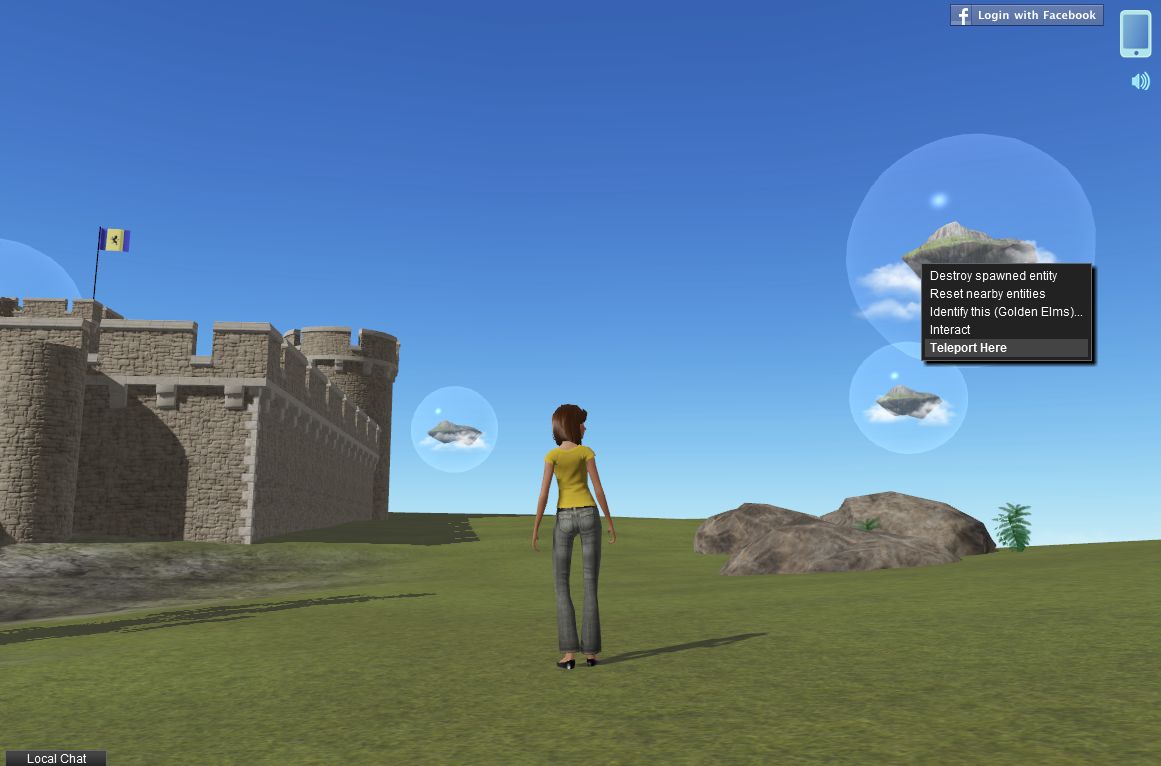
Islands in the sky: a typical in-world view in Cloud Play

That Cloud Party log-ins are (for the foreseeable future) only fully enabled via Facebook might also be off-putting for some. However, if you’re not a Facebook user, you can still log-in with limited functionality on an anonymous basis and at least get a feel for the app, which is what I did for several hours on Friday June 22nd.

Logging-in to Cloud Party is facilitated via the website.This offers the options of logging-in  via Facebook or anonymously. This also present you with the obligatory “click to accept terms and conditions” pop-up, and options to use either “Gamer” movement controls or “Tablet” control features and a choice of male or female avatar.

Arriving in Cloud Party – what you’re seeing here is the full UI (see below)

A pop-up welcomes you on logging-in for the first time (or if you are logging-in anonymous, for the first time since closing your browser completely), and also opens-up a tutorial on the left of your screen. The tutorial covers a couple of subjects: Getting Started, which covers the basics of moving, camera movement and chatting, changing clothes, etc., while Building introduces you to the basics of building (at least if you sign-on with Facebook; building is disabled with anonymous accounts).

The Getting Started tutorial is fairly straight-forward, and while it may appear to be teaching those familiar with virtual worlds how to suck eggs, it is a handy way of getting people started, and having it open on the initial log-in is something LL should learn to do with the HOW TO option of their Viewer, rather than dumping newbies in-world with a nice (but initially pointless) Destination Guide display.

The interface itself is clean and simple. Top right of the screen you have a button to log-in via Facebook: if you have logged-in anonymously, this will allow you to switch over to your Facebook account (if you are currently logged-in to FB), with a simply log out/log in. If you’re not logged into FB itself when you hit the button, you’ll be logged out of Cloud Party and prompted to either log-in to your FB account.

Your Cell Phone: access to additional Cloud Party functions

Next to the FB button is your cellphone.Clicking on this opens up additional options and capabilities. Again, not all of these are available when logged-in anonymously. For example, as an anonymous user, you’re not connected to the Cloud Party asset library, so you have no access to the build tools and while you can open the Outfits option, you won’t have anything to wear. The cell phone is looked at in more detail below.

Bottom left of the app window is the Local Chat tab. Clicking this opens – yes, you’ve guess it – the local chat window, which functions pretty much as you’d expect from using SL, although irritatingly, it doesn’t appear to like the apostrophe, the use of which seems to close the chat window and switches focus back in-world. You can also right-click on people’s names in the chat window and open you Cell Phone to IM them, etc.

Getting Around

Cloud Party offers two options for movement when you log in: “Tablet” and “Game”. The latter works pretty much the same as most game systems, using both “click to move” whereby clicking on the ground moves you to that point or you can use the arrow keys WASD (when not focused in chat). “Tablet” apparently allows Tablet-like screen-touches to move your avatar.

You can also teleport directly to locations or people on the current island or to other islands you can see in the sky by right-clicking on an object / person  / island and selecting TELEPORT HERE from the menu.

Right-click on avatars, objects or other islands to teleport to them

There doesn’t appear to be any privacy features available – or at least none in obvious use – as I managed to happily island-hop, jump to people’s homes (where the arrival point had been set in-doors) and so on without any let or hindrance. But again, this is an early beta, so privacy options – assuming I’m not missing them – may be coming in the future.

There’s one other means of getting around worth mentioning here, and that’s via the Navigate option on your Cell Phone. Clicking on the Navigation icon displays your “phone” in landscape orientation, with a range of categorised navigation options.

The Navigation “phone” floater with the Popular category displayed

Use the buttons at the top to display the various categories of destination available to you, and then scroll down / up the displayed lists to find a place of interest – then click the green GO button to teleport. Note that destinations in Navigate may be other Cloud Party islands or individual locations within an island, and that currently there is no means to search for a specific destination.

The default female avatar

Right-clicking on avatars, as well as allowing you to teleport to them, also presents you with options to start a private chat with them or view information about them. I’m not sure if these options are functioning as yet or whether I was unable to use them due to being logged-in anonymously.

The avatars in Cloud Party are pretty basic at present, and are somewhat mindful of early Unity 3D avatars. customisation is limited (restricted to skins and outfits, no sliders, etc. for altering shape), and they have a gawky default pose with rather a lot of rubbernecking. Those used to the sophistication on SL and OpenSim are liable to find Cloud Party avies limited – but again, this is only a beta!

Kitely: KCs now virtual currency; web messaging added

The last few weeks have seen Kitely roll out further features to enhance their on-demand virtual world service.

Today, June 10th, the company has announced that Kitely Credits have become a full virtual currency and that web messaging is now a part of the Kitely service.

Kitely Credits as currency

You can now use your Kitely Credits (KC) in-world. This finally makes it possible to sell goods and pay for goods and services in-world. Your current KC balance is shown in your Viewer  – although note that some Viewers may show the balance as “L$” rather than “KC”. Additionally, all of your KC transactions will appear in the History tab on your Kitely account web page, and some transactions can be clicked to get more information such as the name of the item that you bought or sold.

Note that KCs cannot be purchased through the Viewer. This is because the BUY button is hard-coded for the purchase of Linden Dollars. Please continue to use the website to purchase your Kitely Credits.

This is just the first step in Kitely developing KCs, and further features will be added in the coming weeks, including the ability to earn them through charging people to access your world and the ability to pay your monthly payment plan using KCs. Anti-fraud mechanisms will also be rolled out, which will allow in-world ATMs to be created and used (although Kitely recommend ATMs are not implemented by users until the anti-fraud controls are in place).

Web Messaging

The web messaging capability enables Kitely users to contact one another through the website. Wherever a user’s name appears in the website (i.e. on the history page for a world, in the Public Worlds list, etc., you can right-click on the name to display a pop-up menu, which will contain an option to Send Message. Click on this to open a message pad.

Simply type your message into the pad and click on Send. The recipient will get your message the next time they log-in to Kitely, if they are not already logged-in. If they are logged-in at the time you send the message, they will receive it as an Instant Message in-world.

Updates to Group Policy

There have also been a few changes to the Kitely Group Policy:

  • It now costs 100 KC to create a group.
  • Users can join a maximum of 100 groups (note that some viewer may only display a maximum of 42 Groups, but the limit is 100)
  • You must add at least one other member to a group when creating it in addition to yourself. Any group with less than two members will be automatically deleted two days after creation

Note that existing groups were grandfathered in: they didn’t incur the new charge of 100 KC, and have not been deleted if they have only one member.

Finally, there have been a number of additional improvements and tweaks – including the Kitely plugin now supporting the Teapot browser.

In May, the company added the ability to intelligently replace world contents and an automatic disconnect for idle users.

Replace World

The replace world function allows the contents of an existing world to be updated with a new OAR file, retaining some of the settings associated with the world, rather than overwriting them. In particular, the world’s URL remains the same and all Facebook likes and Twitter tweets associated with it are kept. In addition:

  • All of the settings in the Manage World dialogue, e.g. the world’s description and its access controls.
  • Where possible, all parcel settings will be retained. This is handled by the OAR upload process comparing parcel names in the world with those in the OAR file; where the names are the same, the existing settings for the parcel are retained, rather than being replaced by settings in the OAR file. This affects the parcel’s flags (e.g., “No Build”), and the parcel’s permissions: which group it belongs to; which users can enter it; etc.

The Replace World feature is located in the Files tab of the Manage World dialogue (previously called Edit World – note that the Export World feature has also been moved to this tab).

Disconnect idle users

The disconnect idle users helps to ensure you do not remain unduly connected to Kitely (and using either time or Kitely Credits) when real life takes you away from your computer for extended periods and you haven’t logged out. This feature can be used to both ensure you are logged out from Kitely should this happen, and can be used to remove avatars that have been “parked” (i.e. left unattended for extended periods) on your worlds.

Idle avatars can be disconnected automatically after 30 minutes of inactivity in one of two ways:

  • To ensure your own avatar is automatically disconnected: go to your account settings page and ensure Disconnect from worlds when idle is checked (under the General section)
  • To ensure other avatars are automatically disconnected from your own worlds: go to Manage World, then click on the Access tab and make sure Disconnect idle visitors is checked

Transit of Venus

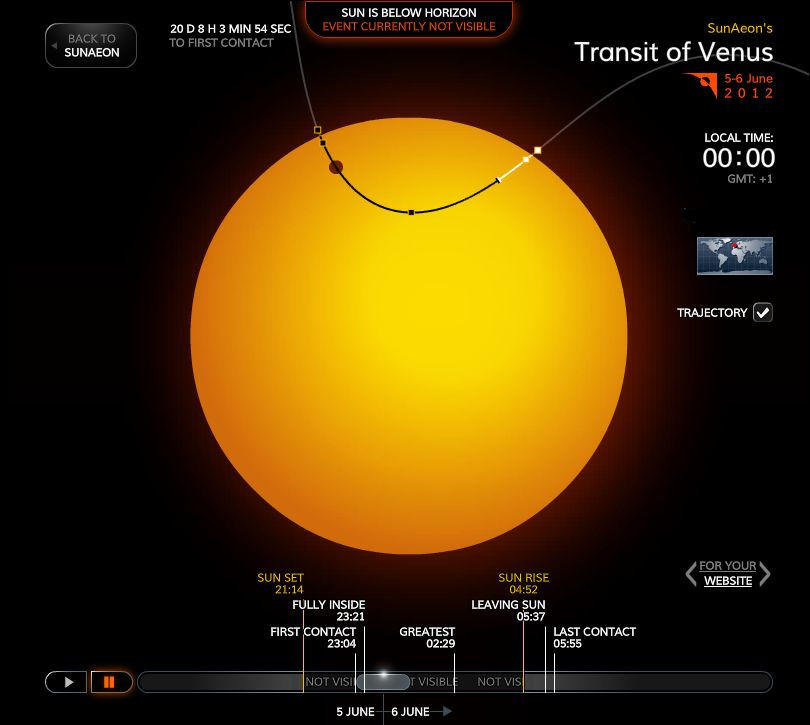
SunAeon has added a new model to their website: Transit of Venus. As the name suggests, it tracks the forthcoming transit of Venus across the disk of the sun which will occur on the 5th / 6th June 2012, and allows you to experience the transit, even if it is not visible from your location at the time the event occurs.

Transits of Venus across the disk of the Sun are among the rarest of planetary alignments. Only seven have occurred since the invention of the telescope (1631, 1639, 1761, 1769, 1874, 1882 and 2004). Such transits are only possible during early December and early June when Venus’s orbital nodes pass across the Sun, and have a pattern of recurrence at intervals of 8 and 121.5 years, then 8 and 105.5 years. This means that the next close pairing of transits will occur over a century from now in December 2117 (105 years from this year’s transit) and December 2125.

According to NASA, “The entire transit (all four contacts) is visible from northwestern North America, Hawaii, the western Pacific, northern Asia, Japan, Korea, eastern China, Philippines, eastern Australia, and New Zealand. The Sun sets while the transit is still in progress from most of North America, the Caribbean, and northwest South America. Similarly, the transit is already in progress at sunrise for observers in central Asia, the Middle East, Europe, and eastern Africa,. No portion of the transit will be visible from Portugal or southern Spain, western Africa, and the southeastern 2/3 of South America.”

The SunAeon Transit of Venus model

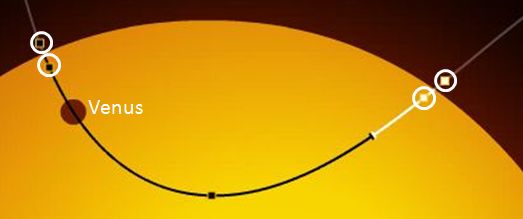
The SunAeon model is an animated representation of the transit, showing all four contacts together with a timeline of events at the bottom. Starting the model with advance the animation through the entire transit sequence, with annotations clearly showing if / when any portion of the transit is visible from your geographic location – making it a handy tool for determining if you want to observe the transit for yourself (and if you do, please observe safe methods of doing so).

For those running astronomy websites, the model also includes a tool for generating code which can be used to embed it in your site.

Venus in transit and the four contacts (circled) in the model

About SunAeon

SunAeon is an educational / immersive project being run by a small team based in Slovakia. It presents an interactive model of the solar system users can explore at leisure, visiting worlds examining data, etc. The team is planning to add further models to the main SunAeon portal, together with other features, including opportunities for social interaction.

Related Links

Kitely adds more features

Kitely, the on-demand grid, and effectively my second virtual world home, today adds several new features that increase the grid’s appeal and capabilities.

Profiles

Kitely now has full profile capabilities, allowing you to supply information on yourself and your interests, set picks, and so on, a-la other grid-based VWs.

Profiles now available in Kitely

Groups

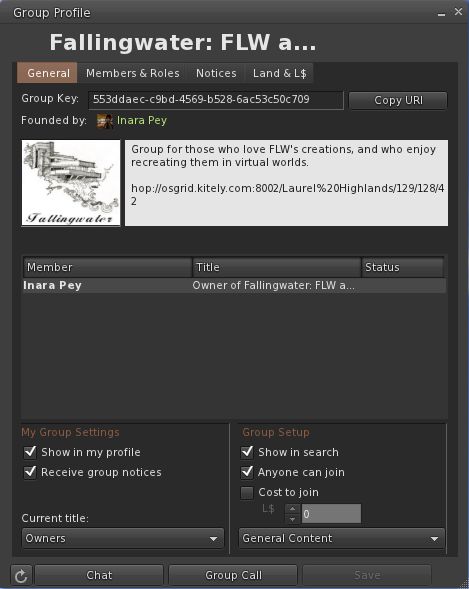
Groups are now also featured within Kitely, with all the capabilities you’d expect: Group chat / IMs, Notices, Roles, etc. Kitely follows the OpenSim standard for Groups, so I’m unclear on what the upper number of allowable Groups per avatar is (42 being the maximum number a person can join in Second Life).

Doubtless Ilan or Oren will drop by and overcome my ignorance in this :). Creating and participating in Groups follows the usual process, but if you’re new to the whole thing, the Kitely blog post provides a link to some instructions.

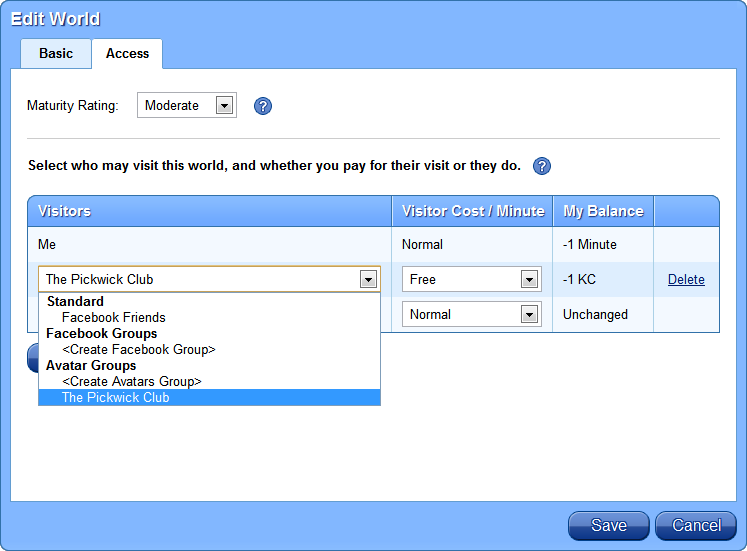
The arrival of Groups also adds further granularity to controlling who can access your world(s) in Kitely. Until now, the levels of access have been based on Facebook and / or Twitter. However, you can now additionally define access in terms of the Groups you create / join, again using the through the Settings for each of your Worlds.

Setting Avatar Group access to worlds (Credit: Kitely Ltd)

Kitely offers significant flexibility here, as you can assign access to multiple Group of which you are a member / you create, including defining how the time Group members spend in your world is paid for.

Security and Other Updates

Alongside these updates, Kitely has also:

  • Implemented off-line messaging for the receipt of IMs while not in-world
  • Updated world security settings so that only the world manager to build in them. “Pushing” is also now disabled by default. Worlds can still be opened for anyone to build, but the recommended practice is to enable build rights via a trusted Group
  • OAR export format has been updated to save a world’s telehub, if one is set.

Finally, this update also sees an optional (but recommended) update to the Kitely web browser plug-in. You’ll be prompter to update (if you haven’t done so) when you click ENTER WORLD from any World Page.

Related Links