Lumiya Android client adds in-world rendering

Further update, 13th May: Alina Lyvette, Lumiya’s creator, passed word to me on the “long touch” issue with objects in the 3D view: “Yes, it’s not 100% reliable at the moment, it uses a makeshift solution of reading back the frame buffer instead of true collision test, and it’s known to fail unpredictably on so many phones. I’ll do a true collision test for the next release and it will be rock-solid, just need time to do that (and a few interesting tricks to make it work within Android limitations ^.^

Updated 13th May: Susie Bagley and Lirusaito have both commented that object information can be displayed in the 3D view; something I was unable to do on my own phone. This article has therefore been updated to reflect the capability. 

Lumiya, the SL client for Android, developed by Alina Lyvette  follows Radegast in becoming the second text-based SL client to offer a 3D rendering capability – and is the first to offer such a capability to mobile devices running the Android Os, with the release of version 2.0.0.

There are limitations at present – but this is an initial release, so please bear that in mind. The release notes describe them thus:

  • No true avatar rendering (yet), avatars are displayed as default faceless figures.
  • Terrain and sky are not textured.
  • “Mesh” is not supported. Sculpted objects are (mostly) supported.
  • Particle systems, local lighting and other fancy features are not supported.

I took the new version for a quick spin using my CTA (Crash Test Alt), after Latif Khalifa tickled my ribs about the release via Twitter.

Accessing the 3D renderer  is simple and straightforward: simply tap the 3D View button at the top left of the screen  after logging-in to SL via Lumiya. This will take you directly to the in-world view (which may take a little time to load, depending on your phone / connection). The view itself has two further buttons in the lower right corner, with up (move forward) and down (move backwards) arrow icons.

Once rendered, the View delivers a lot of detail, and managed to capture my PrimPossible piano perfectly, as well as other sculpts without problem, despite the caveat given against sculptie rendering in the limitations. You can pan left / right by dragging a finger across the screen; your avatar will also turn as you pan around (circular panning) – and your avatar will be seen to turn by Viewer users around you. The scene doesn’t currently pan up / down at present, but this doesn’t limit use. Avatar movement is a simple glide, rather than having any form of animation at present, but again, that in no way impacts on things.

Lumiya 3D View on a Samsung Galaxy S2

As one would expect, rotating the phone will cause the scene to rotate as well, so for those with large screen sizes, the 3D view can be used in landscape mode, providing a wider field of view. About the only disconcerting thing some may find with the 3D View is that the default avatar form is a grey male – although we can expect this to improve as the capability is enhanced.

An in-world scene captured by Lumiya (click to enlarge)

The view isn’t interactive, so there’s no actual touching of in-world objects to obtain menus, etc; for this you have to use the existing touch option, which does mean a certain amount of screen swapping, but again, nothing that is in any way problematic (although I did have a habit of tapping my ‘phone’s Back button once too often and ending up back in an apps window – but that was operator error, nothing to do with Lumiya!).

However, pressing on an object displayed in the view for a few seconds should display information about the object across the top of the screen (my thanks to Susie Bagley and Lirusaito for pointing this out, as the feature has not been working on my Galaxy S2).

Tapping your ‘phone’s Menu button will display options to open Lumiya’s settings screen (where you can alter your Draw Distance, for example), and to log-out of Second Life & Lumiya.

Performance

The Lumiya website notes:

  • On modern phones and tablets with Tegra 2 chips and comparable hardware, it will give you around 5-10 FPS in quiet locations. Initial world generation takes a few seconds.
  • On older generation phones with CPU frequencies in 300 MHz range, it will give you around 1 FPS at best, and initial world generation takes tens of seconds. It may still be useful to give you a brief idea of your surroundings.
  • Draw distance can be reduced to improve performance, but not much.

I found that the 3D View ran very smoothly on my Galaxy i9100 S2 over my home wireless connection, with no lag or delay in processing. When running via 3G, things were obviously slower, with both initial rendering and actual movement showing lag, which leading to some amusement as my CTA, when seen through a Viewer, appeared to shoot across a room and proceed to repeatedly wallop a wall while still standing still in the Lumiya display. Light taps on the movement keys recommended to give the network a chance!

Bandwidth-wise I ran Lumiya on 3G with the 3D view enabled for 5 minutes while wandering around, which totted-up 2Mb of data usage. Hardly an intensive test, I know, but it gave a rough feel for things.

System Requirements

The Lumiya website notes the following on system requirements for running the 3D view option:

  • It can work with plain old OpenGL-ES 1.0 without VBO support, but the performance will suffer a lot. Modern phones usually have VBO support, and Lumiya will use it when it is available.
  • The native code parts are compiled for ARM processors (Alina notes that if people have Android ‘phones using other processors and would like to see the 3D rendering option on their ‘phone, they should contact her directly).

Opinion

It is early days for this aspect of Lumiya, and I’m curious to see where it goes and what else can be included (and added to the client as a whole). As it is, Alina is to be commended for what she has achieved; this is really quite a remarkable client capability to have, and really shows huge potential and promise.

Related Links

Lumiya 1.3.1: Touch and Pay

lumiya-logoThe Lumiya text client for Android, which I reviewed last month continues to be enhanced with new features. Version 1.3.1, released on the 15th April. These introduce the ability to interact (to some degree) with in-world objects and the ability to carry out payment transactions (i.e. pay other avatars or objects such as rental boxes). These are two potentially useful additions for those who are on the go, and need to access SL to pay tier, etc., but don’t have access to the computer.

Making Direct Payments to Others

You can now pay people directly on Lumiya quickly and directly. From the main screen, tap your phone’s menu button, then tap CONTACTS, select the person you wish to pay from your list of contacts (tap to highlight), then tap you phone’s menu button again and tap PAY to display the payment screen, as shown in the sequence below (some steps abbreviated for clarity, as they say).

Letting my test alt pay me (steps shortened for clarity)

Using Touch

The Touch option within Lumiya is a potentially useful addition to the client and works with menu-driven objects that respond to a left mouse click. When starting Lumiya now, there is a new button displayed at the top of the main screen – OBJECTS. Tapping this opens a list of objects available to you. Be default, this is “limited” to in-world “descriptive” objects, although you can opt to extend it to include your own attachments and “non-descriptive” objects (so prims simply called “object” will be listed for example).

Tapping on the name of an object will open-up a further dialogue box that provides general information on the item – description, creator, etc., and which includes a TOUCH button (below).

Interacting with objects

It’s here that things might get a little confusing. One might expect tapping TOUCH to open the objects dialogue box – but it doesn’t appear to. Instead, an easily missed prompt is displayed at the top of the screen informing you that you have a NEW MESSAGE IN CHAT.

To use the object’s menu, you now need to use your phone’s return key to get back to the Lumiya main screen to see the dialogue box and menu (right).

This is slightly cumbersome but given the way SL works and Lumiya is configured with (obviously) limited screen space, it’s understandable.

However, there are one or two other issues with the approach as implemented. The application polls the entire sim you’re on for touchable objects. This means that you can end up with a very long list of items which cannot be sorted. Also, this list appears to include any sub-components of an object that themselves contain a script. The not only lengthens the list of objects (increasing scroll time), it also risks annoying mis-clicks when trying to access an item.

Both of these issues are negated by the fact there is a search option at the top of the list, allowing you to focus results down to a handful of items – or even the item you want to touch, if you know it’s in-world name.

Paying an object (click to enlarge)

Paying an object is as straightforward as paying a person – once the object is selected from the list, click the TOUCH button from its information page, and a payment page is automatically opened (right).

Currently, the system is restricted to activating your own attachments; I’ve no idea as to whether it will be extended to include attachment on others, which some might find useful.

Channel Recognition and Timestamps

Lumiya 1.3.1also adds channel commands to its capabilities (so “/102 command” will be recognised, for example), and also adds timestamps to chat. The latter can be turned off by unchecking TIMESTAMP IN CHAT in the Settings options (phone’s menu button->SETTINGS).

Opinion

The addition of interaction capabilities to Lumiya definitely makes it more of an attractive offering, the listing issue notwithstanding. Those on the go who have an Android phone are likely to find having a payment option handy, while the ability to at least interact with objects  helps improve the overall feeling of engagement with SL when one is unable to use a graphical Viewer.

Related Links

What might have been: Graphical SL on the iPhone

We’ve all dreamed about running “full” SL on mobile devices; while there are some great text-based clients available for both Android devices and the iPhone which offer a lot of functionality, it’s fair to say that SL doesn’t always feel like SL when the graphical element is removed. Whether we will eventually see SL accessible via mobile devices and tablets on a regular basis is open to debate – although with the likes of Unity, it’s hard not to believe there will be a time when graphical access to SL via such devices will be available.

In fact, where the iPhone is concerned, it wasn’t that long ago that it looked as if graphical access to SL might not be that far away, as the video below shows.

This concept demo was developed by Comverse back in 2008. It made SL on the iPhone possible by using a server sitting between SL and the iPhone to handle all the hard number-crunching, with the results being streamed to the iPhone’s web browser, with inputs from the interface being sent back to the server for processing, prior to being sent to the SL servers. The go-between server clearly has an impact on response times, but as   Tech Digest said at the time, it wasn’t bad for a proof-of-concept at the time.

Sadly, the project never seemed to go beyond this demo phase, and there is now no mention of it on the Converse website. Still, it’s interesting to contemplate where the idea might have gone, and whether it might yet simply prove to be an idea a little ahead of its time, technology-wise.

Text Clients 6: Lumiya

Oz Linden recently dropped by this blog and made mention of Lumiya, a new Android text-based SL client. As I have access to an Android phone, and have previously reviewed the Mobile Grid Client for Android, I decided to check it out.

Lumiya, developed by Alina Lyvette, is relatively new – the initial release appears to have been on January 12th 2012, although this is version 1.2.1, so it is possible there were earlier releases prior to it getting to the Android market. The Lumiya website itself is very polished, and provides core information on the application, including screen shots, support details (e-mail), version history and links for obtaining the client either via direct phone download or the use of a QR code.

Unlike Mobile Grid Client, there is a download fee for Lumiya: some $2.95 (£1.87 / 2.24 Euros) at the time of writing this review. After that, usage is free – subject to network charges, etc., when accessing SL when roaming.

Logging-in

Once you’ve paid for the app and it has downloaded & installed, staring it will display the log-in screen. Enter your avatar name and password – not that by default, your password is saved, allowing rapid log-in in the future. When done, tap SIGN IN to get started. The first time you do, you’ll be prompted to accept the SL Terms of Service.

On logging-in, you will be presented with the Local Chat screen (see below) and if media is available at your log-in location, you’ll be prompted as to whether you wish to play the media over your phone or not. If you opt not to receive the media stream you can turn it on later via the Media menu button.

Lumiya log-in screen (l); Local chat screen (c) and menu options (r) – click to enlarge)

The Local Chat screen (above centre) is a little devoid of details. This provides the maximum amount of space for chat, but I can’t help wondering if having the Contacts buttons displayed might be a good idea, rather than having hidden within a menu option (below). I’m also, if I’m honest, not overly keen on the white-on-light-grey text / background combination at the top of the screen, which some users might find hard to read. That said, in a rather charming difference to just having your avatar standing around (often times with arms outstretched on either side), Lumiya animates the ground sit for your avatar, sitting you wherever you have logged-in – which is probably a more natural pose for those observing you from in-world.

All major functions for the client are accessed via you phone’s menu button. Pressing this presents the following options:

  • Contacts: allows you to view your Friends and Group lists, and see who is nearby you
    • Tapping on any displayed name will open an IM / Group chat to the individual / Group
    • Friends online will have a green icon displayed next to their name
    • A sub-menu can be displayed, allowing you to swap to Local Chat, Recent or Landmarks (both below) or sign-out from SL
  • Recent: displays the last lines of any recent conversations. Again, a sub-menu can be displayed, allowing you to swap to local Chat or Landmarks or sign-out
  • Landmarks: lists any favourites you have set-up (V3.x & associated TPVs), and your landmarks. Tapping a favourite or landmark will open an option to teleport to that destination. A sub-menu can also be displayed, allowing you to (again) swap to local Chat, Recent or sign-out
  • Media: enables you to see if any local media is playing & listen to it.
  • Settings: accesses the client’s settings
  • Sign-out logs you out of SL.

You can also use you phone’s Back button to return to Local Chat from any other screen / menu.

Client settings options (click to enlarge)

The Settings option allows you a set-up a number of client preferences:

  • Start location: choose between last location visited or your default home location
  • Always in status bar: shows your on-line status in the phone’s status bar (although I didn’t actually notice any different toggling this off / on)
  • Message sounds: allows you to set a sound for Group chat / private IMs. If the option is unchecked, both are disabled. If checked, you can select a sound for each from a list (default is your default ring tone).

That’s pretty much it for the client at the moment. As it is fairly new, it’ll be interesting to see how it develops and whether features are added.

Opinion

While I find the Local Chat window perhaps a little too minimalistic, Lumiya is a lean client that does exactly what it sets out to do: provide you with a lightweight, mobile means of maintaining contact with those in-world when away from your computer. Once installed, the app may currently lack the capabilities in other text clients, but it does allow for fast and easy use for communications. The only issue I encountered with the app is that signing-out with a media stream playing didn’t shut down the stream; the only way of preventing this appears to be to go to the Media option and manually shutting-down the stream before signing-out. I assume this is the result of the app effectively calling a separate URL outside of the SL connection in order to play the stream.

For those who want a quick, fast means of accessing SL and who don’t necessarily need access to the likes of inventory, notecards, etc., or additional monthly use fees for the client, then Lumiya may well be the ideal solution.

Related Links

Text Clients 5: Mobile Grid Client

Over the weekend, and being an impulsive fool, I decided to upgrade my mobile phone. Well, actually I blame my service provider for playing games with my tariff & offering me a more competitive deal if I upgraded… but I digress.
So, here I am with a Samsung Galaxy S2 I9100. It’s a very nice phone – although after 5 years with my purse-and-pocket friendly Sony Ericsson W810i Walkman, it’s taking a little getting used to size-wise. It does have lots of whizzy on it I’ll probably never use (just give me my music when I’m on the go, and I’m happy) but it has allowed me to take a look at another SL text client that is out there – the Mobile Grid Client for Android.

The app itself is free via the Android Market, although you can only use it for 14 days prior to being asked to pay a minimum of L$250 a month to continue to access SL. Not a steep price by any means, but a little unusual in the client stakes. Once installed the app appears in your application listing / grid, and tapping it takes you directly to the local chat screen (if using it for the first time) or the last screen you were using when you logged out, with the message Not logged in.

Login screen – 14-day trial expired (click to enlarge)

Tapping your ‘phone’s menu button should display the application’s About and Login buttons, together with the phone’s Settings option. Tapping Login unsurprisingly pops-up the login overlay.

You’ll need to enter your avatar name entirely in lower case, although the password field is case sensitive. Note that if your initial 14-day trial period has expired, you will see the payment option (left). The minimum amount for continued use of the application is L$250 for a month’s usage, although you can optionally pay more.

The charge itself is non-recurring, so there is no danger of your SL account being repeatedly billed whether or not you continue to use the app; the payment prompt will simply appear once more when your month’s use is up, and you can then make a further payment and continue using the application or simply stop using the app – the choice is yours.

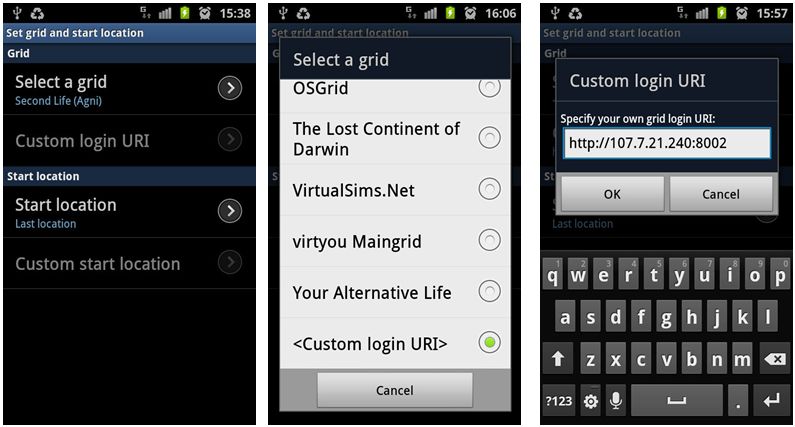
Also on the login screen there is a CHANGE option that you can use to access any OpenSim grid. Tapping this will display a series of options (below left) which in turn allow you to set your login location, and choose from a list of pre-defined grids (below centre).

MGC login options

There is also an option to set-up a custom grid URI, but slightly confusingingly, this is initially greyed-out and unavailable – you have to go into the pre-defined list first, scroll to the end, click on an option to enable custom URIs there, which takes you back to the initial screen with the Custom option now enabled. Tapping on it then takes you to a screen where you can enter the required URI (above right).

The logging-in process takes a long as you’d expect a Viewer to take – no surprises, given the same steps are being taken – and chat will display things like the MotD as things progress, followed by a confirmation that you are logged-in.

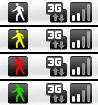
The layout of the app is crisp and clear and highly intuitive: at the top are four primary buttons: Chat, IMs, People and Map – all of which are self-explanatory, although some detail on each is provided below. There is also a status icon that appears in the ‘phones icon bar, which indicates the following:

Client Status icons
  • White: the client is connected to the server and you’re logged in
  • Yellow: the client is connecting or reconnecting to the server
  • Red: the connection to the server was lost and couldn’t be reestablished or you were disconnected by the server or Linden Lab
  • Green: you received a new IM, group IM (group chat message) friendship offer or teleport offer.

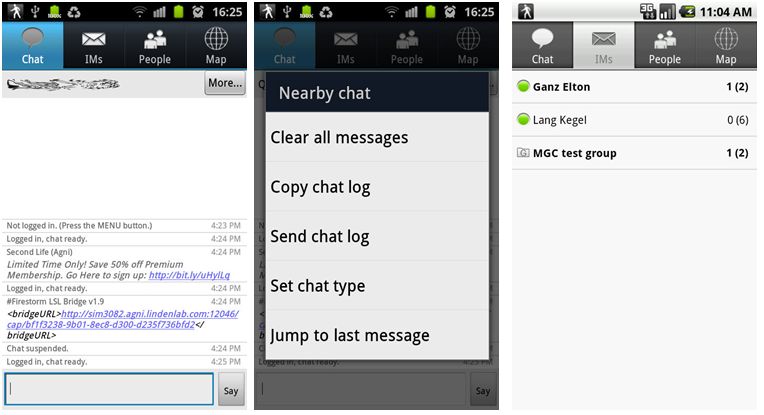
As well as displaying your chat history (below left), Chat has a MORE button which displays a menu to further chat-related options (below centre), while pressing and holding the SAY button brings-up a menu alloing you to switch between Say, Shout and Whisper for your own chat.

Chat (left and centre) and IM list (right)

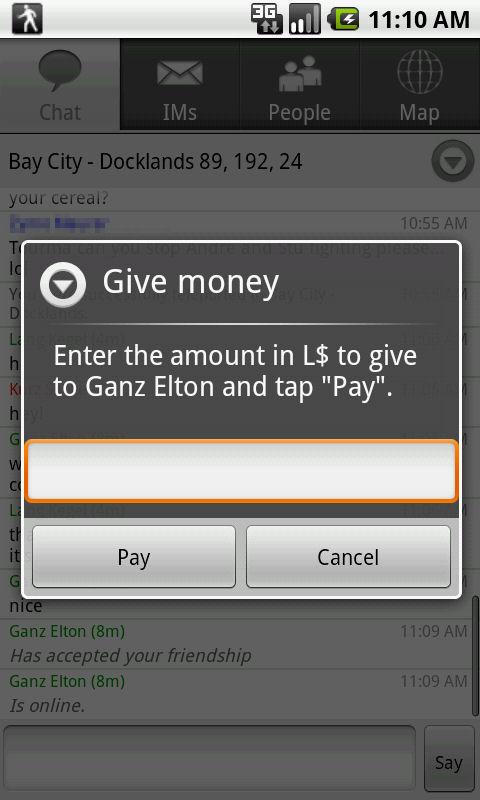
The IMs button displays a list of you current IM conversations (above right), allowing you to quickly swap back and forth between them. When you are in an IM with somone, a MORE button is displayed, providing you with all the actions you’ve expect to be able to use: view their profile, offer a teleport, invite into a Group, pay them, give inventory, and so on.

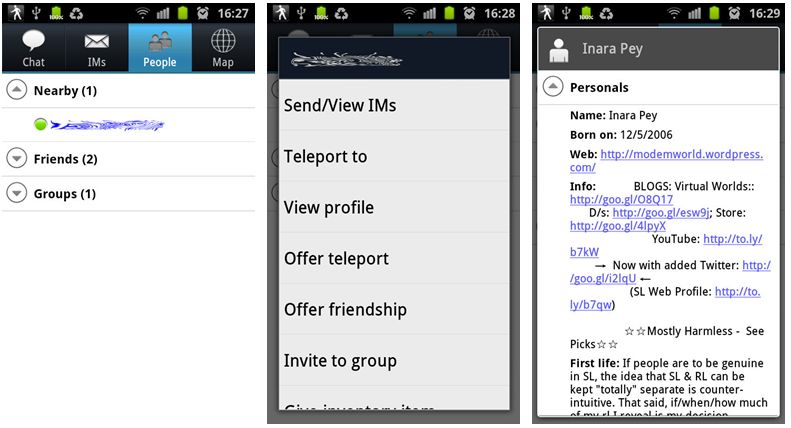
People combines the functions of Nearby People, Friends and Groups, again allowing you to carry out a range of actions – IMing an individual, viewing their profile, offering friendship / teleport, teleporting to them, paying them, giving inventory, etc – simply tap on a name to display a menu of options.

The profile view is interesting – selecting it take you to an initial screen that asks you to select Personals – personal information; Groups – group information or Picks. Once in any of the three options, you can swap between them easily by scrolling down / up and tapping the relevant heading.

The personal view combines SL information with any available RL info a person has added to their profile. Making full use of Android, any links are enabled and tapping them will launch your phone’s browser and seemlessly display the relevant webpage. Tapping the phone’s RETURN key drops you neatly back into the profile view. The Picks option doesn’t actually display any images associated with a person’s Picks, but when tapped, will offer to teleport you to that location.

People button options and viewing a profile

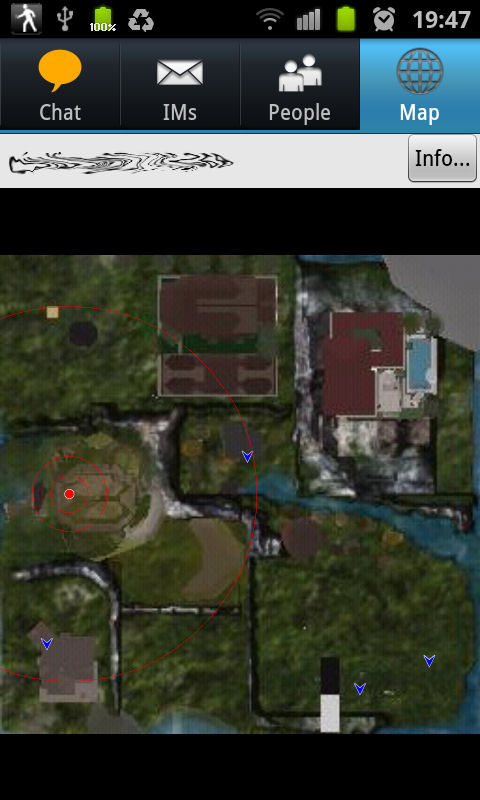
Map brings up the map of your current location, with an option to call up additional information (region name, parcel details, your exact position, music stream URL, etc., with items such as the region SLurl being clickable).

Map – easy to see (click to enlarge)

The map itself displays cleanly and is easy to read – the screen capture doesn’t really do it justice compared to seeing it on the screen of an S2.

Tapping your ‘phone’s menu button will bring up additional buttons at the bottom of the display for:

  • People search
  • Your profile
  • Creating a Landmark
  • Inventory
  • Logging out

A MORE button calls up an additional menu which has opens to teleport yourself home and to open SLurl.com.

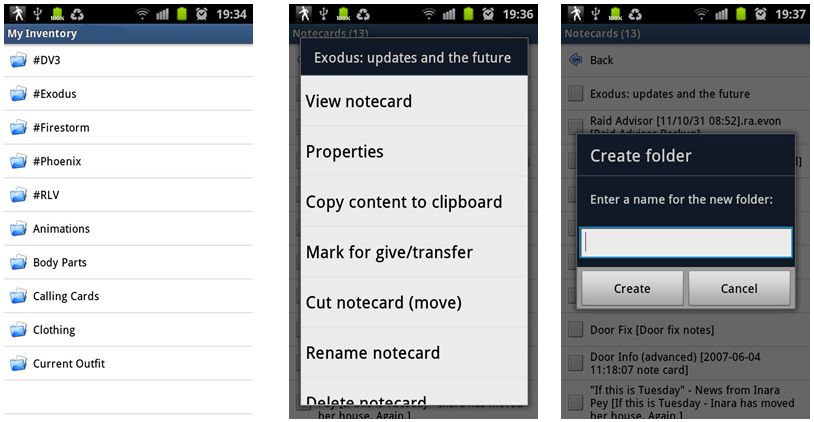
Inventory functions are very well represented, allowing you to carry out a wide range of tasks associated with your inventory – browse, search, create folders, move and / or rename items, read notecards. trash items, and so on.

Inventory is accessed by tapping you phone’s menu button and then selecting the Inventory option from the pop-up menu. Your inventory is displayed much as it appears in a Viewer (below left), and tapping on a folder will open it (together with a BACK open at the top), tapping on an item in a folder will bring up a context-sensitive menu (below centre). Sadly, when it comes to clothing and attachments there are no WEAR or ADD otpions, but you can view properties, give items, deleted them, move them, etc., and in the case of notecards, biew the contents.

Inventory options

You can also create new folders and sub-folders in your inventory (above right) using your ‘phone’s menu button and tapping Create Folder from the displayed options. You can also access an inventory sort option via your ‘phone’s menu button as well.

Opinion

This is a fast, effective text client that offers an excellent means of rapid-fire access to SL should you need it when out roaming. Data fees being what they are, unless you have an inordinate download allowance on your tariff, however, this is not the application for casual use over 3G or similar; SL eats bandwidth as we all know – even when running a text-based application.

However, where wifi is concerned, the Android’s networking makes accessing SL when you can’t get to your computer a very clean and easy task – I actually grabbed some of the screen captures used in this article while in the kitchen and watching over the cat / preparing dinner via my household wifi…

The UI is highly intuitive, uncluttered and a joy to use; it’s quite possibly the most intuitive text client I’ve used to date, requiring little in the way of documentation assistance to help guide the novice user (would that some other Android applications were this easy to get to grips with!). All-in-all a great little package, well thought-out and nicely delivered.

Related Links

Radegast: A look at version 2.0

(1.28 log-in screen)

Yesterday I mentioned Radegast 2.0 (.1130) had been released and that it has, among other things, the 3D scene renderer (now called the Scene Viewer), the ability to support avatar physics and the capability to render mesh objects.

Well, it does – and it does so exceptionally well.

Installation is as per previous versions – unsurprisingly – and when you start the application, you’re greeted with the familiar splash screen, albeit it with the login data fields nicely resized and moved to the right. The discerning user will also note that 3D Scene has been added to the menu / tab bar – a hint of what is to come.

Once logged-in, you’re presented with the chat display, which retains the same overall layout as earlier versions, but with a somewhat sharper look, with resized movement controls and extended chat bar.

Preferences Options

The File menus now includes a PREFERENCES option which, when clicked, opens the Settings floater.

Radegast Preferences

This allows you a set a range of familiar preferences within Radegast, including the popular RLV Support (this is described as “partial” support in the documentation, of which more anon) and the use of MU* style emotes (so “:” can be used in place of “/me” when typing an emote), together with the ability to turn-off the typing animation. Unlike the SL Viewer, there is no requirement to re-start Radegast after checking  / unchecking certain items (such as, again, RLV).

Preferences also gives you access to two other tabs: Auto Response and Graphics Settings. Auto Response operates in a similar manner to the Auto Response function found in popular TPV Viewers such as Firestorm and Phoenix, allowing you to send a customised message to people who IM you. You can set the response to be sent automatically under one of three conditions:

  • When you set BUSY from the World menu
  • When anyone not on your Friends list IMs you
  • Whenever anyone IMs you.

The Graphics Settings obviously apply to the 3D Scene Viewer. Here you can set a number of graphics defaults that are common to most TPVs, and adjust your draw distance to a maximum of 176 metres. There is also an option to turn-on water reflections, but this will only be accessible when the 3D Scene Viewer is running.

Graphics settings

All options selected in Preferences are applied automatically (unless a restart is explicitly asked for – as with Anti-aliasing in the Graphics Settings), so there is no APPLY button – simply close the Settings floater when done.

An important note to remember if you’re running Radegast over a mobile connection: you might was to keep the draw distance in the Scene Viewer turn down relatively low to reduce the bandwidth you’re using in downloading data & so reduce any charges you may be incurring.

The 3D Scene Viewer

The 3D Viewer itself is now fully embedded into the main Radegast window. When you start it, it simply opens up a new tab.This is a nice touch when compared with the experimental versions, especially as it includes the chat bar as well, a very practical addition over some of the early variants of the renderer.

Radegast scene rendering compared to the SL Viewer (inset) – impressive (click to enlarge)

The rendering is actually bloody impressive, and offers a very good alternative to the full Viewer – but bear in mind  that:

  • This isn’t a full-blown graphical Viewer, so things might take a little time to render, especially in “busy” environments. The results, however are well worth it, as the image above hopefully demonstrates
  • Running the Scene Viewer significantly increases the use of system resources, and so might not be the best for older systems

There are a few issues, but whether these are tied to the software or your hardware set-up is hard to say. In my case, for example, I found that some prims (such as around the flowerbeds in my garden) simply didn’t rez at all, no matter what draw distance was set or where I stood relative to them.  Similarly, not all my sculptie plants were properly rendered and some of the grass of one my lawns was rendered hovering above the surrounding grass and stonework.

Rendering issues: malformed plants, missing wall prims and floating grass (all arrowed)

However, to suggest this in any way ruined my enjoyment in having my in-world scene rendered, or my inability to interact with it, would be a lie. Certainly, when compared to a Second Life view of the same location, Radegast’s ability to render the scene so well is absolutely clear. I also think the ability to render water reflections is pretty amazing as well (below).

Water reflections

Mesh rendering is equally impressive, as the images below of two familiar vehicles from the Beta grid should demonstrate (top picture captured using the old Mesh Project Viewer, the lower image captured in Radegast 2.0).

Rendering mesh objects: “Full” Viewer (top) and Radegast

Movement in the Scene Viewer has been refined to be smoother than earlier versions, although avatar rendering isn’t entirely perfect. By default, the camera is positioned behind your avatar, a-la the SL Viewer, and you can use the LEFT and RIGHT arrow keys to turn, UP to walk forward and DOWN to walk backwards – all as one would expect. If you are using an AO, the Scene Viewer attempts to render the movement scripted by the AO, although this doesn’t always *quite* work, and occasionally your avatar might develop something of a drunken lean while walking!

Tip: if you opt to reposition the camera at any time, always tap ESCAPE to place it back behind your avatar before you attempt to move again (the camera will not automatically reposition itself should you try to move). Even if you can see your avatar, you should still reposition the camera prior to moving – direction of movement appears to be relative to the camera position, not avatar position, so if your camera is not behind your avatar, it is easy to get confused as your avatar sets off in a totally unexpected direction when you press the UP or DOWN keys!

Camera movement still take a a little getting used to. Movement is carried out through a combination of holding the left mouse button and either the ALT or CTRL keys:

  • Left-click (and hold) & press ALT to orbit around something when moving the mouse
  • Left-click (and hold) & press CTRL to pan left / right up/down when moving the mouse.

Camera movement can initially be confusing – using CTRL and the mouse to move to the left will apparently pan the camera to the right, for example. The best way to understand this is to think of all camera movement in terms of dragging the on-screen image. So if you use CTRL + left mouse-click and move the mouse to your right, you are effectively “dragging” the image to the right side of your screen – and the camera position will consequently appear to move to the left as a result. This rule applies to panning up / down (“drag” the image towards the bottom of your screen to pan up, etc.), and also to the use of the ALT key to orbit around something.

Tip: If you find the image going off-centre compared to what you are trying to achieve when panning / orbiting, try pointing the cursor at something you wish to centre-on and ALT-left click to centre the view on it; then try panning / orbiting again.

Additional Viewer Options

  • For those that prefer the Scene Viewer detached, right-click on the tab name for the Scene Viewer and select Detach. This will float the Scene Viewer in a separate window, complete with a chat bar
  • Right click anywhere within the Scene Viewer to display an additional menu:
    • Undock (/Dock): will float the Scene Viewer in its own window or re-dock it as a tab within the main Radegast window
    • Options: Displays the graphics preferences that can also be accessed through FILE -> PREFERENCES
    • Debug Panel: opens the Debug options for the Viewer, where you can RESET VIEW and move the camera back behind your avatar (i.e. the same as tapping ESCAPE on your keyboard), and adjust things like the image brightness and contrast using the top two sliders.

Objects in the Scene Viewer respond to touch as they would in the “full” SL Viewer: doors will open, menu-driven objects will display their menu, etc. Right clicking on in-world objects will display a context-sensitive series of additional option to the menu described above. For example, if you right-click on an item you own, you’ll get additional options to take, delete, touch or sit on the object. Right-clicking on an object owned by someone else may give you the options to touch it (if scripted) and / or sit on it.

RLV Support

This is an interesting addition to Radegast. While it is not a full implementation of the RLV API, it nevertheless opens options and possibilities. Among the things it can do:

  • Deny the ability to remove locked items
  • automatically accept forced teleports
  • Act upon forced animations (although not necessarily rendered in the Scene Viewer)
  • Restrict chat and IM (including forcing chat to whisper, etc.)

The broader restrictions provided by RLV aren’t replicated in Radegast, so things like blocking inventory access, restricting far touch, vision restrictions, etc., are not implemented.

Other Updates

  • The login screen now stores the details of avatars logged-in to virtual worlds using Radegast, including the actual grid the avatar logged-in to. Simply select the avatar (/grid name) from the drop-down list available from the USERNAME field. The user name, password and grid are all then set
  • Radegast now supports Viewer 2 avatar Physics Layer – so if you wear a physics layer of clothing, it will render movement correctly in other people full graphical Viewers (the movement won’t be rendered in the Radegast Scene Viewer).

Opinion

Radegast 2.0 offers some nice improvements over the previous releases, and still sits head an shoulders above other “non-graphical” clients in the most common areas of use. If you want a genuinely “light” text-based access to Second Life / OpenSim the likes of Libretto or SLiteChat might be more appealing, but if you are stuck in a situation where you simply cannot run a “full” Viewer and want to have a very flexible means of accessing your preferred VW for more direct interaction with friends and the people around you, Radegast really cannot be beaten.

Elements of the client are still described as “experimental” and as such may well still be prone to crashing. That said, I’ve sent the good portion of a day running the client on both a desktop PC and my Notebook (Intel Atom 330 w/2Gb RAM and nVidia Ion2 graphics processor) without any crashes or major issues (the Notebook did have occasional avatar rendering issues – I was hair and shoes a few times, with nothing between!) and both the PC and the Notebook seemed to have issues rendering the odd prim here and there.

All-in-all a significant and well-implemented update to Radegast which is enjoyable and intuitive (for the most part!) to use. And RLV is a nice option to have – and not just for those of us into D/s scenes *grins*.

InWorldz at Zauber Paracelsus’ magical sim

Related Links