My Bluesky handle updated to use the secondlife.bio extension
Note: the secondlife.bio handle extension is neither supplied nor endorsed by Linden Lab. It is a third-party tool provided for the use / enjoyment of Second Life users.
If you are one of the growing number of Second Life users who are on BlueSky, either as a result of joining directly or because you decided you’d had enough of Twitter/X? If so, you’re probably aware of things like the Starter Packs of SL BlueSky users put together by the likes of Kess Crystal (starter pack) and Caspian Morningstar (starter pack).
But did you know you can also have a “Second Life handle” for your BlueSky account?
Why settled for yourname.bsky.social when you can be yourname.secondlife.bio, and have a handle that instantly identifies you to other SL users on BlueSky as an SLer (as I have, as seen in the banner image for this article)?
The idea is the brainchild of Samuel Newman, a BlueSky contributor (and @secondlife.bio on BlueSky), and updating your handle to use secondlife.bio could not be easier. All you need is a BlueSky account, then follow some simple steps on your desktop:
Under Enter Your Current Handle type / copy/paste your existing BlueSky handle, leaving out the leading “@” (e.g. “zaphodbeeblebrox.bsky.social”).
Click the Submit button next to it.
The page should update with Account Found and show your BlueSky handle and banner:
Updating your BlueSky handle via secondlife.bio (1)
Now enter your handle + the .secondlife.bio extension under Choose Your New Handle:
Updating your BlueSky handle via secondlife.bio (2)
Click the Submit button next to it.
Now, Switch back to BlueSky and:
Click on Settings → Account → @Handle to open the Change Handle floater.
Setting your new handle in BlueSky (1)
Click on I Have My Own Domain at the bottom of the floater to expand it, and:
Enter your new handle using the secondlife.bio domain (e.g. “zaphodbeeblebrox.secondlife.bio”)
Make sure DNS Panel is selected (highlighted).
Click / tap on Verify DNS Record (this will be enabled to click after completing (1.) above.
Setting your new handle in BlueSky (2)
Your BlueSky handle should now update – you may need to refresh your BlueSky page to see it.
And that’s it!
Obviously, if you’re an SL user on BlueSky and are happy with the bsky.social extension on your handle – that’s great! You don’t have to change (or feel pressured into does so). But if you use BlueSky exclusively for your Second Life activities, it might heighten your visibility with other SL users and encourage them to make contact / follow you should you name pop-up in their timeline; and if you have non-SL followers, it might encourage them to express curiosity in knowing more about the platform – so why not give it a try?
My thanks to Barbi Blowhard for the pointer to secondlife.bio, and a thank you to Samuel Newman / @secondlife.bio for creating the handy handle generator.
Avatar Social Network (ASN) has been growing steadily since its inception in the latter half of 2013, and is being seen by many users of virtual worlds as both an alternative to Facebook and things like the SL Feeds, and as a useful extension to their social media presence, positioning it alongside their use of existing social media services.
Strawberry Singh was one of the more recent SL users to comment on the service, and her blog post, coupled with a reminder of ASN’s existence from Mona Eberhardt, prompted me to take the look at it that I’d told myself I would back in July, when I first happened across the site.
ASN, which is operators by Second life user Arkad Baxton of AP Holdings describes itself as a social network for users of virtual worlds and games, which “gives back to its members and rewards all activity on the website while asking for no real life information from its members.” The site invites members to “share, like, comment contents, post their blog articles, create and build their own groups, discuss topics on the forums upload photos, videos, create their own individual fan page with its separated feed, play games, chat and more.”
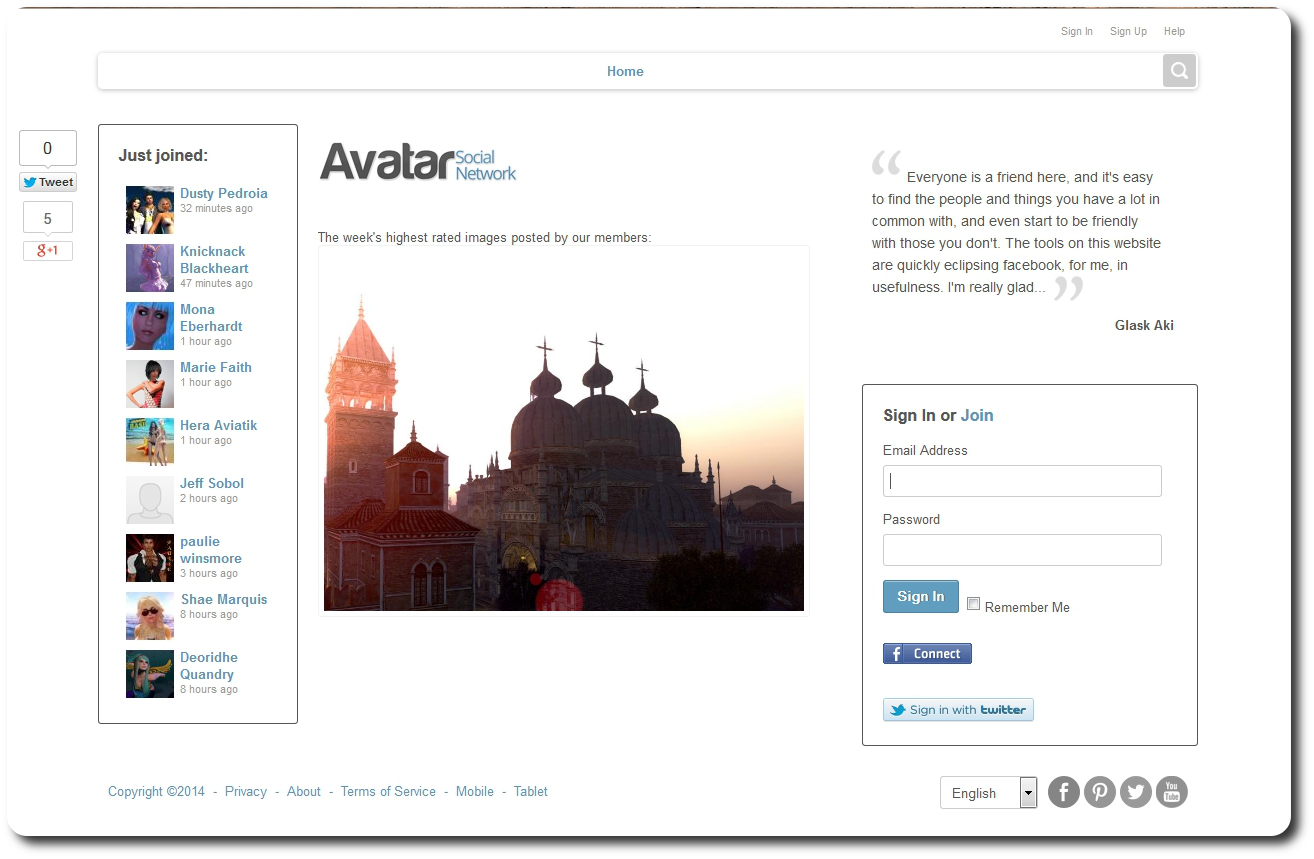
The standard log-in page for the Avatar Social Network site (click images for full size)
Overall, the site’s set-up appears to be along the lines of Avatars United (remember that?) or Moolto, Second Friends. or 2ndHub (with which ASN appears to have the most in common, although 2nd Friends currently appears to be largely inactive).
Since opening in September 2013, the site has been gradually refined and improved, addressing various issues and perceived shortfalls. At the same time, it has been gaining popularly among users from Second Life and other virtual worlds. Today, there are getting on for some 2,000 users (a number I’m sure will be surpassed in a short amount of time given the frequency of sign-ups), all of whom seem to be fairly active. The site itself has a fairly clean, easy-on-the-eye design, and fairly straightforward navigation.
Signing-up is simple enough; there’s a registration page which makes no call for people to provide real life information. You don’t necessarily have to provide your SL / VW avatar name – it’s entirely up to you as to how you define yourself, although using your avatar’s name and image obviously makes sense from a social connections standpoint. The log-in page also includes Twitter and Facebook links, so I assume you can access the site using verification from these services, rather than signing-up via the form – I opted to go the sign-up route.
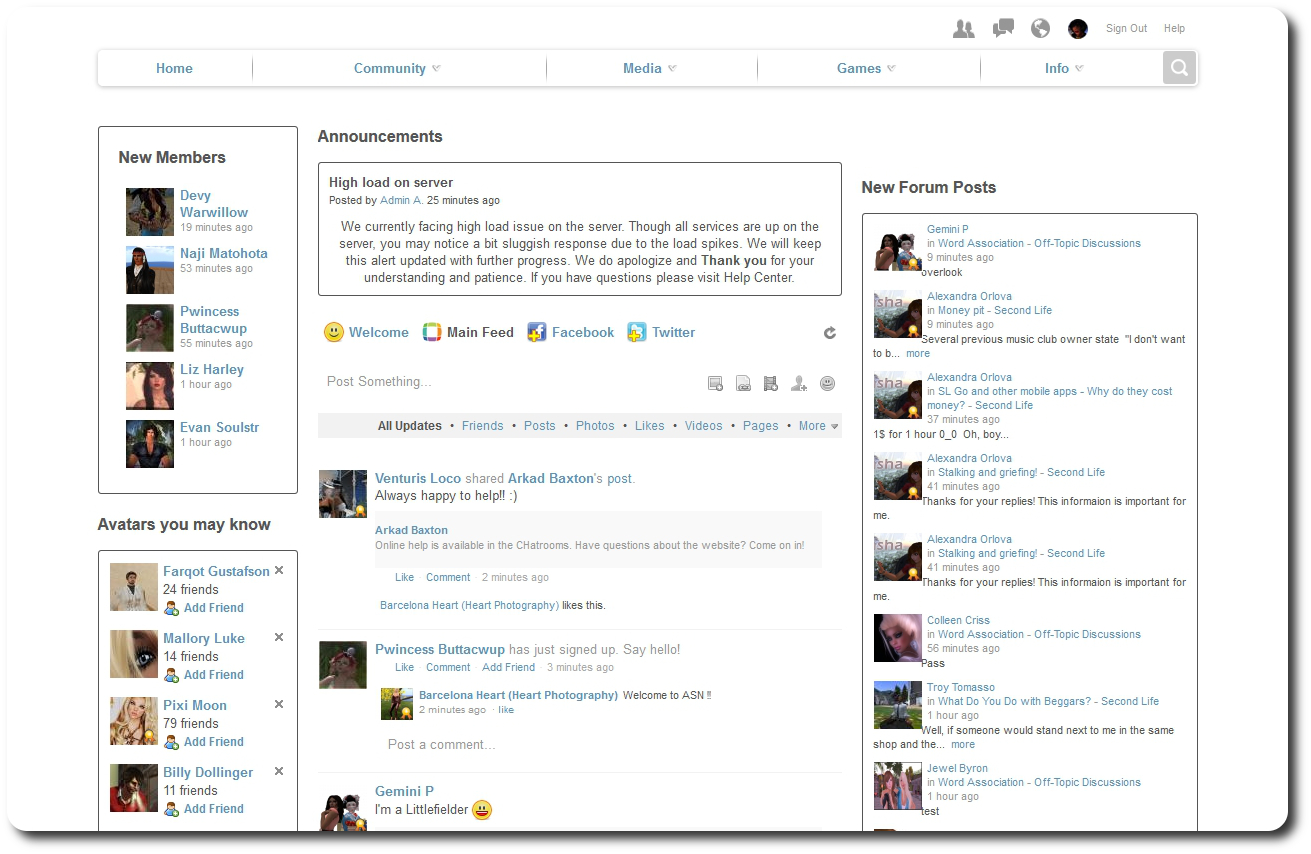
The ASN main page, sans advertising
Once signed-up and verified via e-mail, you are taken to the main page, which is split into three main sections – the central feed column, including service announcements which appear at the top; information on those who have recently signed-up, or whom you may wish to friend through the service to the left, and information on recent forum and blog posts, etc., on the right, all of which include various links (e.g. to the forum post in question or to the poster in the case of the forum links, for example, or to people’s profile pages in the case of the friending suggestions and new joiners.
A menu bar at the top of the site provides access to public areas and also to your own incoming message centre (Friends requests, messages, notifications) and profile / personal feed link.
The Community option in the menu provides access to the core elements of the site – blog pages, forums, groups (think SL groups), pages (think FB pages), ads for in-world employment opportunities, gifts, and so on.
The Media option provides access to photos and videos uploaded to the site. Videos can be uploaded from your computer or imported from YouTube or Vimeo (other services pending), while photos can be organised into albums, which in turn can have privacy options set against them (do you want them visible to everyone, friends, etc., who do you want to be able to comment on them, etc.).
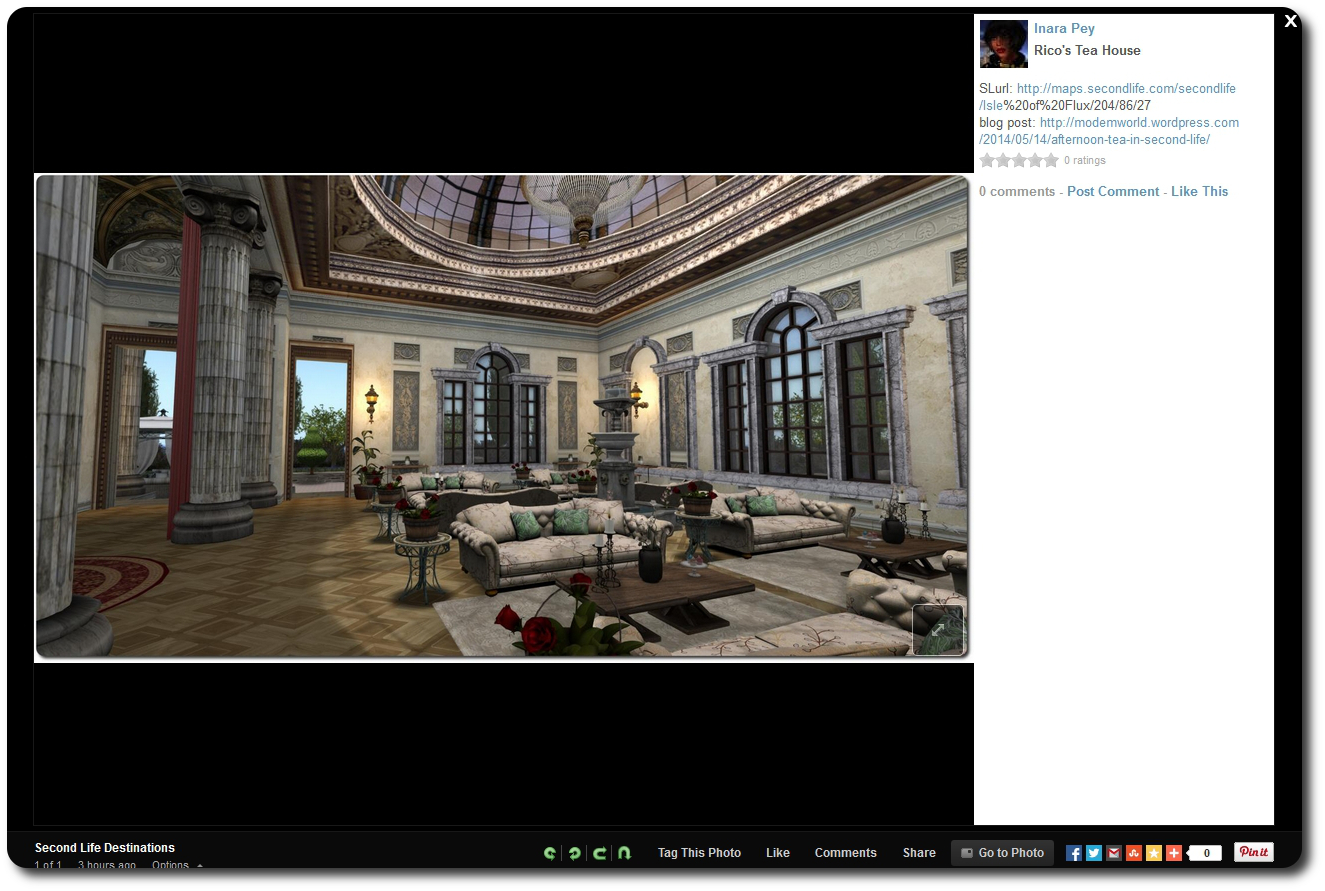
Clicking on a photo in an album will display it in a window similar in style to Flickr, and with various sharing options (Twitter, Facebook, G+ etc). I’ve not yet found a way of disabling the share options (if they can be disabled) for those who want to keep their images to the ASN site.
Photos can be displayed in a pop-up window, somewhat mindful of Flickr, with a space to the right where comments can be recorded.
The Games option on the menu allows you to amuse yourself playing various games (some of which require Adobe shockwave), while the Info option takes you to various pages with further information related to the site – including the Rules (!), and the About page.
Down at the bottom of the site is the chat bar and its options. This can be toggled on / off via the icon on the extreme right, and provides options which allow you to access any public chat rooms which may be running and / or set-up your own public or private chat room, initiate direct messaging with a friend logged-in to ASN (just pull up the list of friends logged-in on the right of the bar) and set your availability (or otherwise) for chats.
2ndHub is a social media site specifically developed for users of Second Life. In this 2-part review, I take a tour of the site and look at the various features and options.
In part one, I gave a general overview of the site, and looked at setting up accounts and profiles, as well as how to gain an overview of the various sections of the site.
In this part, I look at the various communications options for 2ndHub, including Events management, and I take a look at the tools provided free of charge by the site for in-world integration and connectivity and provide my personal feelings on 2ndhub.
Events
Events list (auto-updated)
You can notify 2ndHub users of upcoming events via the MY EVENTS tab, which allows you to set up multiple events which then appear in the Current and Future Events list on member’s MY HUB page (located on the left side of the page, under the Business Spotlight section.
Events are counted down in terms of the number of hours before they commence, while clicking on the + button can open-up an additional pane of information on the events (what is is, who is participating, for example) as well as displaying any SURL / URL that was included in the original event notice. I personally find it more appealing than the SL “dashboard” web page Events list.
Communications
Communications within 2ndHub are pretty impressive. Within your Profile page and your My Hub page is a Twitter-like set-up, comprising a “What’s Happening” text entry box, and a series of tabs: My Personal Feed, My Priority Feed, Public Feed and My Activity Feed.
The Public Feed for messages (My Hub and Profile pages)
The “What’s Happening” text box allows you to send out messages on any subject you like – how you’re feeling, general greetings, observations, etc., – a-la Twitter and Plurk. Messages can be targeted to go to all 2ndHub users, or just to your Friends, or even just to yourself. You can also set-up who can comment in reply.
Like Plurk, images (from your Flickr account, at least, if you have one) and YouTube videos can be embedded into messages. These will be displayed as a link in the message until clicked upon, which will either expand the image / video within the message window, allowing it to be viewed / played. Clicking the link again will close the displayed image / video.
In a further nod to Plurk, you can add a descriptor to a message (i.e. “Inara Pey says,”, “Inara Pey shouts”, etc.).
The HUD option that can be downloaded from the site (see Tools, below) extends the messaging capability further, allowing you to send messages to the 2ndHub site from in-world – very useful if you’re enjoying an event or something and you think others might like to pop along.
Additionally, 2ndHub includes a live chat engine, allowing you to chat directly with other friends who are online (or leave them offline messages). However, this is purely on a one-to-one basis: you cannot invite two or more people into a live chat session (or at least, none I’ve been able to find), which is a shame.
Group communications allow for the creation of Group-based notices which can be posted either to the 2ndhub website or in-world (where they will be received by all avatars within the Group, providing you have a 2ndHub delivery server set-up (see Tools, below). The system supports the sending of attachments (in-world items) with notices, making them almost as flexible as in-world Group notices.
Tools
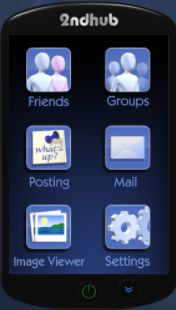
The in-world HUD
In-world HUD. Looking like a small remote control, the HUD provides you with a means of connecting to 2ndhub from in-world. With it, you can:
Friends: Send messages to a specific friend when they are not online (or if you are not connected to them as Friends in-world) leave a comment for them on their profile (will also appear in your Personal and Priority feeds; invite a 2ndHub friend to join one of your Groups
Groups: Post a Group notice; invite someone near you in-world to join a 2ndHub Group you’ve created (they *do not* have to have a 2ndHub account in order to do so)
Posting: send a message to your Profile (will be displayed on your MY HUB page in the Personal, Priority and Public feeds
Mail: Allows you to alter your e-mail settings associated with 2ndHub
Image Viewer: allows you to use the HUD to view images loaded into it (an interesting tool, but not overly useful, although it does rather nattily cause the HUD to rotate through 90 degrees to a landscape orientation for easier image browsing)
Settings: Get the HUD’s help Notecard determine whether you wish to use Second Life’s chat box to enter text with using the HUD or a dedicated pop-up text box (chat line option may not work in all SL Viewers).
Delivery Server: a single-prim in-world server (think SLM Magic Box) that enables you to send Group notices in-world and add attachments to such Notices. There is a dedicated sub-tab under MY TOOLS for managing any Delivery Servers you deploy in-world.
Subscriber Boards: wall-, or floor-mounted board that allow avatars in-world to subscribe to any defined 2ndHub Group(s) you have set-up (one board per Group). Subscribers will be able to receive Group notices, etc., without losing a Second Life Group slot. Like Delivery Servers, there is a dedicated sub-tab under MY TOOLS for managing any Subscriber Boards you deploy in-world.
The tools are all available from MY TOOLS -> Tool Delivery and are free of charge. Each tool selected will be delivered in-world to your avatar.
In Summary
A basic business profile
Overall, 2ndHub is a well-considered website that offers potential for Second Life users who wish to widen their SL-related social networking links and opportunities. Business interests are reasonably well supported, while things like communications capabilities and Group support are well thought-out. The level of SL integration is very good, offering considerable flexibility of use.
Not everything on the site is completed, nor is everything entirely logical. The latter is a minor quirk, and easily overcome; the former suggests that active development of the site might be a little lacking – possibly because the current take-up is perhaps on the low side (around 2.5K registered users at present). Various items like greeters and vendor systems have been promised, but there is no clear indication as to whether these are being actively works upon or not.
Getting to grips with the site – beyond setting up profiles – can be a tad confusing, this is not helped by the fact that there is no apparent Search option. While “Browse Directory” might be a more accurate description of what someone is doing when seeking friends and / or businesses, it is not instantly intuitive – as the number of calls for assistance tends to point out.
The other thing that would be good to see – assuming the site is still being actively developed, is it being opened up to virtual worlds that are similar in nature to Second Life – such as Avination and InWorldz. Many people involved in Second Life have a presence in these worlds as well, and providing a central social networking capability that enables these various identities to be linked (given most do link them), would undoubtedly increase the popularity of the site.
The most surprising thing about the site is that it is not in wider use; indeed it seems to have been one of the best-kept secrets of Second Life these past 18 months. I personally cannot recall seeing it mentioned in ads for blogs anywhere, and it was purely by chance that I stumbled across it. I certainly hope this article will help to change that.
This is not designed to be a comprehensive look at the site – there is much that I deliberately haven’t mentioned; so think of this review as something to whet your appetite. Certainly, if you are looking for a new social media environment to which you can link your Second Life identity, 2ndHub is a very good place to start. Equally, if you’ve just been booted from Facebook and do not wish to trouble yourself further with it, or are not convinced that Facebook pages are for you, then 2ndHub may well offer a viable alternative.
As shown by Facebook’s actions this week in deleting accounts linked to Second Life avatar names, social media sites and Second Life can make uneasy bed fellows. For a time, it looked like Linden Lab themselves were prepared to bridge the gap when they purchased Avatars United. Sadly, that particular deal went nowhere at an initial flurry of activity, as Avatars United was left dangling for some 12 months prior to Linden Lab pulling the plug on it.
However, during the same time, a social media website designed specifically for Second Life users has been quietly flying under the radar, gathering a solid membership and providing the kind of facilities that Second Life users are liable to use and appreciate.
That site is called 2ndHub, and it is actually pretty cool. Highlights of the site include:
Simple sign-up process integrated with your Second Life account(s)
Multiple profile types for individuals, SL businesses, groups, etc., with comprehensive linking
Twitter-like micro-blogging
Easy trending to help you stay in touch with others and share
Unlimited update groups that can be linked to personal or business profiles, with in-world notices & attachments, complete with their own pages for posts and comments
Flickr integration, with your most recent Flickr uploads showing as small images in your profile, with links to your Flickr page
Searchable directories for people, businesses and groups
A range of web-enabled tools including SL update groups, subscribers, delivery servers, an in-world HUD
Sign-up
Signing-up to 2ndHub is straightforward, requiring you to provide your Avatar’s name, a user name, password and e-mail address. The latter is required as a part of the verification process; for those concerned about data privacy, the site includes a fairly comprehensive privacy policy which covers how the information provided will be used, and other information relating to privacy and security.
Once you’ve submitted the sign-up form, you will need to complete a 2-step verification process. The first part of this requires you to respond to an e-mail sent to the given address used in the sign-up process; the second requires you visit the in-world 2ndHub location and verify your Avatar via one of the in-world terminals.
As the sign-up process is linked to a specific avatar, you can set-up individual accounts for as many avatars as you may have or wish to include on the site.
My Hub
The My Hub Page
MY HUB is effectively your 2ndHub home page. From her you can access your message options, view your dashboard (both also available from your Profile), and which features live “feeds” on forthcoming events, new users signing-up to 2ndHub, the most recent messages published to the Public Feed, and a very useful rotating selection of business profiles created on 2ndLife – click on any of the featured businesses to go to the page for the business and find out more information, or hover over the + sign for an insert with expanded information.
Tabs and sub-tabs
Navigating from here is relatively straightforward – simply use the tabs below the site banner, together with any sub-tabs they display to help you look around.
Site tour page
The best way of understanding what the major tabs do, is to have a look at the Quick Tour pages. These can be accessed in one of two ways: either by clicking on the ABOUT tab, and then the TOUR 2ND HUB tab, or by clicking on the VIEW OUR SITE TOUR link, located in the 2nd Hub Tour pane, around half-way down the right side of My Hub.
It’s not an entirely comprehensive tour, only providing a static display of each of the major pages – Profiles, My Hub home page, etc., but it should help get you familiar with things enough to find your way around and get started on doing stuff.
Dashboard
The Dashboard
The dashboard provides you with a quick reference as to what is going around you – if you have received any personal messages, any alerts (such as requests for friendship) and so on.
From here you can also log out of 2ndhub, edit your profile, and access your account details (both of which can also be reached via the site tabs). You can also jump straight to your completed profile page by clicking on your avatar’s name.
Additionally, the dashboard also provides access to the Live Chat, which provides a form of instant messaging direct to any friends you’ve connected to in 2ndhub, and provides shortcuts to your business profiles, Groups and the list of Groups you have joined.
Profiles
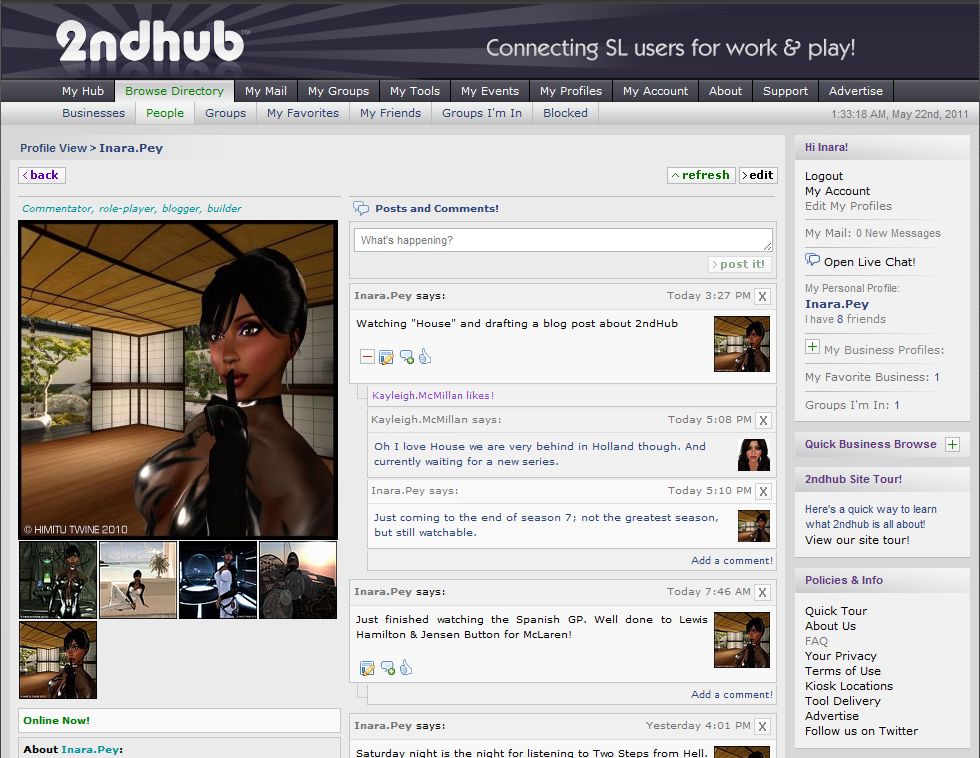
My 2ndHub Profile Page
To get noticed, you should set-up a profile for your Avatar (and any business you wish to promote via 2ndHub); like Second Life, people rarely respond well to a blank profile. Setting-up your profile is a very straightforward task: click on the MY PROFILES tab and complete the displayed form – making sure any required information is given. As long as you keep obscenities out of any descriptive text, it’s really down to you as to what your write.
You can include a link to any website (such as a blog), and came also upload as many images as you like (in batches of four), one of which you can select as the default image that will appear as your main profile image. When you’re ready, you can preview your profile prior to publishing it.
Business profiles (if you have a business) follow the same principle, and can be automatically linked to your Avatar profiles(s).
Making Friends
Connecting with people is relatively easy, once you’ve worked out the initial step of finding people, as there is no obvious search option; instead there is a tab called Browse Directory, which enables you to browse through profiles (personal and business), Groups, Groups you’re a member of, review those you’ve blocked, and set up a list of personal favourite businesses.
A series of input fields allow any directory searches to be more focused; you can for example search by country, SL user name (in the case of avatar profiles) and / or keywords.
Displaying a specific personal profile will take you to the individual’s profile page, where you can, among other things, send a friendship request. It is here that 2ndHub can flex its muscles: friendship requests are sent to your 2ndHub Dashboard and if you are on-line, will pop-up as an alert for you in Chat. Additionally, a copy of the request will go to your e-mail, complete with a link-back to accept / refuse the request. Accepting an offer will see the requestor’s default Profile picture pop-up in you’re my Friends window on your MY HUB Home tab, and added to the list of Friends in the My Friends sub tab of MY HUB.
Groups
2ndhub supports Groups in much the same way as Second Life. You can create your own Groups, invite people to join them, send out notices (with attachments), and so on. A major feature with 2ndhub Groups is that you can invite anyone to join, whether or not they have a 2ndHub account, using a variety of options (see Tools, in part 2 of this article), and joining a 2ndHub Group doesn’t take up a Second Life Group slot (which perhaps isn’t as vital since in-world Groups were increased to 42).
Joining a Group is a similar process to adding a friend, although all Groups appear to be open (although the creator can limit them to be available only to friends), so joining any Group is automatic on clicking the JOIN button. Groups you are in are listed under the Groups I’m In sub-tab of MY HUB, while you can also opt to leave a Group.


 2ndHub is a social media site specifically developed for users of Second Life. In this 2-part review, I take a tour of the site and look at the various features and options.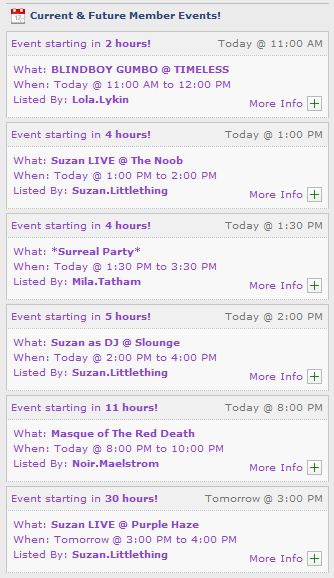






 Inara Pey: Living in a Modemworld