Firestorm 3.2 Release: In-depth

Note: thie version reviewed here is 3.2.2.24336 with the openGL fixes. If you continue to have issues with Firestorm, try 3.2.1.24179

firestorm-logoIt’s here, and it has the OpenGL fixes. And it is quite simply superb.

Firestorm 3 is everything a Second Life Viewer should be – and so much more. So much, in fact, that putting together a review has been something of a headache for me – where do I start, how do I order things?

One thing I will say right off the bat – and that is to give a very personal thank you to Jessica Lyon in particular for giving me the means to get started on this review ahead of the official release.

The Log-in Screen

The first of the big changes hit you right from the start: the log-in / splash screen has been significantly revised, incorporating much of the Viewer 3 log-in screen capabilities and, in some areas, extending them.

FS3-1
Making a Splash: the Firestorm log-in screen

At the top of the screen are four headers. The first three of these, Destinations, Events and What’s Hot Now, pull information directly from the Viewer 3 log-in screen I reviewed back in August 2011.  For those who have not encountered this up until now:

  • Clicking on any of the drop-downs will display a sliding panel of Destinations, Upcoming Events, and “hot” places to visit (the latter determined by the number of people currently visiting it)
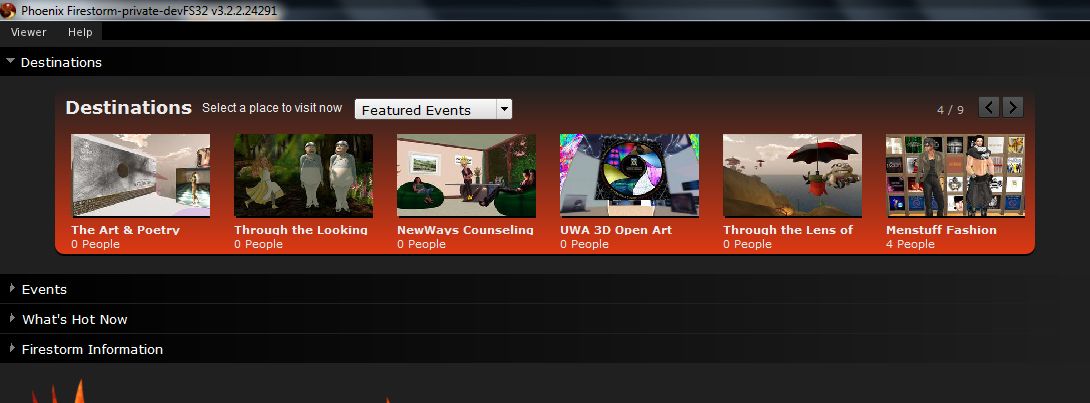
Finding a place to go has never been so easy
  • Opening any one of those drop-down will, very tidily, close the previously-open drop-down
  • Hovering the mouse over the middle of any of the images in a panel will display a SELECT button; clicking on this will open a pop-up of further information, together with a notice that your start location on logging-in has been set to the selected location
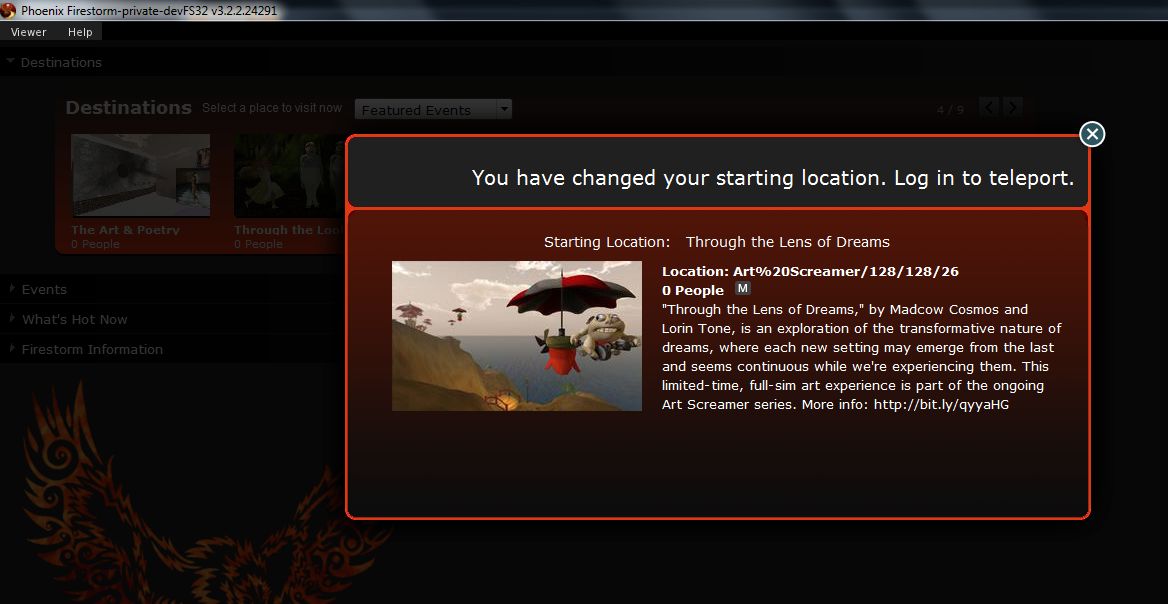
FS3-3

  • You can still switch back to your Home or Last Location via the START AT option at the bottom of the log-in screen.

The last option is that of Firestorm Information, which is open by default. This provides links to the Firestorm download page, the wiki pages and the JIRA; the Firestorm Blog; and information on the Viewer version currently under development. most significantly of all, it includes links to the SL Grid Status Page, allowing users to immediately see if there are any known problems of which they need to be aware.

I am an unabashed fan of the Viewer 3 log-in screen; that Firestorm has adopted it is a major plus in my book. That they are further willing to go where Linden Lab apparently refuse, despite repeated cajoling through the likes of Twitter by a lot of people, gains it another huge tick in the Pey Book of Viewer Satisfaction. Would that LL understood the need to put this information front-and-centre, especially given that with the best will in the world, the grid dows tend to go Swedish Chef every so often and bork, bork, bork. But then, the Firestorm developers are all regular users of the platform…

At the bottom of the log-in screen are the familiar log-in credentials boxes. As is common for TPVs (and previous versions of Firestorm), the Viewer can store log-in information for different accounts, making logging-in with an Alt, etc, a matter of simply selecting a name (or indeed, name / grid combination) from a drop-down list. A DELETE THIS ENTRY button allows for the removal of any selected account from the Viewer’s records.

Default Settings (Viewer Modes)

Choose your desired mode

The log-in area also includes a DEFAULT SETTINGS drop-down. This allows you to chose from one of three operating modes for the Viewer. These are: Phoenix, Hybrid, and V3.

I’ve already outlined the three UI looks, and this version doesn’t change them that much, so I won’t spend time on them here per se; however, for the curious of mind, the default settings for each mode can be found in the table below (from the Firestorm wiki).
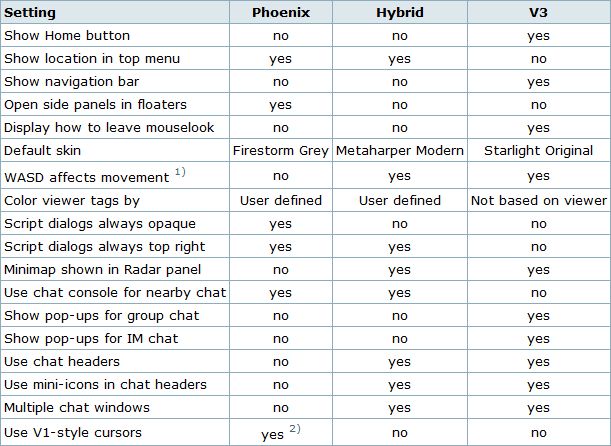
Defaults for the three Viewer modes

Note: Phoenix does not mean the Viewer will present a Phoenix / Viewer 1.x-style interface.

Preferences

Firestorm’s preferences have had a major overhaul, with many options being more pragmatically grouped and thus hopefully easier to find. I’ve tried out outline the key changes below. You can also find a quick reference table to the changes in the Firestorm wiki.

General
Move or type: you choose

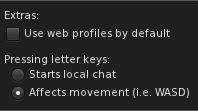
The general tab now includes and EXTRAS panel that allows you to:

  • Select whether the Viewer display your own or other people’s in-world profile or your / their web profile
  • Whether the WASD keys will move your avatar or focus the cursor on the chat bar (also found in the Chat tab).

Note: By default, Pressing Letter Keys is set to START LOCAL CHAT for the Phoenix mode, but set to AFFECTS MOVEMENT for the Hybrid / V3 modes.

Chat

The Chat tab rationalises the majority of options associated with setting chat preferences. As well as presenting the expected Chat options, the tabs originally located in Preferences->Firestorm->Chat (General (renamed “Firestorm”), Radar and Keyword Alerts). This tab also includes:

  • Popular chat log options also found in Preferences->Privacy
  • The option to auto-hide the main Chat Bar
  • The new Viewer translation tool options
  • A Notifications tab, allowing you to define how IM and Group Chat notifications are handled using either the Viewer 3 pop-ups an/or in the chat console (i.e. lower left-hand corner of your screen, as per Phoenix / Viewer 1.x)
  • A Text Input tab comprising the Spell Check and AutoCorrect functions
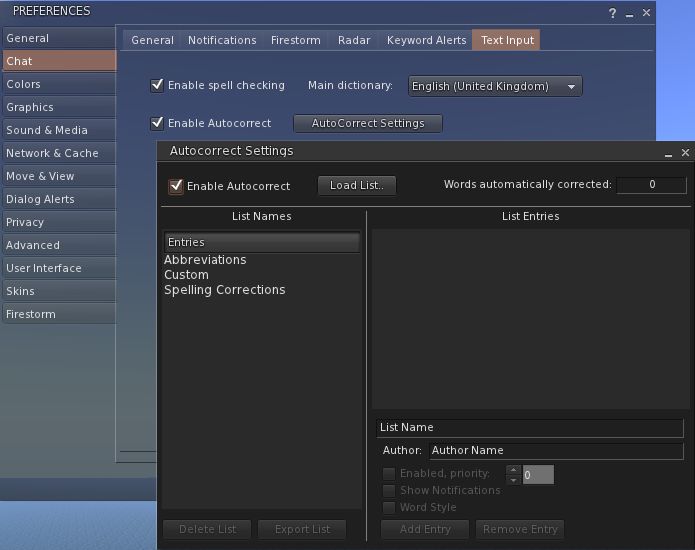
AutoCorrect and Spell Check - together under Preferences->Chat
AutoCorrect and Spell Check – together under Preferences->Chat

Graphics

The graphics tab see the arrival of a FULLSCREEN mode for Firestorm. The option requires a restart to take effect, but renders the Viewer beautifully on screen without the usual application window.

Sound & Media

The Sound & Media tab has been refreshed, splitting media and Voice functions into two sub-tabs: General and Voice Settings. The General tab now includes the Media Audio Rolloff Distance settings originally located in Preferences->Advanced.

Sound & Media: new Voice tab and the Media Audio Rolloff sliders

Move & View

The Move & View tab includes the Viewer 3.2 “click-to-move” functionality (which will reverse avatar mouse steering if you use it!), and moves the Firestorm Camera options originally found under PREFERENCES->FIRSTORM->VIEW to a new sub-tab called Firestorm.
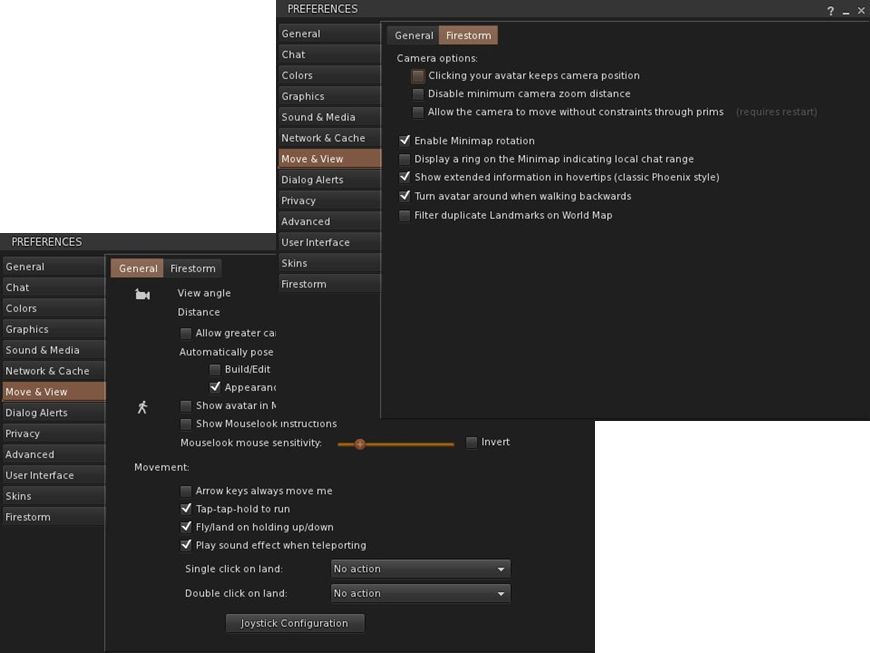
Move & View: incorporate click-to-move and Firestorm's camera options
Move & View: incorporate click-to-move and Firestorm’s camera options

Privacy and Advanced

The Privacy tab is rationalised so that LookAt options are now located on their own sub-tab, including the LookAt Target option originally found in Preferences->Firestorm-General.

The Advanced tab has been reduced to the Viewer / grid / Advance / Developer Menu options.

User Interface

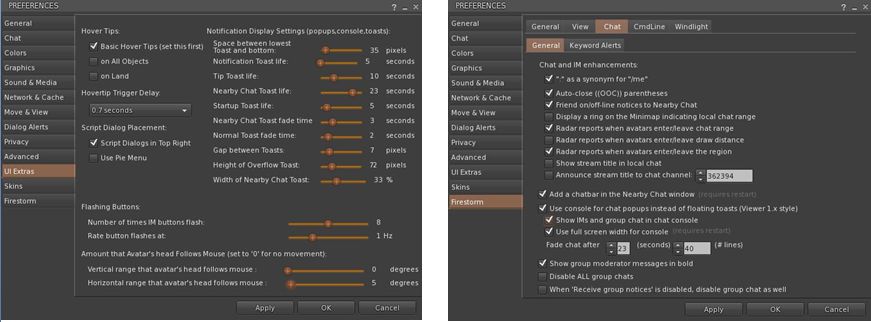
Originally called UI Extras, this tab now:

  • Includes the UI Scaling slider (originally in Preferences->Advanced)
  • Includes the lag meter check box (originally in Preferences->Firestorm->General)
  • Includes the Avatar Head movement options ( originally in Preferences->Firestorm–>Avatar)
  • Allows both script dialogue and Group notices to be displayed in the top right of the screen a-la Phoenix / Viewer 1.x.

The Font tab has been expanded to include options to adjust chat line spacing and folder item height.

Firestorm

The Firestorm tab has undergone significant changes

  • The General sub-tab has been rationalised as a result of options being either moved elsewhere or dropped
  • The Protection tab now include the Phoenix Spam Protection options
  • The Avatar tab replaces the View tab and combines the Avatar Head movement options with Selection Beam Particle options
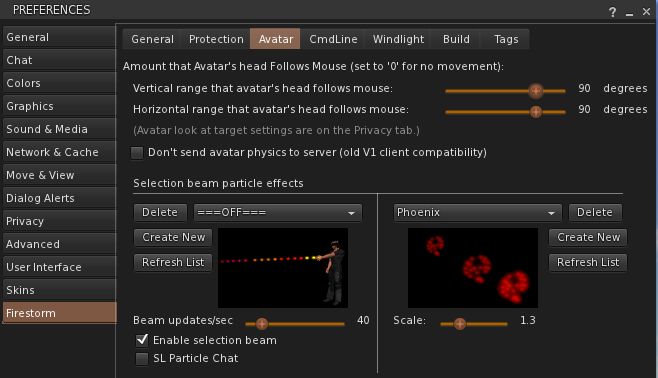
Preferences->Firestorm->Avatar
  • The Windlight tab includes additional options for accepting region settings and cross-fading changes.

Chat Bar and Chat

The Chat Bar now includes two buttons: the first opens / closes the Nearby Chat floater, while the second opens the Conversations floater. However:

  • If the Nearby Chat floater is docked with Conversations (as it is by default), then both will appear to perform the same function.
  • With Nearby Chat undocked, Conversations opens to display your Contacts.

New Feature: Hiding the Chat Bar

Like Phoenix, the Firestorm Chat Bar can now be hidden:

  • Go to Avatar->Preferences->Chat->Firestorm and check AUTOHIDE MAIN CHAT BAR
  • The Chat Bar is now hidden.
  • To access it, tap ENTER – the Chat Bar will open at full window width
  • Type your text and press ENTER – the text is sent and displayed in the chat console or Nearby Chat (if open)
  • If you open the Chat in error, simply tap ENTER or ESC to close it without typing anything.

If you prefer, you can set the Chat Bar to open as soon as you start typing:

  • Go to Preferences->General->Extras or Preferences->Chat->General and make sure PRESSING LETTER KEYS is set to STARTS LOCAL CHAT
  • Pressing any letter, number or character key will now open the Chat Bar and capture your typing
  • As above, pressing ENTER will both display the test and close the Chat Bar

Note: setting this behaviour will disable the WASD keys as avatar movement keys.

To disable Chat Bar hide, the feature, go to Go to Avatar->Preferences->Chat->Firestorm and uncheck AUTOHIDE MAIN CHAT BAR. Remember to reset your the WASD functions, if required.

Additional New Chat Features

There are two further new chat options in this release:

  • Visible hint for when someone is typing: go to Preferences->Chat-> and check SHOW TYPING INDICATOR IN BUBBLES… tags will update to show if someone is typing, even if they have the typing animation turned off
  • You can display an optional channel selection box in Nearby Chat. Go to: Preferences->Chat-> and check SHOW CHANNEL SELECTION IN CHAT BAR
Channel display in chat

Chat Echo Fix

In previous versions of Firestorm, both the chat bar and Nearby Chat would echo whatever was typed into the other. This has been fixed so that text can be typed separately into each.

Camera Floater
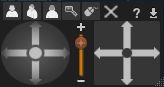
FS3-13The Camera floater used within the Phoenix /Hybrid modes has been refined, with the view buttons (rear, front, 3/4s, zoom & Mouselook) now along the top of the floater. This makes the floater more compact, by some may find it harder to reposition once undocked from the toolbar as a result.

Quick Preferences

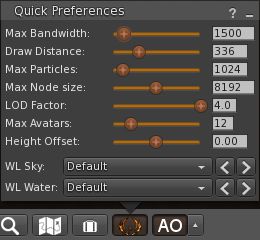
The Quick Preferences button now includes options to turn name tags over avatars off / on, and a time-of day slider for altering the region daylight in your own Viewer.

Mesh Uploads

One of the most eagerly-awaited capabilities within both Firestorm and Phoenix is that of mesh object uploads.

This release sees Firestorm gain the capability, thanks to Nicky Dasmijn. The upload process uses the latest Viewer 3 upload window, and while I am no mesh expert, it appears to match the official Viewer in terms of smoothness of operation.
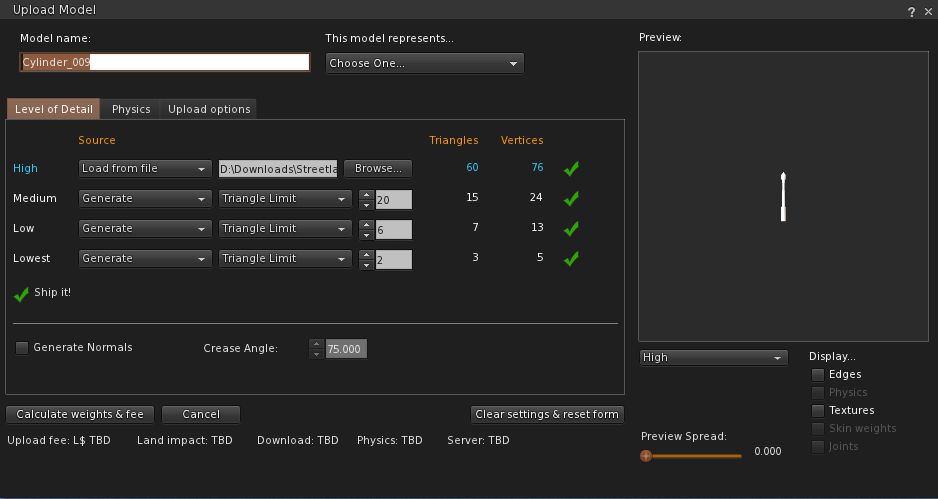
FS3-20

Note that the upload feature includes the fix for CTS-627 (Mesh upload crashes Linux).

Firestorm 3.0.1 “Mesh” Beta: major features review

firestorm-logoYesterday, the Phoenix / Firestorm team released a Beta version of Firestorm (officially called 3.0.1.22525), specifically aimed at mesh object rendering. The team is keen to emphasise that this is bordering on an “experimental” release, and urge anyone trying it out to read the accompanying release notes – of which more anon.

The release itself was almost destined not to take place; on Tuesday morning the team discovered a series of regression issues that needed to be resolved, then their service provider announced significant issues with their fibre, leaving the Phoenix servers only able to accept around 10 connections at a time!

Nevertheless, the team worked through issues and, following the fortnightly Phoenix Hour on MetaMix TV, the Beta was duly released. So – what is it like?

Starting Firestorm

The differences between this version and earlier releases are apparent from the moment you install and run Firestorm. On the log-in screen alone are three new features:

Log-in screen – new features
  • Log-in drop-down list: Firestorm gains the Phoenix username drop-down list with this release. If you use several alts, names and passwords can be retained by the Viewer and chosen from a drop-down list, making for easy selection. In a further nice touch, if you use the same name to log on to multiple grids, the Viewer will remember the specifics. For example, I have three entries under username: “Inara Pey”, which logs me into the SL Main grid; “Inara Pey @ Second Life Beta” which logs me in to aditi, and “Inara Pey @ InWorldz” which logs me in to InWorldz – the required Grid is automatically selected when I select the user name
  • Beneath the Username field is a new button – DELETE THIS ENTRY (arrowed). This removes the details of the selected avatar from your log-in records held by the Viewer – again, useful if you have multiple avatars and discard one, or if you no longer log-in to a specific grid
  • There is also now an option called DEFAULT SETTINGS. This allows you to select a default “UI” style with which to run the Viewer. By default, it is set to “Phoenix”. Clicking on the arrow to the right of the option displays the additional options of “V3” and “Hybrid” (boxed above).

Now, these have been described as setting different User Interface styles – and to a point, they do (setting V3, for example, will give you the familiar Sidebar tabs from Viewer 2.x/3.x); but if anyone is expecting “Phoenix” will deliver a full-blown Phoenix-esque V1.x UI will be in for a disappointment – the differences in presentation are far more subtle: “Phoenix” delivers a UI that is pretty much identical to the current Firestorm release UI, for example.

Firestorm 3.0.1 “V3” UI option

“Hybrid” refers to a new – and, I’d say cleaner – variant of the Firestorm UI developed for this release, which I’ve now set as my default (as far as possible – there is at least one issue with this release).

Firestorm 3.0.1 “Hybrid” UI option

As with the Viewer Modes in Viewer 2.x / 3.x, changing the default settings will require you quit and restart Firestorm. While this requirement is the same as the official Viewer when switching between Basic and Advanced modes, it would be nice if this could be automated if at all possible: clicking the OK button shutting down and restarting the Viewer in one convenient go.

Firestorm 3.0.1 “Phoenix” UI option

Navigation and other “Top” Bars

By default, both the Phoenix and Hybrid settings have the Navigation Bar at the top of the screen turned off, while the V3 option has it on, together with the Search bar. Speaking of the Search Bar, as there is an option to turn it  off/on, it would be nice if this worked independently of the Navigation bar (currently turning Search on / off only makes a difference if the Navigation Bar is displayed). It’s a small thing, but would add to convenience of use.

The Favourites Bar is on by default in all three, and while I like the fact that in the Phoenix and Firestorm options it is on a transparent background, this may cause issues for some and it is frequently difficult to see against, say, the sky. I also like the Hybrid option’s transparency around the tool bar at the bottom of the screen; this is a nice touch and adds to the feeling that one has a greater in-world viewing area.

Of Sidebars and Pie Menus

The “V3” option of the UI obviously uses the V2.x/V3.x Sidebar and tabs, although options can be accessed from the toolbar at the bottom of the screen as well.

The “Hybrid” UI option uses the “tabless” Sidebar seen in earlier Firestorm releases, with options accessible from the toolbar buttons. In both cases, options can be “torn off” from the Sidebar and floated as independent windows, and will persist as such between log-ins.

The “Phoenix” UI option disposes with the Sidebar completely, and simply floats options in their own windows.

Both the Phoenix and Hybrid options utilise the Pie Menu by default – I would personally prefer the Context Menu were the default in the case of the latter, but I suspect I’d be in the minority for saying so! The V3 option uses the Context by default.

Major New Features

Volume Control Access

Volume Setting Controls

With this release, Firestorm inherits Phoenix’s quick-access panel for all volume control settings. Simply hover the mouse over the volume icon at the top right of the Firestorm window and the control panel will drop down.

All the expected options are there, with sliders, together with options to mute those that are frequently not used: streaming music, media and Voice.

Alongside the Quick Preferences button located down on the toolbar, this is perhaps one of the most eagerly awaited V1 TPV UI options to reach Firestorm.

Built-in Flight Assist

Adding to the client-side AO, Firestorm now sports a flight assist option. This is accessed through PREFERENCES -> FIRESTORM and then checking the ENABLE BRIDGE FLIGHT ASSIST option. As the option itself suggests, the Firestorm Bridge must be worn in order for the flight assist to work; furthermore, you should remove / turn off any other flight assist options before using the built-in flight assist, or you might experience all sorts of issues!

Camera Floater Updates

The camera floater receives an update in the new release, with the Phoenix and Hybrid versions receiving new buttons, while the V3 floater sits somewhere between the previous Firestorm version and the Viewer 3.x controls.

Camera floaters Viewer 3.x (left), Firestorm Beta, Firestorm “V3” and Firestorm “Phoenix” / “Hybrid” (right)

The layout of the new “Phoenix” / “Hybrid” floater makes it appear slightly larger on-screen, and also a little tricker to resize.

Contacts List Changes

The Contacts List has been updated to show whether friends have allowed you permission to map them / edit their items – all to the good. On the downside, a column to show Display Names has been added alongside user names, which tends to push out the size of the window unnecessarily.

Contacts List – a lot of screen space

It would be nice if there were an option to turn off either the user name column or the Display Name column in order to make the List less screen-consuming. If this could be coded, and reduce the amount of screen real estate lost to the window.

Continue reading “Firestorm 3.0.1 “Mesh” Beta: major features review”

New Firestorm Beta

firestorm-logoFirestorm today released a second public beta version of the viewer. The 2.5.2.16922 release came somewhat unexpectedly and added a slew of new features and bug fixes which do much to move the viewer very much closer to a prime-time release status.

Note: the following comments apply to the Windows version of Firestorm. Other OS versions may differ.

Build Tools

Chief among the new features is a full port of the Phoenix build tools, so that Firestorm now includes:

  • Clickable group name on build floater
  • Object highlight toggle on build floater
  • Pivot point controls
  • Default size and material controls
  • Link number of build floater (with same bugs as Phoenix)
  • Build options pref panel Prefs> Firestorm> Build
  • Copy/paste object position, size, rotation, parameters and textures
  • Alt, control and shift keys modify increment on spinners (Alt: x10. Control: x1/10. Shift: x1/100)
  • Higher precision on position, size and rotation (4 decimal places)
  • Phoenix’s additional path profiles and transforms types
  • Added button for copy keys (UUID) to clipboard
  • Added requirement to confirm before setting object for sale (prevents sale sniping)
  • Expand/Collapse button
  • Added always show last owner.

Other notable changes include:

Quick Preferences Button

Quick Preferences options

The inclusion of “Quick Preferences button” in the bottom tool bar that provides quick and convenient access to a host of options that can often require frequent adjustment (see right), including the ability to rapidly step through windlight sky and water defaults or select them from a drop-down menu in much the same way as can be found within Phoenix via the arrow option at the extreme right-hand end of the tool bar.

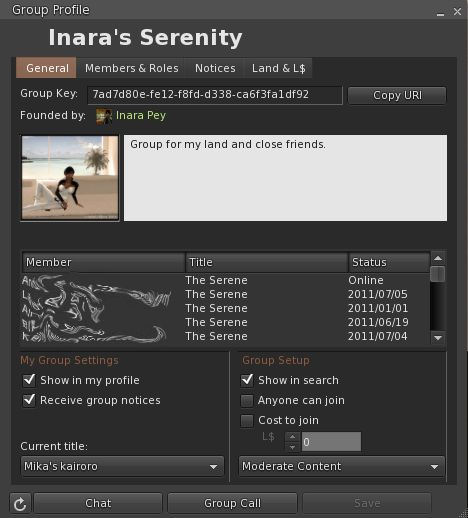
Group Pop-up Window

New Group pop-up window

It’s pretty well known that I’m not a fan of the Sidebar, which tends to be little more than a disruptive waste of space where I’m concerned – so anything that Firestorm adds that prevents me having to be tossed around the Viewer and into the Sidebar is going to get a big thumbs up from me.

So it’ll come as no surprise that the new Group pop-up window is a big hit with me. As with Viewer 1.x, it allows you to pull-up information on a Group and peruse it quickly and conveniently in a simply pop-up.

It even includes a couple of new buttons – although one of them could perhaps do with a clearer title. CHAT opens up a Group Chat window – very handy when you want to make an announcement; GROUP CALL also opens up a Group Chat window, although the function of the button is actually to initiate a VOICE call between group members. As such, the latter button might be better off labelled “Voice Call”.

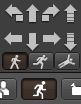
Movement Controls

I’ve rarely used them, but many do like Viewer 1’s movement controls. Until now, these haven’t been offered within Firestorm as a discrete option.

This latest Beta changes that by presenting them with a toolbar button of their own, and the palette fully repositionable. This will doubtless be seen as a very welcome addition by those who prefer to use the palette.

Land Details

Another small, but to me significant, improvement is that with this release, the land name displayed at the very top of the Viewer window is once again clickable and will bring up the ABOUT LAND window. This has been one of my hang-ups with Viewer 2.x; despite having the LAND button sitting in the navigation bar (which I rarely turn off), I must admit that I’ve been unable to break the habit of pointing to the land name and clicking on it, a-la Viewer 1.x, in order to bring up ABOUT LAND. Kudos to the Firestorm team for rescuing me from the need to consciously break myself out of this habit!

Bits of the rest

Other changes I particularly like with this release are:

  • “Restore to last position” added to inventory right click menu
  • Contacts tab in Conversations is now closable
  • World map search results are now alphabetical
  • Copy outfit your wearing to text option in the worn tab on appearance panel. From gear menu, copy to clipboard.

Performance-wise, this represents, on my hardware at least, the best results to date with Firestorm. When on a sim with one or two others and draw set to 360m, I can achieve 60-65fps, easily putting Firestorm on a par with Viewer 2.6. On more crowded sims, this falls to between 45-50fps, which is still superior to the last release. What really stuns me however, is that on a sim with 5 other people and with shadows enabled, Firestom can manage 20-25fps on my machine, making it easily the best when it comes to rendering shadows for me.

Opinion

Firestom simply goes from strength to strength and this release potentially marks it as ready to move to a “final” release status.

If you’ve held-off downloading Firestorm or making the move to a Viewer 2.x-based TPV, now is really the time to start re-thinking your position, especially with Viewer 1.x search about to lose effectiveness in some areas and mesh due to be rolled out over the next 6-7 weeks. And if you’re not impressed with Viewer 2 either from direct experience or through the reports of others, Firestorm is liable to suit you right down to the ground.

Test drive: Firestorm Beta

Yesterday I gave a rapid overview of Firestorm Beta. I’ve now had more of a chance to take it for a spin, so here’s a more detailed look.

Installation

First off, make sure you completely remove any previous versions of Firestorm prior to install – in the case of Windows, probably best to restart your PC after doing so and prior to installing the Beta. The Widows installer comes in at around the same size as the official Viewer 2 installer (25 Mb) and runs a seamless install, and places 151 Mb of data onto your hard drive.

The first thing you may notice on logging in – assuming you do not rez directly – is that Firestorm has borrowed from Imprudence  / Kokua, and while a cloud you are now an orange cloud, rather than the default grey mist.

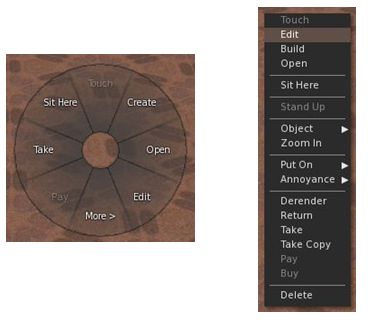
Pie Anyone?

Pie or Context – you decide

The next two things you’re liable to notice is that there is now an AO button on the bottom toolbar, and if you click on anything, you get…a pie menu! Viewer 1 lovers, your prayers are answered.

I’m going to commit sacrilege here and say that, after using Firestorm and Viewer 2 and S20 / S21 for a while – and despite Phoenix still being my primary Viewer – I actually think the pie menu is vastly overrated (particularly given it varies so widely as to where anything is, depending upon which Viewer you use; one person’s Detach is another’s More, so to speak). I’ve found the Viewer 2 context menus to be far more consistent in options faster to learn and easier to use.

This being the case, I went straight to AVATAR -> PREFERENCES and pulled up the UI Extras. Much work has been done here to bring together some great UI customisation options on the Viewer – including a check option to toggle between the pie and context menus. I’m not going to run through the options – they are all pretty self-explanatory, and to be honest, most have been available in the earlier Preview options.

Updated Preferences tabs – new options

Other tabs within Preferences have also been massively improved. The Firestorm tab now includes pretty much everything those familiar with Phoenix would expect to see – with a lot of rationalisation and simplification of tabs and options. A nice touch here is that under FIRSTORM -> GENERAL you now get a greater choice in how names and display names are seen, and you can toggle between the Viewer 2 search and the “improved Viewer 2 beta” search (currently on the Search Project Viewer) – those who wish to compare and contrast and identify improvements can now have a field day playing with both! Within this sub-tab is one of my personal favourite new additions: TURN AVATAR AROUND WHEN WALKING BACKWARDS. This is something HUDdles has long had and I’ve really missed it when relying on built-in AOs.

A new element to the FIRESTORM tab is the VIEW sub-tab, which brings together several camera-related functions previously scattered around the place, if available at all. Along side it, the CHAT sub-tab has been massively expanded over earlier releases – and now includes a set of options related to … radar!

I See You!

Radar tabbed

Radar is one of the biggest bones of contention in Second Life. People either love it or loathe it – with those loathing it frequently loudly and persistently screaming here, there and everywhere about it being an “invasion of privacy” and a “tool for drama” (and in the latter case, totally missing the irony in the fact that they tend to be the ones creating the drama).

If I’m honest here, almost any tool in the Viewer can be used properly or to create mischief and the radar is no exception – it is how you choose to use it, and I think it fair to say that most people use it responsibly. Those screaming on…and on…and on… about it representing an invasion of privacy would do well to remember that privacy can be invaded simply by removing camera constraints, pushing up draw distance and camming-in remotely (all possible on the “official” Viewer).

As far as I’m concerned, radar is a HUGE boon. As a former estate manager, it enabled me to identify problem people / areas quickly, get directly to them and deal with matters / provide assistance. Combined with other tools, it enabled me to deal with trouble remotely and confirm the required action had been taken. Even today I find it very useful at times – and it is one of the reasons I’ve stuck it out with Phoenix for so long. Well, no more. I’m in love with the improved Firestorm radar.

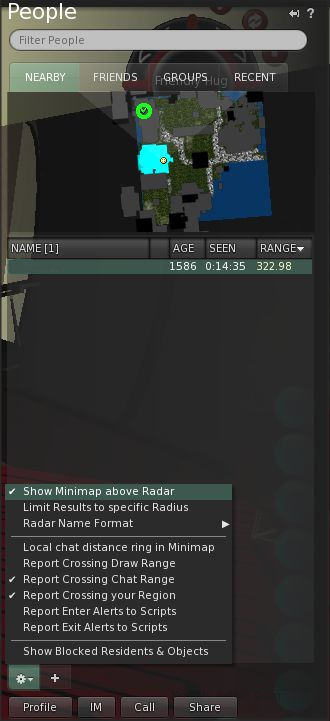
Aswith the Preview, Radar forms a part of the PEOPLE tab on the Sidebar – but is much improved. For a start there is an optional minimap display; you can also adjust the scan range for the radar and alter the way avatar and adisplay names are displayed.

If you want a more Phoenix-like radar display, simply go to the tab PREFERENCES (shown in the image), uncheck the show minimap option, and then undock the PEOPLE tab from the sidebar and resize accordingly; however, be aware that doing so can make scrolling through your friend list a tad more tiresome. As with Phoenix, the radar also includes a right-click option when highlighting specific names, allowing you to IM people, etc.

Continue reading “Test drive: Firestorm Beta”

A look at Firestorm Preview 2.4.2

A little under two months ago, Firestorm, the Viewer 2-based offering from the Phoenix team made its initial appearance, and I gave a brief overview of it then, with a follow-up a few days later. Overall, the Viewer was impressive, despite being a pre-release, and hinted that while there was obviously a lot missing, the Phoenix team were well on the way to delivering a first-rate product.

Today, the “Beta” of Firestorm made its appearance, and it substantially builds on the initial release very positively. A list of key changes has been provided by the Phoenix team, but I’d thought I’d take a little more of a closer look at for myself.

Again, this isn’t intended as an in-depth review; it’s more a personal look at what I like in particular in this release – and what I hope to see down the road!

The installation was as expected: smooth and precise. Once loaded for the first time, Firestorm displays a Viewer 1-style COMMUNICATIONS window and has the Sidebar open – both of which I’ll return to in a moment.

Media Filter

Media Filter pop-up

However, it is on clicking the option to enable media that one will notice the first major change. As soon as you confirm you wish to enable media, (and assuming  a media stream is being directed at you), the Media Filter will pop-up a request asking you if you wish to accept the incoming stream.

For those unfamiliar with the Media Filter, I strongly recommend you read the available Tutorials on it – I have one in this blog, and there is also one available on the SL Wiki. Suffice it to say here that the Media Filter helps you to safeguard your privacy when using Second Life.

If there is no media stream available when you first start Firestorm, the Media Filter pop-up will be displayed the first time you click on the media PLAY button, (top right of your screen) and a stream is available.

Sidebar and Tool bar Options

One thing that may confuse Viewer 2 users in trying-out Firestorm is that the default Firestorm skin doesn’t have the familiar Sidebar tabs. It also has a substantially different toolbar at the foot of the Viewer Window.

Both are because the Sidebar options can now be directly accessed from the toolbar. Simply hover the mouse pointer over the available buttons to see a tool tip description of their functions.

The Firestorm toolbar

The more familiar buttons of MOVE, VIEW and GESTURE can be enabled by right-clicking the toolbar and selecting them from the pop-up menu – from which buttons can also be disabled as required.  Note that in addition, the Camera controls (VIEW) can be displayed by enabling AVATAR -> CAMERA CONTROLS.

For those who still prefer the Sidebar, AVATAR -> PREFERENCES – > SKINS provides you with access to alternative UI skins that include the Sidebar. Simply re-start the Viewer after selecting your preferred skin.

A nice touch with the Camera (VIEW) controls is that the floater panel can be resized to suit your needs – and is actually a lot more compact than the Viewer 2 floater to start with.

Conversations Window

This is a nice carry-over from Viewer 1.x, and was actually in the pre-release version of Firestorm, although I didn’t mention it in my first post. By default, IM tabs are vertically placed (as opposed to horizontally, as with Phoenix). This gets a big tick from me, as I find the vertical tabs make incoming calls easier to track, and so it’s one less preference to have to set & then restart the Viewer.

The Conversations window is open by default on first starting Firestorm, and thereafter can be opened by clicking the ^ button to the right of the text entry box in the tool bar.

The Nearby Chat tab of Conversations also dispenses with the Viewer 2.x-style headers to chat items by default, again saving one the need to fiddle with preferences, while streamlining the chat tab’s display.

Radar

This release of Firestorm sees an initial implementation of the Phoenix radar functionality. While many see this as a curse, I have to say that from a sim management point-of-view, I’ve always found the radar functionality a great boon when trying to help people in a hurry. As such, it is something I sorely missed in the initial release of Firestorm – and partly what stopped me using it full time.

In the Beta, some Radar functionality has been included – and hopefully it will be built upon over the next few releases. Bullet items regarding it are:

  • The Radar is limited to a 400m range at present
  • The Radar information is included in the PEOPLE tab / window and includes an option to teleport to someone as well as the standard Viewer 2.x options displayed when right-clicking on a name
  • Announcements from the Radar are limited to people entering chat range and / or draw distance, and are set separately via AVATAR -> PREFERENCES -> FIRESTORM -> CHAT.

I’d personally like to see the range of the radar increased – and I know this is being worked on. I’d also like an option to announce when people enter / leave a sim; this again can be useful when monitoring a sim where there has been trouble, but not enough to warrant an outright ban as yet.

Profiles

In a major move away from Viewer 2, Firestorm does not utilise web-based profiles.

Instead, it uses a two-tier approach to displaying Profiles:

Personal Profile

Selecting your own Profile takes you to a modified Viewer 2 Profile tab in the Sidebar. This displays your “1st Life” and “2nd Life” information under two tabs called “Avatar” and “More Info” (which also includes a web link field as well).  Currently, there is no PICKS tab, nor does there appear to be a way of getting “out” to your web profile from the display (other than getting to Partner information).

I presume additional functionality will be added here – and that the functionality will include the ability to get out to the web-based version of one’s Profile, should one wish. Not everyone is opposed to web-based Profiles, and as such, the flexibility to choose should be included for those wanting to go in that direction.

Other Avatar Profile

When it comes to other people’s Profile information, a window somewhat similar to those from Viewer 1.x pops-up. This is a huge improvement over Viewer 2.x for two very good reasons:

  • It’s actually a lot faster – twice as fast on my PC – when loading a profile
  • It takes up much less screen real estate

There are some very nice touches in this Profile display as well. Take Groups, for example; when you highlight one, a little “I” for information appears, together with a right-point arrow. Click on the “i” and you are given the option of joining the Group, or displaying the Group information. Click on the right-pointing arrow, and the Group information (Profile) is displayed in the PEOPLE tab of the Sidebar.

Other Little Bits

  • Role players have been further catered to, with MU* poses and OOC options being added
  • There is now a first pass at a persistent de-render (change Group tags to re-render, although you may need to re-log as well)
  • Phoenix-style commands are now supported in chat
  • “Always rez under land group” is a pre-set default
  • Starlight skin support has been improved
  • Additional preferences ported from Phoenix
  • In-chat on-line / off-line notifications for friends.

Under the hood there are a number of bug fixes and various performance improvements as well, giving Firestorm even more polish even at this stage.

Opinion

The pre-release version of Firestorm was impressive. This is even more impressive. Clear inroads have been made into a lot of the functionality that has made Phoenix such a success, and while there is still more to do, that Firestorm has reached this level of capability and functionality in just two releases is remarkable.

For me, the big wins with Firestorm are:

  • First pass at the inclusion of radar functionality
  • The Viewer-based profiles for other avatars
  • The in-chat online/offline notifications for friends
  • The Media Filter.
Web browser warning

As well as the media filter, use security has been enhanced with the addition of an optional prompt that is displayed when you are using an external browser rather than the viewer’s in-built browser. This gives a reminder of the possible risks involved in visiting other websites directly with your browser. The warning can be disabled, and will turn off automatically if you switch to using the in-built browser in the Viewer itself.

There are some additional elements from Phoenix I’d personally like to see pop-up in a future Firestorm release. For example, right now, Outfits still remains something of a royal pain in the rear bumpers.

  • There is no means of ADDing clothing / attachments from an OUTFITS folder in Inventory – the only option is REPLACE, and this DOES knock-off pre-existing attachments. The only way to add items is via the OUTFITS tab of the Sidebar
  • There is no means of adding subfolders (or even displaying subfolders) in the OUTFITS tab of the Sidebar – this can only be done through Inventory.

To be fair, both of these are long-standing issues with Viewer 2, rather than anything specific to Firestorm – but both are bloody inconvenient and need sorting out.

I did notice the text overlay issue remains as well; if you scroll up a chat tab in Conversations and a message comes in for that tab, the text tends to overwrite anything you are trying to read until you scroll back to the bottom of the screen once more. Not a show-stopper, but it would be nice to see someone sort this out.

But, these niggles aside – which are, as I said, more to do with Viewer 2 than Firestorm – it is fair to say that this release moves Firestorm a stage closer to being ready for prime time and potentially becoming the most popular Viewer 2 variant on the grid. While there is still a good way to go before this is the case, Firestorm Beta 2 is pretty much usable right now.

Kudos to Jessica and the team!

Firestorm: take two

So, I’ve been working with Firestorm for a few days now, and I have to say, I’m still enjoying it. I’ve not had any significant issues, although there have been a few things that had caused passing annoyance:

  • The CONTACTS list seems a bit ropey at times: on logging in, name frequently appear either in reverse alphabetical order or completely jumbled, and require the window to be closed and re-opened to correct
  • I still cannot figure out how to enable Map for friends, should I wish (or indeed, disable it)
  • Some Preferences seem to fail on persistence occasionally – although this could simply be the age of my graphics card

But…these aside, I’ve have no crashes or other major upsets attributable to the Viewer itself. True, I’d like a more powerful graphics card to run all the nice things, but sadly, due to power supply limitations, that’s not going to happen on my current PC.

I really do like seeing shadows rendered, tho. After tweaking and playing, I’ve managed to up my frame rate to an average of 12-13fps – with peaks around 15-16 and troughs around 10fps. not perfect, but workable with only one or two other avatars near me. Any more than that, and things crawl to a near standstill.

Anyway, a couple of shots to demonstrate why I’m coming to love shadows – nothing new or radical for those who are already familiar with them.

Me – without shadows

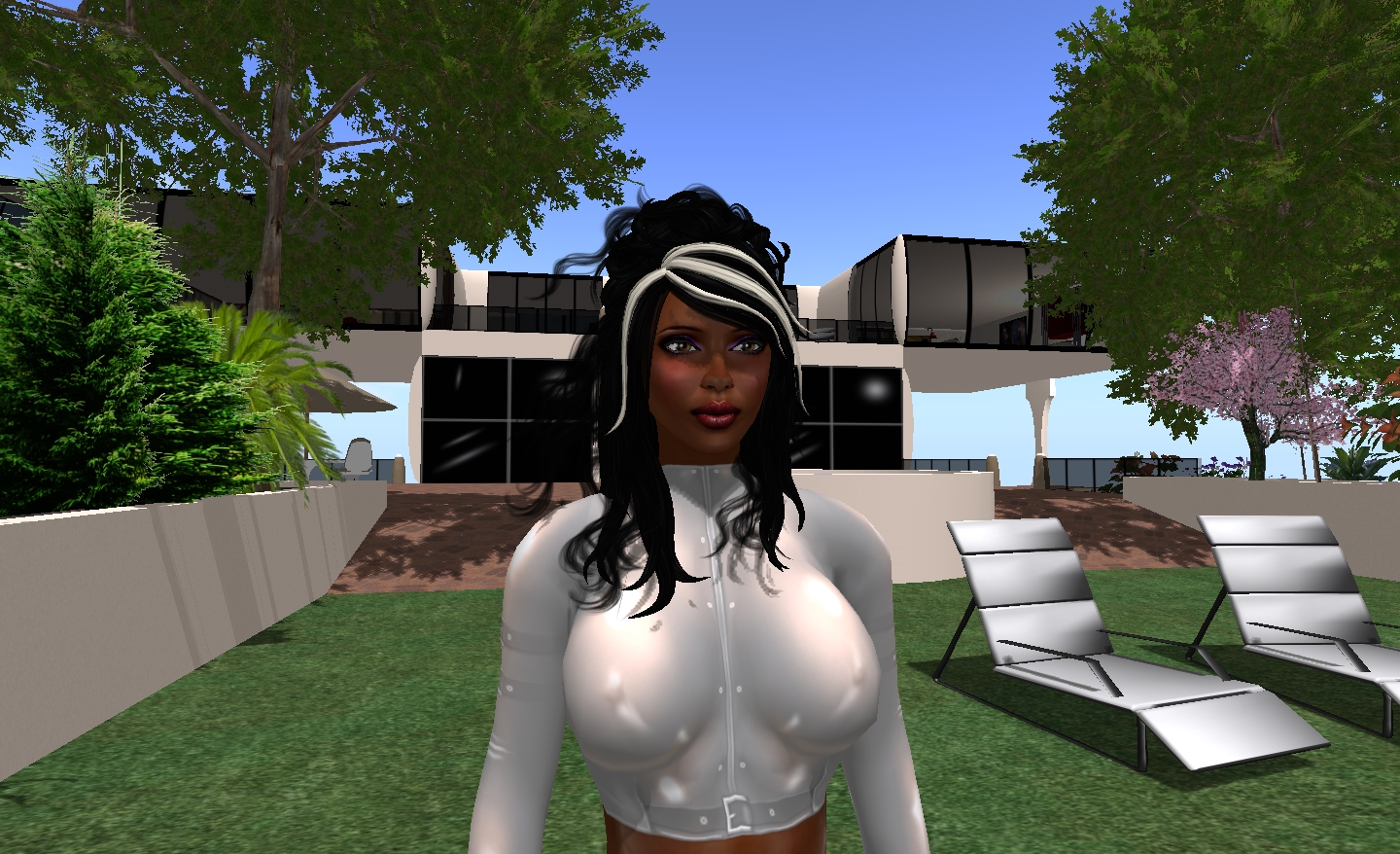
This is probably the way most of us see one another in SL, so no big surprises. However, turn shadowing on, and not only does the house and the trees cast nice shadows, but…

Me…with shadows active

…I get much better facial definition, and shadows cast across my feature from my hair – shadows with move in time to any hair movement.

One thing I have found is that shadows, like Windlight, demonstrate the need for subtle face lighting: illumination points really need to be considered carefully, and face lights are best “turned down low”, rather than being left full-on. I’d especially avoid lights that are very face-on: a couple of friends have these, and under Windlight it’s like having a car headlight shining during the dusk / night / dawn. With shadows and lighting combined, it’s like having a set of mobile spotlight illuminating anything within a 10-15 metre range, to say nothing of washing-out facial detail.

Now if only I could take courage and upgrade my power supply and then get a higher specification graphics card….