Black Dragon 2.3.9.8: poking at the UI and adding filters to the snapshot floater

Blackdragon logoOn Friday May 16th, Black Dragon 2.3.9.8 was released on the world. The release is marked as “experimental”, and so some caution is advised in using it. It is also billed as a part-way release between the 2.3 and 2.4 versions of the viewer.

The majority of the changes this time around are within the UI, although the version does pick-up on some new shiny from LL, notably the SL Share 2 capabilities for uploading text and photos to Twitter and photos to Flickr.

Again, this isn’t intended as an in-depth review of the viewer, more a look at some of the highlights and give some initial feedback.

UI – Toolbar Buttons

The UI changes are immediately apparent on launching the viewer: the UI has moved more to a black schema, and system messages, etc., are by default in red. The result is quite striking, but at the same time I wonder how those with visual impairments will find the viewer at first glance.

The most noticeable element of this version of the viewer when run for the first time, is new button placement area at the top left of the screen. This displays buttons where one would, in any other v3-based viewer, expect to find the Me, Comm, World, etc., menu options.

The new top bar arrangement in Black Dragon - note the toolbar buttons on the left (click for full size)
The new top bar arrangement in Black Dragon includes the ability to set-up toolbar buttons “in” the top bar, ranged to the left of the Black Dragon drop-down menu which accesses the familiar menu options (“Dragon”)

The buttons are displayed in a new size of “Tiny”, and are immediately followed by the Dragon menu option, which provides access to the expected drop-down of menus (File, Edit View, World, etc). Right-clicking on these buttons displays the expected button options menu, and buttons can still be dragged and placed on the left or right of the screen or at the bottom of the screen, according to your own preference.

It’s an interesting approach, and bearing in mind the current release is experimental, not entirely trouble-free, for me at least. By default, the Navigation & Favourites bar are enabled, but for me, the Navigation Bar didn’t display the region name or any details, and toggling to the Mini-location Bar caused it clash with the toolbar buttons, suggesting more work needs to be done in integrating the two sets of functions. Given the nature of the viewer, I’m not pointing to either item a fault, but rather something to be aware of should you try the viewer yourself and encounter similar oddities.

Additional "spacer" buttons in the Black Dragon Toolbar Buttons floater can be used to add spaces between groups of toolbar buttons
Additional “spacer” buttons in the Black Dragon Toolbar Buttons floater can be used break-up buttons in a toolbar into logical groups

Another interesting / useful little extra is the addition of five “spacer” buttons to the Toolbar button floater. Like the toolbar buttons, these can be dragged and dropped into any of the toolbar areas and used to break-up the buttons displayed within it into groups. As with the other buttons on the floater, note that each spacer can only be displayed (used) the once.

Snapshot Floater Overhaul

Niran has undertaken a complete overhaul of the snapshot floater. Again, this still appears to be a work-in-progress, given the lack of a preview panel for viewing snaps, but what is there is likely to get some people bouncing in their seats.

The most immediate change visible in the floater is the inclusion of buttons for the share to Facebook, Twitter and Flickr options. Clicking on any of these will launch the respective floater, thus offering a quick and easy way to swap from the snapshot floater should you wish to upload an image elsewhere.

However, and perhaps more particularly for most people, Niran has incorporated the post-processing filters from the SL Share 2 viewer into the snapshot floater. This means that when saving snapshots to disk, e-mail or your Profile feed, you can now apply any of the filters supplied with the  SL Share 2 code (1970s colours, autocontrast, sepia, lens flare, etc., and Niran’s own “realblackandwite”).

Black Dragon's WIP snapshot floater: note the inclusion of the post-process filter options, applicable to iamges saved to disk and inventory and uploaded to profiles feeds or e-mailed
Black Dragon’s WIP snapshot floater: note the inclusion of the post-process filter options, applicable to images saved to disk and inventory and uploaded to profiles feeds or e-mailed

Clicking on the red bar to the right of the floater will open the preview pane – something which caught me out initially in looking at Black Dragon (and for some reason a trial click didn’t do anything – so my thanks to Maddy Gynoid for poking me on this and getting me to try again and revise this review as a result).

The snapshot preview panel

Motion Blur and Godrays

Black Dragon’s motion blur option is now on by default, and gets its own tuning options in Preferences > Display. Note that motion blur, while itself on by default, will only work when Deferred Rendering (now more commonly called “Advanced Lighting Model” in viewers) is enabled. However, Ambient Occlusion and Shadows do not need to be enabled.

The Motion Blur and Godray options in Preferences > Display

This release of Black Dragon also sees the Godrays option gain a toggle option in Preferences > Display, together with fine tuning sliders.

Niran has produced a video demonstrating motion blur, embedded below, or you can travel to the Black Dragon office in Hippo Hollow and witness it first-hand using the viewer.

Godrays, from Tofu Buzzard, were introduced with the last release of Black Dragon, but enabling them was a slightly convoluted process, as Niran hadn’t got around to adding a toggle function to them. The new option, together with the fine tuning sliders makes using Godrays much easier, and can, with the right windlight settings, produce some stunning effects, although (for me at least) it took some trial-and-error to get something reasonably usable, When used properly, it can add some stunning depth / feel to snapshots, although I did encounter something slightly unexpected when panning my camera around a sky build when I had Godrays enabled.

Casting shadows on the sky with Godrays

Given most people will be looking towards the Sun when using the Godrays effect, this isn’t much of an issue; however, for the artistically minded, it might offer-up ways to produce some interesting images …

Feedback

Niran has always pushed the envelope with the viewer, and this release of Black Dragon is again ample demonstration of that. The fact that much of the UI is still a work-in-progress means that it would be unfair to pick at it at any length, given any issues that might be apparent could well be down to the fact that it is in a state of flux.

That said, the new approach to the top bar areas of the viewer is interesting, and I’d like to see how that develops, vis getting things like the Navigation bar to correctly display. I’m not totally convinced about the toolbar button area sited to the top left screen; which it works fine for the “mini icons” setting, it does so only if your taste in buttons is minimal. Get to many, and they start wrapping. Use any of the other display options, and things can get a little messy up there very quickly.

The mini icon option also works on the side and bottom toolbar positions, and from my perspective works really well in them; the buttons are unobtrusive but easy to click. Now, if only Black Dragon would include an option to left / right range them along the bottom…

However, as mentioned above, it is the snapshot floater where Niran is to be given particular kudos; the inclusion of the SL Share 2 filters is an excellent addition. The overall design of the panel is something I wouldn’t mind seeing in other viewers; so hopefully it’ll be contributed back to LL and accepted.

Related Links


Black Dragon viewer 2.3.9.7: with added “Godrays”

Blackdragon logoNiranV Dean released Black Dragon 2.3.9.7 (or 3.7.5.31492, if you go via Help > About Black Dragon / the log-in splash screen) on Tuesday April 22nd.  The release marks Black Dragon’s completion of the third-party viewer self-certification process and inclusion in the Third-party Viewer Directory.

The release brings Black Dragon up to parity with the Lab’s 3.7.? code base (I assume 3.7.6, but this is not made clear in the release notes), and includes a number of updates listed as:

  • Added: ‘Godray’ effect, without switch yet
  • Added: Machinima Background texture
  • Changed: Disabled Show Title info in Sound tab
  • Changed: Updated to Tofu’s latest BlurLight shader. Doesn’t use newly added RenderShadowGaussian…
  • Changed: Allow minimum Sun Size down to 0.01.

Of these, the “Godray” addition is perhaps the most interesting, adding as it does rays of sunlight to the sky which, under certain lighting conditions appear to be very effective. The option is still a work-in-progress, and so there is currently no toggle / switch in the UI for enabling / disabling it (it is off by default) – expect one to be added in due course as the work is finished-off.

Tofu Blizzard's "Godray" effect in Black Draon 2.3.9.7 (via the Black Dragon 2.3.9.7 release notes)
Tofu Blizzard’s “Godray” effect in Black Dragon 2.3.9.7 (via the Black Dragon 2.3.9.7 release notes)

However, for those comfortable with editing shader files, Niran has provided notes on how to enable the function via a thread on SL Universe. I confess, the instructions didn’t work for me – which is probably more down to operator error than anything – but the images supplied by Niran look pretty impressive, as does a video he’s produced of the capability, which comes from the mind of Tofu Buzzard.

Niran is currently working on a UI refresh designed to offer a minimalist approach to displayed information while retaining ease-of-use and maximising the in-world viewing area. No time frame for this appearing in a release is available at present, but once it does appear, I’ll hopefully be able to provide a more detailed review, together with a better look at the “Godray” functionality. For now, and in the case of the latter, I’ll leave you with Niran’s video.

Related Links

Black Dragon updates to 2.3.9.3

Blackdragon logoSunday February 9th saw the Black Dragon viewer updated to version 2.3.9.3. Dramatically referred to as an “emergency” update, the new version is another interim release, with major changes on the horizon as the viewer moves ever closer to the 2.4 version number.

To be honest, I’m not entirely sure quite what warrants this being called an “emergency” release. The quoted reasons for the update (HTTP and Fitted Mesh) haven’t exactly been hidden away by the Lab, but have been talked about openly for a while – and the code (while still being tweaked and banged on in the case of Fitted Mesh, admittedly),  has been available for poking-at. But anyaway, suffice it to say the new version is here, comprising a lot of nips and tucks, as listed in the change log with the release notes.

This isn’t intended as a full review, but more an overview of key changes.

The first of these is that the viewer is up-to-date with the Lab’s 3.7.0 code base, and so includes Fitted Mesh, which the Lab announced as officially released on February 10th.

Niran is a keen gamer, and as such put considerable work into his first viewer in adding options and controls other gamers would find familiar, such as offering more shooter game style camera placement, etc.

With this release of black Dragon, he’s put effort into enhancing the ability to map the viewer’s options and functions into game controllers – most notably the Xbox 360 controller. In carrying out this work, he notes:

  • Works with up to 16 buttons (for other controllers or joysticks)
  • Adds the ability to map zoom in/out/default, roll left/right, jump, crouch, toggle flycam, toggle run, toggle fly and Mouselook to available buttons
  • Certain mappings only work in either Avatar / Flycam or Build mode.

A video has been produced showing avatar movement using a game controller.

In another move to provide a game-like feel, Niran has duplicated the click-and-hold left mouse button and then use the mouse to rotate the camera / move your avatar to the right mouse button, as demonstrated in another video, which demonstrates the capability in conjunction with using the movement keys.

As noted, this is a duplication of the original left mouse button click / hold functionality, which can still be used by those who are already used to it.

Alongside of both of these, although not directly related to it, he has also added the option to disallow using Mouse-wheel to change values in spinners. Prevents some nasty problems with hover tips accidentally getting set to infinite.

In lin with recent LL RC and release viewers, this Release of Black Dragon includes a good number of MAINT, STORM and OPEN fixes and contributions  including STORM-1980, the updated region restart message and STORM-1981, the updates to avatar tracking beacons. All of these updates, together with Niran’s own fixes, additions, changes and tweaks can be found in the release change log noted above.

Related Links

Black Dragon and UKanDo: final updates for 2013

As a part of the holiday period, and as mentioned in various SL projects reports of min over the last few weeks, Linden Lab operate a code freeze / no change window in which no major updates to either the viewer or the simulator code are made, other than those required to fix significant issues impacting Second Life. This code freeze, which this year comes into effect on Monday December 16th and extends through until the start of 2014, encompasses all thing server, and the SL viewer release channel (the release viewers and RCs). The aim is to give LL’s support personnel and contractors a chance to enjoy the holiday period as well.

However, as well as encompassing the server and LL’s viewer, the Lab also request that TPVs refrain from making major releases during the same period, again to help lessen the load on LL’s viewer support team, who take a lot of TPV-related calls when users encounter problems.

This means that the window for TPVs to get significant updates out is closing fast, and both Black Dragon and UKanDo have both had what is likely to be their last updates this side of the new year (although in Black Dragon’s case, it appears the reason is because Niran is having fun relaxing with a new computer game!).  Both updates are small, tidy packages, and as such, both are overviewed here.

Black Dragon 2.3.9.2

Released on Wednesday, December 4th, hard on the heels of version 2.3.9 and 2.3.9.1, both of which appeared on December 3rd, Black Dragon 2.3.9.2 is described as “Maintenance #4”, and is the latest in a line of maintenance releases of the viewer which build on existing functionality and UI changes, rather than adding anything significantly new to the viewer.

That said, version 2.3.9.2 does offer what is something of a new feature: “realistic Mouselook”. Traditionally, when in Mouselook, the camera is positioned / locked towards the centre of the avatar frame (around chest level). With this release, Niran has moved the camera position so it is effectively in the avatar’s head.

This may sound a trivial, but it does make something of a difference when operating in Mouselook, as movement in Mosuelook as a lot more responsive to avatar animations. While it is somewhat dependent upon the animations you are using, it can mean, for example, that when running, your mouselook view with “bounce” in time with your avatar’s running strides.

To help demonstrate the difference, Niran has produced a video showing what happens when in Mouselook with Black Dragon 2.3.9.2; you might want to compare it to your own experience using Mouselook in a viewer without the updates.

The option can be toggled off / on via Preferences > Camera > Mouselook Options. Additionally, Niran recommends that when using it, Mouselook Smoothing (same section of Preferences) is enabled.

A further Mouselook fix with Black Dragon 2.3.9.2 comes by way of Adeon Writer, which corrects the issue of hand attachments (weapons, etc., behaving oddly and appearing to move away from the avatar when entering Mouselook or when crouching in Mouselook.

The remaining updates for the release as recorded in the release notes comprise:

  • Addition of all windlight presets found in other versions of Niran’s viewer (other than his own “realistic” settings)
  • Updates to a number of floaters, include People, which has been a little reduced in size and the addition of the Send button to the Notices floater
  • Updates to the loading screens and a fix to the version history link on the log-in screen.

UKanDo 3.6.11

UKanDo 3.6.11.27919, released on Sunday, December 8th, is officially noted on the UKanDo website as the last release for 2013.

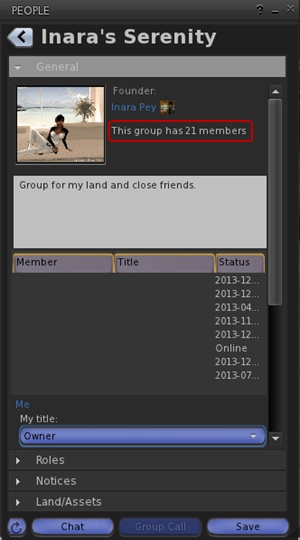
Total number of users in a group displayed for those groups you have joined
Total number of users in a group displayed for those groups you have joined (see below left)

This release offers another small package of tidy changes, several again gathered from other TPV offerings, and it’s good to see that credits for imported features are starting to appear in the release notes as well.  The latter list the updates within the release as comprising:

Merged:

  • Updates from RLV

Tweaks:

  • Addition of Penny Patton’s windlight settings
  • Re-write/clean-up of the Status Bar code
  • Possible speed improvements
  • UKD_Logo icon updates.

Fixes:

  • Black background in the address bar combo list’s scroll bar fixed
  • An old bad merge for the avatar context menu in chat which didn’t show at the time
  • Net Stats graph now shows correct Kb and wdiget now clickable

Features Added:

  • Show the total member count on the Group panel’s General tab if you’re a member of that group
  • Edit option added to the Area Search floater’s context menu
  • Username login drop-down combo box for multiple accounts
  • Frames-Per-Second displayed on StatusBar (from NiranV Dean). Modified and clickable (Hidden by default)
  • Additional Status Bar show / hide options for  FPS, Net Stats, Avatar Offset Slider and Draw Distance Slider.
status bar options
Additional show / hide options for elements in the status bar (sliders, buttons, info displays)

Feedback

Both of these releases offer neat packages of updates to their respective viewers, both of which continue to be developed and enhanced in small, relevant steps and which also keep track with most of the recent code base updates from Linden Lab.

Performance-wise, both viewer showed more-or-less consistent performance levels on my primary PC as shown with earlier releases, and I had no difficulty in running both viewers with the major graphics bells and whistles enabled (ALM on, Ambient Occlusion Enabled, shadows set to Sun/Moon + Projectors, etc.), at home and in wandering.

Black Dragon viewer: progressing nicely

Blackdragon logoTuesday November 5th saw the release of Black Dragon 2.3.7 Maintenance 2, the second release for the viewer in as many weeks, the previous being (wait for it) 2.3.6 Maintenance 1. Since it’s been another two months since I last looked at Black Dragon, which is still officially in its Alpha phase of development, I decided the arrival of 2.3.7 was as good a reason as any to take another peek at what Niran has been up to.

And it is actually rather a lot, with each of the iterations of Black Dragon appearing since 2.3.1 both building on the basic LL v3.x look and feel while adding-in both more TPV features and Niran’s own unique take on the viewer’s appearance and layout.

  • Version 2.3.2 saw the inclusion of a host of CHUI, NORSPEC (materials), Cocoa updates, bug fixes and maintenance updates from Linden Lab, together with the return of Tofu Buzzard’s screen space reflections and a lot of general clean-up
  • Version 2.3.3 was to include further LL code updates and fixes, some updates to Niran’s Machinima Sidebar, and further rendering / graphics tweaks
  • Version 2.3.5 saw the re-introduction of RLVa, complete with a dedicated Preferences tab.

As noted above, both release 2.3.6 and 2.3.7 are classified as “maintenance” releases, planned by Niran to further enhance the work started in version 2.3.4, which introduced the first phase of overhauling the Preferences floater.  Given this, what follows is intended to be an overview of the most recent updates to Black Dragon, with a particular focus on the Preferences work, rather than an in-depth review.

Preferences

With Niran’s Viewer, Niran opted to go for a fairly radical overhaul of the Preferences options, presenting them as an overlay, rather than within a floating panel. It was a novel approach, and one which, while making better use of screen space, could also be disconcerting to users coming to it the first time, particularly when trying to find settings, etc. In the re-working of Black Dragon, he’s gone for something less radical and potentially less unsettling to users familiar with the “traditional” approach to the Preferences floater, but which still offers an interesting take on how Preferences can be presented.

The first noticeable change is that Niran has used headings to split the various Preferences tabs into definable sections. The result is a layout which tends to be more logically ordered and which the eye tends to follow more easily.

The RLVa Preferences panel introduced in version 2.3.5 of Black Dragon and showing the use of section headings to help logically arrange the tab's content
The RLVa Preferences panel introduced in version 2.3.5 of Black Dragon and showing the use of section headings to help logically arrange the tab’s content

The other obvious change is that rather than using additional sub-tabs within a given section of Preferences, Niran has opted to use a slider on the right of the given tab, allowing users to scroll up and down through options in order to display them. It’s an interesting approach to take, and one that is certainly as valid as the use of sub-tabs; however, having to scroll through an extensive list of options such as with the Display tab perhaps isn’t quite as efficient as being able to see tabbed headings at-a-glance in order to switch between them.

There are other touches as well which set Black Dragon apart in terms of Preferences presentation. Within the Display tab (Graphics), for example, Niran opts to use drop-down option lists rather than sliders for various settings. This is again a carry-over from Niran’s Viewer, and whether one likes it or not is liable to be a matter of personal taste. To me, being able to set the rendering quality for something like in-world objects to a value between Low and Ultra feels more intuitively user-friendly than adjusting a slider to an arbitrary point somewhere between 1 and 4, or 0 and 1, or 16 through 120.

The Display (Graphics) tab in Black Dragon's Preferences. Note the use of the slider (far right) rather than sub-tabs, the use of drop-down lists in place of sliders and the [default] option for quickly resetting those sliders which are still used
The Display (Graphics) tab in Black Dragon’s Preferences. Note the use of the slider (far right) rather than sub-tabs, the use of drop-down lists in place of sliders and the [default] option for quickly resetting those sliders which are still used
Continue reading “Black Dragon viewer: progressing nicely”

From Niran’s to Black Dragon

Blackdragon logoOn Wednesday August 21st, NiranV Dean officially confirmed that Niran’s Viewer is now depreciated (or as he put it, “Dead”).

He first announced plans to end the viewer’s life in May 2013, when he also announced its successor, Black Dragon. Since that time, he has been working on the replacement viewer, producing a number of beta releases along the way, the latest being version 2.3.1, which appeared on August 23rd.

As I’ve not covered Black Dragon to date, I decided to take a quick look and provide a mini-overview – not a full review, just and overview of the viewer and some of the work Niran has been carrying out.

Download and Installation

The download weighs-in around the same file-size as the official viewer. As with Niran’s Viewer, this isn’t an installer per se, but rather a self-extracting archive which will install the viewer files in the required folder, but which will not generate a Start menu entry, desktop shortcut, etc. You’ll need to do that yourself (not that it’s particularly taxing).

Splash Screen and Logging-in

Black Dragon’s splash / login screen is very similar to that used with Niran’s Viewer. Instead of the usual Destination Guide, etc., options found with the official viewer and a number of V3-style TPVs. Instead, users are treated to one of Niran’s music videos.

Black Dragon Splash / Log-in screen

If the viewer has been installed for the first time, or is a completely clean install, the Create Account / Continue pop-up options will be displayed as per most V3-style viewers.

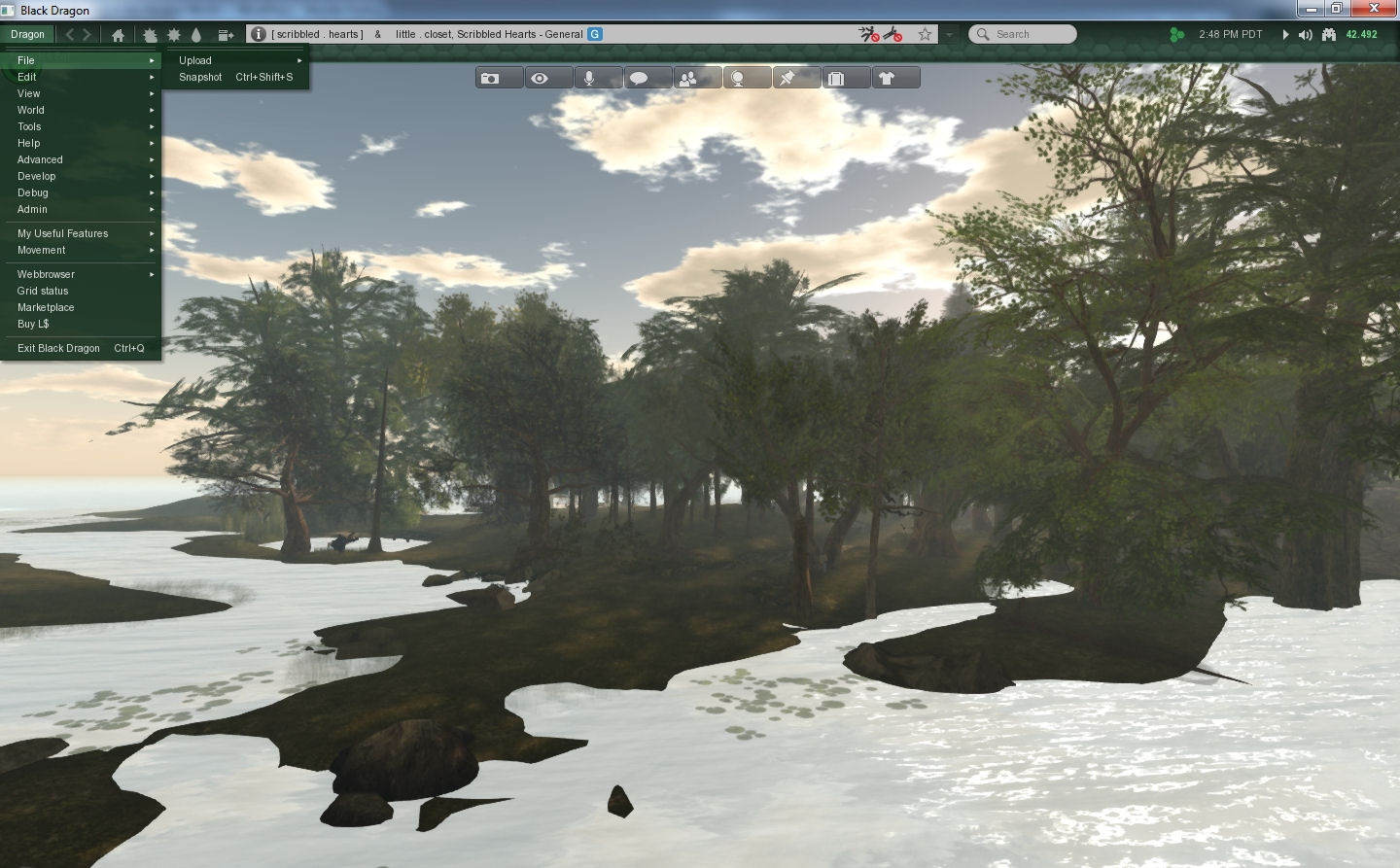
On logging-in, anyone who has used Niran’s Viewer will get a further feeling of familiarity – by default, Black Dragon has its toolbar buttons ranged at the top of the screen, and has a number of other Niran’s-like UI elements, including the vertical menu list, now called Dragon.

I confess, I’ve always liked this approach to the menus. Training the hand to use it doesn’t take long, and it offers a relatively tidy and compact means of having the menus available.

Black Dragon retain's Niran's approach to menus
Black Dragon retains Niran’s approach to menus

Preferences, Floaters and Panels

One thing that has always bugged Niran (and myself to a certain degree) is the amount of “white space” (or “wasted space”, as Niran calls it!)  some of the viewer’s floaters and panels have. While there is an understandable need to consider all levels of eyesight and readability, some of the viewer 3 panels do seem to have an over-abundance of blank space in them which could perhaps be better utilised. Black Dragon goes some way to reversing this; several of the floaters have been tided-up such that they do take-up less screen real estate, offering a more compact display.

However, Niran hasn’t (perhaps wisely) gone to some of the extremes seen in his older viewer, at least for the time being. Frankly, I hope he doesn’t. While a degree of tidy-up in floaters is welcome, I did feel that some of the large-scale redesign of evidenced in various floaters in Niran’s Viewer actually left a lot to be desired. A reduction in “wasted space” didn’t always correspond to an improvement in usability.

Materials and Build Floater

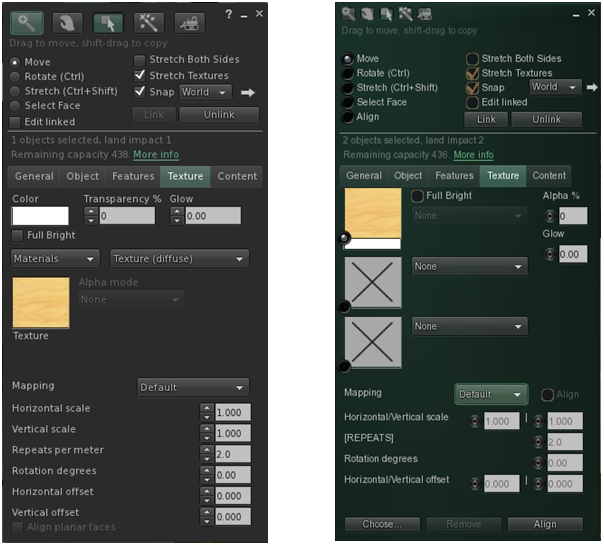
One of the new Lindeny shiny bits to appear in Black Dragon is materials processing, and it is an area where Niran has taken a slightly different direction to the official viewer, offering-up a completely re-worked Texture tab for the application of maps.

The revised Texture tab in Black Dragon's Build floater
The V3 build floater’s Texture tab (l), and Niran’s re-working in Black Dragon (r)

Continue reading “From Niran’s to Black Dragon”