A new SL project viewer was released on September 3rd. The Snowstorm Project viewer 3.6.5.280476, brings with it a number of issue fixes, and includes two capabilities new to the viewer:
A “request teleport” feature (STORM-1838) contributed by Jonathan Yap, which allows users to request a teleport form another user (currently with caveats – see below)
A group eject confirmation pop-up (STORM-1952), submitted by Cinder Roxley, which some may be familiar with from using TPVs such as Firestorm.
Request Teleport
The new request teleport capability, which I first reported on back in week 4, requires both viewers to be using the code for it to work (so for the time being it is limited to the project viewer). Where this is the case:
Select the person to whom you wish to teleport (from your Friends list or Nearby list, etc.), and select Request Teleport
Enter a message in the pop-up, if required, and click OK.
Request teleport: making a request
At the “other end” the recipient of the request will receive the request as an initial pop-up notification and within CHUI:
Receiving a teleport request – pop-up and CHUI message
The recipient can than either accept the request, sending a teleport offer, or reject it, in which case no message is sent.
The teleport offer is again displayed in the requester’s viewer as both as an initial pop-up notification (below) and within CHUI.
Receiving the teleport offer
Note again, that the system will only work where both viewers are running the new code (e.g. the Snowstorm project viewer for the time being). If someone on a viewer with the capability to someone using a viewer which does not have the teleport request code, the request will not be received / displayed.
Group Eject Confirmation
The group eject confirmation sees the official viewer get a new pop-up asking for confirmation when ejecting someone from a group, in order to help with issues where the wrong name is selected and ejected.
The new group eject confirmation pop-up for the official viewer
Again, as noted above, the release notes for the viewer provide a full list of updates in the viewer.
Update, September 15th, 2024: the viewer release process defined below has been replaced:
Linden Lab now maintains a single Develop branch for the viewer, into which updates all pass for internal viewer builds, and from which Release Candidate viewers are peeled and made available.
This is tied to a “featurettes” approach to new features and capabilities, whereby these may be added to the viewer and deployed within Release Candidates, but place behind debug settings / remain “turned off” until such time as all dependencies on their use (e.g. back-end support) are in place / LL are confident they are ready to be made fully available.
Update July 23rd, 2013: As release candidate viewers are now available for download on the Alternate Viewers wiki page, I’ve added some notes on manually installing and running multiple release candidates to this article.
The new viewer release process announced by the Lab in May 2013 has officially been implemented.
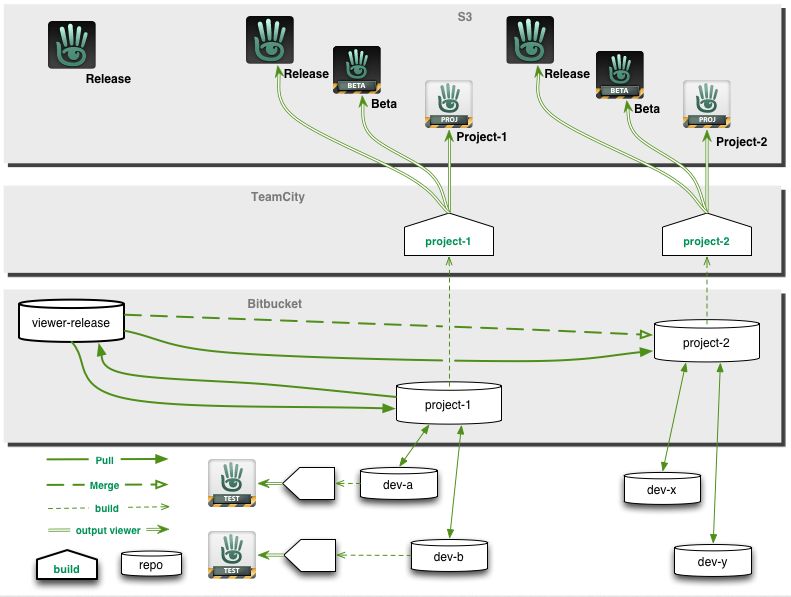
Officially called the Viewer Integration and Release Process, It is designed to improve how the Lab can put new viewers before users and progress them through to a release status while avoiding bottlenecks such as those witnessed in late 2012, when an issue with the Viewer Beta channel effectively stopped any new viewer releases for around a two-month period.
With the new system, early versions of viewers will still be made available through “dedicated” project and beta viewers, all of which will be available for download via the Official Alternate Viewers Page. However, the major change to the process is the use of “release candidates”.
When a viewer is ready for final testing, a release candidate will be readied. Rather than residing in their own dedicated viewer channel, these release candidates will be updates in the regular release channel, residing in a named “cohort” within the channel.
This means two things. Firstly, release candidates are available for download alongside one another and the default release viewer. Who might receive a given release candidate is a random selection based on a viewer setting (see below) and a pre-determined quota of downloads for the candidate (once the quota has been reached for a given candidate, the system will no longer select it for download).
Secondly, when a specific release candidate is deemed ready for release (based on bug reports filed, issues reported and fixed, stats gathered, etc.), there is no longer any need to rebuild it as a “release” viewer, as it is already in the release channel. It is simply moved from its named cohort to become the default release version on the SL viewer download page. Any remaining release candidates are then rebuilt using the new default release code, and continue with testing until one is deemed ready to become the next release.
From a user perspective, release candidates are largely indistinguishable from one another and the default release viewer (other than their version number and the features they contain), and the chances are that some users will be unaware that they have been selected by the system to run a release candidate; they will simply see it as receiving an automatic / mandatory viewer update, and install it.
“Willing to Update” and Release Candidate Downloads
As mentioned above, users who receive a release candidate viewer are selected at random, based on a defined quota of downloads for a given release candidate. However, whether or not a user might be selected to receive a release candidate viewer depends on whether or not they have left the “willing to update” option enabled in their current viewer.
Located in Preferences > Setup, “willing to update to release candidates” (to give the option its full name) is enabled by default. But just because it is, does not automatically mean someone will be selected to test a release candidate viewer. This is because the download quota defined for any given release candidate will always be relatively small when compared to the SL user base as whole.
However, if you don’t wish to run any release candidate viewers at all, you can disable this option, and only receive viewer updates when the default release viewer is updated.
Another point to remember with release candidates is that users won’t be moved between release candidates as a result of updates. So if you leave the “willing to update” option enabled and you happen to be selected for testing “release candidate A”, you won’t suddenly start receiving updates for “release candidate B”; you’ll stay with the updates for “release candidate A” until such time as it becomes the default release viewer. Only then might you be selected to receive another release candidate download at some point in the future.
Download Page and Alternate Viewers Page updates
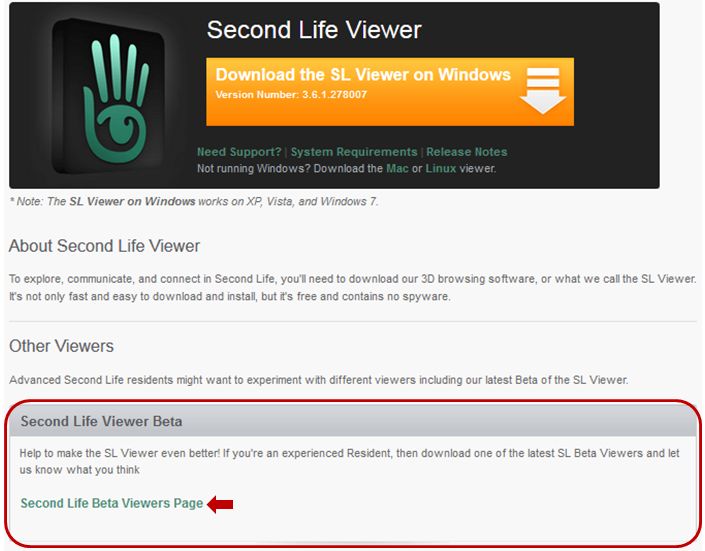
As a result of the move to the new release process, the SL viewer download page has been updated, and there is no longer any link to download the “Beta Viewer”. Instead, there is a link which takes you to the Official Alternative Viewer wiki page, which instead lists all available beta and project viewers.
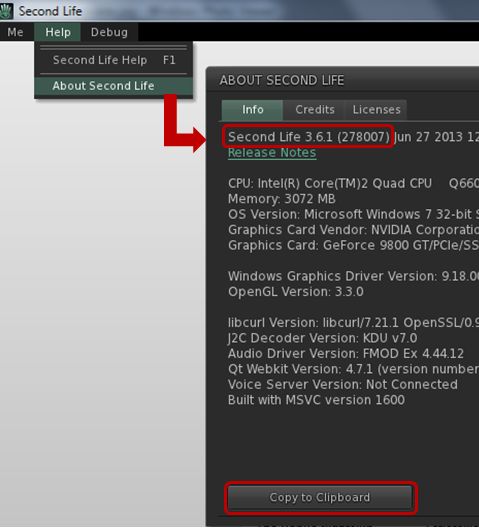
An important aspect of viewer bug reporting has been to give details of the viewer you’re running, including the version number. This information is requested in the “Environment” section of the bug report form. Given that the new viewer release process means there can be a number of release candidates in use at any given time, as well as various beta and project viewers, it is even more important that this information is given when raising a bug report.
Displaying details of the viewer you are using, including its version number
Viewer information can be found in the About Second Life floater (Help > About Second Life), if you’re not already familiar with it. Further, the information on this floater can be copied directly to your clipboard ready to be pasted in a bug report to save you having to manually enter it.
Notes on Manually Installing Release Candidates
Viewer release candidates are now listed on the Alternative Viewers wiki page, and can be downloaded and installed, if so desired. If you do opt to do so, please note that release candidates are contained in “cohorts” within the viewer release channel, and are designed to overwrite any release candidate viewer you have installed. Therefore, if you wish to manually install multiple release candidate viewers side-by-side and with the de facto release viewer, you much ensure, in accordance with your operating system, that:
Any shortcuts / start menu links (e.g. Windows) you have for the viewer are renamed before you install any release candidates
Each release candidate is installed into a unique folder
Any shortcuts / start menu links (e.g. Windows) which are created as a part of the installation process are given unique names before installing the next release candidate
Notes:
If you provide unique destinations for each release candidate installation thorugh the installer package (e.g. Windows), make sure the installer is listing the correct destination folder when manually downloading and installing a subsequent release / update
The Windows auto-updater will automatically install into the last folder defined in the viewer installer (so if you have manually installed “Release Candidate A” and then “Release Candidate B” into separate folders, then get an update for “Release Candidate A” via the auto-updater, it will install into the folder for “Release Candidate B”)
Disabling the auto-updater in Preferences may not stop this from happening.
Instead, go to viewer install folder/app_settings, then edit settings.xml, and find the entry UpdaterServiceURL and change https://update.secondlife.com to https://secondlife.com/no-thanks (or similar) and save. You may need Admin privileges to do this.
Changes to this Blog
I maintain a list of viewers recognised as being used with Second Life (predominantly, but not exclusively, based on the Third-party Viewer Directory), which is updated as a when I become aware of new viewer releases being made. The section of this page which deals with the SL viewer has been updated to reflect the new viewer release process, and now includes all SL viewers currently listed in the SL viewer download page and the Official Alternate Viewer wiki page (with the exception of the Amazon channel viewer, which is the version of the viewer offered through Amazon.com).
Linden Lab have announced a revamp to the way in which they will be releasing viewer updates in future.
Currently, the process for the majority of viewer changes is that they go through a progression – generally being seen first in the development channel (or sometimes prior to that in a project viewer), before moving through to the beat viewer (where updates go through what is effectively a final validation / user test) prior to being adopted into the SL release viewer.
This system has generally worked, but can cause problems, particularly when there is a lot going on in terms of projects and updates, and things end up being “queued up” for the release (as is currently the case, where CHUI, Server-side Baking / Appearance, and a host of other updates / fixes are concerned all being “queued” awaiting their turn in the beta viewer release channel.
Another problem – as seen at the end of last year – can be that should a significant issue occur within the beta viewer code, it can completely block further viewer releases until such time as the problem can be tracked down and effectively fixed. Last year this meant that viewer updates were effectively stalled for around a two month period while LL sought to isolate and fix the problem.
To try to overcome any bottlenecks which might occur with viewer releases, the Lab is adopting a similar process to that used by the server-side code release mechanism, as the blog post explains:
We’ll release more than one new version at the same time in parallel to subsets of users for final validation, and then promote the most important of the best of those to the default Release Viewer when that testing shows it to be ready.
If a development project wants to put out an early version for testing prior to it being ready for the Release channel, a channel specific to that project (either ‘Project <project>’ for very early versions, or ‘Beta <project>’ for more mature ones) will be created, just like we do today. These will be shut down when the project is ready to move to final testing in the Release channel, and users in the early project test channels will automatically be upgraded to the corresponding Release candidate version.
This means that in the coming weeks, we’ll start to see different versions of the viewer start to appear in parallel in their own “release candidate” channels, and people will be able to choose which versions they want to download and try-out. Once it is deemed the code from a specific “release candidate” viewer is ready for release, it will be integrated into the SL viewer and made available to the community through the established mechanism. As such, the beta viewer channel will be vanishing in the near future.
Quite how well different flavours of the viewer will run together on a single computer for those who want to try-out more than one upcoming release remains to be seen. Generally, different versions of the SL viewer tend to play nicely together. However, as was seen with the 3.4 and 3.5 code base changes problems can occur. In that particularly instance, running a development or beta viewer using the 3.5 code and then swapping back to the SL release viewer on the 3.4 code resulted in all the toolbar buttons vanishing from the latter.
The overall hope is that this change will mean that specific features and updates will reach the release version of the viewer at a greater pace than can be achieved with the current process, which in turn should not only smooth the path for new capabilities and features to reach users quicker (allowing for the inevitable bugs and hiccups such projects tend to encounter anyway), but perhaps also help in get fixes for significant issues and problems out to the mainstream viewer.
Tiling test for Dolphin (3.4.6.26773+): image taken at 3500×2134 resolution using Dolphin 3.4.6.26773. Location: The Island of Armenelos (M) (click to enlarge) – fix also in the latest SL official viewer (3.4.3.28262), Niran’s Viewer (2.0.5+) and RLV (2.8.3.5+)
Graphics Preferences Updates for GPU Classes
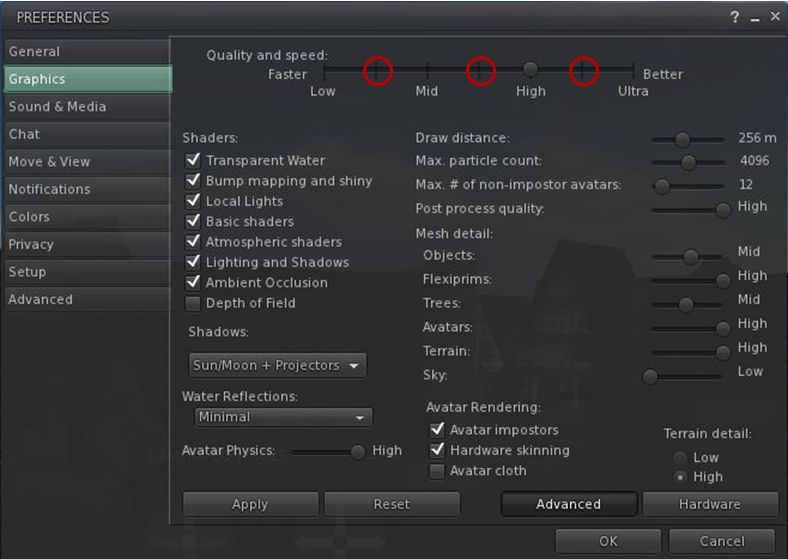
The SL viewer, Dolphin and RLV all include the new Graphics Preferences settings related to the ongoing GPU table updates. These new options place additional “stops” on the Quality and Speed slider between the four original settings of Low, Mid, High and Ultra, which are intended to better represent the default SL capabilities of different GPU classes,
The new “intermediary” graphics settings intended to better represent the default SL capabilities of different GPU classes
SSAO Fix for Horizon Haze
Also included in the recent Dolphin and Niran’s Viewer releases, is Tofu Buzzard’s SSAO improvements for generating horizon haze over Linden Sea (“ambient distance fog”). This helps overcome a long-standing bug within the viewer which has effectively broken / nerfed horizon haze over Linden Water for a considerable time.
SSAO haze effect – fix from Tofu Blizzard, available in deferred mode on Dolphin and Niran’s viewers. (image courtesy of Niran V Dean) – click to enlarge
Space Reflections
Niran’s viewer also introduces an interesting / experimental viewer-side feature from Tofu Blizzard called “space reflections”, designed to create reflections on shiny surfaces when running in deferred mode and with the appropriate Graphics Preferences option enabled. It’s not perfect, but it can be used to produce some interesting effects, as shown below, if only for those running a viewer which can render the desired results.
Tofu Blizzard’s “space reflections”: (l) a viewer running in deferred mode; (r) Niran’s viewer running in deferred with “space reflections” active to produce reflections both on the floor and inside the large sphere (click to enlarge)
Update 18:35 GMT: Sometimes one reads the release notes and misses things. See the section on the Volume Controls towards the end of this article
The official SL viewer has now moved to the 3.4.2 code base with the release of version 3.4.2.267137.
This release brings with it a couple of signficant changes and a host of updates and fixes.
Steam Link-up Changes
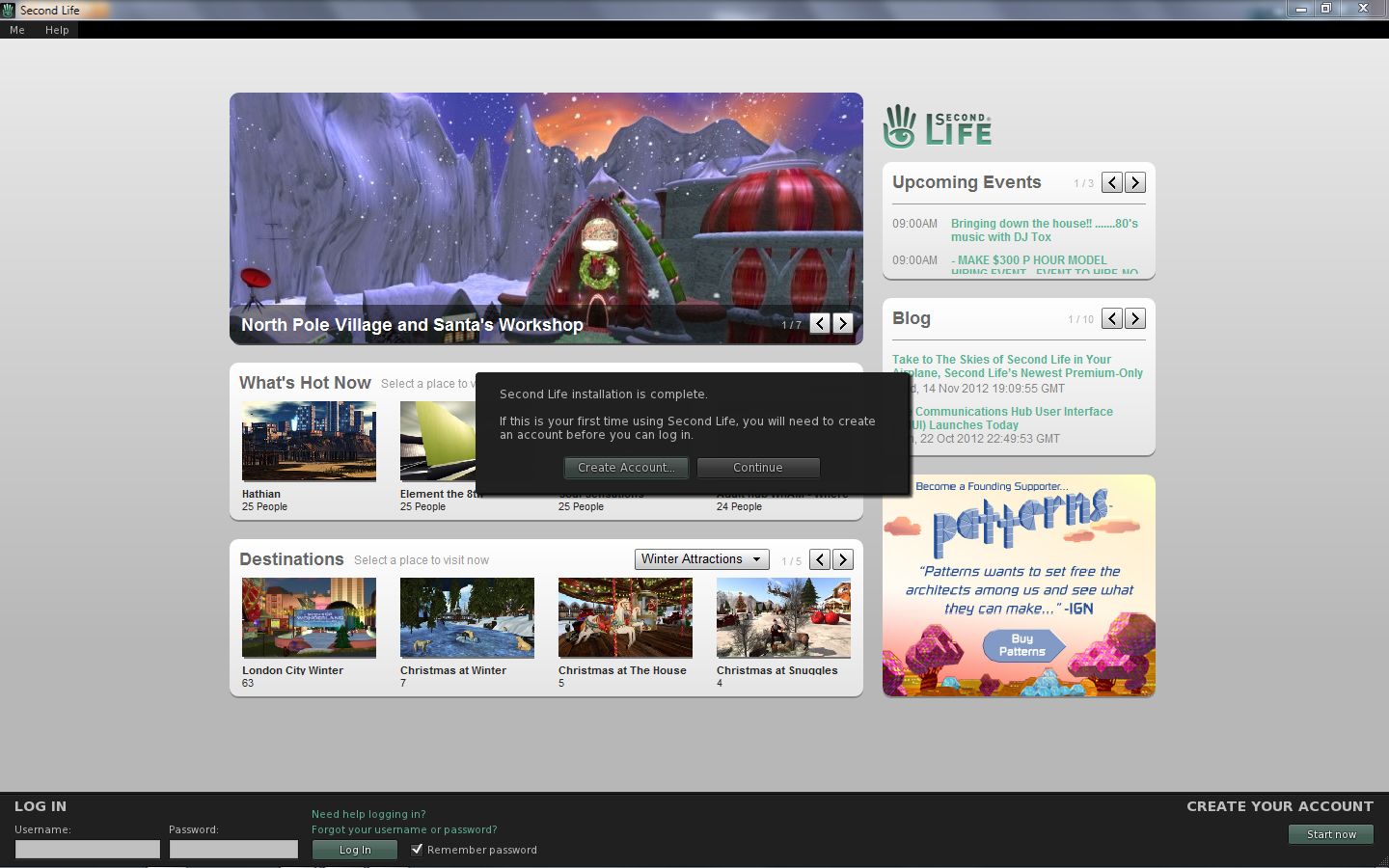
Anyone performing a completely fresh install (including the removal of all account-related folders from the computer) will clearly see that the code for the forthcoming link-up with Steam is now present in the viewer, as the prompt to create an account will be prominently displayed.
The prompt displayed for anyone who installs the SL viewer for the first time – primarily aimed at those who will soon be able to download the viewer through Steam without necessarily having an SL account.
For those who do not perform a clean install, the prompt will not be displayed (as the viewer will locate existing account-related folders), nor will anyone who automatically updates their viewer should they see a prompt to do so. This means that the pop-up dialogue will not plague everyone who has an SL account, so shouldn’t be a source of annoyance. However, the cleaned-up bottom section of the screen (also with a “Create Your Account” option in the lower right corner) will obviously be visible to all, and gives a further indication that things are progressing.
This change also doesn’t mean the Steam link-up is live; I understand from Linden Lab that there are still some steps to be completed outside of this work. But again, given the viewer updates are starting to appear, it is reasonable to anticipate the time for a formal announcement to be drawing closer.
The prompt will also (I believe) be seen by those who come to SL via the “traditional” route of signing-up for an account first via the SL website (or any of the third-party sign-up options which may still be available) and then downloading the viewer. As such, it’ll be interesting to see if anyone gets a little confused by a prompt asking them to create an account when they believe they’ve already done so, rather than simply ignoring the pop-up by clicking CONTINUE.
Group Services Code
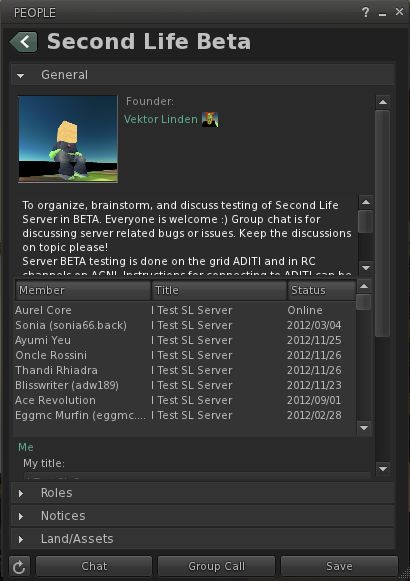
Large group management via HTTP service now part of the official release viewer
Key among the rest of the updates to the viewer is Baker Linden’s Group Services code designed to make use of the new HTTP service already available on the grid.
As there has been some confusion as to what this is all about, and at the risk of repeating myself, here’s a quick recap of the main points:
The new code allows for improved loading of membership lists of very large groups, together with improved reliability in editing such groups (i.e. assigning roles, removing people, etc.), by the group moderators
Until such time as the viewer-side code has been incorporated into all TPVs, the “old” method of loading group lists into the viewer will still be available. However, viewers using the “old” method (a protocol referred to as UDP) will have group loading capped at 10K members. This means:
That for groups with 10K or fewer members, there will be no change regardless as to whether the viewer is using HTTP or UDP
But for groups large than 10K, viewers running the UDP code will be unable to load the group until such time as they have been updated to the new code
The code will not lead to any improvements in group chat reliability, and is not aimed at improving group chat.
The new code is gradually appearing across all third-party viewers, with many already incorporating it ahead of this release from LL. Further, the Lab will not be “turning off” the UDP service in the short-term, so there is no risk of a viewer which hasn’t yet updated being completely unable to load any groups at all.
Volume Controls – Update
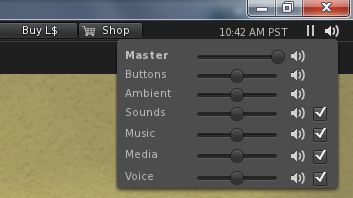
New volume control options
This release also see the official viewer adopt the “Quick volume” controls from Firestorm. These provide access to ALL major volume control options for the viewer, rather than just the master volume control, and can be accessed by hovering the mouse over the speaker icon in the top right of the viewer window.
The controls appear colourless as they are awaiting work to render them in the official viewer UI skin colour; as this work has yet to be completed (JIRA STORM-1868), I missed the fact that the update has reached the release version of the viewer when writing this update.
Other Notable Changes
The list of updates for the release is extensive (and unfortunately without any JIRA references where relevant and tha JIRA themselves are still public). As such, it is advisable to take a look at the release notes to determine what has been fixed / updated.
What’s NOT Included
The new HTTP texture fetching service code from Monty Linden is not in this release. this work is currently a part of the beta viewer project (viewer code base 3.4.3), and will be making its way into the release version of the viewer in the near future.
Performance and Feedback
Performance-wise, 3.4.2.267137 is very good on my personal set-up, and allowing for the arbitrary nature of such FPS tests.These were performed in my “new” test area, a premium sandbox with 3 other avatars present (and building):
Deferred off:
Ground: 38-39 fps
370 metres: 43 fps
2875 metres: 62 fps
Deferred on + lighting set to Sun/Moon + Projectors; ambient occlusion off:
Ground: 11 fps
370 metres:16-17 fps
2875 metres: 18 fps
The non-deferred rates have me wondering what might be achieved on an i5 machine with something like a GTX660 and oodles of memory with a 64-bit OS…
This is a somewhat overdue update to the official viewer and marks a return to periodic viewer releases. Linden Lab still have much more in the pipe to filter down to the release viewer, and it’s liable that we’ll be seeing Christmas before everything is sufficiently caught up such that the release cycle returns to its normal pace. In the meantime, there will be on-going frequent beta updates with changes filtering through to the release viewer as and when they are deemed ready. Overall, however, this release should be welcome news for those who use the official viewer.
Following-on from the announcement that Second Life will soon be available through Steam, it appears the viewer itself is going through some small changes in order for it to be better used with SL.
Yesterday, I downloaded the latest Development version of the viewer. As per usual, I performed a clean install, removing the older version & the associated user and log files. On starting the viewer, I was surprised to see the log-in screen displayed with an additional pop-up:
Clicking Create Account pops-up the familiar “Do you want to open your web browser” dialogue box, prior to taking you (on clicking OK) to the SL sign-up page. I confess I have not (as yet) run through th actual sign-up process to see if that has changed in preparation for the Steam tie-in, but I’ll be doing so around the time the tie-in is announced as being live, if only out of curiosity.
Clicking Continue from the prompt will allow you to log-in using an existing account, and the prompt to sign-up is not repeated the next time you launch the viewer.
Alongside the new pop-up message, the actual log-in area of the viewer splash screen has been tidied-up and made more presentable.
The cleaned-up log-in credentials area of the splash screen, completed with grid access option enabled (Main and Beta grids only)
Assuming these changes are a part of the preparations for the link-up with Steam, they would appear to answer how users coming to Second Life via Steam will be directed to the sign-up pages. As such, it will be interesting to see what, if anything, will be done to make at least the initial sign-up page more informative as to what Second Life is, or whether this will be handled directly through the SL page(s) on Steam itself (I personally suspect the latter).








 Inara Pey: Living in a Modemworld