On April 23rd, 2015, the Lab updated the de facto official viewer to version 3.7.28.300918, formerly the Tools update Release Candidate viewer.
As regular readers of this blog know from my regular SL project updates, this release is primarily focuses on a change to the tools used to build the viewer (to Visual Studio 2013, Xcode 6.1, and some other tools improvements).
Two important aspects of this update are that:
The Windows version of this viewer will not install on Windows XP systems, regardless of the Service Packs also installed (previous versions of the release viewer would install on Windows XP system which had Service Pack 3 installed)
The Mac version of the viewer will not install on any version of OS X below 10.7.
Note that this is not a deliberate attempt to block XP users or those on older versions of OS X from Second Life; it is purely the result of the Lab using up-to-date tools for building the viewer (and which will yield positive benefits elsewhere. for example, during its time as an RC viewer, the new build version has had a crash rate some 2% lower than than of the official viewer built using the “old” tool chain. There have, however, been some reported issues of Linux users experiencing problems using this version of the viewer.
A further benefit of the tools project is that it offers the Lab and TPVs the opportunity to work with a more common set of viewer building tools due to the removal of some licensing issues. It is therefore more than likely that at least some TPVs will move over to using the new tool chain as well.
This viewer also introduces the updated log-in options at the top of the viewer’s splash screen. The three button approach seen by most users has been replaced with a log-in area with a single button (note that users logging-in to SL for the first time or after a clean install will still see the “first time user” log-in splash screen).
LL viewer log-in updates: as they first appeared after an initial log-in following the 2014 revisions to the log-in / splash screen (top); and as the log-in options are displayed in the updated release viewer (bottom) – click for full size, if required.
The Cornfield: the Lab’s Experience Keys demonstrator (game play area uses a much darker and more atmospheric windlight)
On Wednesday, December 17th, the Lab issued a release candidate version of the Experience Keys viewer. Alongside the promotion comes a new blog post promoting the availability of the viewer and the Experience Keys / Tools beta programme.
For those not previously aware of Experience Keys, the blog post provides some explanation:
Experience Keys are a powerful feature that allows creators to build more seamless and immersive experiences in Second Life. Without this feature, you need to grant individual permissions to every single scripted object included in an inworld experience, and that can mean a lot of dialog boxes interrupting the fun! Experience Keys make it possible for creators to build experiences that ask your permission just once. In other words, you can opt-in to the entire experience, rather than having to grant individual permissions to every single scripted object included in it.
I provided an overview of Experiences, Experience Keys and the the viewer-side updates when the Experience Keys viewer first appeared as a project viewer. While there have been some updates since then, the core of that article should still be valid where the viewer is concerned, and finding actual Experiences is now a lot easier given they are now listed in the Destination Guide. You can also try-out the Lab’s own Experience Tools activity, the Cornfield via the LR Portal Park1 (and it looks like another one might be opening soon!).
As to the viewer, this essentially gives you all the tools you need in order to track and manage those activities you opt to participate in or those you opt to turn down – again, the key thing with Experiences is that you retain overall control; if you don’t want to participate in something, you can decide not to opt-in. So, for example, is a region has an Experience associated with it, but you’d rather just explore, you can decide not to join the Experience when prompted, but do so at a later time. There’s also a Search option (with its own Maturity setting) that allows you to locate Experiences from within the viewer.
The Experience Keys RC viewer provides you with the tools you need to manage the Experiences you decide to participate in, or decide not to join. (the Allowed / Blocked tabs, above right), while the Search tab makes it easy to locate in-world Experiences (click for full-size)
As well as the tools for those wishing to find and participate in Experiences in SL, the viewer also includes tools and options which allow those wanting to build their own experiences – but you’ll need to refer to my preview article for more information on that.
You can, of course, still participate in those Experiences which are already available in-world with any viewer – you just won’t get the same richness of information and options that the Experience Keys RC viewer provides.
You can use a “regular” viewer to join Experiences in-world, but you don’t get the same richness of information and options as presented by the Experience Keys RC viewer. Information displayed by the latter is shown above left, compared to a “non-Experience Keys” updated viewer on the right. While the “non” viewer still gives you basic information on the Experience you might be about to enter, the RC viewer provides a lot more – including a link you can use to display additional information on the Experience, which may additionally help you decide if you want to join in or not
Also, when you leave a region in which an experience is running, you needn’t worry about anything untoward happening to you – all permissions, etc., associated with the Experience are revoked when you leave.
As the official blog post notes, Experience Keys are, from a creation standpoint, still in beta, but the signs are the first set of capabilities will be rolled out in the very near future, hopefully not too long after the Christmas / New Year break. After that, and depending on uptake / feedback, etc., it is likely the system will be enhanced and extended.
One thing to note with Experience Keys and Tools, is that while the emphasis is primarily on game-base activities, they offer a lot of potential in other areas as well – guided tours, store demos, and more. All of which will potentially make the capability a very flexible addition to Second Life.
There will be more to come on Experience Keys and Tools, but in the meantime, and like the official blog, I’ll leave you with Torley’s explanatory video.
The updated login screen viewer has made it past the experimental / project viewer status and is now a release candidate viewer, version 3.7.16.294345. This viewer, which I previewed while still a project viewer, features two log-in splash screens, one of which is seen by users logging-in to SL for the very first time, and one which is seen by returning users.
The “new user screen” provides a couple of hints as to what to expect when those coming to SL for the first time log-in.
The updated log-in screen which is only seen by a user logging-in to SL for the very first time, and which provides some information on what to expect.
The more “regular” log-in screen which is seen by returning users (i.e. those who have previously logged-in to SL), has the log-in criteria fields moved to the top, and introduces a few changes, which I described last time around, but will re-cap here for convenience.
The most obvious of these is that the credentials area now has three independent log-in buttons:
At last location – as most users will be familiar with, logs you in to your last location; you’ll also be logged in to that location if you type-in an avatar’s name and password and tap ENTER as per the current viewer log-in screen
My Favourite Places – a drop-down which lets you choose to log-in to your home location, or any landmark you have dragged and dropped into the viewer’s Favourites Bar / the My Favourites folder in your Inventory
The familiar Type a Location text entry box, allowing you to type-in the name of a specific region / sim to which you want to log in – this now works if you type a location and tap ENTER rather than having to then click the Log-in button.
The updated log-in / splash screen users returning to SL will see
Note that on computers which are used to access Second Life with multiple accounts, the user name field now has an auto-complete function based on the initial letters of an avatar name entered into the field (providing Remember Me is checked). However, do note that this does not extend to the password field, which is not auto-completed on the basis of the user name field. When logging-in with different accounts, you will still need to manually enter the password for the account you’re using.
The reason the log-in screen has been revised is that during A/B testing, the Lab believe they noted a rise in user retention of 3-5% among those new users who were supplied with viewers using revised log-in layouts when compared to those who received the release viewer download with the current log-in screen. Speaking at the TPV developer meeting on Friday September 12th, Grumpity ProductEngine Linden also indicated that these may be the first in a series of changes to the viewer log-in, saying:
We’re going to be putting forward some changes to the newbie log-in screen and then the subsequent returning user log-in screen. They’re going to be gradual, and sometimes not as beautiful as we might like all at once; however, you can be assured that they’ve all been tested and that they perform better.
If this does mean further updates might be appearing down the road, it’ll be interesting to see what form they’ll take.
With thanks to Gibson Firehawk for pointing out the log-in auto-complete and location fix.
Update, September 8th: The unified snapshot floater is now a part of the de facto release viewer.
Update, August 26th: The unified snapshot floater is now available in a release candidate viewer, version 3.7.15.293376.
Niran V Dean is familiar to many as the creator of the Black Dragon viewer, and before that, Niran’s Viewer. Both viewers have been innovative in their approach to UI design and presentation, and both have been the subject of reviews in this blog over the years, with Black Dragon still reviewed as and when versions are released.
Once of the UI updates Niran recently implemented in Black Dragon was a more unified approach to the various picture-taking floaters which are becoming increasing available across many viewers. There’s the original snapshot floater, and there are the Twitter, Flickr and Facebook floaters offered through the Lab’s SL Share updates to the official viewer, which are now also available in a number of TPVs.
In Black Dragon, Niran redesigned the basic snapshot floater, offering a much improved preview screen and buttons which not only provide access to the familiar Save to Disk, Save to Inventory, etc., options, but which also provide access to the Flickr, Twitter, and Facebook panels as well.
He also submitted to the code to Linden Lab, who have approved it, and it is currently working its way through their QA and testing cycle and should be appearing in a flavour of the official viewer soon (see STORM-2040).
A test build of the viewer with the new, more unified approach is available, and I took it for a quick spin to try-out the snapshot-related changes. Note it is a work-in-progress so some things may yet be subject to change between now and release.
First off, the snapshot floater is still accessed via the familiar Snapshot button, so there’s no loking for a new label or icon. The Twitter, Flickr and Facebook floaters and buttons are also still available (so if one or other of them is your preferred method of taking pictures, you can still open them without having to worry about going an extra step or two through the snapshot floater).
Opening the new snapshot floater immediately reveals the extent of Niran’s overhaul – and as with Black Dragon, I like it a lot.
The new snapshot floater by Niran V Dean: note the button options for Flickr, Twitter and Facebook uploads
The increased size of the preview panel is immediately apparent, and might at first seem very obtrusive. However, when not required, it can be nicely hidden away by clicking the << on the top left of the floater next to the Refresh button, allowing a more unobstructed in-world view when framing an image (you can also still minimise the floater if you prefer).
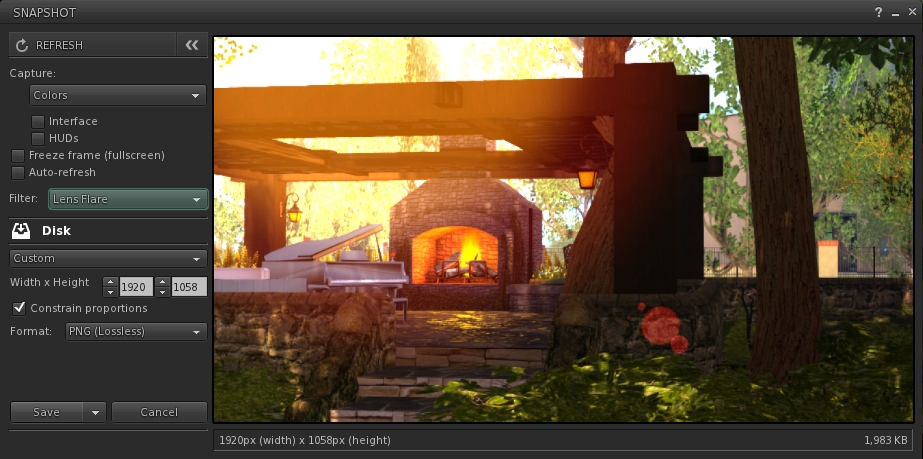
Beneath the Refresh button are the familiar snapshot floater options to include the interface and HUDs in a snapshot, the colour drop down, etc., and – importantly – the SL Share 2 filter drop down for post-processing images. The placing of the latter is important, as it is the first clue that filters can, with this update, be applied to snaps saved to inventory or disk or e-mailed or – as is liable to prove popular – uploaded to the profile feed.
With the new snapshot floater, you will be able to add filters to the snaps you save to disk or inventory, or which you e-mail or upload to your profile feed – here is a snap being prepared to save to disk with the lens flare filter added
Below these options are the familiar buttons allowing you to save a snapshot to disk, inventory, your feed or to e-mail it to someone. click each of these opens their individual options, which overwrite the buttons themselves – to return to them, simply click the Cancel button. Saving a snapshot will refresh the buttons automatically.
Within these buttons are those for uploading to Flickr, Twitter or Facebook. These buttons work slightly differently, as clicking any one of them will close the snapshot floater and open the required application upload floater.
While this may seem inconvenient over having everything in the one floater, it actually makes sense. For one thing, trying to re-code everything into an all-in-one floater would be a fairly non-trivial task; particularly as Twitter, Flickr and Facebook have their own individual authentication requirements and individual upload options (such as sending a text message with a picture uploaded to Twitter, and the ability to check your friends on Facebook. Also, and as mentioned earlier, keeping the floaters for Flickr, Twitter and Facebook separate means they can continue to be accessed directly by people who use them in preference to the snapshot floater.
However, this latter point doesn’t mean they’ve been left untouched. Niran has cleaned-up much of their respective layouts and in doing so has reduced their screen footprints. The results are three floaters that are all rather more pleasing to the eye.
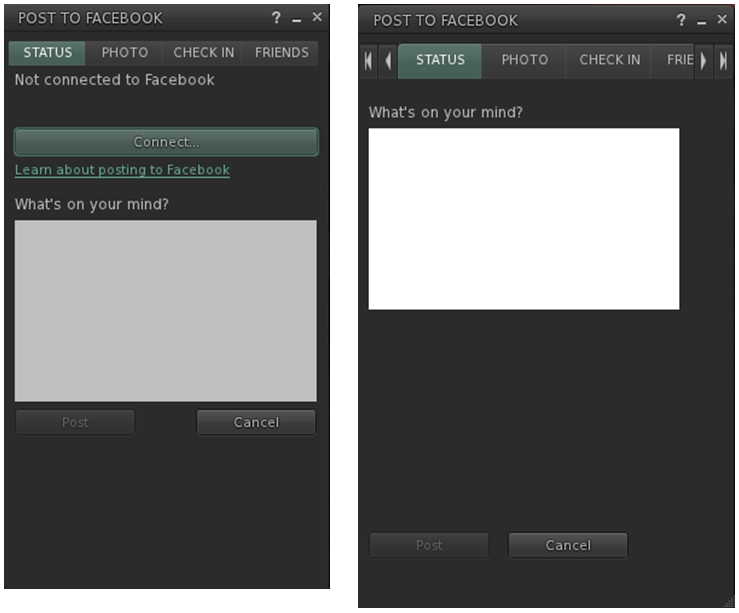
Niran’s revised Facebook floater, left – note the new Connect button, removing the need for an extra tab; and the original floater on the right
All told, these are a sweet set of updates which make a lot of sense. It may be a while longer before they surface in a viewer; I assume they’ll likely appear in a snowstorm update, rather than a dedicated viewer of their own, but that’s just my guess. Either way, they’re something to look forward to,
Kudos to Niran for the work in putting this together, and to Oz and the Lab for taking the code on and adding it to the viewer.
The Lab has been experimenting with a revised log-in screen for the official viewer. The viewer, version 3.7.14.292660, is referred to as offering “a simple and clean login screen for new users.”
In actual fact, the viewer offers two log-in screens, although one of them (shown in the image below) will only be displayed the very first time a new user runs the viewer (or if an existing users performs a completely clean install of this release candidate).
The log-in splash screen new users will see when launching the viewer for the first time (or existing users will see following a clean install)
Those who have previously logged-in to Second Life (or have not performed a clean install) will see a more familiar log-in screen on starting the viewer, and will immediately notice that the log-in credentials area has been relocated to the top of the screen (see the image below).
The keen-eyed may also notice that the Create Your Account option that used to appear over on the right of the log-in credentials area, and which was introduced as the Lab were making the viewer available through Steam, has been completely removed.
The new log-in splash screen most users will encounter sees the log-in credentials area moved to the top of the screen and the removal of the Create Your Account option
The new header area offers three independent log-in options:
At last location – as most users will be familiar with, logs you in to your last location; you’ll also be logged in to that location if you type-in an avatar’s name and password and tap ENTER as per the current viewer log-in screen
My Favourite Places – a drop-down which lets you choose to log-in to your home location, or any landmark you have dragged and dropped into the viewer’s Favourites Bar / the My Favourites folder in your Inventory
The familiar Type a Location text entry box, allowing you to type-in the name of a specific region / sim to which you want to log in.
Note that if you have the grid selection drop-down active, it appears to the right of the log-in options, as shown in the enlarged view, below.
A closer look at the revised log-in area and the three separate options
Relocating the log-in area like this certainly makes it a lot more attention-grabbing for new users, although existing users are likely going to have to go through a period of muscle memory re-training to get used to things, assuming this progresses to the status of being the de facto release viewer.
I suspect the three log-in options, with their separate buttons may generate a mixed response among existing users; I’m not altogether convinced by them myself. I assume that things have been done this way due to the addition of the My Favourites drop-down, combined with feedback from new users as to what they’d like to see. However, when taken as a whole, the approach comes over as clumsy and potentially less than intuitive, particularly when compared to the older version, which offered a logical left-to-right flow of information.
Outside of the log-in screen updates, this version of the viewer doesn’t appear to contain any additional functional updates, but does include a fix to prevent the viewer crashing when opening Preferences.
One thing I did notice while fiddling with this version of the viewer, is that if you already have landmarks in your viewer’s Favourites Bar / in the My Favourites folder, they may not actually appear in the drop-down in the log-in area until after the first time you’ve used the viewer to log-in to SL. Similarly, should you subsequently log-in with another version of the SL viewer, you will need to log-in to SL at least once with this viewer to get your Favourites to again be displayed in the drop-down. Given most users don’t hop between different versions of the same viewer that often, this shouldn’t be a problem for those opting to grab a copy of this viewer and take it from a run.
At the time of writing, the viewer has yet to be added to the official Alternate Viewers wiki page, as it is experimental. I suspect it will appear there soon if the project is carried forward. In the meantime, please use the link to the release notes and download options at the top of this page if you wish to look at the viewer yourself.
The Cornfield: the Lab’s Experience Keys demonstrator (game play area uses a much darker and more atmospheric windlight)
On Monday July 14th, Linden Lab issued the Experience Keys project viewer alongside the launch of their Experience Keys demonstration game, The Cornfield, which I’ve reviewed separately.
As a quick overview for those not in the know, an Experience in Second Life can be almost any immersive / interactive environment within SL where the user needs to provide permissions for objects, etc., to interact with their avatar. Experience Keys mean that anyone wishing to participate in any activities suited to the use of Experience Keys need only give their assent once, thereafter, actions within the Experience which affect their avatar happen automatically – teleports, attaching a HUD or item of equipment, etc. – without any need for user approval (although notification of so actions may still be displayed in the viewer window).
The Experience Keys project viewer – version 3.7.12.291846 at the time of writing – is available from the Alternate Viewers wiki page, includes a number of key UI updates which are used alongside experiences in Second Life, and which apply to those creating experiences, those using experiences, and those who allow experiences to run on their land.
Please note that until server-side support for Experience Keys is fully deployed across the main grid (Scheduled to complete on Thursday July 17th, some elements of the viewer will not function on BlueSteel or LeTigre RC regions – for example, searching for experiences will not return any result if you are on a region running on either of these two RCs).
The Experiences Floater
Within the Experience Keys project viewer, this is accessed via Me > Experiences (no toolbar button or keyboard shortcut with the project viewer), and provides the means for users to locate experiences in Second Life, manage the experiences they have encountered during their travels through Second Life or which they have created or contributed to, and also check any actions any given Experience has performed on their avatar. It comprises five individual tabs.
Search
Allows you to locate experiences in SL by all or part of their name and filtered by maturity rating. The tab also includes an option to view the profile for an Experience (see below).
The Experience floater is accessed via Me > Experiences, and comprises 5 tabs. Search allows you to search for SL experiences
Allowed / Blocked
These two tabs allow you see those experiences you have either allowed – that is, you’ve granted permission to – and those you’ve blocked. A blocked experience is one in which you have refused to participate and have blocked it so that you will no longer be prompted to join it whenever you visit a region / parcel where it is active (until such time as you choose to revoke the block).
Each tab displays a list of experiences by name. Clicking on a name will display the relevant Experience Profile (see below).
The Experiences Allowed tab displays a list of experiences in which you have participated. Click on an experience name to display the associated Experience Profile. The Blocked tab is similar in nature, but displays all experiences you have blocked from bothering you
Admin, Contributor and Owned
These three tabs respectively display:
Those experiences for which you have been made an administrator of (via a special group role called Admin). Administrators are those people assigned by the creator of an experience who can edit the Experience Profile
Those experiences for which you have been made a contributor (via a special group role called Contributor). Contributors are those people assigned by the creator of an experience who can contribute scripts and objects to an experience
Those experiences you have created and own. While an experience can be a collaborative piece – hence the Admin and contributor roles – one avatar must be the designated owner of an experience and hold overall responsibility for it.
Events
This tab allows you to see the actions (events) taken on your avatar by any experiences in which you’ve recently participated. It includes a number of additional options:
Notify: turn-on on-screen notifications for a given event – so if you wish to be notified each time your avatar is animated by any experience, for example, you can use this button
Profile: display the Experience Profile for the experience associated with the event
Report: will open the Abuse Report floater, which has been pre-populated with the relevant information, allowing you to instantly file an Abuse Report against an event / object which is causing grief / harassment
Notify All Events: checking this will cause all on-screen notifications for events within any experience to be displayed by the viewer
Days: the total number of days history of events you wish the tab to display
Clear: clear the event list
< and >: page through the list.
Experience Profile
The Experience Profile floater
The Experience Profile provides the following information on any given Experience:
The experience name
A short description
An image (if provided)
The maturity rating for the experience
The experience owner
The group associated with the experience
A link to any associated Marketplace store
In addition, the Profile contains four buttons:
Allow: will add the Experience to your list of allowed experiences without you having to actually visit it and agree to participate. When visiting experiences allowed in this way, you will not see any invitational dialogue boxes displayed, because the system will already consider you a participant. Note that if you have already participated in the experience, this button will be grayed-out
Block: will add the Experience to the list of those you have blocked, so that you will not be bothered with any invitational dialogues when visiting regions / parcels where it is running – although you also won’t be able to participate in it until such time as you unblock it. Note that if you have already blocked the experience, this button will be grayed-out
Forget: If you have previously added an Experience to either your Allowed or Blocked list, this button will remove it from whichever list it appears on. This means that for a previously allowed Experience, you will have to once again agree to participate in it when you next visit, and for a previously Blocked Experience, you will receive invitational dialogues on visiting it once more, allowing you to participate in it, if you’ve changed your mind.
Report: opens the Abuse Report floater, which has been pre-populated with the relevant information, allowing you to instantly file an Abuse Report against an event / object which is causing grief / harassment.
 On April 23rd, 2015, the Lab updated the de facto official viewer to version 3.7.28.300918, formerly the Tools update Release Candidate viewer.




 Inara Pey: Living in a Modemworld