A new set of functions has been released by LL as a changeset, and is starting to find its way into SL Viewers.
Essentially, this functionality allows you to set thresholds above which avatars with a very heavy load (high-res textures, complex attachments (multiple prims, flexi prims, sculpts, and what have you), etc., – but not scripts, which are a completely different kettle of fish) will not be rendered by your Viewer. Instead, such avatars will appear as “grey ghosts”, similar to when they’ve been muted; however, IMs and chat can still be exchanged. This should theoretically reduce the load placed on the Viewer and a your system in terms of rendering, and lead to an improved SL experience.
It’s important to note that the functions only affect how such avatars are rendered in your world-view; they will still render normally in their own view, and for anyone who hasn’t set thresholds / has higher thresholds than you. Also, your avatar will remain visible in your view, no matter how you set the limits.
The thresholds are governed by two functions, initially released by LL as a set of debug settings:
- RenderAutoMuteByteLimit – Maximum bytes of attachments before an avatar is automatically visually muted (0 for no limit)
- RenderAutoMuteSurfaceAreaLimit – Maximum surface area of attachments before an avatar is automatically visually muted (0 for no limit)
These currently require numerical values to be entered. However, it is possible that they’ll find their way into at least some Viewers as Preferences options, possibly using sliders. Zena Juran has already opted for this approach with the latest release of the Zen Viewer (below).
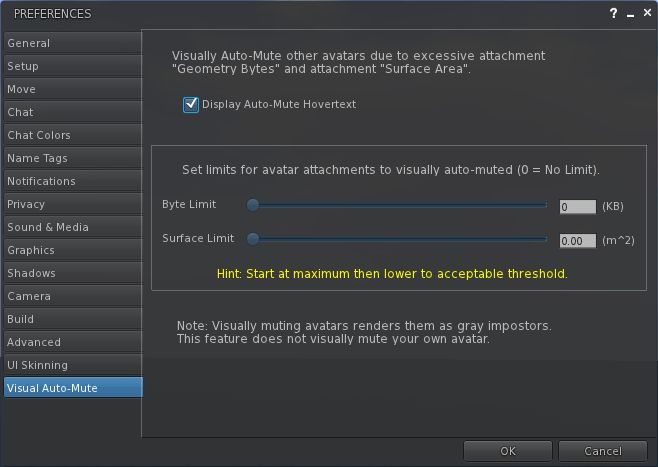
The functions are supported by a new addition to the Develop menu: Render MetaData->Attachment Bytes. When active, This displays a set of figures over / near avatars, which can be used to help you to determine the byte and area thresholds you should set.

The approach has already come in for considerable discussion on the SLU forum, where opinion seems to be weighted towards the favourable.
Certainly, it can’t be denied that avatars can impact Viewer performance enormously, so any moves that enable the user to have a greater degree of control over what is hurting their SL experience is potentially a good thing. But lag is a very sensitive subject – as anyone who has encountered upsets in the past due to people using ARC as a Big Stick can testify.
This approach would appear to be a lot more beneficial than something like ARC and its successor, Avatar Draw Weight (or ADW) are concerned, as it should hopefully reduce the amount of finger-pointing and hostility that goes on when people have arbitrary figures in red floating over their heads like a glaring accusation of wrong-doing.
It’s also somewhat friendlier than the other alternative to “blocking” “overloaded” avatars: that of audio mute, which denies any communications capabilities where some might be preferred and which can, if done on a group basis, leave a poor soul ostracised in silence with no idea why.
There are, however, some drawbacks. On the minor side, it is possible that setting the options when entering a popular venue may well result in you finding one or more friends around you turn into grey ghosts – or that you end-up greyed-out in their view. This might in turn result in strained relations, but shouldn’t really be anything reasonable people can get past – and even joke about privately.
This isn’t necessarily a “one size fits all” solution as well; it is possible that, depending on the type of venues a person visits (in terms of popularity popularity, nature of the activities carried out, etc.), the thresholds may need adjusting from time-to-time in order to gain the best benefits / compromise in terms of performance benefits and visual appeal. This may limit the scope to which the new functions are used, as people are not always willing to fiddle around with sliders as they teleport around SL.
It also needs to be remembered that avatars aren’t the only load placed on the Viewer, and using functions like these might not help tremendously when moving around an environment that has dozens upon dozens of high-resolution textures all over the place (such as a store or mall). In this regard, the effectiveness of the system needs to be balanced against alternative approaches (such as the use of avatar imposters, or by simply turning-down your draw distance and turning down / off various options within the Viewer Preferences) in order to improve one’s in-world experience.
The biggest question-mark over the new controls, however, is that of effectiveness. If the results of playing with the new options is an improvement of a couple of fps in overall performance and/or a very slight improvement in rendering time, then it is unlikely that they are going to gain a lot of traction. But if people see a demonstrable improvement in their overall experience, then it is liable that the functions are going to prove more popular.
That said, anything tha moves us further away from the finger-pointing extremism that has been the plague of ARC /ADW, has to be a step in the right direction, doesn’t it? One possible benefit from this approach is a greater awareness and consideration of just how one’s own avatar might be impacting other people’s experience within SL, simply by seeing that it exceeds the thresholds one is setting against other avatars.
Well, one can hope, can’t one?


 Inara Pey: Living in a Modemworld