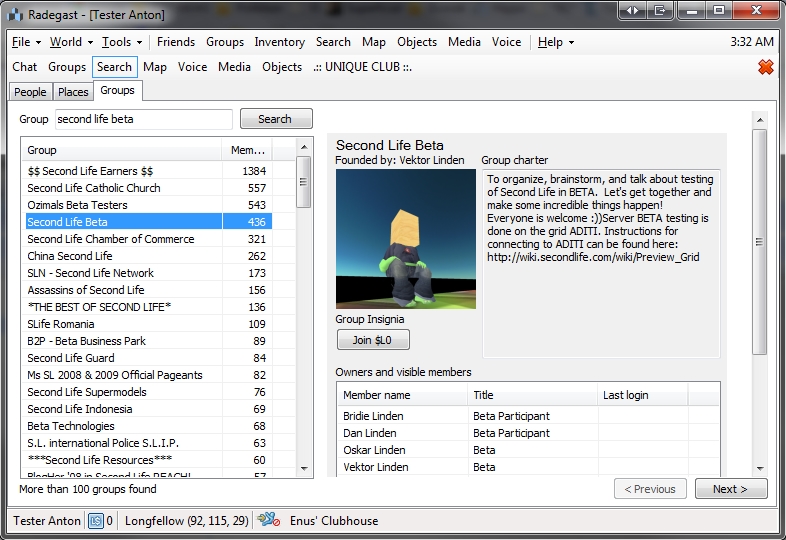
Radegest is a lightweight client for OpenSim and Second Life available for Windows, Linux and Mac. As well as providing text-based capabilities, it was the first lightweight Second Life client to offer a 3D world view (windows and Linux), allowing users on low-end systems to have a visual experience when using a virtual world.
Offering a similar level of capabilities and interaction as a full viewer, and supporting recent updates and improvements to the SL service (mesh rendering, HTTP protocol updates, Marketplace Direct Delivery, Server-side Appearance, etc.), Radegast has become very popular among users with visual impairments and with audio gamers. So much so that Roxie Marten and Celene Highwater of Virtual Ability Inc., have written a comprehensive Accessibility Guide to help people get started with Second life through Radegast. This not only serves as an excellent introduction for the visually and aurally impaired, but forms a thorough introduction for anyone wishing to gain familiarity with using Radegest.
Radegest gives you almost all the capabilities of a full viewer in a lightweight package (image courtesy of Radegast)
Because of Radegast’s popularity among the visually impaired, Celene Highwater will be teaching a special class on Radegast for all those interested in assisting new users understand the client and in helping them become a part of the growing community of blind SL users.
The class will be held at the The Tavern on Wolpertinger, on Thursday May 29th, at 12:00 noon SLT / PDT, and will take place in text, or voice upon request.
Anyone who is interested in learning the ins and outs of Radegast in order to help blind or visually impaired users make effective use of the client, is extended a warm invitation to attend the session.
It’s been over two years since I last looked at Radegast, the lightweight virtual worlds (SL and OpenSim) client for Linux, Windows and Mac. However, given it has just had two short-order updates, it seemed appropriate that I also bring my coverage of it a little more up-to-date.
Given so much has gone on with the client since I last blogged on it, this isn’t so much a review of the recent updates – or any updates – but more of a quick reminder of what Radegast is and what it can do.
For those unfamiliar with Radegast, it is a feature-rich client, offering almost all the functionality of the actual SL viewer, with the core functionality perhaps summarised as:
Chat (local, IM, group, friends conference)
Inventory management (manipulation, deletion of the items, moving them around, sending to other people by dropping item on their profile)
Manipulation of object contents, notecard and script editing
Ability to wear/take off clothes and attachments from the inventory
Avatar appearance – others using 3D client will see you appear correctly, and will not be able to tell that you’re using a text client
Backup of all scripts and notecards from the inventory
World map
Object finder – list objects nearby, sort them by distance, name, see details
A.L.I.C.E AI chat – turn it on in tools menu and have fun with automatic responses to chat/IM generated by a built-in Artificial Intelligence
Radar functionality
Movement controls
Support for activating gestures from the inventory
Streaming music
Accessibility improvements for visually impaired users, including speech recognition for controlling UI and entering text in chat and text-to-speech for reading out loud incoming messages
Experimental voice support for local chat
Partial RLV support
Group management
3D scene rendering for Windows and Linux
Radegast provides a 3D scene rendering for Windows and Linux in which you can interact with others and object, move around, teleport, move your camera …
All of this makes it an extremely powerful client, and one which can offer significant advantages over some of the more traditional text-based clients for SL power users who may have a need to access SL from a computer other than their usual system – such as a low-powered laptop while on the move (an option which could also potentially be more cost-effective for such users when compared to SL Go).
Since my last hands-on review of Radegast (version 2.2), there have been a series of updates which have ensured the client has kept pace with developments within SL. These mean, for example, that Radegast supports Marketplace Direct Delivery, Server-side Appearance, interest list updates and support for the recent server-side HTTP protocol improvements. In addition, bugs and issues have continued to be addressed, there have been further improvements to inventory handling, attachment point updates, rendering improvements (including some I encountered very early on and which are now long-since fixed) and a whole lot more.
Radegast takes mesh and sculpt rendering in its stride in the 3D scene view
One area in particular that has been focused upon with Radegast is that of accessibility by the visually impaired and audio gamers. Roxie Marten and Celene Highwater have written a comprehensive Accessibility Guide to help people get started with Second life through Radegast (and which also serves as a very good introduction to the client for anyone who has not used it before), and Latif has done a considerable amount of work on improving the Radegast speech plug-in.
If you’re looking for a means of accessing Second Life from something like a low-end laptop while on the move, and would prefer to be able to see what’s going on in-world (on Windows and Linux) rather than relying on text only, or if you have an old computer you’d like to occasionally use for SL access but which labours under the load of running a full-blown viewer, then there is little doubt that Radegast offers a very capable alternative. And as nice and shiny as SL Go is when on the move, it’s also nice to remember that there are alternatives, particularly if you have to take the old laptop with you …
Group Tools, the Windows-based third-party client aimed at users who need to manage large groups in terms of regular notices, group-wide IMs, or operate a region greeter bot, etc., updated on December 28th to version 2.2.26.
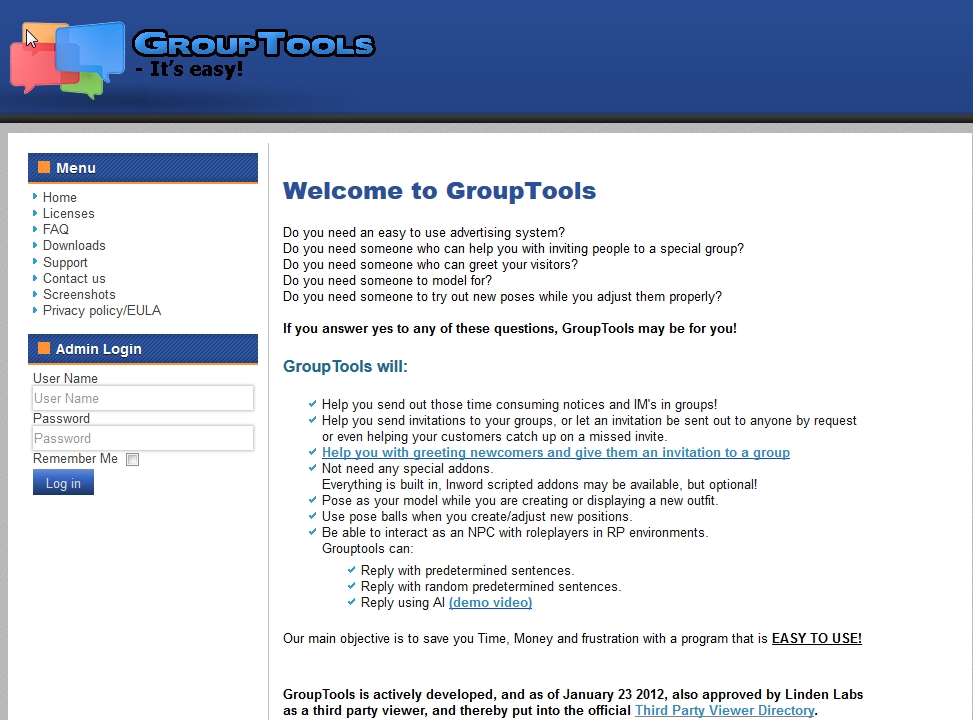
With it – or quite possibly before the update, as I’ve not visited the Group Tools website since my week 51 viewer release summary – came a revamp to the Group Tools website itself, which very much helps to put information clearly and cleanly before people unfamiliar with the client.
I last looked at Group Tools itself in September 2012. The client has been through several iterations since then, so I’ve no idea how relevant that review is compared to the current version. Because Group Tools requires the purchase of a licence, and I don’t actually have any specific need for the client, I’ve not actually subscribed to the services in order to keep up-to-date. As a result, and given there are no publicly available release notes for updates, it’s a little hard for the likes of me to keep track of changes to the client as they are released.
The revamped Group Tools wesbite is cleaner and easier to read
I have tended to poke my nose into the website on a weekly basis, however, if only to check for application updates for my weekly viewer release summaries, which is why I copped the changes to the site this week.
The amount of information – with a couple of possible exceptions – in the site hasn’t overly changed; however, the layout has, and the result is a series of web pages which are easier to read, have improved navigation (the left-side menus would appear easier to read than the old white-on-blue menus), and the site appears to benefit somewhat from smoother loading – although that could be purely a placebo effect on my part. Some of the individual pages lack clear subject headings, it’s true, and the text could perhaps benefit from a little more white spacing between lines, but these really are minor niggles on my part; overall the look is very sharp and pleasing to the eye.
The two possible exceptions to the information presented appear to be the Support Ticket area and the updated FAQ area. I’m a little cautious as to calling these part of the revamp, as it is entirely possible they’ve been part of the website for at least a couple of months, and I’ve simply messed them when visiting it – although neither appear to have been there prior to late October. So if they are new, they’re likely to be very welcome for established users and those coming to Group Tools for the first time.
One thing I would personally like to see added to the site are details of updates to the client alongside of the downloads. While it may well be that such details are sent to registered users of Group Tools when an update is available, having them also recorded on the website, either as formal release notes or simply as a bullet-list of key changes, would also be of benefit both to registered users and to parties potentially interested in the client.
If you are a Group Tools users and haven’t seen the updated website, it might be worth hopping over and taking a quick look. In the meantime, for those unfamiliar with the application, here’s an introductory video.
Thomas Buchauer continues to work on Pixieviewer the in-browser viewer he’s developing for OpenSim use. The new release still sees the viewer restricted to his own Pixiegrid environment – which has also been updated – and brings with it changes to the UI and promises of things to come.
The new version surfaced at the end of March, together with a blog post from Thomas outlining the updates and looking ahead to what he’s planning to add to the viewer. The latter items Thomas lists as:
Private Messages and User Profiles
Media Tools which will allow the display any Document (ppt, pdf, doc, xls etc) or any Image directly in-world without converting them first, and which will also will support video streaming
Guest Logins which will allow logins directly from a link without any questions and registration – clicking the link will open Pixieviewer and deliver a user to the desired destination.
Updated UI
Logging-in to Pixieviewer remains unchanged. However, once in-world the updates to the UI are immediately clear. The somewhat bland UI I critiqued in terms of viewability in my original look at Pixieviewer has been replaced by a series of coloured buttons which do much to improve using the viewer when using it on smaller screens.
The updated Pixieviewer UI
The buttons at the foot of the window are divided into three groups – what I’ve mentally labelled “personal”, “tools”, and “system”.
On the left are the “personal” buttons:
A “Home” button for teleporting you home (which currently returns you to the default Welcome area of Pixiegrid
A “User Profile” button – which will eventually provide access to … user profiles
In the centre are the “tool” buttons:
Chat
IM
Find Places – list and visit other locations
Media tool – not yet active
Build – the in-world building tools
On the right are the “system” buttons:
File a bug report / suggestion
Open the Pixieviewer blog (in a separate browser tab)
View statistics on the current scene
Log-out of Pixieviewer
There is one additional button, located in top left corner of the screen. the Audio / Video Conferencing button. According to the blog entry for the update: “If a Place has Conferencing enabled, you will see a blue conference icon that allows you to join or create a realtime Audio Video conference with unlimited number of users.”
The initial Audio / Video Conference window and activating camera / microphone access
The option is currently being tested, and the Welcome Area has conferencing enabled. Clicking on the button opens a window which includes a an option to allow Pixieviewer to grab control of your microphone / camera, together with options for accessing camera and microphone set-up. There are also buttons to log-out of a conference and hide the conference window (handy if you are engaged in voice-only conferencing while doing things). It currently appears as if anyone clicking on the Audio / Video Conferencing button will join an existing conference.
All of the buttons are labelled with icons, but rolling the mouse pointer over them displays easy-to-read hovertips.
Places
The Places button allows users to teleport elsewhere on a grid. Clicking it opens a floater listing the available places, complete with an image of each. Clicking on the blue arrow iconed button to the right of a place in the list will teleport you there.
Currently, Pixie grid has three available areas: Welcome Area (to which you can also return by clicking the Home button on the bottom left of the screen), a sandbox and a “Mirror Island” region.
The sandbox region is obviously an area designed to encourage people to try-out Pixieviewer’s build tools (which remain unchanged in this release), although all three regions are at present all build enabled. Given the sandbox is available, people are encouraged to us it when trying the viewer, rather than cluttering-up the Welcome area.
Thomas Buchauer has been working on developing a virtual world viewer-in-a-browser. The work is still very much in its alpha stages, but already shows sign of promise for those who are OpenSim-based.
Pixieviewer is available now as a special “first look” release, with access restricted to a special test grid called, appropriately enough, Pixiegrid. It is also in non-public testing with two OpenSim grids, and the aim appears to be to make it generally available as a browser-based means of access OpenSim environments at some point in the future. The viewer utilises HTML 5 (and so runs of Firefox, Chrome, etc.), and runs on any portable / mobile device capable of running WebGL.
Pixieviewer: accessing OpenSim through a web browser
As an initial “first look” release, functionality is obviously limited – although already offering enough to get people playing with things and see the potential. Capabilities currently included in the viewer comprise chat, building both using primitive (“basic”) shapes and pre-set 3D models (mesh is supported although uploads are currently not enabled), and the ability to send content to a file suitable for 3D printing on your own (data exported as an STL file), or have the data sent to http://i.materialise.com, where you can preview and order 3D prints. Some basic object interaction is also possible as well – such as sitting on objects or clicking them to display pop-up with further information.
You’ll need to create a log-in account to the Pixiegrid in order to try-out the viewer, and you can do so directly through the viewer’s log-in page.
General Looks
The preview version loads fast – once you’ve registered an account, you can fire-up the viewer and are immediately delivered to the Pixiegrid preview area, where you can wander, try out various options (including the 3D printing), chat with others and explore what is already available.
3D printing from within PixieViewer
Avatars come in default male and female forms and are non-customisable at present – although you might find your hair colour changes between log-ins; I’ve tended to find I’m either a blonde or a red-head when using the viewer. Movement – both avatar and camera – is fairly basic, but more than adequate for getting around and seeing things; those who have followed Lumiya’s development will be aware how rapidly things like this improved, so it’s reasonable to expect PixieViewer will add further refinements as time and the technology allows.
Group Tools is a Windows client for Second Life specifically designed for those who need to send out group notices or IM messages simultaneously across a number of groups.
Rather than having to create individual notices for each group, or copy & paste a message multiple times into different group IM sessions, Group Tools allows you to set up a single message (with attachments, if required) as a notice, as an IM or both, to all groups you have determined should receive the information. As such, the client is aimed towards people like entertainers, large event organisers, venue owners, and so on, who may operate multiple groups which need to receive the same information, or are members of multiple groups to which they frequently send the same information.
To achieve its goals, Group Tools is designed to be used with an alt account, which is treated as an in-world bot for the sending of messages. So to make effective use of the client, you will either require an alt account which can be used in this way, or create one specifically for use with Group Tools. The bot itself needs to be a member of all the groups to which you regularly send IMs and notices (ans will require permission to send out notices in the case of the latter), and be logged into SL via Group Tools in order to send messages as required. To add flexibility, Group Tools includes the concept of an “Operator’s Group”, which allows those you trust to be able to send out notices / IMs through the bot (they do not need to be running Group Tools).
Account Registration
Group Tools is unusual in that it requires an account registration process and a licence fee payment in order to be used. The registering account should be your main account, which is used to manage your bots, and not any account you intend to use as a bot. Accounts are registered in-world at the Group Tools office.
Licence fees can be purchased on an in perpetuity basis (one payment only) or on a monthly renewable basis. For those wishing to try-out Group Tools, a free one week trail period is available, which provides access to Group Tools in full. Licence prices can be found on the Group Tools website, as can the Privacy Policy, which is a recommended read.
Registration will also supply you with a sample notecard which can be used as a template to help with formatting your own message notecards.
Once you have registered, you’re ready to download Group Tools (if you’ve not already done so), and set-up your bot(s).
Download and Install
The Group Tools download .EXE is 7.56Mb in size, and should install OK once downloaded. However, issues have been reported using Norton Internet Security, and guidelines have been posted on the Group Tools website for those who may encounter similar problems.
Control Centre
Group Tools comprises two parts: the Control Centre, used to set-up bots and log them into Second Life, and the Client Window, where specific operations can be carried out.
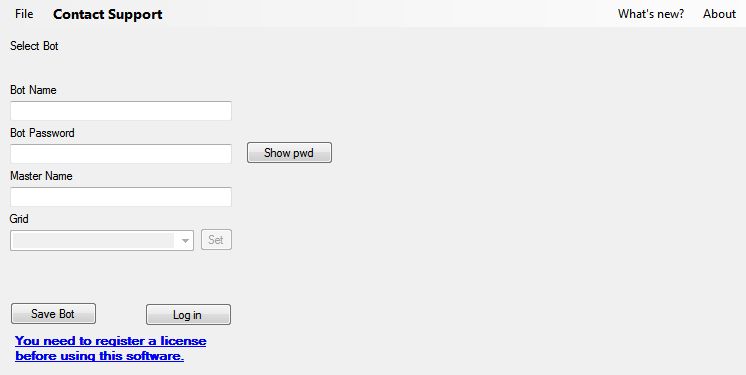
Launching Group Tools displays the Control Centre screen which you use to define your bot(s). Bots are set-up using the account name / password for an SL account and linking them to the registered Master account. Account names are entered with a period between the first and last name, not a space (i.e. “Inara.Pey”, not “Inara Pey”).
Control Centre screen as it appears before any bots have been defined
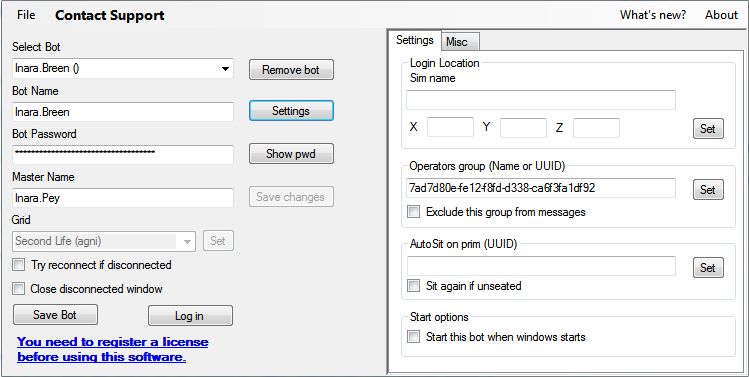
Once this initial information has been entered, SAVE BOT should be clicked. This will create a dedicated bot account within Group Tools, complete with a Group Tools-specific password, which is quite separate to the bot’s SL password (and so cannot be used to log-in to SL with the bot via other means). Clicking SAVE BOT will also refresh the Control Centre screen to display a SETTINGS button next to the bot’s name. Clicking on this opens a tabbed panel (below), allowing further options to be set for the bot.
Updated log-in screen for a saved bot
The Settings tab comprises options to:
Set a default log-in location for the bot when using Group Tools
Allow the bot to automatically sit on a defined prim (useful if the bot is logged-in to a busy area and you do not what it to be an obstacle to traffic – just supply the UUID of the prim on which the bot is to sit)
Assign the bot to an Operators Group – see below.
Set whether or not Group Tools should start and log-in to SL using the bot whenever you start Windows.
The Misc tab allow you to set various options, including:
Whether or not the bot can accept friendship offers from anyone or just from operators
Whether the bot can use money
An automatic IM reply sent in response to incoming IMs
How inventory offers are received by the bot.
Once you have set / changed any of these options for a bot, make sure you click SAVE BOT to ensure the settings are correctly stored by Group Tools.






 Inara Pey: Living in a Modemworld