First Annual OpenSim Community Conference announced

On Monday May 20th, the Overte Foundation and Avacon announced the First Annual OpenSim Community Conference, which will take place on the 7th and 8th September 2013.

OSCC-banner

The official programme will be held in-world on purpose-built grid, designed specifically for the conference. In addition, the conference grid will be HyperGrid enabled,  allowing attendees to move between it and other grids which may be hosting social events linked to the conference.

The conference is intended to be a celebration of the OpenSimulator platform and the large and varied community using it. As such, it will feature two days of keynote speakers, presentations and panels on different topics, and an exposition area to showcase community activities and projects and event sponsors. Therefore, anyone who is interested in the OpenSimulator software and the future of the metaverse is invited to attend, as well as OpenSimulator developers, grid administrators, and members of the community who participate on OpenSimulator grids.

Registration and Speakers

Registrations for the conference will open on June 17th 2013 on a first-come-first-served basis. The organisers hope to accommodate 200 users in total, and once that number has been reached, community members will still be able to register for the live UStream version of the conference, which will be provided on-line free-of-charge.

The exposition area of the conference grid will not be restricted to ticket-only access, and so will be only to anyone wishing to visit, subject to constraints on the number of avatars that the exhibition regions can hold at any given time.

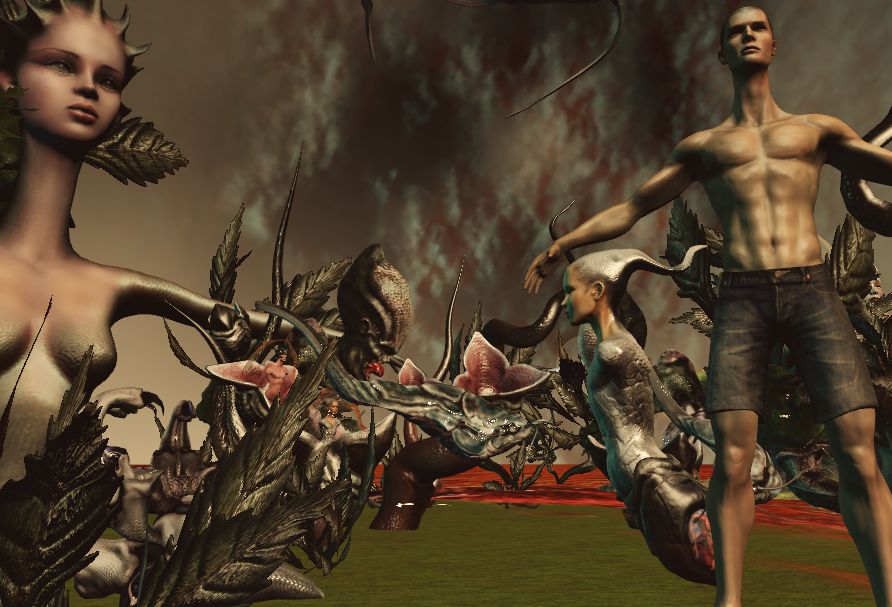
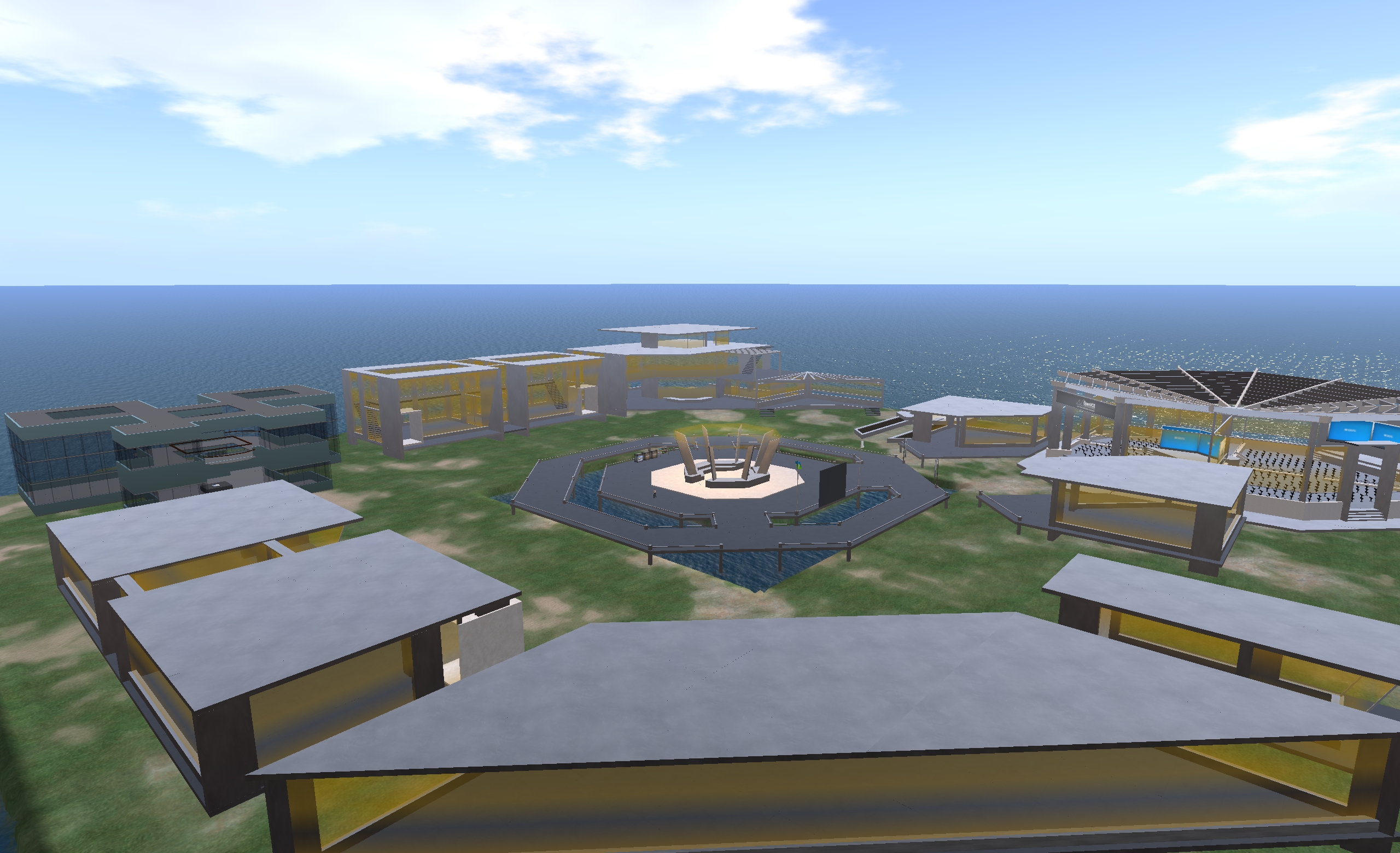
The First OpenSimulator Community Conference programme will be held in-world on a purpose built grid (image of illustrative purposes only, and not representative of the conference grid)
The First OpenSimulator Community Conference programme will be held in-world on a purpose built grid (image for illustrative purposes only, and not representative of the conference grid)

The conference will comprise five tracks in order to cluster break-out sessions into common areas of interest. Anyone wishing to attend the conference as a speaker is invited to submit a proposal under one of the following headings – note that relevant guidelines are provided for each track, and should be read in full prior to submitting a proposal:

All speaker proposals must be submitted no later than July 1st, 2013.

Sponsors and Volunteers

While the conference is being held in virtual space, it does incur some expenses (such as the professionally managed set-up and operation of the conference grid and the streaming and other web services). As such, the conference is seeking sponsorship from businesses, entrepreneurs,  and community members alike to help support the conference through a range of sponsorship opportunities, which are tax-deductible for US residents minus the value of any tangible benefits.

The conference also needs volunteers to assist with a wide variety of roles including greeting attendees, moderating breakout sessions, assisting with building and scripting tasks, providing technical support, and so on. If you are experienced with the OpenSimulator platform and have an interest in helping, please complete the Volunteer Application form.

About the Organisers

The Overte Foundation is a non-profit organization that manages contribution agreements for the OpenSimulator project.  In the future, it will also act to promote and support both OpenSimulator and the wider open-source 3D virtual environment ecosystem.

AvaCon, Inc. is a 501(c)(3) non-profit organization dedicated to promoting the growth, enhancement, and development of the metaverse, virtual worlds, augmented reality, and 3D immersive and virtual spaces. We hold conventions and meetings to promote educational and scientific inquiry into these spaces, and to support organized fan activities, including performances, lectures, art, music, machinima, and much more. Our primary goal is to connect and support the diverse communities and practitioners involved in co-creating and using virtual worlds, and to educate the public and our constituents about the emerging ecosystem of technologies broadly known as the metaverse.

Related Links

Kitely Market opens for merchants

Kitely-logoOn Saturday May 11th 2013, Kitely announced they are opening their new Market to merchants so that the latter can start to build their stores.

The move comes five months after Kitely first announced they would be developing the Market (see my report from January 2013), and marks a further significant step forward in Kitely’s plans to establish a web-based marketplace which will initially allow merchants to sell products to other Kitely users, but which it is hoped will eventual be available to users across multiple grids.

The Market will combine features familiar to those used to using the SL Marketplace or markets such as the (now defunct) Apez and Metaverse Exchange: items can be browsed on-line, then purchased (using Kitely Credits (KCs) or US dollars), prior to being delivered directly to the purchaser’s in-world inventory in a similar manner to SL’s Direct Delivery mechanism. Additionally, the Market will function more like e-commerce sites such as Amazon, where items can be searched for using attributes as well as a category hierarchy, making the search process and drill-down easier and more flexible for both merchants and consumers.

The new Marketplace button on the Kitely toolbar

The Market is accessed via a new shopping cart button which appears on the main toolbar which is displayed when users are logged-in to Kitely. Once the Market is fully open, the button will allow users to start browsing stores and goods. However, until then, the button will display an introductory message which explains that access to the Market is currently limited to merchants wishing to create a store.

The blog post provides detailed instructions to merchants on creating their store, using the store home page, and managing, editing and modifying products and listings. Additionally, Kitely are also providing on-line documentation for the Market, which provides information on important aspects of the Market such as product pricing options and listing guidelines.

Adding products to a Kitely Marketplace store - image courtesy of Kitely
Adding products to a Kitely Marketplace store (image courtesy of Kitely)

The Market also enables merchants to include multiple variations of a product within a single listing. So rather than having 5 individual listings for an outfit which is available in 5 different colours, a merchant will be able to create a single listing for the outfit, which includes the 5 different colours. The merchant will also be able to define individual prices, permissions and search attributes against each variation, if required.

One item which merchants will not initially be able to sell through the Market is OAR files.

“You can’t sell OAR files directly,” Ilan Tochner, Kitely’s CEO said, “but you’ll eventually be able to sell entire Virtual Worlds so instead of just having the two virtual world templates we offer you now when you create a new world, you’ll be able to find and buy the perfect virtual world for the activity you have in mind. Once you buy that world a new world will be automatically created inside the My Worlds page in your account, at which point you’ll be able to export it to an OAR file.”

Export Permissions

An important element within the Market is Kitely’s new “Export” permissions flag, which is separate to the familiar modify / copy / transfer permissions associated with a product, and allows a merchant to specify whether or not a purchased item can leave the grid. This means, for example, that if a user buys an OAR file for a Kitely world and attempts to save it to their hard drive, only those elements of the OAR file which have the Export flag set will actually be saved – anything which does not have the flag set will be ignored.

Currency Options and Fees

Products in the Market can be sold using either Kitely Credits (KCs), Kitely’s own non-exchangeable virtual currency, or using US dollars (USD), where payments are handled directly via PayPal.

Continue reading “Kitely Market opens for merchants”

Cloud Party art contest offers $1,000 prize

logo-CPI’m not that active in Cloud Party, although I do log-in from time to time, largely because Claudia222 Jewell has a workshop there and I love slipping in and seeing what she is doing, and also because Maxwell Graf tends to be busy there as well.

Nevertheless, Cloud Party appear to be very much aware of me, as I discovered they’d e-mailed me about their first art contest. Entitled the “Monumental Work of Public Art”, it is being held to mark the platform’s first first anniversary, and it is open to anyone to enter.

On offer is a $1,000 USD prize for the overall winner, and a 2,000 Cloud Coins prize for the “Community Favourite” entry as judged by Cloud Party residents. In addition, all artists entering the contest will receive an in-world studio workspace in which to create their entry.

Claudia222 Jewell is one of a number of well-known virtual world artists active in Cloud Party

The e-mail announcement reads in part:

Cloud Party is pleased to announce a very exciting community event to celebrate our first year. In collaboration with Ben Davis, editor of Artinfo Magazine, we are sponsoring an Art in Cloud Party contest. Our theme is “Monumental Work of Public Art” with a first prize of $1,000.00 (USD)! The Community Favourite prize, as voted by our community, takes home 2000CC (Cloud Coins virtual currency).

If you decide to enter, you’ll get access to your own virtual studio space for a month to create your masterpiece. Entries will be judged on the following criteria:

  • Originality of concept
  • Personal voice
  • How well it takes advantage of the virtual environment
  • Overall coherence of vision.

In addition, the Cloud Party blog provides further information, stating in part:

The rules for what you create are pretty wide open. It can be visual, interactive, collaborative – whatever you come up with that meets your definition of art and reflects our theme. Since this is a subjective topic we intend to be pretty open-minded, but do keep our Terms of Service in mind and that this is a 13+ website.

Key Dates for the Contest

  • The contest opens at 12:00 noon PDT on Wednesday May 8th, 2013
  • Last of contest and first day of community voting: 17:00 PDT Wednesday June 12th, 2013
  • Official winner and Community Favourite winner announcement: 12:00 noon PDT Friday June 14th, 2013.

The overall winner will be judged by Ben Davis, editor of Artinfo magazine.

How To Enter

  • Those wishing to enter must submit Art in Cloud Party Entry Form after the competition has formally opened at midday PDT on Wednesday March 8th, 2013 – any entry forms received before this time will be ignored
  • Entrants should receive confirmation of their application and be granted access to their Cloud Party studio workspace within 24 hours of their entry form being received
  • Once an entry is completed, an Art in Cloud Party Submission Form must be submitted in order for the piece to be considered in the formal judging and Community Favourites contest.

As always, there are also Official Contest Rules which should also be read through.

So, if you’ve ever wondered what Cloud Party might offer you as an artist – now might be the time to take the plunge – and perhaps be rewarded for your efforts!

Related Links

An OpenSim material(s) girl

Those of us who spend the majority of our time in Second Life are just starting to get our heads around materials and opportunities it presents for enhancing mesh, prim and sculpt builds and attachments. Now OpenSim may not be that far behind, as Marcus Llewellyn commented on this blog, and has himself explained on Bearly Written, where he tells us:

Dahlia Trimble, one of the core developers of OpenSimulator, has begun work on a module that gives OpenSim support for new materials on prim, sculpt, or mesh builds. The module that enables it is really more of a demonstration right now; it has issues setting materials, and they will only persist until a region is restarted …. Still, it’s a start, and an exciting one!

The work is still at a very preliminary point right now, as Marcus points out, with the server-side code still very much in its infancy. The work is also hampered by the fact that the only viewer currently capable of rendering materials is a project viewer from Linden Lab which isn’t actually intended to be connected to OpenSim (due to Havok licensing restrictions). However, this latter aspect should change once the code reaches a point where it is suitable for merging into third-party viewers.

Both of these point mean that there is still much more work to be done – but Dahlia, with assistance from Marcus himself and Nebadon Izumi has made a good start on things, and the simulator code is already available for those who want to give it a go or help-out with the work.

Marcus has more information on the project over on his blog, and I refer you to him for a good overview of the project. IN the meantime, here’s a video of Dahlia’s work. Kudos, Dahlia!

Related Links

With thanks to Marcus Llewellyn

NWS: licensed version due to launch; tutorials start being released

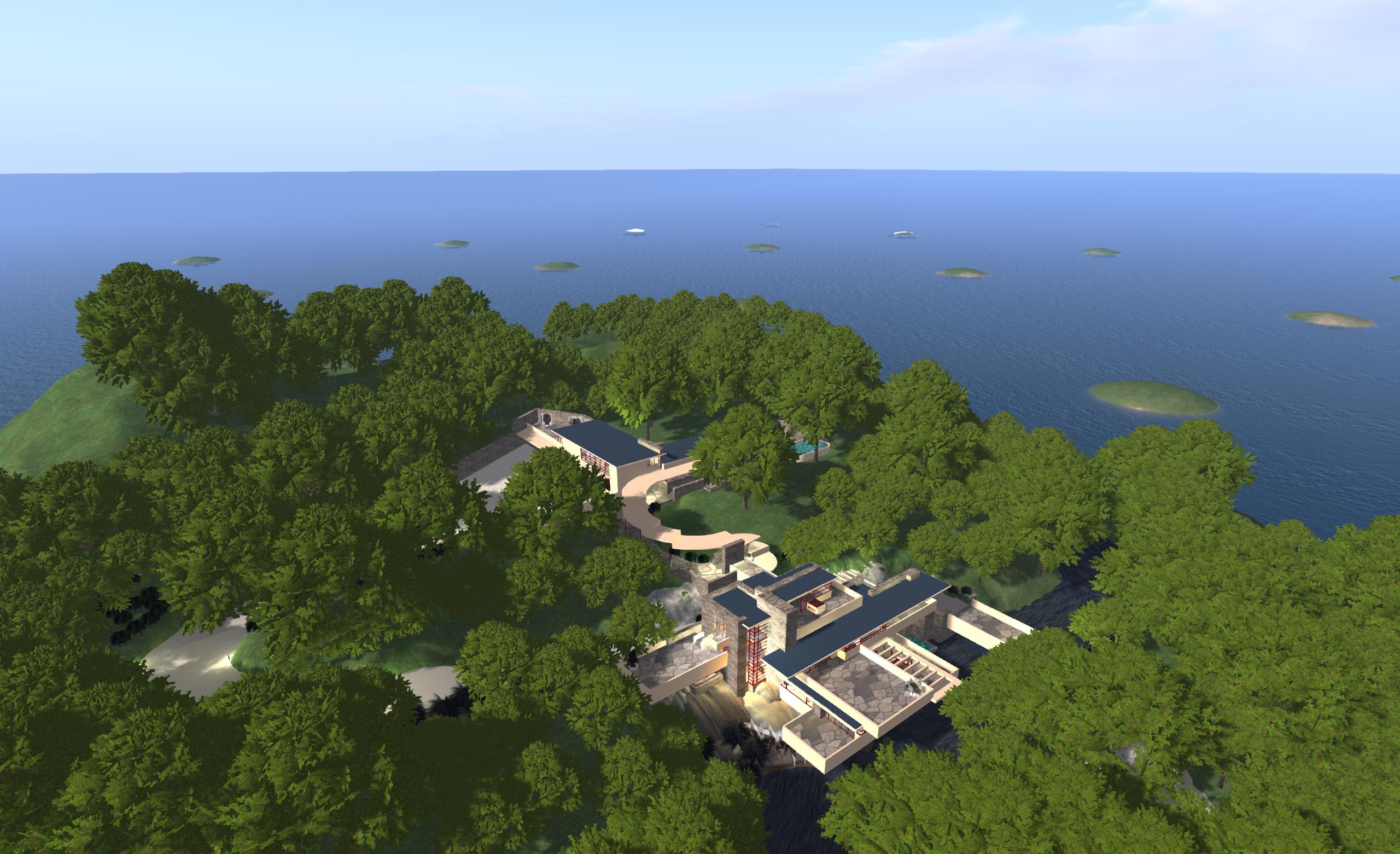
My Fallingwater OAR file loaded into New World Studio on my PC as a part of a Host you own region / megaregion at home using NWS: my own initial set-up featuring 16 regions and using an OAR of my Fallingwater build
Host you own region / megaregion at home using NWS: my own initial set-up featuring 16 regions and using an OAR of my Fallingwater build

I recently reviewed the free version of Olivier Battini’s New World Studio, which allows anyone to to run their own single or multiple-region OpenSim environment on their own computer at home.

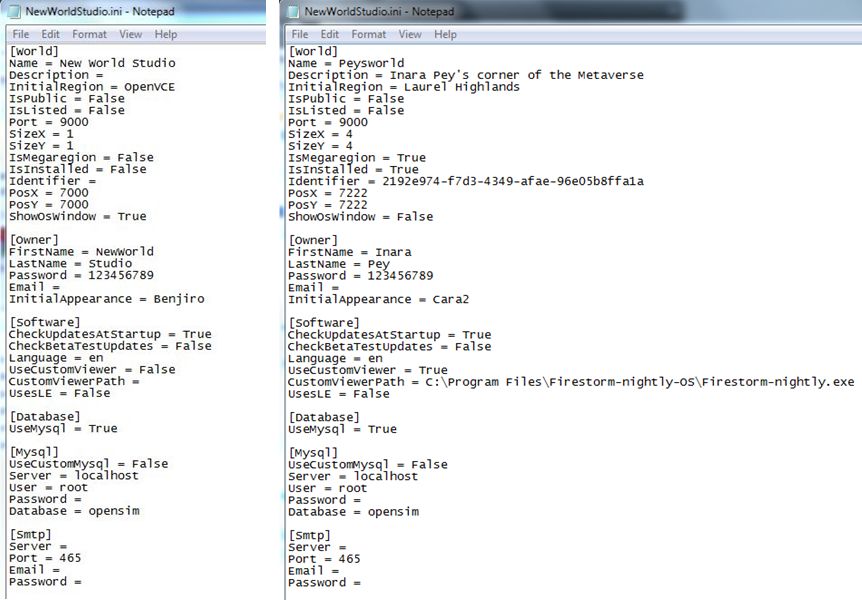
Currently, the free – or Community – version is very much as standalone version, although Olivier has indicated that connectivity will be possible in the future as a part of the manual configuration capability. This capability, which requires the editing of an .INI file, already allows users to define the number of regions their NWS installation supports, whether or not these are to be treated as a megaregion, the default starting OAR file (and avatar IAR file, if applicable), specify a preferred viewer rather than the default Imprudence viewr, and so on.

The Community edition of NWS is fully configurable - but requires editing an INI file (original shown left, and my own updated version, right)
The Community edition of NWS is fully configurable – but requires editing an INI file (original shown left, and my own updated version, right)

Due to be released later this week, the licensed version of NWS (currently starting at a 50% off 15 Euros / $20 for a home licence) does, among other things, take away the need to edit the INI file by allowing access to simple selection panel which can be accessed via the Access Advanced Features button on the NWS Launcher.

This panel allows users to configure NWS quickly and easily through a series of option fields and drop-downs. Using it, you can set your avatar name and default look, define the number of regions you wish to run (1, 4, 9, or 16), the default region name and whether or not the regions are to be treated as a megaregion, and set the default OAR file.

The licensed version of NWS includes a configuration panel for easy-of-set-up (image courtesy of Olivier Battini by way of Hypergrid Business)

Currently, the control panel doesn’t include an option to select your own preferred viewer. However, this is coming with future updates, together with a number of other options, such as automatically network and firewall configuration for public access, public 3D worlds searches, and so on, as defined on the NWS Features page for the website. In terms of functionality and features, these will take time to develop, which is why licensed versions are being discounted and there is an active Early Adopter Programme, as Olivier explained when we discussed NWS recently.

“People must know and should understand that all will not be functional right now. This project requires a huge amount of work, especially as it’s multi-platform (Win, Mac, Linux),” he said, emphasising the effort involved in putting it all together before highlighting the benefits, “People can experience how easy to use NWS is, and they may not realize the cost of simplicity. This is why there’s an Early Adopter Programme that will allow people to, not only get lower prices, but also be able to vote for the features they want to see implemented first.”

In preparation for the wider availability of NWS options, Olivier has also been working on documentation and tutorials, the latter starting with an introductory video to NWS 2.1 Community Edition.

Again, if you’re looking for a “home studio” OpenSim capability for design / building work, whether your products are for use on OpenSim or Second Life, New World Studio – with a few caveats in the case of use with SL – might be just what you’re looking for as a fast, clean, easy-to-install option.

Related Links

With thanks to Maria Korolov at Hypergrid Business and to Olivier Battini.

New World Studio: self-hosting a region made easy

Note: New World Studio is no longer functional.

New World Studio, which is currently in beta testing, is designed as a quick-and-easy means of setting-up an OpenSim environment on any Windows, Mac or Linux computer.

The brainchild of Olivier Battini, New World Studio (NWS) is designed to provide home users, educational organisations and businesses a “one stop” means of establishing a self-hosted OpenSim environment, complete with a choice of region designs and with licence options (starting for 30 Euros / $40  – and subject to a 50% discount at the time of writing), which include automated network / firewall / access configurations.

NWS supports all current OpenSim commands, and can be quickly and easily configured to run as a single region or as an estate of multiple regions or megaregion, accessed by either the supplied viewer (Imprudence) or an OpenSim-compatible viewer of your choice. While the free version currently only supports a standalone capability, Olivier is re-working things so that installations can be opened-up for public access when online. Even so, and as a standalone option, NWS already offers home users a quick and easy way of establishing a private sandbox environment which content can be created and / or tested ready for export to other OpenSim environments and – to a degree at least – to Second Life.

To say NWS is exceptionally easy to set-up is an understatement. From download to running in its default mode takes less than five minutes. I had it downloaded, installed and customised to suit my requirements (avatar, my own OAR region file & choice of viewer) in under ten.

Installation

Installation is a matter of downloading the required ZIP archive (obtained directly from Olivier at the time of writing) and extracting it to a nominated location / folder. Linux and Mac users will also need to install Mono, otherwise everything is ready to run NWS in a default configuration.

However – if you want to customise the installation in any way (use your own region OAR or preferred viewer, for example), you will need to do so before you run NWS for the first time.

Custom Configuration

Configuring NWS requires editing the NewWorldStudio.INI (contained in the application folder) file using a suitable plain text editor (such as Notepad). Generally speaking, the [World], [Owner] and [Software] sections of the file will need to be updated.

[World]

Sets your region details and type.

Name: the name of your region (Default “New World Studio”) – can be anything you want

Initial Region: the region loaded on start-up. This can be one of the five supplied regions, or your own OAR file. The supplied regions are:

    • OpenVCE – a conferencing region with open and enclosed meeting spaces
    • Flat 21 – a complete flat grassland region 1 metre above sea level
    • Business District – a built-up region with roads, high-rises, a plaza, etc., supplied by Linda Kellie.com
  • Mountain Retreat – a mountain / snow region with house, chair lift and various activities, again supplied by Linda Kellie.com
  • Undersea Observatory supplied by Justin Reeves.

To use any of the supplied regions, replace the existing region name “OpenVCE” with the name of the region you wish to use exactly as it is listed in the REGIONS folder in your New World Studio installation (e.g. “Business District (LindaKellie.com)”).

If you want to use your own OAR file with NWS:

  • Create a folder in the REGION folder of your NWS installation & give it a suitable name
  • Copy the required OAR file to the folder you just created and rename it “region.oar”
  • Replace “OpenVCE” in Initial Region with the name of the folder containing your OAR file.
The deafult region with New World Studio and the (just visible) default male avatar
The default OpenVCE region supplied with New World Studio under a Creative Commons licence

SizeX and SizeY: define your region size. The default is a single 256m x 256m region. However, you can create multiple regions by entering suitable values here (3 and 3 will create a block with 3 regions on a side, for example).

IsMegaregion: If you create multiple regions, determines whether they should be treated as individual 256mx256m regions (FALSE) or whether they should be treated as a single megaregion (TRUE).

PosX and PosY: Define the global starting co-ordinates for your world. The default is 7000 for each, which is fine if you’re intending to have your world purely as a private environment. However, if you want your world open to the public, you should consider changing the co-ordinates to something more unique – the hypergrid system doesn’t allow moving directly between destinations with the same co-ordinates.

ShowOsWindow: Determines whether the system console is displayed when starting-up NWS. TRUE (default) = console will be displayed; FALSE = console is not displayed. Allowing the console window to open means you have access to OpenSim’s server-side commands, such as saving any region you build as an OAR file, etc.

[Owner]

This section defines your user name, password and default avatar.

  • Change FirstName and LastName  and Password to suit your requirements
  • InitialAppearance: enter the name of your preferred default avatar here (Benjiro, Benjiro2, Cara, Cara2)
The four avatar styles
The four default avatar styles: Benjiro, Benjiro2, Cara and Cara2

Continue reading “New World Studio: self-hosting a region made easy”