Kokua 7.1.10: going Delta(FPS)

On September 27th and 29th, Kokua updated their viewer with the release of version 7.1.10.

As is common with Kokua, the viewer is provided in three variants utilising the same code:

  • No RLV, version 7.1.10.56206
  • RLV and “Full time” RLV, version 7.1.10.59780.

The key aspects of this release are parity with Linden Lab’s DeltaFPS viewer code base, and changes made to the Linux system requirements. The following is an overview of some of the key changes between this release and the previous Kokua 7.1.8 release.

Table of Contents

Also note that Kokua did not provide a release to match the Lab’s 7.1.9 Altasaurus viewer. However, updates from that viewer are a part of DeltaFPS; as such, the release notes for the Altasaurus viewer are referenced below for those interested.

Installation

  • Only download Kokua via the Kokua website. Do not utilise and other third-party site purporting to offer the Kokua viewer.
  • There is no need to perform a clean install with this release if you do not wish to.
  • Do, however, make sure you back-up all your settings safely so you can restore them after installing 7.1.10.

Linden Lab Updates

DeltaFPS

  • Viewer version number 7.1.10.10800445603, dated September 17th  – release notes in full.
  • Core updates: performance improvements, building on the improvements in viewer 7.1.9; viewer-side WebRTC support.

Altasaurus

  • Viewer version number 7.1.9.10515727195 – release notes in full.
  • Date of promotion to release status: 26th August, 2024.

The release notes for both of the above should be referred to for complete information on updates and resolved issues, only some of which are summarised below.

WebRTC

WebRTC communications protocol (RTC=”real-time communication”) is the new Voice communications protocol for Second Life, replacing Vivox Voice.

Why Make The Change?

Voice in Second Life has been supplied through an arrangement with Vivox. This has required Linden Lab to utilise a viewer plug-in tool – SLvoice.exe – to manage voice services within the viewer., which in turn has made LL both reliant on Vivox for bug fixes for the plug-in, and subject to changes in support for operating systems imposed by Vivox such as the latter ending native support for Linux some years ago).

WebRTC by contrast is the predominant telephony protocol used by web-based applications, such as Google Meet, and is integrated into most common browsers. It has almost all the features common to Vivox in supplying a voice service – spatial in-world voice; peer-to-peer sessions; Group voice (including moderation) and multi-user Voice conferencing – although the are some limitations (see below).

Benefits and Improvements

WebRTC Offers a range of benefits over Vivox, including, but not limited to:

  • 48khz audio bandwidth providing cleaner sound.
  • User control over:
    • Audio noise reduction – high reduction for noisy environments, no reduction for clean audio sources (performers, etc.)
    • Automatic gain control – less need to individually tune other user’s audio levels.
  • Audio/video device selection.
  • Improved: spatialization,  audio echo cancellation and audio sampling rates for improved audio quality.
The WebRTC options added to Kokua’s Voice preferences

Most significantly, WebRTC removes all reliance on a third-party plug-in for the viewer. Instead, it is supplied as a library and wrapper within the viewer. This means:

  • Linden Lab has greater ability to address Voice related issues directly, without having to await fixes from a supplier.
  •  WebRTC potentially opens the door to adding features and capabilities to SL Voice in the future, including some which have been long-requested.
Limitations
  • WebRTC does not support the existing Voice Morphing capability in Second Life.
    • This is because voice morphs are tied to the Vivox service, and cannot be utilised with WebRTC.
    • Those who do use the current Voice Morphing capability are directed to this SL Wiki article on Voice Morphing, which provides a list of solutions which can be used with WebRTC.
    • Note that the Voice Morphing options remain available in Kokua 7.1.10 because at the time of release, Vivox Vorph Morphing remains available on Vivox-enabled regions.
  • Conferences and group voice calls are limited to 50 participants.
Security

The Second Life implementation of WebRTC addresses security issues such as potential eavesdropping, exposing users’ IP addresses, etc., by routing communication through proxy servers managed directly by LL .

Deployment Notes

At the time of writing, simulator support for WebRTC is limited; deployment is due to become more widespread from October 16th, 2024, and hopefully be grid-wide by the end of October 2024. During this transitional period, peer-to-peer, conference calls and group chat sessions might be subject to various disruptions (e.g. they will not work between those on simulators running Vivox and simulators running WebRTC).

Usability Updates

Object Take
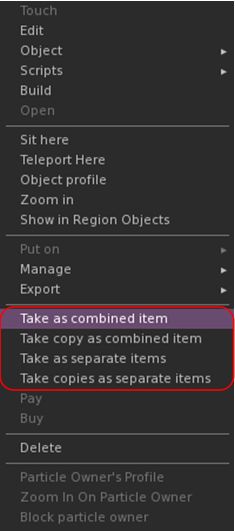
The update multi-object take options

Kokua 7.1.10 includes the Lab’s updates to picking-up objects in-world using the right-click context menu:

  • When selecting an individual item, the right-click context menu will display the expected Take and Take Copy options.
  • When selecting multiple items, the right-click context menu will display the following new options:
    • Take As Combined Item: return all the selected objects to inventory as a single, coalesced object.
    • Take Copy As Combined Item: return copies all the selected objects to inventory as a single, coalesced object, leaving the originals in-world as individual objects.
    • Take As Separate Items: return all the selected objects to inventory, but list them as individual items, not as coalesced.
    • Take Copies As Separate Items: return copies all the selected objects to inventory, but list them as individual items, not as coalesced, leaving the originals in-world.

Note that all of the above Take options will be available in accordance the SL’s permissions system (as with Take / Take Copy).

Avatar Rendering Updates

Linden Lab added new options to enable the prioritisation of rendering avatars using the following criteria:
  • Limit by complexity – any avatar with a complexity greater then your Avatar Maximum Complexity” setting will be rendered as a Jellydoll.
  • Always show friends – your friends will never be rendered as Jellydolls, no matter what their complexity
  • Only show friends – all avatars except your friends will be rendered as Jellydolls.

Within Kokua, this options are found under Preferences → Graphics, with the Exceptions drop-down also repositioned in the panel.
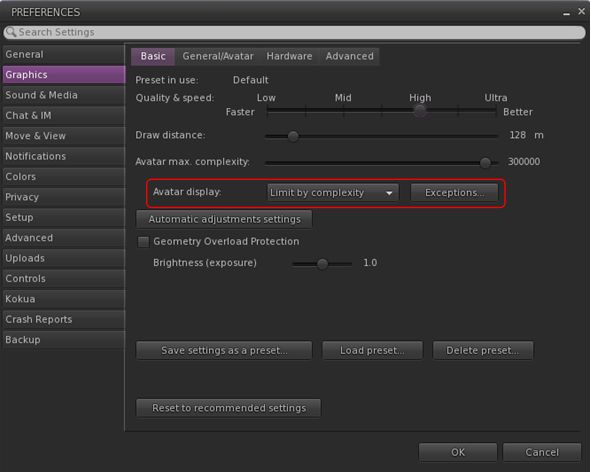
New Complexity options from LL within Kokua’s Preferences → Graphics → Basic, including a move of the Exceptions drop-down (also see below)

General Updates / Improvements

  • Add Images to Inventory Items in Bulk: select up to 50 inventory items → Right click selection → Image.
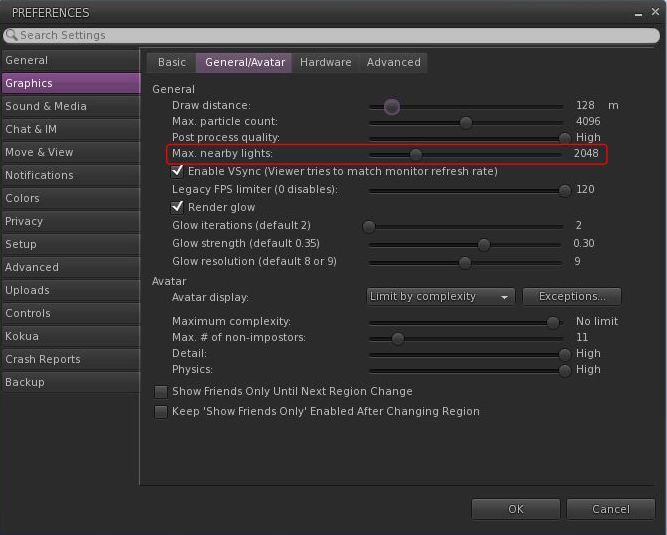
  • Option to control the amount of lights: Preferences → Graphics → General/Avatar → Max Nearby Lights slider.
Control nearby lighting through the nearby lighting slider
  • glTF model preview: use a prim to preview the appearance of a glTF scene / model:
    • Edit the prim. then Top menu bar → Develop → GLTF → Open.
    • To enable the Develop menu, either go to Advanced → Show Develop Menu or press Ctrl-Alt-Q or go to Preferences → Advanced → check  Show Developer Menu
  • Note that this feature is still in the early stages of development and that glTF models will only appear locally in your own viewer, they will not be rendered for others to see in their viewers.
  • Better MOAP URL handling in order for users to not only be able to CTRL-C or Cmd-C copy but also to see decoded URL payloads for easy inspection. In the nearby media list, you can also right click a media/data link and Copy URL/Copy Data.
  • Mirrors disabled by default for all graphics quality levels to improve performance.
    • You can choose to enable mirrors manually in Preferences → Graphics → Advanced→ Mirrors.

Selected Kokua Updates

Preferences

  • With the introduction of the new avatar complexity settings by the Lab:
    • Kokua’s options Show Friend Only Until Region Change and Keep ‘Show Friend Only Enabled Avatar Changing Region have been relocated:
      •  From: Preferences → Graphics → Basic
      • To: Preferences → Graphics → General/Avatar.
    • Kokua’s Always Render Friends checkbox is removed from Preferences → Graphics → Basic.

Improve Graphics Speed

  • The Improve Graphics Speed →  Auto-Adjust Settings panel is now correctly sized to fit the displayed information (no overflow).
  • The Enable VSync options have been inverted so the explanation and note are at the top (Improve Graphics Speed →  Auto-Adjust Settings → Enable VSync.

Linux Updates

  • Kokua 7.1.10 requires a newer Linux system than previous releases; GLIBC 2.35 is required, meaning Ubuntu 22 or better and Debian 12 or better.
  • This version of Kokua may run on older Linux variants (e.g. Ubuntu 20), however CEF will not run, so web pages within the viewer will not be available.
  • There are some known bugs in the Linux version which we considered minor enough to proceed with the release.
    • 360 snapshot doesn’t work
    • Need wine installed for Vivox voice
    • GLIBC 2.30 systems could still run the viewer, but with a broken internal browser.

This Linux version of Kokua runs much more smoothly due to LL fixing a number of the causes of frame stall which were most noticeable on Linux.

Kokua Team Request

Kokua is provided through time and efforts of a two-person project team. Understandably, the majority of work two people can perform on the viewer is largely focused on tracking and integrating with official viewer releases from Linden Lab. This means that there is limited time for bug fixing and for implementing additional features and requests. The team also has a limited capacity for maintaining the Linux flavour of the viewer.

Because of this, the Kokua team is seeking additional help. In particular they would like to hear from:

  • People interested in working on bug fixes and enhancements for Kokua, thus reducing the said backlog.
  • A Linux specialist to help with maintaining the Linux version of Kokua.

Those interested in volunteering their time should drop an e-mail to chorazinallen AT gmail.com. When doing so, please note that:

  • Experience with C++ is essential.
  • Familiarity with working with the viewer is a bonus.

Related Links

Kokua: release 6.4.21 and Radegast 2.34

Kokua released version 6.4.21 of their viewer on Saturday, July 24th, bring it up to parity with the official viewer version 6.4.21 (formerly the Fernet RC viewer, version  6.4.21.561414), and which also sees a further porting of options from Firestorm, together with a series of updates and fixes implemented by the Kokua team.

As always, all of the information relating to updates and fixes can be found in the official release notes; the following notes highlight the more directly user-facing changes.

Lab-Derived Updates

Kokua 6.4.21 includes all Linden Lab viewer updates through to the Fernet release. Most notably these include a range of improvements to Voice handling, including changing to default Voice settings in the viewer intended to help prevent issues of drop-out when talking, and which have reportedly all but eliminated drop-outs for those using the new settings. Additionally, the VIVOX VAD options have been exposed via Debug Settings, and detailed notes on these can be found in the official viewer release notes.

Preferences → Graphics Redesign

Kokua 6.4.21 sees an overhaul of Preferences → Graphics that to eliminate the Advanced panel and instead incorporate its content on three new tabs within the Graphics panel: General/Avatar, Hardware, Level of Detail / Shaders.

In addition, one of the never tab ports the dynamic sizing of texture memory developed by Ansariel Hiller for Firestorm.. More on this below.

The updated Preferences → Graphics panel with the new tab-style layout

The additional tabs provide a logical and clear-cut breakdown of options:

  • The General/Avatar tab presents the options perhaps used most frequently by the majority of users: Draw Distance, avatar complexity / number of imposter avatars, post-process, detail and physics quality settings.
  • The Level of Detail/Shaders tab provides access to the controls for the viewer shaders, and general rendering quality sliders (terrain, trees, objects, etc.).

The remaining tab, Hardware, is the tab that incorporates the dynamic texture memory sizing option. The idea with this is that it allows the viewer to use more of the available graphics memory whilst still reserving space for other uses (subject to the overall dedicated graphics memory / system memory that is available – you obviously cannot use more memory than your system actually has!).

The Preferences Graphics tab, showing the new (to Kokua) dynamic texture memory options (from Firestorm)

KKA-878 Add Option to Always Pop-up Chat/IM toasts

This is a fix for a noticeable issue with how Kokua handles chat notifications.

Until now, the default pop-up / Toast behaviour is as toasts show unless the local chat panel is visible and not overlaid by another floater. This is counter-intuitive in that the purpose of pop-ups / Toasts are designed to inform because floaters / panels may be obscured.

The new option to Always Pop-up the message, which is common to all of the drop-down lists on the Chat → Notifications tab in Preferences

BugSplat Updates

This release also includes a number of fixes for Kokua crashing whilst attempting to send information to the BugSplat reporting tool, before sufficient information can obtained to help pin down what might have been happening leading up to the crash, rather than just reporting where a crash happened. Please refer to the release notes for more on this.

Radegast 2.34

Radegast, the lightweight client for Second Life and OpenSim updated to version 2.34 on July 26th.

The majority of the updates included in the release are “under the hood” changes, specifically designed to:

  • Paving the way for future UI changes.
  • Providing better non-Windows platform and mobile support.

However, there have been improvements  to image processing, with JPEG2000 decoding and encoding times now improved.

Radegast JPEG2000 decoding and encoding times should help with elements of in-world rendering

As noted in the release notes, these improvements also require the installed version of Radegast to be specific to your computer’s architecture (e.g. the x64 version on Windows 64-bit system).

Also note that the 3D world rendering can give variable results (as it always has), depending on aspects of the system on which Radegast is being run, etc. While it has been a while since I last used the client in anger, the 3D rendering appeared to be a lot smoother than I remember, although it still includes issues in rendering mesh clothing correctly rigged to the avatar, and also demonstrated a familiar issue of failing to render textures on all prim faces.

For the full list of updates and fixes, please refer to the official 2.34 release notes.

Given it has now been several years since I’ve reviewed Radegast in-depth (it’s actually been a decade since my first review, and just a month shy of that since me first review of the client’s rendering capabilities), I will endeavour to offer a complete refresh in the future.

Links

Kokua updates to revised viewer UI

Kokua released version 6.4.20 of their viewer on Tuesday, June 29th, which sees all three versions include the Lab’s Project UI viewer updates (see: Lab issues Project UI viewer aimed at new users and The Project UI viewer: a look at the new user Guidebook); however it does so with a couple of twists. The release also includes a number of bug fixes.

As noted in the two blog posts linked to above, and via the Lab’s official blog post via Alexa Linden (see: Viewer UI enhancements), the UI changes are the first in an on-going series of updates designed to improve the viewer and – with these in particular – help new users get to grips with the viewer more easily, including during their initial orientation as a part of the on-boarding New User Experience.

In all, the changes comprise:

  • A new menu option called Avatar, and streamlined / revised right-click avatar context menus intended to make it easier for new users to get to grips with basic avatar-related functions.
  • Improvements to the Inventory panel.
  • An updated Places floater design to make getting around SL easier.
  • A new Guidebook, intended to help new users gain a familiarity with basic functionality in the viewer – walking, talking, finding places and people, etc.

Kodua 6.4.20 includes all of these changes, most of which I’m not going to go into great detail here, as they have been covered in the blog posts linked to above. However, it should be noted:

  • If you are using Kokua with the classic menu layout enabled (Advanced check → Classic Kokua Menu + viewer restart), then the Avatar menu will not be displayed.
  • The right-click context menus retain some of the original options found within these menus (both from the official viewer and from previous versions of Kokua).
The revised right-click context menus (l) the official Avatar menu and the Kokua implementation (purple menu option highlight); (r) the official attachment menu & the Kokua implementation

Kokua Changes

Several of the Kokua updates are bug fixes for issues with the Bugsplat crash reporting code, and address issues with the Kokua viewer.

Most notable among the latter is a fix for issue KKA-866 “Double-click to TP bug”. In short, prior to the arrival of the custom key mappings ability (SL viewer version  6.4.17.557391 / Kokua version 6.4.17), double-click teleports would be ignored if any one of ALT, CTRL or SHIFT was also pressed. Following the introduction of custom key mappings, an accidental double-click whilst using one of these keys (e.g. when ALT-camming) will trigger a teleport.

To avoid confusion, Kokua has added a new Preferences option: Preferences → Move & View →  Mouse →  Do not treat ALT/SHIFT/CTRL modified mouse clicks as unmodified mouse clicks when no specific ALT/SHIFT/CTRL modified binding exists.

  • When enabled (as it is by default), this option will not trigger a teleport when double-clicking in combination with pressing ALT, CTRL or SHIFT (e.g. pre-custom key mapping behaviour).
  • When disabled (unchecked), this option will trigger a teleport when double-clicking in combination with pressing ALT, CTRL or SHIFT (e.g. post-custom key mapping behaviour).

For the remaining Kokua updates, please refer to the Kokua 6.4.20 release notes.

Summary

A further incremental update from Kokua that allows it to maintain pace with the official viewer, and also become the first of the popular v6 viewers to incorporate the UI updates from Linden Lab.

The decision to include the additional options in the right-click avatar and attachment  context menus tends to make these menus more involved than their LL equivalents, which might be argued as making them more confusing to new users. BUT, the options that have been retained by Kokua can useful for established users, and so are worth the effort of inclusion.

LINKS

Kokua: release 6.4.16

Kokua released version 6.4.16 of their viewer on Tuesday, March 16th. The release takes advantage of a pause in releases of the official viewer to allow the Kokua team to incorporate a number of TPV derived updates and capabilities.

Kokua 6.4.16 also sees a jump in version number as a result of the pause in official viewer promotions, which came as a result of the knotty problem of the Simple Cache viewer being promoted and then rolled back. The release notes for Kokua 6.4.16 provide a slightly complicated explanation about the version number jump, but this can really be summarised as to allow Kokua remain in lock-step with official viewer numbering when the next official viewer promotion (6.4.17) is made, and Kokua merge the changes.

The following is a summary of the core changes seen within Kokua 6.4.16. Again, please refer to the formal release notes as well.

From Firestorm

People Floater – Contact Sets

Possibly the largest update seen with this release ins the inclusion of Contact Sets, ported from Firestorm.

For those unfamiliar with the capability, Contact Set provides the means to organise the people on their Friends list into virtual groups for ease of reference.

You can, for example, assign all those you have friended because you’re all involved in the same role-play group into one Contact Set, your closest friends friends to another, customers you have friended into a third, and so on.

Once created, Contact Sets can be individually displayed and actions taken against selected names (IM, offer teleport, pay, etc), just as you can when viewing them in  your full Friends list, and a single name can appear in more than one Contact Set, depending on your needs.

With Kokua, Contact Sets ha been integrated into the People floater rather than (as with Firestorm) utilising a separate UI element, and thus can be accessed in four main ways:

  • Via Communicate Contact Sets.
  • By pressing ALT-CTRL-SHIFT-X.
  • By opening the People floater via its toolbar button and selecting the Contact Sets tab.
  • By enabling the new Contact Sets toolbar button and using that.

For a complete guide to Kokua’s Contact Sets, including differences between it and Firestorm’s implementation (for those familiar with the latter), please refer to the Kokua Contact Sets guide.

People Floater: Contact Sets tab and context menu updates

People Floater Nearby – Context Menu Updates

The right-click context menu on  the Nearby people list has been updated to include adding a person to a Contact Set; giving an avatar a coloured marker on the map; and options to Freeze / Eject avatars on your own land.

In addition, and while related to the Mini Map, the ability to see a place or avatar profile from the Mini Map has also been from Firestorm.

Crouch Mode

This allows your avatar to move in a “crouched” pose, which can be useful in things like combat games.

  • Enable the mode via Preferences → Move & View → Keyboard → check Enable Crouch Toggle Mode.
  • To use, with your avatar on the ground, press PAGE DOWN and your avatar will adopt a “crouching” pose and will remain in it and move around in it until PAGE DOWN is pressed again.

Note that as a part of this, Kokua has split Preferences Move & View into three sub-tabs:

  • Camera: the camera control options (View Angle, Distance, etc.).
  • Keyboard: the keyboard check options (using the arrow keys to move; using the AZERY keyboard layout, crouch mode, etc.).
  • Mouse: the mouse options (Show me in Mouselook, Enable Context Menus in Mouselook,  etc).

From Catznip

Kokua now includes the ability to mark any folder as a System Folder (so promoting it to the first group of folders and protecting it from deletion), as provided in Catznip.

Kokua Team Updates

Status Bar Graphs

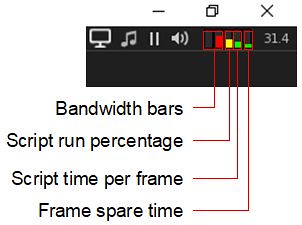
The new script bar graphs

Kokua 6.4.16 introduces three new bar graphs, located in the top right corner of the viewer, alongside the familiar bandwidth graphs. These are:

  • Script run percentage: how much of what scripts want to do per frame is actually achieved. A score of 100% means everything that should have happened did happen, and the bar graph will actually be clear. The more coloured bar is, the lower the script run percentage.
  • Script time per frame: how much of each frame (around 22ms) is used for scripts.
  • Frame spare time: is how much of the frame time was not used. Again, the less you can see of this bar the better things are. A full bar means there is no spare time.

Hovering the mouse over any of the bars will display a pop-up with the current value. Please refer to the Kokua web page on these bar graphs for a complete explanation of each of them.

Personal Lighting Floater Tool Bar Button

Following a Feature Request from Yours Truly, Kokua now includes a tool bar button to directly access the Personal Lighting floater. When enabled, this will hopefully make it easier for photographers to access the floater and make lighting adjustments.

The Personal Lighting tool bar button

Find the button on Toolbar Buttons floater, along with the new Contacts Sets button.

RLV Updates

The RLV and FTRLV versions of Kokua 6.4.16 incorporate RLV 2.9.30.0 and the RLVa @setsphere functionality. Note that white the following are a part of the RLV 2.9.30.0 release, they are not described in the release notes:

  • In the status floater it would try to resolve the UUID for camtextures to a name and fail, showing ‘waiting’. Instead it will simply show the UUID.
  • A new debug option RestrainedLoveSelectionOutlines allows switching between the earlier behaviour of no selection outlines/no change to vision spheres when an object is selected and the later behaviour of showing a selection outline whilst forcing the nearest vision sphere to opaque. The earlier behaviour is the default.
  • The RLV Status floater’s last tab has been updated to show @setsphere information whilst it is in effect

Feedback

An interesting selection of updates for Kokua – and I’m obviously pleased to see the Personal Lighting floater tool bar button.

I’ve admittedly never really used Contact Sets – the capability has always struck me as a exercise in playing people administrator rather than being of practical use, but then I don’t have any particular need for it: the Search option in the People list gives me all that I need. Others might find the addition a lot more useful – and if looking for a move from Firestorm, it could well be an added attraction to give Kokua a try.

Certainly, this release sees Kokua make good use of the pause in official viewer updates whilst allowing them to remain set to quickly adopt LL’s next promotion.

Links

Kokua: catching up to release 6.4.13

I hadn’t actually realised until this past weekend, but I’ve let my coverage of the Kokua slip by a fair few releases – my apologies to Chorazin and the Kokua team for allowing this to happen.

However, given this is the case, and given Kokua 6.4.13 has recently been released, I thought I’d run through a quick round-up of the changes since 6.4.2 and 6.4.14, with a focus on the most recent release.

Menus

Since Kokua 6.4.9, any clean install of Kokua will result in the viewer displaying an updated menu structure that comes closer in layout to the official viewer. It see the removal of the Edit and View menus. This sees the more popular options from these menus moved to the Me and Command menus.

The old (top) and new (bottom) Kokua menus. Note the new menu will be used following a clean install of Kokua.

Note that the menu can be reverted via the last option on the Advanced menu  – a restart will be required, however for the change to take effect.

Rapid Update Round-Up

  • 6.4.4:
    • New licensing of KDU for better rendering and LL Havok third party extensions.
    • Parity with the official viewer release 6.4.3 (FMOD studio update).
    • Implemented the Firestorm feature show the parcel boundary highlighting up to 4,000m (Build floater → Advanced Build Options → check Show parcel Selection Outlines and “…up to maximum build height”.
Enabling parcel boundary highlights to maximum build altitude

In addition, these updates incorporated all RLV updates from release 2.9.28.1 to 2.9.20.0, together with multiple improvements from the Kokua team for RLV functionality, and also assorted general bug fixes and improvements.

Kokua 6.4.13

Jelly Doll Improvements

Jelly Dolls old (l) and new (r). Note the colour and rendering of attachments on the left – the latter of which adds to the cost of rendering the Jelly Doll. This is no longer the case with the new Jelly Dolls

The 6.4.13 brings Kokua to parity with the official 6.4.13 Jelly Dolls viewer, revising how “Jelly Dolled” avatars are rendered.

  • Originally introduced in 2015 (and with various updates since) Jelly Dolls is a means for users to reduce the avatar rendering load on their systems, by having any avatars around them that exceed a certain complexity value (set via a slider) render as a solid colour and minimal detail.
  • There have always been a number of visual and technical issues with the manner in which these avatars have been rendered.
  • The new Jelly Doll updates now included in this release of Kokua improves how avatars are “jelly dolled”, by a) rendering them as a simple grey shape (rather than a solid colour) and avoids attempting to render attachments.
  • In addition it also improves to how avatar imposters are rendered and updated.

These changes should result in demonstrable improvements in view performance in environments where there are a large number of avatars, and the capability is sensibly used.

Group Updates

Kokua 6.4.13 adopts Kitty Barnett’s (Catznip) improves to accessing  / display Group related information.

Previously Group information was presented as one tab within the People floater. Accessing any elements of Group information – such as notices – was presented in the same floater. This meant information on only one Group could be opened at a time,and made actions such as viewing or creating a group notice somewhat complex.

With these changes, Kokua now:

  • Presents the Profile of a selected Group in a separate panel – this allowing multiple Groups to be viewed.
  • Similarly breaks out the Group notices creation option as a separate panel – which can also be accessed from the Conversations floater.
The new break-out Group floater and options available in the People floater (and via the Conversation floater)  for creating / viewing Group notices (which may be subject to permissions)

The new behaviour is enabled by default but can be switched back to the former behaviour by unchecking Preferences → Kokua → General → Group settings open in a new floater rather than within the People floater.

Block List, Object Derendering and Avatar Rendering Exceptions

Also ported from Catznip is a new floater that combines Block / Mute operations and Derender / Avatar Rendering options into a single place, allowing them to be viewed / reviewed / unblocked. The floater include options to add avatars / objects to the block list and also unblock avatars / items on the list.

Note that:

  • When a derendered object is removed from the list, it may not immediately be re-drawn, but may require a TP  away / back or a re-log to make it visible in your view.
  • A facility to block/mute objects has been added to Sound Explorer however there are some caveats to be aware of due to differences between sound and object handling:
    • Blocking/muting will generally not work if an object is in a different region or is beyond draw distance.
    • A sound may continue to play even after blocking/muting the object responsible. This typically happens when several objects are all playing the same sound – each object playing the sound must be blocked/muted before the sound will stop. The Sound Explorer has a facility to pause the listing which can be handy when trying to select several items.

Additional Updates

Two further ports from Firestorm;

  • Configuration options for chat message toasts: a new options panel has been added in Kokua / Preferences / Chat to allow many parameters relating to chat toasts to be tweaked, including their width.
  • Active Gestures: a new option on the Gestures floater to only show those currently active, originally.

The release also includes a number of fixes from the Kokua team – please refer to the release notes.

Feedback

There are three third-party viewers I’ve tended to use in Second Life: Firestorm, Catznip and Kokua. All three offer a different emphasis for users,and Firestorm has tended to be my first choice.

However, both Catznip and Kokua have their own attractions, and with the recent progress with Kokua in particular, coupled with its higher cadence of updates, it is fast becoming a viable alternative to Firestorm, particularly as tends to offer a slightly higher frame rate. Certainly, for those who are looking for an alternative that offers a similar menu layout and largely comparable capabilities in terms of commonly-used options, Kokua is very much the viewer to consider.

Links

Kokua: 6.4.2 release overview

On Wednesday, May 27th, the Kokua team released Kokua 6.4.2, bringing the viewer up to parity with the Linden Lab official viewer, 6.4.2 code base (Camera Presets), promoted on May 19th, 2020.

This means that with this release, Kokua now includes:

  • the Environment Enhancement Project (EEP) release.
  • The most recent viewer Maintenance updates.
  • The aforementioned Camera Presets.

In addition, the Restrained Love Viewer (RLV) variants of this Kokua release include both include the latest updates to Marine Kelley’s RLV API updates – version 2.9.27.0 -, which include support specific to EEP, and which the Kokua team have also used with regards the new Camera Presets, as part of their own updates to the viewer.

Lab-Derived Updates

Environment Enhancement Project

In including support for EEP, Chorazin Allen makes an important point that all SL users should keep in mind when moving to EEP-capable viewers:

Before getting into the additional features and fixes we need to point out that EEP represents a major overhaul of the viewer’s weather, lighting, shine and reflection areas – it’s more than just a new weather system with configuration files as inventory assets instead of separate xml files. As a result you WILL find that scenes, structures and avatars can all look different. If you find a particularly noticeable instance you are encouraged to log details of it in LL’s Jira issue tracking system so that these differences can be fixed at their origin.

– Chorazin Allen [my emphasis]

The Kokua 6.4.2 release appears to be a direct implementation of EEP and its various floaters without any alterations to their layout. As such, I do not propose to cover them here; rather I’ll leave you with a series of links to resources:

Camera Presets

Kokua adds four new defaults for Camera Presets

The Camera Presets controls, developed and contributed by Jonathan Yap, is a capability that allow users to create one more more custom camera presets within the viewer to suit particular needs and then save them. This means, for example, that a user can now have a camera position for general exploring, another suitable for combat games, another for building, etc., all of which can easily be accessed and used at any time.

Again, the Kokua implementation of the UI elements is the same as the official viewer. However, the Kokua implementation of Camera Presets adds addition default presets as follows:

  • Left, Right and top: provide viewers of your avatr from the left and right side, and from directly above.
  • FPS (First Person Shooter) – positions the camera directly in front of your avatar and looking forward.
  • Nearer – a view looking from close behind your avatar designed to be more suitable for corridors and other narrow spaces.

Again, rather than go into specifics on creating and using Camera Presets, I refer readers to my Camera Presets tutorial.

Kokua Updates

Edit Floater – Bulk Rename

Kokua 6.4.2 includes a new button in the Content tab of the Edit floater that allows the contents of an object to be easily renamed. A typical case for this might be when updating the version number of the individual contents on an object for a new release: after the specific elements that have been updated / replaced in the object, the rest can easily be renamed with the new version number.

Kokua object contents bulk rename

As this is liable to be a special usage option, I’ll refer interested parties to the Kokua documentation on how it works.

Animation Override

Client AO updates

Kokua 6.4.2 offers two new options to the client-side Animation Override system:

  • Chat check box: when enabled, each new animation to run will be reported in local chat in the user’s viewer.
    • The intent is to allow a user to keep track of the currently running animation when using a new set of poses/animations to decide decide which should be kept or discarded.
    • It is not recommended this option is kept on at all times, as the animation reports can be intrusive.
  • Any button: located between the next / previous animation paging buttons a the bottom of the floater, it will randomly select a pose from the current listed set (Walking, Standing, etc), and play it.
    • Clicking the Next or Previous buttons will resume stepping forward / back through the list of animations from the randomly selected animation.

Hover Height

This release of Kokua includes the hover height slider from Marine’s RLV viewer, with the release notes stating:

Rather than include the small button to reset it to 0.0 we have made the numerical value next to the slider writable allowing any value to be directly entered.

Additional Links