Dolphin 3.2.10.23198: removing the unwanted from your view

Update 16th March: features from this Viewer have been attributed as coming from NACL, which is apparently incorrect. As information is taken at source, I’ve now removed references from the article below. It is also reported that the Sound Explorer and Asset Blacklist may have licencing issues – see Comments.

dolphin-logoLance Corrimal is working steadily on Dolphin, with roughly a release every couple of weeks of late, providing plenty of new features and tweaks to the V3.2-based Viewer.

The latest release, 3.2.10.23198 offers potentially improved graphics handling for older / lower-specification graphics systems (with the exception of ATi systems) and provides blacklisting capabilities for those who are repeatedly troubled by unwanted sights / sounds or need to find an elusive sound.

Texture Compression

For graphics cards with 512Mb or less of memory, Dolphin will have texture compression enabled by default. This should help prevent such systems crashing when running SL. The option can be manually enabled / disabled via PREFERENCES->GRAPHICS->HARDWARE SETTINGS.

Lance advises that users with ATi graphics cards should avoid using the option, and keep it switched off.

Asset Blacklisting and Sound Explorer

The Asset Blacklist is a means of removing unwanted objects, textures or sculpt maps from your world-view. Sounds can also be blacklisted via the Sound Explorer (described below).

The Asset Blacklist operates in a similar manner to derendering an item, but with the advantages that a) items that are blacklisted remain so until de-listed, so that if you teleport away from a location and return, you do not need to de-render them again; b) the asset blacklist can be shared by accounts using the same Viewer; c) you can even share lists with other users – hand if you are running a Group or similar and your base of operations is blighted in some way.

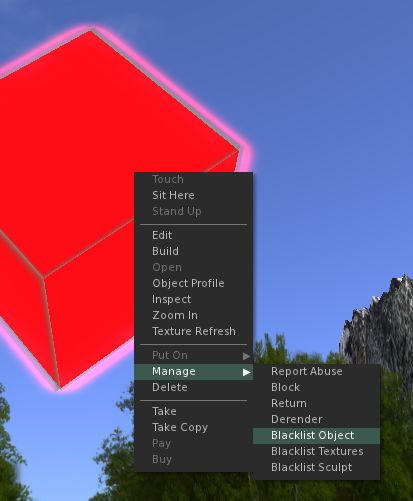
Problems with things regularly ruining your personal world-view?
Add them to your Asset Blacklist
And enjoy the view

Items are added to the list by asset type – object, texture, sculpt map – and recorded by UUID to prevent a simple renaming of the object causing it to reappear.

Blacklisted items are managed via the Asset Blacklist floater (WORLD->ASSET BLACKLIST).
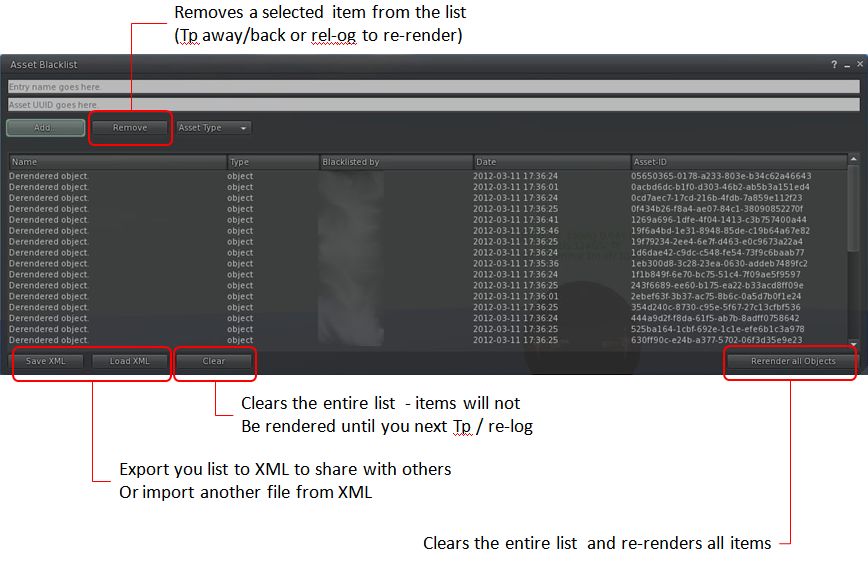
The Asset Blacklist floater and key buttons

The Sound Explorer allows you to list all sound sources operating around you. It is accessed via WORLD->SOUND EXPLORER. This enables you to filter the available sounds by type, listen to them individually, identify their location and, if required, add them to your Asset Blacklist.
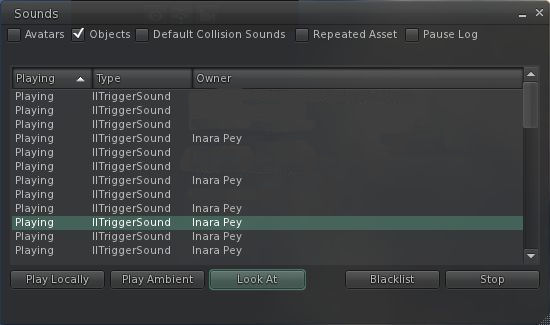
Sound Explorer: locate, listen-to or even blacklist sounds in your location by type

Both of these make extremely useful additions to the Viewer, and will likely prove very useful for those who routinely visit places where there may be issues with items or sounds impacting personal enjoyment.

Other Nips and Tucks

  • Anti-spam also arrives in Dolphin with this release (ME->PREFERENCES->DOLPHIN 3-> ANTI-SPAM
  • Help has been extensively overhauled within this release of Dolphin so that all help buttons in the Viewer now redirect to the Dolphin Viewer forum
  • The “Items incoming too fast” pop-up behaviour has been changed so that it is no longer necessary to click OK in order to remove the message – it will now fade-out on its own (something I hope all other TPVs will adopt; the message is annoying in its default behaviour)
  • Anti-aliasing is no longer off by default as it doesn’t impact overall performance so much as it once did
  • Fly-after-teleport has been fixed within the Viewer so that if you were flying prior to a teleport, you’ll still be flying on arrival
  • There have been some performance tweaks.

Opinion

This release has some nice additions for those that suffer visual / audio blights around their home space in-world. While the “performance tweaks” aren’t specified in the Dolphin blog, while running this release I did obtain a very small improvement of my average fps rates  (around 3-4fps), with this release averaging around 41fps at 390 metres, and 23fps on the ground compared with the last release of Dolphin I actively tried (2.3.8.23163). With shadows enabled, this drops-off to around 12fps at 390 metres and 10fps on the ground (all checks with 3 other avatars on-sim)..

I also recently used Dolphin on Kitely, where it also worked flawlessly, making it my 2nd choice of Viewer for visiting other VWs, after Exodus.

Related Links

Restrained Love, Dolphin 3 and Niran’s updated

This week has seen a number of TPVs updated. Rather than dwell interminably on each of them, here’s a rapid rundown, based on the individual blog entries for the three Viewers.

Restrained Love Viewer

Release 2.8.3 brings with it many bug fixes and:

Added

  • New keyboard shortcuts for builders (they are also added to the Build > Options sub-menu):
    • – Alt+W to edit linked parts
    • – Alt+T to set to stretch textures
    • – Alt+B to set to stretch both sides
    • – Alt+R to set to set grid mode to World
    • – Alt+F to set to set grid mode to Local
    • – Alt+V to set to set grid mode to Reference
    • – Alt+G to set to set current selected object as Reference and set grid mode to Reference
  • Debug setting “RenderMeshDeformed” to switch Qarl’s parametric alpha mesh deformer on and off (it is off by default
  • LL’s patch for the new inventory features (i.e. no accidental nudity)
  • Allow to click in-world while in Mouselook mode, even when your controls are taken, but only while pressing Alt

Fixed

  • Inventory offers were unreadable (the Show button used to overwrite the URL), same for teleport offers
  • Shift+Right-click on an object in world failed to open it
  • In Mouselook mode, we could only click on something or fire with a gun once
  • RLV_50: Fix to the alignment tool in the Build floater is broken (thanks given to Lance Corrimal and Jonathan Yap)
  • RLV_52: another avatar sitting down while in ML resets my camera (with thanks to Lance Corrimal)

Changed

  • Unable to be force TPed when in Busy mode.

Links

Dolphin Viewer

Version 3.2.4.22939 brings with it:

  • The main inventory tab can now show or hide links, or show only links (the recent and worn tabs always hide links). Switch it on via the Inventory gear icon
  • The use of private memory pools has been switched off. If you notice more crashes than before, switch it back on with the Debug setting “MemoryPrivatePoolEnabled” and let Lance know (via a post on the forum)
  • This version of the Dolphin Viewer 3 does not send “LookAt” data anymore, if you switch on “Do not point at objects” (Preferences->Dolphin Viewer 3->Miscellaneous). Lance notes that, “The options to have the LookAt / PointAt crosshairs on-screen will be gone in the next release, unless someone points out good use cases for having them that are not based on drama or paranoia.”
  • The inventory patch recommended by Oz Linden has been implemented – no “accidental nudity” for Dolphin Viewer 3 users
  • Updated to RLV 2.8.2.1
  • When you take a Snapshot to disk using the keyboard shortcut CTRL-SHIFT-D, it uses the file format that you selected for your last “snapshot to disk” from the snapshot floater
  • The check boxes for switching AutoCloseOOC and AllowMUpose are back in Preferences->Dolphin Viewer 3->Miscellaneous
  • The linux version of the Dolphin Viewer 3 now uses dbus calls in the secondlife: handler script to send SLurl to whichever viewer is running at the time. Lance comments, “This is not available on 64-bit Windows, so please vote for VWR-28073 and VWR-28074. Thanks.”
  • The Windows installer should not use the term “Second Life” anymore anywhere in any language. It should read “The Dolphin Viewer 3″
  • Some Windows build issues have been addressed.
  • Fixes:
    • The tips of the handles of the Align tool in the Build toolbox point in the right directions
    • Sharing inventory items with more than one inventory window is open is now working correctly
    • The hovertip on the local chat bar mentions whispering as well
    • Previews of textures show the checkerboard pattern again under transparent areas. Lance notes: “This version still does this with the old deprecated OpenGL calls. The next version of Dolphin Viewer 3 will do it “right”, thanks to Shyotl from Singularity”
    • Fixed: the “Preview As” dropdown in the texture upload preview is not covered by the texture anymore.

Links

Niran’s Viewer

Release 1.12 brings with it:

  • New Build floater
  • Ability to select the use of your right arm when selecting / pointing / building
  • Revised pie menu
  • Ability to see UI when in Mouselook
  •  Shining updates.
Niran’s: UI visible in Mouselook (note ML crosshairs in the centre of the image)

The UI-in-Mouselook is interesting – NiranV mentions it as coming via Dolphin, but I’ve failed to notice it in that Viewer (or any other V3-based TPV) – not that I’m a major user of ML at the best of times and so may well have missed it if it is a debug setting (or I managed to skip the option in Preferences). It’s an interesting addition to direct 1st person use of the Viewer, especially given UI options can be accessed using the Alt key. For those who prefer a more traditional Mouselook view, the UI can currently be hidden using a debug command: AllowUIHidingInML.

As a semi-regular user of Niran’s Viewer, I have to say, I’m not totally convinced with the build floater changes (which need a small amount of tidying-up) on two counts. Firstly, because Niran’s is one of three Viewers I routinely use, and so the layout cuts against the other two – this is admittedly more *my* problem than the Viewer’s.

Secondly – and more importantly – while the “traditional” builder floater is getting increasingly crowded (and one could argue it does need a bit of a re-think), it does have a certain logical flow in the way information is presented – and scanned by the user. This is something that appears to have been lost in this initial presentation within Niran’s Viewer.

Links

A Shining Dolphin 3.2.6

dolphin-logoIt’s getting to be hard work keeping up with Viewer releases!

Lance Corrimal has issued an update to Dolphin – 3.2.3 (22899), which he’s calling (a little tongue-in-cheek) the “Fellowship” edition in that, in quoting Tolkien, the development of this release is a “Tale that grew in the telling”!

Based on the latest release of RLV from Marine Kelley, and the official “Shining” 3.2.6 release from LL, the update brings Dolphin 3 bang up-to-date with the latest OpenGL fixes from the lab.

While conditions were not absolutely identical to my earlier “tests”, I made my usual Viewer UI and settings tweaks, and took the Viewer for a spin on my (now “standard”) “test” sims. The results were as follows:

  • High graphics, no deferred: averaged 46fps at 370m and 38fps at 22m
  • High with deferred ON: 21fps at 370m and 17fps at 22m
  • High with deferred and shadows ON (Sun + Moon + projectors): 12fps at both heights

On my home sim, and on my own, frame rates bounced around the 58-61fps mark while up at the house.

Updates

The core updates to the Viewer comprise:

  • Options to auto-accept / auto-open textures, photos and notecards (both via PREFERENCES->DOLPHIN VIEWER 3->INTERFACE)
  • Empty system folders (e.g. Objects, Notecards, etc) are hidden from your inventory list
  • The additional pop-up informing you that a landmark has been added to a folder can be suppressed (from Firestorm)
  • Firestorm’s inventory filtering options have been implemented in Dolphin, allowing inventory to be filtered by description, UUID, creator, name, etc; or can be filtered by combinations of words separated by “+”(e.g. Joe+Smith) (from Firestorm)
  • Debug level (verbosity) of log files can be configured (STORM-1790)
  • Default debug level has been changed to WARNING to make the logs less chatty

The ability to hide empty system folders is rather novel, and works automatically – once a system folder is empty, it is hidden (see right, and note there is no Landmarks or Notecards folder).

If you end up with an empty Body Parts, Clothing, Gestures, Notecards or Scripts folder, you can “unhide” it by creating a new item from the + button on at the bottom of the inventory panel – creating a new item will automatically un-hide the required system folder.

Similarly, creating a Landmark (or left-clicking on a Landmark in a notecard) will automatically unhide the Landmark folder, and so on.

Those who don’t use the system folders may find this capability useful to have and cuts down on the clutter in their inventory.

Selecting additional inventory search filters

In adopting the new Firestorm inventory filters, Dolphin appears to have adopted the accompanying issue that searching on creator, UUID, etc., isn’t particularly intuitive for the first-timer. To search by a specific additional criteria – UUID, creator, etc., – you must click on the gear button at the bottom of the Inventory panel and select the required option in SEARCH BY before you commence a search. It would be nice to see all the filters grouped into a single location in the future.

Lance notes a few other issues with the Viewer – so again, if you experience them, please don’t report them, as he’s liable to be already trying to sort things out where he can, or awaiting a fix from LL. He lists the known issues as:

  • “Textures with transparency have a grey background instead of the usual checkerboard pattern in any texture preview UI element (e.g. the preview window when you upload a texture, or when you open a texture from your inventory). Applied to prims, the textures will be fine. People, use the temp upload feature and check your new textures on a prim if you need to test something with transparency. This problem exists in all viewers that are based on the latest viewer-development code, even in the official Second Life viewer 3.2.4 from Linden Lab. There is already a JIRA for it: https://jira.secondlife.com/browse/VWR-28037. Please go and watch and vote.
  • “The alignment handles in the Build Tool all point upwards instead of inwards. The alignment tool still works the same way, it just looks funky.
  • “The automatic opening of incoming notecards and pictures is highly dependent on lag.
  • “There is still no Flickr uploader.”

Rendering

This release puts Dolphin back up in the list of “fast fps” Viewers for my system, and rendering on the whole is good, and I’m now getting a similar “pop-out” for sculpts already loaded in local cache (i.e. my furniture at home) on logging-in / teleporting home I get with some of the other recent Viewer releases. Shadows render well, although I’m still taking a bit of an additional performance hit with shadows and occlusion both active.

Overall, a nice set of updates that should please Dolphin regulars.

Related Links

Dolphin 3.2 gains the FUI – and more

dolphin-logoThis is turning in to the week I catch up on Viewers!

Lance Corrimal has released Dolphin 3.2 (3.2.0.22166), which sees his Viewer move to the new Flexible User Interface (FUI), and gain a few choice goodies as well.

Installation

Installation was smooth with the Windows installer, although it was interesting to see the a copy progress pop-up appear as files were extracted and copied to my install directory.

FUI and Updates

At first glance after installation, this would appear to be a simple adoption of the FUI with various other TPV updates. But if you think that – best look again. There may not be mesh upload in this release, but there’s more going on than meets the eye here.

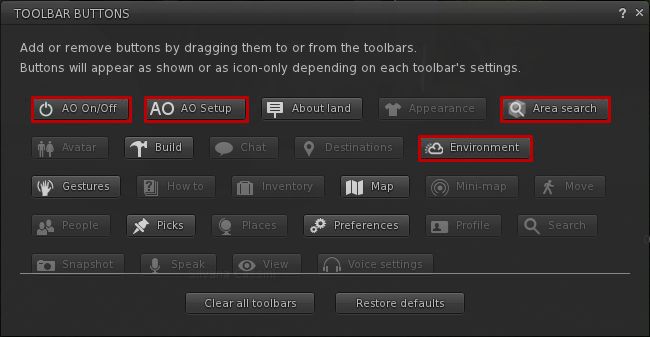
Like Niran’s Viewer, Dolphin 3.2 tweaks the FUI a little – only rather than providing an area at the top of the screen where buttons can be added, Lance has incorporated additional buttons into the Button Toolbar:

  • AO ON/OFF and AO SETUP – for quick access to the Viewer’s animation override functions
  • AREA SEARCH – accesses the Area Search for Objects floater (WORLD->AREA SEARCH or CTRL-SHIFT-A)
  • ENVIRONMENT, provides quick access to the Environment Settings panel floater, otherwise accessed by WORLD->ENVIRONMENT EDITOR->ENVIRONMENT SETTINGS.
New button options in Dolphin 3.2

Note that by default, all four buttons are active when you launch Dolphin 3.2 from a fresh installation (all on the left side of the Viewer window), I’ve shown them in the toolbar floater out of convenience.

Providing buttons for the Viewer-side AO makes perfect sense, as does including Area Search (something not everyone is aware exists in  and keyboard shortcut notwithstanding) and quick access to environment settings, which itself is an option people twiddle with a lot.

Dolphin 3.2 also gets the new snapshots floater, complete with the option to upload to your web profile feed. According to Lance’s notes, he’s also working on porting the option to upload snapshots to Flickr to the new floater, but will probably be a while before it appears in the Viewer.

This release also gains

  • The ability to turn your avatar around when walking backwards, again a popular viewer-side feature among TPVs
  • Firestorm’s texture refresh, which forces a re-fetch of the textures for an avatar or object which remains stubbornly grey on your screen (right-click & select from the context menu)
  • Firestorm’s object particle editor, which may yet be the subject of a separate blog post here
  • The latest RLV updates from Marine Kelley
  • The STORM-1713 fix, which corrects the issue of the mouse pointer flickering over UI elements that has been seen in V3.x.

Performance

Overall, performance on my system is comparable to the official SL V3.2 averaging in the mid-20s when I’m in a sim on my own, and dropping to around the mid-teens when sharing a sim with 5-6 others. All comfortable enough. With shadows enabled, this falls to an average of 6-8 fps, again pretty much in line with official V3 performance on my PC.

Opinion

Frankly, another robust Viewer from Lance that again builds on V3 to present a nice, tidy alternative with a good crop of additional features and options. The fact that it doesn’t have mesh upload shouldn’t be any hindrance to most – mesh rendering in the Viewer is fine. And one cannot blame Lance for wanting more time to consider what is the best fit for his Viewer when it comes to incorporating an uploader, rather than rushing to add the first that comes along.

If you’re looking for something that offers the V3.2 FUI, together with a good, solid selection of popular items from TPVs – radar, area search, Viewer-side AO, together with Lance’s own mods to the Viewer (including these excellent 3.2 FUI tweaks), then Dolphin 3.2.0.22166 is very much worth a look.

Related Links

Dolphin Viewer 3: updates and issues

dolphin-logoLance has issued a couple of blog updates on Dolphin 3.

The first is that there is now an update available – 3.0.5 (20427) which sees:

  • Dolphin Viewer 3 now defaults to its own separate cache folder (users of previous versions need to reset the cache location once this version is installed, unless you already set it to its own location)
  • Restrained Love check box in preferences renamed to RLV to make it more consistent with all other RLV options
  • Chat bar hovertip now properly mentions whispering by using shift-enter
  • Linux build works for users of older Linux distributions

The update is available from his download page.

Additionally, he reports three known issues relating to the Viewer:

  • The performance on Windows can be slow, (lance suggests are one-third of previous performance)
  • Replacing a saved outfit that contains more than one of any one wearable type (two or more tattoo layers) does not take off all of those layers (e.g. one tattoo stays behind but does not show in “Current Outfit”)
  • Sending teleport offers to more than one person through selecting them on your friends list makes the viewer crash

Lance indicates that both of the second points reproduce on the original RLV 2.7, and that they are being worked upon. The first issue – Windows performance – is an issue with the original Linden code, and so is in their hands for a fix.

Obviously, as these are known issues, please don’t burden Lance by reporting them to him again.

Related Links

A look at Dolphin 3

dolphin-logoDolphin 3  (official 3.3.0.3 (20418) is the latest V2/V3-based Viewer for Second Life to gain support for mesh object rendering. With it comes a raft of other features. So how does it look and behave?

As with all V2/V3-based TPVs, Dolphin installs directly, without the need to install any “official” Viewer. The installation is fast and smooth, and leaves you with the customary option of launching the Viewer directly upon the installation completing.

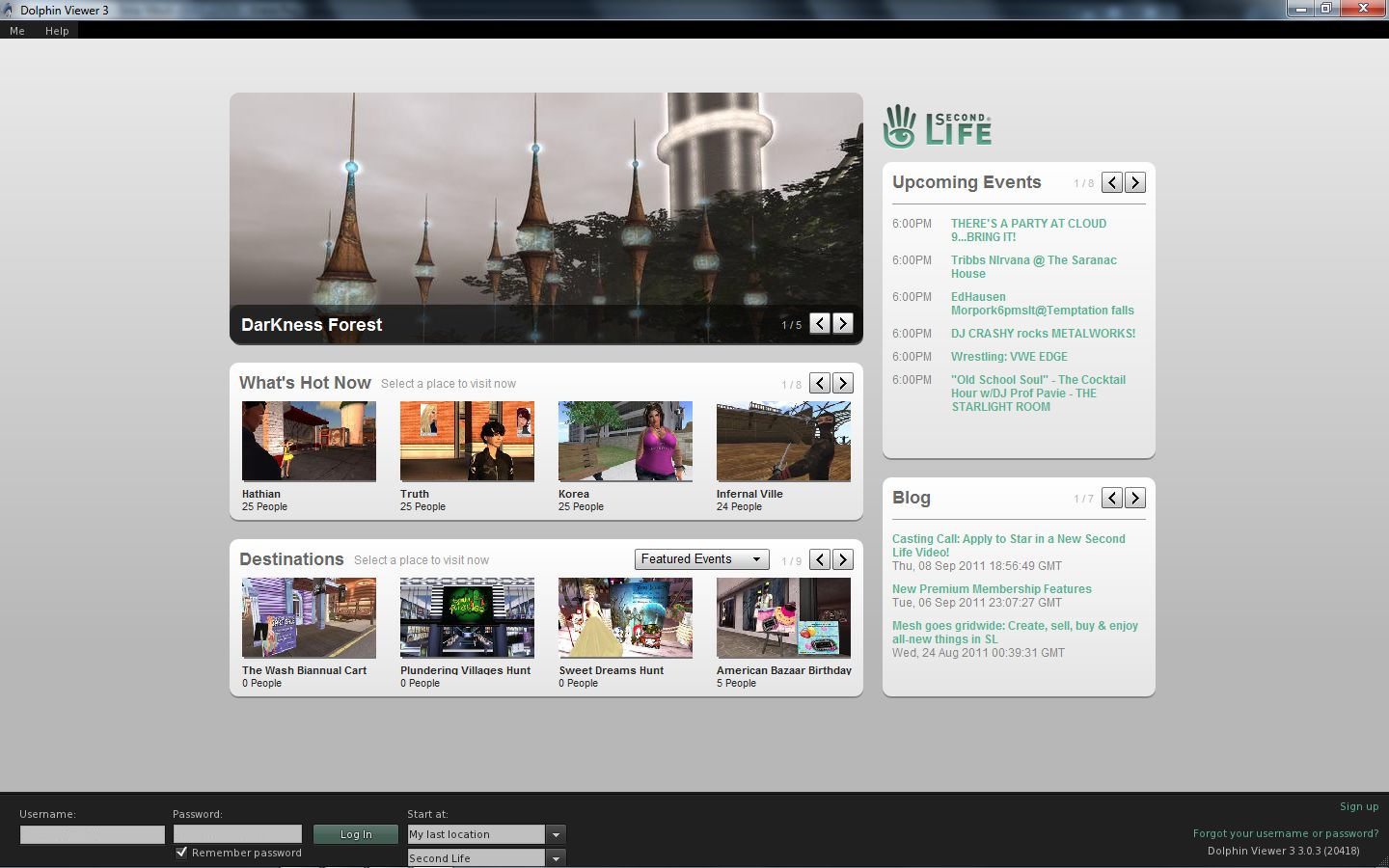
Given it is based on one of the latest code releases from Linden Lab, Dolphin 3 is the first to incorporate the new Second Life log-in screen – and kudos to Lance and the team for including it.

For those who have been using TPVs exclusively, the new SL Viewer log-in screen allows users to search SL for activities, events, destinations, etc., and log-in to them directly, without having to log-in to home / their last location, then run a search and then teleport. It’s a nice, tidy feature, and one I’ve reviewed previously. Not everyone will find it useful – but it would be nice to see it more widely available for those who do.

Dolphin 3: Features the SL Viewer log-in screen

Logging-in

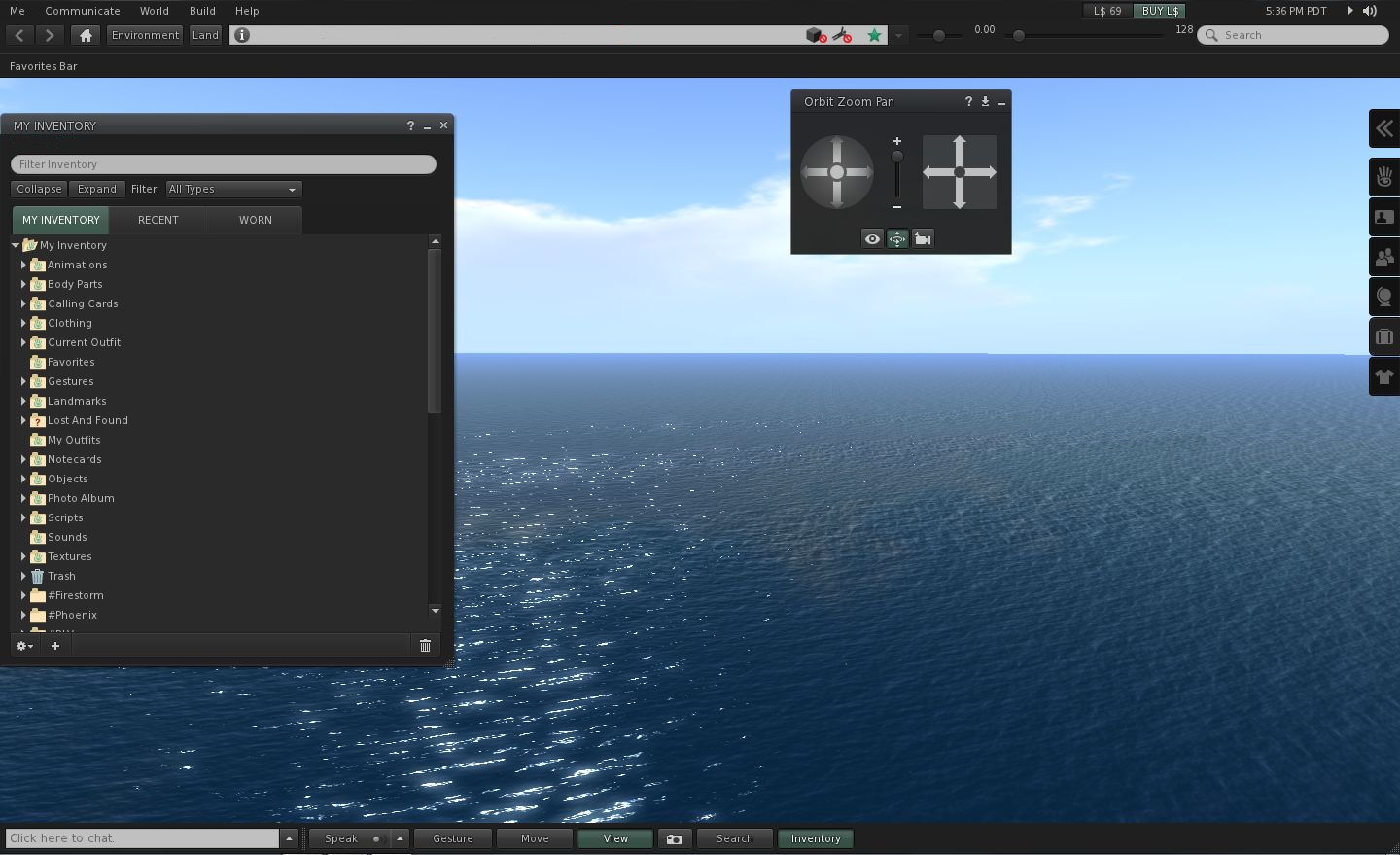
Once logged-in, Dolphin 3 presents a very V3-like UI, with some subtle differences. The Navigation Bar gains a new button – ENVIRONMENT – while retaining LAND, while the toolbar and the bottom of the window retains the INVENTORY button from Dolphin 2.

Dolphin 3 UI: familiar with a little difference

The inventory button is something that has been seen elsewhere in V2/V3 TPVs, providing a means of quickly accessing the Inventory slider of the Sidebar. Dolphin 2 has always approached things a little differently, and in a way that could appeal to those who have no great fondness for the Sidebar – it opens a dedicated Inventory window floater.

Inventory floater: directly from the Inventory button

What’s more, clicking on the Inventory Sidebar tab doesn’t close the floater – it still opens and closes the Inventory slider, as per “normal” Viewer 2 behaviour. Working together, both the button and the tab thus allow for two Inventory windows to be opened with the minimum of effort, thus overcoming one of the major complaints concerning V2/V3. I’ve always felt this to be a smart move, and it is good to see it being retained in Dolphin 3.

The Environment button provides quick access to an updated set of Windlight settings, etc.,for the sky.

New Features Overview

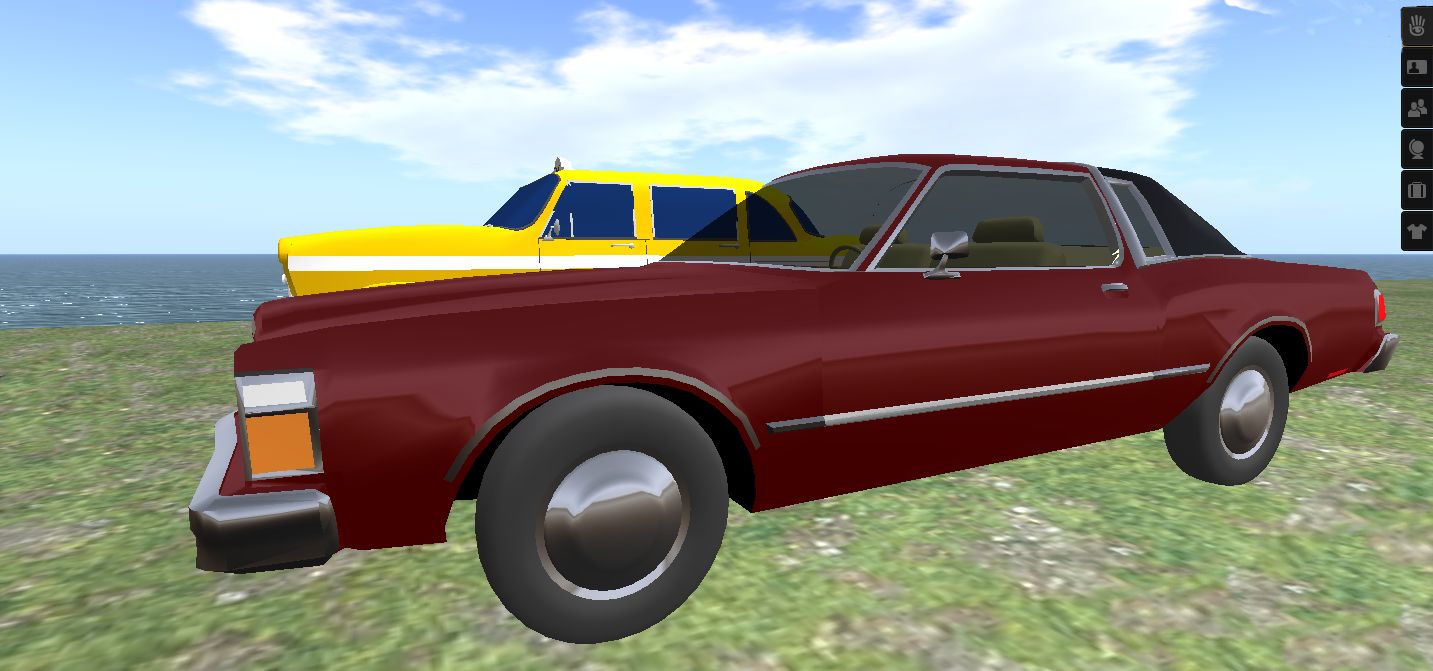
Mesh object rendering is perhaps the major reason for Viewer 3, and by extension, the changes we’re seeing to Viewers in general at the moment. Dolphin 3 renders mesh objects as well as V3 or any other Viewer; I used my familiar examples from the Beta grid, and they rendered without issue.

Mesh rendering

Like all Viewers that can render mesh objects, Dolphin 3 includes the new prim count / PE counts in the edit menu.

Prim Counts and PE

Also as with the majority of  TPVs at present, Dolphin 3 does not have any upload feature for mesh objects.Hopefully, this will change in the future for all TPVs that currently do not have the capability; but as I’ve mentioned ein the past, for most people the capability to see mesh objects is what matters, rather thean the ability to upload it.

Alongside mesh object rendering, Dolphin 3 supports the new native 64m maximum size  – which it again, unsurprisingly, handles without fault.

Continue reading “A look at Dolphin 3”