Just as I pushed out the weekly Viewer round-up, Kitty and the gang slipped out Catznip R6, which nicely compliments (and perhaps complements!) R5. My timing sucketh.
R6, based on LL 3.2.7 code, is a maintenance release that fixes a range of bugs and gives Group management some love and attention and well as adding other nibbles to enjoy.
Changes to Group Notices
If you’re constantly pushing out Group Notices, you’re liable to like this. You can now create a Group Notice without having to open Group information first. Simply display your Group list (COMMUNICATE->GROUPS or CTRL-SHIFT-G), right-click on the name of the Group for which you wish to create a notice and select CREATE NOTICE. You can still create Notices in the usual way as well – via the Group information floater itself, but the menu option is liable to be a timesaver.
Nor does it end there. Rather than being confined to the Group floater, the Create Notice option now gets a floater of its own, meaning that when used with the new menu short cut, less screen real estate is used-up. All the functionality associated with raising a Group Notice is retained, and the floater can be resized to suit your needs while writing.
New Group Notice floater (shown here being opened the “conventional” way)
Viewing a Group’s archive of Notices is now also easier, thanks to another addition to the contact menu: simply right-click on a Group in your list and select VIEW NOTICES to immediately display the history of recent Notices for the Group in the Group floater.
Staying the Groups, the Group toast has been reworked for greater clarity with:
The details of the notice sender and Group are now displayed on separate lines and are clickable – clicking the Group name will open the Group’s profile; clicking the sender’s name will open their personal profile
The number of visible lines in the Notice has been increased from 7 to 10 for better readability
The date is displayed in a smaller font to provide better separation between it and the notice title and the main body of text.
Finally, Groups get a handful of bug fixes, as detailed in the release notes.
Windlight Updates
R6 brings with it additional Windlight options and a nicely cleaned-up list (WORD->ENVIRONMENT SETTINGS->CUSTOMIZE MY ENVIRONMENT->FIXED SKY) which includes creators’ attributions wherever possible, which is a nice acknowledgement to see. TBH, I can’t specify which of the list are new – as I’ve never actually looked at what was there to start with in Catznip (shame on me, I know), but the release notes refers to them as a “huge stack”, so there should be a lot for regulars to enjoy.
Elsewhere there are nips and tucks – the delay that may be experienced when right-clicking and . or editing an object has gone, so menus, etc. immediately respond, issues around the multi-line chat freezing the word view have been corrected, etc.
Chat also sees any character opening the chat bar or focusing on Nearby Chat when WASD is set to start typing. All I can say on that is “Three cheers!” As someone who has her WASD set for typing rather than movement, the tendency for some Viewers to ignore various keys has been a source of considerable teeth-grinding…
As updates go, this may well appear to be a small one, but it again demonstrates that Catznip remains highly innovative in examining how people actually use the Viewer and its UI on a daily basis and in seeking ways and means to make common tasks easier to access and get on with.
Catznip R5 (3.2.1), available for Windows and Linux is released today with some rather smart features.This was apparently intended to be a maintenance release, but things grew as work progressed to the point where it became a release in it own right. It’s based on the V3.2.7 code base (“ish”, as the Catznip blog puts it), and so should include some of the latest Shining fixes from LL to reach the Viewer code repositories.
Installation
The Windows installer weighs-in at just a touch over 26Mb – par for the course for most V3.2-based Viewers nowadays, and installation is pretty much as expected as well. no unpleasant surprises, just accept the licence and away you go. As usual, I opted for a completely clean install, including the manual deletion of all user-related folders, although this isn’t listed as an explicit requirement for the release.
Mini (Location Bar) Moves
On start-up, everything appears pretty much as usual: the familiar V3.2 FUI, buttons ranged to the left and along the bottom of the screen, the mini-Destination Guide open by default. Nothing special here, it would seem. However, as we all know, looks can be deceptive.
That the Navigation Bar can be switched with the Mini-location Bar is common knowledge among V3 users. Usually when this is done, the Mini-Location bar replaces the Navigation Bar, occupying the same space beneath the Menu Bar, but shunted to the left of the screen, hence earning the name “mini”. However, Catznip offers-up more screen real-estate to users by placing the Mini-location Bar within the Menu bar and the top of the screen. Additionally, users have the options to hide either or both of the BUY L$ and the Marketplace SHOP buttons.
Navigation & Mini-location Bars in V3.2 and most V3 TPVs (top) and the Catznip approach (bottom), using the Menu Bar and with the Marketplace button hidden
Both the move of the Mini-location Bar (which will dynamically resize as the Viewer Window is resized) and the ability to hide the buttons are well-considered. The former gives a modest increase in screen real estate while the latter are likely to be appreciated by those who either don’t buy their Linden Dollars through the Viewer, or who prefer to access the Marketplace directly through a Browser bookmark. Moving the maturity rating to a clearly visible icon within the Mini-location Bar is also a smart move.
Chat and Spell
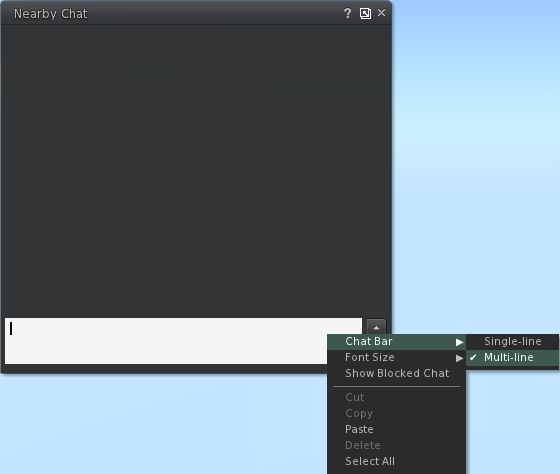
This release brings some nice additional options to Nearby Chat. Right-clicking on the Chat Bar itself reveals new menu items: the ability to switch between a single-line and multi-line chat bar and to change the displayed font size in Nearby Chat on-the-fly, together with the ability to reveal blocked chat (from muted avatars). Both the single/multi-line Chat Bar and the font size options will update the options in the relevant Preferences tabs (Catznip->Chat and Chat respectively).
New Nearby Chat options.
Alongside of these, although it is not at all obvious from using the Viewer, is a completely re-written in-line Spell Check. For those that aren’t aware, Kitty volunteered her services in order to bring the Spell Check to the official Viewer, and the re-write present in this release of Catznip represents part of this ongoing work. The core changes to the in-line checker comprise:
added : ‘Second Life glossary’ dictionary (enabled by default)
fixed : overwriting existing text won’t trigger a new spell check
fixed : opening an existing modifiable notecard doesn’t always show existing misspellings
fixed : scrolling through a notecard can hide all misspellings
fixed : squiggly lines aren’t centered on the misspelled word (fixed for LLTextEditor)
(from the Catznip blog)
Preferences Updates
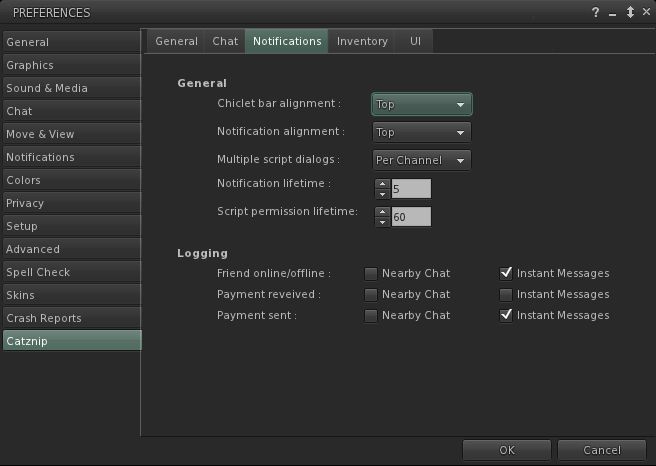
This release brings with it a tidy-up of the General settings tab in Preferences, and sees the Notifications options moved to their own sub-tab under Catznip, together with additional items, but little in the way of other major changes in layout.
New Notifications sub-tab
A lack of widespread updates to Preferences shouldn’t be seen as a sign that Viewer isn’t still growing a developing – as the next section shows, Catznip is being constantly enhanced. A stable Preferences floater is more a sign that the Viewer is maturing in a stable, smooth manner.
Script Recovery
The major new addition to Catznip is the Script Recovery feature. To quote from the Catznip blog:
“Ever crash or get logged out while editing a script and then lose all your work?
“Following a crash or forced disconnect you’re now presented with a dialog offering to recover the scripts you had open.
“This works for all scripts, everywhere, and as we found out while trying to take the screenshot for this release, is very robust and persistent. It won’t go away till you either recover or dismiss it .. even if you crash.”
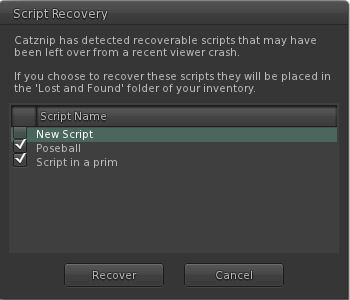
Catznip Script Recovery floater (with thanks to the Catznip team)
Script Recovery works by locally auto-saving open scripts every 60 seconds. Should the Viewer crash, scripts are presented to the user via the floater shown above, and optionally recovered to lost & found folder. Further:
The backup copy is only saved when the editor isn’t pristine
The backup copy is removed when the script has been successfully uploaded, or when the floater is closed.
Once would anticipate this finding favour among scripters, and is liable to be picked up by other TPVs down the line. However, full kudos and credit to Kitty and the Catznip team from bringing it into being.
Other Nips and Tucks
RLVa is overhauled with this release, with a number of FUI-induced bugs being eliminated. Specific updates include:
changed : flipped “RLVaEnableSharedWear” on by default
fixed : disabling a toolbar button doesn’t block the button’s commit signal
fixed : LLFloaterReg::toggleInstanceOrBringToFront() bypasses the blocked folder list and the validation signal
fixed : region “alerts” aren’t show location or show names filtered
fixed : various issues and enhancements relating to @showloc
fixed : the RLV API renames “Avatar Center” to “Root”
(from the Catznip blog)
Group Moderation gets a Catznip boost – with this release it is possible to directly remove someone from a Group by opening the Group Participants list and right-clicking against an individual name – the eject option will appear in the context menu.
There are a number of other nips and tucks to the Viewer which can be seen listed in the official blog post on the release.
Performance and Opinion
Based on 3.2.7 (or thereabouts), this release of Catznip runs extremely well on my standard PC; in fact, Catznip, as with Exodus, has tended to run somewhat better than other TPVs as a rule anyway; I’ve no idea why – it simply seems to like my PC. This release tends to continue the trend, and puts Catznip, tested against the current 3.2.6.248086 V3.2 release on the same sim with the same avatar load (albeit with different screen layouts, yadda, yadda), gave a pretty good run for itself in default mode – averaging some 32-33fps on the ground with 5 other avatars on the same sim while about 8-10fps faster at 390m. Enabling deferred and shadows easily halved these figures – with ground rates only just managing to stay in double figures.
Overall, another release that solidly builds on Catznip’s reputation, and which includes another series of smartly convenient extras that make the UI even more convenient to use in terms of direct access to functions and options. Not being a hard-core scripter, I have no idea how often crashes feature in terms of lost work, but as stated above, those that script from directly within the Viewer are liable to appreciate the Script Recovery function should they find their Viewer vanishing on them unexpectedly.
Catznip migrates to the V3 FUI with release of version 3.2.0, which comes in two flavours: R3 (without the LL OpenGL fixes) and R4 (with the fixes). Unlike the recent Dolphin and Niran’s releases, the release doesn’t add any new button positions or button options to the FUI, but instead offers some very nice features elsewhere.
The 3.2.0 R4 release installed without a hitch, and on launching displayed the now-familiar FUI, with almost all the buttons active by default, occupying the left and bottom sides of the window (only ABOUT LAND, BUILD, MAP, PICKS, PREFERENCES and SNAPSHOT are excluded).
New Features
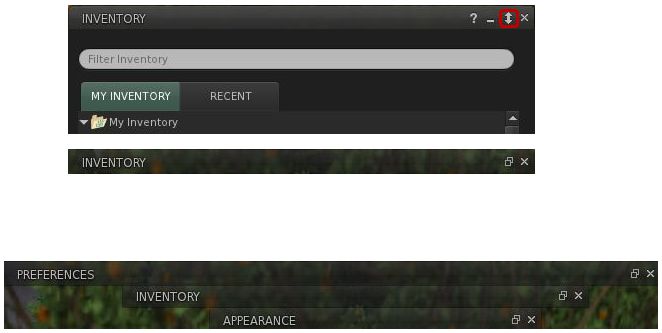
The most obvious new feature added to Catznip is that rather natty “collapse” button on the majority of panels / floaters. If you are using several panels and simply want them out of the way, but not actually closed (as you’re still using them), this button causes the selected panel / floater to collapse into a single line, allowing you to “stack” a number of panels and quickly swtch back and forth between them.Collapsed panels can be aligned to the top side of the screen (e.g. under the Navigation / Favourites Bar, if you use it), allowing you to present yourself with an alternative means of accessing those panels / floaters you routinely use.
The “collapse” button in the Inventory panel (top); the Inventory panel collapsed (centre); several panels collapsed (bottom)
Other key changes comprise:
“ChatTimestampSeconds” setting has been included to show seconds in chat timestamps (for nearby chat and instant messages)
An active group title drop-down to the group side panel tab, with the “” entry keeping the group active, but hiding the group title from your nametag
“Wear on Current Outfit” option has been added to the inventory category context menu; (replace) wears all items in the folder similarly to selecting all items and right-click “Wear”
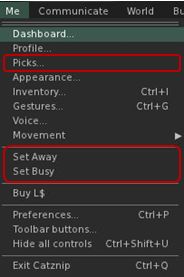
The Me menu has been revised to include a new option to open profile Picks directly, and to include the SET AWAY and SET BUSY options (no longer in a submenu as with V3) – see right
An “Expiration” and a “Clear History” option have been added to the recent people history gear menu
Optional skins have been removed from the installation folder
As well as making your own Picks directly accessible from the Me menu, the panel can now be displayed from your avatar context menu by right-clicking on your avatar and selecting MY PICKS from the context menu.
Preferences UI Updates
The PREFERENCES->CATZNIP–>UI tab has been extended to include a range of options, including:
Whether or not the “collapse” button described above should be displayed in floaters and panels
The ability to have the chiclet bar and / or notifications displayed at the top or bottom right of the screen
Whether item properties open in a separate floater or the inventory panel
The ability to set display lifetimes (seconds) for script permissions and notification
Catznip new custom UI options
Elsewhere Catznip sports the new translation options in PREFERENCES->CHAT (no surprises there) and gains the new snapshot floater that includes the option to upload snaps directly to your web profile feed.
Performance
On my PC, pretty much in line with the most recent V3 release and the likes of Dolphin 3.2. Frame rates on a sim with 5 other avatars hovered in the mid-teens, dropping sharply to single figures with shadows enabled. I have encountered a few problems in terms of settings not persisting between relogs (graphics would default back to HIGH and 128m Draw distance, while the Destination Guide insists it is open on my screen with each log-in). Other preferences (spell check language, button changes, etc), all persisted without incident.
Opinion
Yet another great Viewer from Kitty, with some very nice touches – did you know for example, that you can teleport directly from a landmark contained in a notecard in Catznip? Just open the notecard and right-click on the LM. Touches like this make Catznip fun to use (although I don’t use it nearly enough to discover all of them), and the move to the FUI, coupled with both popular TPV options (such as radar and Kitty’s own spell check) and the enhancements described here (as well as a number of bug fixes), continue to ensure Catznip presents a viable and well-considered alternative to the official viewer.
The Catznip Viewer has been extensively updated in a new 2.8 release (2.8.0 (3)). Not only have the RLV capabilities been updated and a host of new features added and others enhanced, Catznip becomes the latest SL Viewer to support mesh object rendering.
Installation and Start-up
Like all Viewer 2.x /3.x Viewers, Catznip installs direct from the box as a standalone Viewer, and offers no changes or surprises along the way.
On start-up, Catzip joins Dolphin 3 in becoming one of the first Viewer 2.x/3.x TPVs to display the new SL log-in screen with the Destination Guide, etc., options. It’s good to see this option gaining wider traction – and it would be a joy to see it in Firestorm. Departing from the official Viewers, but in keeping with Viewer 2.x TPVs, Catznip dispenses with the Basic mode and keeps both feet firmly planted in the Advanced mode.
Once logged it, the UI looks very similar to that of Viewer 2.x/3.x with a modified toolbar.
Catznip toolbar (top) and the current Viewer 3.x toolbar
Interestingly, there in no Speak button by default on the Catznip toolbar – because Voice is off by default. However, the toolbar does include an inventory button which, as with Dolphin 3, opens an inventory window floater independent of the Sidebar (which can also be open at the same time).
Another nice touch with Catznip is that media is turned off by default on logging-in – a wise move given there is, unfortunately, no media filter.
Given its heritage, Catznip also has the RLVa menu displayed in the menu bar by default, although as with most RLV-capable Viewers, RLV itself – updated to 2.7 – is disabled on such time as it is turned on through Preferences.
A full list of updates is available from the Catznip website (see the note at the end of this piece on Catznip 2.6), but here are the most visible / user-related changes / differences to the official Viewer.
Preferences
Within Preferences, Catznip has everything common to the official Viewer, plus a few little tidbits and nips and tucks of its own:
General Tab: The SHOW MY FAVORITE LANDMARKS AT LOGIN option is moved from the Privacy tab to the General tab, just under the START LOCATION drop-down
Privacy tab: adds options to select whether you wish to clear one or more of the following: web cookies, teleport history, Search history and / or Navigation Bar history before you click on CLEAR HISTORY
Spell Check: allows you to enable the spell checker (words incorrectly spelt underscored in red, right-click to select options for correction / adding to dictionary). Language can be set to one of four options: British-English; Canadian-English, Australian-English and US-English
Skins tab: provides Starlight and Stardust skin options in a choice of colours
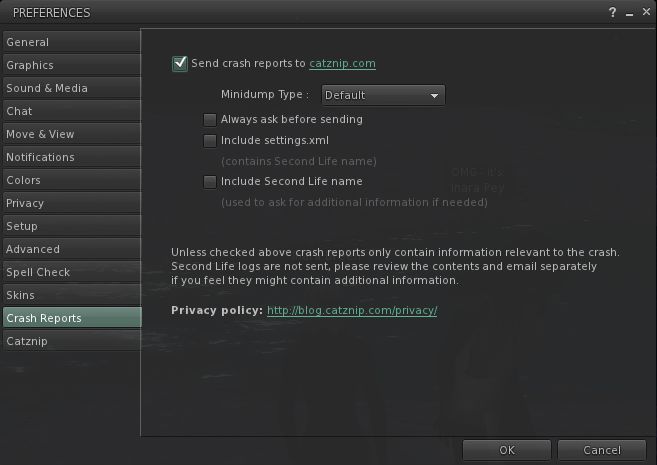
Crash reports tab: allows you to select whether or not crash reports should be sent to catznip.com, and the information the reports should contain
Crash report options
Catznip tab:
General: allows you to: use legacy multi-attach support (i.e. non-Linden “Emerald” system for multiple attachments); activate RLV support; adjust avatar offset; toggle object inspector on / off; toggle full screen windowed mode on / off
Chat: set your chat / IM preferences. An interesting item here is to enable a multi-line chat input option to the Nearby Chat floater
Multi-line chat input option
Inventory: allows you to: select the format preference for saving scripts (LSL or Mono); direct inventory you decline directly to trash; set notecard / texture options
UI: allows you to: display Group information either in the Sidebar or as a window floater; display an avatar’s Profile as a window floater or their Web profile (an additional nice touch is Web Profiles open on the ABOUT tab, rather than the person’s FEED tab – far more relevant); change the way in which script dialogues are displayed in the bottom tray; alter your My Outfits tab display between “Inventory” and “accordion” displays.
 Just as I pushed out the weekly Viewer round-up, Kitty and the gang slipped out Catznip R6, which nicely compliments (and perhaps complements!) R5. My timing sucketh.




 Inara Pey: Living in a Modemworld