This summary is published every Monday, and is a list of SL viewer / client releases (official and TPV) made during the previous week. When reading it, please note:
It is based on my Current Viewer Releases Page, a list of all Second Life viewers and clients that are in popular use (and of which I am aware), and which are recognised as adhering to the TPV Policy. This page includes comprehensive links to download pages, blog notes, release notes, etc., as well as links to any / all reviews of specific viewers / clients made within this blog
By its nature, this summary presented here will always be in arrears, please refer to the Current Viewer Release Page for more up-to-date information.
Cool VL viewer Stable branch updated to version 1.26.18.27 and the Experimental branch updated to version 1.26.19.29, both on October 8th (release notes)
Kokua, the viewer 4-style Second Life and OpenSim viewer has forked development between the two platforms.
The announcement came on Monday, September 26th, with lead developer Nicky Perian announcing the initial release of KokuaOS-4.1.0.38653 in a blog post thus:
Gavin Hird (macOS) is the lead developer for KokuaOS. This viewer is for OpenSim grids and is branched off at Kokua version 4.0.2. The default grid is set to 3rd Rock Grid as their support for Kokua and Imprudence extends back a number of years with the Hoagie sim contribution.
The reason for the split appears to be the increasing complexities in having a unified viewer code set supporting both OpenSim and Second Life, with Nicky noting:
While the ability to log on to Second Life is present, Jelly Doll support is not, and we expect more wandering away from Second Life as new features such as Bento Joints, and server infrastructure removal take place.
However, this shouldn’t be taken to mean that the OpenSim viewer will not be implementing changes made to the SL viewer; simply that only those changes which make sense to adopt will be carried forward into the OpenSim variant.
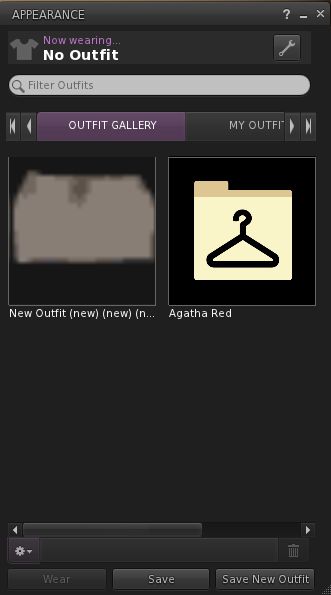
So, for example, KokuaOS-4.1.0.38653 includes the code from the Lab’s recently released Visual Outfits Browser, allowing OpenSim users to browse through their outfits using the thumbnail image feature, and the Windows version also includes the switch to using a media plug-in based on LibVLC to replace QuickTime.
Core updates with the OS-4.1.0.38653 release comprise:
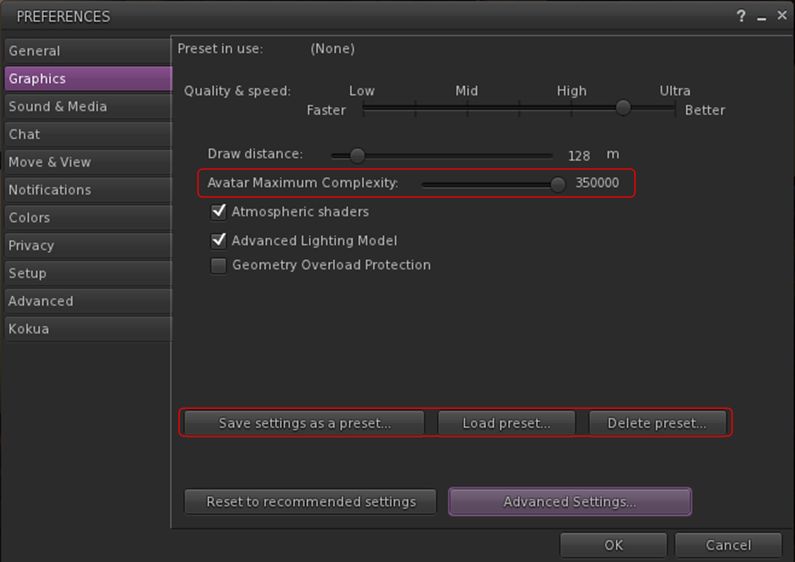
Kukua OS-4.1.0.38653 includes the Visual Outfits Browsers from Second Life, but not Avatar Complexity
There is no auto update capability. New updates must be manually installed and downloaded
Windows media content is handled by VLC media plug-in
Excluded SL updates comprise:
Avatar Complexity (aka Jelly Dolls) and Graphics Presets
Media content on Linux uses Gstreamer, but can be switched to VLC by editing skins/mime_types_linux.xml- You can upload and play back sounds of up to 60 seconds
The Mac OSX version now use a gamma of 2.2 which improves tonal range of the scene.
Microphone and volume can be tested without an active session
Additional functionality in support of the OpenSim Export function
Almost complete localisation of the viewer to German.
Full details of all changes and known issues can be found in the OS-4.1.0.38653 release notes, and the download is available via the Kokua downloads wiki.
Following this, on October 1st, Nicky announced the release of the Second Life version of Kokua, version 4.1.1.39717. This update see the removal of all code which facilitated the switch between logging-in to Second Life or to OpenSim grids, and brings this viewer to parity with the Second Life 4.1.1 code base and with RLV-2.9.20.1.
Core updates in this release comprise:
Most menu items with OpenSim specific functionality has been deactivated.
Windows media content is handled by VLC media plug-in
Kokua version 4.1.1.39717 for Second Life does include Avatar Complexity and Graphics Presets
Mac OSX Updates:
Use of a gamma of 2.2 which improves tonal range of the scene. System gamma of 1.8 has not been used by Apple since Mac OSX 10.6
Support for OSX 10.12, with a minimum requirement of OSX 10.9
OSX send and receive buffer size has been increased for better network performance
Advanced and Develop menus updated with new functionality and more relevant HUDs
Improvements to:
Voice floaters and functionality
Media playback functionality, including in the chat / IM floater
Mesh uploads
The world map and mini map
The built-in AO now shows which animation is playing
Own voice dot and speaker indicator no longer shown over avatar’s head (via Firestorm)
Almost complete localisation of the viewer to German.
Again, please read the release notes for all changes, updates and known issues with this release. The download is available via the Kokua downloads wiki.
The two versions can be run side-by-side, providing different installation locations are used (offered by default by the Windows installer) and chat logs.
This summary is published every Monday, and is a list of SL viewer / client releases (official and TPV) made during the previous week. When reading it, please note:
It is based on my Current Viewer Releases Page, a list of all Second Life viewers and clients that are in popular use (and of which I am aware), and which are recognised as adhering to the TPV Policy. This page includes comprehensive links to download pages, blog notes, release notes, etc., as well as links to any / all reviews of specific viewers / clients made within this blog
By its nature, this summary presented here will always be in arrears, please refer to the Current Viewer Release Page for more up-to-date information.
Black Dragon updated to version 2.5 “Ending Dragon” on September 30th, said to be the final update (release notes)
Kokua forked development paths between Second Life and OpenSim with the following releases:
Version 4.1.1.39717 for SECOND LIFE, released on Saturday, October 1st (release notes)
Version OS-4.1.0.38653 for OPENSIM, released on September 26th (release notes)
V1-style
Cool VL viewer Stable branch updated to version 1.26.18.26 and the Experimental branch updated to version 1.26.19.28, both on October 1st (release notes)
Lumiya, the go-to Second Life / Open Sim client for Android by Alina Lyvette has received a further set of updates and bug fixes with the rapid-fire release of version 3.1 and version 3.1.1.
Both updates appeared on Tuesday, September 27th, version 3.1.1 offering several bug-fixes following the initial 3.1 release, while the latter offers fixes, tweaks, improvements and new features.
The major improvement is actually under-the-hood, with the adoption OpenGL ES 3.0 support within Lumiya. For those running the app on a modern smartphone or tablet, this should see much improved rendering of meshes in the 3D world view, including mesh bodies and avatar attachments, and improvements in frame rates. It should also provide much better rendering of translucent mesh clothing, getting much closer to how it should actually look.
Alongside of this comes a number of UI / functional changes and additions, including:
The ability to edit parts of your Profile & add notes to other profiles
The ability to take and share snapshots
Setting your home location
Mesh body HUDs should now work as expected
Kemono avatars should now render correctly
Play sound stream moved to the Action menu (top right of screen) when in the Contacts / chat windows
Screen corruption in 3D view on certain Adreno 305 and 320 GPUs (e.g. Sony Xperia T3)
A fix for a crash when saving notecard data.
Some of these updates are looked at in more detail below.
Lumiya 3.1 should allow mesh body users to use their HUD systems – use pinch-zoom to enlarge the HUD if required
Profile Editing
The Profile editing options comprise: changing your Profile picture, editing your About details and creating / editing personal / private notes on either your own profile or the profile of another avatar (personal / profile notes only).
You can change your Profile picture, edit your About description and / or add personal notes in Lumiya
To do this with your own Profile, go to the menu (top left icon) then My Avatar > My Profile. This will open your profile. Tap Change Picture to open your inventory to select a new picture. To update your About description or personal notes, scroll down to the relevant part of your Profile and tap the Edit option. This will take you to an Edit screen, and open your device’s on-screen keyboard for editing.
Tapping the Edit options with About and personal notes will open an edit window and display your device’s on-screen keyboard
Add Notes to another Profile
To add personal notes to the Profile of another avatar, locate the avatar in your Contacts or through the Nearby option. Tap the avatar name, then tap their Profile icon (top right of the window). Their profile will open, and you can scroll down to Personal Notes and tap Edit.
Take and Share Snapshots
Lumiya 3.1 presents users with the ability to create and share snapshots from the 3D view. To take a snapshot, go to the 3D view and position your camera as required. Tap the Action menu (top right of the window) and then tap Share Screenshot…
This will take a picture of your in-world view, and then display your available options for sharing the image. Note that this might include options to save the snapshot to your device which are not supported at this time. You can, however, upload to Google+, Google Photos, etc., or send via e-mail, etc.
You can now take and share snapshots using Lumiya
Setting Your Home Location
When you wish to set home to the location you are in, open the Action Menu and tap Location Details. A Set Home option should be displayed on the right side of the location title bar.
Setting your Home Location from the Locations Details window
Feedback
I’ve not had the opportunity to play in-depth with the updates with this release, so this is very much a rapid-fire overview based on the time I’ve had available with Lumiya 3.1. During my 90 minutes (ish) for fiddling, I encountered no problems and happily edited my profile, updated some notes on another profile, and e-mailed a number of snapshots via Gmail. Testing my Maitreya HUD went well, with pinch-zoom I could enlarge it sufficiently to tap the tabs on it, mask / show parts of my body, etc. Understandably, rendering of the HUD was a little fuzzy and made reading labels a little difficult, but anyone with a reasonable degree of familiarity with their HUD shouldn’t find this a major issue.
Alina indicates that further updates are on the way, and what we have here sees Lumiya take a further step to becoming the indispensable option for Android users needing on-the-go access to Second Life and OpenSim (data charges allowing if not on wifi!).
Updates for the week ending Sunday, September 25th
This summary is published every Monday, and is a list of SL viewer / client releases (official and TPV) made during the previous week. When reading it, please note:
It is based on my Current Viewer Releases Page, a list of all Second Life viewers and clients that are in popular use (and of which I am aware), and which are recognised as adhering to the TPV Policy. This page includes comprehensive links to download pages, blog notes, release notes, etc., as well as links to any / all reviews of specific viewers / clients made within this blog
By its nature, this summary presented here will always be in arrears, please refer to the Current Viewer Release Page for more up-to-date information.
Project Bento (avatar skeleton extensions) RC version 5.0.0.319893 released on September 14 (download and release notes)
VLC Media Plugin Viewer RC updated to version 4.1.1.319856 on September 20 – replaces the QuickTime media plugin for the Windows version of the viewer with one based on LibVLC (download and release notes)
Cool VL viewer Stable branch updated to version 1.26.18.25 and the Experimental branch updated to version 1.26.19.27, both on September 24th (release notes)
Updates for the week ending Sunday, September 18th
This summary is published every Monday, and is a list of SL viewer / client releases (official and TPV) made during the previous week. When reading it, please note:
It is based on my Current Viewer Releases Page, a list of all Second Life viewers and clients that are in popular use (and of which I am aware), and which are recognised as adhering to the TPV Policy. This page includes comprehensive links to download pages, blog notes, release notes, etc., as well as links to any / all reviews of specific viewers / clients made within this blog
By its nature, this summary presented here will always be in arrears, please refer to the Current Viewer Release Page for more up-to-date information.
Official LL Viewers
Current Release version: 4.0.8.319463 (dated dated September 9), promoted September 15 – formerly the Visual Outfits Browser RC viewer download page, release notes
Project Bento (avatar skeleton extensions) RC version 5.0.0.319688 released on September 14 (download and release notes)
VLC Media Plugin Viewer RC updated to version 4.1.1.319583 on September 13 – replaces the QuickTime media plugin for the Windows version of the viewer with one based on LibVLC (download and release notes)
Cool VL viewer Stable branch updated to version 1.26.18.24 and the Experimental branch updated to version 1.26.19.26, both on September 17th (release notes)



 Inara Pey: Living in a Modemworld