We’re all familiar with the Second Life Viewer in one flavour or another. But what about the non-graphical “lightweight” clients that are available for accessing SL when using a “full” Viewer isn’t always an option?
Like the Viewer, these “lightweight”, or text-only clients come in a number of flavours, some of which can run on computers and others on mobile devices. Given I don’t have a suitable mobile device, I thought it might be interesting to take a look at the former, focusing on the Windows platform, and given some kind of insight into their features and capabilities for those who have never used them. So over the course of three articles, I’ll be taking a look at Libretto, Metabolt and Radegast – all of which are on the SL TPV Directory, and all are still very much under enhancement.
Radegast
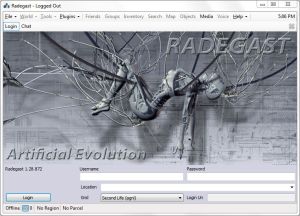 Radegast pitches itself as , “Light-weight feature rich non-graphical client, ideal for situations where full 3D rendering client is less than ideal option, for instance, an office environment, running on low performance computers and similar” – and given just what the client is capable of, this is something of an understated description.
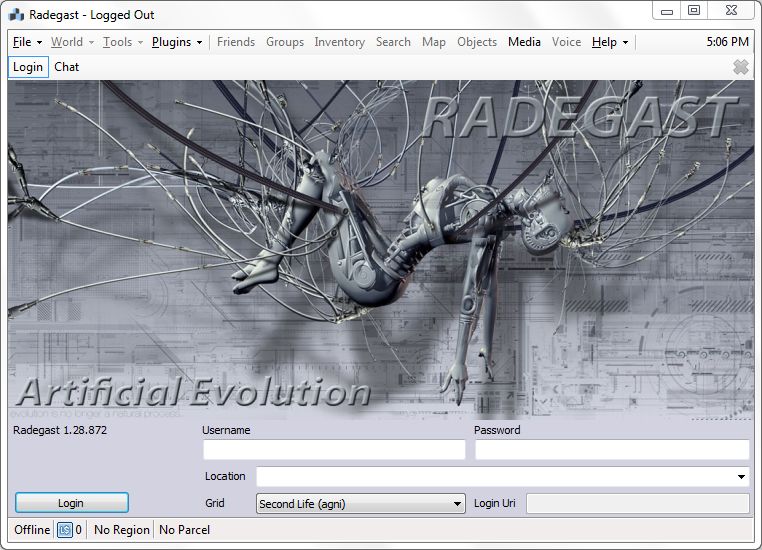
Unlike Metabolt and Libretto, which I’ve also reviewed as a part of this series, Radegast is available in both a Windows and a Linux flavour – although it is the Windows version that is investigated here. Comprising a downloaded .EXE installer, the client installed itself easily enough and when started presented a very professional-looking log-in / splash screen featuring a crisp and clean design.
Following Viewer 2’s example, Radegast dispenses with requesting your first name and last name in individual fields, but simply asks for your user name and password. Beneath these are options to enter / select your preferred log-in location and to select your preferred grid Use the drop-down list or supply the required uri; the grid will automatically be added to the list).
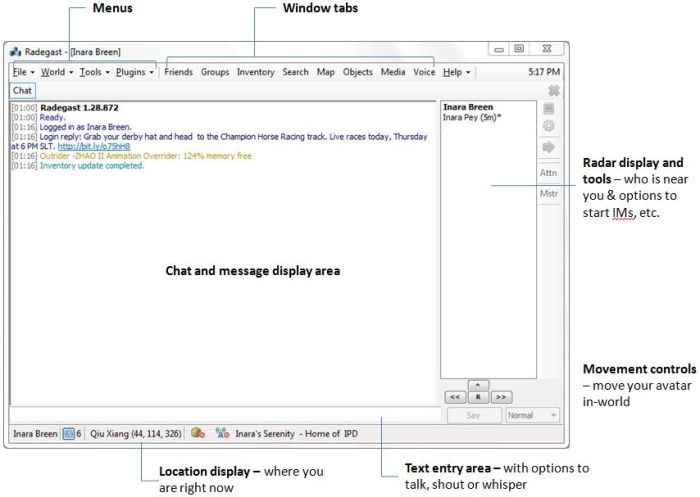
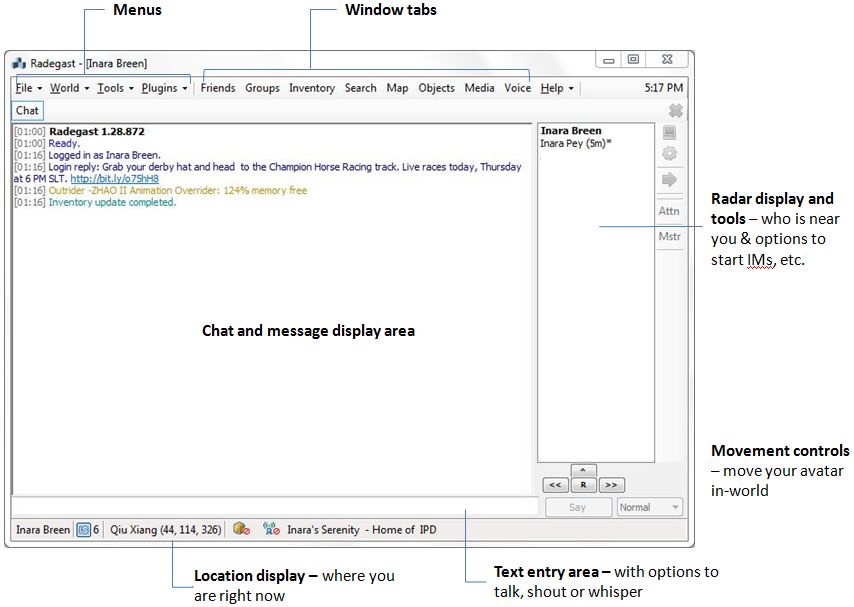
Once logged-in, you are transferred to the chat window, as shown below.
Menus
- File: provides options to upload images / objects, start another Radegast session (so you can log-in another avatar), the ability to disconnect / reconnect to SL with the current avatar without needing to manually log-in; and an option to quit Radegast
- World: presents a set of familiar in-world actions, such as setting Fly, Always Run, Ground Sit, Stand, Stop all Animations, set Busy / Away,create a landmark, teleport home, etc. Two interesting options are also offered: the ability to change your Display Name, and the ability to view parcel / region information (and, if you own the sim, to restart it)
- Tools: access a series of tools, the majority of which are self-explanatory, and of which My Attachmentsis most interesting, as this displays a list of attachments worn by your avatar, allowing you to:
- VIEW any attachment in an image window where you can rotate it, zoom in and out on it, etc.
- TOUCH it (if it is a scripted object) to access and use the associated menu – just as you would if you were using a regular Viewer.
- Plugins: Allows you to run / manage additional Radegast plugins (which fall outside the scope of this review in consideration of article length)
- Help: (extreme right of Radegast window) accesses a comprehensive set of help options, including a useful set of keyboard shortcuts.
Window Tabs
- Chat: displays the chat window, show above.
- Friends: opens the Friends tab. Here you can:
- IM a friend, view their profile (in a Viewer 1-style profile window), offer to teleport them to you, pay them, or remove them from your friends list.
- IMing a friend opens a new tabbed window to converse with them
- You can also set / revoke map, edit and see permissions against Friends from this tab
- Groups: displays a list of your current Groups, and allows you to start a Group IM, activate a Group tag, view Group information, leave a Group, invite someone into your Groups, and even create a new Group
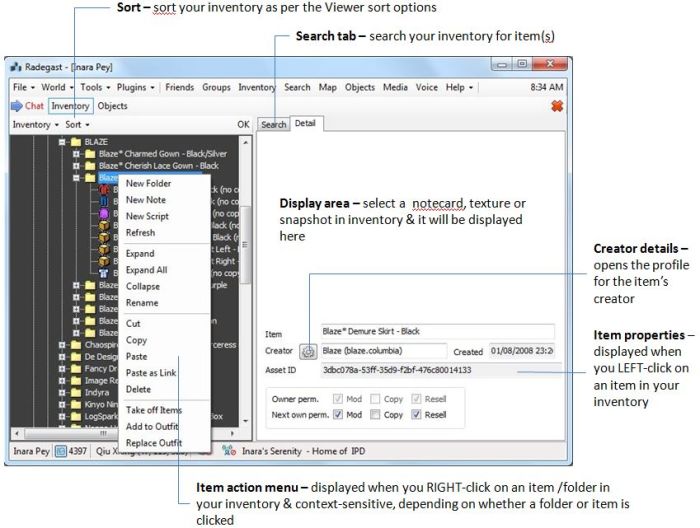
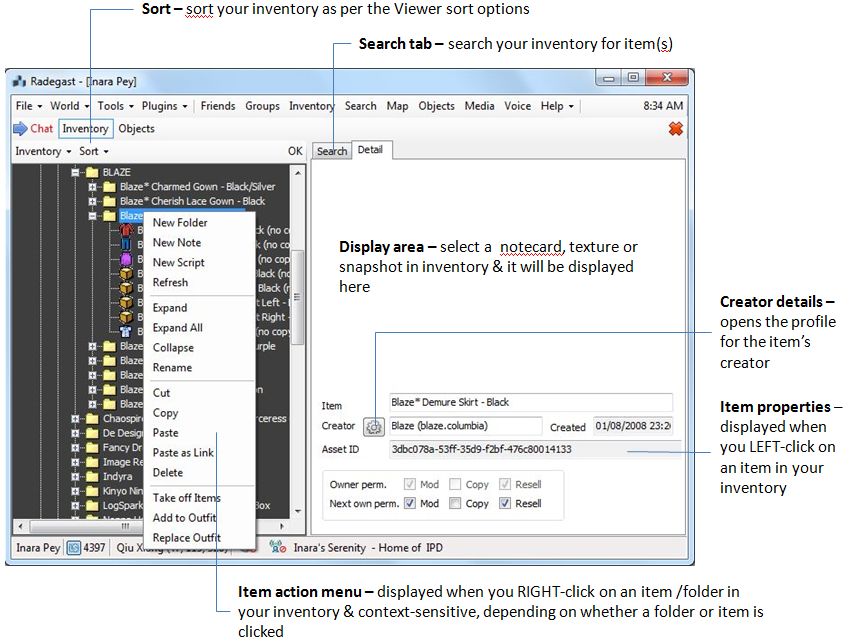
- Inventory: is a powerful window that allows you to view, sort and organise your inventory. In addition, you can use it to create new inventory items, wear or remove clothing / attachments, review information (creator, UUID, permissions, etc.) for a specific item (left-click to select) and transfer items to other avatars (permissions allowing). a search function is included to make locating objects easier
- Search: allows you to search for people, groups and places
- Map: accesses the SL world map and provides the same functions as a graphical Viewer
- Objects: accesses the Object Manager (see below)
- Media: accesses the parcel media stream controls, allowing you to set the volume, start / stop the client fro relaying local sounds, etc.
- Voice: accesses the SL Voice options.
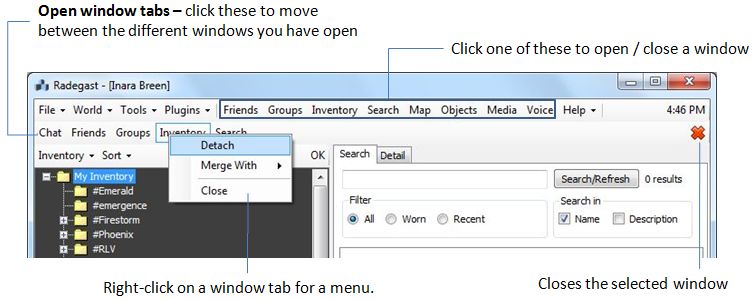
A point to note when using menu options that open a window or any of the window tabs is that when you open an additional window, a further tab appears under the Menu / Window Tabs area:
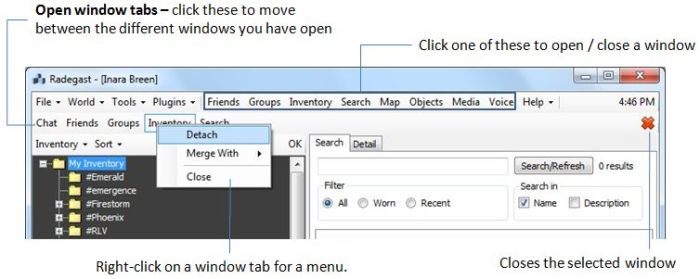
The menu displayed by right-clicking on a tab is particularly useful:
- Detach: detaches the window from Radegast and places it in an independent floater. Closed the floater (red X) to re-dock it with the main Radegast window
- Merge With: allows you to merge one window with another.
- This will change the Merge With option to Split, allowing you to separate the windows once more
- Close: closes the selected window (in addition to using the two options shown in the image above)
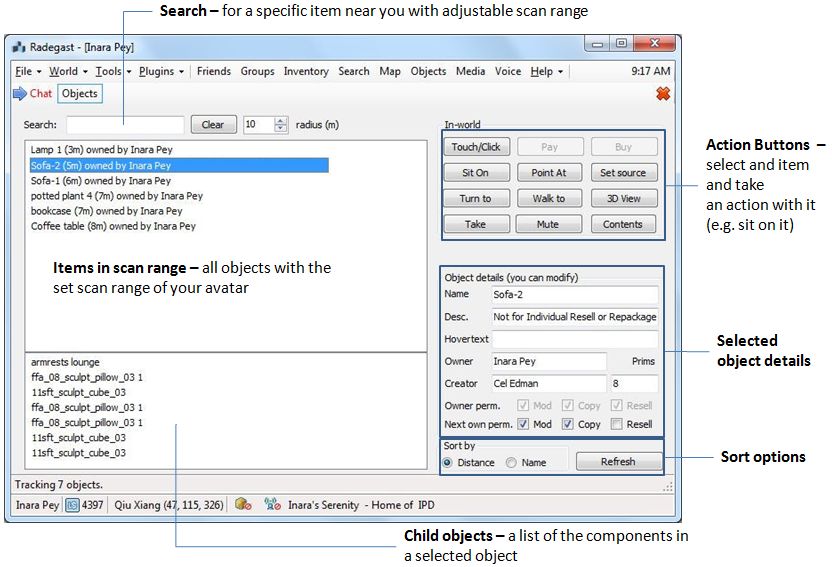
Object Manager Window
This is a powerful feature within Radegast when interacting with objects around you.
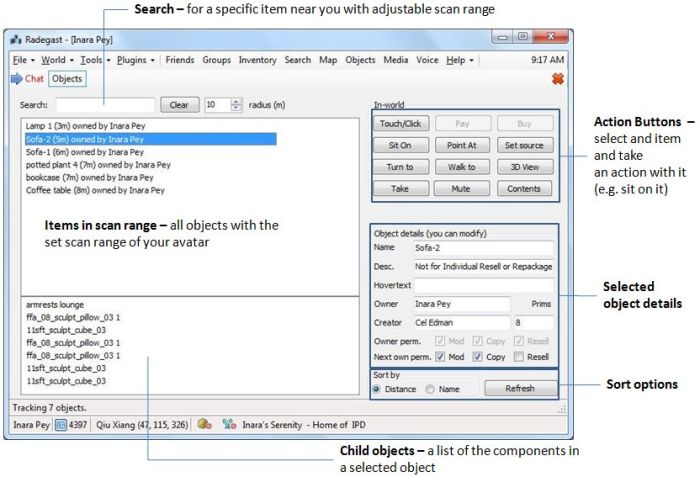
Using this tool you can:
- Scan your immediate vicinity for objects (set your desired scan range)
- Interact with objects using the In-world tools – walk to an object, point to it, sit on it, stand up from it, mute it, etc.
- If the object is touchable, you can use TOUCH/CLICK; if it contains any menu that is open to other avatars to use, the menu will be displayed & can be used just as you would in a graphical Viewer
- View the contents of an object (CONTENTS) to check scripts and other items it might contain
- Display a 3D image of the object (3D View) and:
- Zoom in/out on it, rotate it, etc., using the ALT key and your mouse
- Right-click on the image and display a list of actions you can take with it (sit on it, return it, etc.)
- View its wireframe, etc.
- You can additionally view details of a selected object and its child components.
Radar, Movement and Interaction
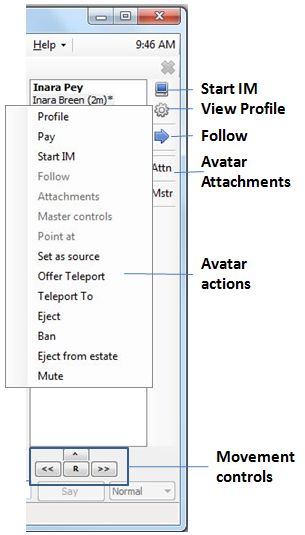 The radar can scan the entire sim you are on (up to 4096 metres altitute), and list all occupants by name and distance from you. Left-clicking on a name activates the radar buttons to the right of the radar list for that avatar. Alternatively, you can right-click on an avatar name and display a menu with more detailed options. In both cases, actions that cannot be used with the selected avatar (e.g. because they are out of range or you don’t have permissions for the action, such as Eject or Ban), will be greyed-out.
Movement can be handled in a number of ways:
- By using the Object Manager to select an object and using WALK TO to walk to it
- Using the Map to teleport to a selected destination
- Accepting a teleport offer from a friend
- Use the Radar to select someone nearby and then FOLLOW them
- Using the Movement keys, located in the Chat window, under the Radar options: ^ moves your avatar forward; << turns your avatar to its left; >> turns your avatar to its right; R moves your avatar backwards.
An interesting means of direct interaction with another avatar, beyond chat and IM, is the ATTN/Attachments button/menu option in the Radar display.
This opens a window listing all attachments the selected avatar is wearing, together with a VIEW button, which will display a 3D image of the selected objected when clicked, much like the 3D VIEW button in the Object Manager. If the attachment is touchable, an additional TOUCH button will be displayed; if the attachment contains any menu that is open to other avatars to use, the menu will be displayed & can be used just as you would in a graphical Viewer. This makes it possible for users to enjoy something of a higher level of personal interaction possible when using Radegast when compared to other text-based clients, and could be useful in certain situations.
3D Scene Rendering
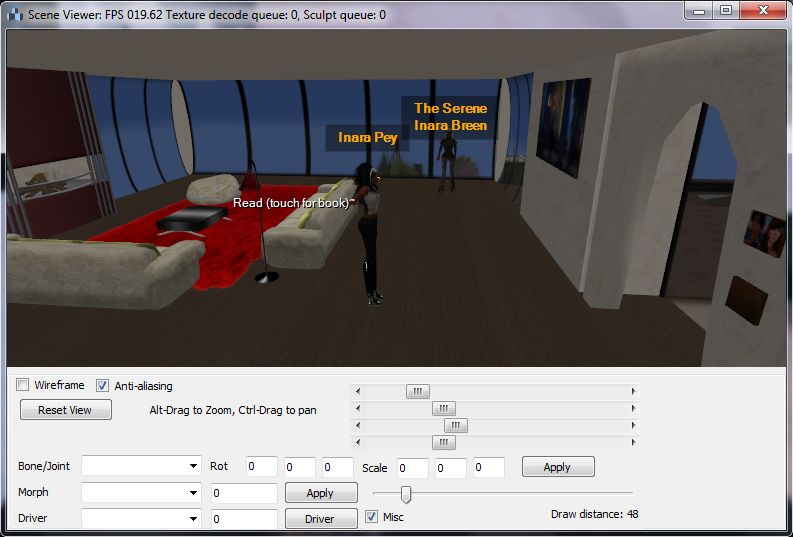
However, for those who would still like a visual element to their Second Life experience, but who cannot use their Viewer for whatever reason, the Radegast team is currently developing a “3D Scene Viewer”. This is quite simply stunning, even in the pre-release mode. Simply put, it gives you a window on what is going on around you in-world.
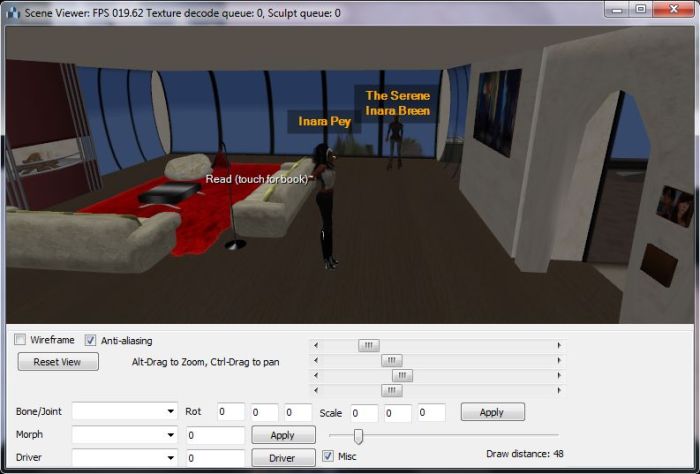 You can pan, zoom, and move around the image, see other avatars moving around, and your own avatar will respond to your use of the movement keys in the Chat window. Much of this capability is still under development, so I couldn’t test it thoroughly without encountering crash issues, but again, it looks set to be an excellent addition to Radegast that will lift it head-and-shoulders above other text clients; although whether one can continue to call it a “thin” client is technically debatable – with the rendering option running, Radegast’s memory usage ballooned from 79,392K to a huge average of 239,536K (which compares to Firestorm’s 381,080K and Phoenix’s 198,324K averages). One cannot fault the feature on this, however. I’ll be curious to see how this develops and whether it’ll be able to handle things like mesh.
Radegast and other Grids
A major plus point for Radegast is that it supports other grids, making it a good option if you have a presence on several grids and need a text-based client to access them. I tried Radegast with both InWorldz and Avination – neither of which are on the default list of grids, and logging in to both was as simple as giving my avatar details, selecting CUSTOM from the list of grids and then entering the login URI for the grid to which I wanted to connect. Once the grid details had been entered, the grid name was also automatically added to the drop-down list of available grids.
Website
The Radegast website matches the client – very well put together, informative and demonstrating that the client has both a strong development cycle. The wiki provides a good measure of documentation and a nice range of screenshots, although elements of it (such as the help pages) have been deleted (presumably to be re-written), and the link back to the main site didn’t work in Chrome.
Use and Opinion
Radegast is polished, professional and impressive. While the client can look a little complex, getting to grips with it is easy, and it offers considerable flexibility of use. I’ve by no means covered everything in this review; rather I’ve covered the features and capabilities that are liable to see the most use, and haven’t mentioned things like speech recognition for voice commands or the ALICE AI plug-in. If you want to find out about these, and other features, I suggest you give Radegast a go; you’ll find it a fascinating tool to play with.
I found very few issues with the client, although response times when logging-in to other grids were noticeably slower by comparison to SL, but that was about it. As expected, sitting on a object can sometimes be touch-and-go unless there are handy-dandy poseballs – but that’s to be expected.
Overall, I personally put this as the best of the current non-graphical Windows clients on offer via the TPV Directory; ideal for those with a presence on multiple grids, or who find themselves in environments where logging-in to SL using a full Viewer isn’t possible, and who wish to be able to enjoy a level of direct interaction with friends – something that will be enhanced even further once the 3D scene rendering is fully incorporated into the client.
Related Links


 Inara Pey: Living in a Modemworld